Steps
Overview
The Flow modules allow you to use the steps defined in the Step module or add a new step to the project within the module.
Create a step in the Flow module
To create a new step in the Flow module, follow these steps:
-
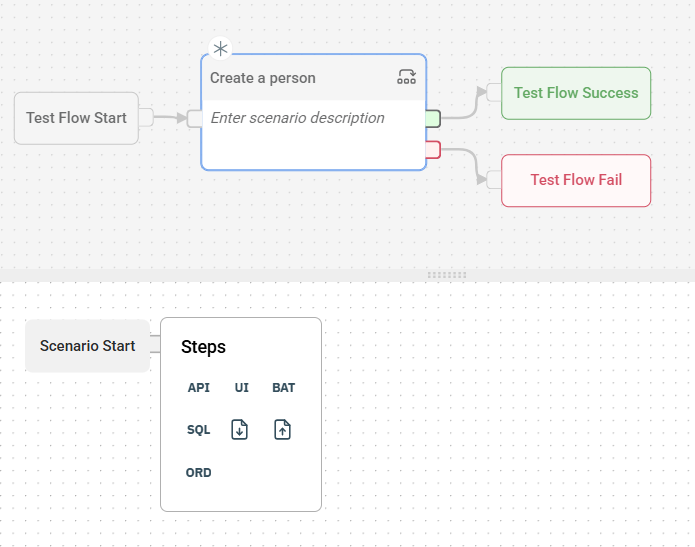
Click the scenario where you wish to create a step.
-
Select the step type.
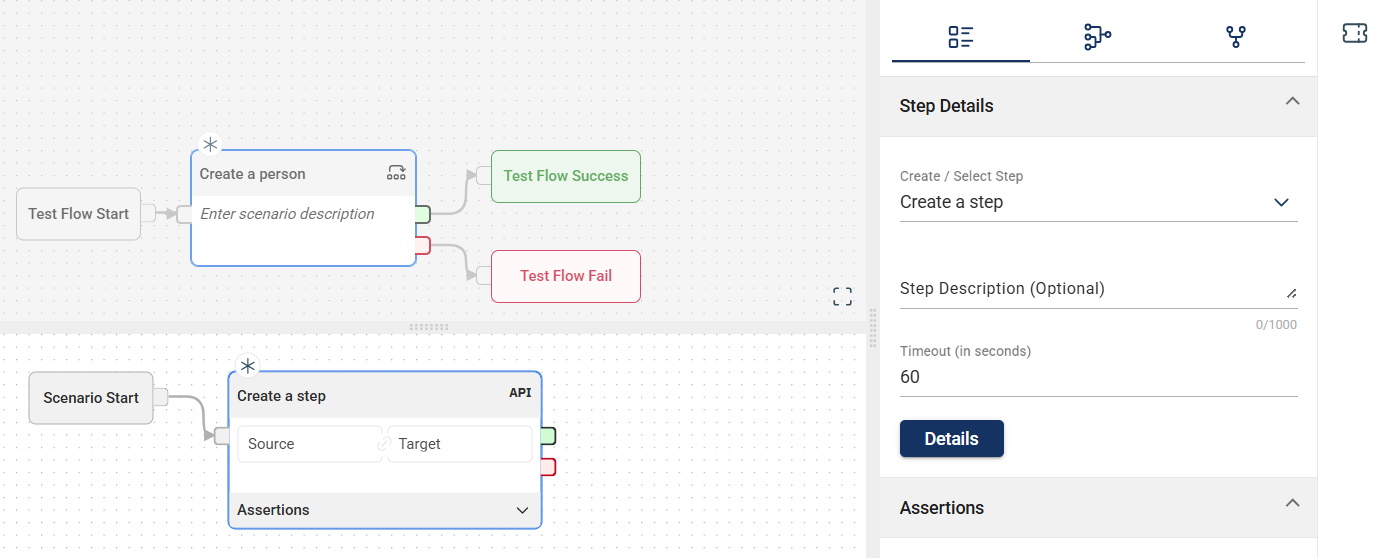
- Select the newly-created step node to see the details.
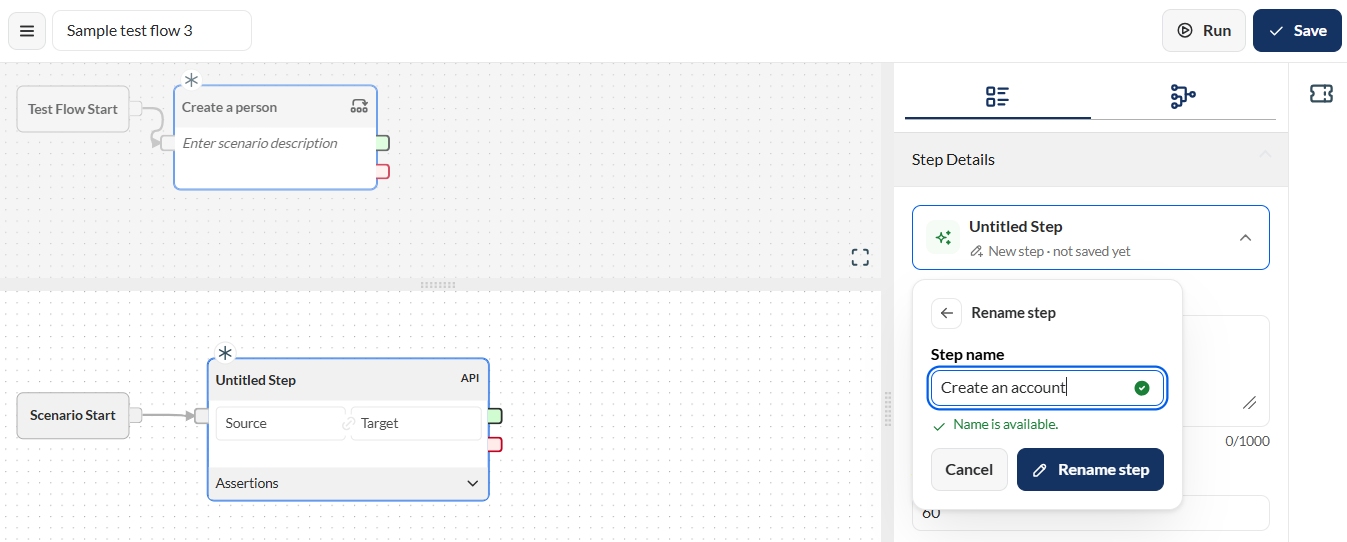
- Rename the step node.

- Enter a valid name in the Step name field.
- Click the Rename button.
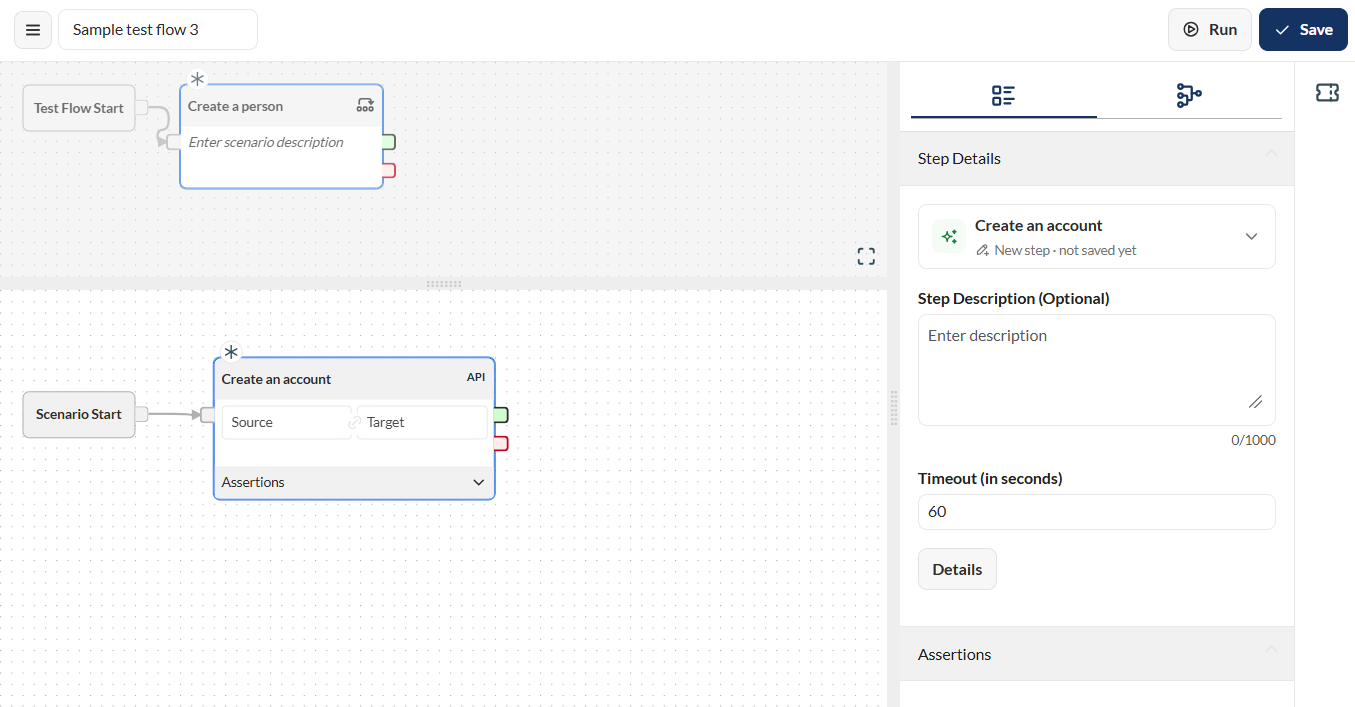
- Add the necessary details by clicking the Details button. For more information, see:
-
Optional. Enter valid values in the Source and Target fields. For more information, see Step sources and Step targets. You can also add new steps following the newly-created one.
-
Click Save.
Link steps
You can link steps to pass parameters to each other. However, you can only link steps that are part of the same scenario.
Step sources
The following are the possible sources for a step:
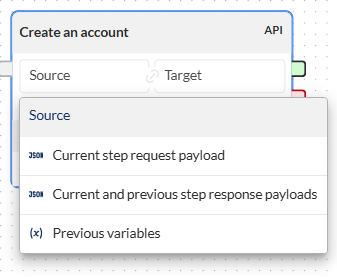
| Source | Description |
|---|---|
| Current step request payload | Uses the value of a JSON node from the current request payload as a source for the selected step. |
| Current and previous step response payloads | Uses the value of a JSON node from the previous and current response payload as a source for the selected step. |
| Previous variables | Uses the value of a test flow variable defined in the step prior to the selected step. |
Step targets
The following are the possible targets for a step:
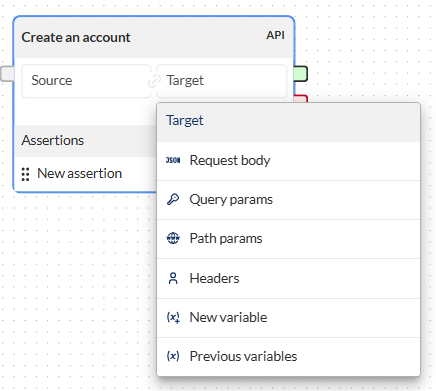
| Target | Description |
|---|---|
| Request body | Uses the value of a JSON node from the current request payload as a target for the selected step. |
| Query params | Assigns the value of the source to a query parameter defined within the selected step. |
| Path params | Assigns the value of the source to a path parameter defined within the selected step. |
| Header | Assigns the value of the source to a header. |
| New variable | Creates a new test flow variable as the target for the selected step. |
| Previous variables | Uses a test flow variable defined prior to the selected step or scenario as a target. |
Modify a step in the Flow module
To modify a step in the Flow module, follow these steps:
-
Click the step type link on the upper-right corner of the step node.
-
Click the edit icon.
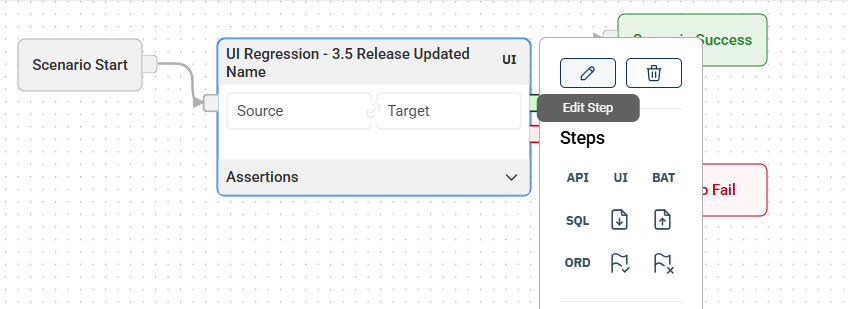
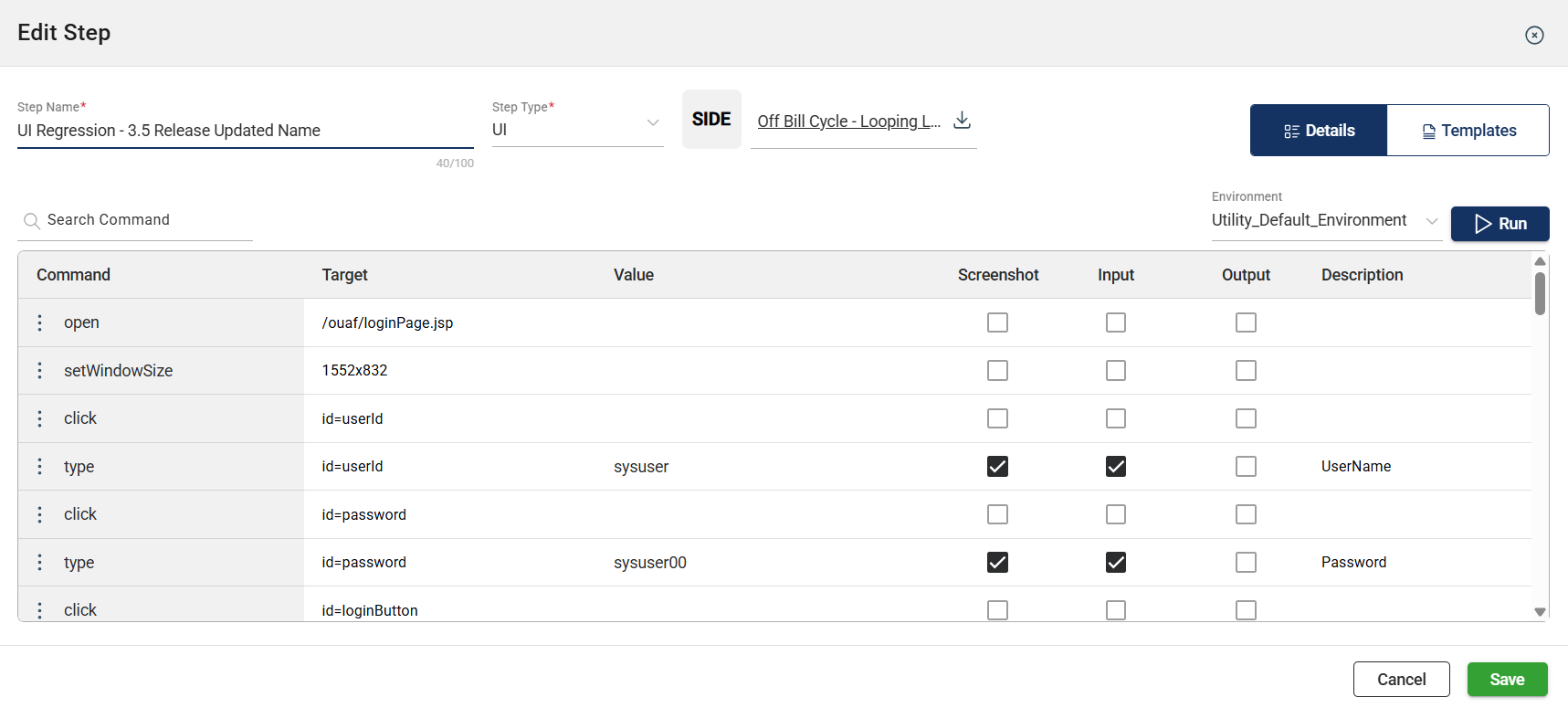
- Make the necessary changes in the Edit Step window.
Clone a step
To clone a step, follow these steps:
-
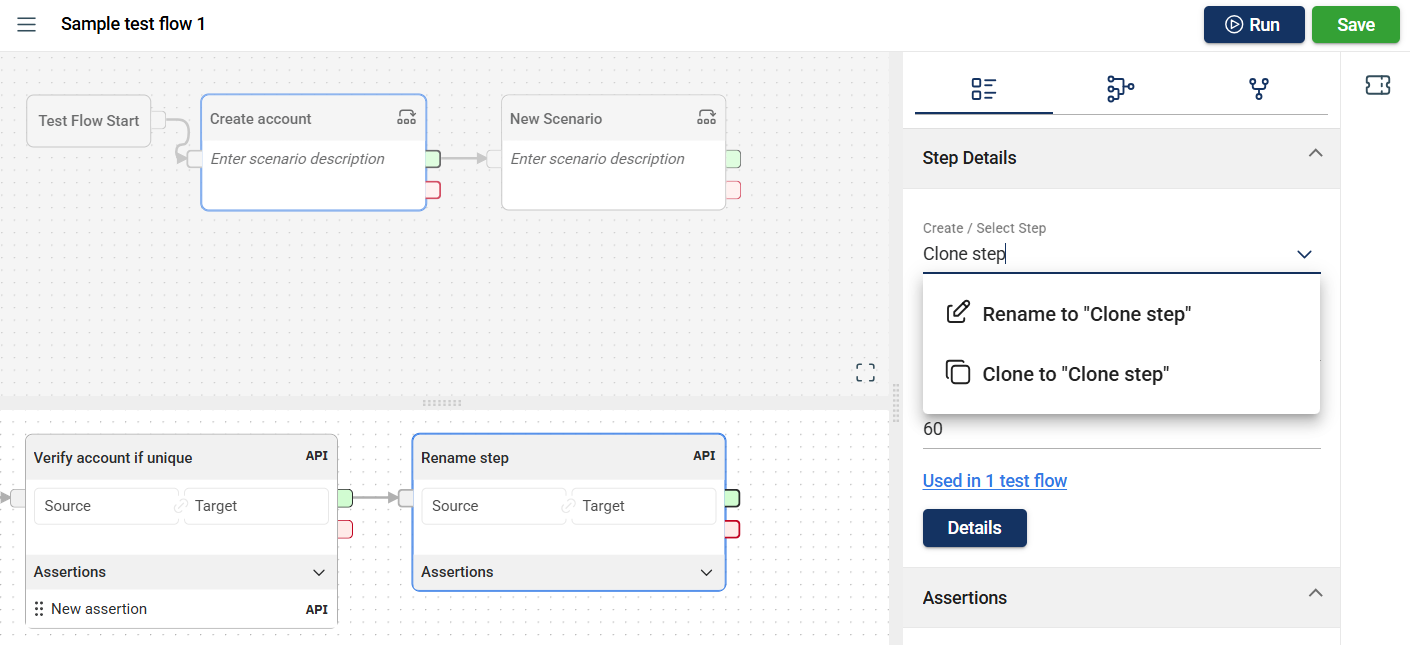
Select a step you wish to clone.
-
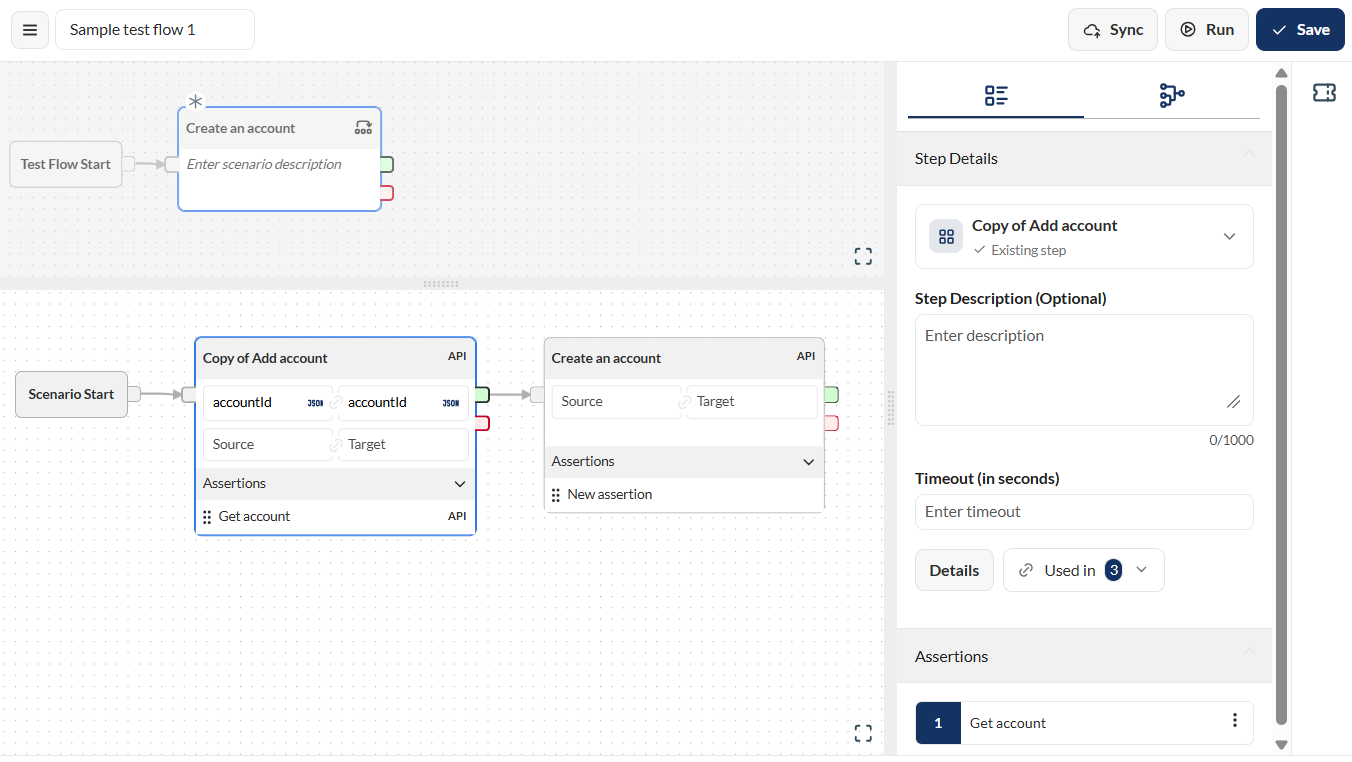
Click the step dropdown in the Step Details pane.
-
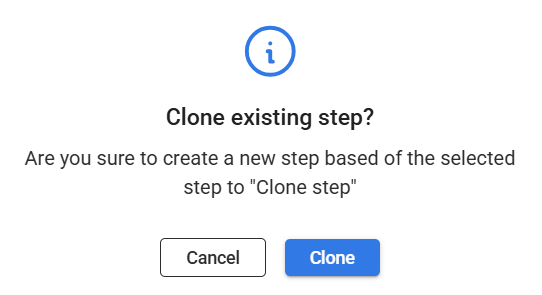
Select Create new from <name of the selected step>.
-
Enter a valid name in the Step name field.
-
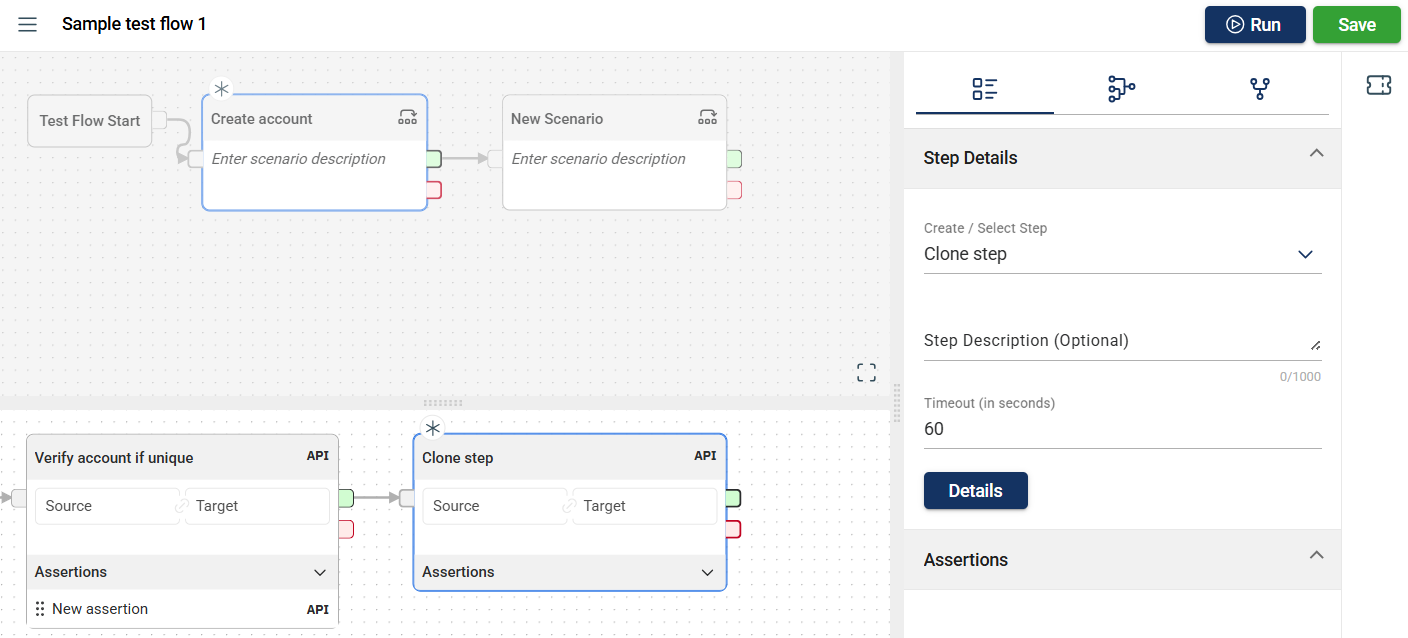
Click the Create copy button.
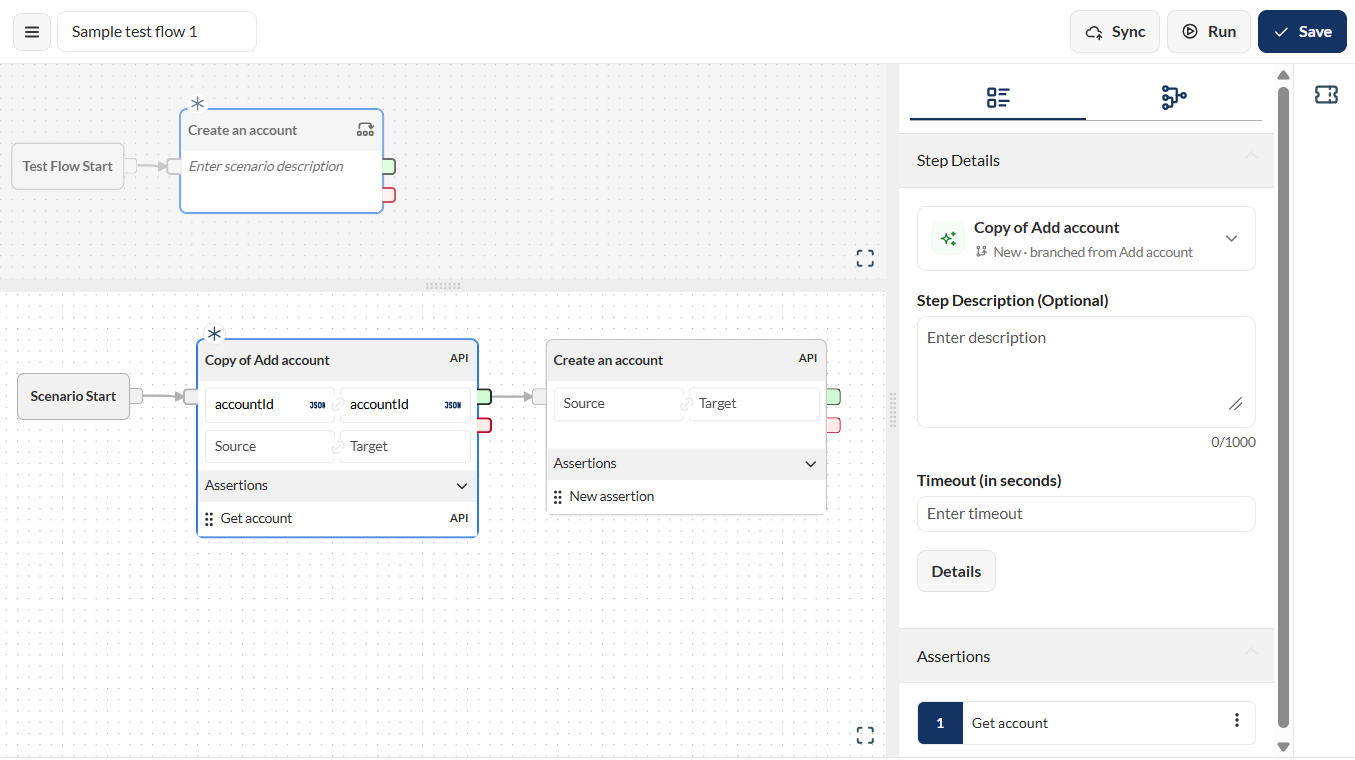
The cloned scenario replaces the older scenario.
Delete a step
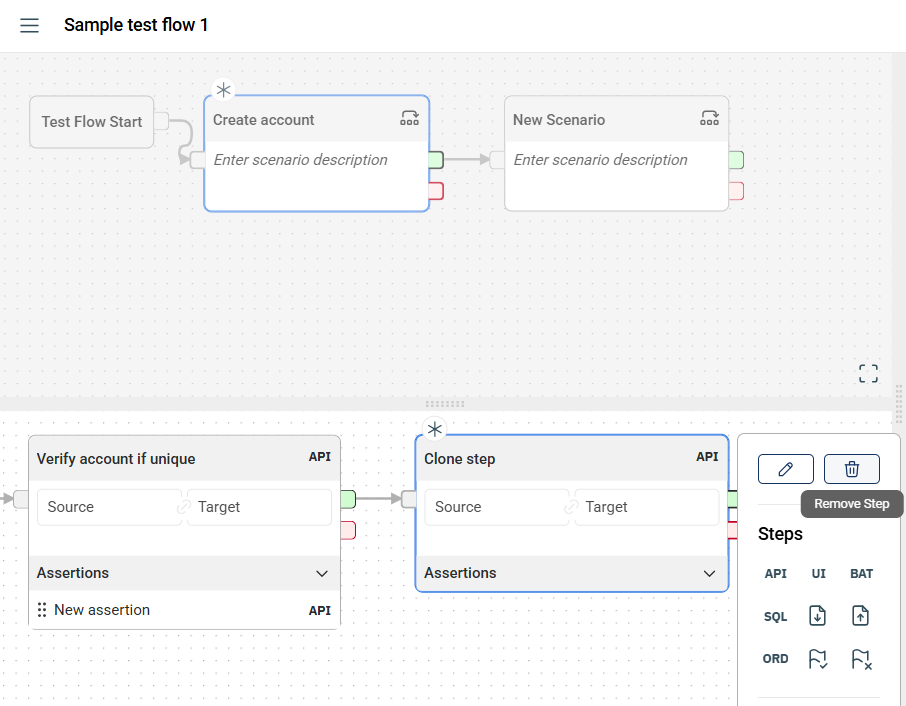
To delete a step, click the step type link on the upper right corner of the step box. More otions are displayed, click the Remove Step icon.
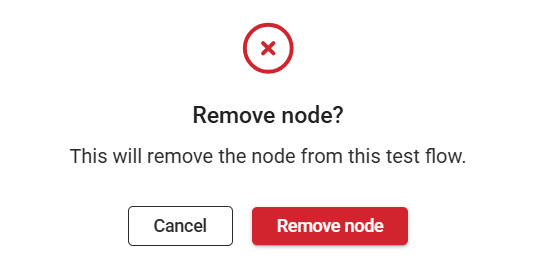
A confirmation popup window will be displayed. Click the Remove node button.
Steps usage
In the step usage tab, all the flows using the selected step node are displayed.
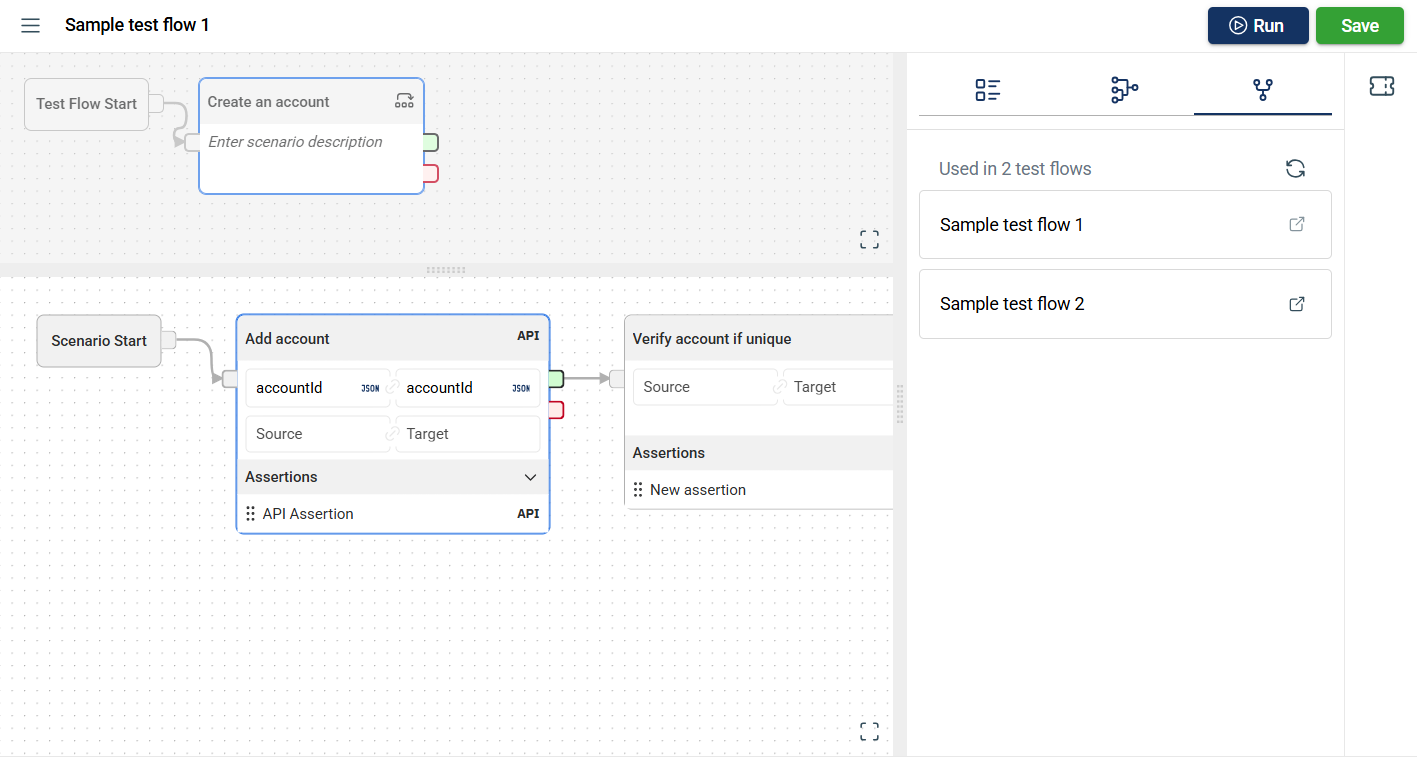
When the hyperlink is clicked, a new tab will open displaying the selected flow.