Dataset
Overview
A dataset is a collection of input data used for the parameters included in a test flow. First, you must define your test flow in the Flow module and ensure that the steps added to each scenario have a well-defined template. The templates for all the Steps in the flow will be used to create your dataset.
View
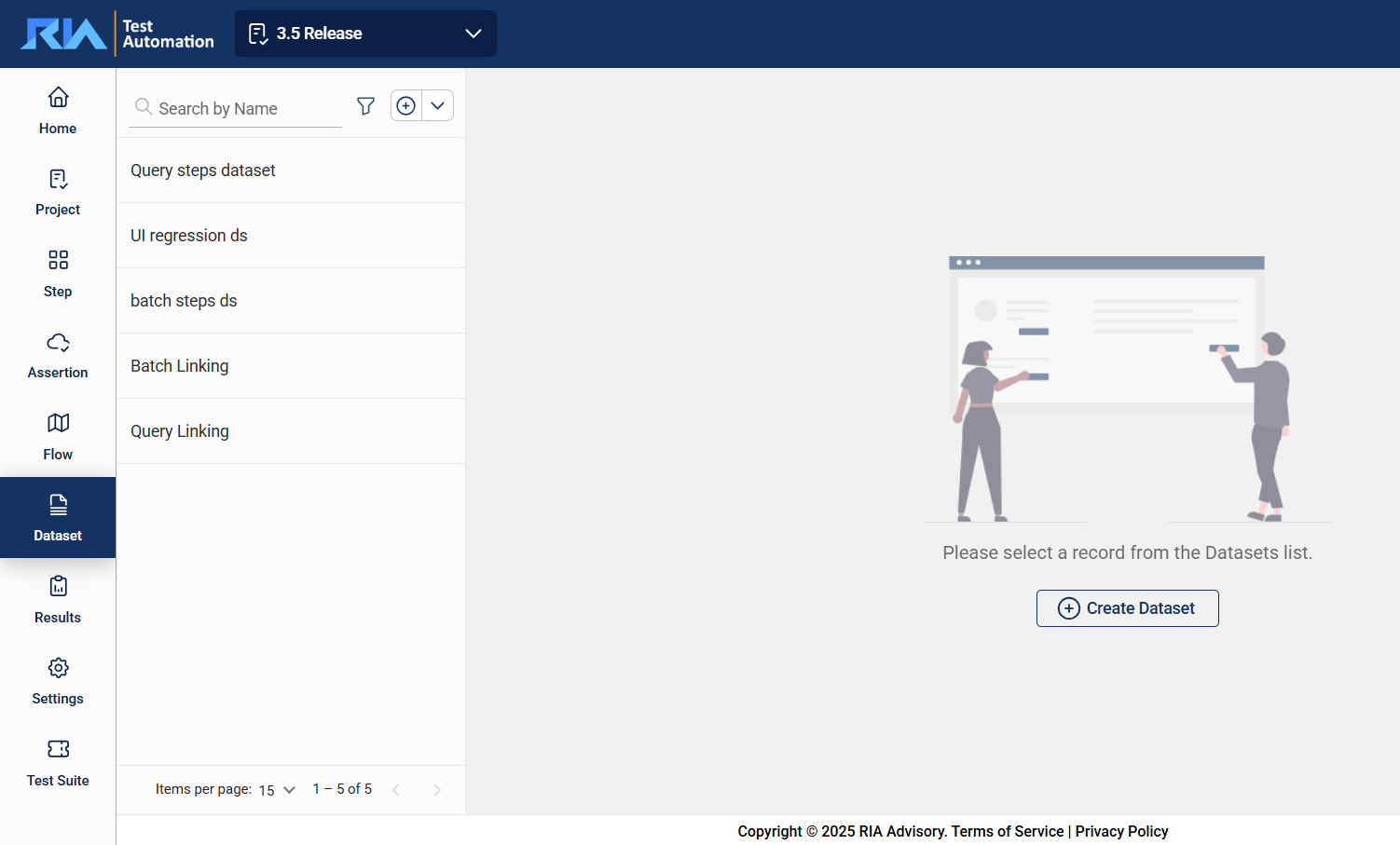
In the upper left corner, select your project from the Select Project dropdown list. Only the datasets associated with the selected project are displayed on the left pane.
Edit a dataset
To view or modify the details of a dataset, select the dataset from the left pane that lists all datasets associated with the selected project. You can change any detail by directly editing the corresponding field. Ensure to click Update after making your modifications.
Search
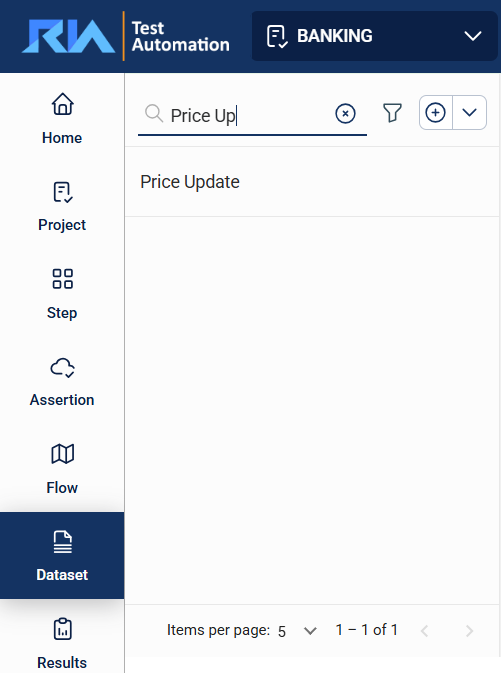
The search feature allows you to filter the list of datasets by providing a keyword or the full name of a dataset. Only the datasets that match the provided keyword or name will be displayed in the view.
Filter
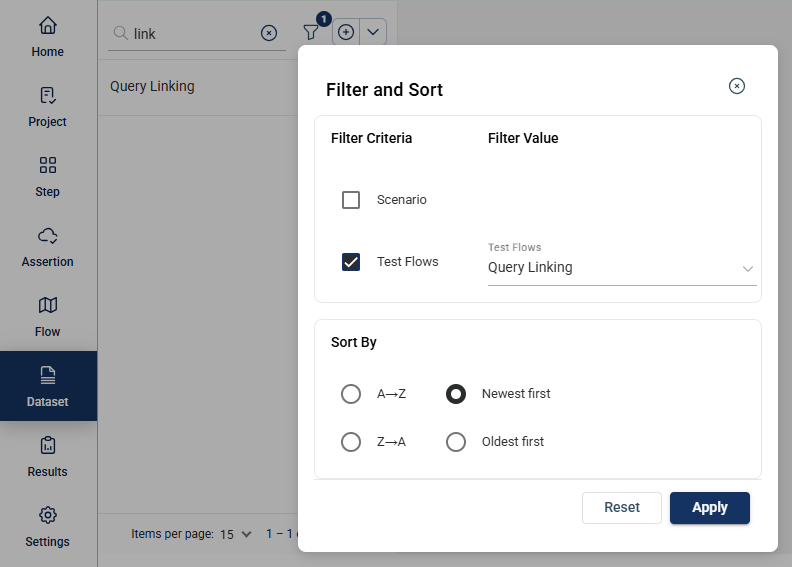
Click the  icon to display additional filtering and sorting options. For filtering, a dropdown list of available filter parameters will show all associated values for the selected project and version.
Create a dataset
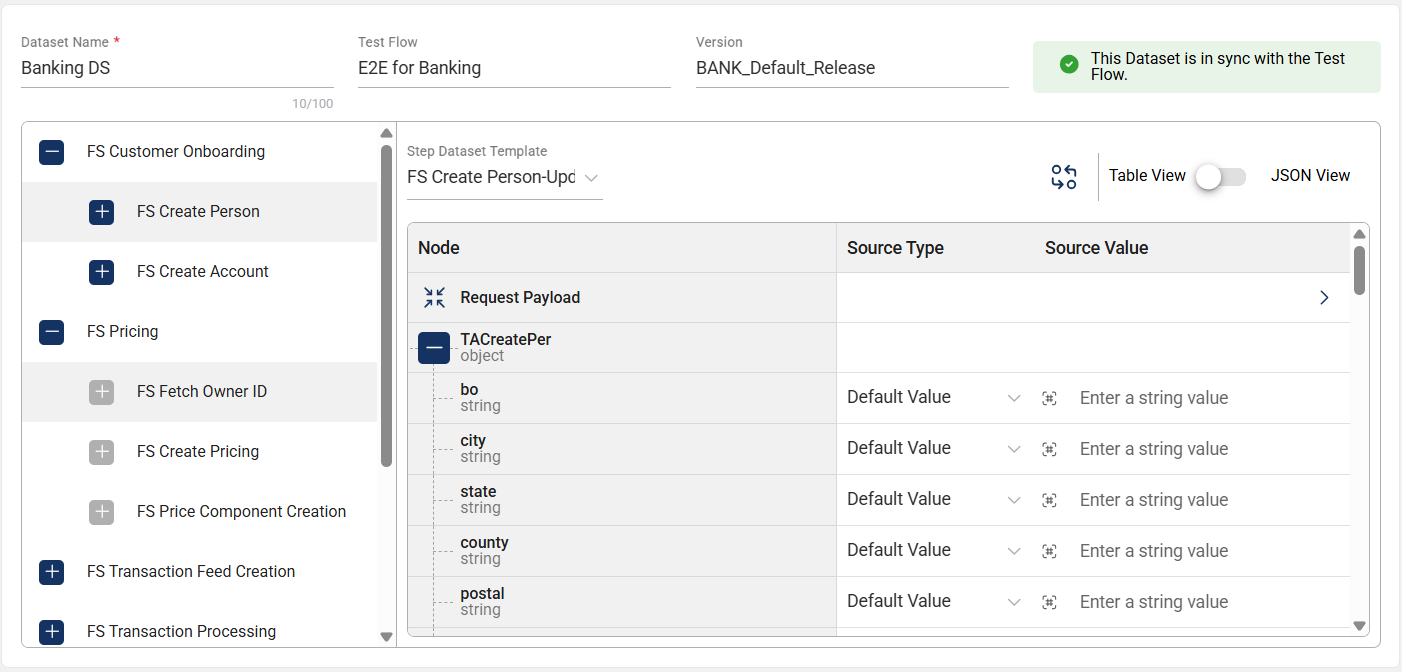
To create a dataset, click on the  icon on the top left pane and enter valid values to the following:
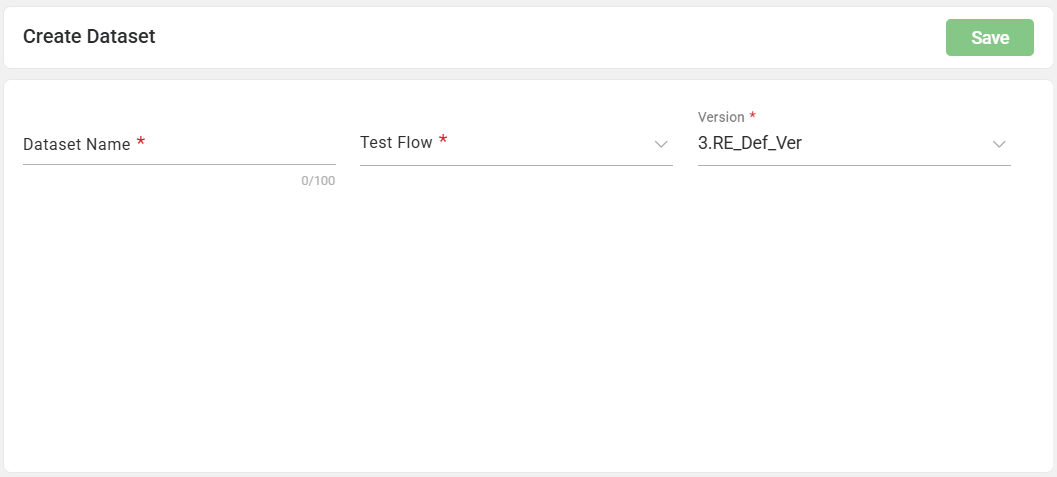
After the filling out the following fields, it should look like this:
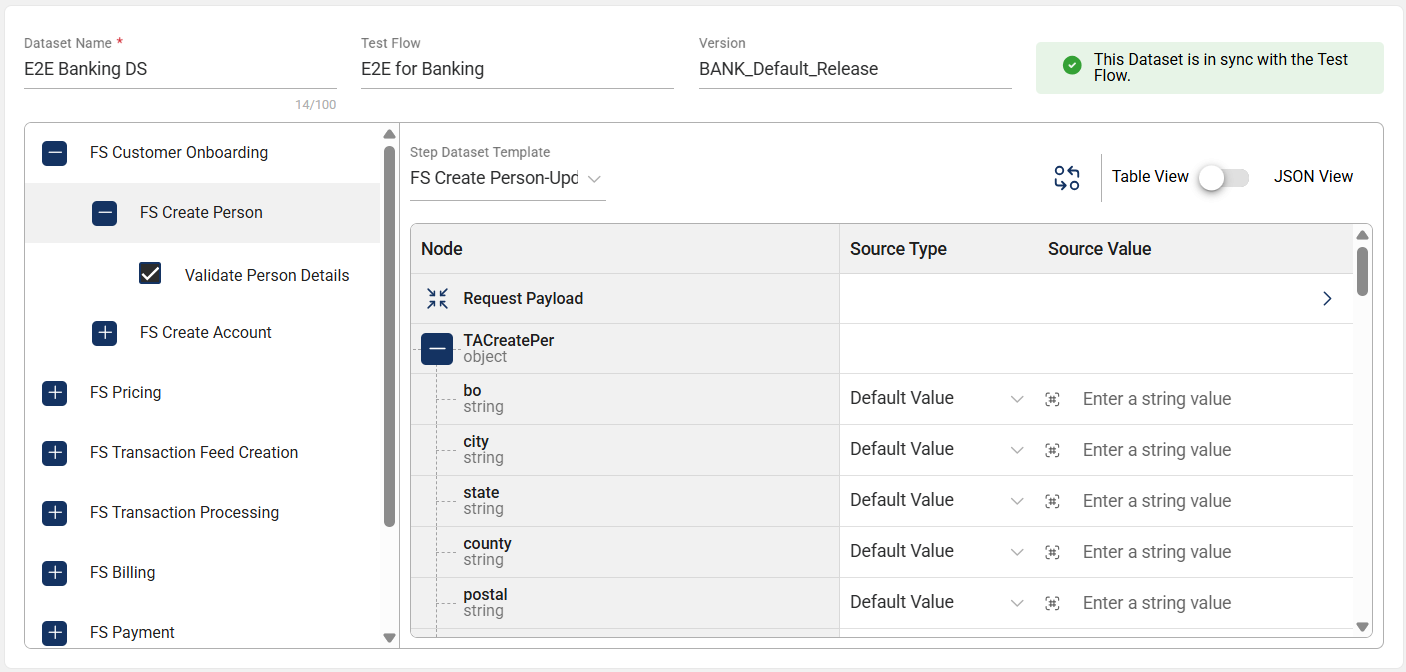
| Field Name | Description |
|---|---|
| Dataset Name |
Name of the dataset. Mandatory: Yes |
| Test Flow |
Dropdown list displays all test flows defined in the
Scenarios and
Steps associated with it. Mandatory: Yes |
| Step Dataset Template |
To view or modify a dataset template, first select a scenario and then choose the corresponding step.
Next, select a template from all the templates defined for the chosen step. After selecting a template, the Request payload will be displayed. Mandatory: Yes |
| Source Type |
Specifies the type where the parameter will get its value. Possible values are the following:
|
| Source Value |
Specifies the value to be used by the parameter. To modify the pre-defined value of a project variable source, select a variable from the dropdown list. To modify the pre-defined value of a static variable source, directly enter the new value in the textbox. Mandatory: Yes |
Pattern value
A validation pattern is defined for the source input to ensure that users provide a value each time the dataset is configured. The entered value must conform to the specified format or regular expression.
To quickly access supported pattern formats, click the </> icon to open the list of available pattern templates. You can browse the list or use the search field to locate a specific format.
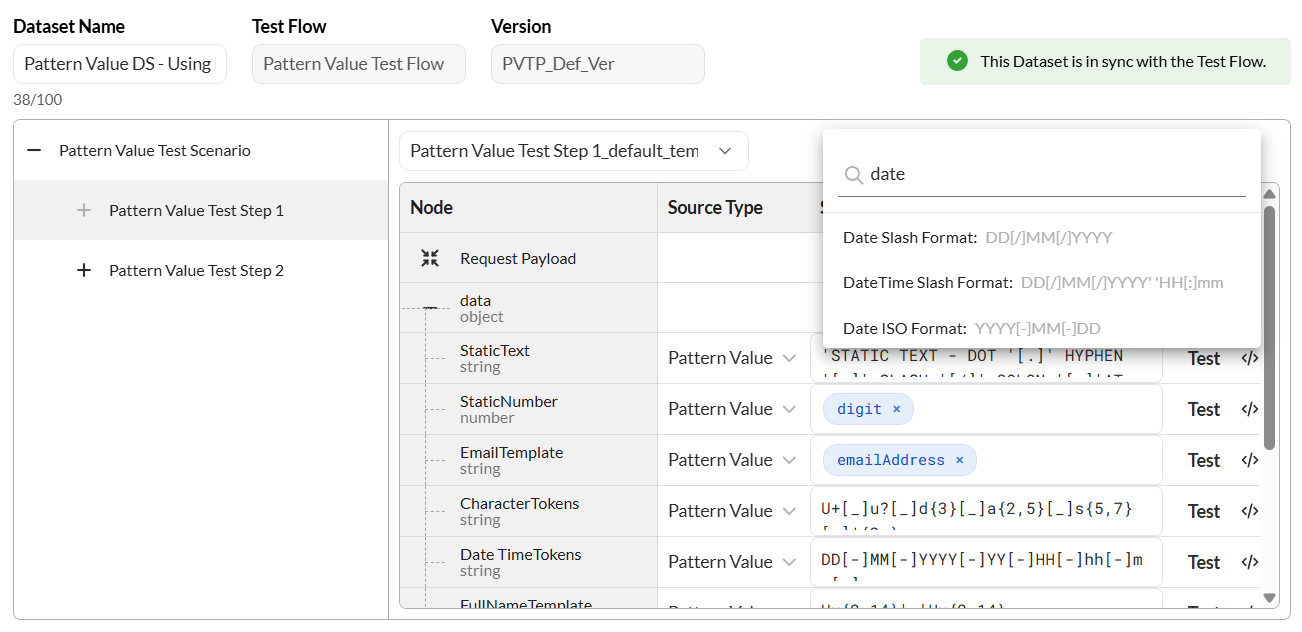
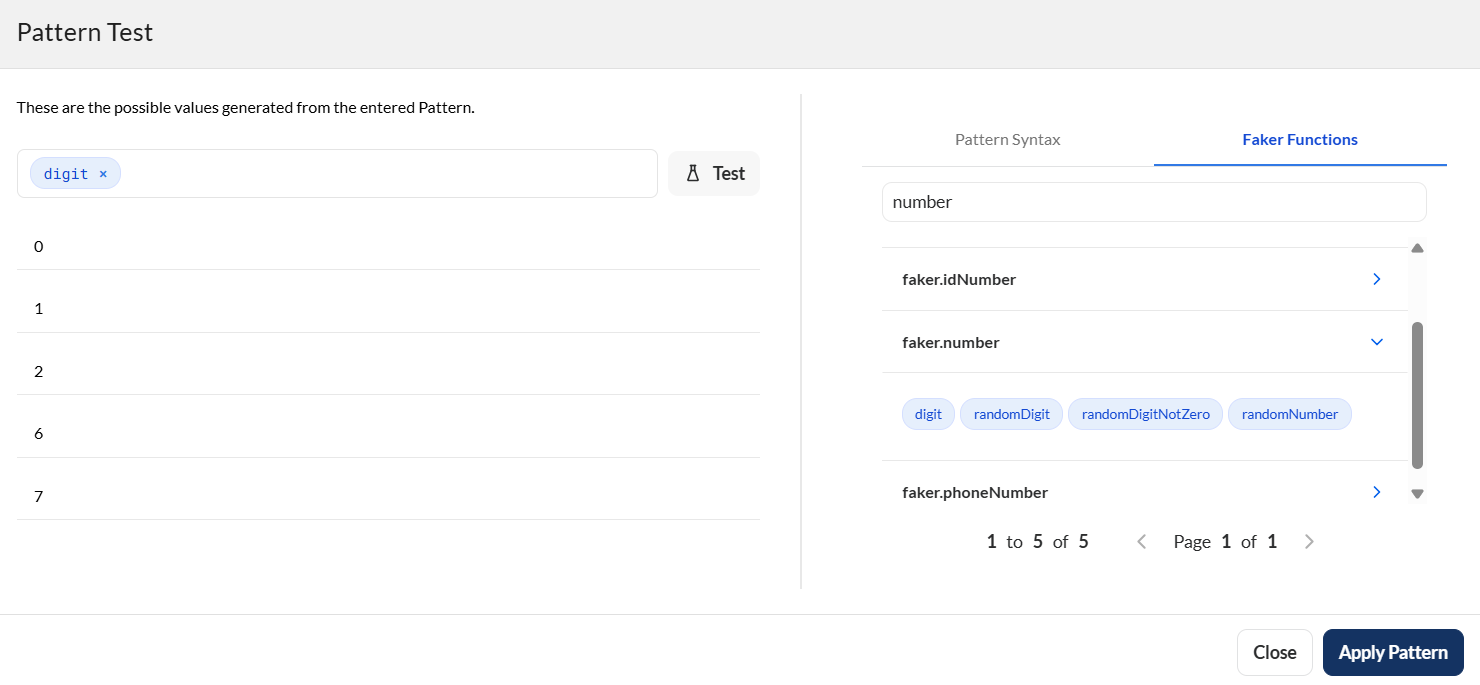
If the required pattern is not available in the template list, click Test to open the Pattern Test dialog. You can define and validate a pattern using either of the following options:
- Pattern Syntax – Enter the desired pattern syntax in the textbox on the left pane. You can refer to the syntax reference in the right pane for guidance. Click Test to validate the pattern against sample values, then apply it if the results are correct.
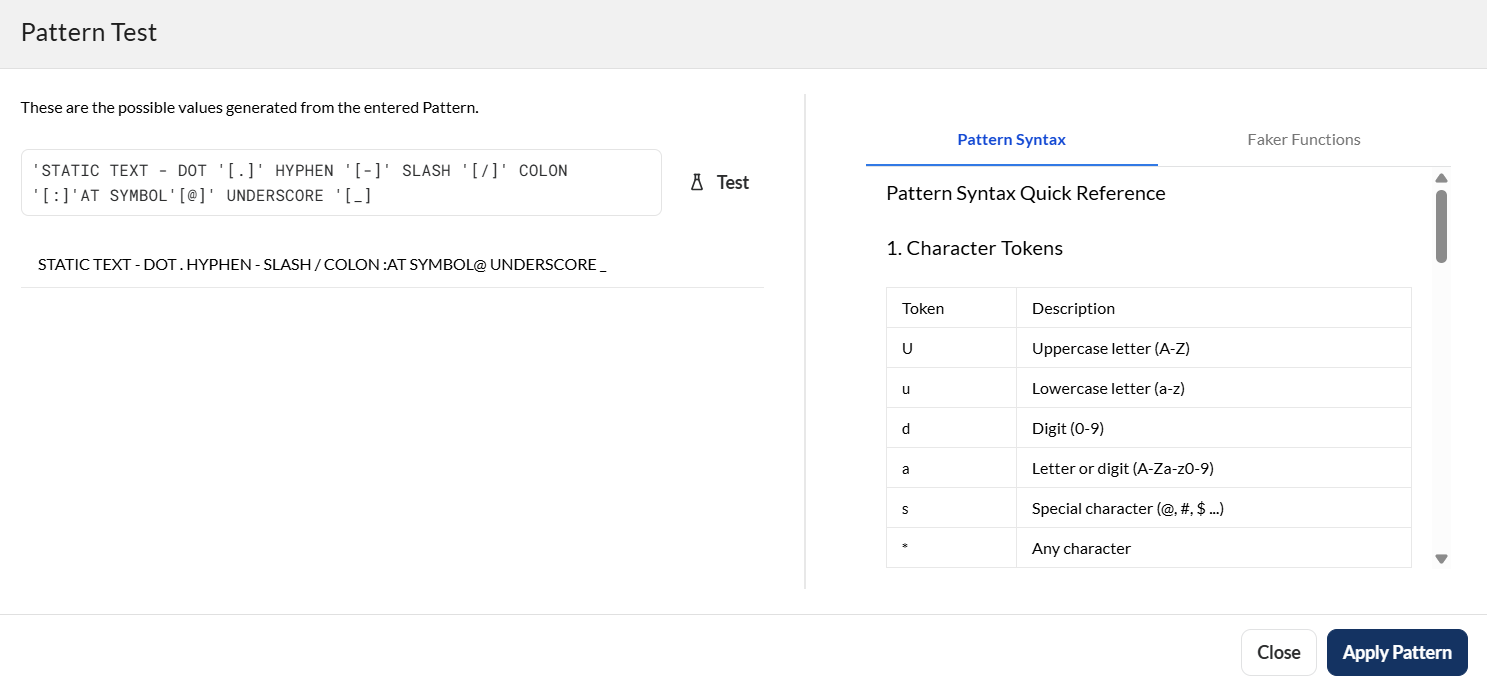
- Faker Functions – Browse the list of supported faker functions that generate realistic sample data for testing. Search for the function you want to use, then click Test to validate the generated values and apply the pattern.
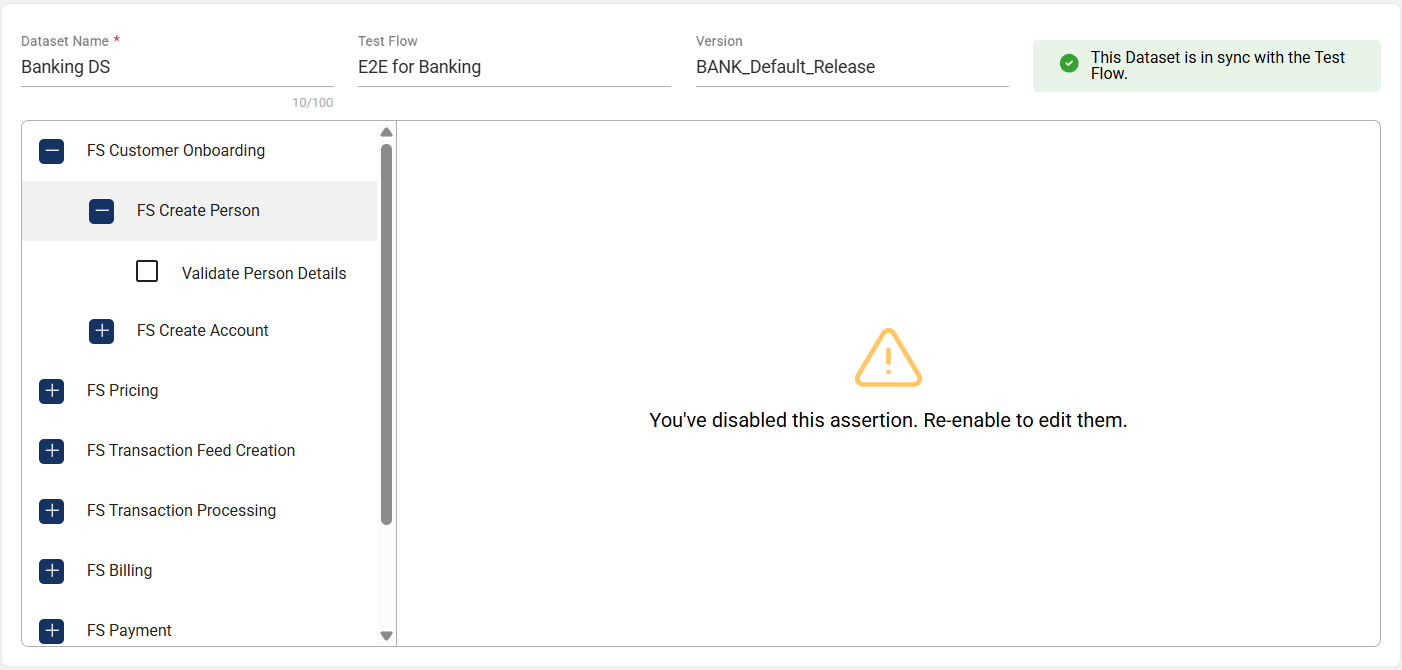
Enable or disable assertion
To disable an assertion and exclude it from the flow execution, untick the assertion.
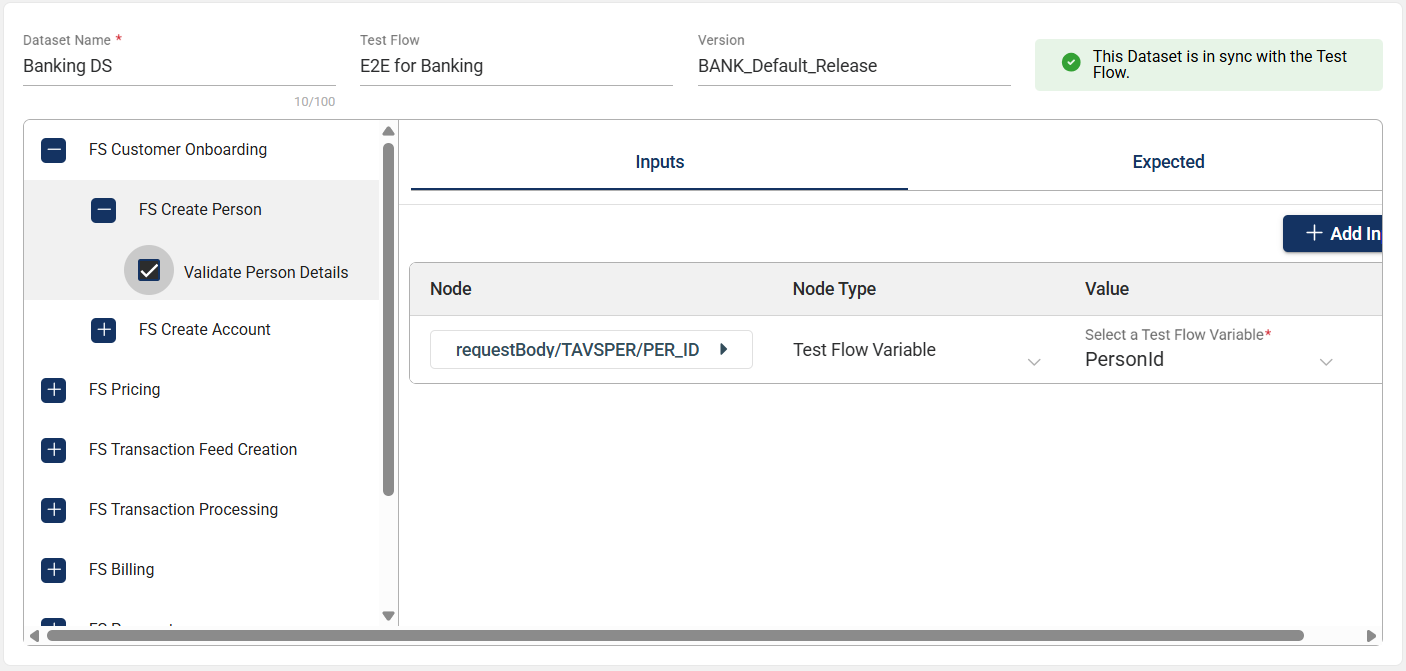
To enable it again, just tick the assertion.
Sync dataset
When a step is deleted or added in the Flow module, the dataset will display a message indicating it is not synced. By clicking View Details, a list of the deleted or the added steps is displayed.
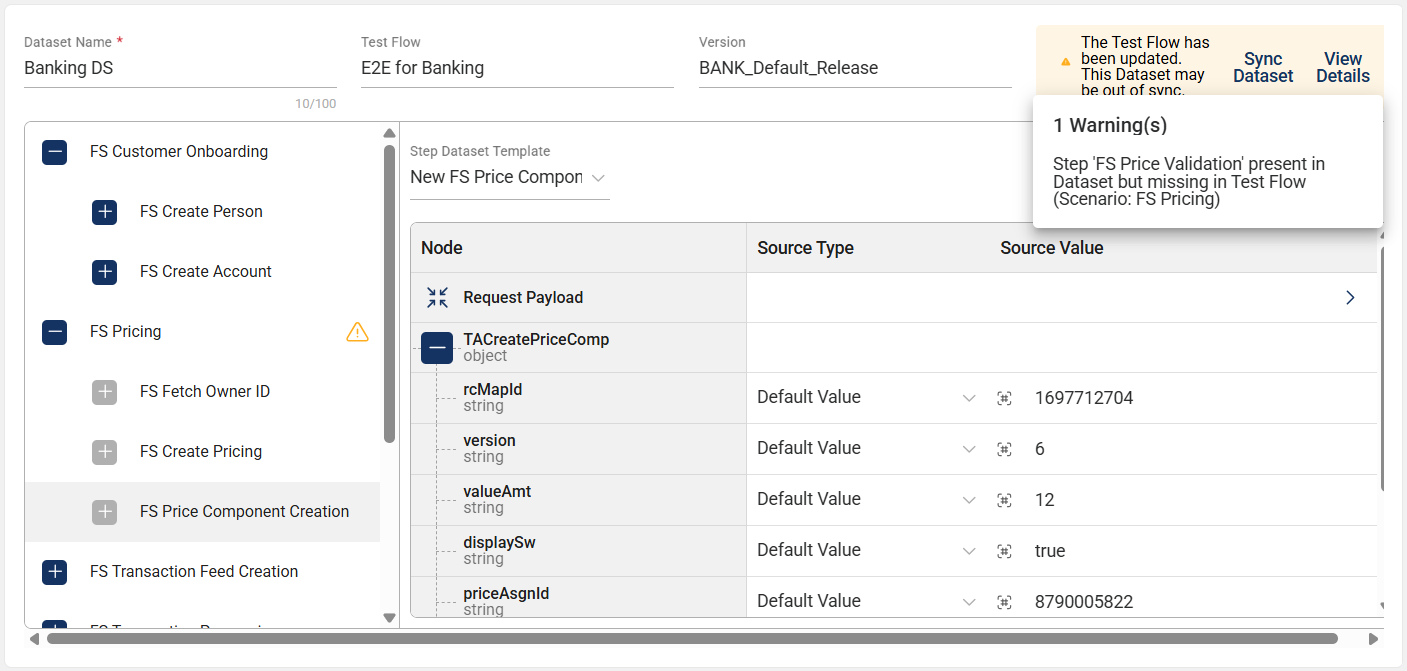
The dataset out-of-sync message is also triggered when assertions are added or deleted from a step in the Flow module. In addition, adding or deleting assertion input nodes will also trigger the dataset out-of-sync message on the Dataset page.
If you click Sync Dataset, the deleted steps, assertions, or assertion input nodes will be removed, and the added steps, assertions, or assertion input nodes will be included in the Dataset module.
Import a bulk dataset
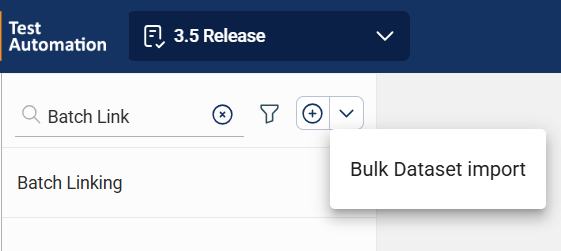
The Dataset module enables you to import datasets by clicking the down arrow in the left menu and select Bulk Dataset import.
Enter a dataset name prefix, then upload the template file. If you need a template file, you can download one.
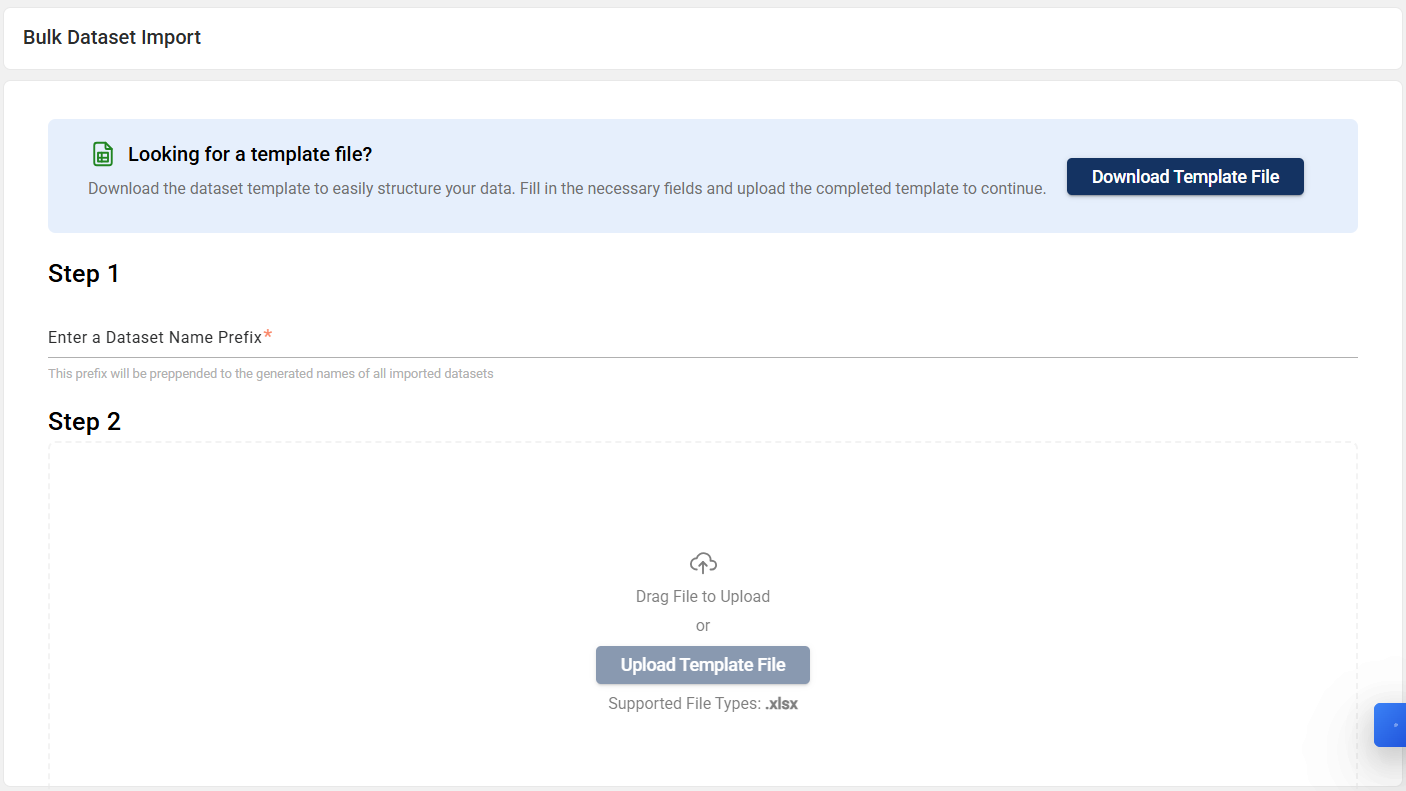
Download template file
You can download a predefined Excel template to format your data according to the specified guidelines. Once your data is formatted, you can upload it into the system. To download one, follow these steps:
- Select a test flow and version from the Test Flow and Version dropdown lists, respectively.
- All the scenarios used in the selected flow will be displayed. Make the necessary changes you need. To use different datasets with varying values, choose
User Inputfrom the dropdown, then specify a variable name.
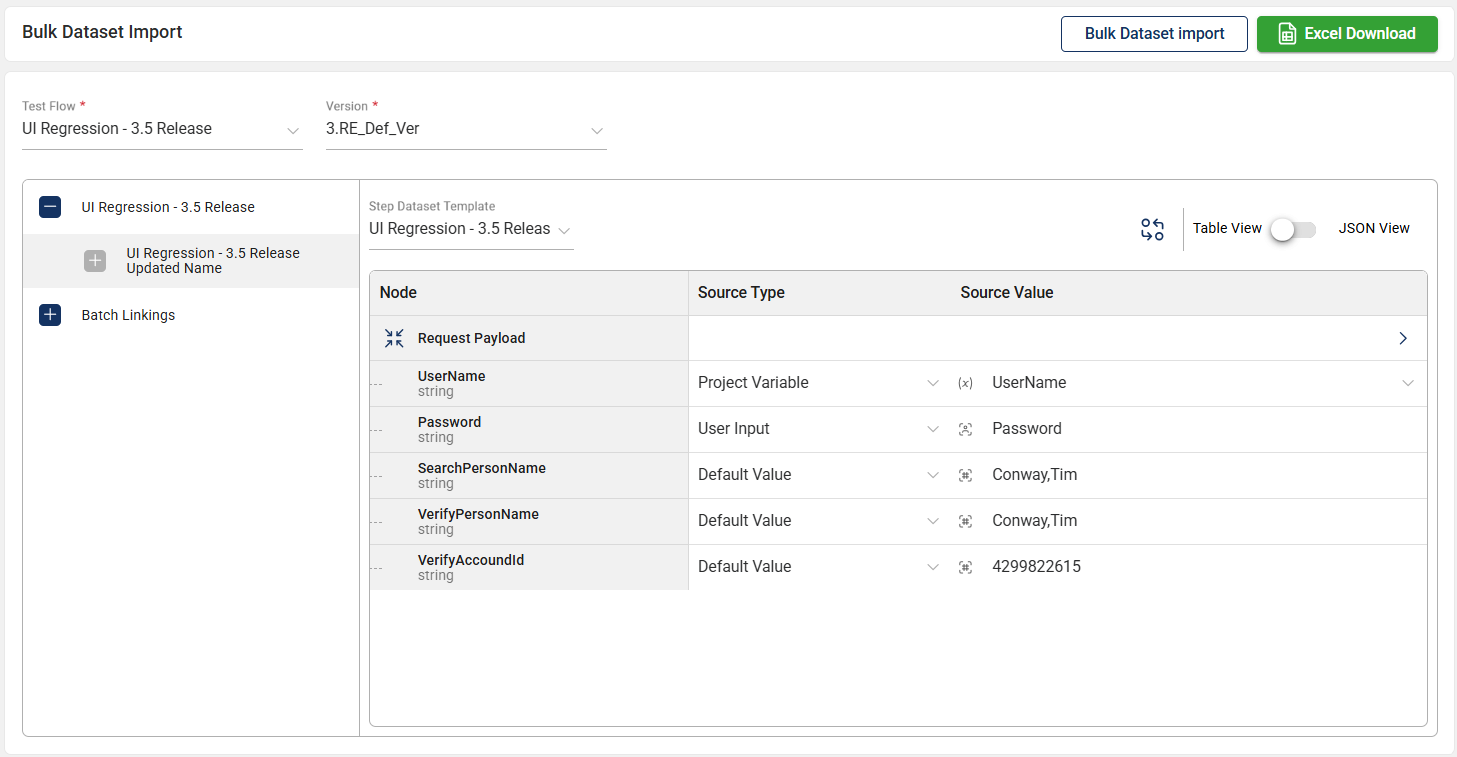
- Click the Excel Download button.
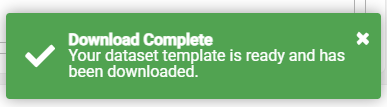
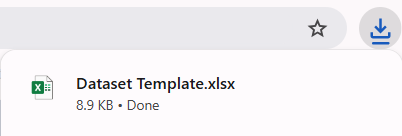
A new Dataset Template.xlsx file will be downloaded.
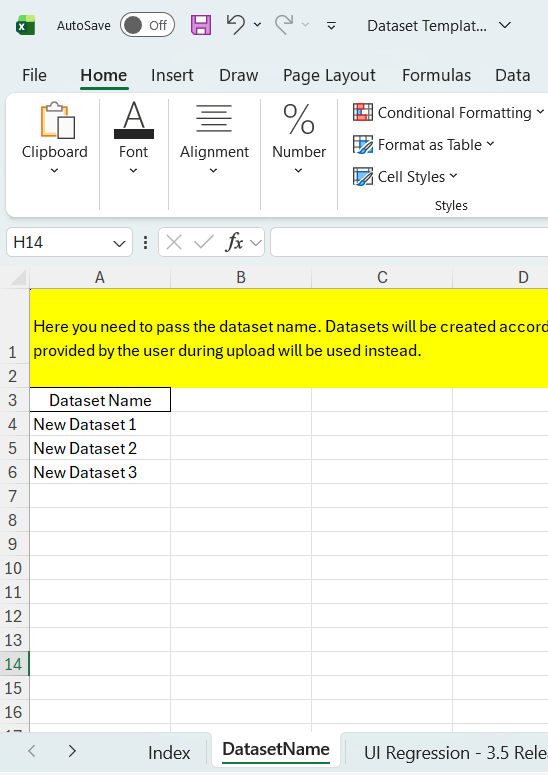
- Optional. Enter one or more dataset names in the DatasetName tab, placing each in its own row.
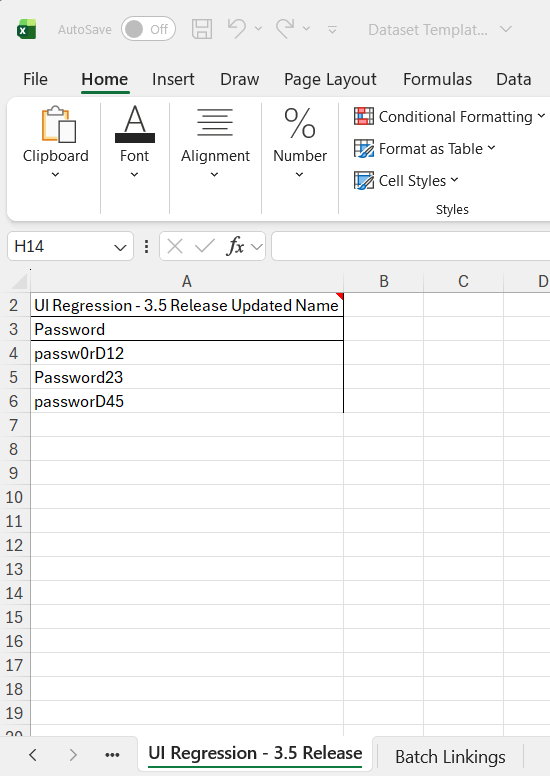
- Fill in the fields that require user input as configured in the previous step, ensuring each value is entered in the same row as its corresponding dataset name.
Delete a dataset
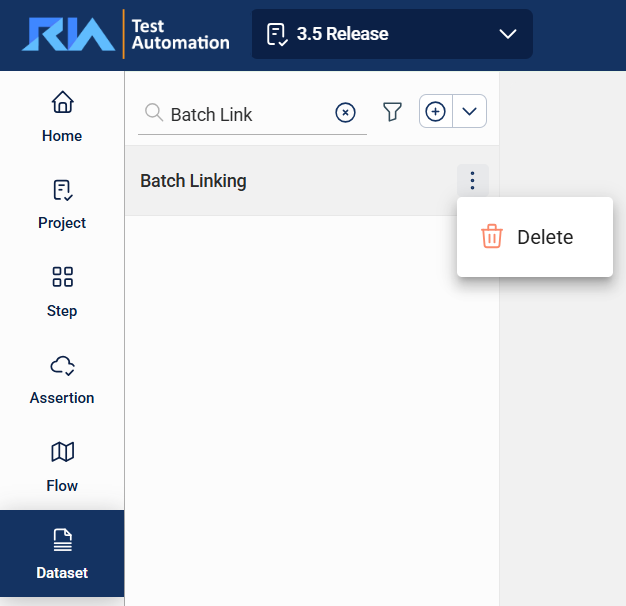
To delete a dataset, hover over the dataset you want to remove. An icon will appear. Click on this icon and select Delete.