Assertion
Overview
Assertions serve as a quality control measure ensuring the completeness and correctness of the expected data as defined in a Step.
View
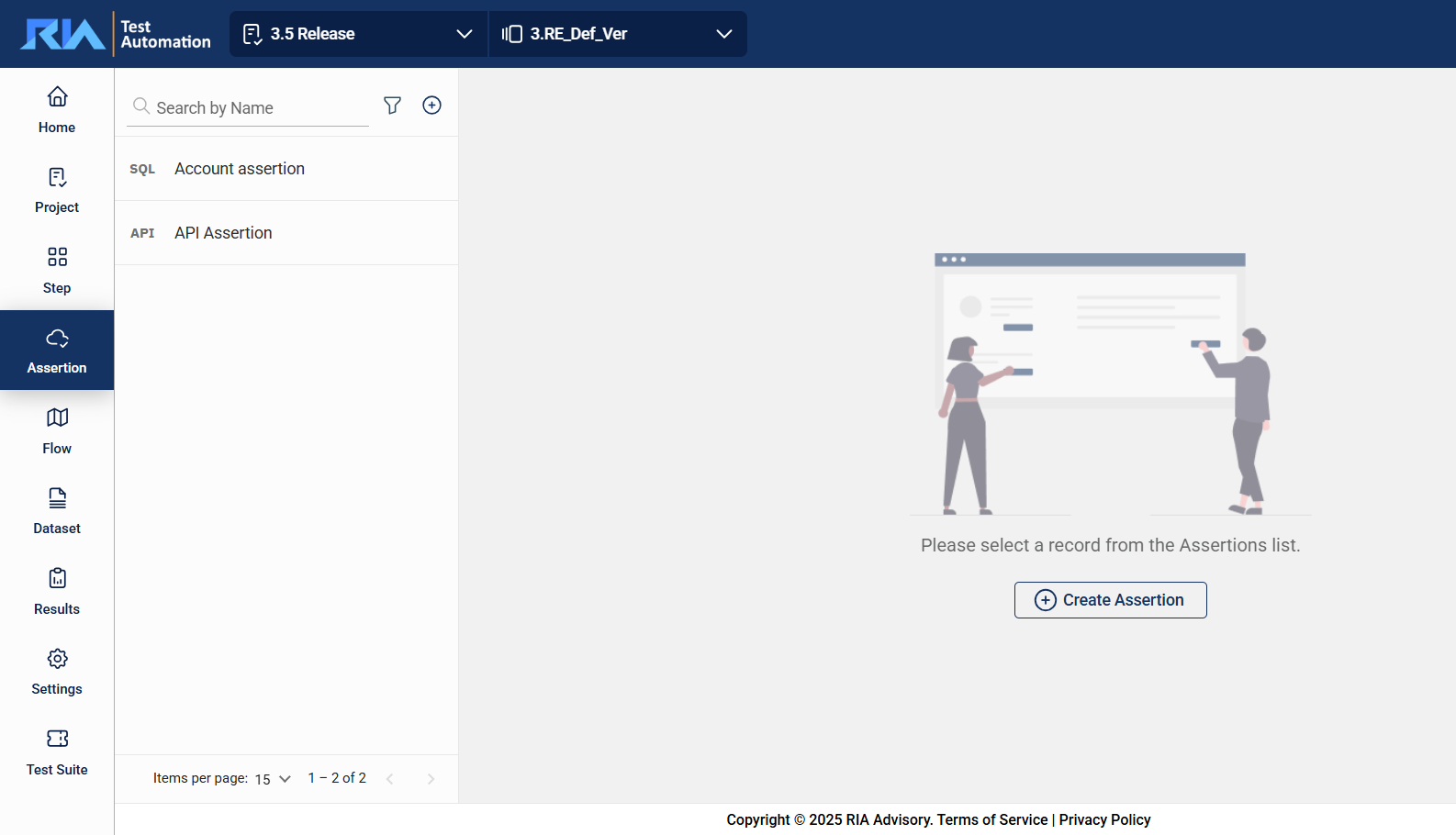
In the upper left corner, select your project from the Select Project dropdown list and the version from the Version dropdown list. Only the assertions associated with the selected project and version are displayed on the left pane.
Edit an assertion
To view or modify the details of an assertion, select the assertion from the left pane that lists all assertions associated with the selected project and version. You can change any detail by directly editing the corresponding field. Ensure to click Update after making your modifications.
Search
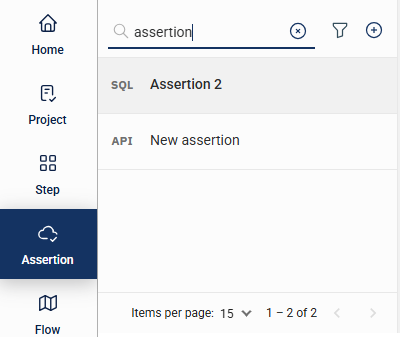
The search feature allows you to filter the list of assertions by providing a keyword or the full name of an assertion. Only the assertions that match the provided keyword or name will be displayed in the view.
Filter
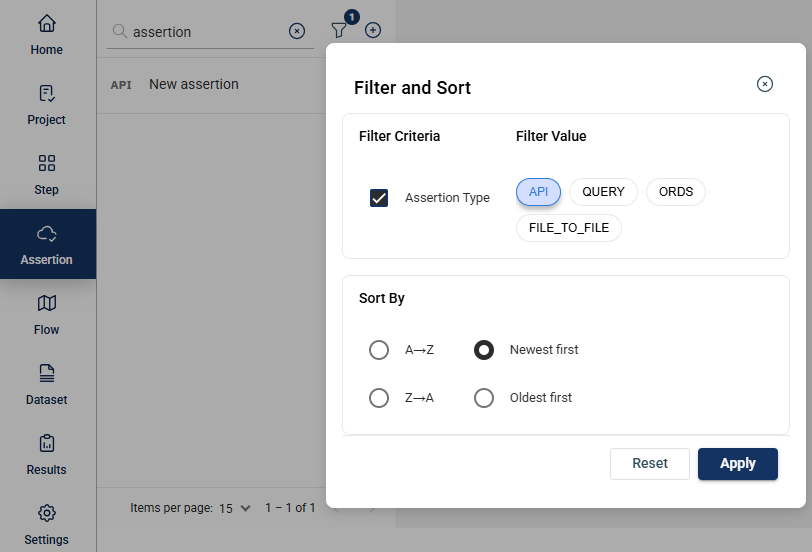
Click the  icon to display additional filtering and sorting options. For filtering, a dropdown list of available filter parameters will show all associated values for the selected project and version.
Create an assertion
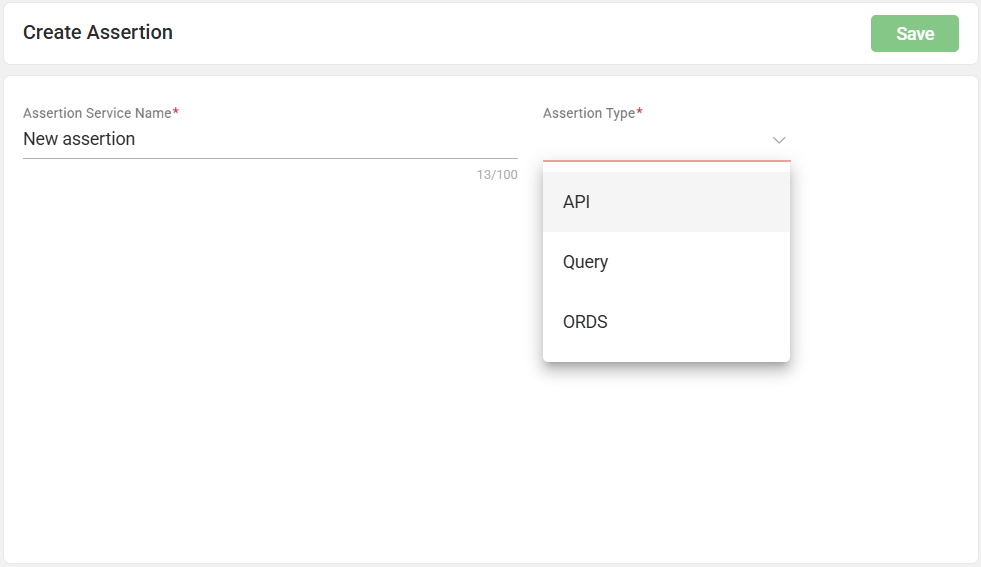
To create an assertion, click on the  icon on the top left pane and enter valid values to the following fields.
| Field Name | Description |
|---|---|
| Assertion Service Name |
Name of the assertion. It must be at least 5 characters long.
Mandatory: Yes |
| Assertion Type |
Specifies the type of step. The following are the possible values: Mandatory: Yes |
API assertion
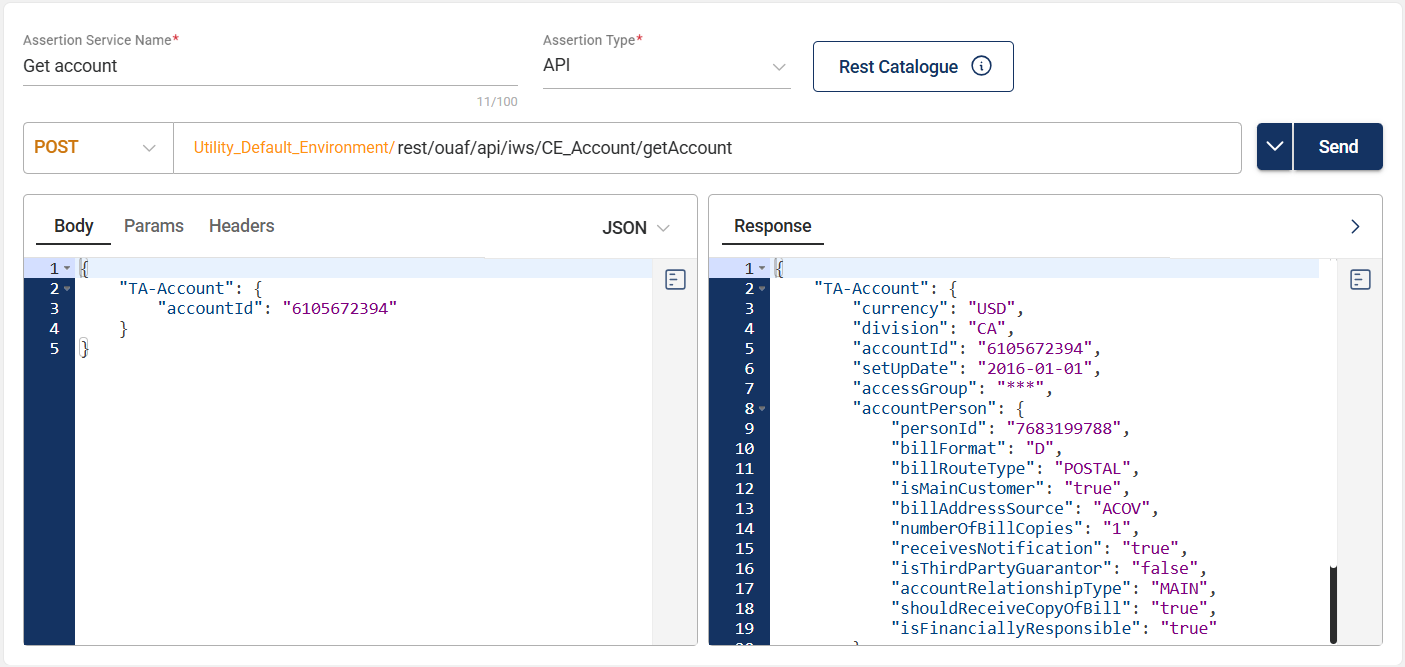
To create an API assertion, enter valid values in the following fields:
| Field | Description |
|---|---|
| HTTP Method |
Specifies the action to be performed by the external system to your server. The following are the possible values:
Mandatory: Yes |
| URL |
Specifies the API URL used for validation. It consists of two parts:
Mandatory: Yes |
| Params |
Specifies the type of parameters for query execution and data retrieval. You can specify parameters in the following ways:
Mandatory: No |
| Body |
Specifies the payload details of the assertion. You can choose between the following formats:
Mandatory: No |
| Headers | Specifies the API headers in HTTP requests or responses that provide important metadata, such as content type, authentication details, and instructions for processing the data. |
Query assertion
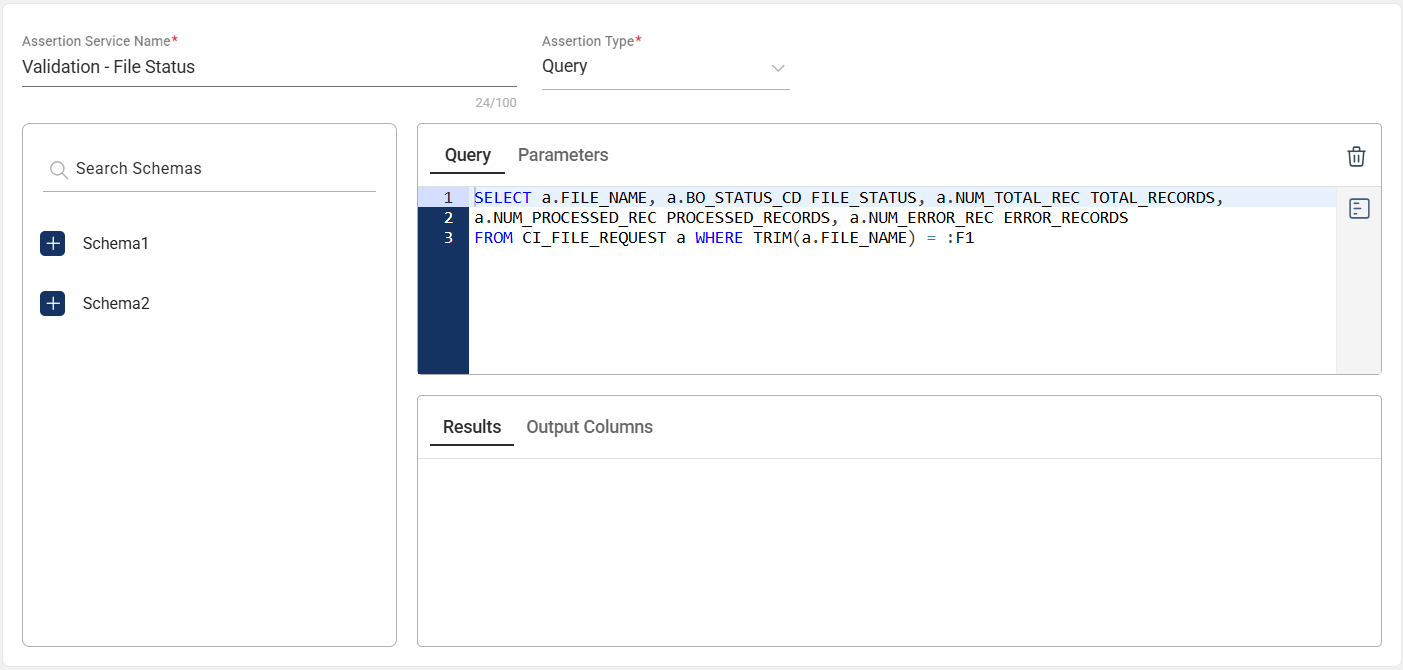
| Section | Description |
|---|---|
| Schema | Specifies the schema of the database where the query will be executed. This is automatically populated from the configured database at the environment level and only needs to be selected at the assertion level. |
| Query | Defines the query being executed to retrieve results for validation. |
| Parameters | Lists the input key-value pairs extracted from the provided query. |
| Results | Specifies the expected result after running the query. |
| Output Columns | Lists the database columns included in the expected result after running the query, along with their data types. |
ORDS assertion
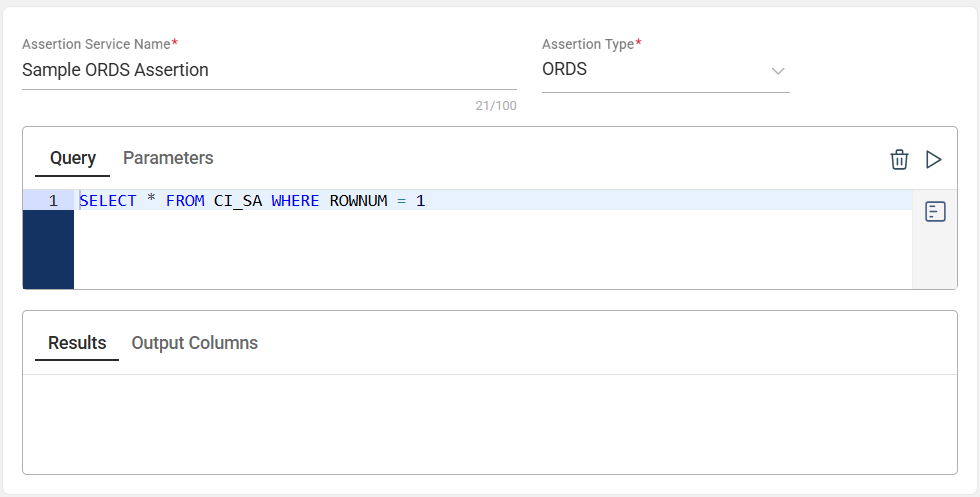
| Section | Description |
|---|---|
| Query | Defines the query being executed to retrieve results for validation. |
| Parameters | Lists the input key-value pairs extracted from the provided query. |
| Results | Specifies the expected result after running the query. |
| Output Columns | Lists the database columns included in the expected result after running the query, along with their data types. |
File to File assertion
This assertion allows you to compare two specified files. To add files, follow these steps:
-
Create an assertion with
File to FileAssertion Type.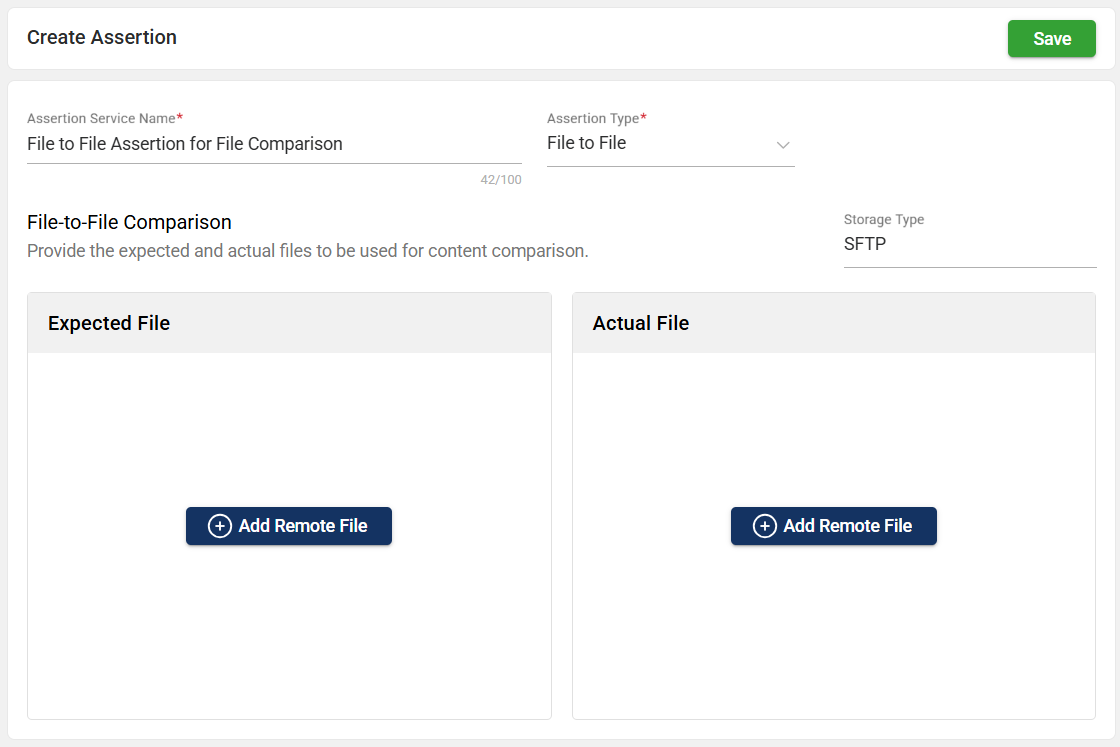
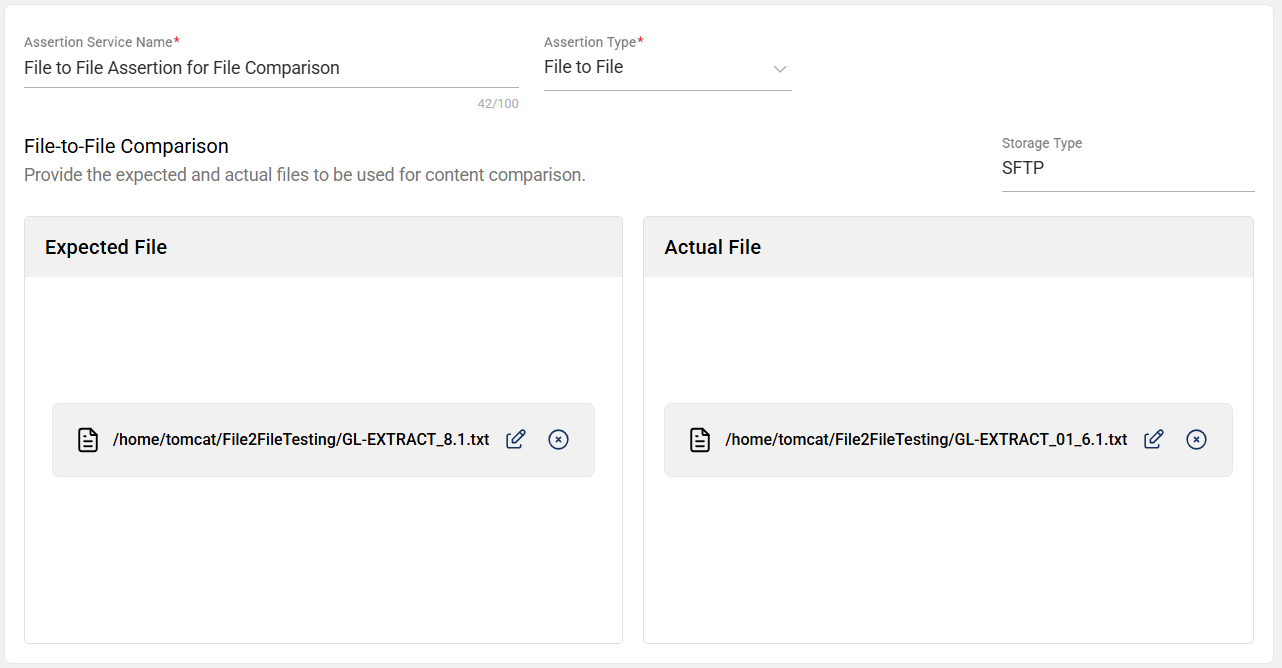
-
Click the Add Remote File button.
-
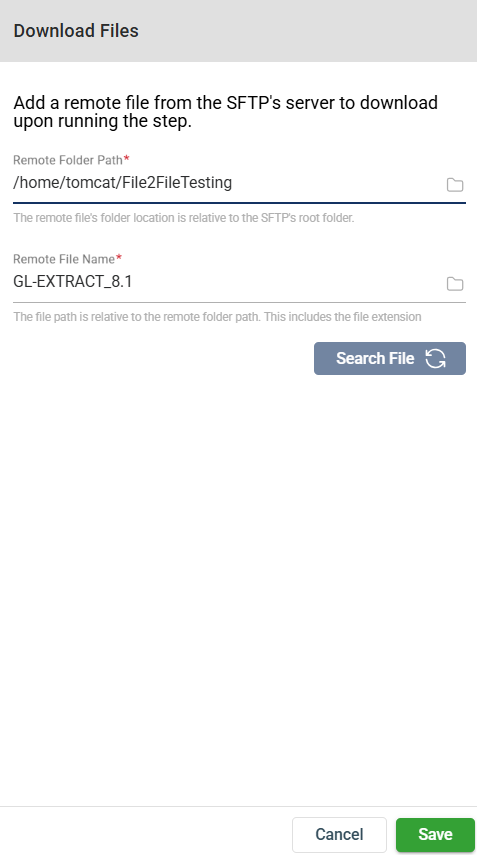
Enter valid values to the Remote Folder Path and Remote File Name fields.
-
Click the Save button.
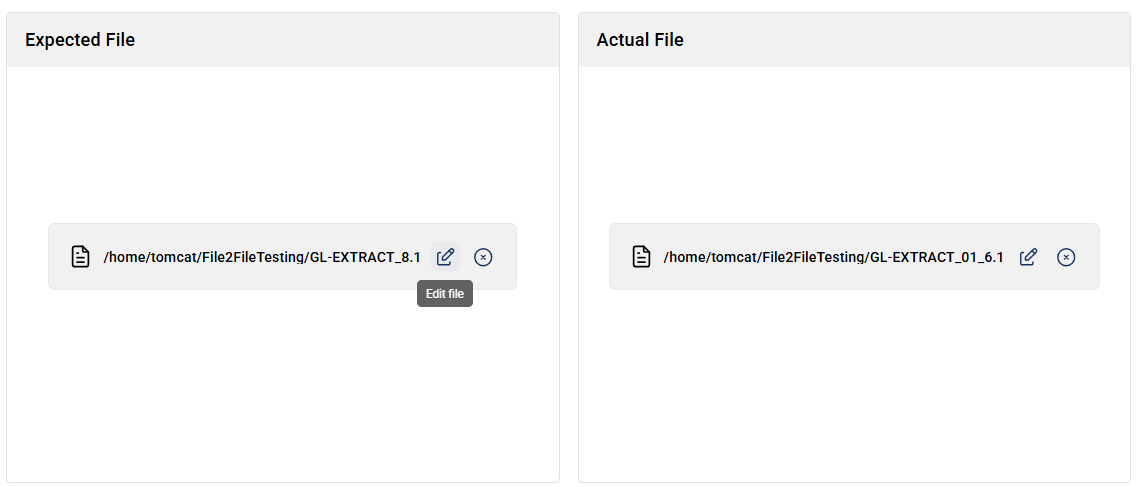
Change the attached file
To change the attached file, click the edit icon.
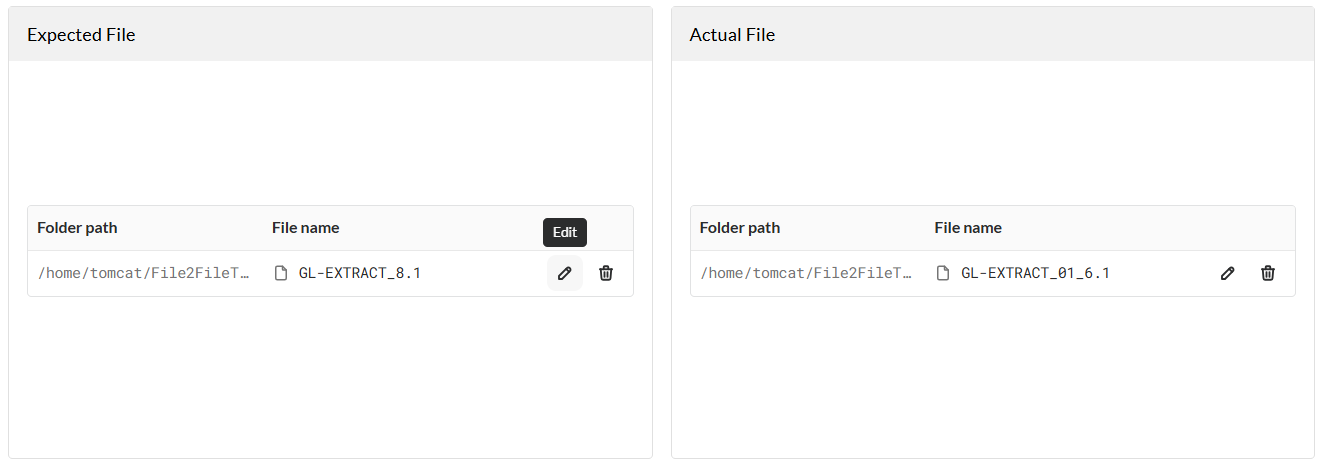
The Download Files form, similar to the one in Step 2 of the previous section, will be displayed. Make the necessary changes, then click Save.
Delete the attached file
To delete an attached file, follow these steps:
-
Click the delete icon.
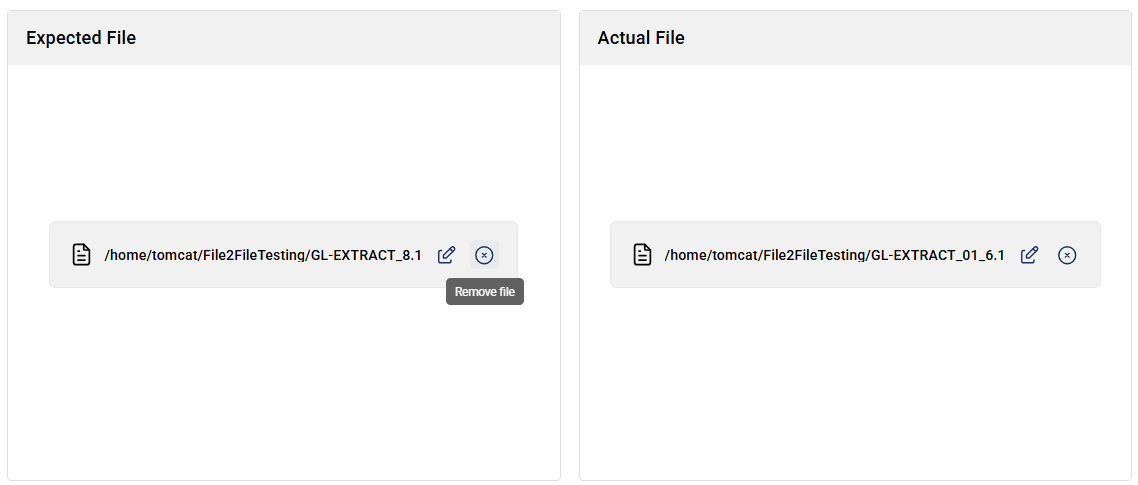
-
Click Delete button on the confirmation prompt.
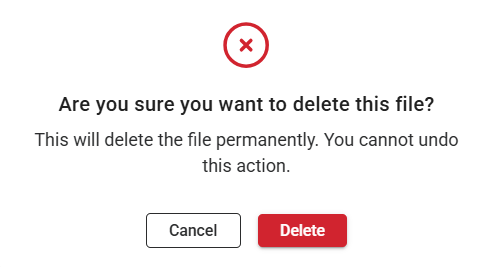
Run results
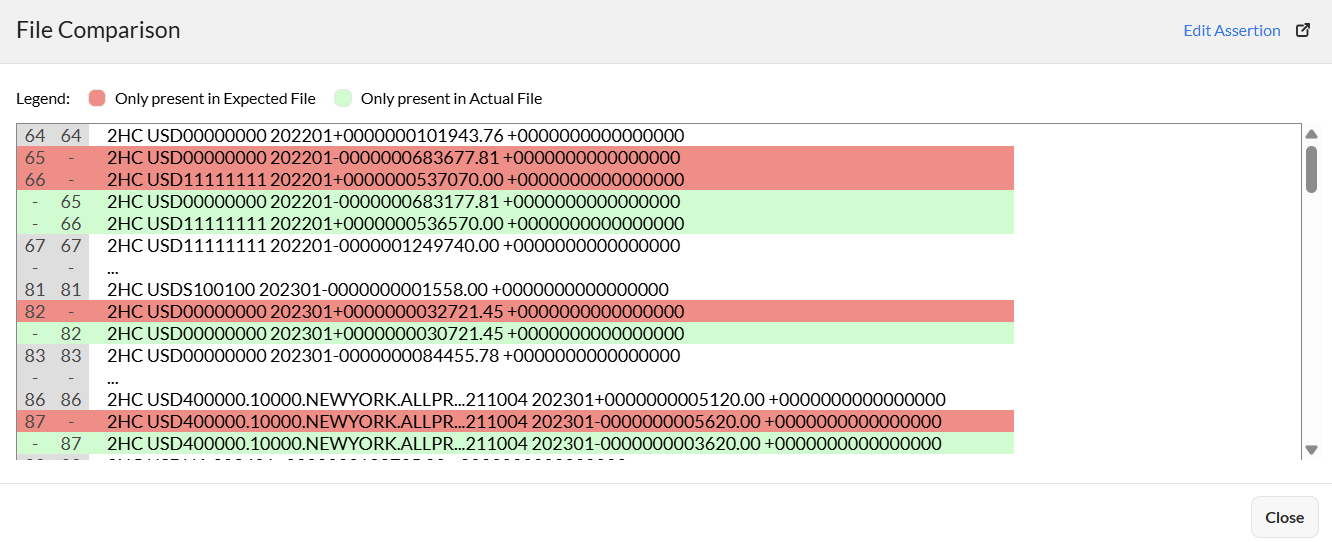
Once added to a flow and executed, the Assertions tab in the Run Result page displays the line differences between the files.
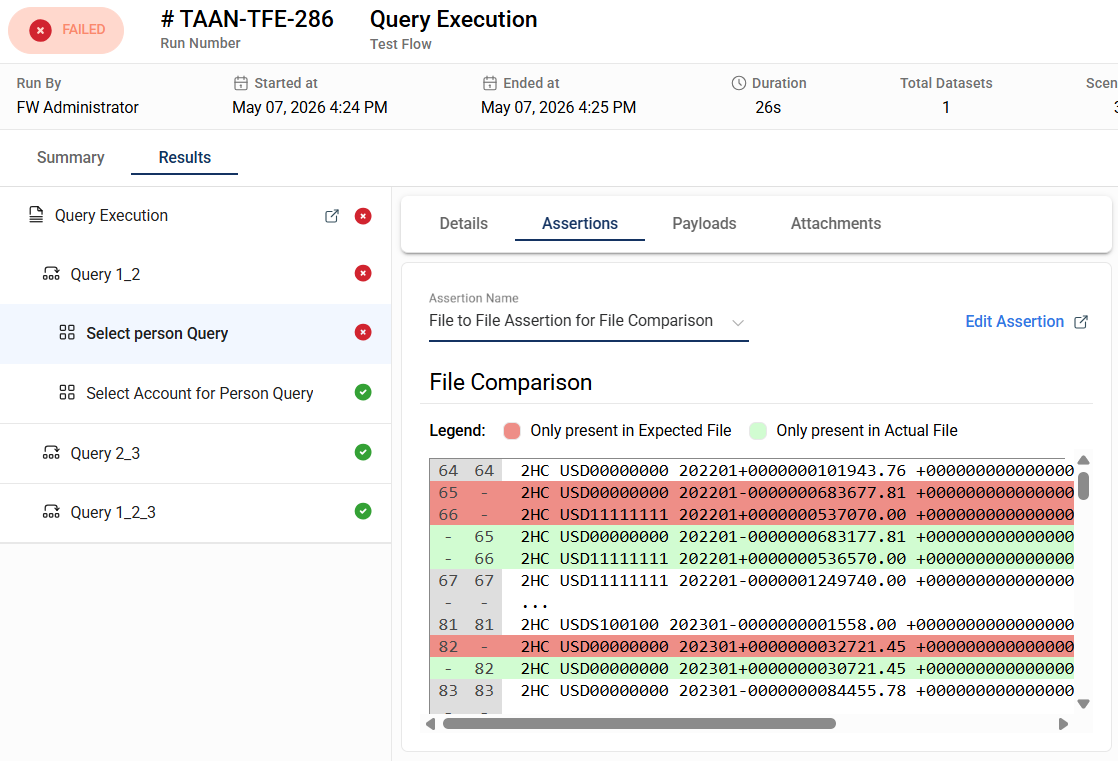
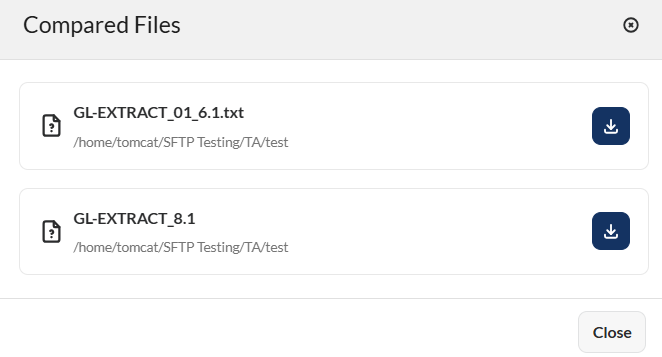
The assertion results and the list of files that were compared can also be viewed in the Details tab in the Run Result page.
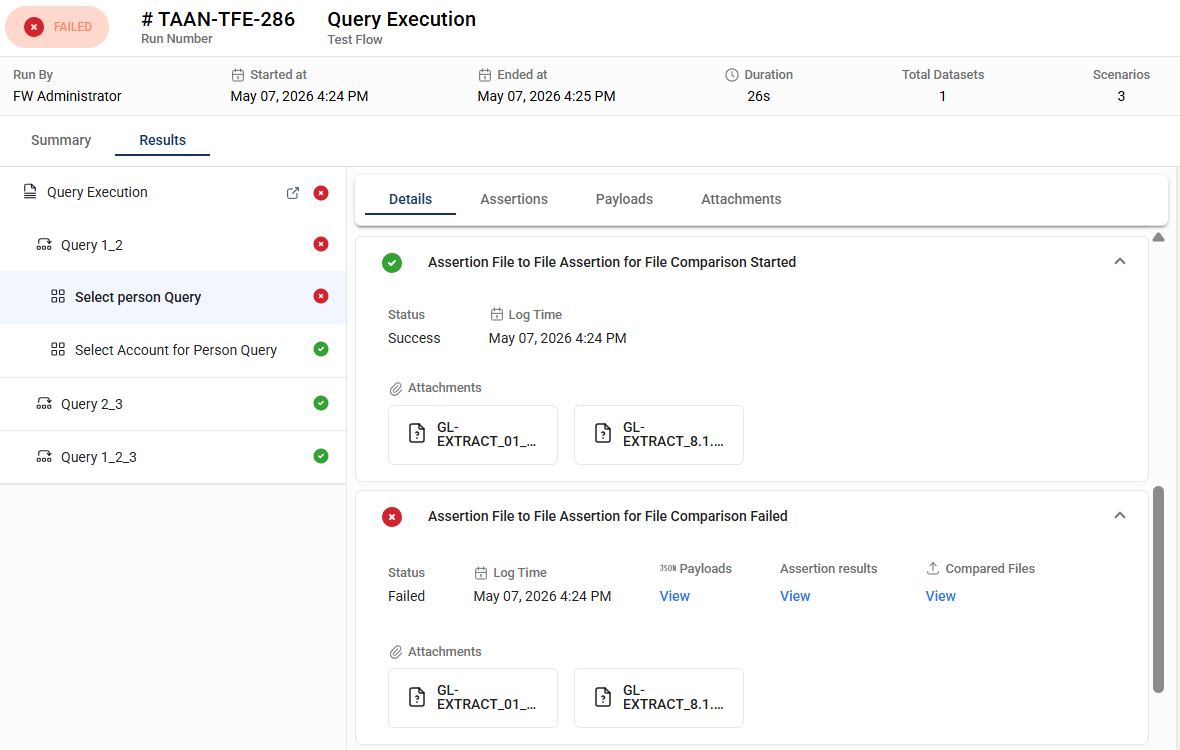
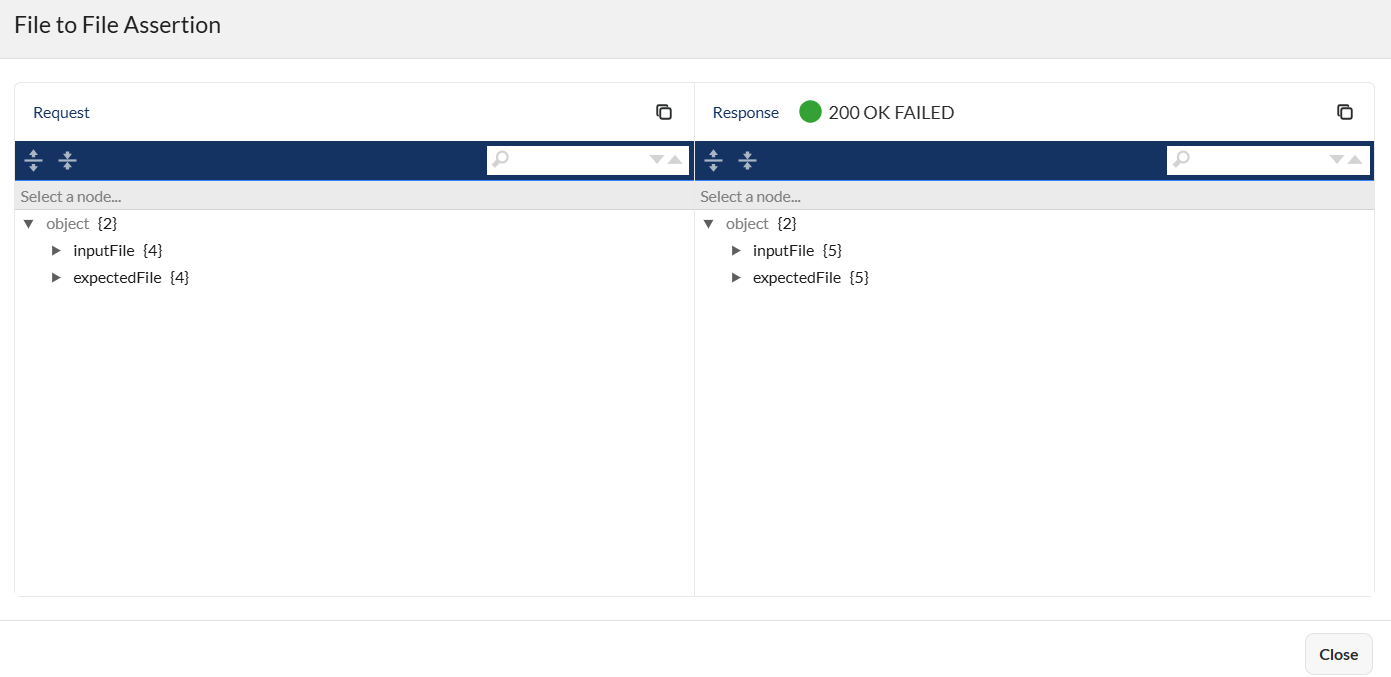
The following are example views for:
- Payloads
- Assertion results
- Compared files
Delete an assertion
To delete an assertion, hover over the assertion you want to remove. An icon will appear. Click on this icon and select Delete.
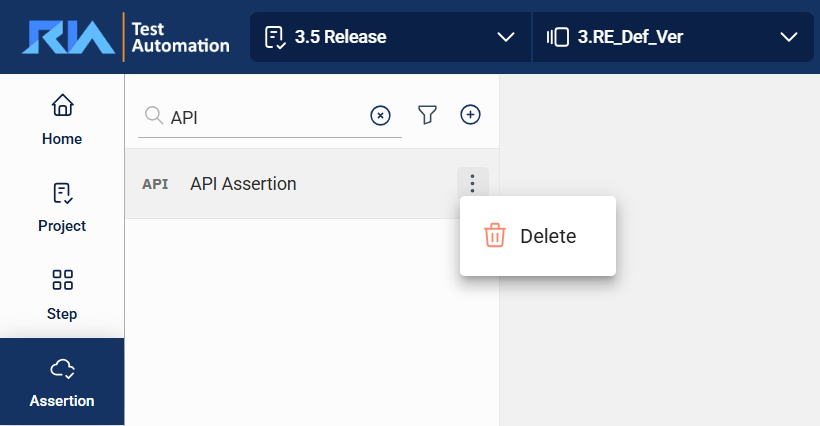
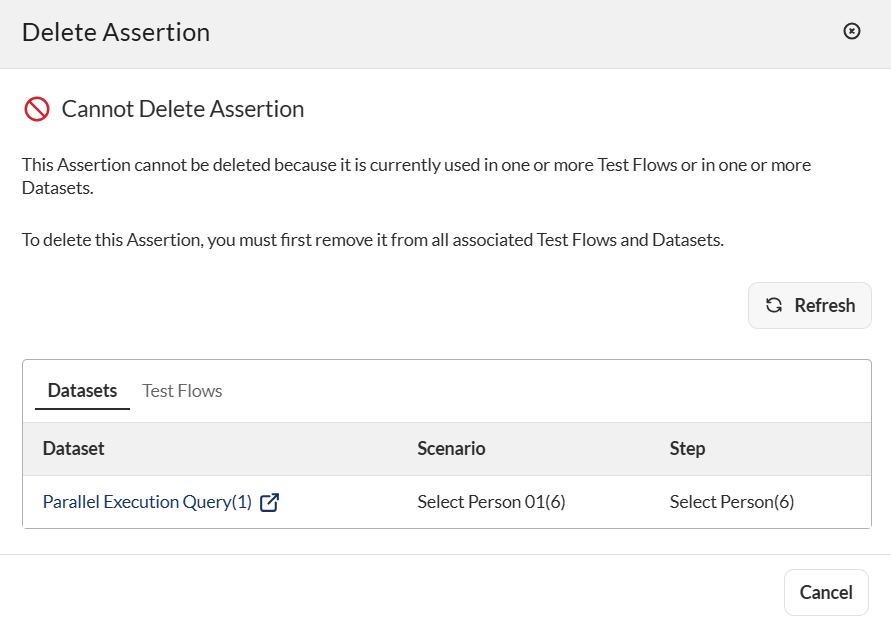
If an assertion is used in a flow or a dataset, a warning message will be displayed indicating that it cannot be deleted.
To delete the assertion, you must first remove it from any flows or datasets where it is being used.