Issue Tracking
Overview
Before linking an issue, ensure that you have enabled the JIRA integration in the Settings module and have configured JIRA in the Project Integrations.
You have the option to create a new issue or link a flow to an existing one.
Create a new issue
-
Click the Issue Tracking icon.
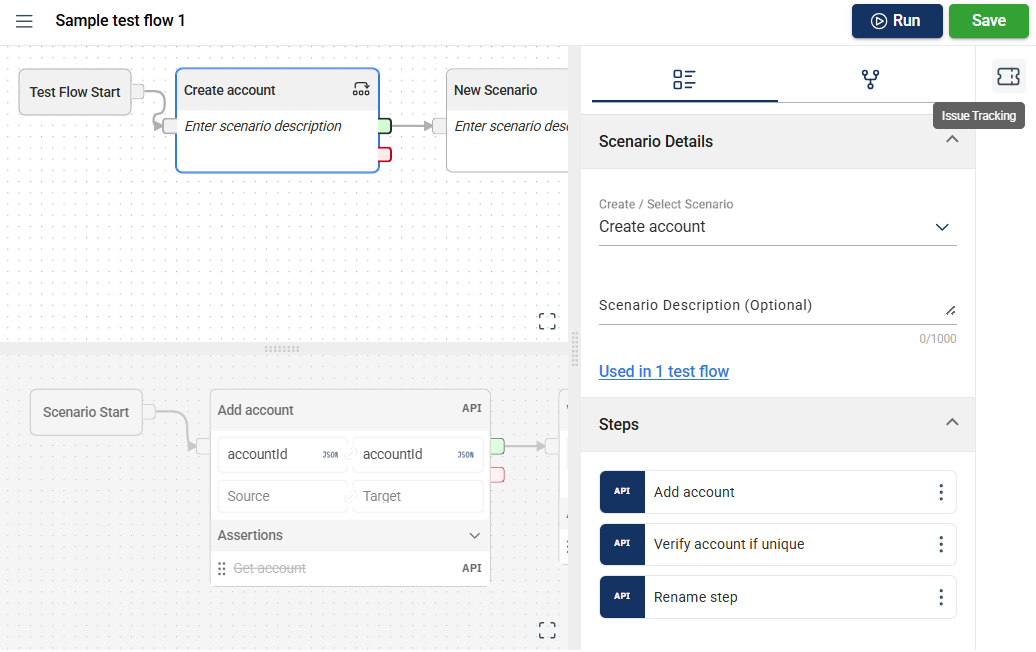
-
Click the Link Issue button.
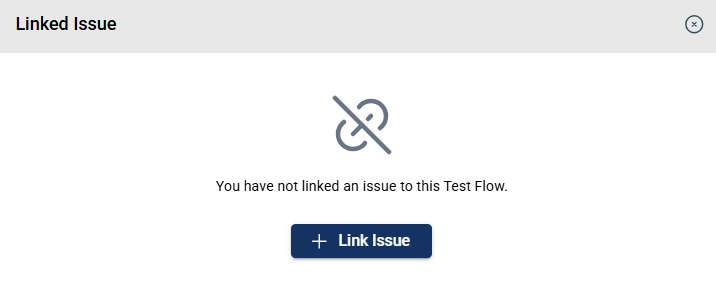
-
Enter valid values in the JIRA fields displayed.
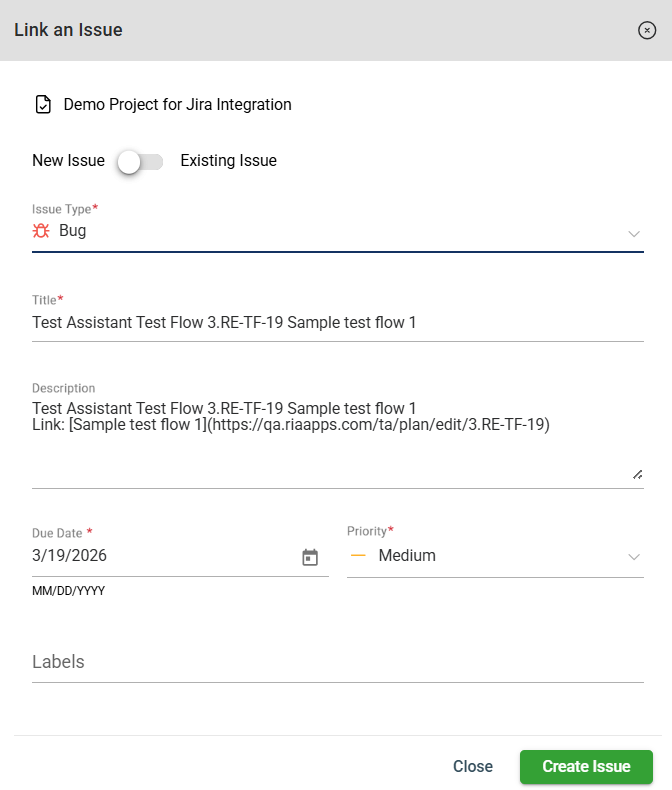
-
Click Create Issue. A confirmation message will be displayed.
A JIRA ticket is now displayed when the Issue Tracking icon is clicked.
-
Click the Save button to save the linked issue.
Link an existing issue
Synchronize test runs to TestRail enables real-time tracking of test progress and outcomes.
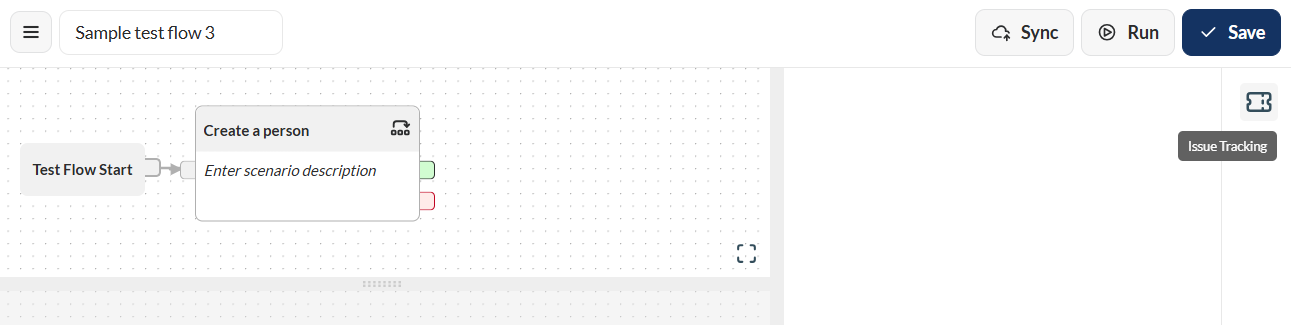
- Click the Issue Tracking icon.
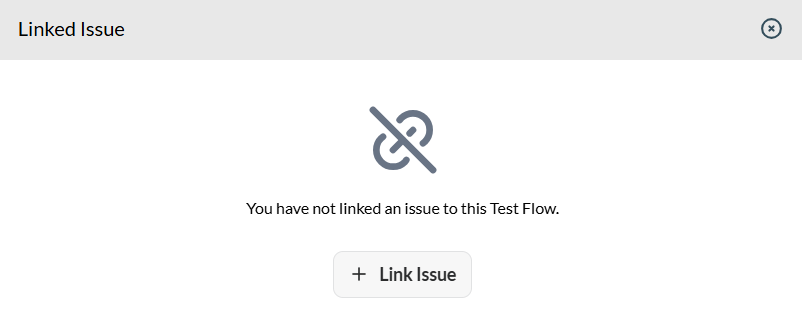
- Click the Link Issue button.
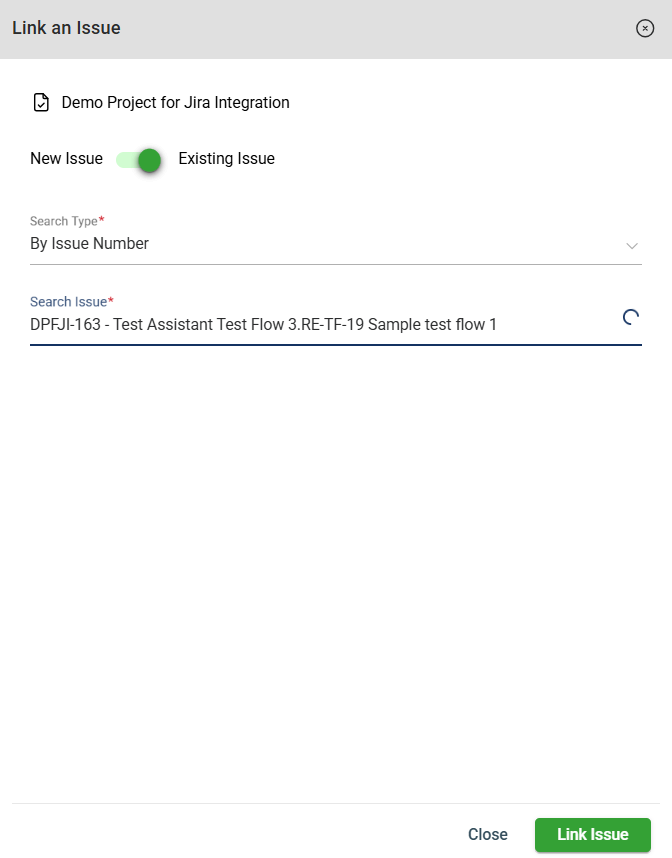
- Click the toggle button to the Existing Issue.
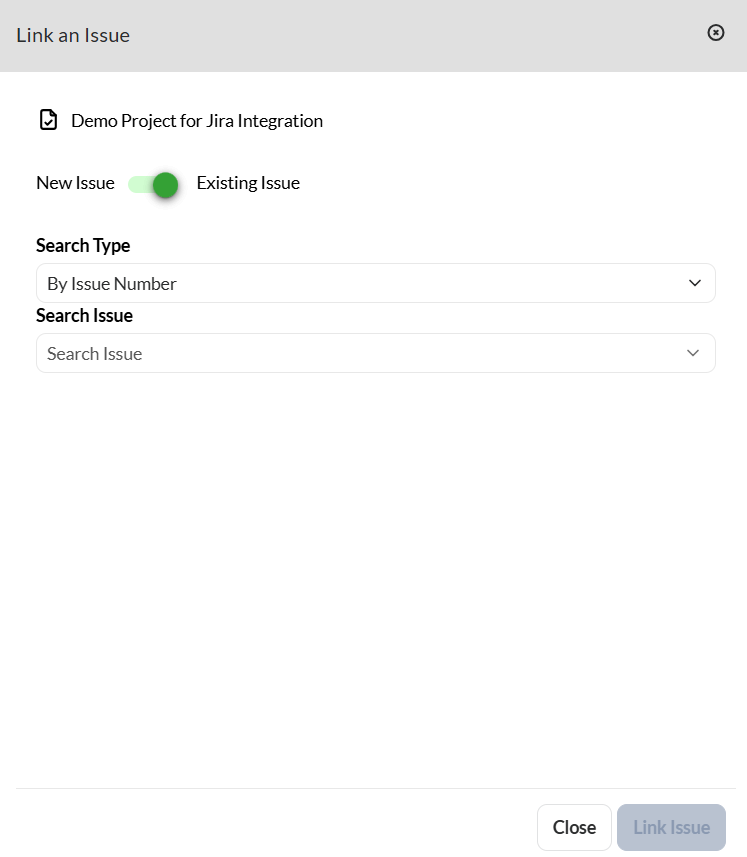
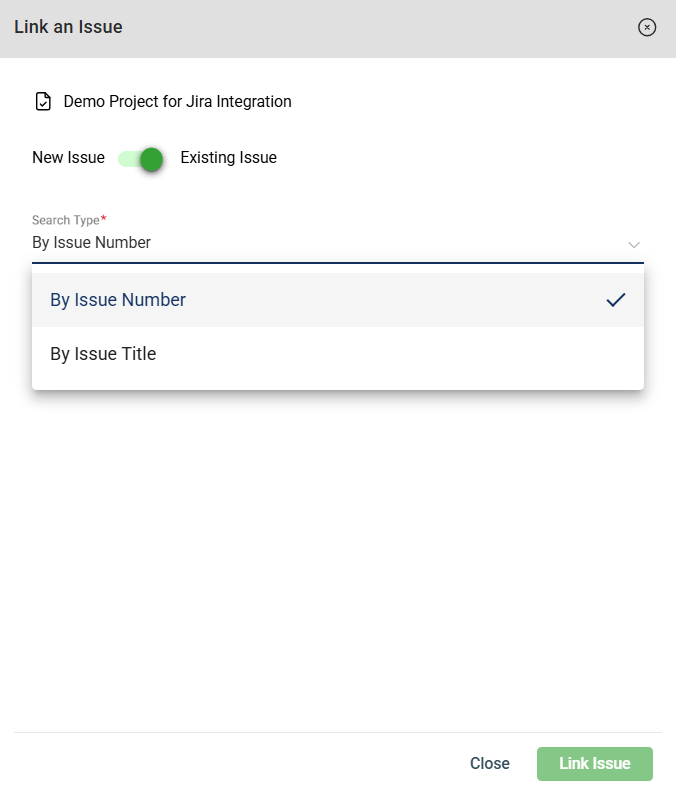
- Select how you want to search for an existing issue.
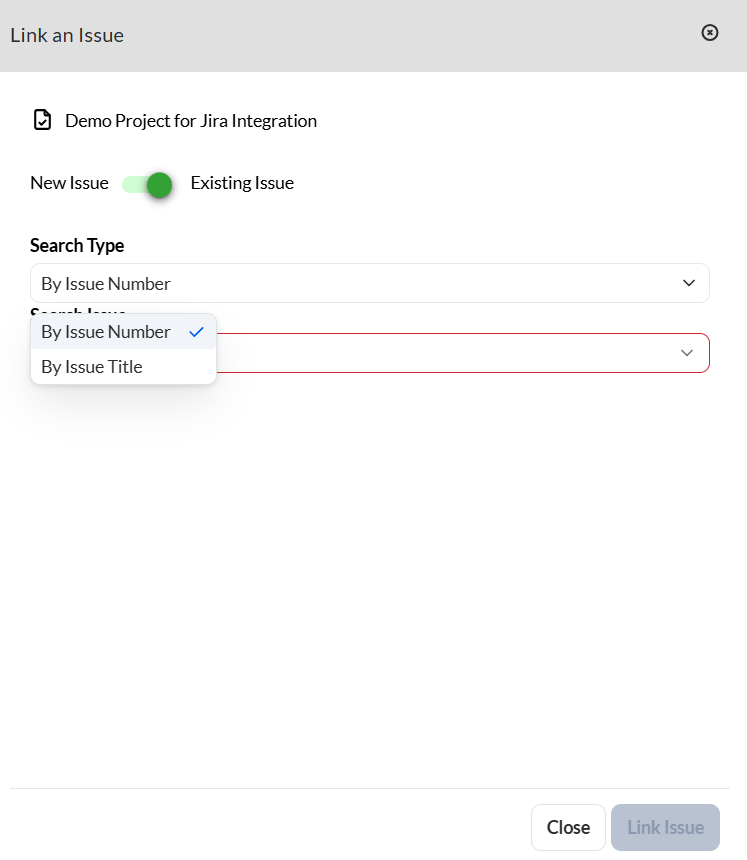
-
In the Search Issue field, enter a number if you selected
By Issue Number.A dropdown listing all tickets matching your search is displayed.
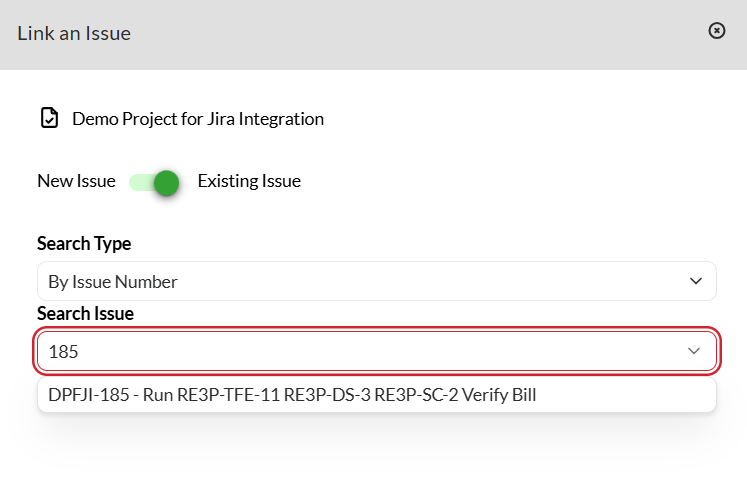
If you selected
By Issue Title, enter a keyword.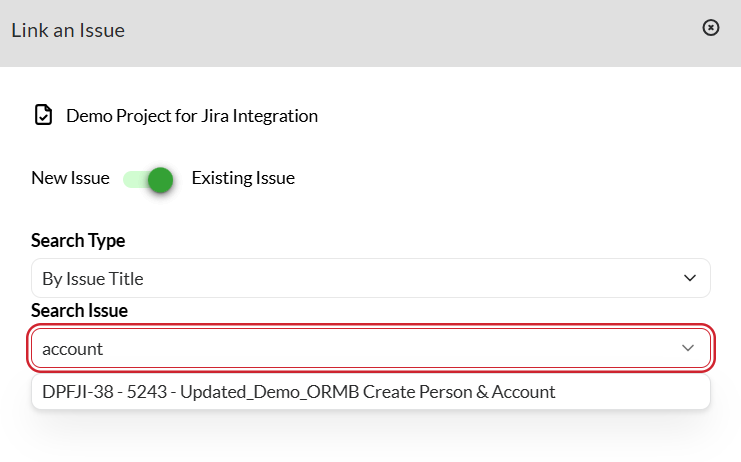
-
Click the Link Issue button.
A JIRA ticket is now displayed when the Issue Tracking icon is clicked.
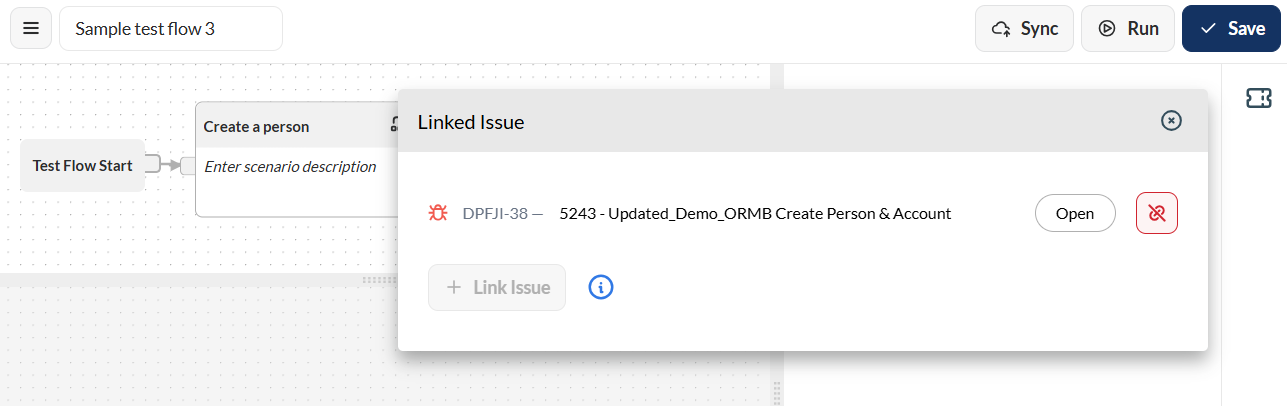
-
Click the Save button to save the linked issue.