Overview
The PDF template builder supports a variety of elements, such as text, images, shapes, tables, logos, signatures, and other dynamic fields. Elements can be dragged and dropped into the desired position, allowing users to quickly create professional and structured PDF templates.
Content elements
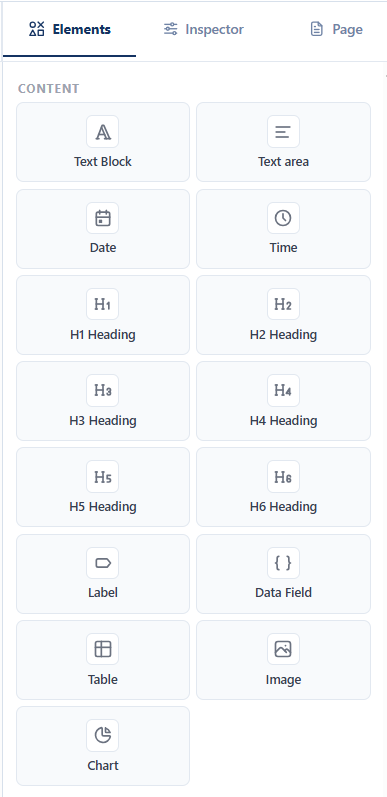
| Block type |
XSL-FO element(s) |
Min size |
Description |
| Text |
<fo:block> |
120 × 48 px |
Static or dynamic text with data binding. |
| Label |
<fo:block> |
120 × 28 px |
Static label text with no data binding. |
| Field |
<fo:block>,
<fo:inline>
|
120 × 40 px |
Form input field with optional label and data binding. |
| Table |
<fo:table>,
<fo:table-header>,
<fo:table-body>,
<fo:table-footer>
|
240 × 72 px |
Displays tabular data with repeating rows, filtering, headers, and footers. |
| Image |
<fo:external-graphic> |
120 × 80 px |
Static or data-bound image such as logos or graphics. |
Layout elements
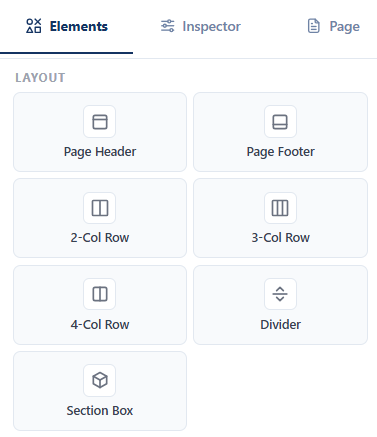
| Block Type |
XSL-FO Element(s) |
Minimum Size |
Description |
| Divider |
<fo:leader> |
120 × 8 px |
Displays a horizontal divider with configurable line style, width, color, and spacing. |
| Section |
<fo:table> (layout grid) |
260 × 120 px |
Acts as a layout container for grouping related blocks into one or more columns and supports nested content. |
Special elements
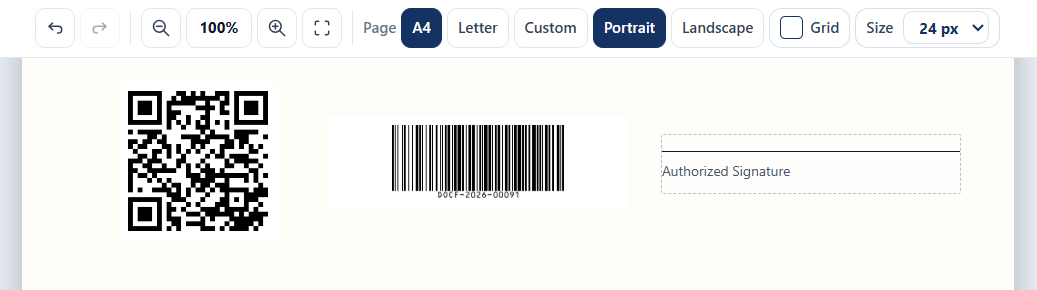
| Block Type |
XSL-FO Element(s) |
Minimum Size |
Description |
| Barcode |
<fo:external-graphic> |
96 × 56 px |
Displays a generated barcode, such as Code 128, EAN, UPC, or other supported barcode formats. |
| QR Code |
<fo:external-graphic> |
96 × 56 px |
Displays a generated QR code containing static or dynamically resolved data. |
| Signature |
<fo:block> (bordered) |
180 × 48 px |
Displays a signature line or bordered signature area for handwritten or digital signatures. |
Texts, fields, and labels
The supported text elements are the following:
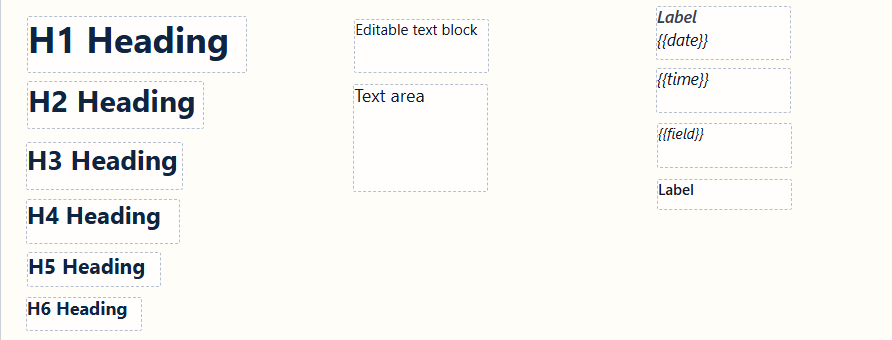
Data configuration
Headings, text block, and text area
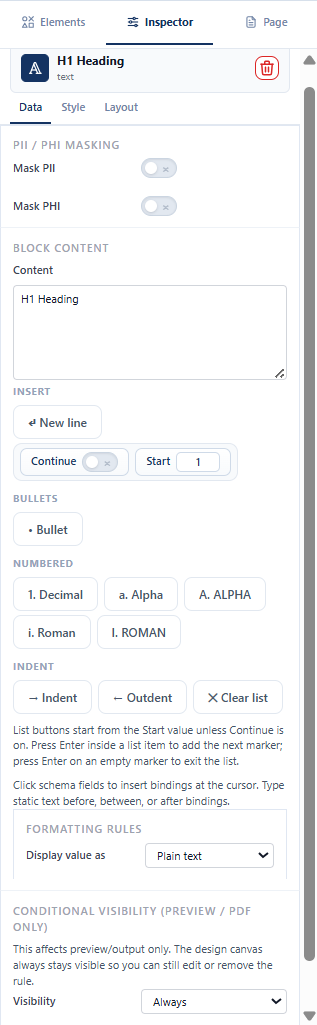
The following data configurations apply to all headings, text block, and text area.
| Setting |
Description |
| Mask PII |
Marks the selected field, block, or table cell as personally identifiable information (PII). The generated document masks the resolved value according to the selected mask strategy.
|
| Mask PHI |
Marks the selected field, block, or table cell as protected health information (PHI). The generated document masks the resolved value according to the selected mask strategy.
|
| Mask strategy |
Required when Mask PII or Mask PHI is enabled. Specifies how the resolved value is obfuscated in the generated output. Options are Partial Masking, Hash, and Redact.
|
| Content |
Defines the content displayed for the selected element. Content can include
static text, dynamic fields, or expressions.
|
| New line |
Starts the selected element on a new line in the generated document.
|
| Continue |
Places the selected element immediately after the previous element on the
same line, if space allows.
|
| Start |
Begins a new content sequence or paragraph, resetting any previous inline
flow.
|
| Bullet |
Displays the selected element as a bulleted list item.
|
| Numbered |
Displays the selected element as a numbered list item. Supported numbering
styles include:
1. Decimala. Lower AlphaA. Upper Alphai. Lower RomanI. Upper Roman
|
| Indent |
Increases the indentation level of the selected element. |
| Outdent |
Decreases the indentation level of the selected element. |
| Clear list |
Removes any bullet or numbering formatting from the selected element. |
| Display value as |
Specifies how the resolved value is formatted in the generated document.
Supported formatting rules include:
Plain text – No value format is persisted.String – None, UPPERCASE, lowercase, Title Case, camelCase, PascalCase, snake_case, or kebab-case.Date – DD/MM/YY, DD-MM-YYYY, YYYY-MM-DD, or month-name formats.Time – 24-hour or 12-hour formats.Date and time – Combined date and time patterns.Number – Decimal, percent, or currency with configurable minimum and maximum decimal places.
|
| Visibility |
Controls whether the selected element appears in the preview and generated
output. The design canvas always remains visible for editing.
Always – The element is always included.Show when an array has rows – The element is omitted when the configured array path contains no rows.Custom XPath (boolean) – The element is included only when the XPath expression evaluates to true.
|
Date, time and field blocks
The following are the data configurations apply to date, time, and field blocks.
| Setting |
Description |
| Mask PII |
Marks the selected field, block, or table cell as personally identifiable information (PII). The generated document masks the resolved value according to the selected mask strategy.
|
| Mask PHI |
Marks the selected field, block, or table cell as protected health information (PHI). The generated document masks the resolved value according to the selected mask strategy.
|
| Mask strategy |
Required when Mask PII or Mask PHI is enabled. Specifies how the resolved value is obfuscated in the generated output. Options are Partial Masking, Hash, and Redact.
|
| Placeholder |
Specifies placeholder text displayed when the field has no resolved value or while awaiting user input.
|
| Show label |
Controls whether a label is displayed for the selected field in the generated document.
|
| Label text |
Specifies the text displayed as the field's label when Show label is enabled.
|
| Label position |
Specifies where the label is displayed relative to the field. Possible values are Top, Bottom, Left, and Right.
|
| Display value as |
Specifies how the resolved value is formatted in the generated document.
Supported formatting rules include:
Plain text – No value format is persisted.String – None, UPPERCASE, lowercase, Title Case, camelCase, PascalCase, snake_case, or kebab-case.Date – DD/MM/YY, DD-MM-YYYY, YYYY-MM-DD, or month-name formats.Time – 24-hour or 12-hour formats.Date and time – Combined date and time patterns.Number – Decimal, percent, or currency with configurable minimum and maximum decimal places.
|
| Remove Mapping |
Removes the current data mapping from the selected field while leaving the field itself in the document.
|
| Hardcode Value |
Replaces the dynamic mapping with a fixed value that is always used in the generated document.
|
| Visibility |
Controls whether the selected element appears in the preview and generated
output. The design canvas always remains visible for editing.
Always – The element is always included.Show when an array has rows – The element is omitted when the configured array path contains no rows.Custom XPath (boolean) – The element is included only when the XPath expression evaluates to true.
|
Label
The following data configurations apply to the label element.
| Setting |
Description |
| Mask PII |
Marks the selected field, block, or table cell as personally identifiable information (PII). The generated document masks the resolved value according to the selected mask strategy.
|
| Mask PHI |
Marks the selected field, block, or table cell as protected health information (PHI). The generated document masks the resolved value according to the selected mask strategy.
|
| Mask strategy |
Required when Mask PII or Mask PHI is enabled. Specifies how the resolved value is obfuscated in the generated output. Options are Partial Masking, Hash, and Redact.
|
| Label text |
Specifies the text displayed as label.
|
| Visibility |
Controls whether the selected element appears in the preview and generated
output. The design canvas always remains visible for editing.
Always – The element is always included.Show when an array has rows – The element is omitted when the configured array path contains no rows.Custom XPath (boolean) – The element is included only when the XPath expression evaluates to true.
|
Style configuration
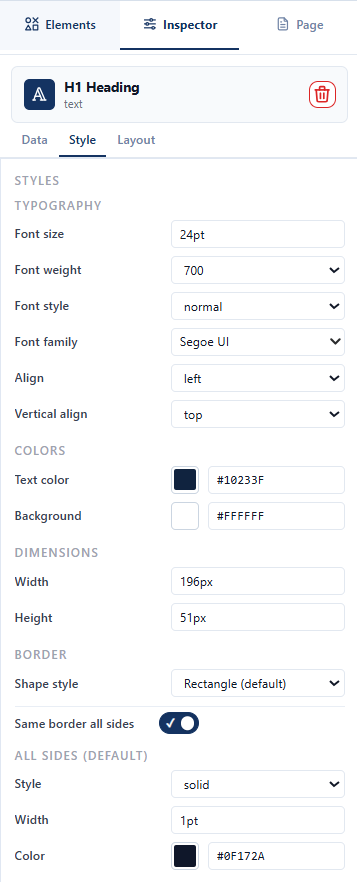
The following style configurations apply to all text elements.
| Setting |
Description |
| Font size |
Specifies the size of the text.
|
| Font weight |
Specifies the thickness of the selected text. Possible values are normal, bold, 600, and 700.
|
| Font style |
Applies text styling to the selected element, such as normal, italic, or oblique.
|
| Font family |
Specifies the font family used to render the selected text in the generated document.
|
| Align |
Sets the horizontal alignment of the selected text within its container. Possible values are left, center, right, and justify.
|
| Vertical align |
Sets the vertical alignment of the selected text within its container. Possible values are top, middle, and bottom.
|
| Text color |
Specifies the color applied to the text. You can select a color from the color palette or enter a hexadecimal color code.
|
| Background |
Sets the background color of the element. You can select a color from the color palette or enter a hexadecimal color code.
|
| Width |
Specifies the width of the element.
|
| Height |
Specifies the height of the element.
|
| Shape style |
Applies a predefined visual style to the selected shape. Possible values are Rectangle (default), Rounded Rectangle, No Border, Underline Only, Dashed Border, Dotted Border, Double Border, Capsule / Pill, Circle, Ellipse, and Shadow Box.
|
| Same border all sides |
When enabled, applies the same border settings to all four sides of the selected element. When disabled, each border side can be configured independently.
|
| All sides > Style |
Specifies the border line style applied to all sides, such as solid, dashed, dotted, double or none.
|
| All sides > Width |
Specifies the thickness of the border applied to all sides of the element.
|
| All sides > Color |
Specifies the color of the border applied to all sides of the element. You can select a color from the color palette or enter a hexadecimal color code.
|
Table
Data
| Field |
Description |
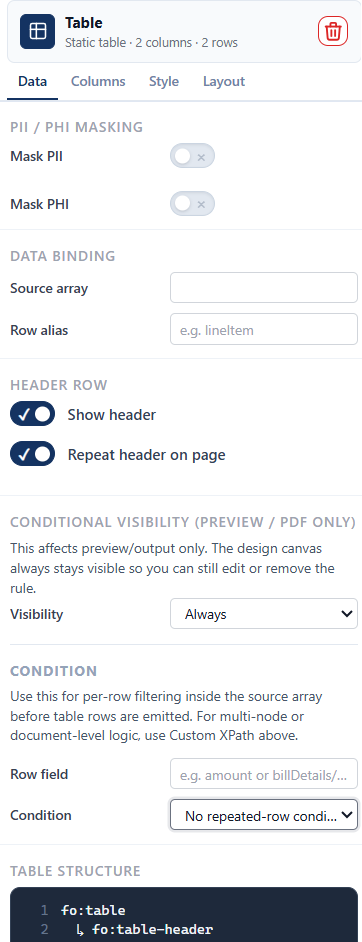
| Mask PII |
Marks the selected field, block, or table cell as personally identifiable information (PII). The generated document masks the resolved value according to the selected mask strategy. |
| Mask PHI |
Marks the selected field, block, or table cell as protected health information (PHI). The generated document masks the resolved value according to the selected mask strategy. |
| Source array |
Specifies the source array that contains the data used to populate the table rows. |
| Cell content |
Field is only displayed when a cell is clicked. Specifies the value to display for the selected cell. | <
| Display value as |
Field is only displayed when a cell is clicked. Specifies how the resolved value is formatted in the generated document.
Supported formatting rules include:
Plain text – No value format is persisted.String – None, UPPERCASE, lowercase, Title Case, camelCase, PascalCase, snake_case, or kebab-case.Date – DD/MM/YY, DD-MM-YYYY, YYYY-MM-DD, or month-name formats.Time – 24-hour or 12-hour formats.Date and time – Combined date and time patterns.Number – Decimal, percent, or currency with configurable minimum and maximum decimal places.
|
| Row alias |
Specifies an alternate name or label for the row. |
| Show header |
Toggle to show or hide the table header. |
| Repeat header on page |
Toggle to repeat the table header when the table spans multiple pages. |
| Visibility |
Controls whether the selected element appears in the preview and generated
output. The design canvas always remains visible for editing.
Always – The element is always included.Show when an array has rows – The element is omitted when the configured array path contains no rows.Custom XPath (boolean) – The element is included only when the XPath expression evaluates to true.
|
| Row field |
Specifies the field used for filtering individual rows within the source array. |
| Condition |
Defines the filtering condition applied to each row. Only rows that satisfy the condition are included in the generated table. |
Columns
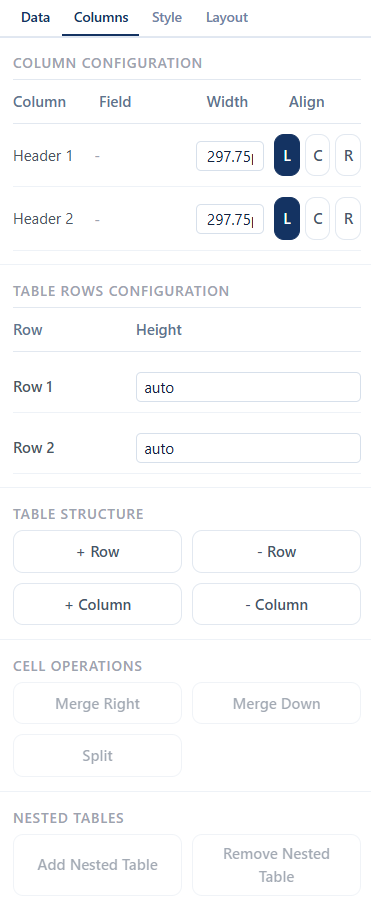
| Configuration |
Description |
| Column configuration |
- Column – Displays the selected column for configuration.
- Field – Specifies the field whose value is displayed in the selected column.
- Width – Enter a column width manually, or resize the column in the designer to update the value automatically.
- Align – Click L, C, or R to align the column content to the left, center, or right, respectively.
|
| Row configuration |
- Row – Displays the selected row. Rows are labeled sequentially as
Row 1, Row 2, and so on.
- Height – Enter a row height manually, or resize the row in the designer to update the value automatically.
|
| Table structure |
- + Row – Adds a new row below the selected row.
- + Column – Adds a new column to the right of the selected column.
- - Row – Removes the selected row from the table.
- - Column – Removes the selected column from the table.
|
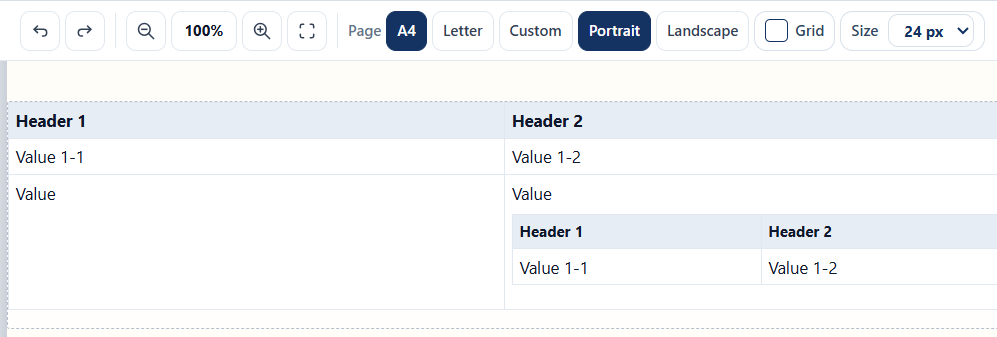
| Cell operations |
- Merge Right – Merges the selected cell with the adjacent cell to its right.
- Merge Down – Merges the selected cell with the cell directly below it.
- Split – Splits a previously merged cell into its original cells.
|
| Nested tables |
- Add Nested Table – Inserts a nested table into the selected cell.
- Remove Nested Table – Removes the nested table from the selected cell.
|
Style
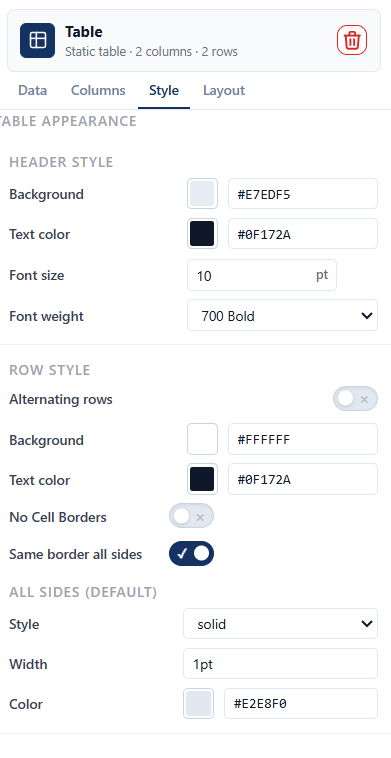
| Configuration |
Description |
| Background |
Sets the background color of the selected element. You can select a color from the color palette or enter a hexadecimal color code. |
| Text color |
Sets the color of the selected text. You can select a color from the color palette or enter a hexadecimal color code. |
| Font size |
Specifies the font size of the selected text. |
| Font weight |
Specifies the font weight of the selected text. Available options are Normal and Bold. |
| Alternating rows |
Toggle to apply alternating background colors to table rows. |
| Background |
Sets the background color of the selected element. You can select a color from the color palette or enter a hexadecimal color code. |
| Text color |
Sets the color of the selected text. You can select a color from the color palette or enter a hexadecimal color code. |
| No Cell Borders |
Toggle to remove all borders from the table cells. |
| Same border all sides |
Toggle to apply the same border settings to all four sides of the selected element. When disabled, each border side can be configured independently. |
| Style |
Specifies the border line style applied to all sides, such as solid, dashed, dotted, double, or none. |
| Width |
Specifies the width of the border applied to all sides of the selected element. |
| Color |
Sets the border color applied to all sides of the selected element. You can select a color from the color palette or enter a hexadecimal color code. |
Layout
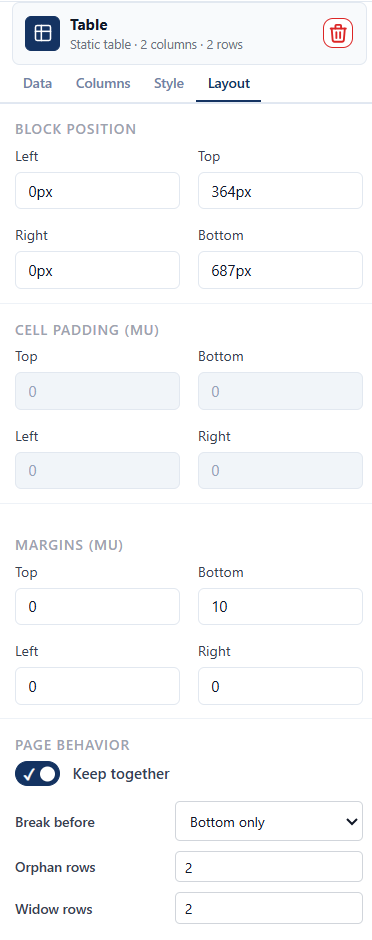
| Configuration |
Description |
| Block Position |
Specifies the position of the selected block relative to its container.
Configure the distance from each edge using the following properties:
- Left – Distance from the left edge.
- Top – Distance from the top edge.
- Right – Distance from the right edge.
- Bottom – Distance from the bottom edge.
|
| Padding (MU) |
Specifies the internal spacing, in measurement units (MU), between the
content and the borders of the selected element.
- Top – Top internal padding.
- Bottom – Bottom internal padding.
- Left – Left internal padding.
- Right – Right internal padding.
|
| Margins (MU) |
Specifies the external spacing, in measurement units (MU), between the
selected element and surrounding elements.
- Top – Top external margin.
- Bottom – Bottom external margin.
- Left – Left external margin.
- Right – Right external margin.
|
| Keep together |
Toggle to keep the table together on the same page whenever possible. |
| Break before |
Specifies whether to insert a page break before the table. Available options are None and Bottom only. |
| Orphan rows |
Specifies the minimum number of rows that must remain at the bottom of a page before the table continues on the next page. |
| Widow rows |
Specifies the minimum number of rows that must appear at the top of the next page when the table spans multiple pages. |
Image
Data
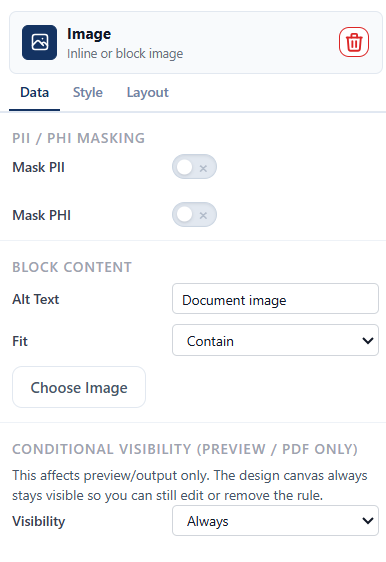
| Configuration |
Description |
| Mask PII |
Marks the selected field, block, or table cell as personally identifiable information (PII). The generated document masks the resolved value according to the selected mask strategy.
|
| Mask PHI |
Marks the selected field, block, or table cell as protected health information (PHI). The generated document masks the resolved value according to the selected mask strategy.
|
| Alt Text |
Specifies alternative text for the image. This text is used to describe the image content for accessibility purposes.
|
| Fit |
Specifies how the image is resized within its container. Available options are Contain and Cover.
|
| Choose Image |
Selects the image to be inserted into the element.
|
| Visibility |
Controls whether the selected element appears in the preview and generated output. The design canvas remains visible for editing.
Always – The element is always included.Show when an array has rows – The element is included only when the configured array path contains one or more rows.Custom XPath (boolean) – The element is included only when the XPath expression evaluates to true.
|
Style

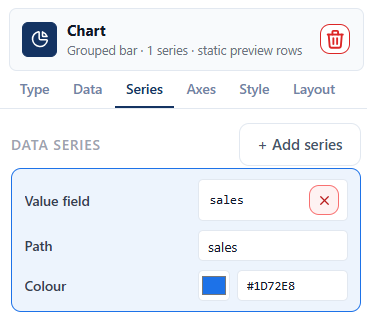
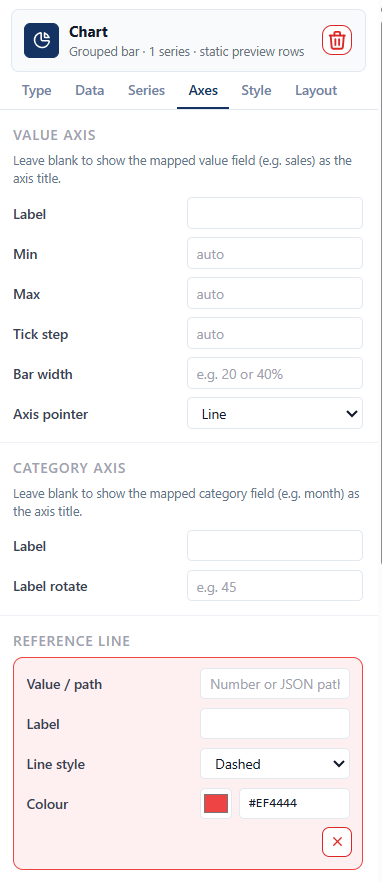
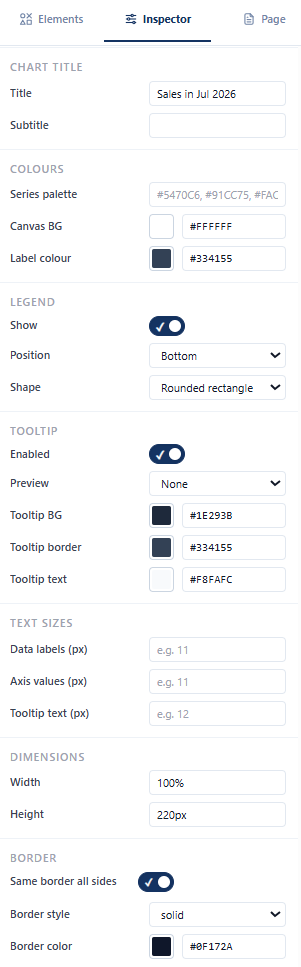
Chart
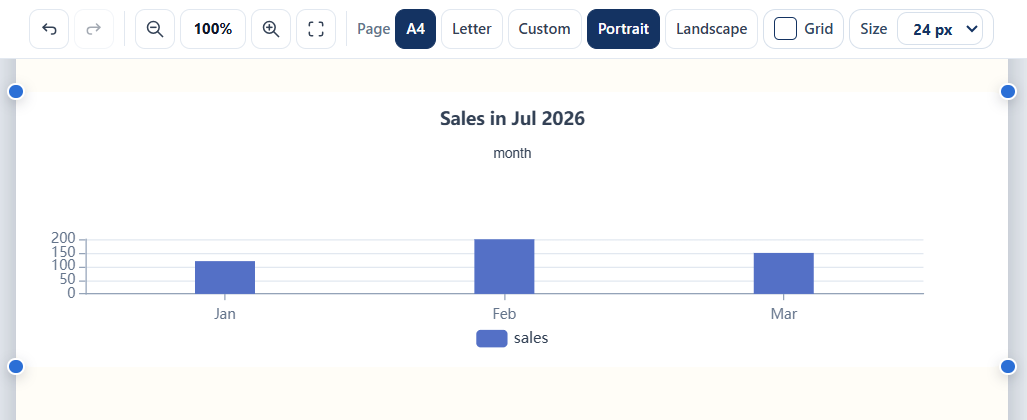
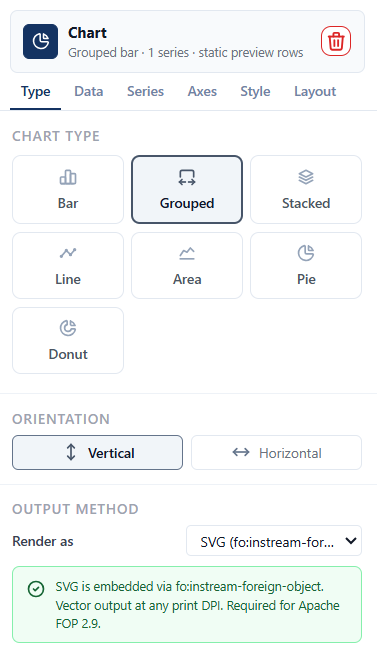
Type
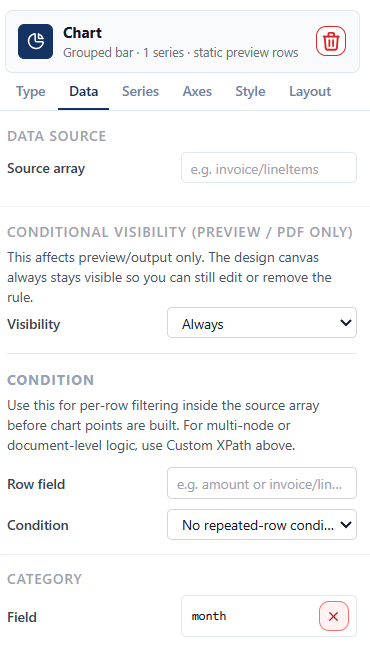
Data
Series
Axes
Style
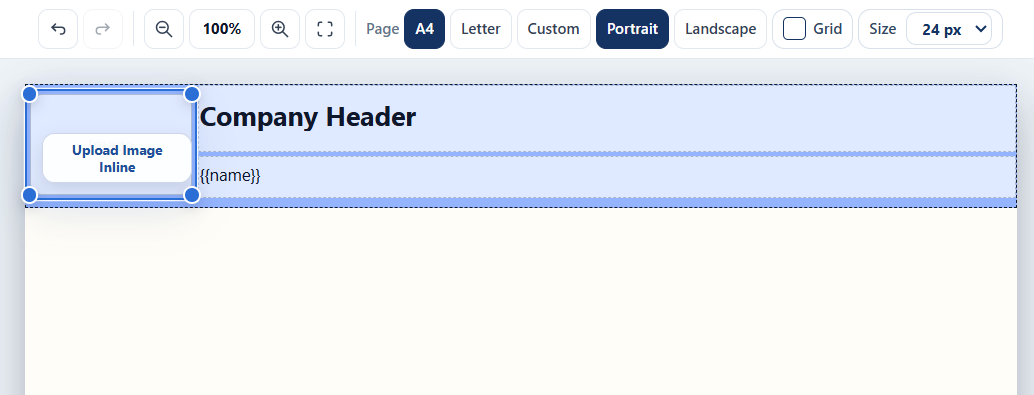
Page header and footer
Data
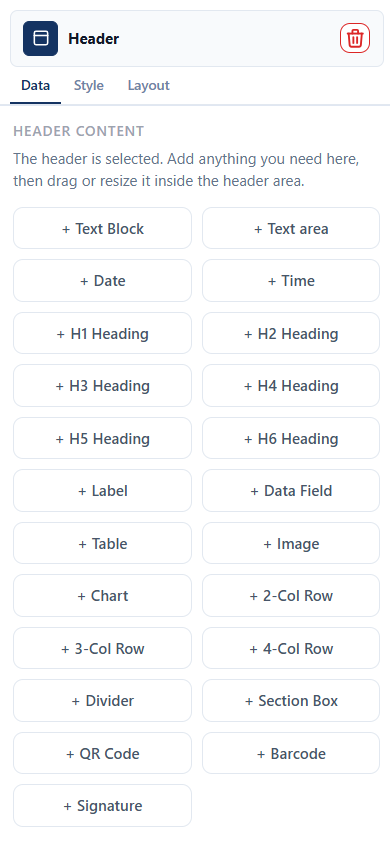
You can add any PDF element to the header or footer by clicking the tile that represents the element you want to include.
Style
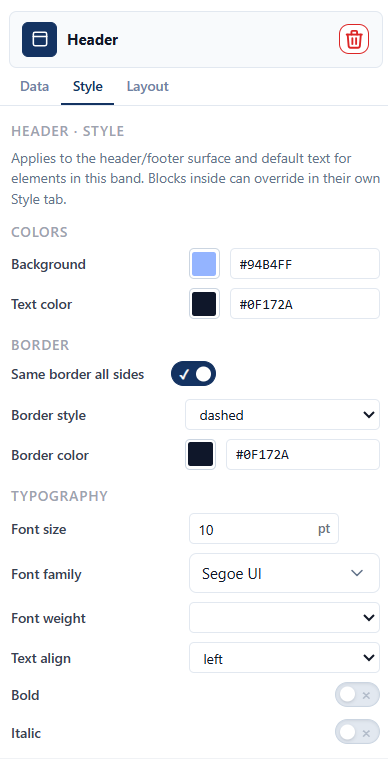
The following style configurations apply to the header and footer.
| Configuration |
Description |
| Background color |
Sets the background color of the element. You can select a color from the color palette or enter a hexadecimal color code. |
| Text color |
Specifies the color applied to the text. You can select a color from the color palette or enter a hexadecimal color code. |
| Same border all sides |
When enabled, applies the same border settings to all four sides of the selected element. When disabled, each border side can be configured independently. |
| Border style |
Specifies the border line style applied to all sides, such as solid, dashed, dotted, double, or none. |
| Border color |
Specifies the color of the border applied to all sides of the element. You can select a color from the color palette or enter a hexadecimal color code. |
| Font size |
Specifies the size of the text. |
| Font family |
Specifies the font family used to render the selected text in the generated document. |
| Text align |
Sets the horizontal alignment of the selected text within its container. Possible values are left, center, right, and justify. |
| Bold |
Applies bold font weight to the selected text when enabled. |
| Italic |
Applies the italic font style to the selected text when enabled. |
Multiple-column rows and section box
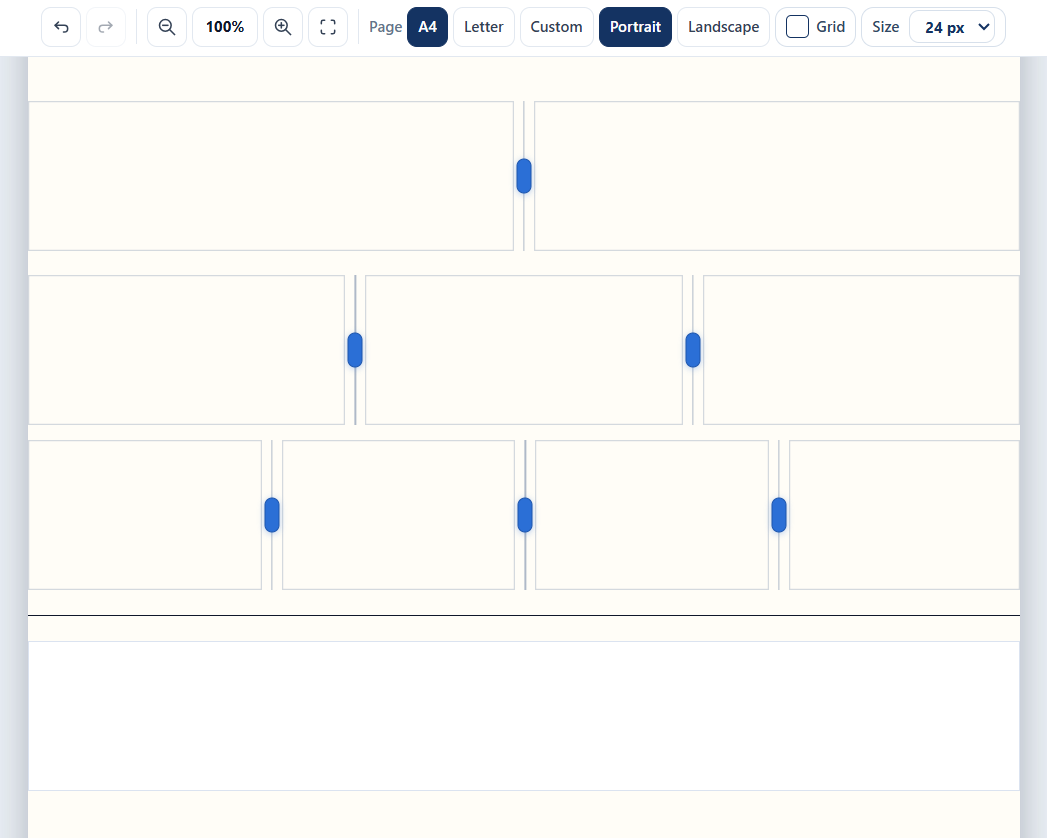
Data
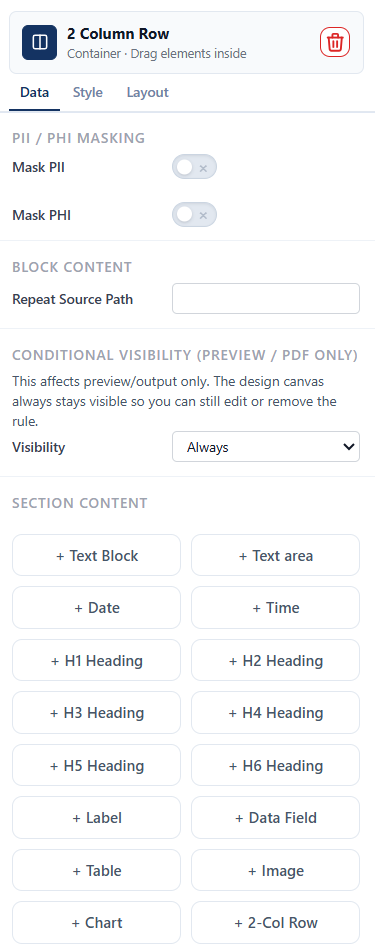
| Setting |
Description |
| Mask PII |
Marks the selected field, block, or table cell as personally identifiable information (PII). The generated document masks the resolved value according to the selected mask strategy.
|
| Mask PHI |
Marks the selected field, block, or table cell as protected health information (PHI). The generated document masks the resolved value according to the selected mask strategy.
|
| Mask strategy |
Required when Mask PII or Mask PHI is enabled. Specifies how the resolved value is obfuscated in the generated output. Options are Partial Masking, Hash, and Redact.
|
| Repeat Source Path |
Path or location of the original document that will be reused for the section. |
| Visibility |
Controls whether the selected element appears in the preview and generated
output. The design canvas always remains visible for editing.
Always – The element is always included.Show when an array has rows – The element is omitted when the configured array path contains no rows.Custom XPath (boolean) – The element is included only when the XPath expression evaluates to true.
|
| Section Content |
Add any PDF element to the section content by selecting the tile containing the element name you want to add. |
Style
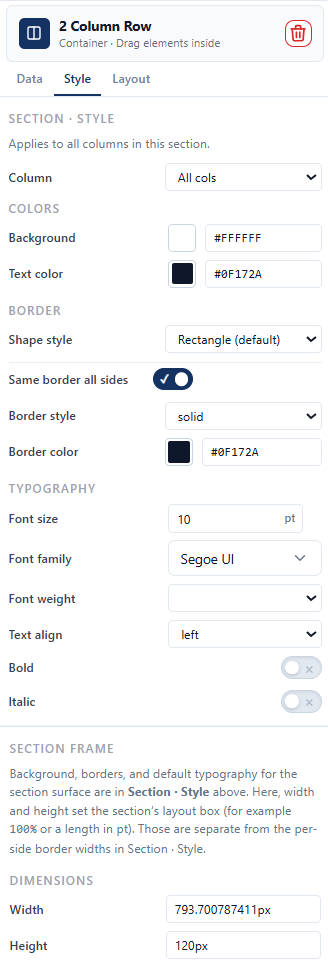
The following style configurations apply to multiple-column rows and section box.
| Configuration |
Description |
| Column |
Select the column to configure. Available options include All cols, Column 1, Column 2, Column 3, and Column 4, depending on the selected multi-column layout. |
| Background color |
Sets the background color of the element. You can select a color from the color palette or enter a hexadecimal color code. |
| Text color |
Specifies the color applied to the text. You can select a color from the color palette or enter a hexadecimal color code. |
| Shape style |
Applies a predefined visual style to the selected shape. Possible values are Rectangle, Rounded Rectangle, No Border, Underline Only, Dashed Border, Dotted Border, Double Border, Capsule / Pill, Circle, Ellipse, and Shadow Box. |
| Same border all sides |
When enabled, applies the same border settings to all four sides of the selected element. When disabled, each border side can be configured independently. |
| Border style |
Specifies the border line style applied to all sides, such as solid, dashed, dotted, double, or none. |
| Border color |
Specifies the color of the border applied to all sides of the element. You can select a color from the color palette or enter a hexadecimal color code. |
| Font size |
Specifies the size of the text. |
| Font family |
Specifies the font family used to render the selected text in the generated document. |
| Text align |
Sets the horizontal alignment of the selected text within its container. Possible values are left, center, right, and justify. |
| Bold |
Applies bold font weight to the selected text when enabled. |
| Italic |
Applies the italic font style to the selected text when enabled. |
| Width |
Specifies the width of the section frame. |
| Height |
Specifies the height of the section frame. |
Divider
Data
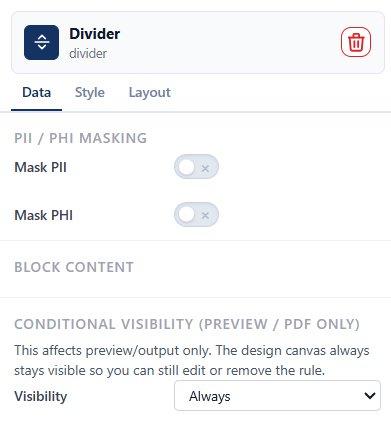
The following data configurations apply to the divider element.
| Setting |
Description |
| Mask PII |
Marks the selected field, block, or table cell as personally identifiable information (PII). The generated document masks the resolved value according to the selected mask strategy.
|
| Mask PHI |
Marks the selected field, block, or table cell as protected health information (PHI). The generated document masks the resolved value according to the selected mask strategy.
|
| Mask strategy |
Required when Mask PII or Mask PHI is enabled. Specifies how the resolved value is obfuscated in the generated output. Options are Partial Masking, Hash, and Redact.
|
| Visibility |
Controls whether the selected element appears in the preview and generated
output. The design canvas always remains visible for editing.
Always – The element is always included.Show when an array has rows – The element is omitted when the configured array path contains no rows.Custom XPath (boolean) – The element is included only when the XPath expression evaluates to true.
|
Style
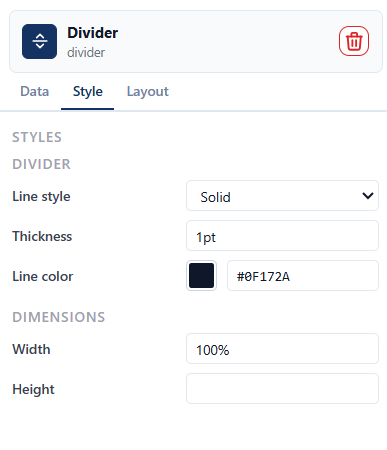
The following style configurations apply to the divider element.
| Configuration |
Description |
| Line style |
Select the appearance of the line such as solid, dashed, dotted, or double. |
| Thickness |
Set the thickness of the line. |
| Line color |
Choose the color of the line. You can select a color from the color palette or enter a hexadecimal color code. |
| Width |
Specify the width of the line or element. |
| Height |
Specify the height of the line or element. |
Repeat container
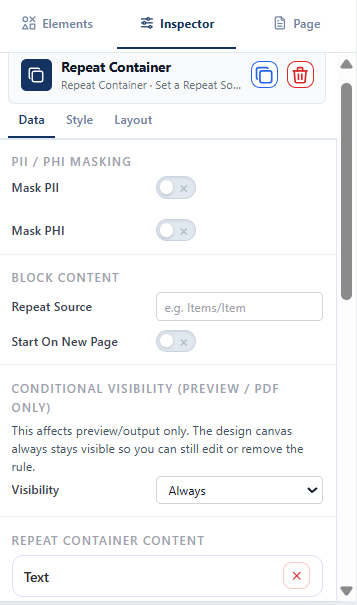
The following data configurations apply to the repeat container.
Data
| Setting |
Description |
| Mask PII |
Marks the selected field, block, or table cell as personally identifiable information (PII). The generated document masks the resolved value according to the selected mask strategy.
|
| Mask PHI |
Marks the selected field, block, or table cell as protected health information (PHI). The generated document masks the resolved value according to the selected mask strategy.
|
| Repeat Source |
Specifies the data collection path the container repeats over, for example Items/Item.
|
| Start on New Page |
When enabled, each repeated item starts on a new page.
|
| Visibility |
Controls whether the selected element appears in the preview and generated
output. The design canvas always remains visible for editing.
Always – The element is always included.Show when an array has rows – The element is omitted when the configured array path contains no rows.Custom XPath (boolean) – The element is included only when the XPath expression evaluates to true.
|
| Repeat container content |
You can add the following elements inside a Repeat Container: Text Block, Text area, Date, Time, H1–H6 Heading, Label, Data Field, Table, Image, Chart, 2-Col Row, 3-Col Row, 4-Col Row, Divider, Checkbox, Repeat Container (nested), Section Box, QR Code, Barcode, and Signature.
|
QR code, barcode, and signature
Data
The following data configurations apply to the QR code, barcode, and signature elements.
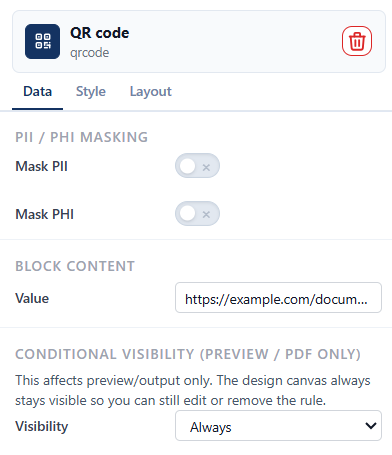
| Setting |
Description |
| Mask PII |
Marks the selected field, block, or table cell as personally identifiable information (PII). The generated document masks the resolved value according to the selected mask strategy.
|
| Mask PHI |
Marks the selected field, block, or table cell as protected health information (PHI). The generated document masks the resolved value according to the selected mask strategy.
|
| Mask strategy |
Required when Mask PII or Mask PHI is enabled. Specifies how the resolved value is obfuscated in the generated output. Options are Partial Masking, Hash, and Redact.
|
| Value |
Specifies the content associated with the selected element:
- Barcode – The alphanumeric value encoded in the barcode and displayed below it.
- QR code – The URL or text encoded in the QR code that is accessed when it is scanned.
- Signature – The text displayed below the signature line.
|
| Visibility |
Controls whether the selected element appears in the preview and generated
output. The design canvas always remains visible for editing.
Always – The element is always included.Show when an array has rows – The element is omitted when the configured array path contains no rows.Custom XPath (boolean) – The element is included only when the XPath expression evaluates to true.
|
Layout configurations
All PDF elements have the following style configurations.
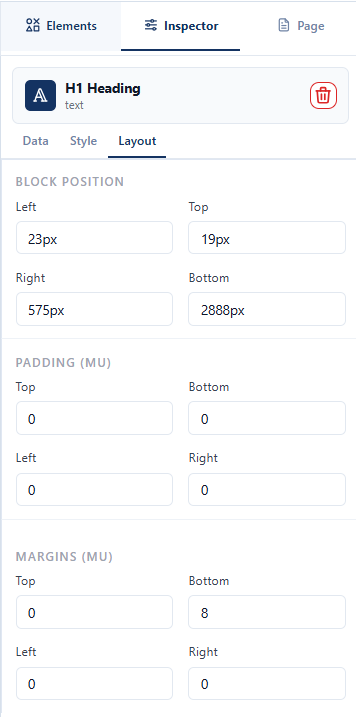
| Setting |
Description |
| Block Position |
Specifies the position of the selected block relative to its container.
Configure the distance from each edge using the following properties:
- Left – Distance from the left edge.
- Top – Distance from the top edge.
- Right – Distance from the right edge.
- Bottom – Distance from the bottom edge.
|
| Padding (MU) |
Specifies the internal spacing, in measurement units (MU), between the
content and the borders of the selected element.
- Top – Top internal padding.
- Bottom – Bottom internal padding.
- Left – Left internal padding.
- Right – Right internal padding.
|
| Margins (MU) |
Specifies the external spacing, in measurement units (MU), between the
selected element and surrounding elements.
- Top – Top external margin.
- Bottom – Bottom external margin.
- Left – Left external margin.
- Right – Right external margin.
|