Overview
Overview
The Document Template module lists all available templates that can be used for document generation. The module allows you to add, modify, or delete templates.
Create a new template
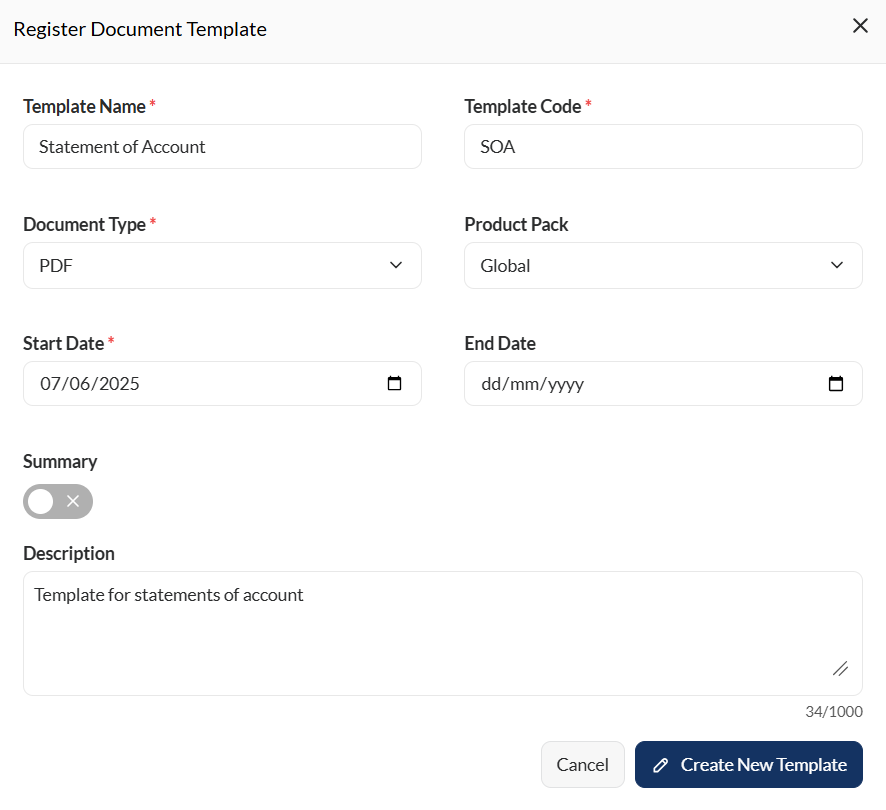
To create a new template, click the Create New button and enter valid values to the following fields.
| Field | Description |
|---|---|
| Template Name | Name of the template. Mandatory: Yes |
| Template Code | Code of the template. Mandatory: Yes |
| Document Type |
Specifies the document type of the template. Possible values are the following:
|
| Product Pack | Specifies the product pack applicable for the template. Mandatory: No Default: Global template (no pack) |
| Start Date | Specifies the date when the template becomes available. Mandatory: Yes |
| End Date | Specifies the date when the template is no longer available for use. Mandatory: No |
| Summary |
Specifies if the template is a summary version. For example, a credit card bill template might have two versions: a summary that shows the total amount due and a detailed version listing all transactions. Default: Disabled |
| Description | Description of the template. Mandatory: No |
| Cancel | Cancels the creation of a new template. |
| Create New Template | Click this button if you wan to design the template from scratch. This button will redirect you to the template design screen. |
Template design
The template design screen is displayed after the following scenarios:
- Clicking the Create a New Template button during creation of a new template
- Clicking a template in the card view to modify a template
- Clicking the edit icon in the List view to modify a template
The template design varies depending on the document type. For more information, see:
Views
Card view
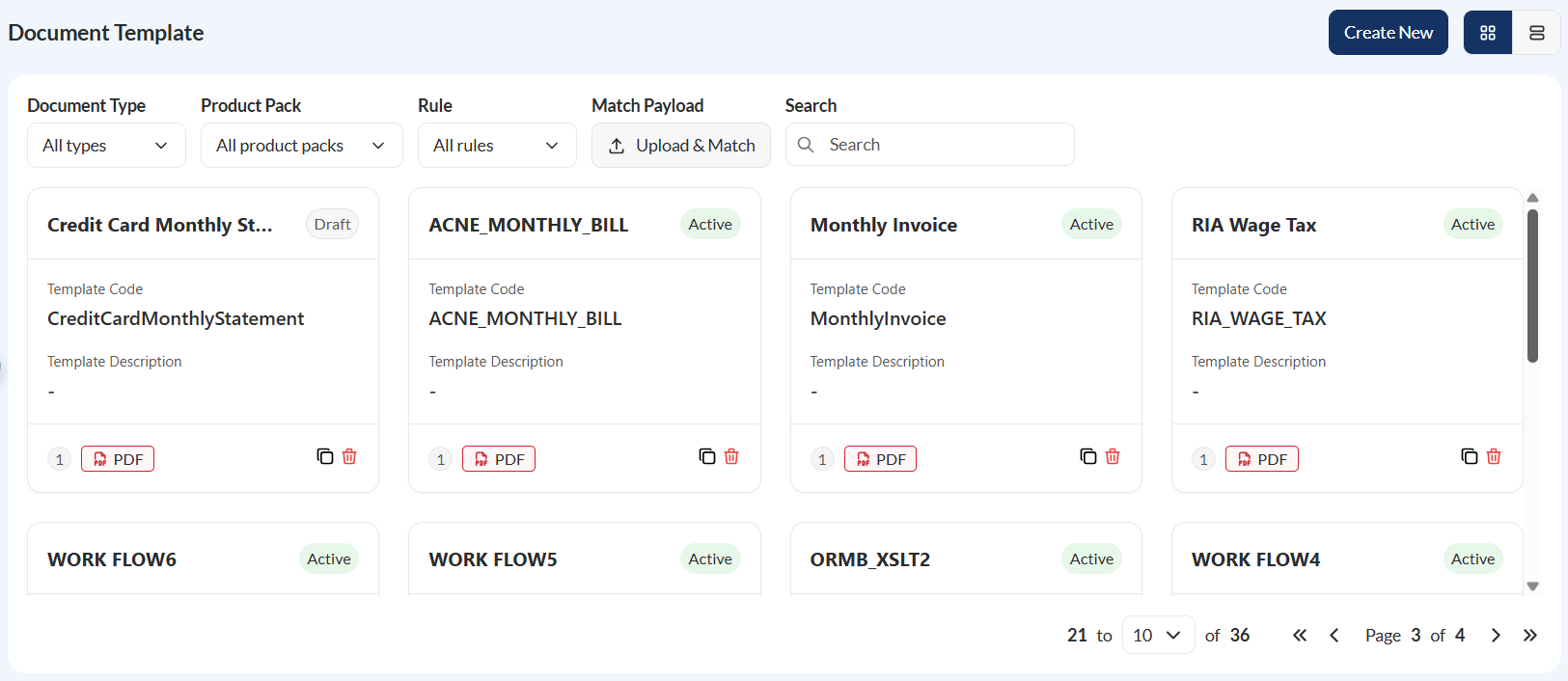
The card view presents all templates as individual cards. Each card header shows the template name along with its status. The card body includes the Template Code and Template Description. In the card footer, you will find the version number of the template, the document type, an icon for duplication, and an icon for deletion.
List view
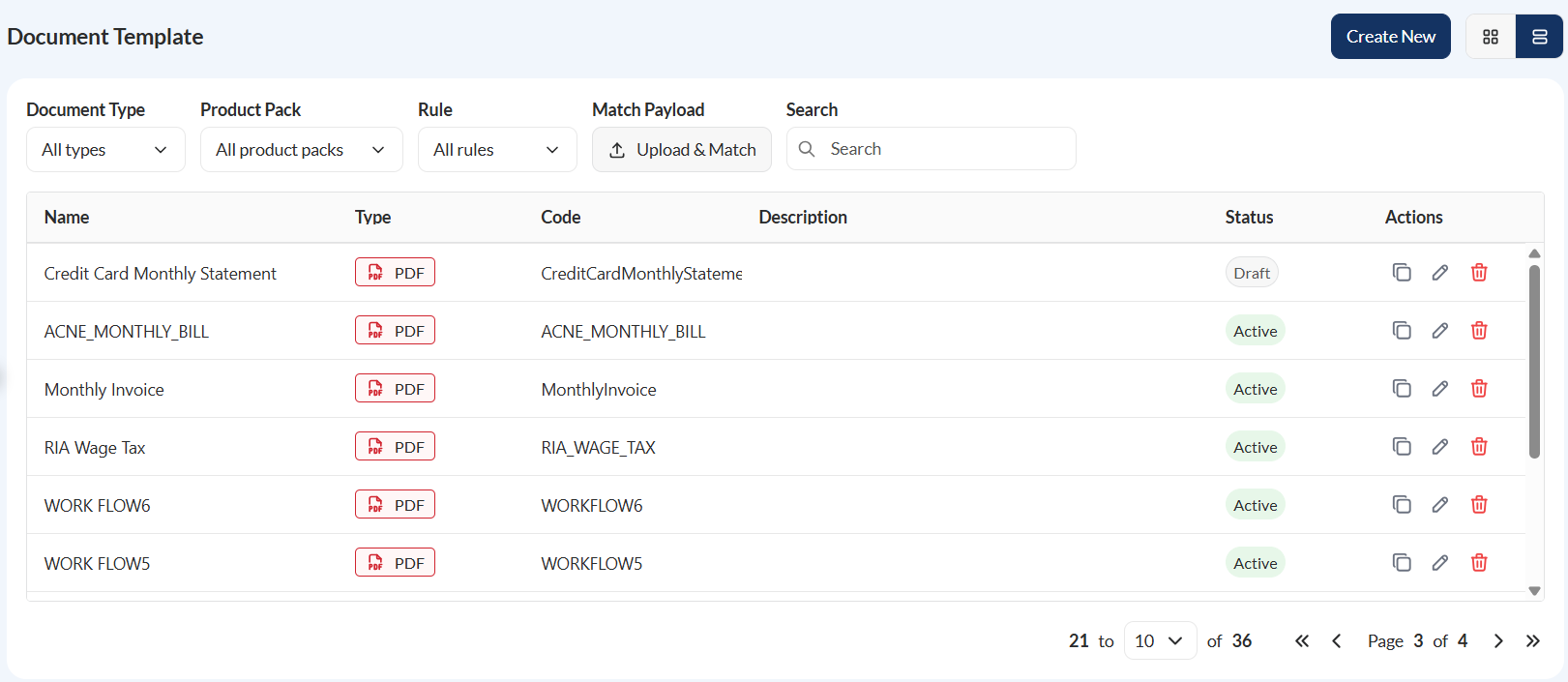
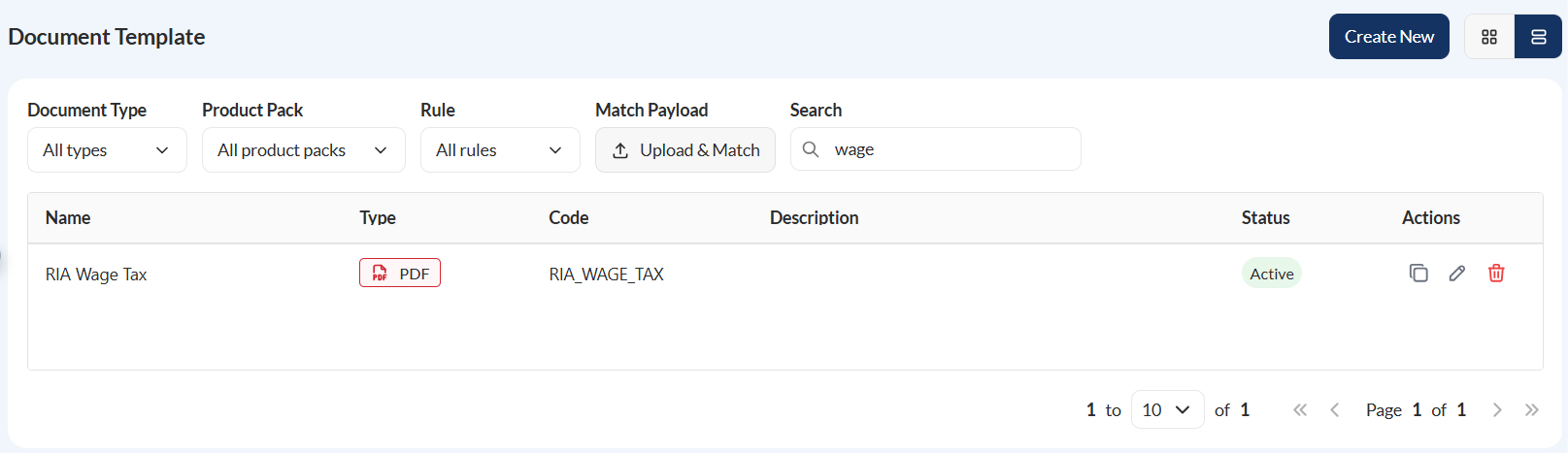
The list view displays all templates in a tabular format, showing the same details as the card view. The key difference is that the list view includes an edit icon, which allows you to modify a template in Template Design.
Filter
Templates can be filtered by Document Type, Product Pack, Rule, Match Payload, or by entering a keyword in the Search field. You can search using either a keyword or the full template name. Only templates that match the entered keyword or name will be displayed.
Password configuration
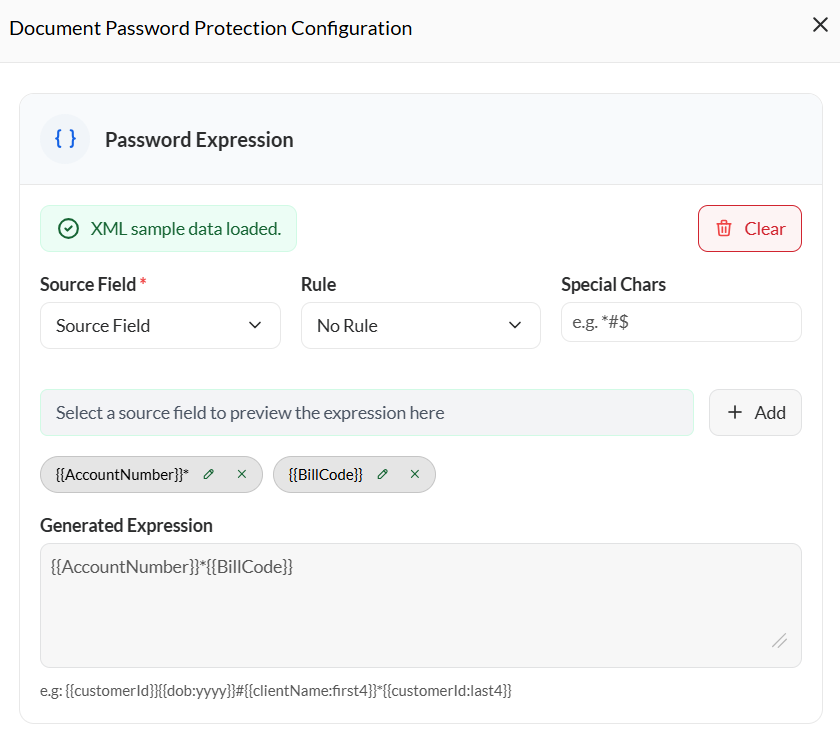
Password expression
Defines how the document password is generated using template fields and rules. Before configuring the password expression, upload a sample data file.
Then, enter the password expression using the supported syntax. For example, {{customerId}}{{dob:yyyy}}#{{clientName:first4}}*{{customerId:last4}}.
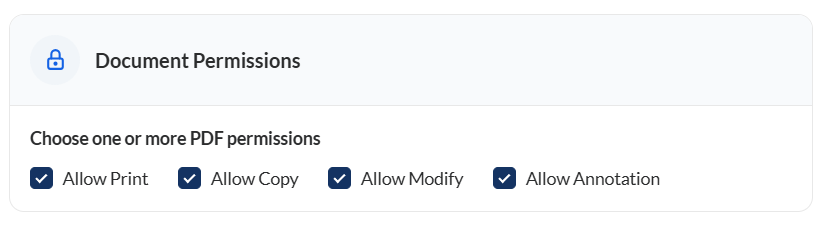
Document permissions
Defines the actions that users are allowed to perform when the protected document is opened, such as printing, copying content, or modifying the document.
Encryption level
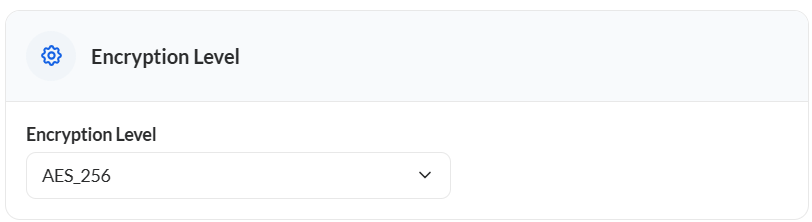
Specifies the encryption algorithm used to secure the document. Available options are AES-128 and AES-256. Higher encryption levels provide stronger security but may slightly impact processing performance.