Supplemental CSV processing
Overview
The Supplemental CSV Processing job splits the macro supplemental CSV file from storage into micro supplemental files based on split parameters such as invoice number.
Trigger a job
Ensure that the input file are uploaded to the specified path in the Input Path field in the Trigger configurations.
To trigger a complete document processing job, follow these steps:
- Navigate to the Batch Dashboard module.
- On the upper right corner, select
Supplemental CSV Processingfrom the dropdown list. - Click the Trigger button in the Executions section.
- In the Trigger Job popup window, enter valid values to the mandatory trigger configurations.
- Click the Trigger button.
When a job is triggered, a live execution window is displayed:
Once the execution is completed, the job will be listed in the Executions table. The output file is stored in the specified Output Path in the Trigger configurations.
Trigger configurations
The following parameters are mandatory when triggering this job:
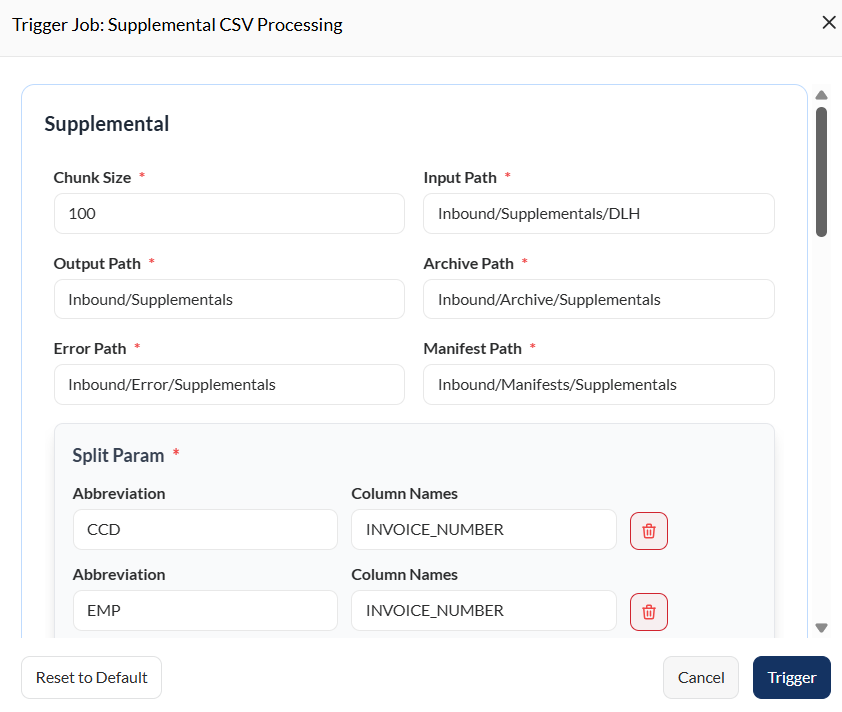
| Parameter | Description |
|---|---|
| Chunk Size | Defines how many records or items are processed per batch during execution. |
| Input Path | Directory location where the system reads or retrieves the source CSV files. |
| Output Path | Folder where processed supplemental output files will be saved. |
| Archive Path | Main directory where completed or processed supplemental files are stored for long-term retention. |
| Error Path | Directory where supplemental files that failed processing are stored. |
| Manifest Path | Location where the system writes or stores the manifest file summarizing processed supplemental data. |
| Split Param | Defines the rule or field used to split supplemental data into multiple output groups or batches. |
| Client Id Columns | |
| Invoice Date Columns |
Control Flags
The following controls are available:
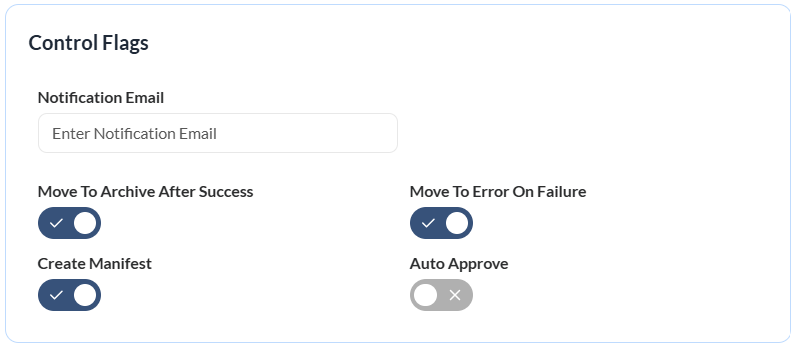
| Control | Description |
|---|---|
| Notification Email | Email address that will receive status updates or alerts after processing. |
| Move to Archive After Success | Automatically moves successfully processed files to the archive folder. |
| Move to Error on Failure | Sends files that fail processing to the designated error directory. |
| Create Manifest | Generates a manifest file summarizing the details of the processed batch. |
| Auto Approve | Automatically approves the process or output without requiring manual validation. |