list test block
PDF template
Overview
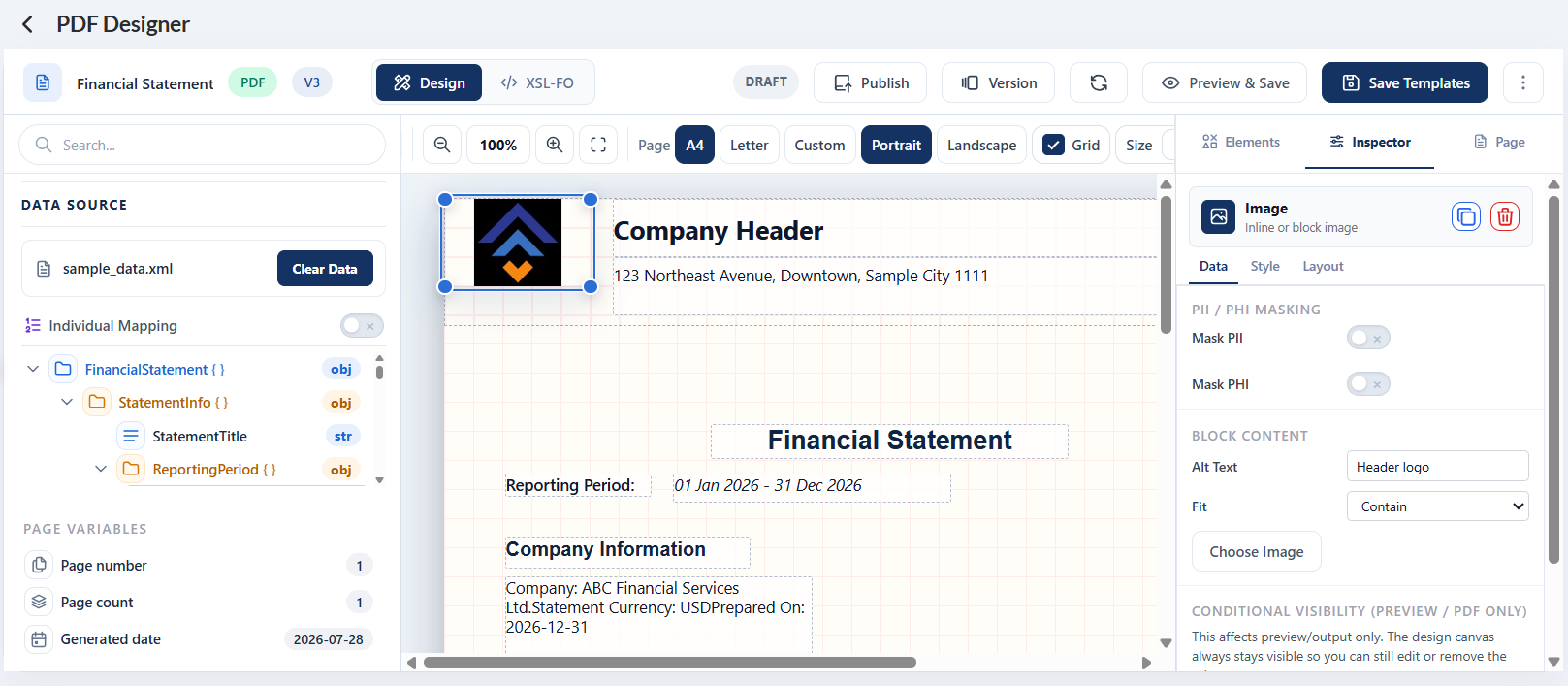
The PDF template builder provides an intuitive interface for creating and customizing PDF layouts without requiring codes. You can easily add, arrange, resize, and configure elements directly on the template canvas. For more information on the supported elements, see PDF template elements.
Create a new PDF template
-
Follow Create a new template steps with an
PDFvalue chosen from the Document Type dropdown. -
Verify that the design page for a PDF file is displayed.
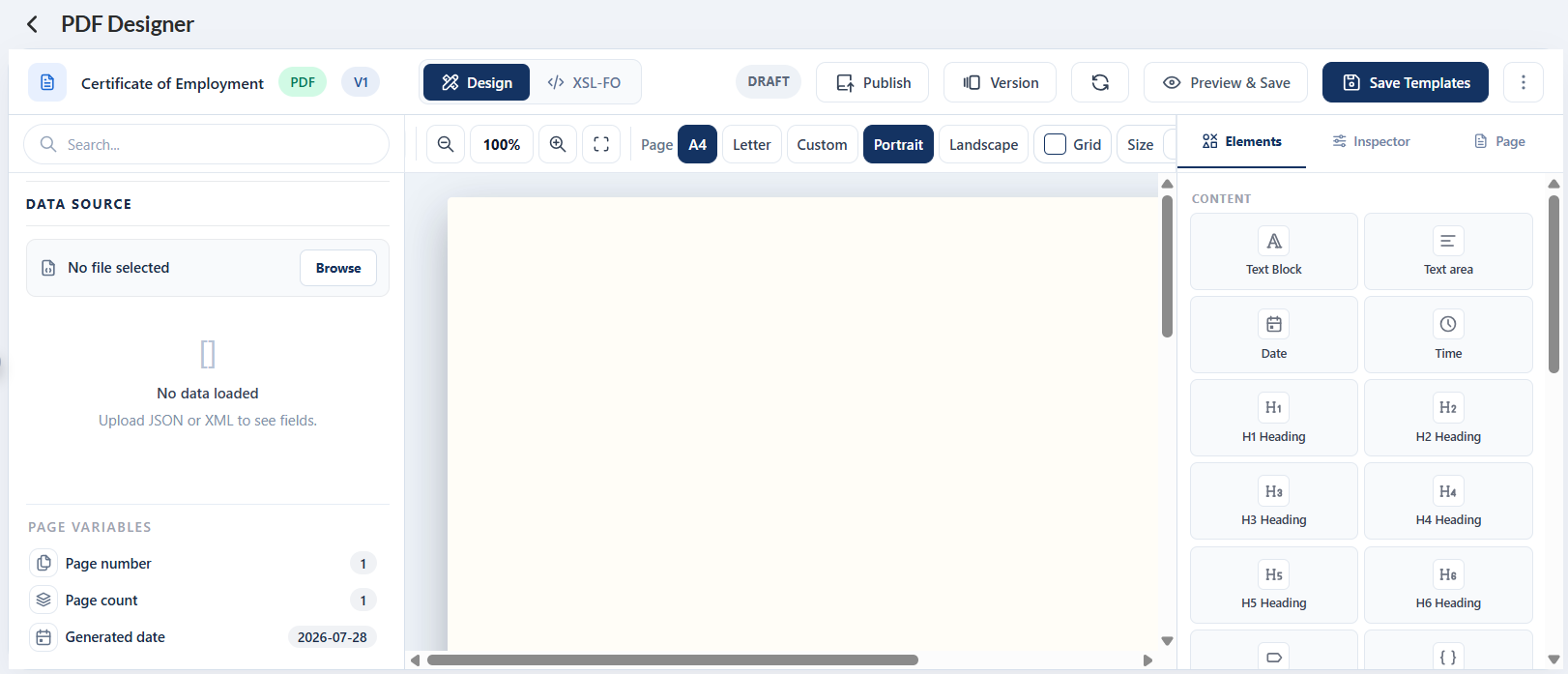
- Click the Browse button to upload the source file. Supported file formats are
JSONandXML.
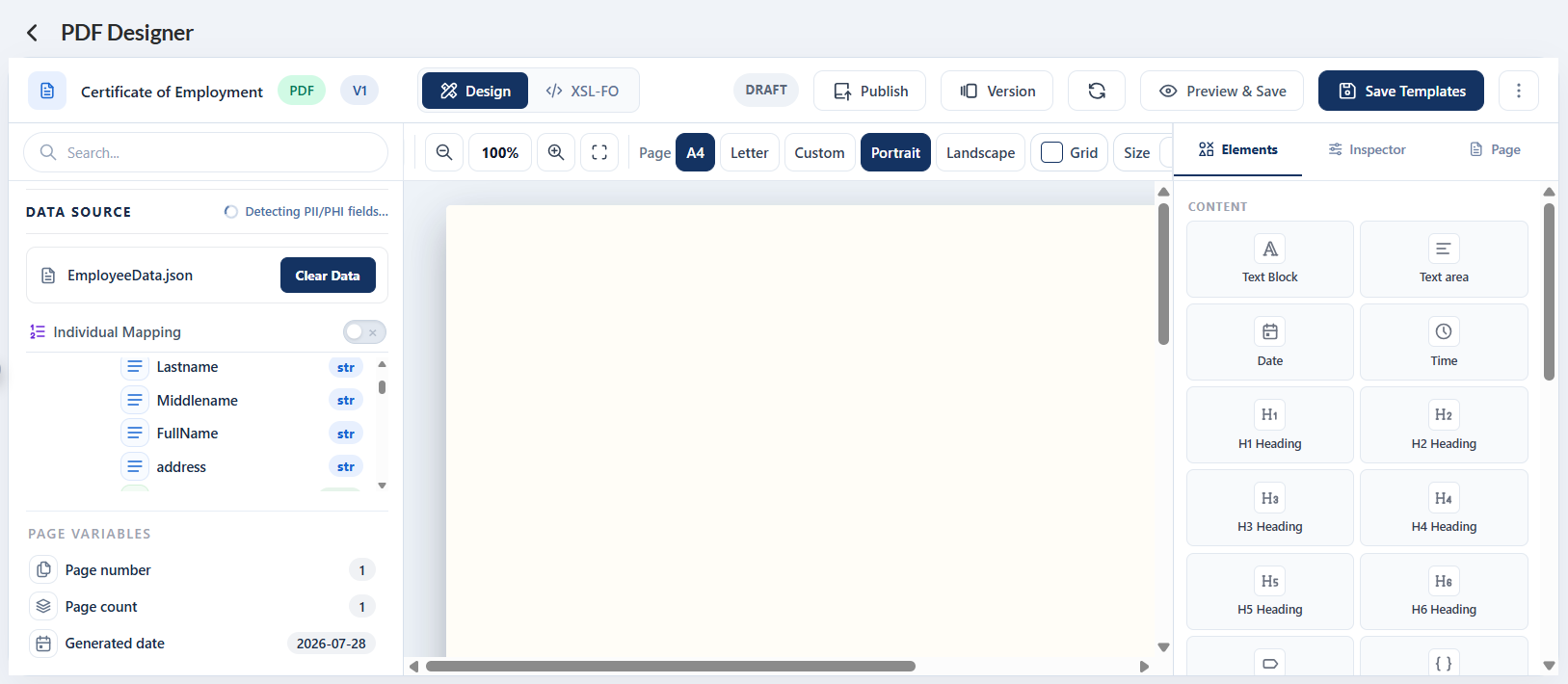
- Design the PDF file by dragging and styling the elements you wish to add. For more information, see PDF Elements.
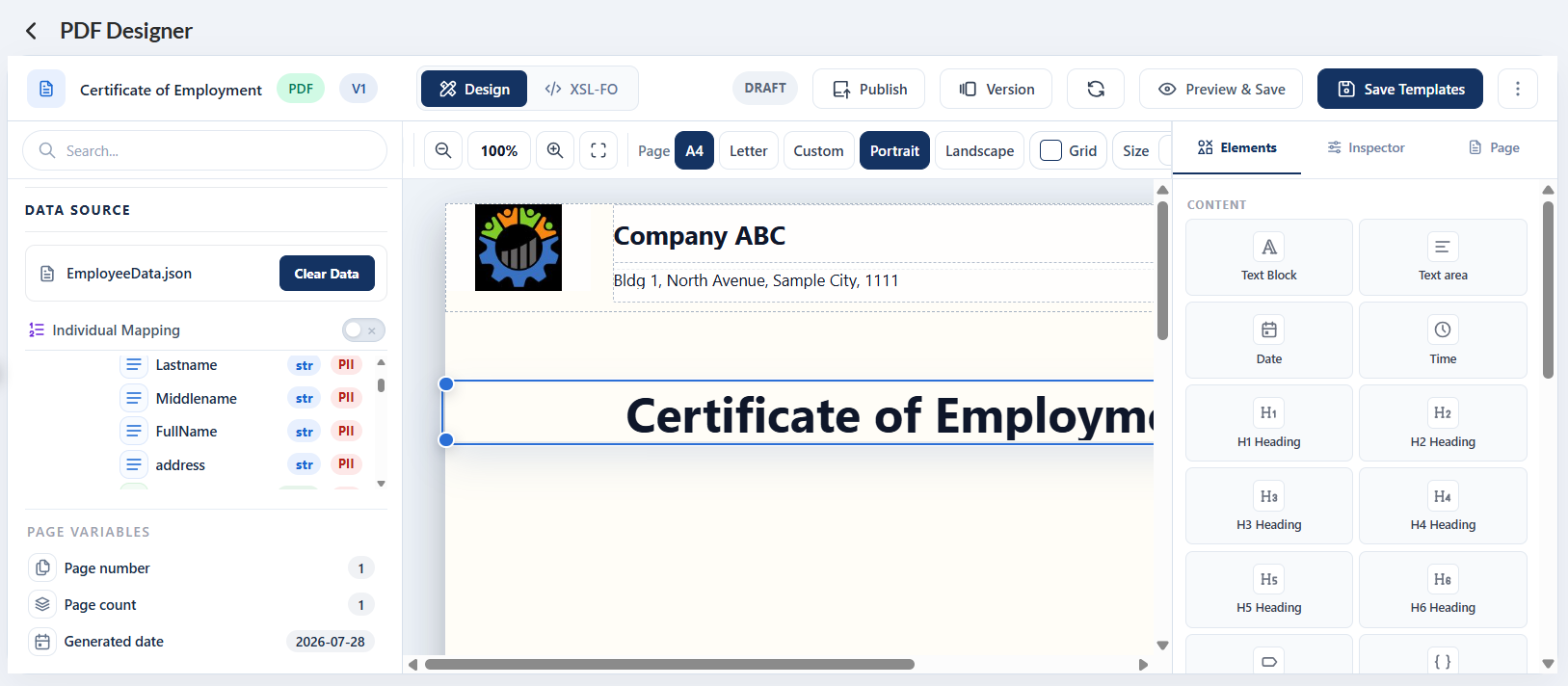
- Click the Save Template button to save the changes. You can also click the Preview & Save to preview the changes.
Header
The header displays the filename, file type, and the version number.

It also displays the Design/XSL-FO toggle. When the Design toggle is enabled, the screen displays the design screen, version, actions, left pane, and right pane.
On the other hand, the XSL-FO screen displays the XSL based on the layout generated from the rendered HTML. For more information, see XSL-FO.
Version
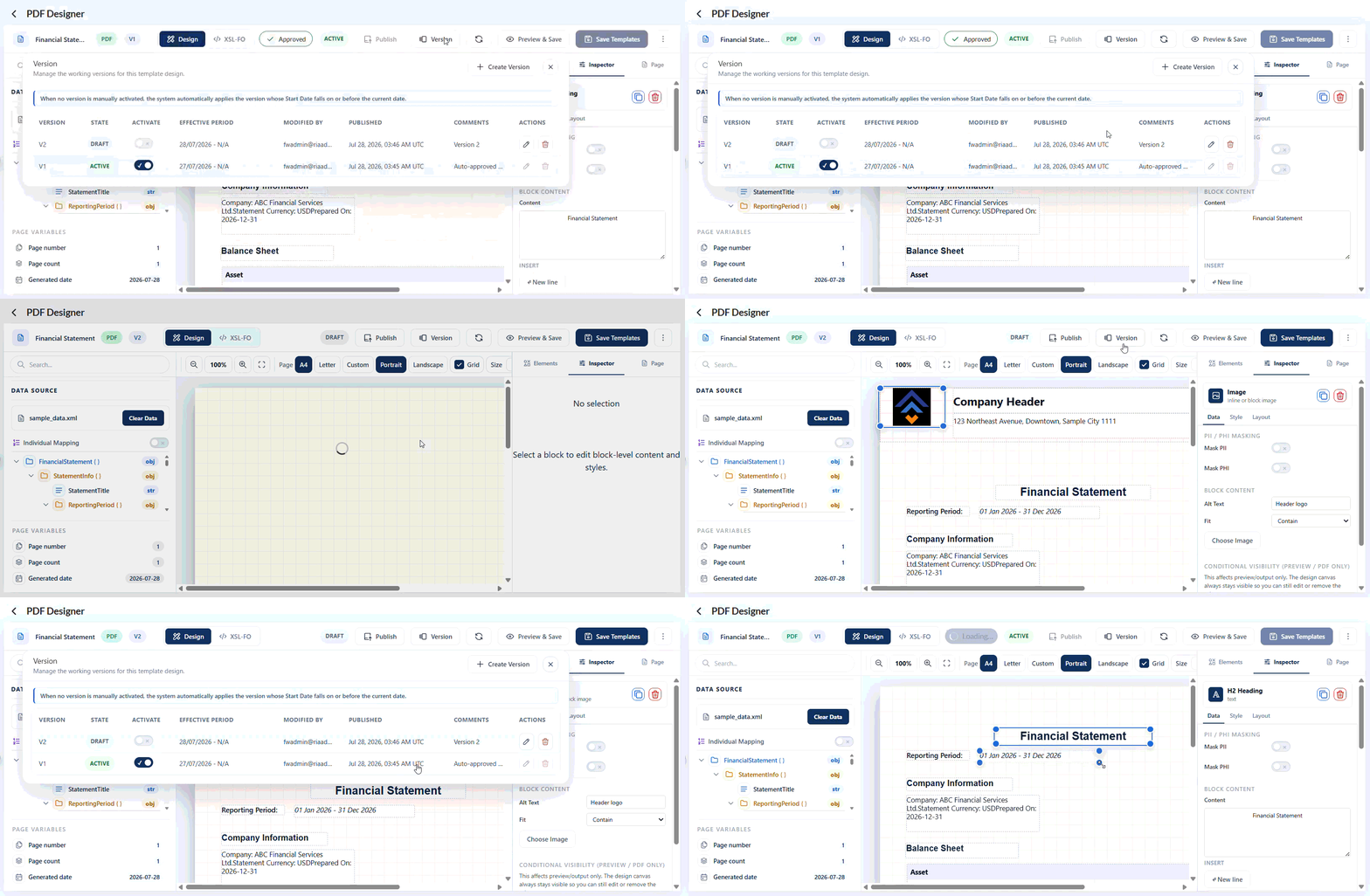
When the Version button is clicked, all versions of the selected template are displayed. The currently displayed version is highlighted.
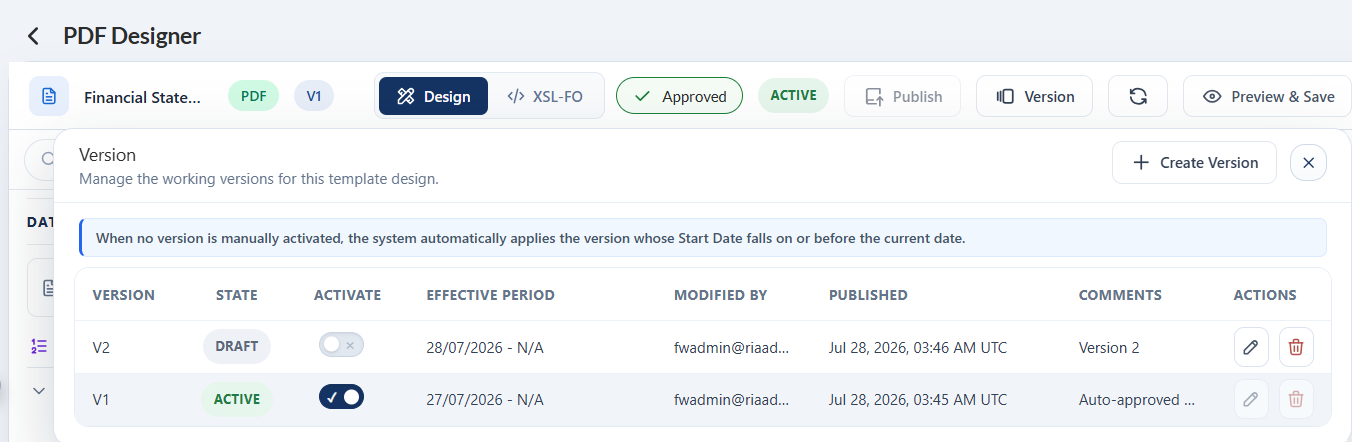
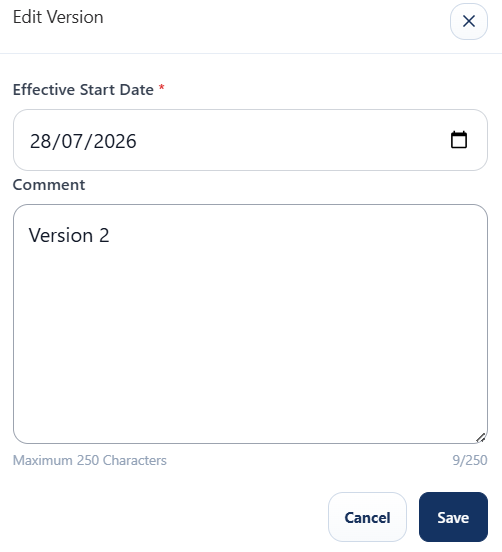
When the  is clicked, you can only edit the Effective Start Date and Comment fields. Note that versions in
 Active states cannot be edited.
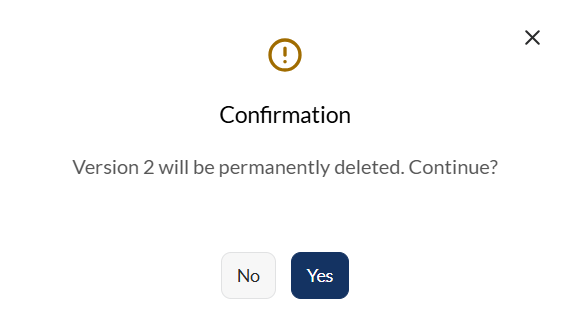
If the version needs to be deleted, click the  icon. Note that versions in
 Active states cannot be deleted.
If you wish to view a different version, click on the version row you wish to display.
You can also create a new version of the current template by clicking the Create Version button.
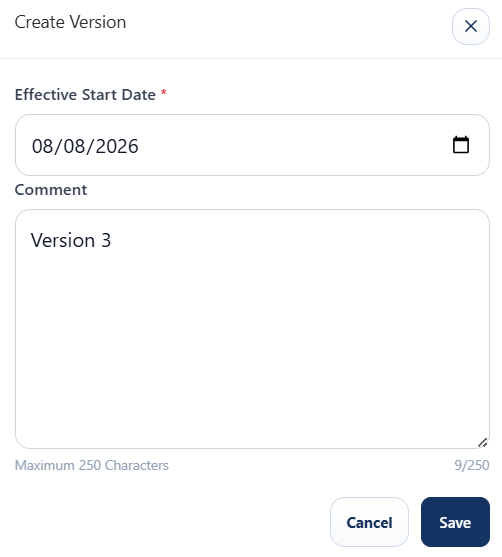
Once confirmed, an exact copy of the previously viewed template will be displayed, allowing you to make any necessary edits or modifications.
Actions
Publish
When a template with a future effective date is published from Draft, its status changes to Scheduled. The Publish button will then be disabled.
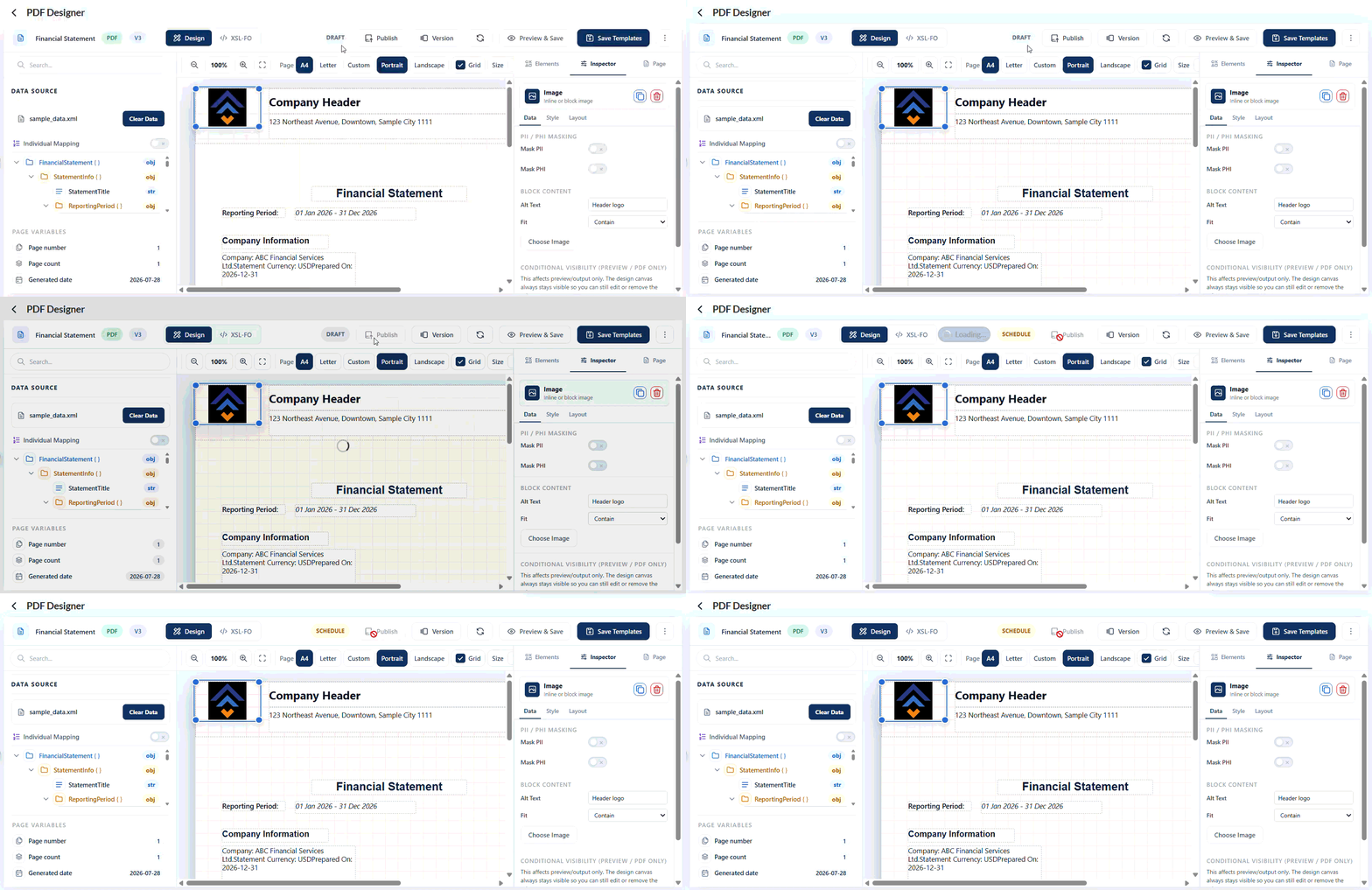
When a template’s effective date is the same as the publishing date, its status changes from Draft to Active. The Publish button is also disabled.
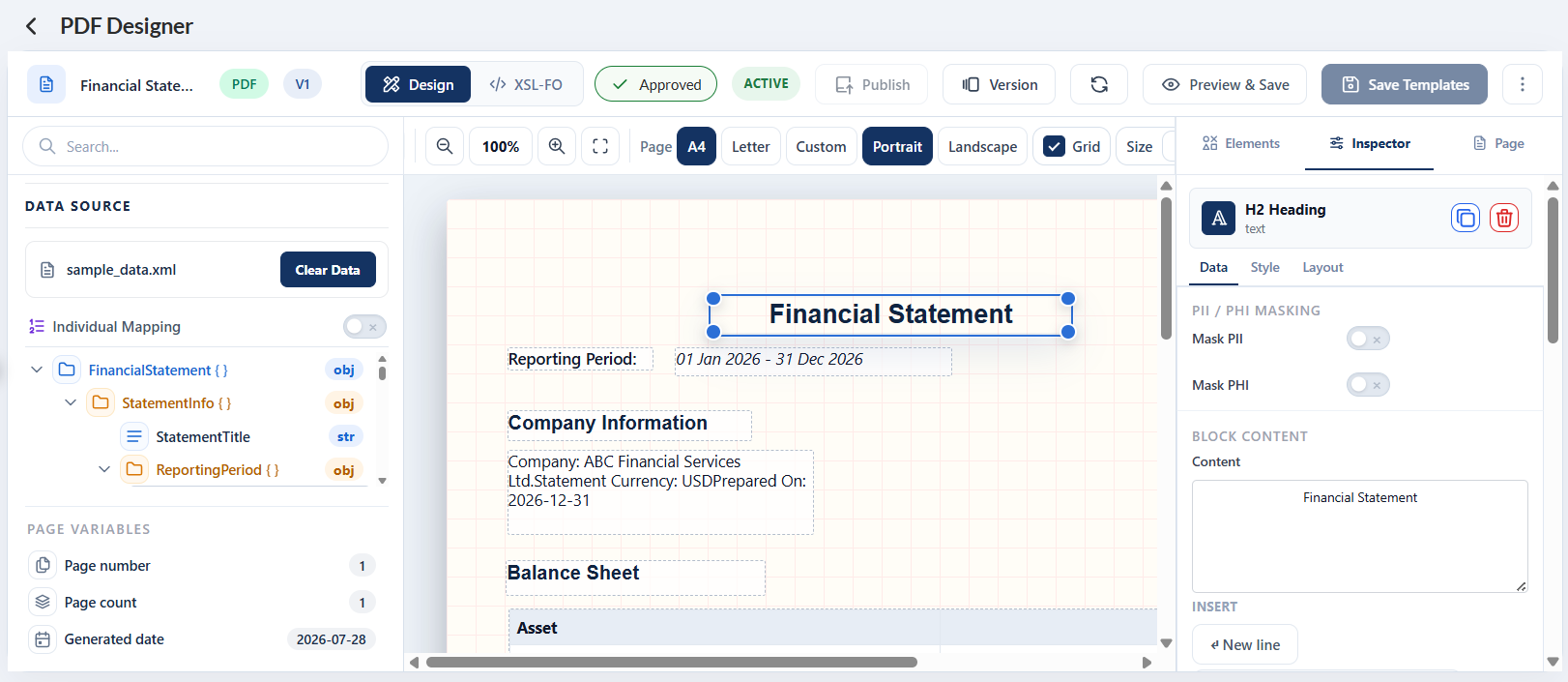
Users without admin privileges can’t publish a template directly. Instead, they click Request for Review. An administrator reviews and approves the design, and the template is published after approval.
Preview and save
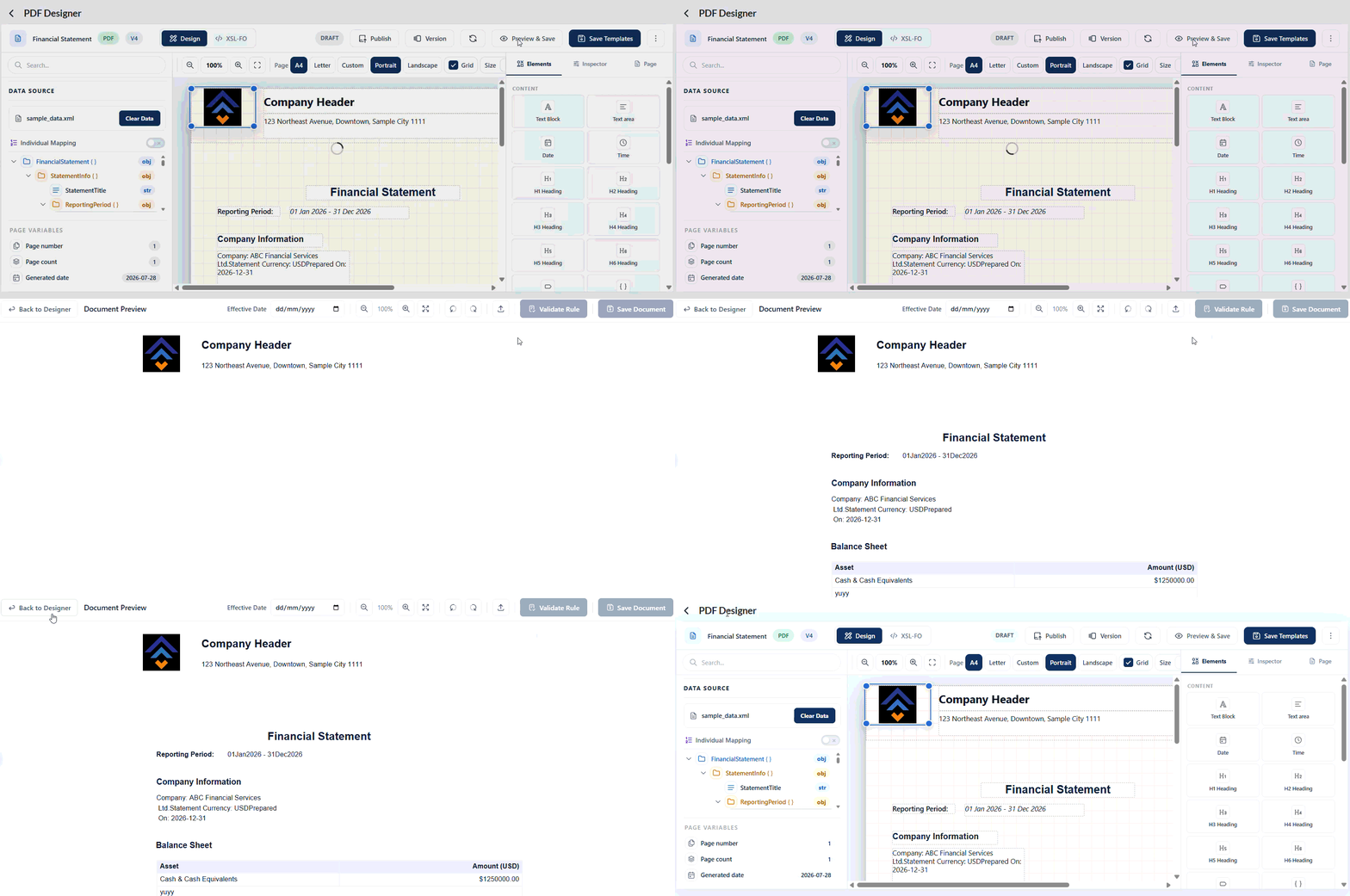
When the Preview & Save button is clicked, the PDF preview will be displayed and the changes are automatically saved.
Import
Browse and select an existing json file from your local machine. Then that json file will automatically be applied in the template desginer.
Export
The current template design will be exported in a json format. The file is automatically downloaded to your local machine.
Clear design
Removes all elements in the template design. If you wish to undo this action, click the undo icon or Ctrl + Z.
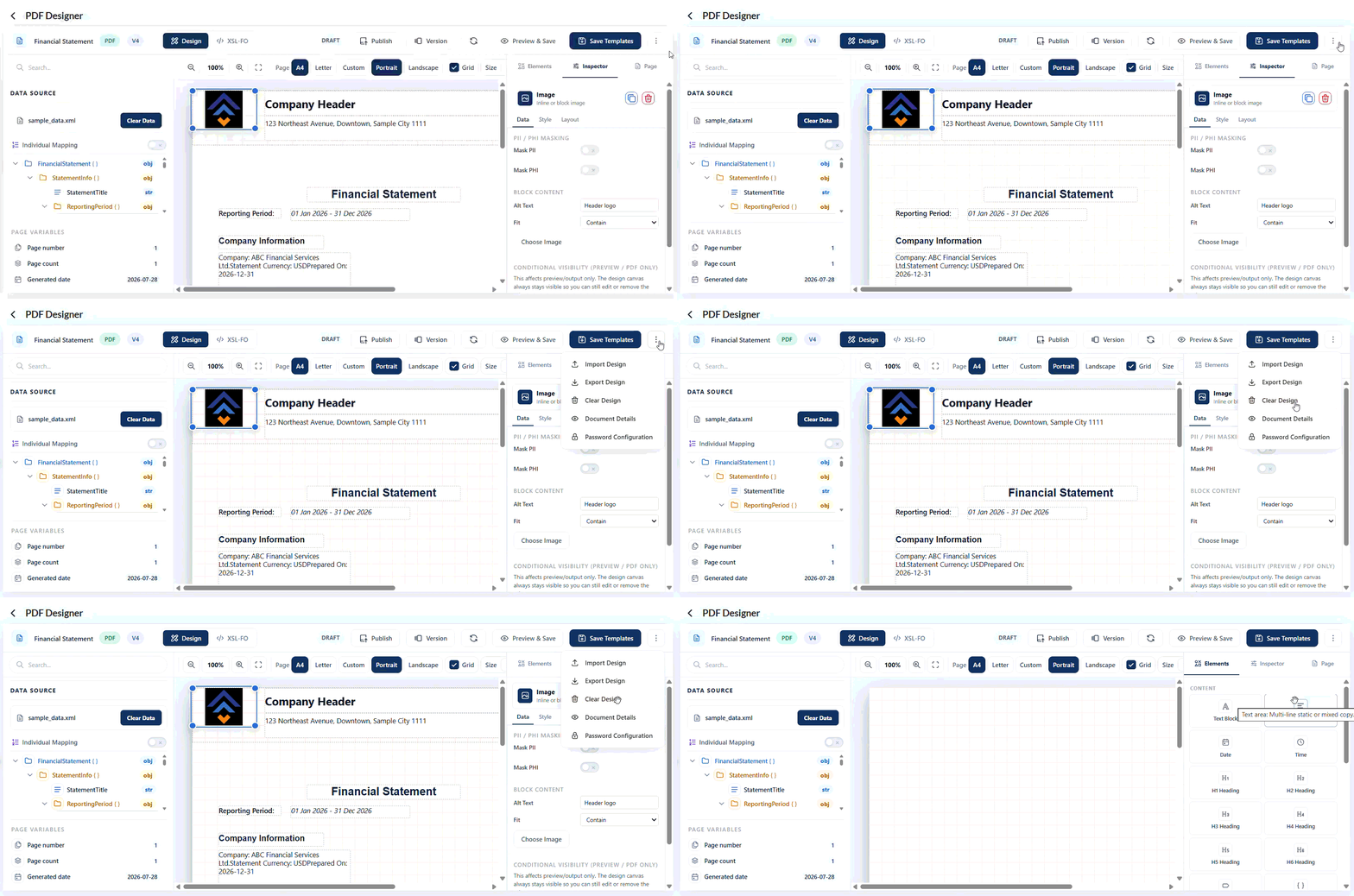
Document Details
Displays all details that have been added when creating the template. You can also modify the values in the following fields:
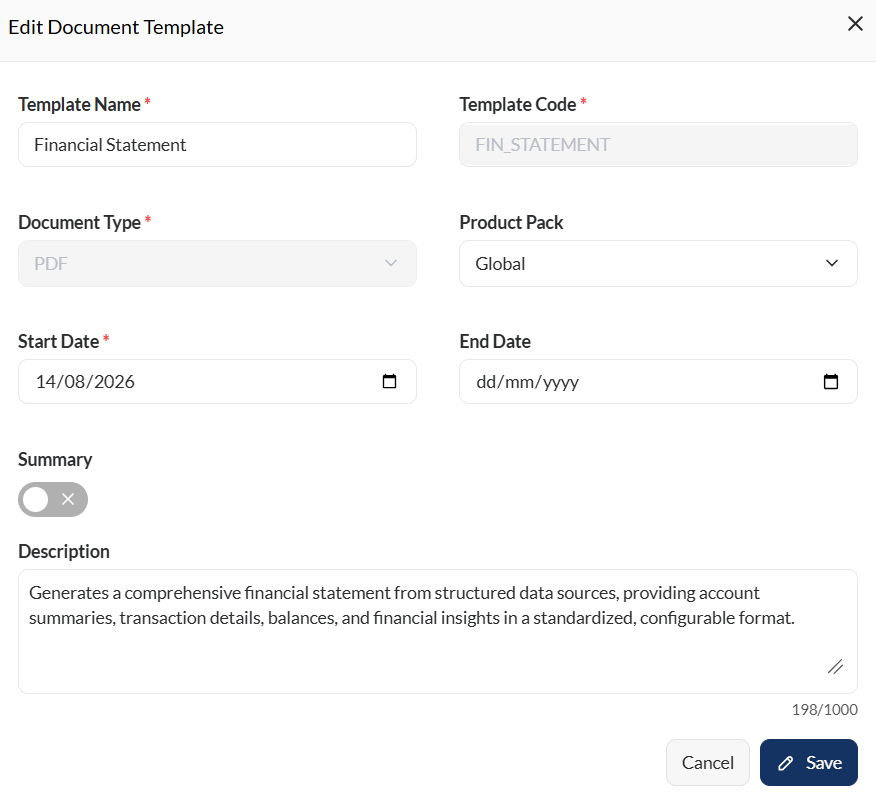
- Template Name
- Product Pack
- Start Date
- End Date
- Description
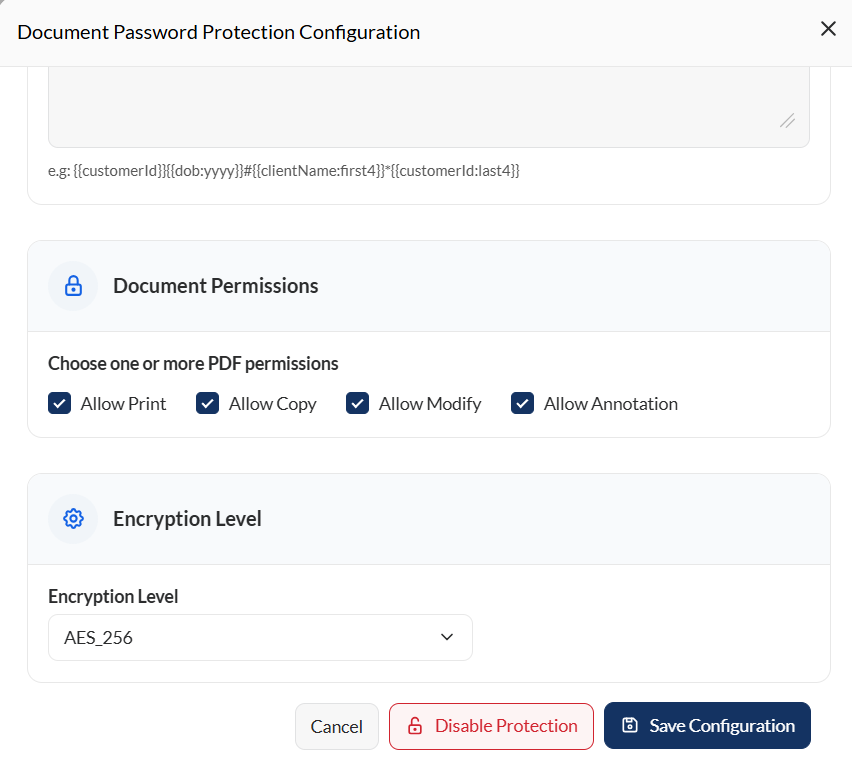
Password configuration
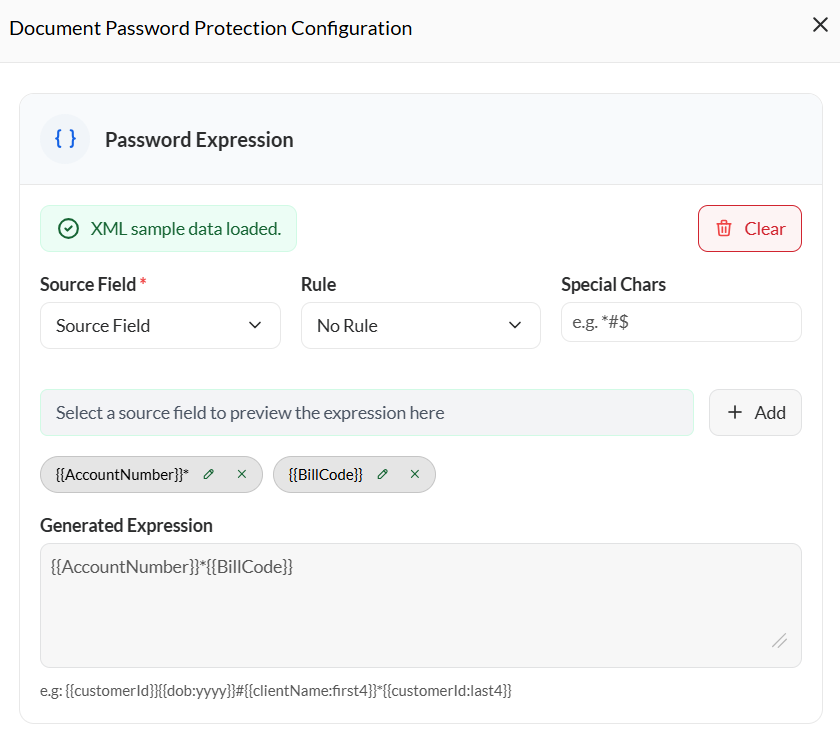
Password expression
Defines how the document password is generated using template fields and rules. Before configuring the password expression, upload a sample data file.
Then, enter the password expression using the supported syntax. For example, {{customerId}}{{dob:yyyy}}#{{clientName:first4}}*{{customerId:last4}}.
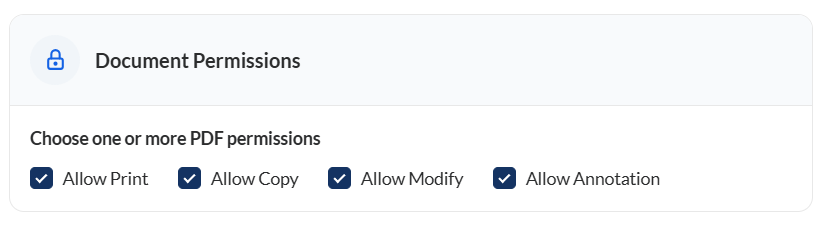
Document permissions
Defines the actions that users are allowed to perform when the protected document is opened, such as printing, copying content, or modifying the document.
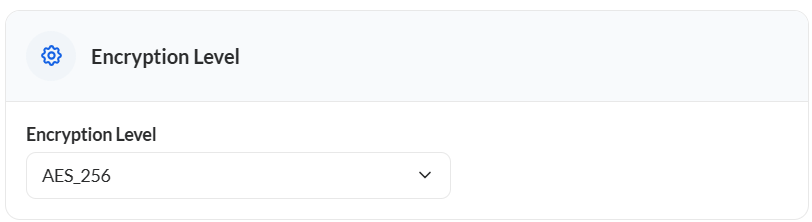
Encryption level
Specifies the encryption algorithm used to secure the document. Available options are AES-128 and AES-256. Higher encryption levels provide stronger security but may slightly impact processing performance.
Disable protection
This removes the password configurations in the template. Note that once disable, all the current details will be removed.
Left pane
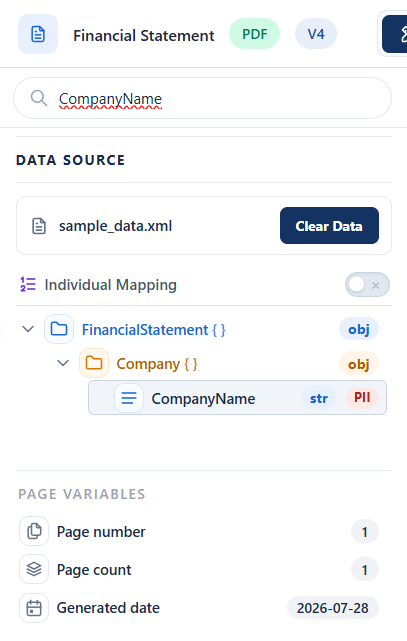
- Search — Enter a keyword or full mapping that you are looking for
- Data source — Browse a file in
jsonorxmlformat. From the uploaded file, the mappings will be automatically identified and be listed in the left pane. - Page variables — Displays the following information:
- Page number — Page number of the currently displayed page.
- Page count — Total number of pages in the template.
- Generated date — Date when the template was published.
Right pane
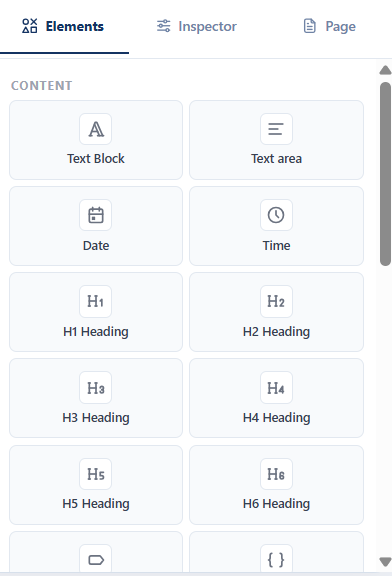
Elements
Displays all PDF elements that can be added to the template. For more information, see PDF template elements.
Inspector
Displays all settings that can be configured for the selected PDF element. For more information, see PDF template elements.
Page
Displays the following page configurations:
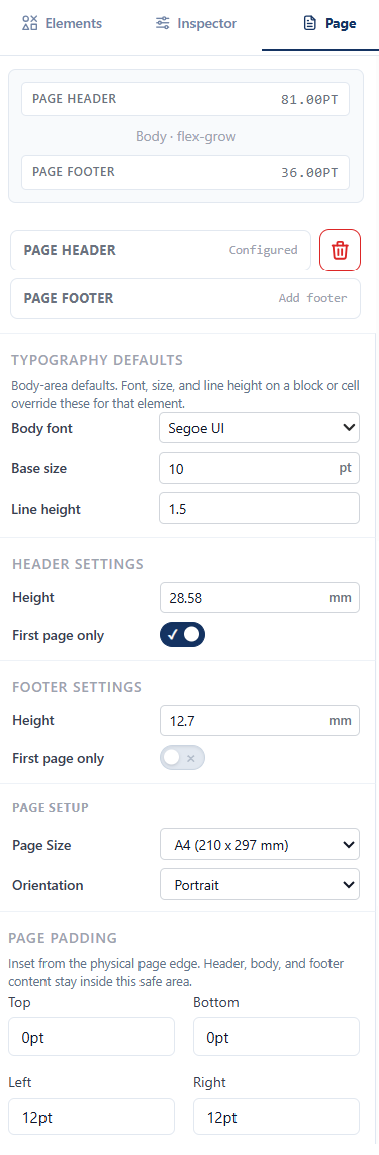
- Page Header
- Page Footer
- Typography defaults - Body font, Base size, Line height
- Header settings - Height, First page only toggle
- Footer settings - Height, First page only toggle
- Page setup - Page size, Orientation
- Page padding
XSL-FO
The XSL-FO view displays the Apache FOP-compatible XSL-FO generated from the current template design. This view is useful when reviewing or customizing the markup used during document generation.
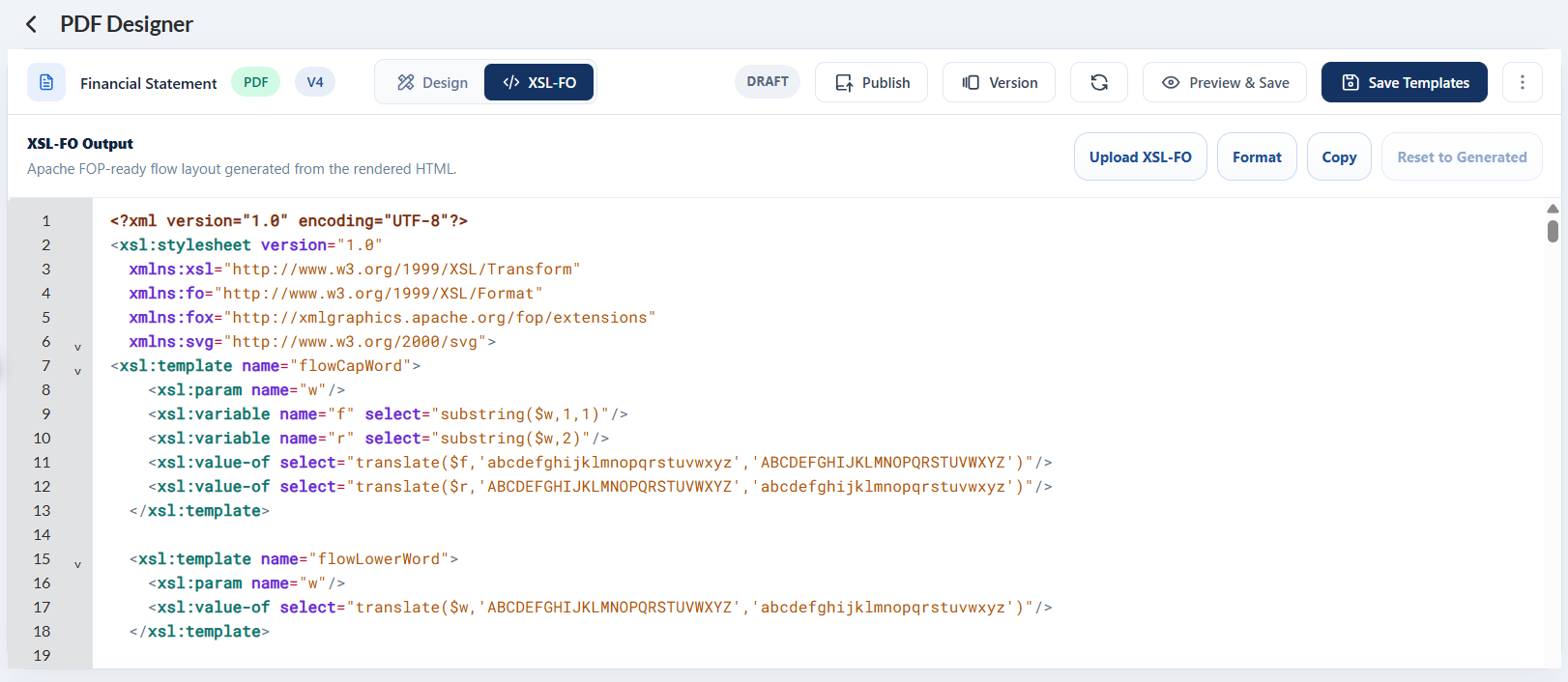
- Upload XSL-FO — Upload an existing XSL-FO file to view or edit.
- Format — Beautifies the generated XSL.
- Copy — Copies the generated XSL to the clipboard.
- Reset to Generated — Restores the generated XSL and discards any unsaved changes.