Email configuration
Overview
The Email Configuration module lets you configure how the system sends emails for your document templates. Each configuration links an email template, one or more document templates, and the recipient, CC, BCC, and variable mappings that determine what the email contains and who receives it.
Create an email configuration
To create a new email configuration:
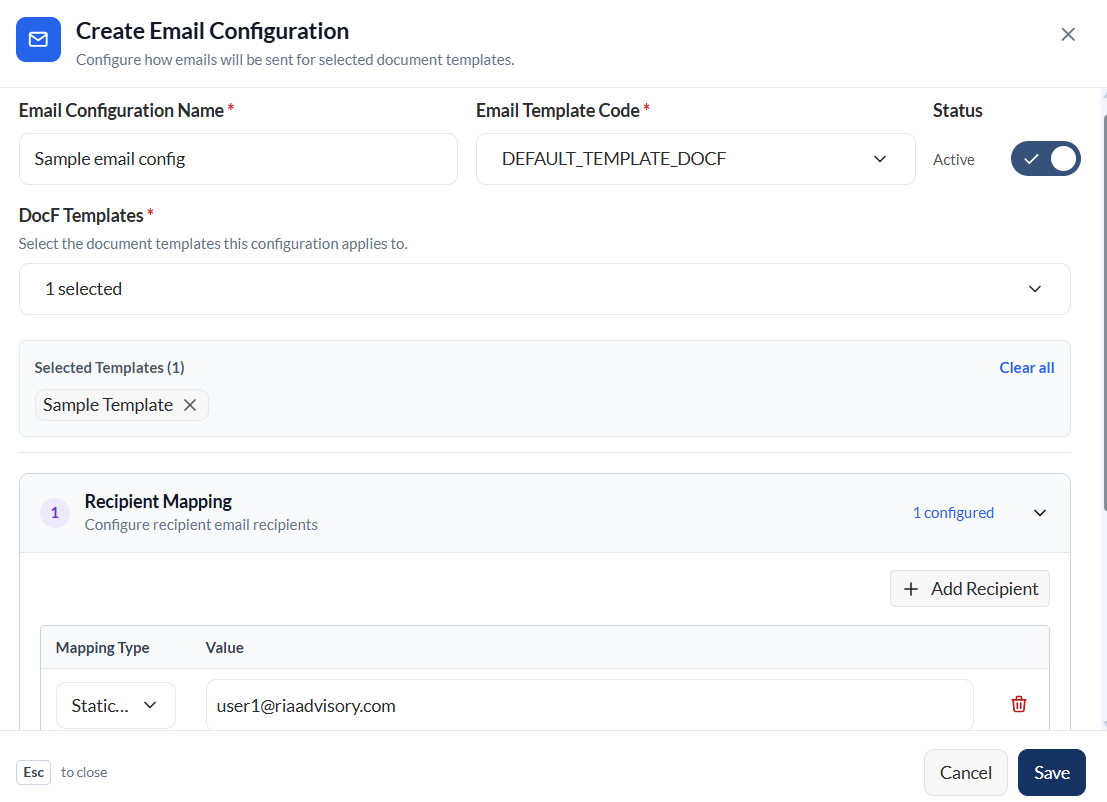
- Click Create New.
- Enter a name in the Email Configuration Name field.
- Select an email template from the Email Template Code dropdown.
- Optional. Toggle Status to set the configuration as Active or Inactive. New configurations default to Active.
- Select one or more document templates from the DocF Templates dropdown. Selected templates appear in the Selected Templates section, and can be removed individually or cleared by clicking Clear all.
- Configure the Recipient Mapping. See Configure Recipient, CC, and BCC Mapping.
- _Optional. Configure CC Mapping and BCC Mapping. See Configure Recipient, CC, and BCC Mapping.
- Optional. Review and adjust the Variable Mapping (see Configure Variable Mapping).
- Select Save. The Save will remain disabled until all required fields are completed.
Configure recipient, CC, and BCC mapping
Recipient Mapping, CC Mapping, and BCC Mapping each use the same mapping structure to determine who receives the email.
The Recipient Mapping section will have a row by default. The CC Mapping and BCC Mapping sections will have no rows at the beginning, so you need to click the Add button to start.
To configure each mapping,
- Select any of the following mapping type from the Mapping Type dropdown:
- XML Node: Select Value to search for and choose a field from the document payload.
- Static Value: Enter a fixed email address directly in the Value field.
- Optional. Click Add Recipient to add another mapping row.
To delete a mapping, click the delete icon on the row to remove it.
Configure variable mapping
Variable mapping determines the values inserted into the placeholders used in your email template’s subject and content.
Template variables are extracted automatically from the selected Email Template Code, and appear as read-only rows in the Template Variable column.
For each variable row, select any of the following from the Mapping Type dropdown.
- XML Node: Select Value to search for and choose a field from the document payload.
- Static Value: Enter a fixed value directly in the Value field.
View
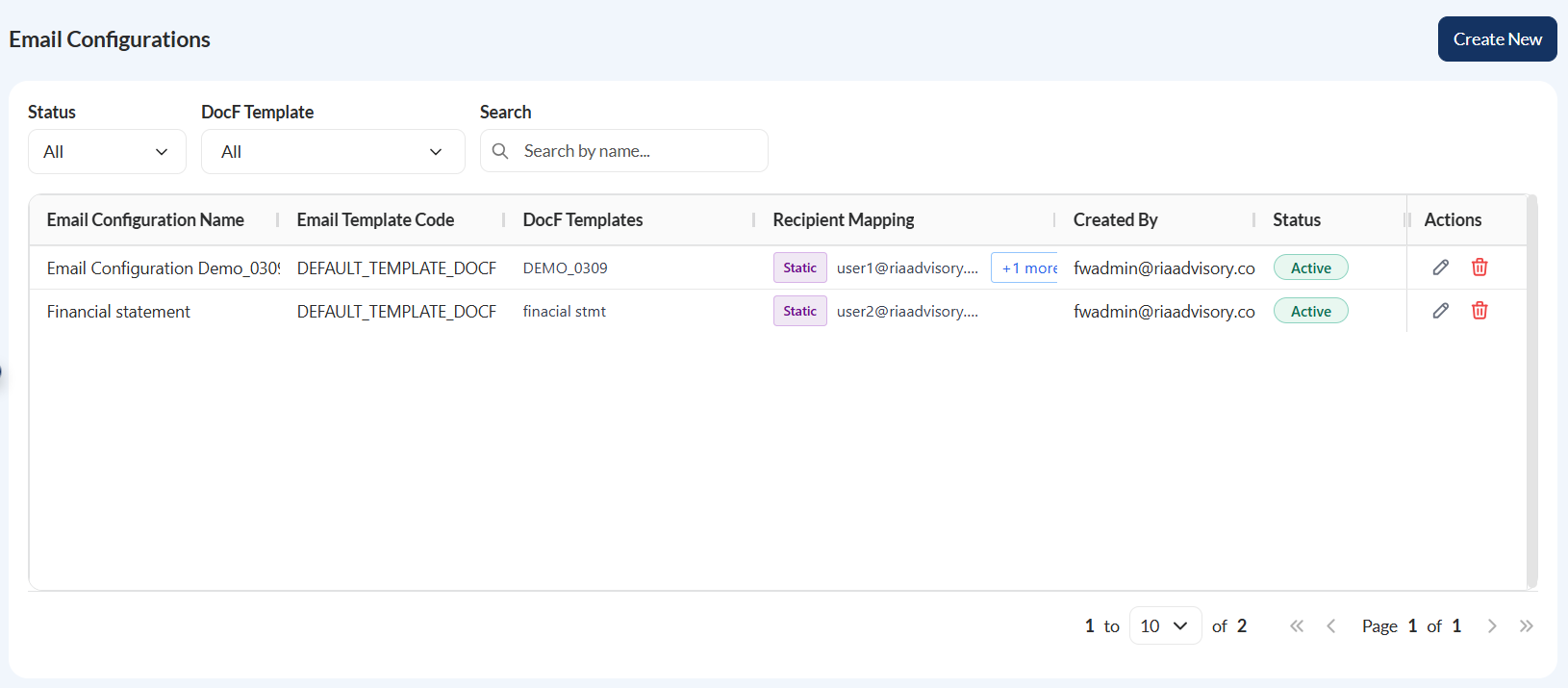
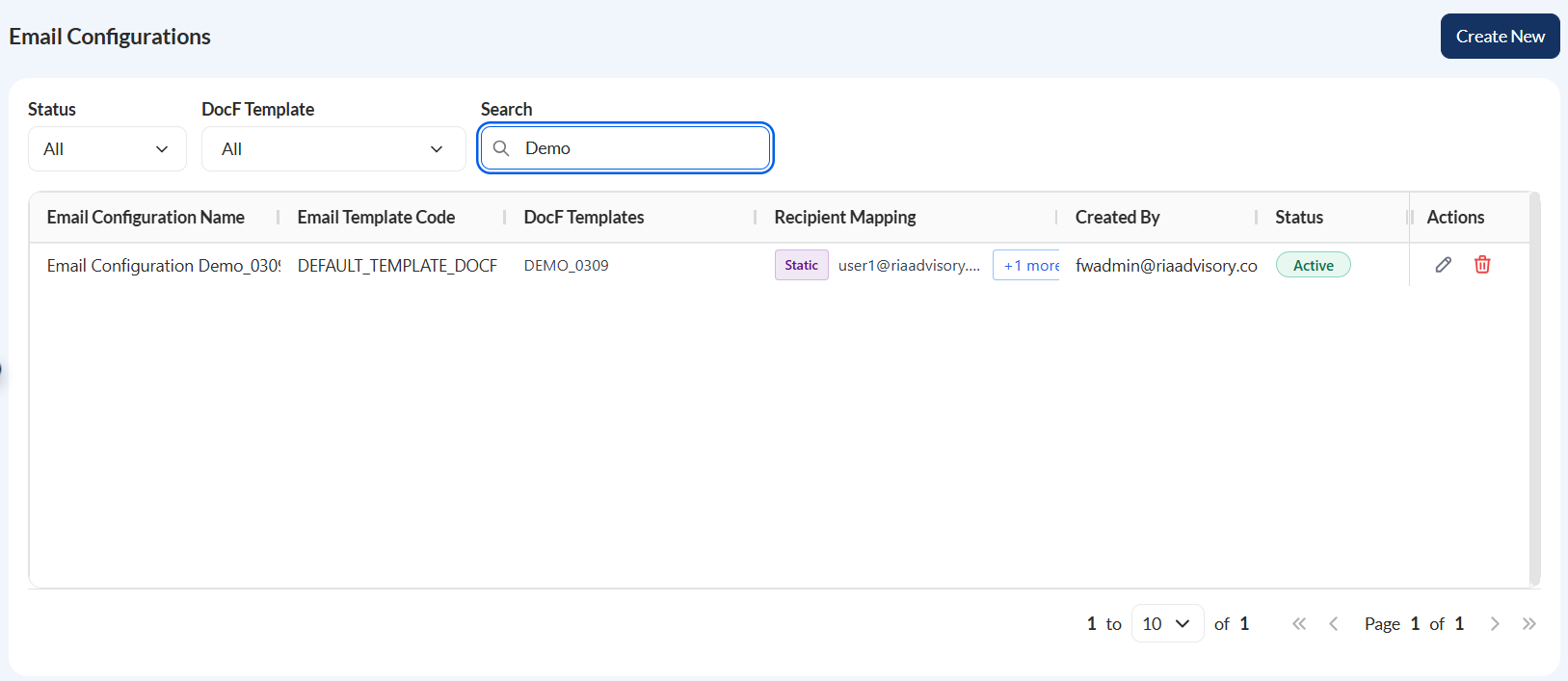
To view email configurations, navigate to Administration > Email Configurations.
| Column | Description |
|---|---|
| Email Configuration Name | Name given to the email configuration. |
| Email Template Code | Template used to send the email. |
| DocF Templates | Document template or templates the configuration applies to. |
| Recipient Mapping | Mapping type and value used to determine the recipient. Supported mapping type values are XML Node or Static Value. |
| Created By | User who created the configuration. |
| Status | Indicator whether the configuration is Active or Inactive. |
| Actions | Display icons for edit and delete actions for the configuration. |
Filter
You can filter the list using the following:
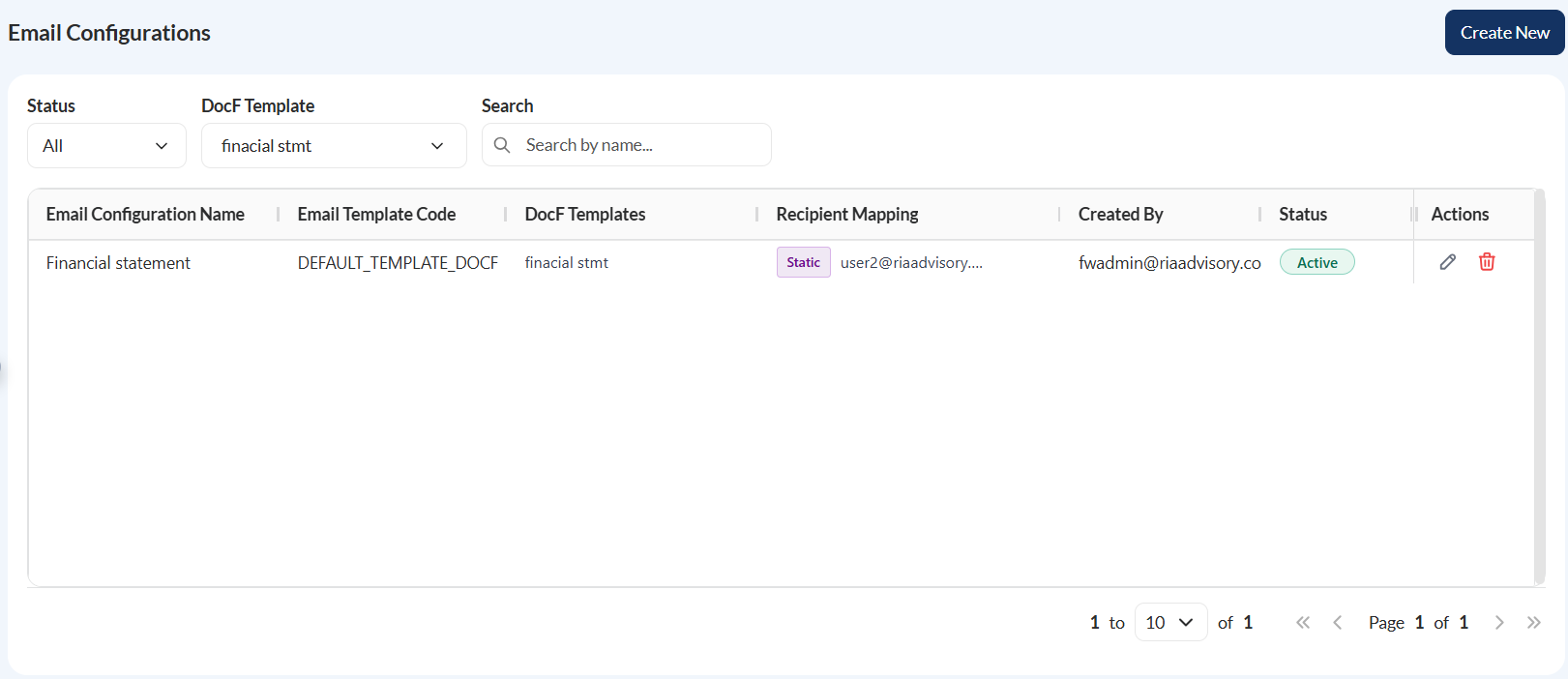
- Status – Filter by
All,Active, orInactive. - DocF Template – Filter by an associated document template.
You can also search configurations by entering a partial or full configuration name in the Search textbox.
Edit an email configuration
To edit an existing email configuration:
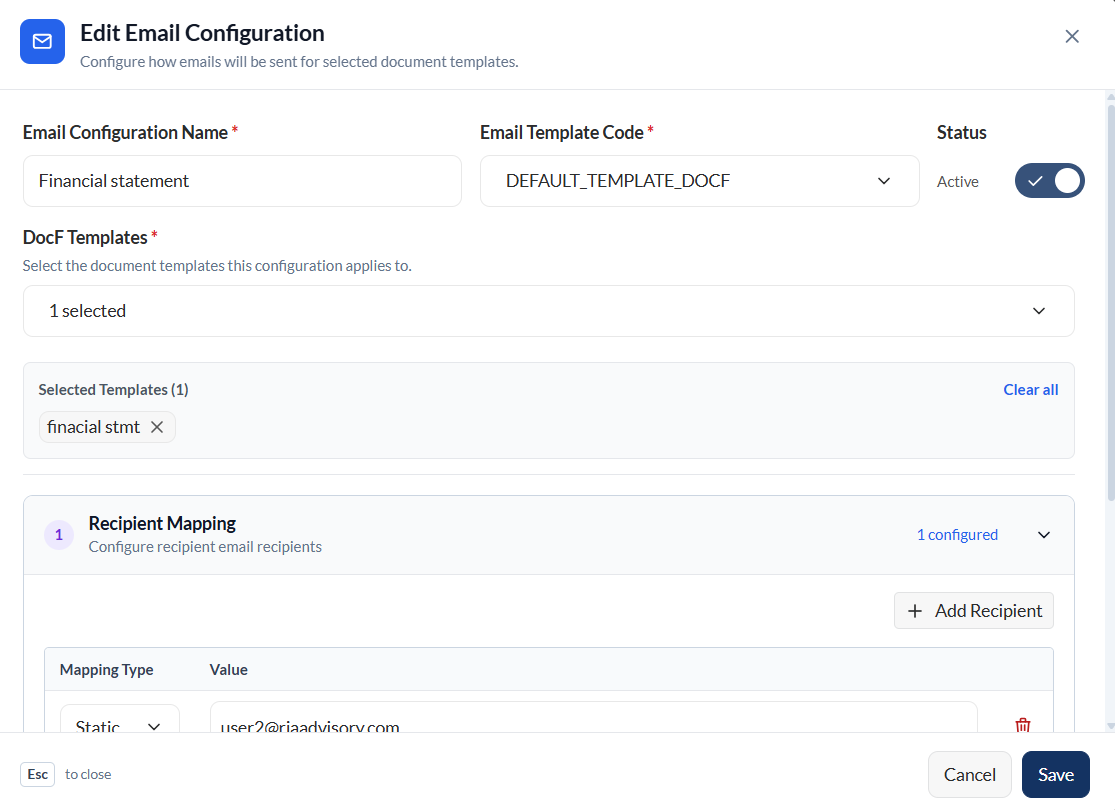
- Locate the configuration in the list.
- Click the edit icon.
- Update the fields as needed. The form is pre-populated with the configuration’s current values.
- Click Save.
Delete an email configuration
To delete an email configuration:
- Locate the configuration in the list.
- Click the delete icon.
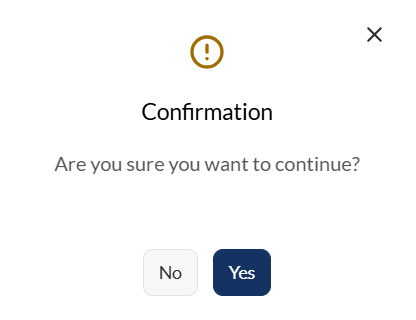
- In the confirmation dialog, select Yes to confirm, or No to cancel.