Excel template
Overview
The Excel Template editor is used to create and manage templates for Excel document generation. Templates define the workbook structure, worksheet content, formatting, and data mappings used to produce the final Excel output.
The template designer provides tools for editing worksheet layouts, mapping data fields, previewing generated documents, and managing template designs. Templates can be saved, updated, exported, and imported for reuse.
Create an Excel template
-
Follow Create a new template steps with an
Excelvalue chosen from the Document Type dropdown. -
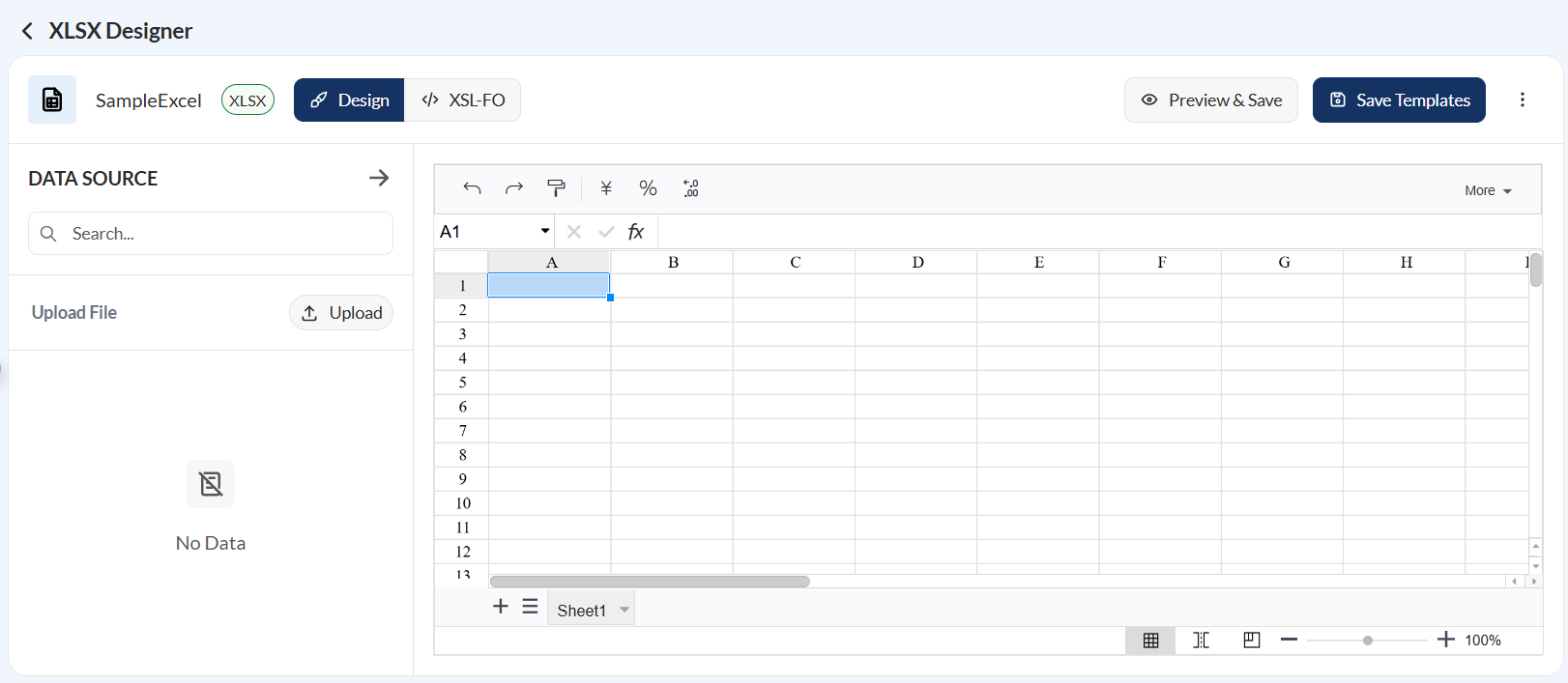
Verify that the design page for an Excel file is displayed.
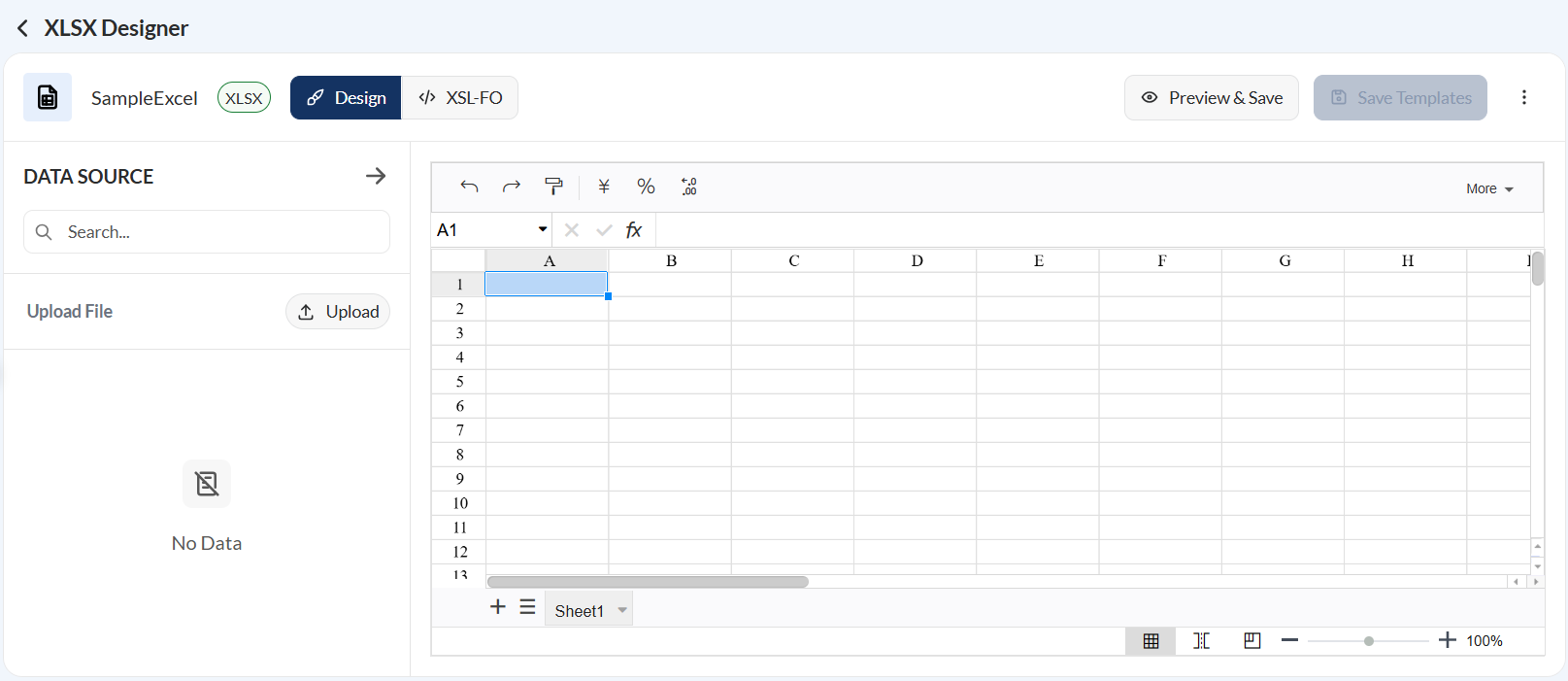
- Click the Upload button to upload the source file. Supported file formats are
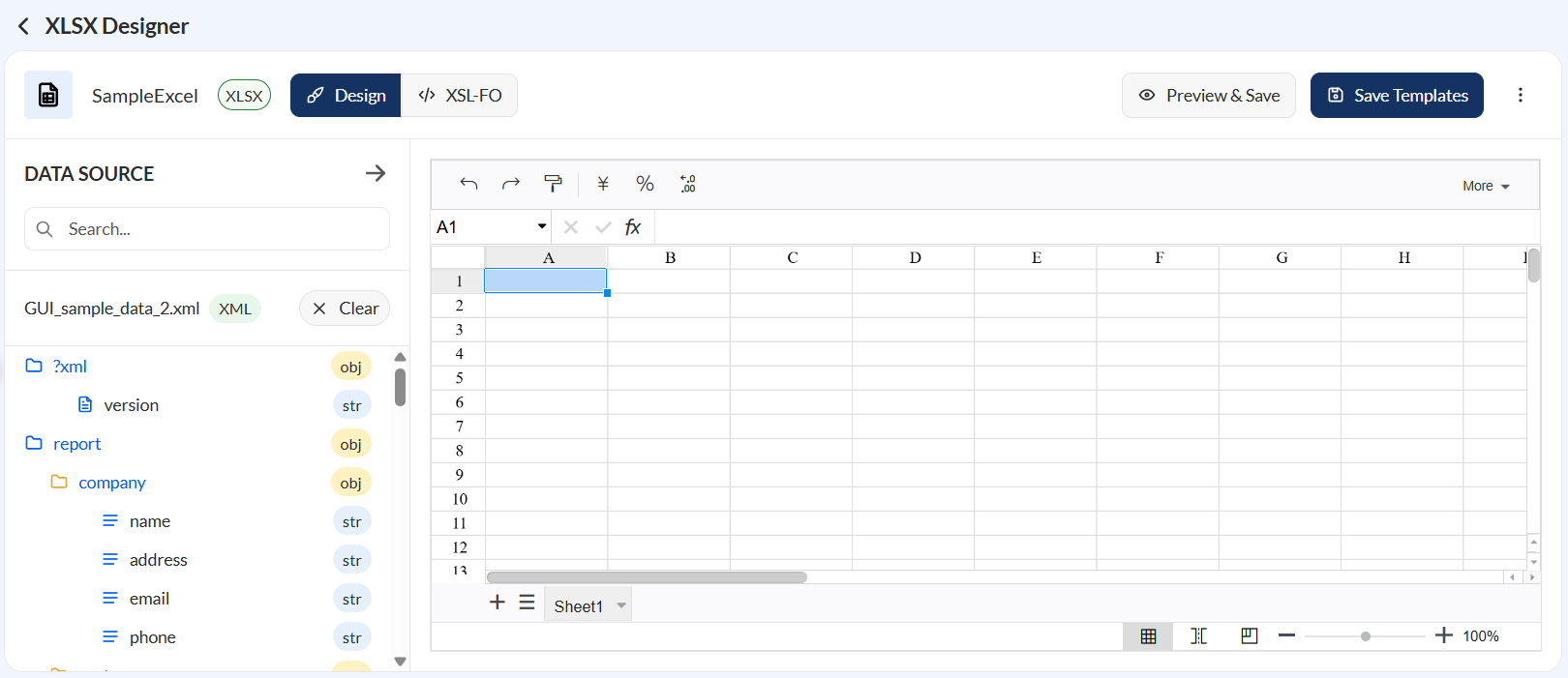
JSONandXML. - Verify that the nodes from the source file are displayed in the left pane. If you have uploaded an incorrect file, see Change the data source.
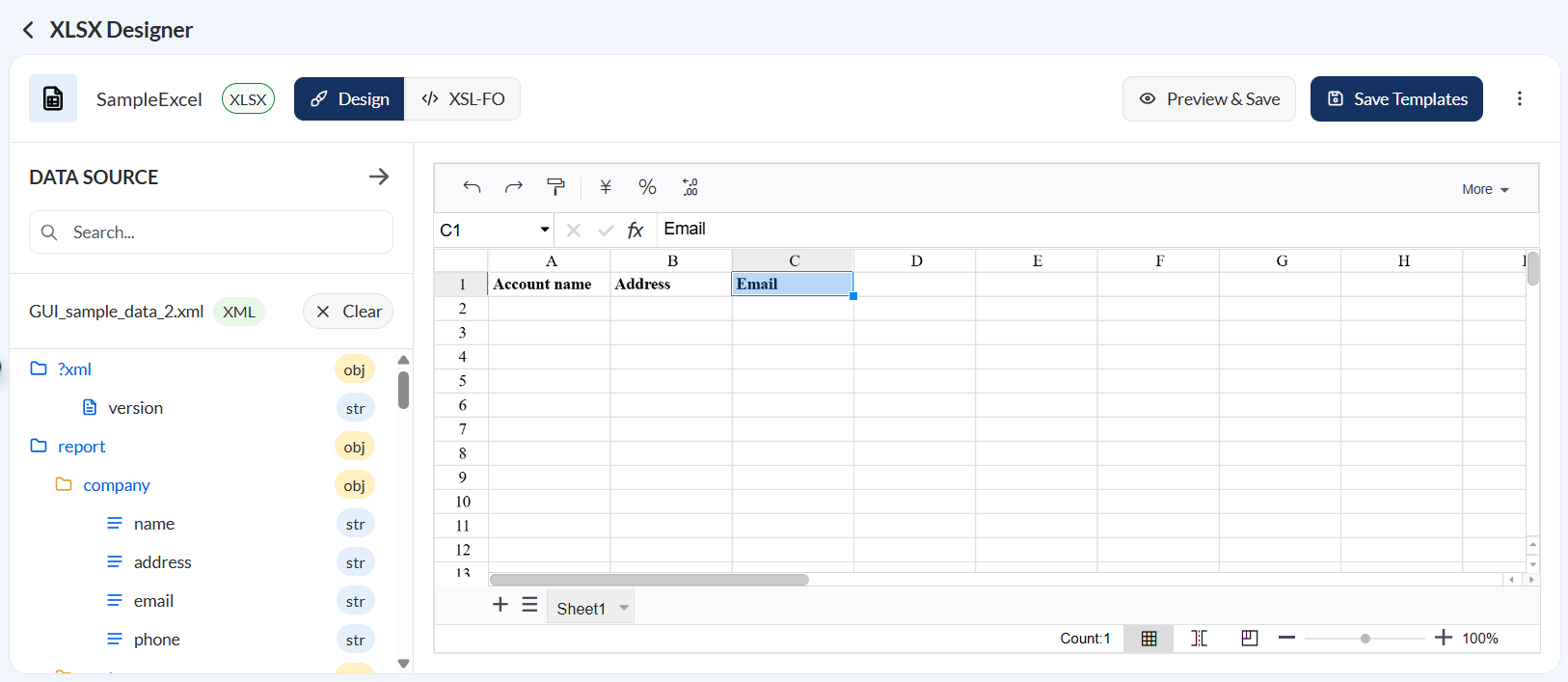
- Enter the values for hardcoded cells.
- To use the source nodes, select the cell you wish for the value to be displayed, then select the source node from the left pane.
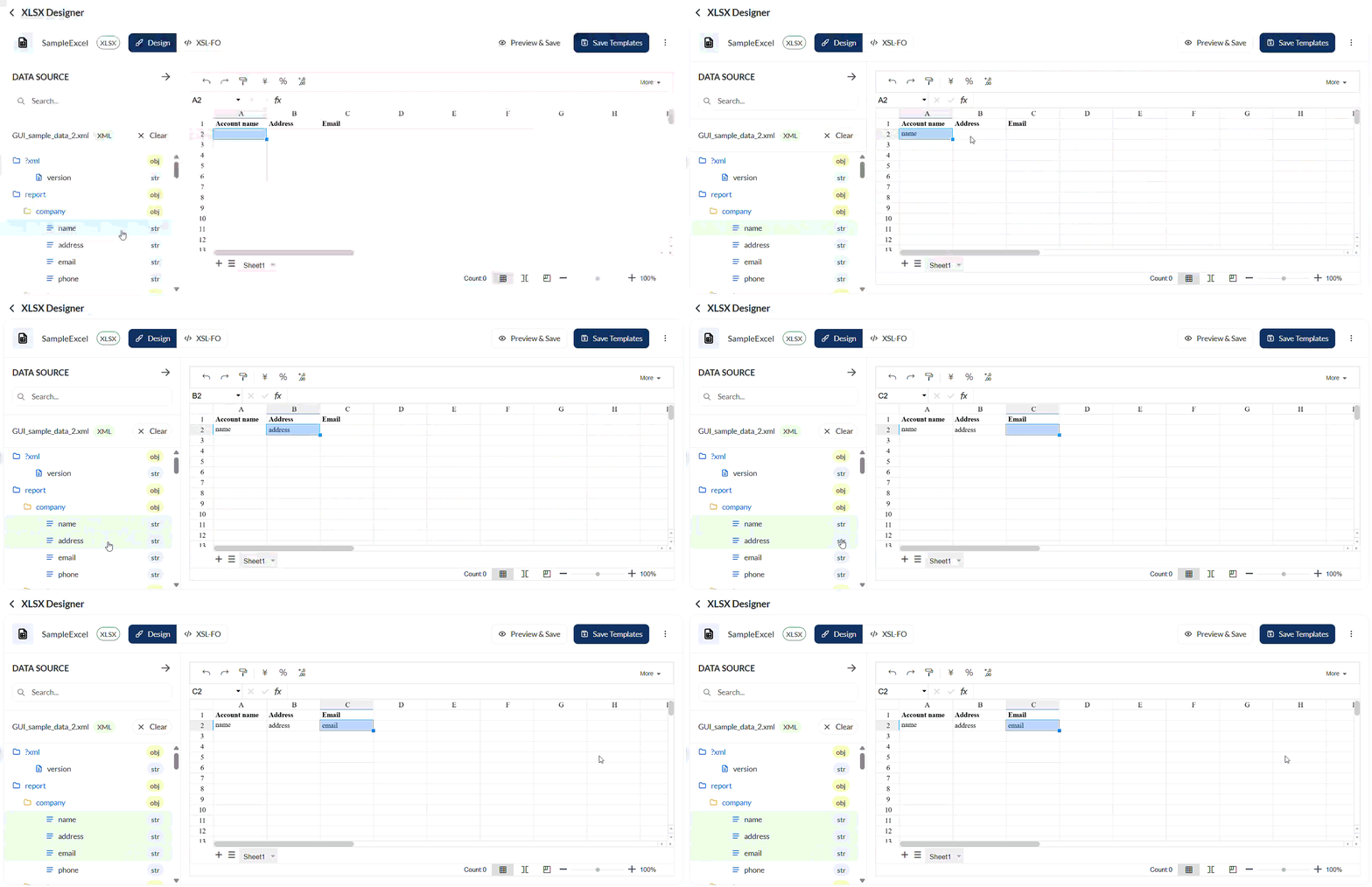
- Verify that the used source nodes are highlighted.
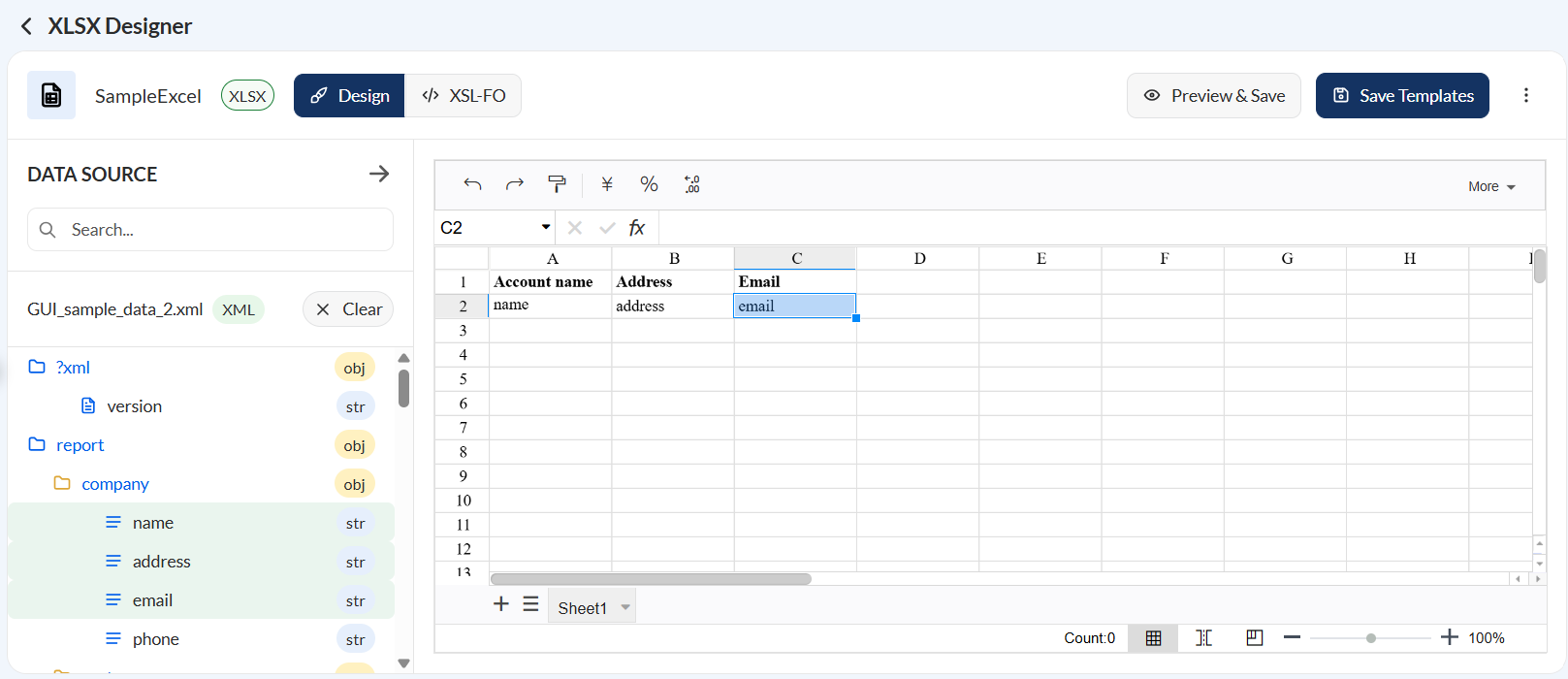
- Click Preview and Save to preview and save the template. Click Save to save the changes.
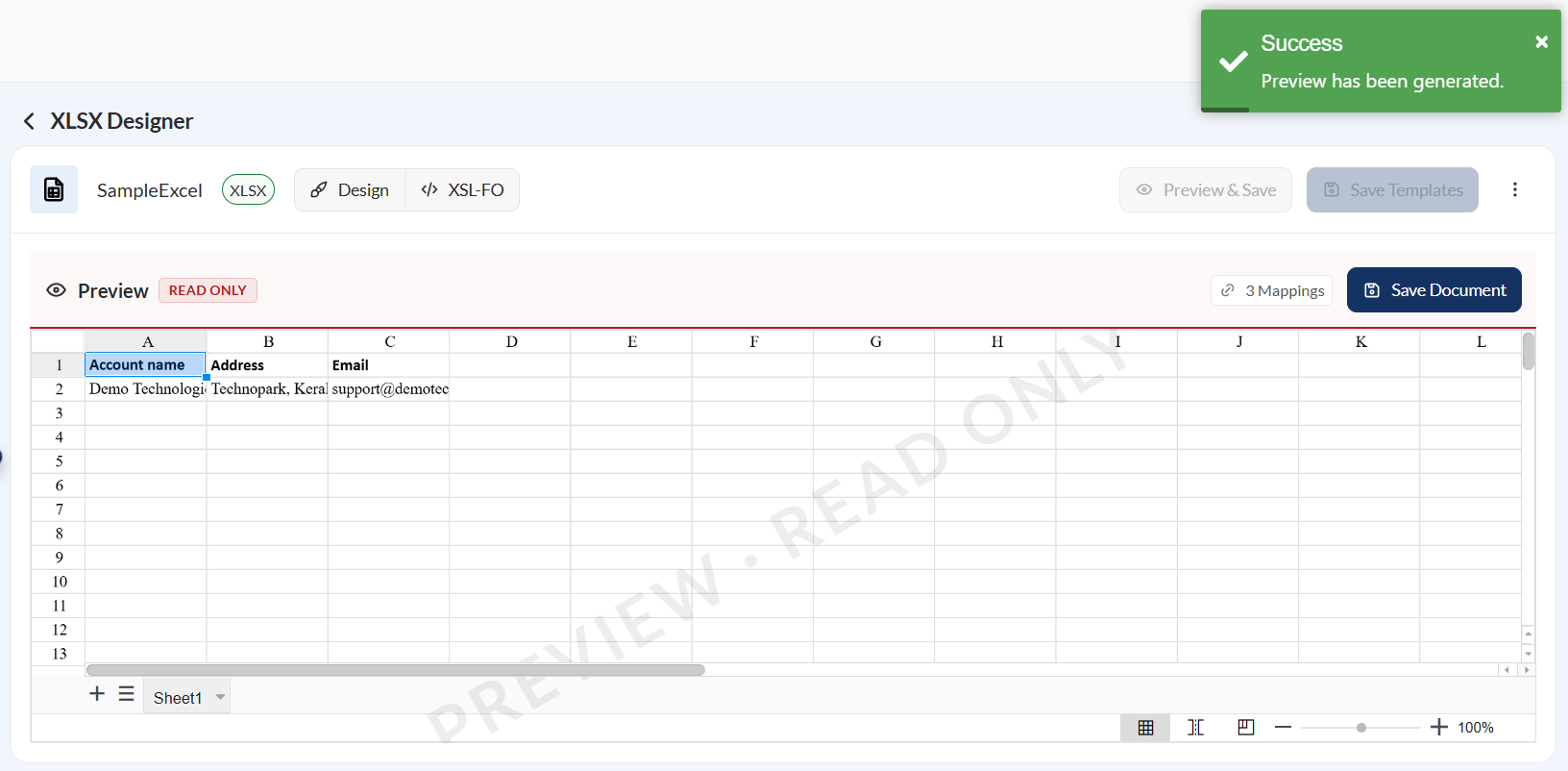
Excel template designer
Header
The header displays the filename, file type, and Action buttons. It also displays the Design and XSL-FO toggle.

Design
When the Design toggle is enabled, the screen displays an Excel-like editor.
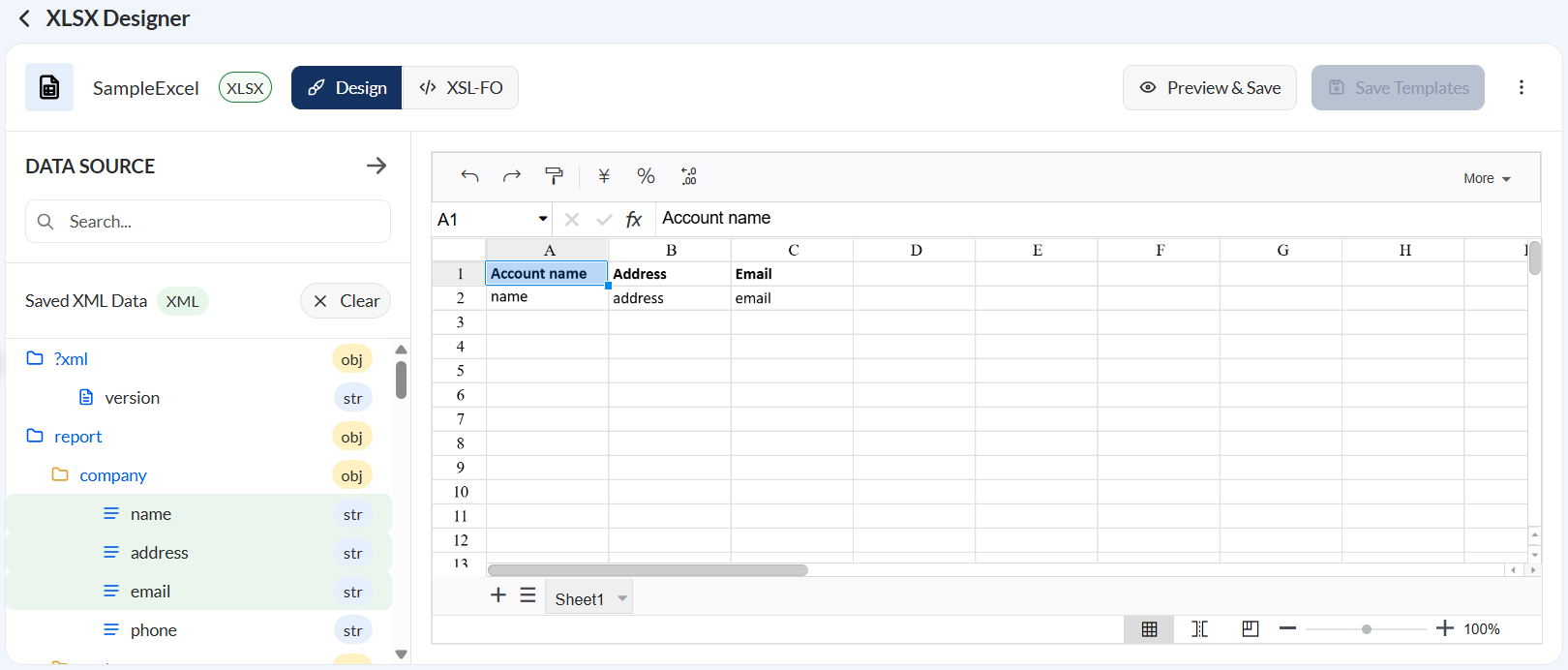
The toolbar contains formatting and editing tools similar to those available in Microsoft Excel. These tools can be used to format text, adjust cell alignment, apply borders and colors, merge cells, resize rows and columns, and configure other worksheet elements.
XSL-FO
The XSL-FO view displays the Apache FOP-compatible XSL-FO generated from the current template design. This view is useful when reviewing or customizing the markup used during document generation.
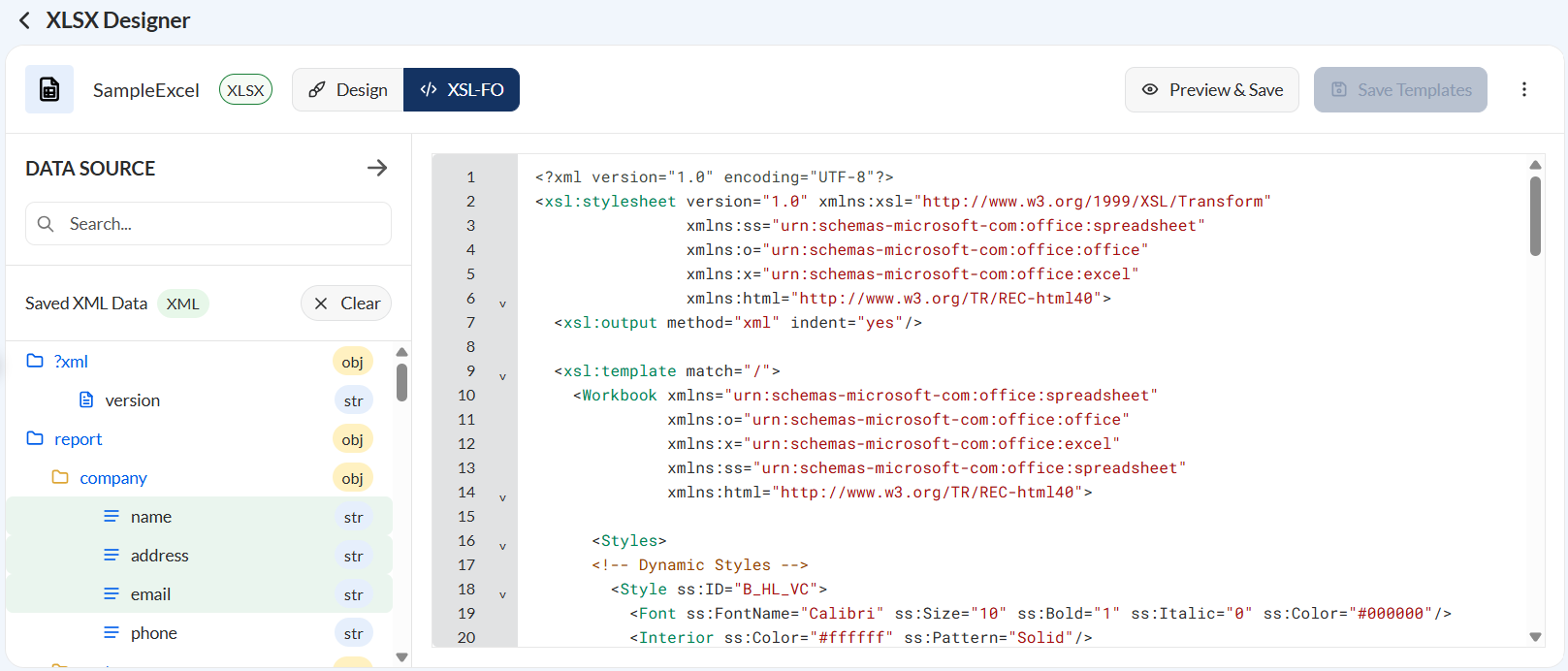
Actions
Preview
The Preview action generates a sample output. This allows you to review the appearance of the document and confirm that mappings and formatting are working as expected.
In the preview, the following buttons are displayed:
XMappings — Specifies theXnumber of mappings in the previewed template- Save — Click to save the document. If document password protection has not yet been configured, you will be prompted to do so.
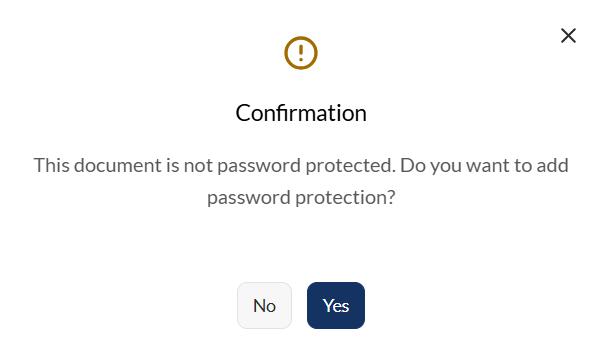
If you click Yes in the confirmation prompt, configure the document password. For more information, see password configuration.
If you click No, or if a document password has already been configured, the document is automatically added to the Document View module.
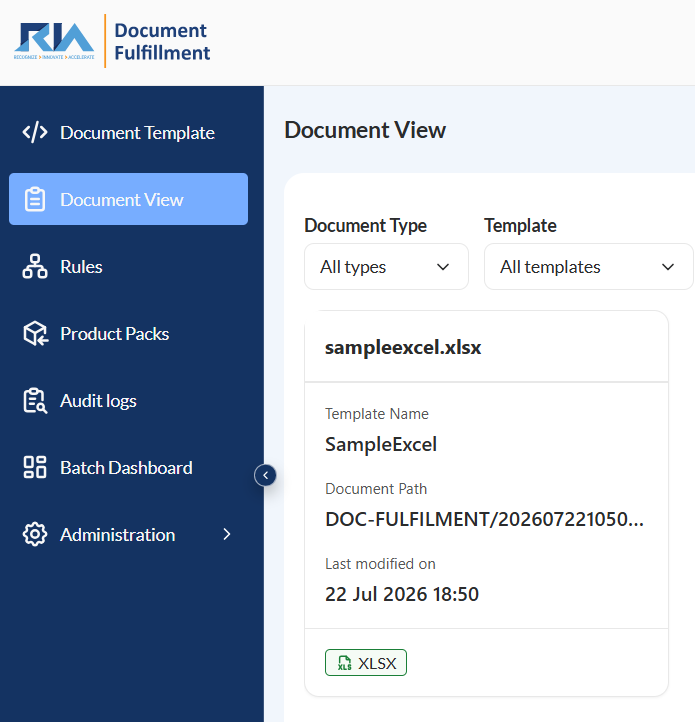
Import Design
The Import Design action loads a previously exported template design into the editor. This is useful when restoring a backup or reusing an existing template.
Export Design
The Export Design action downloads the current template in JSON format. Exported designs can be used as backups or imported into another environment.
Clear Design
The clear action removes all the elements from the excel template.
Document Details
Displays all details that have been added when creating the template. You can also modify the values in the following fields:
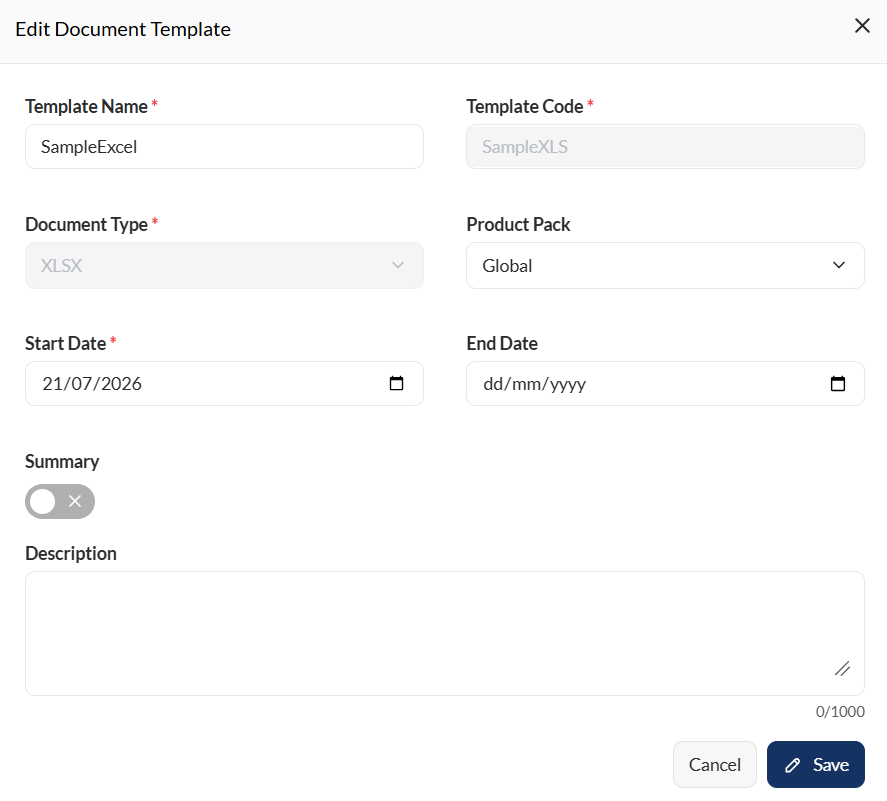
- Template Name
- Product Pack
- Start Date
- End Date
- Description
Password Configuration
For more information, see Password configuration.
Data Source
The data source pane lists all available mappings captured from the uploaded JSON or XML file in the Create an Excel template section.
Change the data source
To change the data source, follow these steps:
- Click the Clear button.
- Click the Yes button on the confirmation prompt.
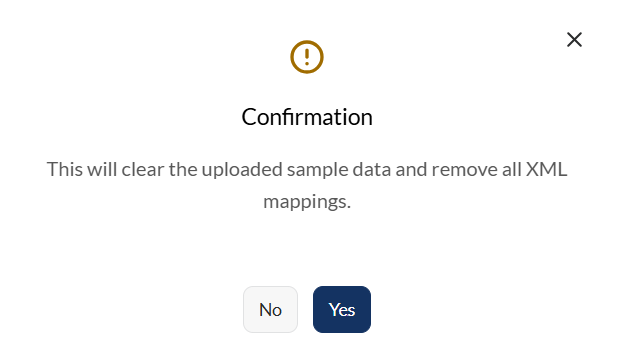
- Click the Upload file to choose the new data source. Supported file formats are
JSONandXML.
Search
You can search using a keyword, field name, or complete mapping path within the available data structure.