CSV template
Overview
The CSV Template editor is used to configure CSV output files by defining column mappings, file formatting options, and data sources.
Create an excel template
-
Follow Create a new template steps with an
CSVvalue chosen from the Document Type dropdown. -
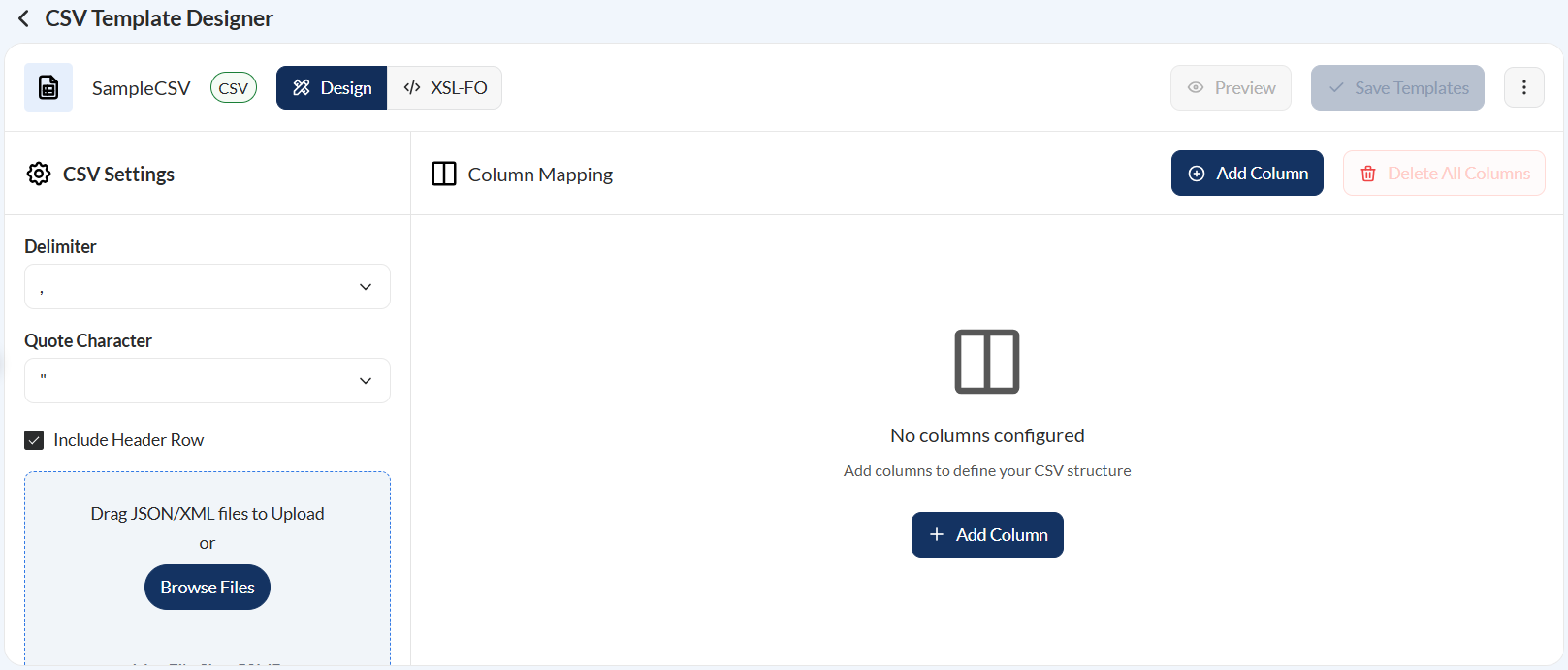
Verify that the design page for a CSV file is displayed.
-
Configure the Delimiter. Possible values are
Comma (,),Pipe (|),Tab, andSemicolon (;). -
Configrue the Quote Character to enclose text values. Possible values are
Double Quote (")andSingle Quote (’). -
Tick the Include Header Row checkbox to include header rows to the generated CSV file.
-
Click the Browse Files button to upload the source file. Supported file formats are
JSONandXML. -
Verify that the name of the source file is correct. If you have uploaded an incorrect file, see Change the data source.
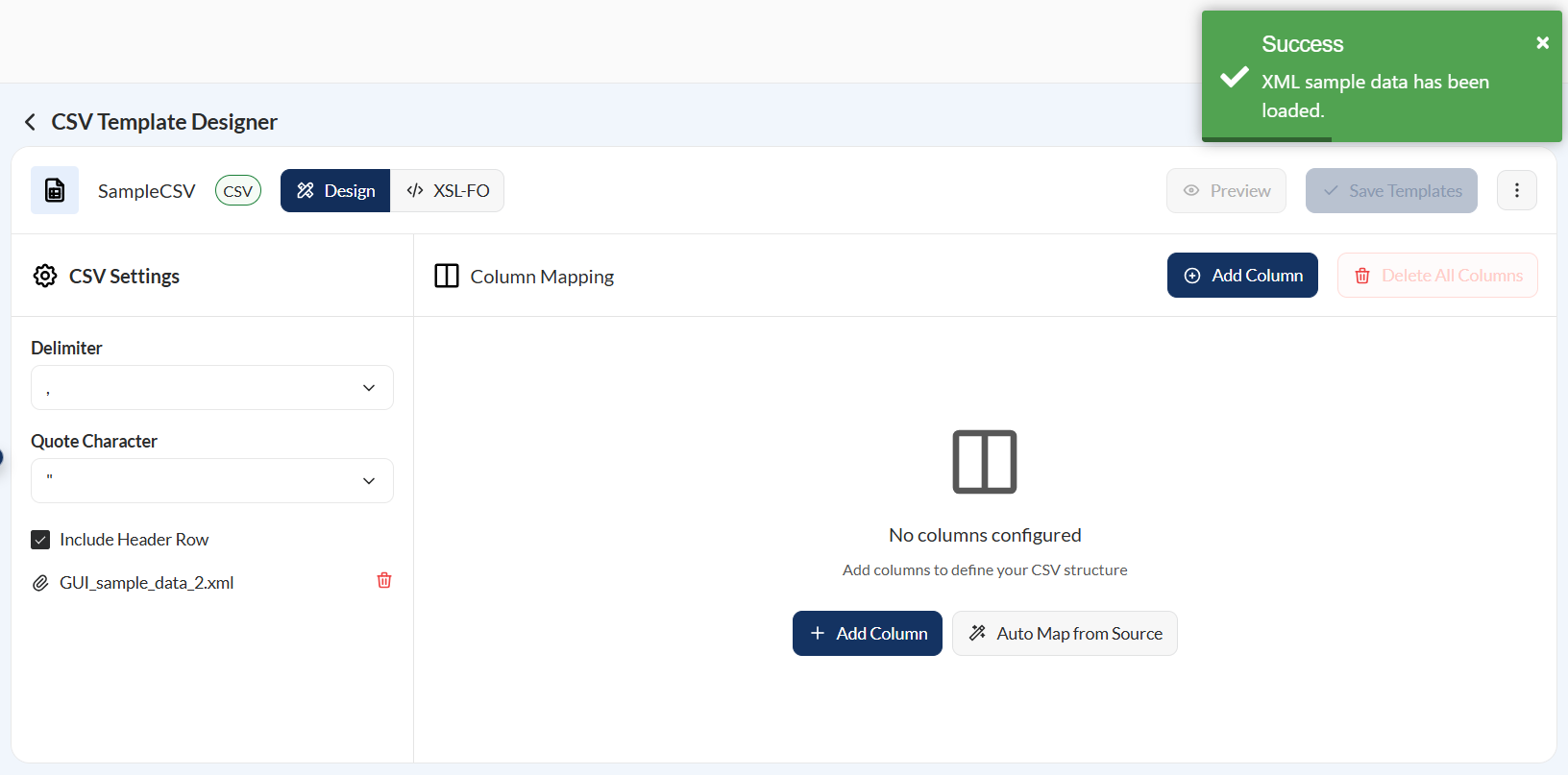
- Add columns. To do this you have the following options:
- Add Column button — Configure a column manually. For more information, see Column mapping.
- Auto Map from Source button — Automatically create the columns based on the available fields from the uploaded source file.
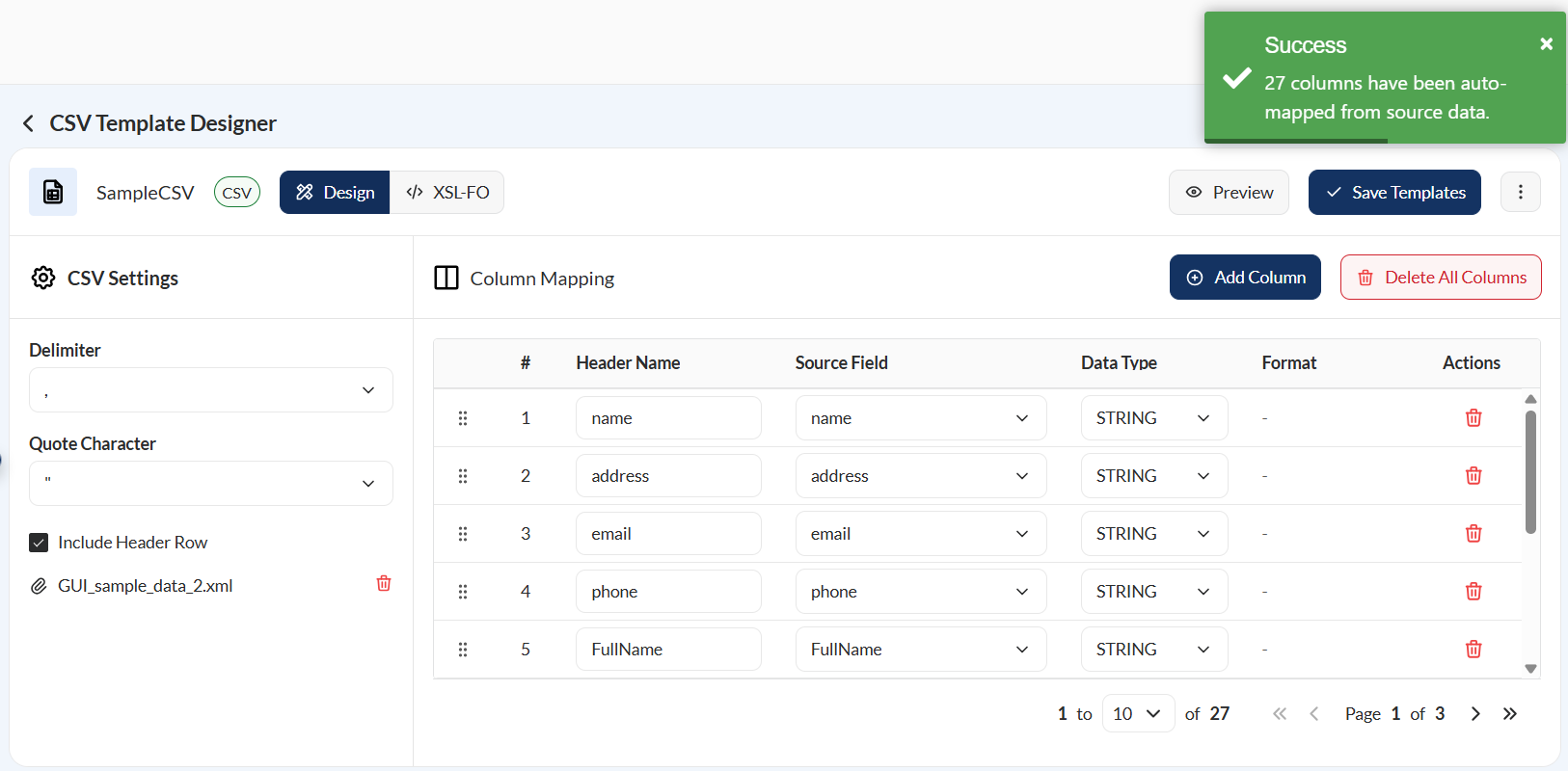
-
Optional. Click the Preview button to see the template. For more information, see Preview.
-
Click the Save Template button to save the changes.
Column Mapping
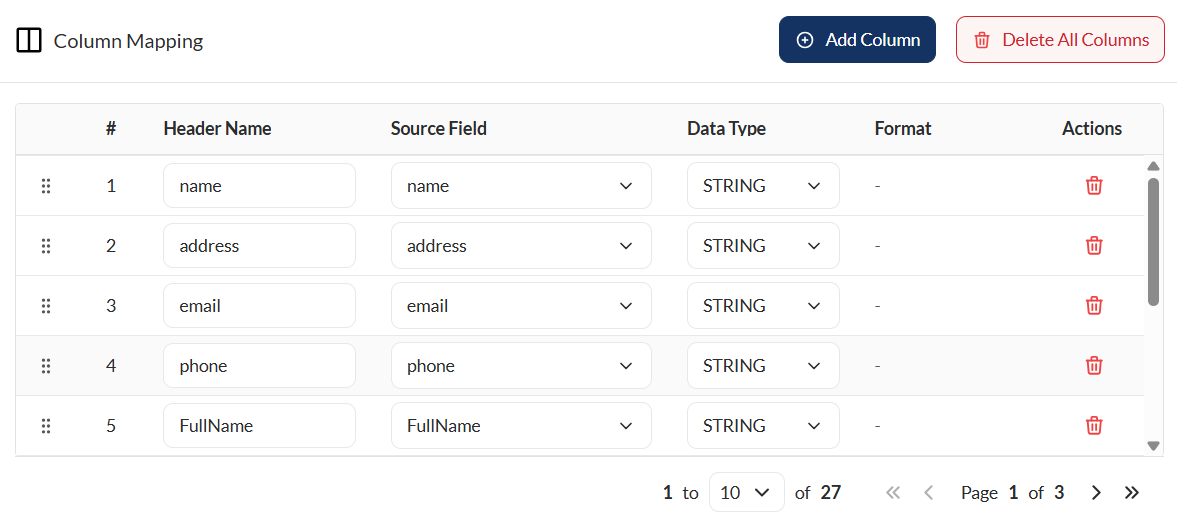
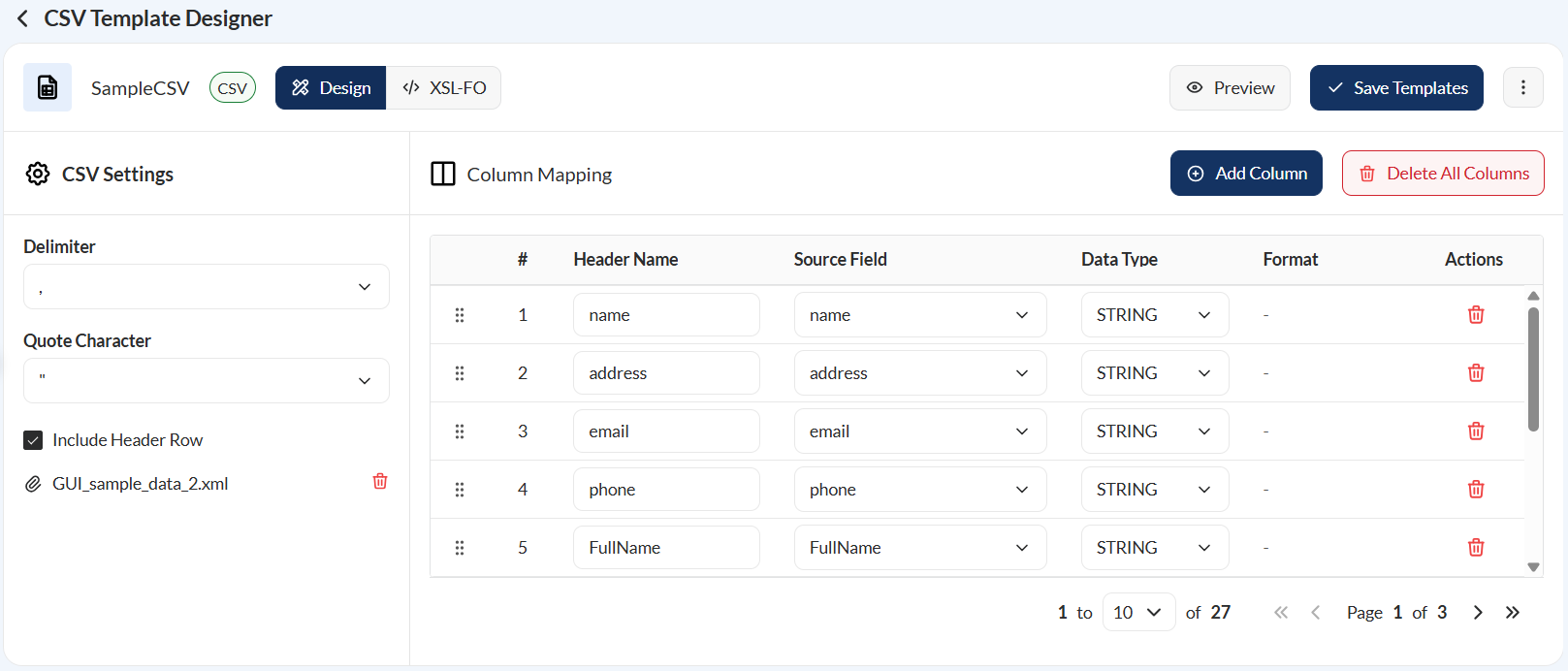
Select Add Column to create a new column mapping. Each column mapping includes the following properties:
| Property | Description |
|---|---|
| Number | Specifies the column order in the CSV output. You can drag and drop to reorder columns. |
| Header Name | Enter a valid column header name. |
| Source Field | Select the a field from the dropdown list. Values are based on the uploaded source file. |
| Data Type |
Select the data type. Supported values are: String, Number, Date, Boolean, and Currency.
|
| Format | Defines the output format for the selected data type. |
| Actions | Allows you to delete the column mapping. |
To remove all column mappings, select the Delete All Columns button located next to Add Column.
Change data source
To change the data source, follow these steps:
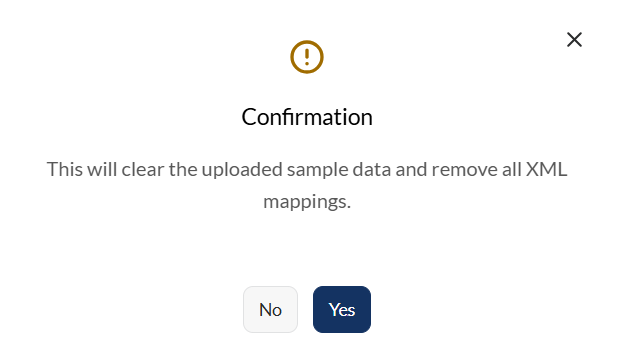
- Click the
 beside the filename.
- Click the Browse Files button to choose the new data source. Supported file formats are
JSONandXML.
CSV template designer
Design
The Design view provides the main workspace for editing templates. This view includes the toolbar, mapping panel, and template canvas, where the document layout and data mappings are configured.
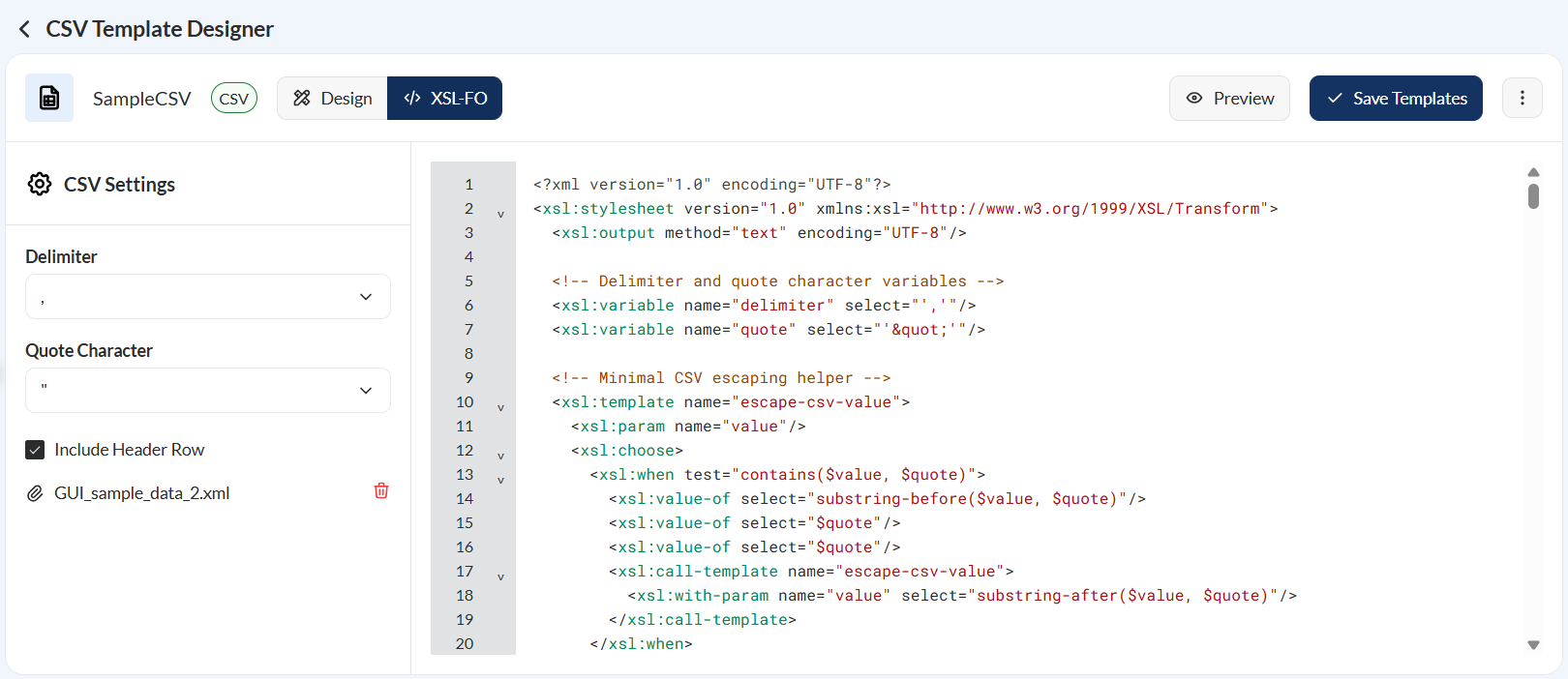
XSL-FO
The XSL-FO view displays the Apache FOP-compatible XSL-FO generated from the current template design. This view is useful when reviewing or customizing the markup used during document generation.
Actions
Preview
The Preview action generates a sample output. This allows you to review the appearance of the document and confirm that mappings and formatting are working as expected before saving the template.
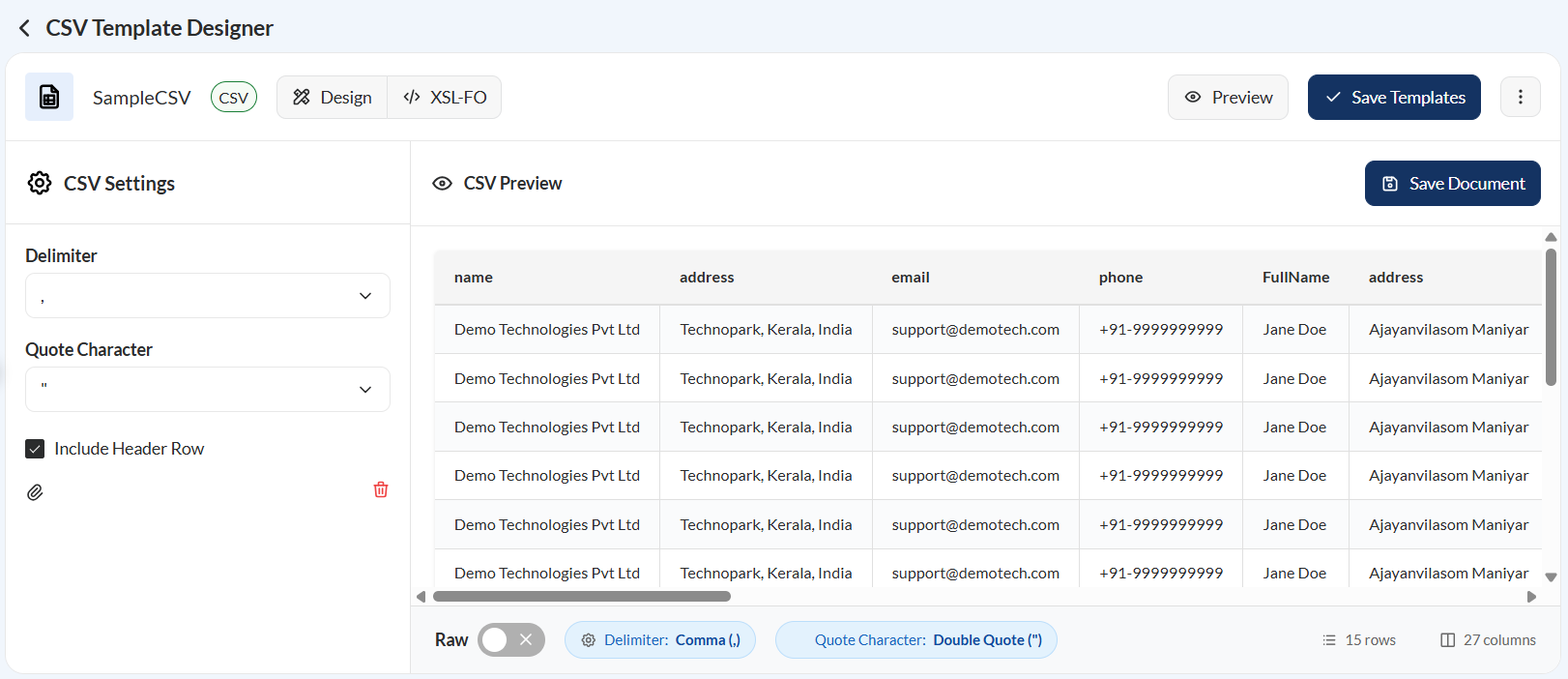
In the preview, the following buttons are displayed:
- Raw — Toggle to see how the CSV file will look with the configured delimeter and quote.
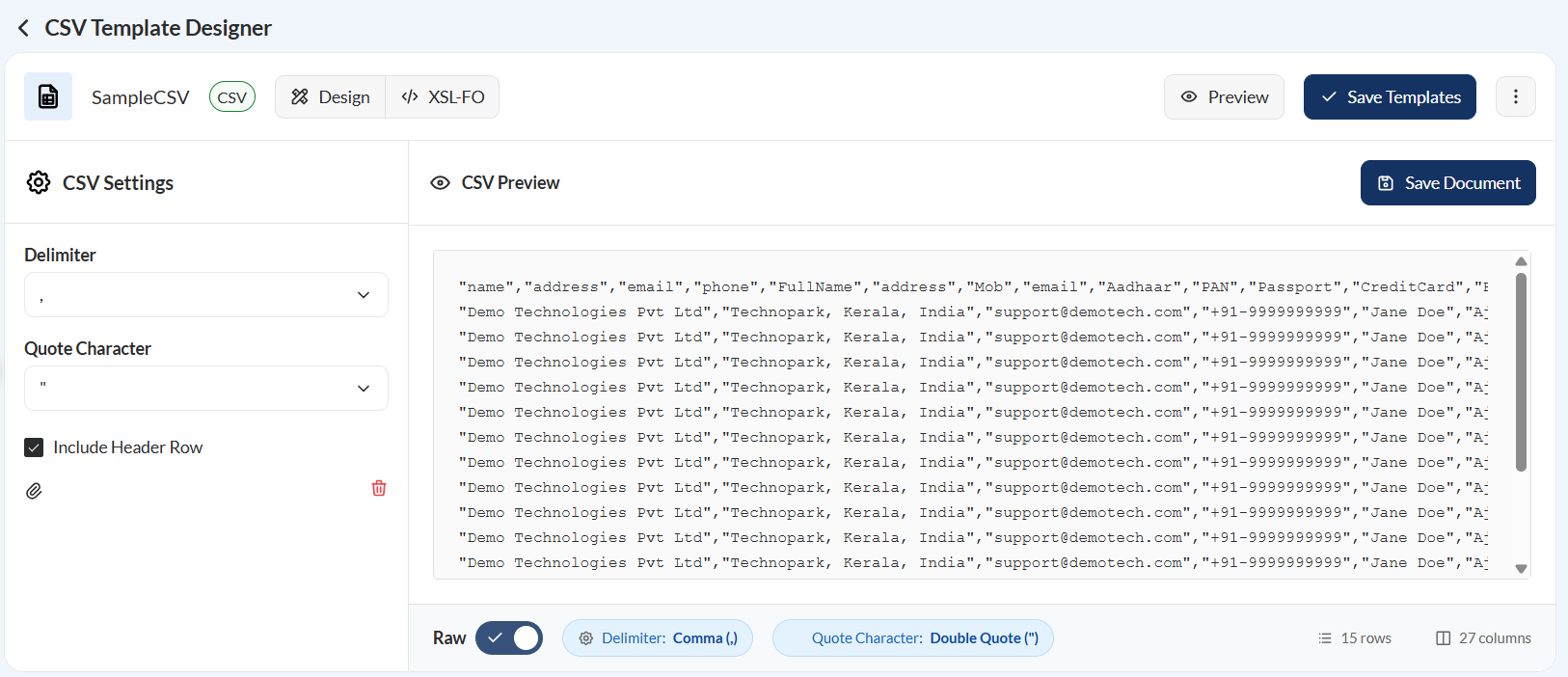
- Delimeter — Display the configured delimiter to separate the columns.
- Quote Character — Displays the configured quote character to enclose text values.
- Save Document — Click to save the document. If document password protection has not yet been configured, you will be prompted to do so.
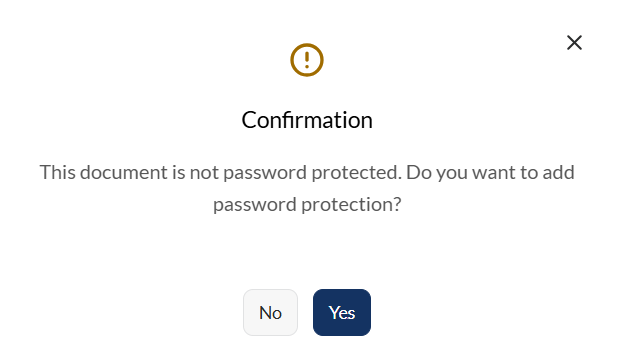
If you click Yes in the confirmation prompt, configure the document password. For more information, see password configuration.
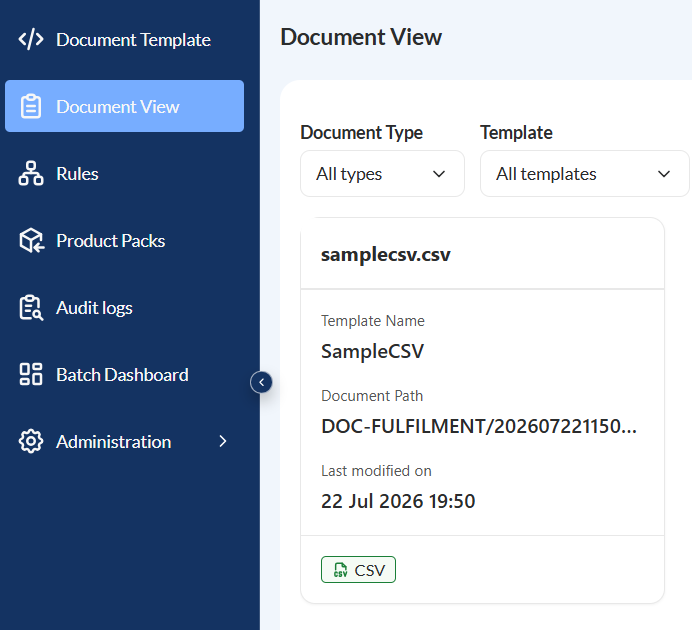
If you click No, or if a document password has already been configured, the document is automatically added to the Document View module.
Save Template
The Save Template button saves all the changes made for the template.
Export Design
The Export Design button downloads the current template in JSON format. Exported designs can be used as backups or imported into another environment.