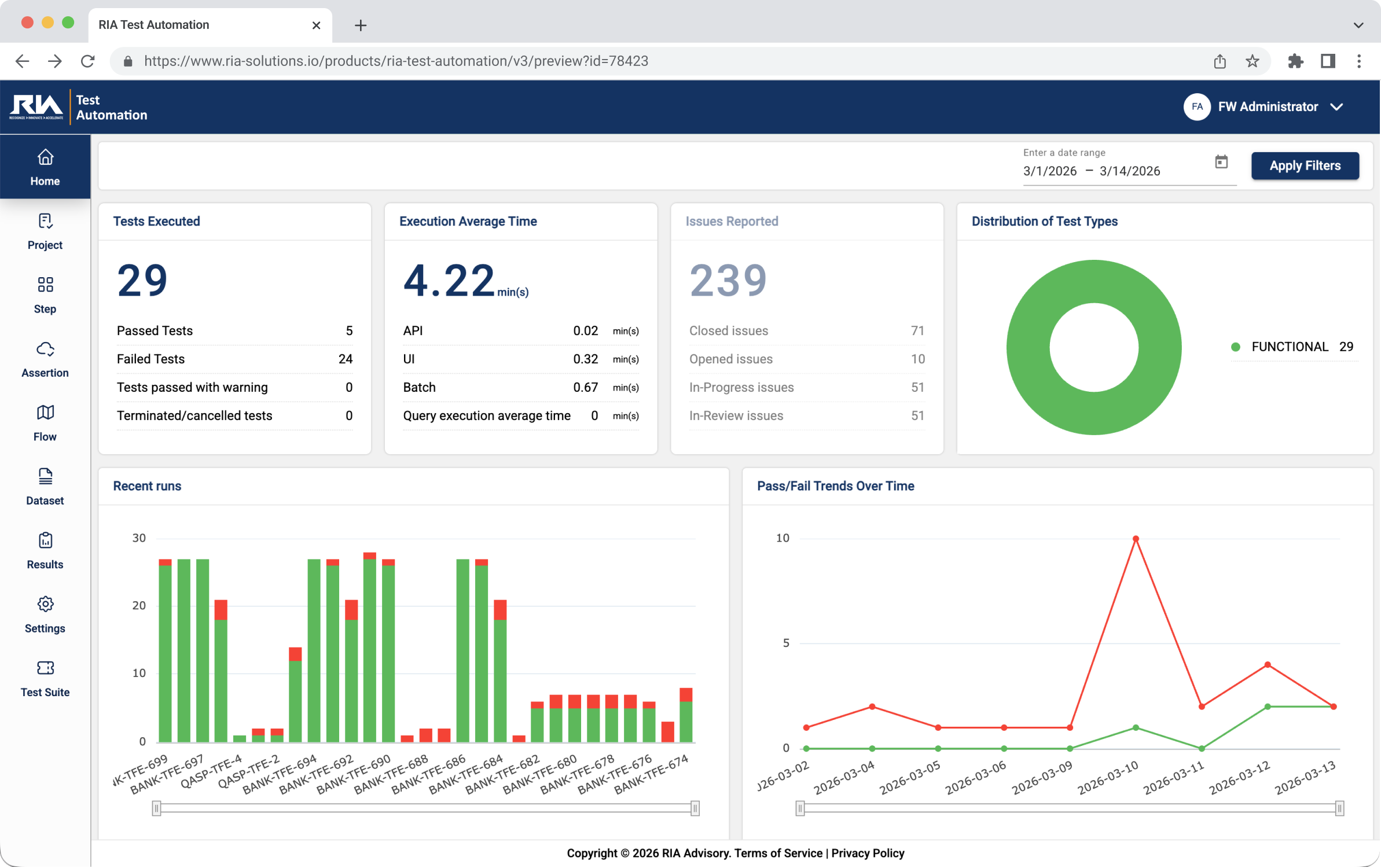
Test Automation Features
Accelerate enterprise testing with powerful automation tools for project management, execution monitoring, and seamless end-to-end validation.
This is the multi-page printable view of this section. Click here to print.
Accelerate enterprise testing with powerful automation tools for project management, execution monitoring, and seamless end-to-end validation.
When upgrading the Test Automation from version 2.8 to 3.0, take note of the following configuration changes.
When using Test Automation, it is advisable to utilize Starter Packs for streamlined configurations and efficient implementations. However, should you opt for creating all modules from the ground up, see General configuration.
The following are the minimum requirements for machines running Test Automation:
| Specification | Minimum Requirement |
|---|---|
| CPU | 2 vCPU |
| Memory | 8 GB |
| Storage | 50 GB |
Test Automation offers two prerequisite packages — Bundles and Configuration Migration Assistant (CMA). These packages serve as the foundation for Test Automation to operate. Before installation, you are required to deploy only one of the two packages to ensure the functionality of Test Automation. For more information, see Prerequisite packages.
Selenium IDE plugin is a third-party browser plugin that needs to be installed in your browsers. This plugin is the primary tool used for scenarios involving UI recordings.
To install a Selenium IDE plugin, see Getting Started in the Selenium IDE documentation.
User credentials and access rights must be configured before accessing TA. Ensure that your user account has been created in the RIA Framework and has the required roles and permissions for TA access. For account setup procedures, contact your administrator or refer to the How to create a user in RIA Framework documentation.
Note that the available role groups in the RIA framework vary depending on the application being configured. For TA, the following role groups are available.
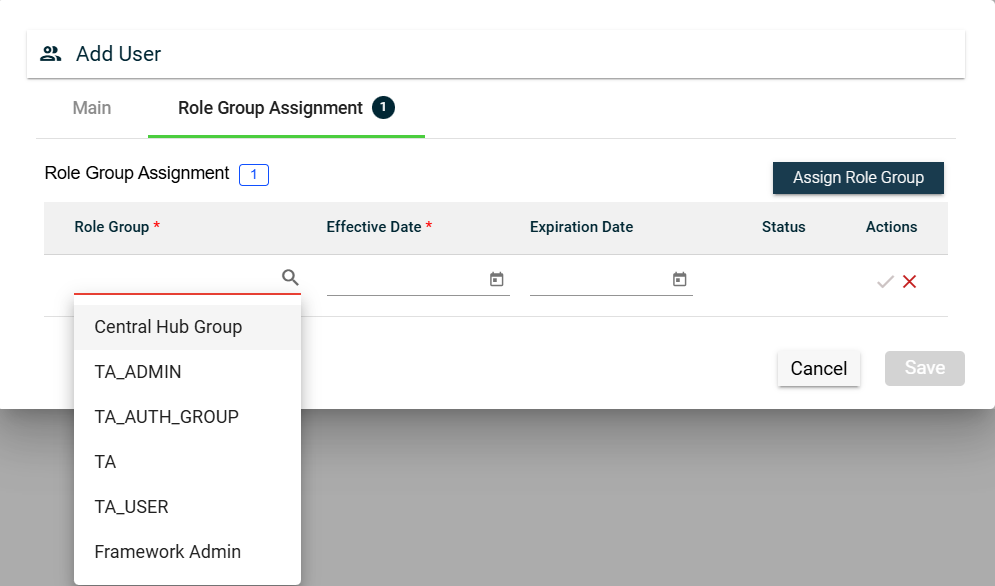
Note that when creating a TA non-admin user, you have to select all the following roles:
TA_ADMINTA_USERTA_AUTH_GROUPStarter packs are sets of pre-defined scenarios that you can employ for your testing projects. These scenarios cover a wide range of diverse testing situations, enabling you to begin your testing project effortlessly and efficiently. This ensures comprehensive coverage of crucial testing scenarios right from the start.
Test Automation offers the following starter packs for the following industries:
To use a starter pack, follow these steps:
Before running the test, ensure that the testing environment is properly set up and configured. This includes specifying the necessary credentials and database details for accessing the configured environment. For more information, see Environments.
If you decide to customize all modules, follow these steps:
Test Automation offers two prerequisite packages — Bundles and Configuration Migration Assistant (CMA). These packages serve as the foundation for the operation of Test Automation.
The following are the services included in a pre-requisite package:
| Service | Service Type | Description |
|---|---|---|
| TA-IWSRestCatalog | Inbound web service | Returns the catalog of REST-based web services with details based on the REST web service catalog. |
| TA-GetOpenAPISpec | Inbound web service | Generates the OpenAPI Specification for a given REST Inbound Web Service and version of OpenAPI Specification. |
| TA-GetBatcCt | Inbound web service | Retrieve batch controls configured on the extendable lookup TA-AutomationBatchControls and their corresponding value TA-ValidAutomationBatchControls. |
| TA-RestBatchSubmission | Inbound web service | Provides functionalities to manage and monitor batch jobs through RESTful APIs. |
| TA-BatchStats | Inbound web service | Returns the statistics of a batch job, including the number of records processed, the threadpool used, start time, and end time. |
| TA-BatchJobSubmission | Business service | Submits a batch job instance for a given batch control. |
| TA-CheckBatchJobStatus | Business service | Returns the status of a batch job run, such as Started, Pending, or Ended. |
| TA-GetBatchControl | Business service | Returns the details of a given batch control. |
| TA-GetBatchRunStatus | Business service | Retrieves the status and run number of a batch run for a given batch control. |
| TA-BatchError | Business service | Returns an error message when a batch run encounters any error. |
Test Automation integrates with ORMB through the use of REST APIs. Components that may not be readily available in the base or framework version of ORMB can be added by importing bundles. This simplifies the integration process by removing the need to create new APIs.
You can download the bundles here.
CMA is a set of pre-defined configurations and SQL queries, such as Inbound web services, that help trigger batch executions and check the status of these executions.
If you are using a TA Banking starter pack or an ORMB environment, download the files here.
If you are using a C2M environment, download the files here.
/u01/app/sploutput/ORMB5000/F1_CMA_FILES/export./u01/app/sploutput/ORMB6000/F1_CMA_FILES/export.The downloads were generated using the following environment versions:
The following are the items for which the packages are created:
| Version | CMA | Prerequisite bundle |
|---|---|---|
| 2.9.0.1 | TA_C2M_Pre_Requisite.cma | TA-IWS_Service_Prereq_Bundle_C2M_2.9.0.1.xml |
| 2.7.0.3 | TA_C2M_Pre_Requisite.cma | TA-IWS_Service_Prereq_Bundle_C2M_2.7.0.3.xml |
To ensure batches are loaded in Test Automation (TA) tool and configured for execution, you need to ensure following steps are followed for every configured OUAF environment in TA.
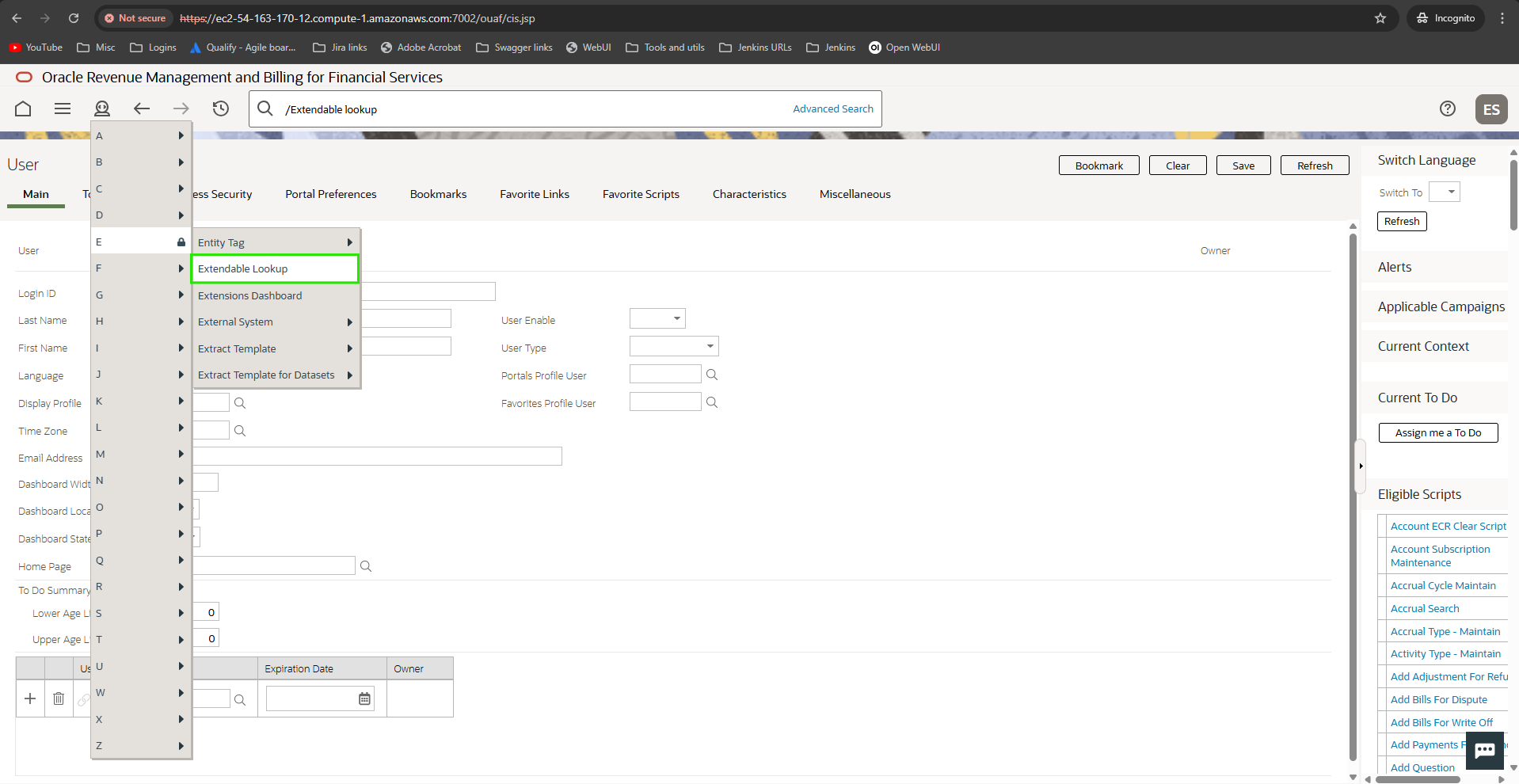
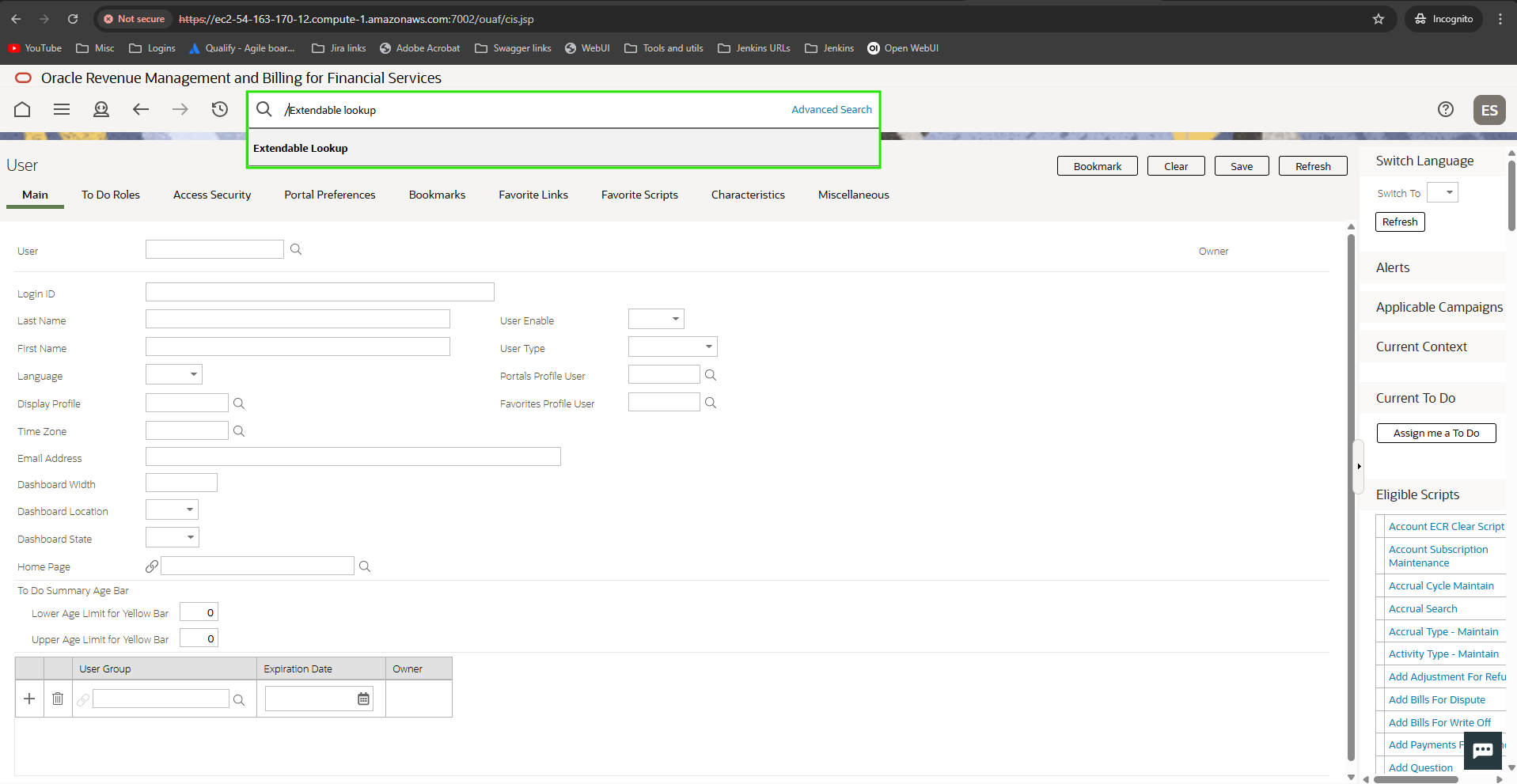
TA-AutomationBatchControls in the Business Object field. Click Search.
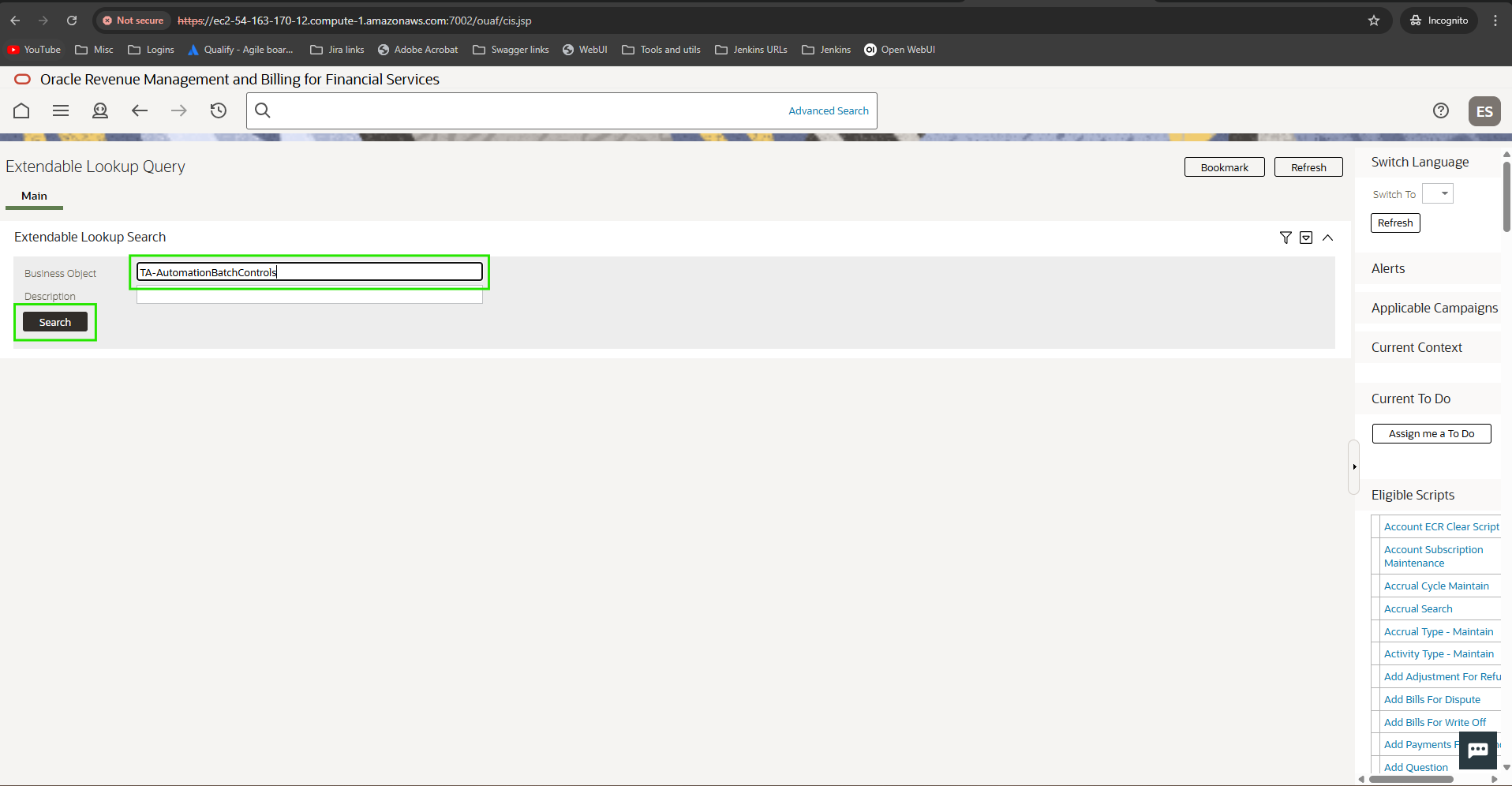
TA-AutomationBatchControls object.
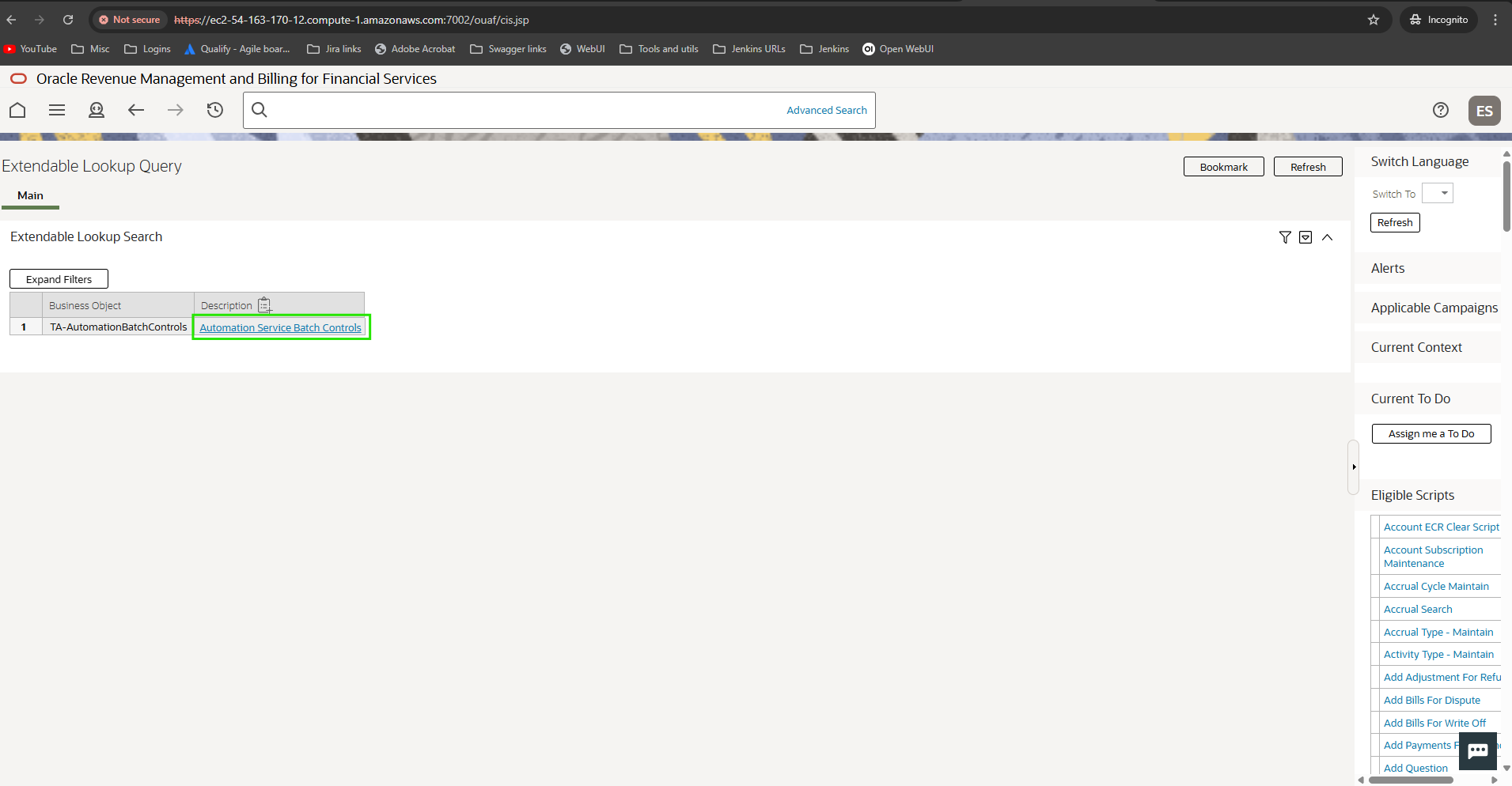
TA-AutomationBatchControls in the Extendable Lookup Value List.
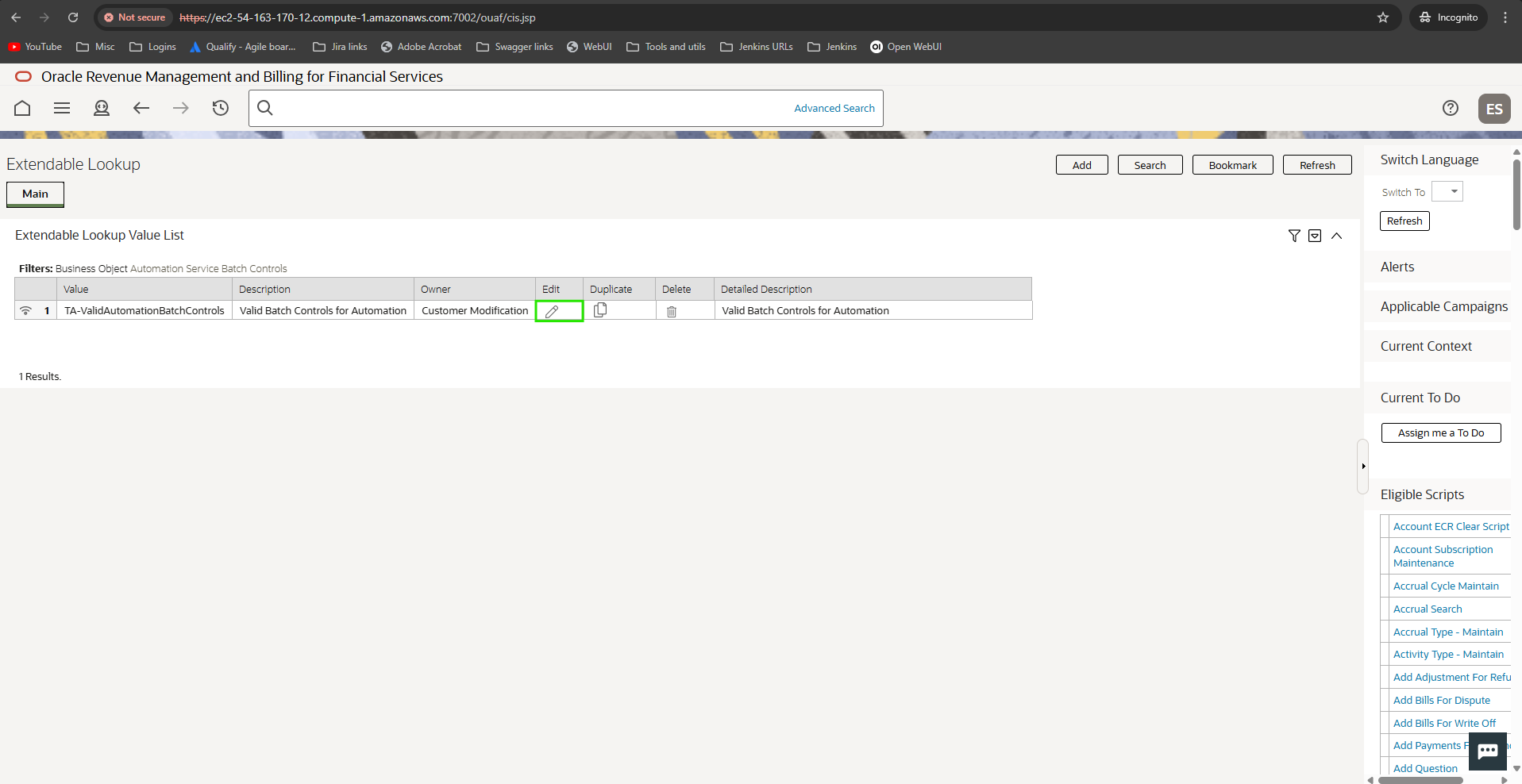
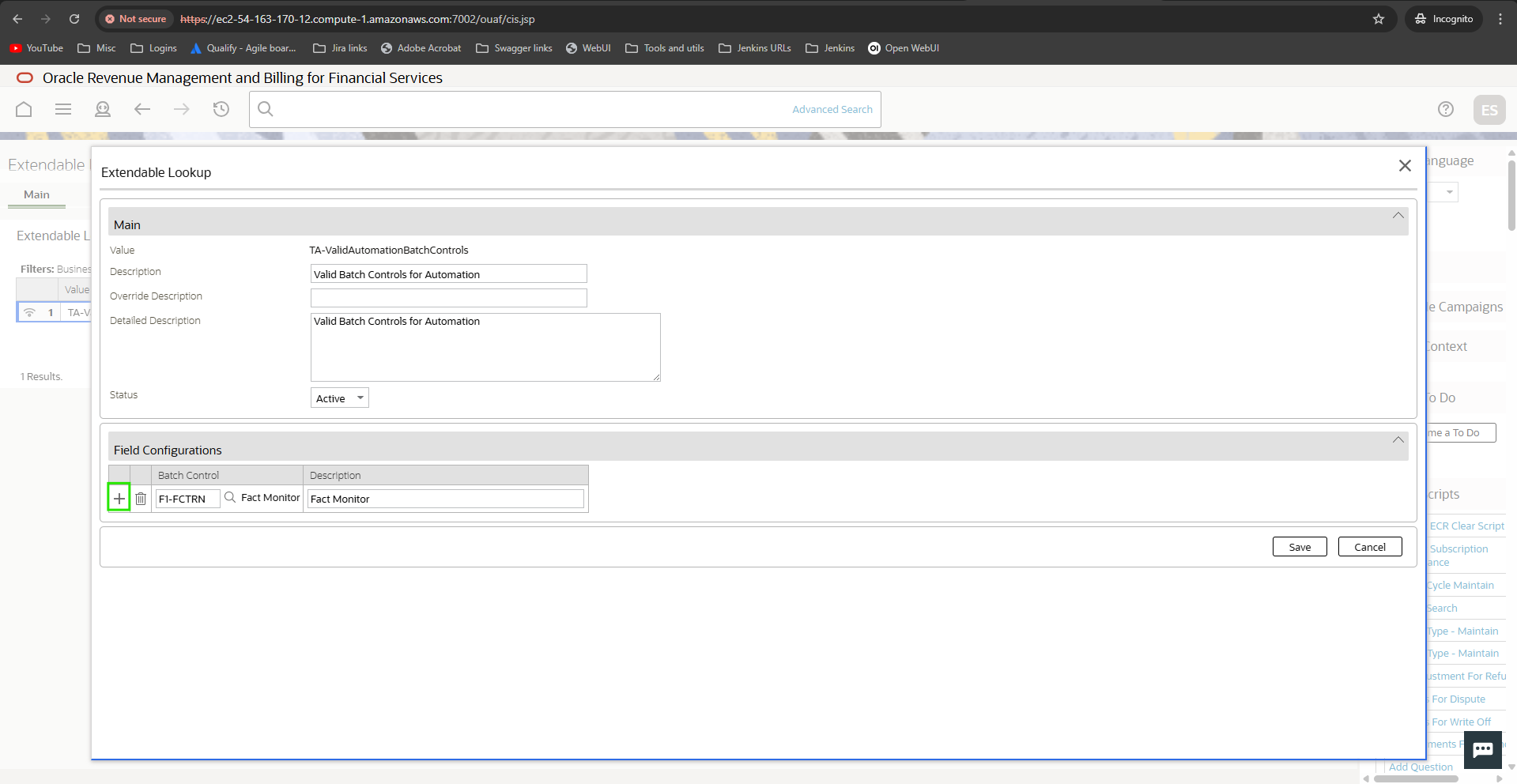
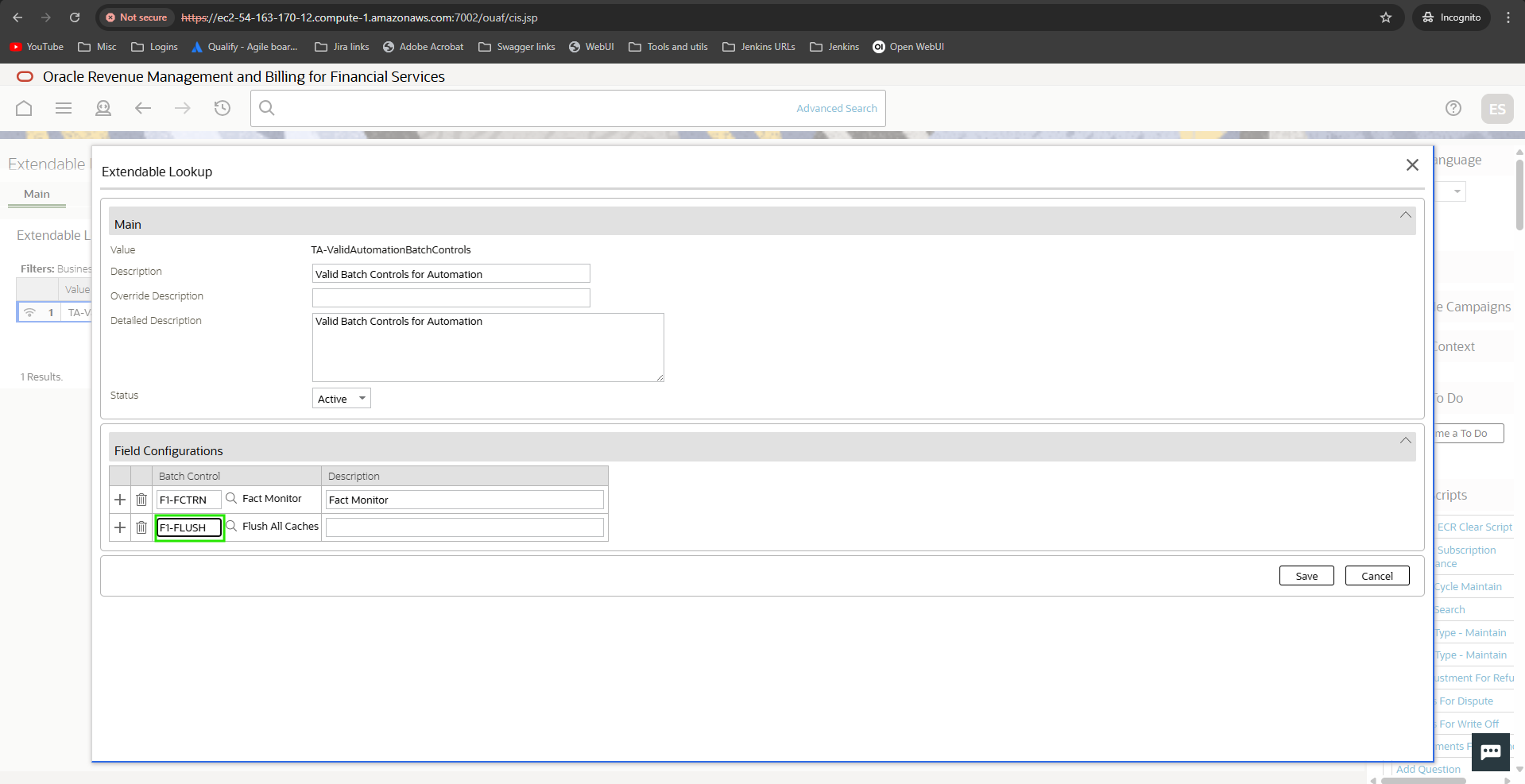
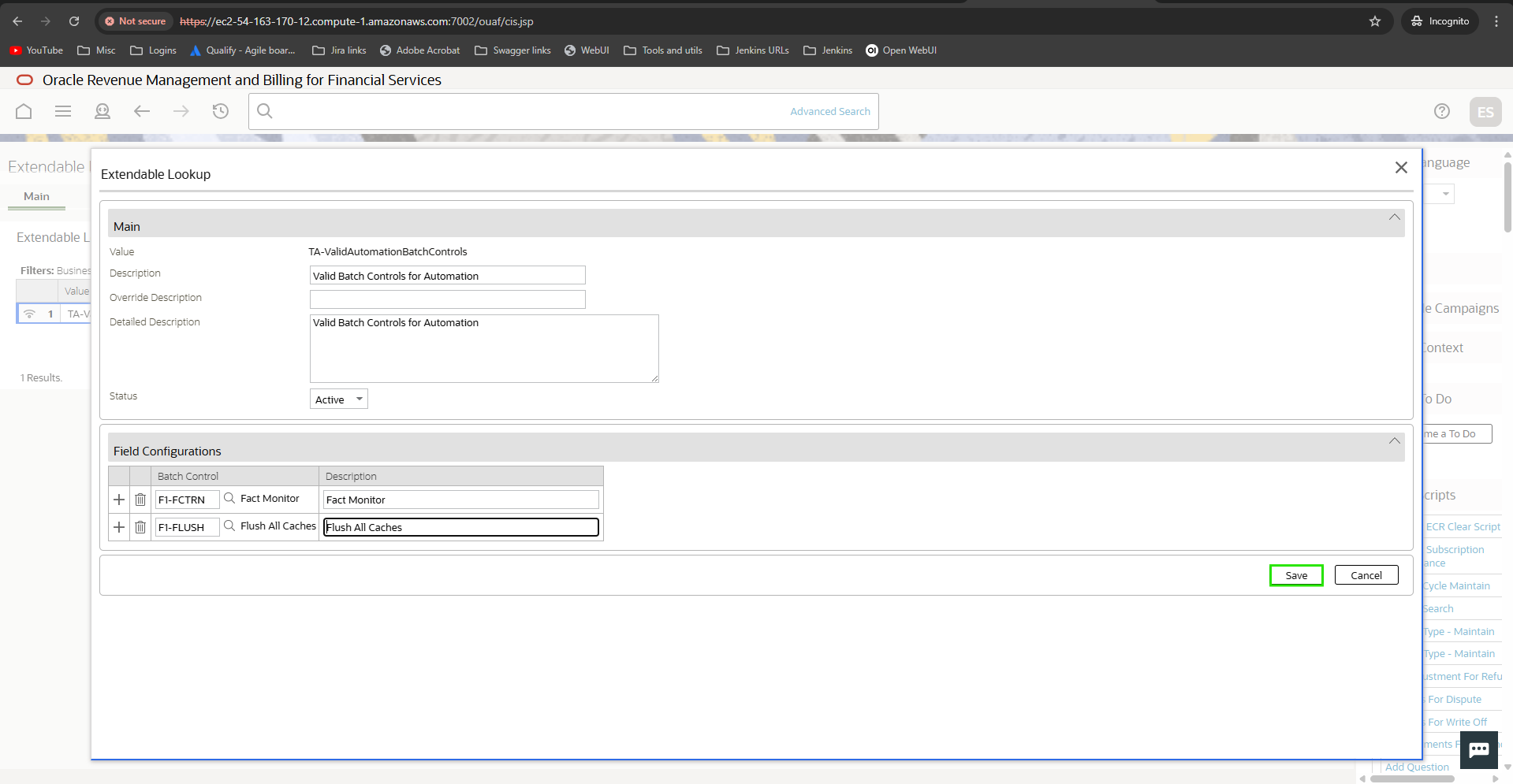
Batches are still not loading
To ensure configured IWS are loaded in Test Automation (TA) tool and configured for execution, you need to ensure that the following steps are followed for every configured OUAF environment in TA.
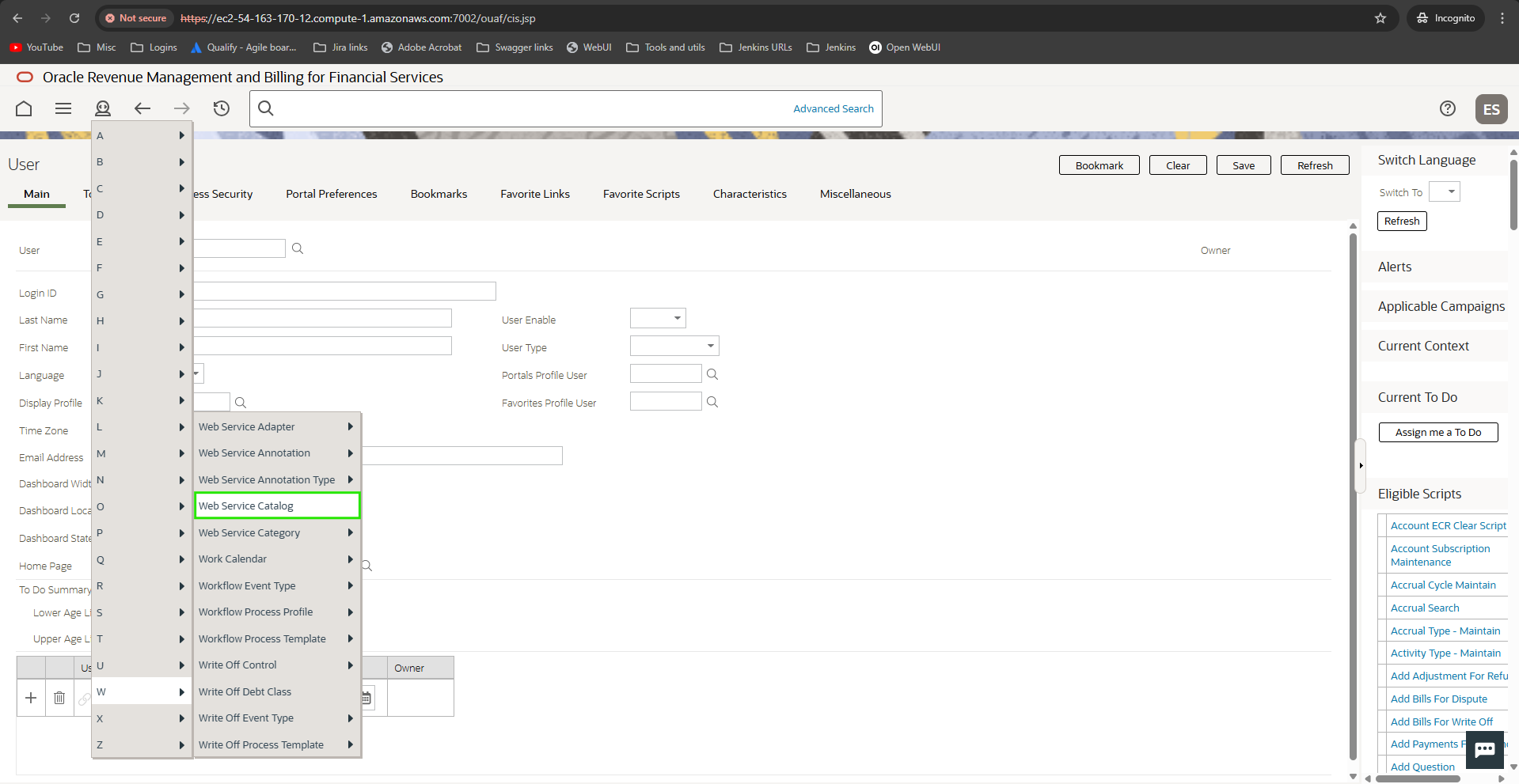
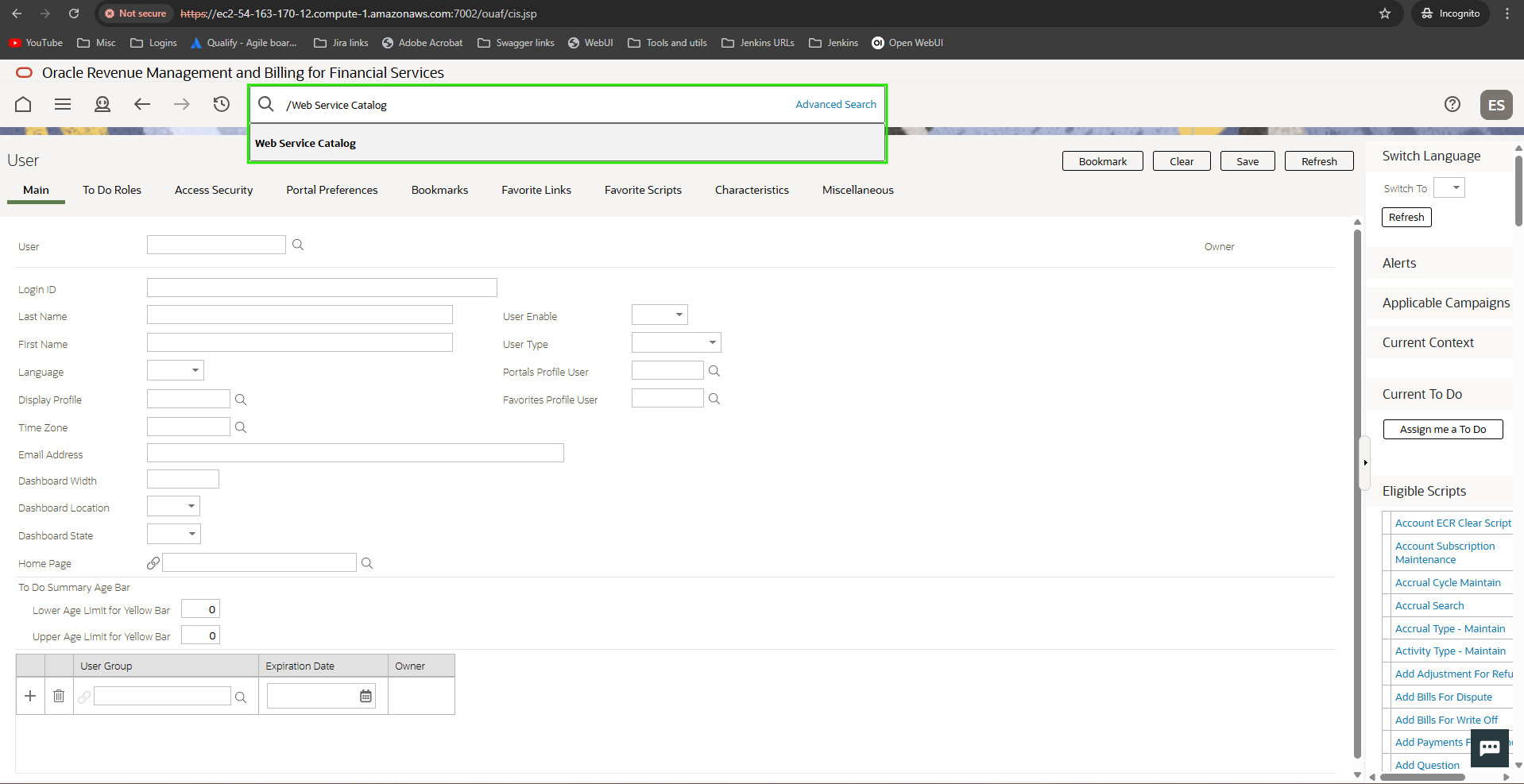
REST Web Service Class.
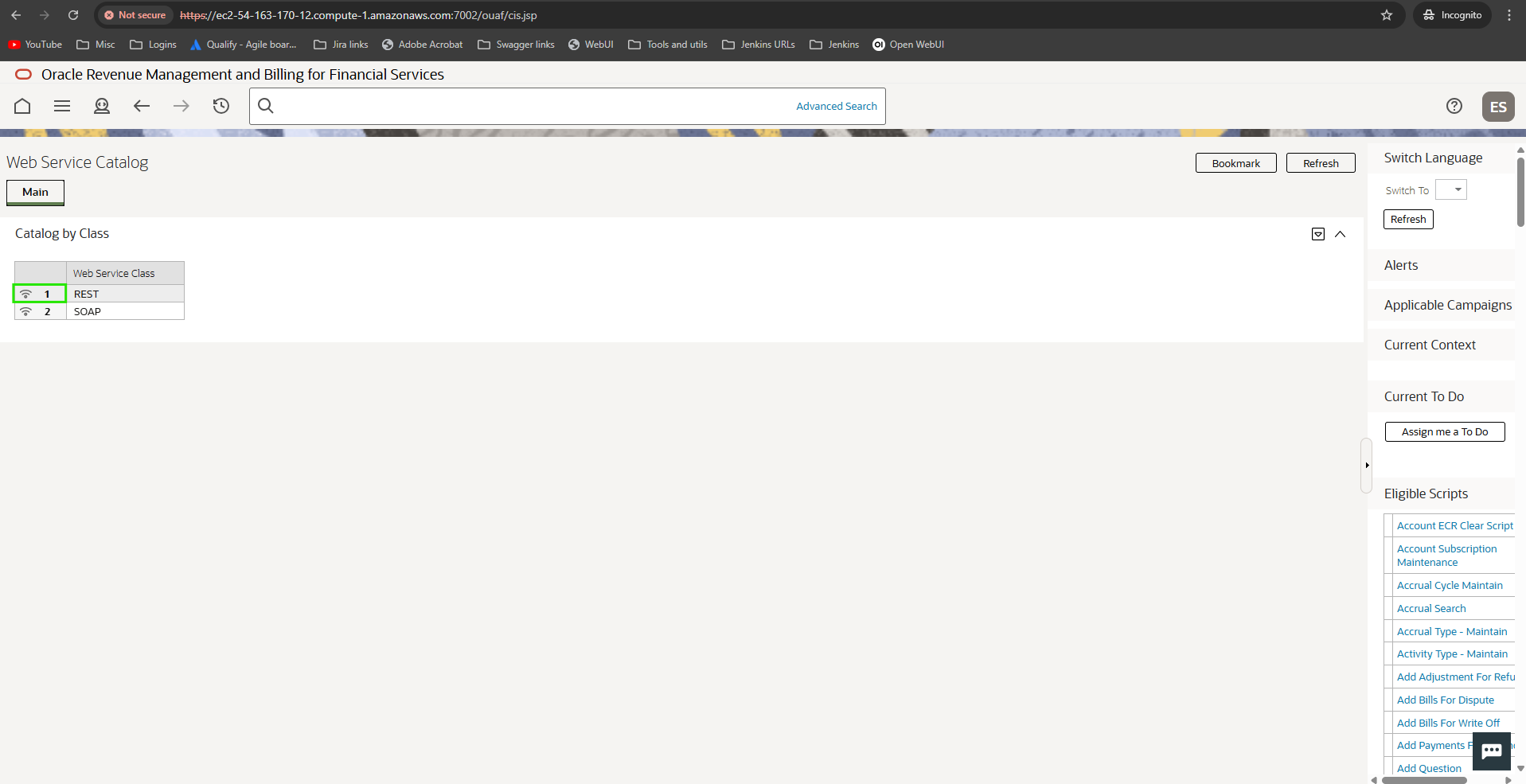
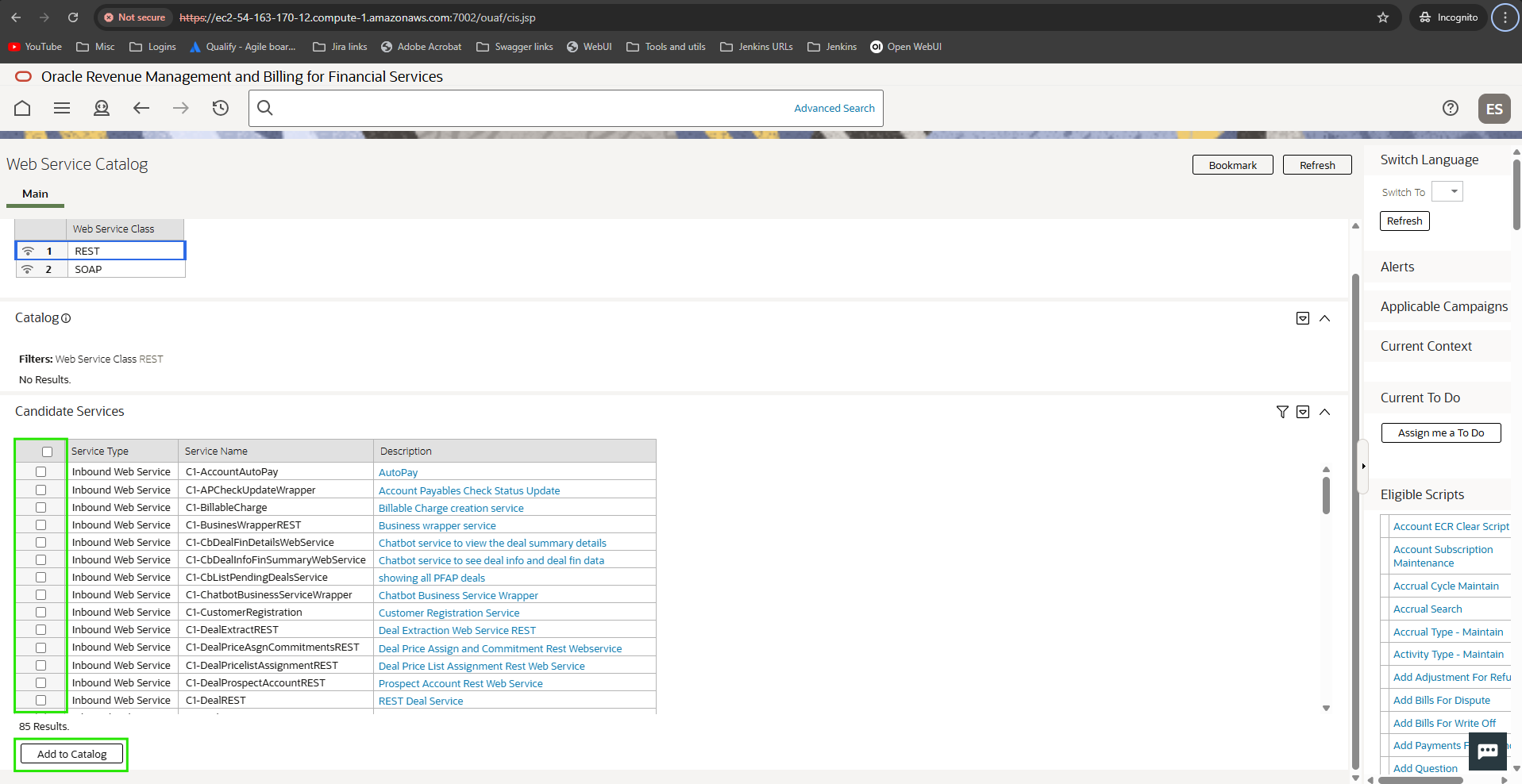
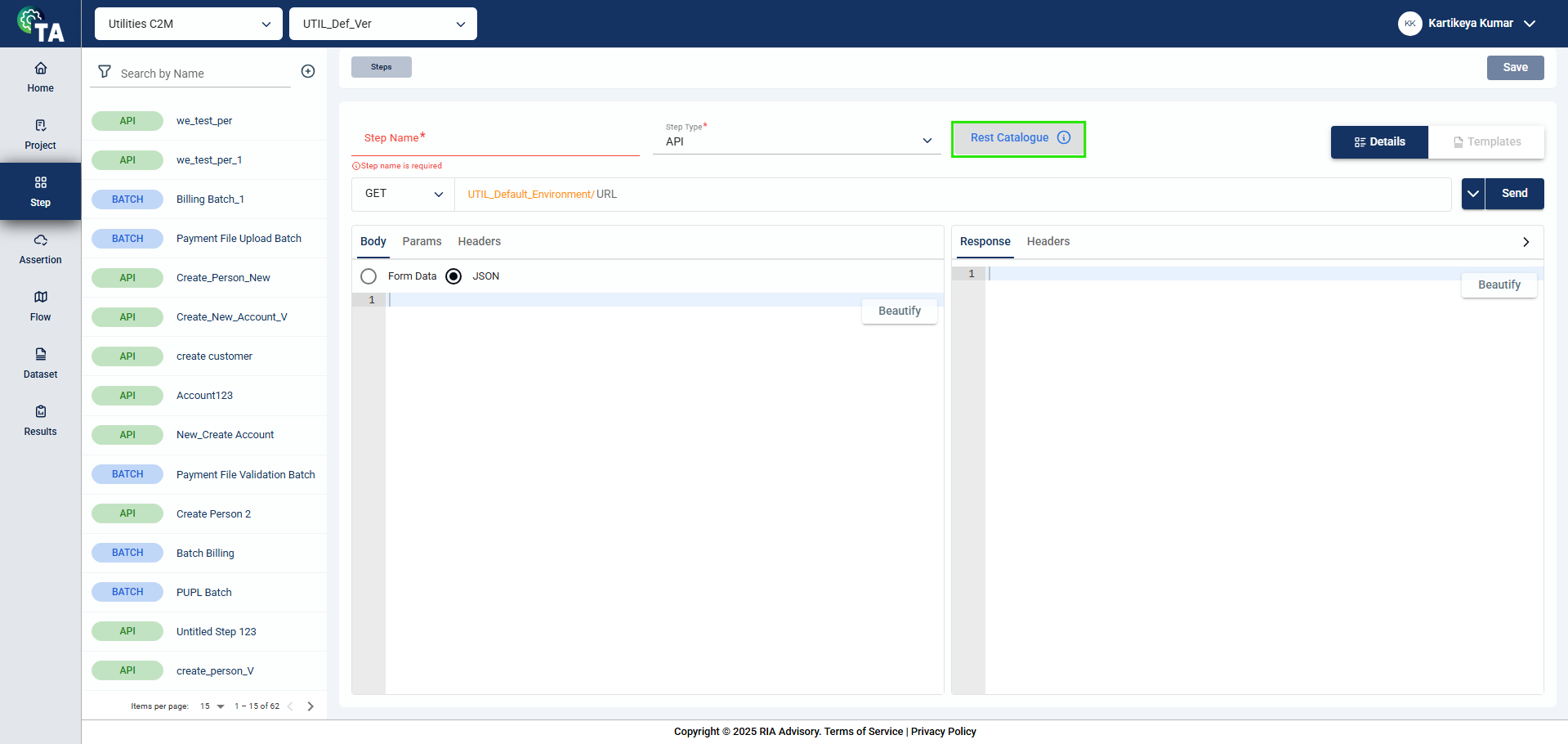
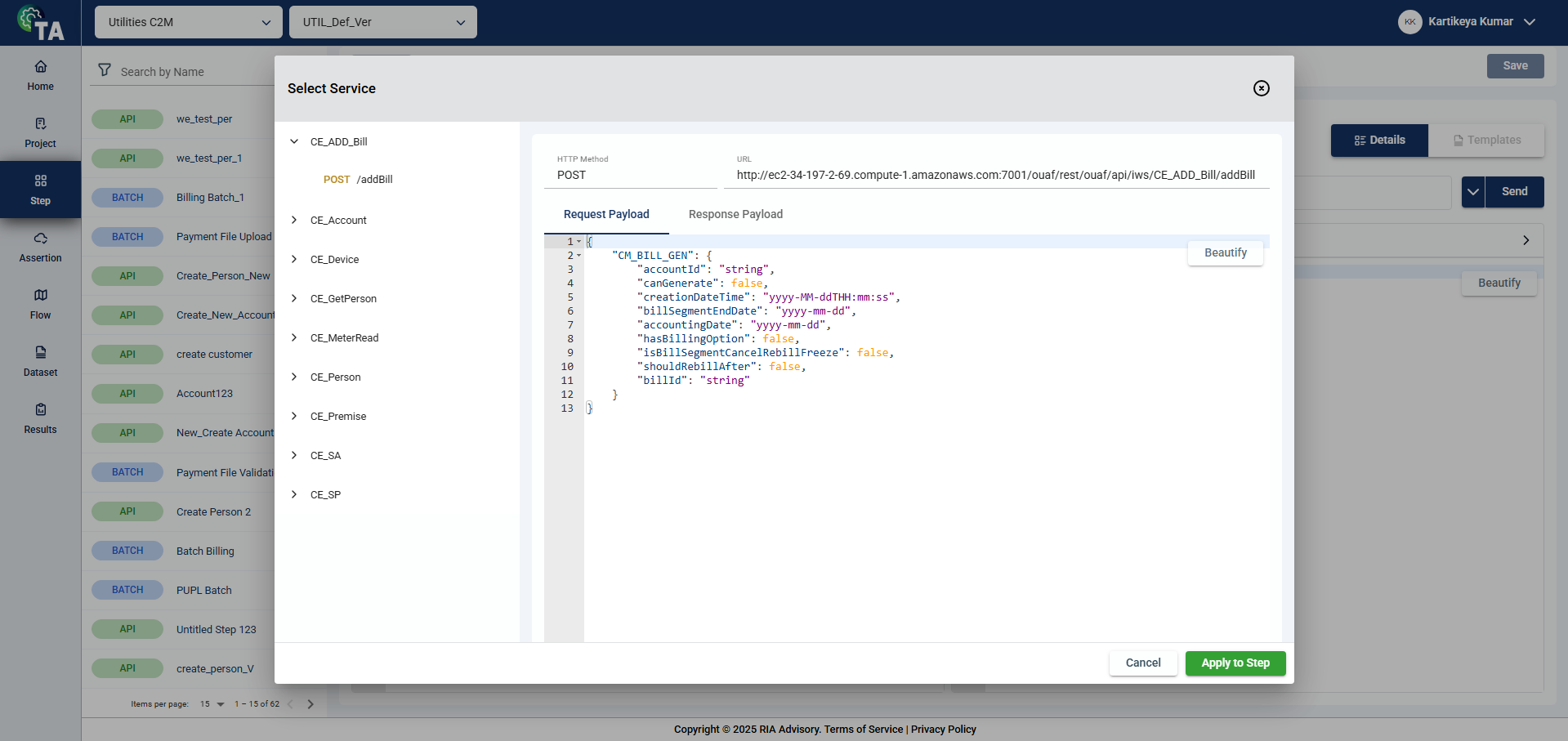
REST Catalogs are not loading
This documentation lists all scenarios defined in the Banking starter pack. To use a starter pack, ensure that you have already completed the steps in Use a starter pack.
| Test scenarios | Service type | Description and Query |
|---|---|---|
| Create a customer |
| Creates a user with the following details using API:
|
| Create an account and contract |
| Creates a bank account with the following details using API:
|
| Create parent-child relationship |
| Links a child’s account to their parent’s account. |
| Update customer details |
| Updates the details of a customer. The Person ID number value cannot be updated, but the following can be:
|
| Update account details |
| Updates the details of an account. The
|
| Test scenarios | Service type | Description and Query |
|---|---|---|
| Assign price list at a customer level |
| Assigns a list of standard prices for items to a customer, including the following details:
|
| Assign price list at an account level |
| Assigns a list of standard prices for items to an account, including the following details:
|
| Assign override pricing at a customer level |
| Assigns a price list that overrides any existing price list assigned to the customer. |
| Assign override pricing at an account level |
| Assigns a price list that overrides any existing price list assigned to an account. |
| Test scenarios | Service type | Description |
|---|---|---|
| Generate bill from billing batches |
| Generates a bill using the account name. For batch testing, it runs the following batches in order:
|
| Generate bill from application |
| Runs the following batches in order:
|
| Test scenarios | Service type | Description and Query |
|---|---|---|
| Create payment |
| Creates a payment for the already generated bill. For UI: For API: |
| Test scenarios | Service type | Description |
|---|---|---|
| Link general ledger (GL) to account |
| Runs the following batches in order:
|
The following scenarios support file uploads for SFTP and Batch service types:
//Input - Account Identifier, Bill ID

SELECT TP.ACCT_NBR
	,TP.BILL_ID
	,TO_CHAR(MAX(TP.CRE_DTTM), 'MM-DD-YYYY') AS BILL_DATE
	,TP.BILL_AMOUNT
	,TO_CHAR(TP.LATEST_PAYMENT_DATE, 'MM-DD-YYYY') AS LATEST_PAYMENT_DATE
	,TP.LATEST_PAYMENT_AMOUNT
	,TP.TOTAL_PAYMENT_STATUS
	,TP.TOTAL_PAID_AMOUNT
	,(TP.BILL_AMOUNT - TP.TOTAL_PAID_AMOUNT) AS OUTSTANDING_PAYMENT
FROM (
	SELECT B.ACCT_NBR
		,A.BILL_ID
		,A.ORIG_BILL_AMT AS BILL_AMOUNT
		,SUM(D.PAY_AMT) OVER (PARTITION BY A.BILL_ID) AS TOTAL_PAID_AMOUNT
		,C.DESCR AS TOTAL_PAYMENT_STATUS
		,A.CRE_DTTM
		,D.PAY_AMT AS LATEST_PAYMENT_AMOUNT
		,E.CRE_DTTM LATEST_PAYMENT_DATE
		,ROW_NUMBER() OVER (
			PARTITION BY A.BILL_ID ORDER BY E.CRE_DTTM DESC
			) AS RN
	FROM C1_BILL_DTLS_VW A
	INNER JOIN CI_ACCT_NBR B ON A.ACCT_ID = B.ACCT_ID
	INNER JOIN CI_PAY D ON D.ACCT_ID = A.ACCT_ID
	INNER JOIN CI_LOOKUP_VAL_L C ON C.FIELD_NAME = 'PAY_STATUS_FLG'
		AND C.FIELD_VALUE = D.PAY_STATUS_FLG
	INNER JOIN CI_PAY_EVENT E ON E.PAY_EVENT_ID = D.PAY_EVENT_ID
	WHERE TRIM(B.ACCT_NBR) = TRIM(:F1 --Account Identifier)
			AND A.BILL_ID = ${ :F2 -- Bill ID}
		) TP
	WHERE TP.RN = 1
	GROUP BY TP.ACCT_NBR
		,TP.BILL_ID
		,TP.BILL_AMOUNT
		,TP.LATEST_PAYMENT_DATE
		,TP.LATEST_PAYMENT_AMOUNT
		,TP.TOTAL_PAYMENT_STATUS
		,TP.TOTAL_PAID_AMOUNT
	ORDER BY BILL_DATE DESC FETCH FIRST 1 ROW ONLY
| Available reports | Available service type | Description |
|---|---|---|
| Aging Detail Report |
| Generates a Form of Payment (FOP) report based on aging details. |
| Payment Detail Report |
| Generates a Form of Payment (FOP) report based on payment details. |
| Payment Summary Report |
| Generates a Form of Payment (FOP) summary report. |
| Adjustment Detail Report |
| Generates a Form of Payment (FOP) report with adjustment details. |
This documentation lists all scenarios defined in the Healthcare starter pack. To use a starter pack, ensure that you have already completed the steps in Use a starter pack.
| Test scenarios | Available service type | Description |
|---|---|---|
| Upload health product and health plan |
| Creates a health product and plan using API and processes it with batch execution.
|
| Rate upload |
| Creates rates that define customer's charges and billable charges.
|
| Custmomer upload by referring rate plans |
| Updates a customer account based on product code, plan code, and rate. For example, if a rate is specified with Tobacco is Runs the Batch - C1-HCEXS to process the inbound bound message for the creation of the customer, account, and contract. |
| Billable charge creation |
| Runs the following batches in order:
|
| Customer billing |
| Generates a bill using the billable charges and account. For batch testing, it runs the following batches in order:
|
| General ledger scenario |
| Runs the following batches in order:
|
| Create payment |
| Creates a payment for the generated bill. |
This documentation lists all scenarios defined in the Utilities starter pack. To use a starter pack, ensure that you have already completed the steps in Use a starter pack.
| Test scenarios | C2M/CCS prerequisite | Service type |
|---|---|---|
| Create a person and account | None |
|
| Add person characteristics | Added person in the previous scenario |
|
| Add a person of relationship type of roommate to an account | Existing person or account |
|
| Remove person characteristics | Existing person |
|
| Maintain customer information - life support/phone/email/mailing address | Existing person |
|
| Maintain customer info- remove life support alert | Existing person |
|
| Change mailing address to person | Existing account |
|
| Change mailing address to account override | Existing account |
|
| Change mailing address to mailing premise on account | Existing account |
|
| Maintain customer account information - financial responsibility | Existing account |
|
| Add copy of bill & bill route | Existing account |
|
| Maintain customer information - add autopay | Existing account |
|
| Maintain customer information - remove autopay | Existing account |
|
| Add Premises - residential or commercial |
| |
| Delete premise | Existing premise |
|
| Update premise | Existing premise |
|
| Update premise characteristics | Existing premise |
|
| Change a premise type on an existing premise | Existing premise |
|
| Test scenarios | C2M/CCS prerequisite | Service type |
|---|---|---|
| Add a Service Point - Electric/Water/ Gas/Refuse | Existing premise |
|
| Delete a service point | Existing premise |
|
| Update service point - device location | Existing service point |
|
| Update service point - SP instruction | Existing service point |
|
| Manual change of service point, service route, and sequence | Existing service point |
|
| Disconnect service point | Existing service point |
|
| Deactivate service point | Existing service point |
|
| Start SA on a premise not linked to any account, with current date Start SA on a premise not linked to any account, with future date | Existing person, account, service point |
|
| Test scenarios | C2M/CCS prerequisite | Service type |
|---|---|---|
| Manually Add a Device to SP - Water Residential/Water Commercial | Existing service point and device configuration |
|
| Install a Device - Manual Water Meter/Manual Waste Water Meter/Sensus Water Meter /Sensus Waste Water Meter [CCS] | Existing install event |
|
| Remove install event [CCS] | Existing install event |
|
| Turn off or remove a device - Manual Water Meter/Manual Waste Water Meter/Sensus Water Meter /Sensus Waste Water Meter [CCS] | Existing install event |
|
| Configure a device - Manual Water Meter/Manual Waste Water Meter/Sensus Water Meter /Sensus Waste Water Meter [CCS] | Existing device and configuration |
|
| Install a device - Water Analog Meter/Water Smart Meter/Water AMR Meter [C2M] | Existing install event |
|
| Update install event - Remove device | Existing install event |
|
| Update install event - Turn off device | Existing install event |
|
| Test scenarios | C2M/CCS prerequisite | Service type |
|---|---|---|
| Add bill cycle to an account | Existing account |
|
| Add bill message to an account | Existing account |
|
| Add bill intercept to account | Existing account |
|
| Remove bill intercept to account | Existing account |
|
| Add copy of bill and bill route | Existing account |
|
| Enter a bill after date on an account that is scheduled to bill | Existing account |
|
| Change budget bill amount manually | Existing service agreement |
|
| Create account alert - protected bill cycle | Existing account |
|
| Generate a first bill Generate a bill - Final Bill (with Balance Owed) Generate and complete a manual bill - Deposit Generate and complete a manual bill - First Bill for Account greater or equal to X days Generate and complete a manual bill - First Bill for Account less than X days | Existing bill |
|
| Add bill message - to a bill | Existing bill |
|
| Delete a pending bill - Bill Segments in Freezable status Delete a pending bill - Bill Segments in Error status | Existing bill |
|
| Cancel a bill | Existing bill |
|
| Reopen a completed online bill | Existing bill |
|
| Reopen a bill and add an adjustment | Existing bill |
|
| Rebill bill segment | Existing bill segment |
|
| Delete bill segment Delete bill segment in freezable status | Existing bill segment |
|
| Process payments - Process Customer Payments | Existing account and payment tender |
|
| Distribute payment Payment distribution | Existing payment |
|
| Cancel a payment | Existing payment |
|
| Misapplied payment - Transfer payment | Existing payment |
|
| Apply adjustment Add an adjustment | Existing service agreement |
|
| Cancel an adjustment Cancel a transfer adjustment | Existing adjustment |
|
| Test scenarios | C2M/CCS prerequisite | Service type |
|---|---|---|
| Start collection process | Existing account with debt and service agreement |
|
| Cancel a collection process | Existing account with debt and service agreement |
|
| Change or update a collection event information | Existing account with debt and service agreement |
|
| Add a collection event | Existing account with debt and service agreement |
|
| Delete a collection event | Existing account with debt and service agreement |
|
| Start severance process | Existing account with debt and service agreement |
|
| Cancel a severance process | Existing account with debt and service agreement |
|
| Change a severance event | Existing account with debt and service agreement |
|
| Add a severance event | Existing account with debt and service agreement |
|
| Start the write-off process | Existing account with debt and service agreement |
|
| Cancel a write-off process | Existing account with debt and service agreement |
|
| Add, change, or delete write-off process | Existing account with debt and service agreement |
|
V3 boasts a completely redesigned user interface focused on usability. The clean, uncluttered, and logically organized interface enables users to navigate effortlessly, locate information quickly, and perform tasks efficiently.
V3 revolutionizes test scenario creation with a user-friendly, visual, top-down workflow. Testers can effortlessly design end-to-end test scenarios using a drag-and-drop interface, providing a clear visual representation of complex test flows. This eliminates the need for complex navigation, making the process intuitive and efficient.
V3 simplifies configuration with a centralized approach. Users can configure assertions, and integrations directly within the test flow screen, eliminating the need to navigate multiple menus and reducing setup time.
V3 enables flexible management of different service configurations within projects through its integrated version control system. This feature allows users to easily maintain and switch between multiple versions, ensuring adaptability to changing requirements and testing environments.
V3 seamlessly integrates with popular issues and project tracking software like Jira and Azure DevOps. This integration allows automatic defect reporting, ensuring no issue is overlooked. It streamlines collaboration between development and QA teams, accelerates issue resolution, and keeps everyone synchronized.
V3 provides a robust testing environment with advanced features:
Manage global variables centrally at the project level, reducing redundancy and ensuring consistency across all test cases. This centralized control simplifies maintenance while allowing seamless customization. Project-level variables can also be overridden at the environment level, enabling different values for variables across environments and providing enhanced flexibility to tailor the test environment to specific needs throughout the entire project.
Validate individual test step configurations before executing the full test suite, catching errors early and saving valuable time and resources. This proactive approach enhances the accuracy of results and ensures that each step is set up correctly, improving the overall reliability of your test cases.
V3 enables easy comparison of results from different test runs or iterations of the same run. This feature provides insights into changes over time, highlights potential regressions, and facilitates trend analysis for continuous improvement.
V3 boasts a completely redesigned user interface focused on usability. The clean, uncluttered, and logically organized interface enables users to navigate effortlessly, locate information quickly, and perform tasks efficiently.
V3 revolutionizes test scenario creation with a user-friendly, visual, top-down workflow. Testers can effortlessly design end-to-end test scenarios using a drag-and-drop interface, providing a clear visual representation of complex test flows. This eliminates the need for complex navigation, making the process intuitive and efficient.
V3 simplifies configuration with a centralized approach. Users can configure assertions, and integrations directly within the test flow screen, eliminating the need to navigate multiple menus and reducing setup time.
V3 enables flexible management of different service configurations within projects through its integrated version control system. This feature allows users to easily maintain and switch between multiple versions, ensuring adaptability to changing requirements and testing environments.
V3 seamlessly integrates with popular issues and project tracking software like Jira and Azure DevOps. This integration allows automatic defect reporting, ensuring no issue is overlooked. It streamlines collaboration between development and QA teams, accelerates issue resolution, and keeps everyone synchronized.
V3 provides a robust testing environment with advanced features:
Manage global variables centrally at the project level, reducing redundancy and ensuring consistency across all test cases. This centralized control simplifies maintenance while allowing seamless customization. Project-level variables can also be overridden at the environment level, enabling different values for variables across environments and providing enhanced flexibility to tailor the test environment to specific needs throughout the entire project.
Validate individual test step configurations before executing the full test suite, catching errors early and saving valuable time and resources. This proactive approach enhances the accuracy of results and ensures that each step is set up correctly, improving the overall reliability of your test cases.
V3 enables easy comparison of results from different test runs or iterations of the same run. This feature provides insights into changes over time, highlights potential regressions, and facilitates trend analysis for continuous improvement.
To sync TestRail during execution, follow these steps:
Go to the Test Flow page.
Click Run.
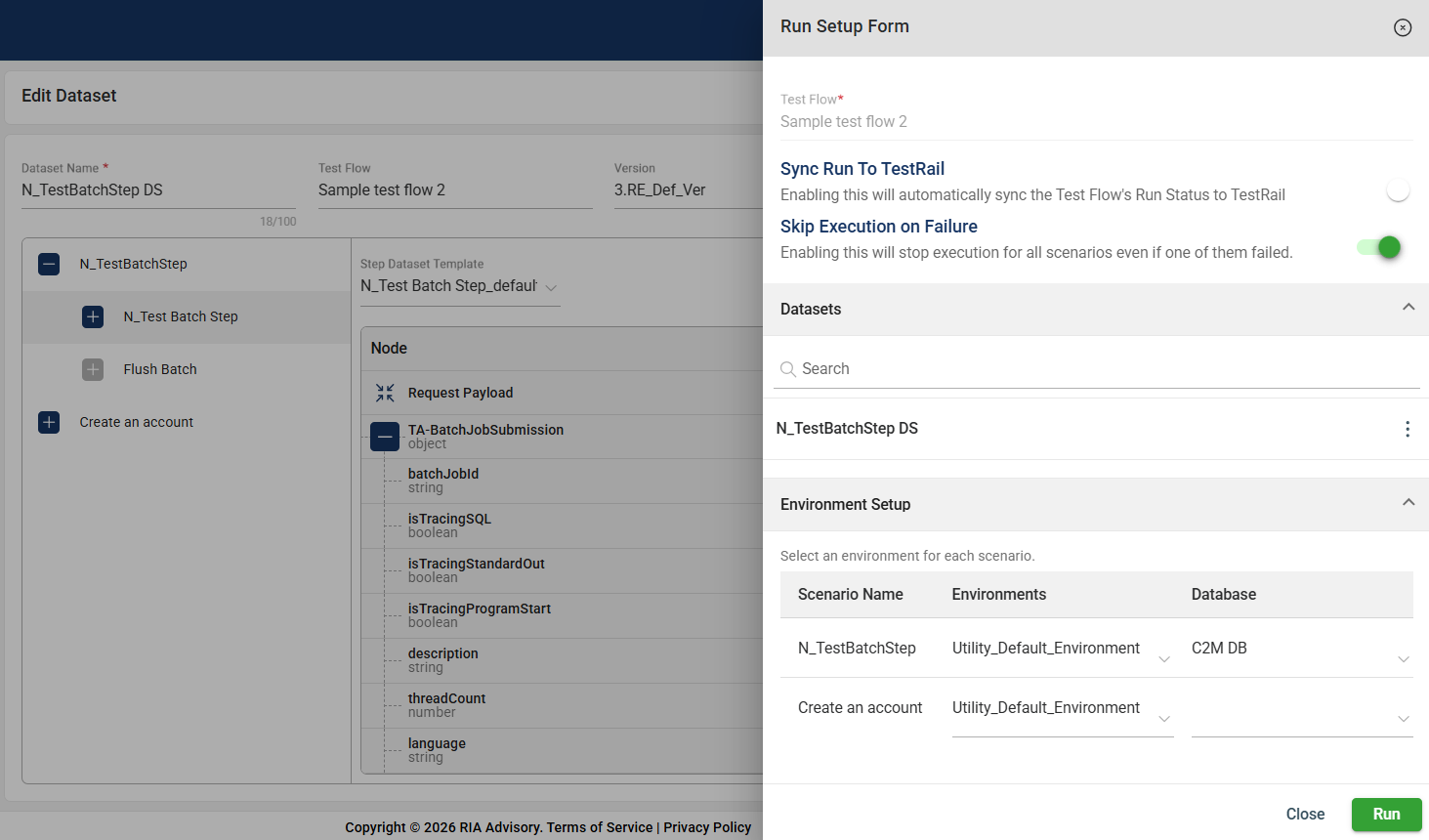
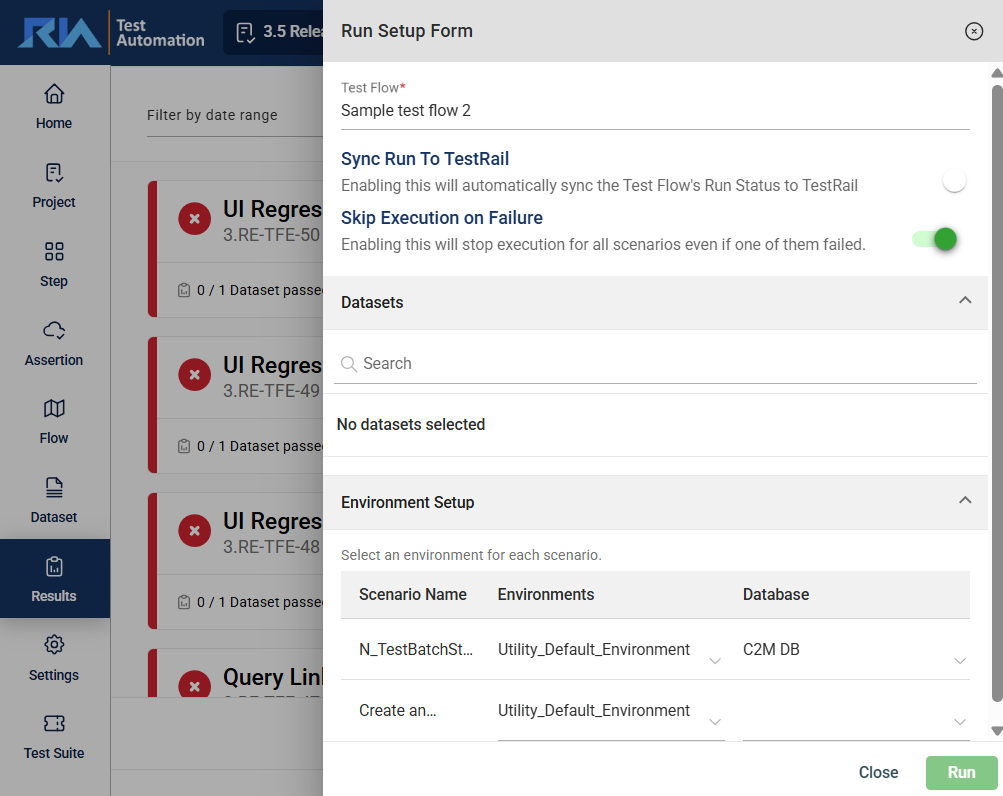
In the Run Setup Form click the Sync Run To TestRail toggle.

To synchronize and manage test artifacts within the TA tool, you must first configure the TestRail integration in the settings. Then, enable the TestRail integration. Next, you must also configure TestRail in the project-level settings. Now that you have configured TestRail in the TA tool and project-level, make sure to sync test flows and test runs during execution.
This document provides a high-level infrastructure diagram and an overview of the various components, processes, and protocols relevant to the Test Automation tool.
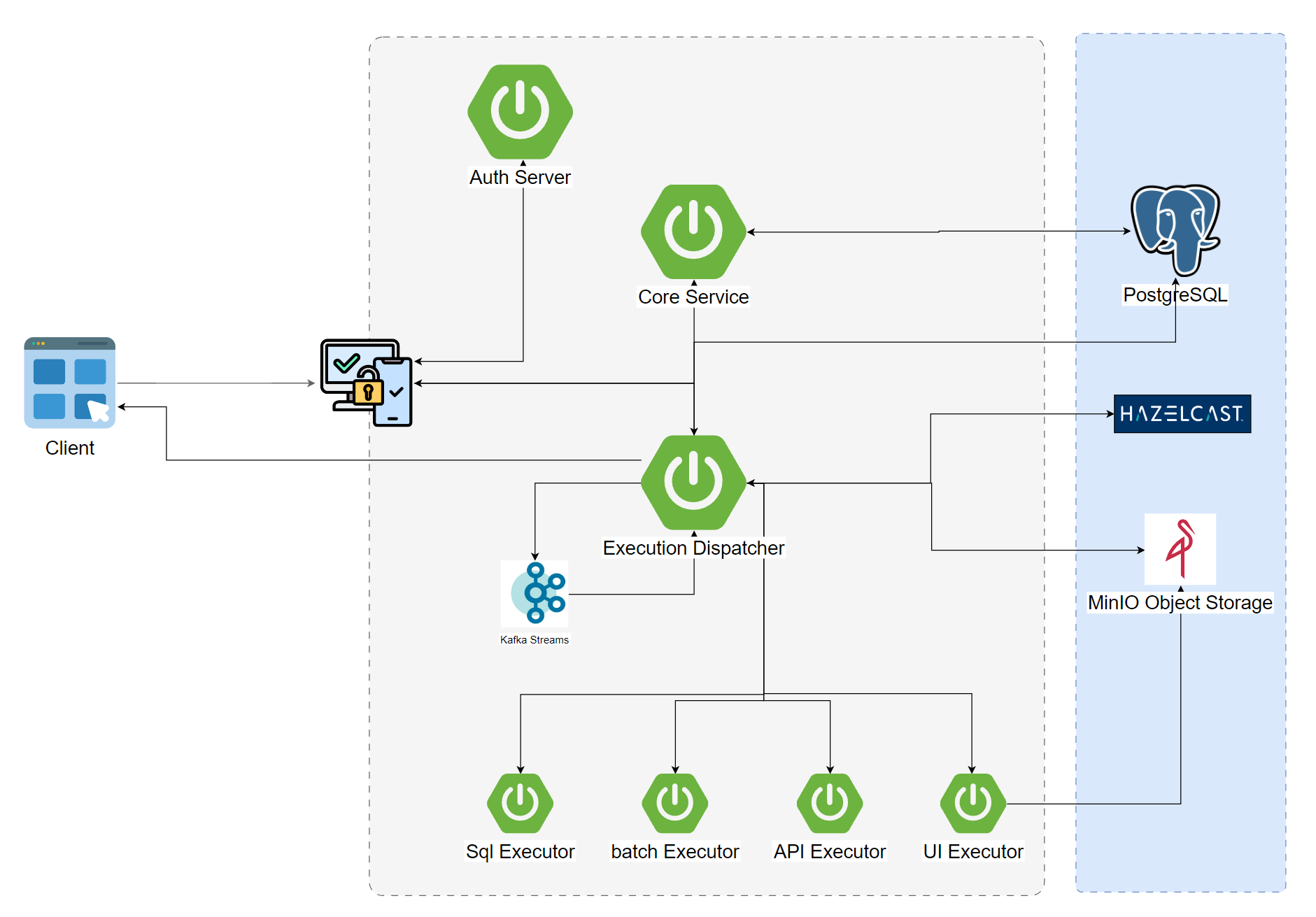
This refers to the user interface of a web application, which is the point of interaction between users and the software. It includes elements such as buttons, menus, forms, and graphics that allow users to navigate and utilize the functionalities of the application.
This handles user authentication and authorization processes, ensuring that only authorized individuals have secure access. This includes verifying user identities through login credentials and granting access to specific resources based on predefined roles and permissions.
The core service is responsible for orchestrating various processes, implementing business logic, and providing API access. This microservice efficiently manages requests related to configuration management, which includes creating and managing projects, defining steps within those projects, establishing assertions for testing purposes, designing test flows, and generating datasets necessary for testing and analysis. By centralizing these functions, this service ensures a streamlined and cohesive approach to handling user requests and enhancing the overall application performance.
The Execution Dispatcher is responsible for managing the submitted executions. It uses Kafka to queue the executions when multiple tasks are in progress. Additionally, it handles the logic for distributing the execution to different types of steps. During this process, Hazelcast’s cache is utilized to store the state of each execution.
These microservice components are responsible for establishing a connection to a target system and executing various testing operations. Each component is designed to handle specific aspects of the testing process. By integrating with the target system, these components facilitate data exchange and verification.
A stream processing platform used for real-time data processing, enabling users to analyze and act on streaming data as it flows in. This platform facilitates the immediate collection, processing, and analysis of data from various sources, ensuring that insights are generated in the moment. Furthermore, it provides timely feedback to end users while the execution is ongoing, allowing for quick adjustments and responses to changing conditions.
An in-memory data grid that is used for caching information and managing distributed data storage. It allows for quick access to data by storing it directly in the system’s memory.
A relational database that is used for the storage and management of persistent data. It organizes data into structured formats, typically utilizing tables, which allow for efficient retrieval and management.
An object storage solution designed for efficiently storing large files and media assets that are produced during user interface (UI) execution or report generation processes.
The Dashboard is the main screen where the user interacts with the TA and provides a high-level overview of the testing activities.
.png)
The date filter located in the top-right corner of the application enables you to customize the timeframe for the data displayed on the dashboard. By selecting a specific date range, you can focus on relevant execution data within that period. This filter applies to all dashboard sections, ensuring that metrics, graphs, and reports reflect only the data from the selected timeframe.
This section provides a high-level overview of the executed test flows, categorized by their outcomes. It includes counts of test flows that successfully passed, those that failed, those that passed but with warnings, and those that were terminated or canceled.
.png)
This section provides an overview of the average execution time for test runs, categorized by step types.
.png)
This section displays a count summary of all the reported issues encountered during execution, categorized by their current status.
.png)
The Recent Runs section of the dashboard features a dynamic graph displaying all test executions within the configured timeframe. Each bar represents a single execution, showcasing the count of scenarios run and their statuses: Success, Fail, Warning, or In Progress.
The graph provides an at-a-glance view of execution results, with a navigation bar above the legend that allows users to zoom in for a more focused analysis by adjusting the displayed timeframe.
.png)
The Trends Over Time section presents a line graph that tracks execution results over the configured timeframe. The graph includes two lines: a green line representing the number of successful executions and a red line representing the number of failed executions for each day.
The graph provides an at-a-glance view of execution trends, with a navigation bar above the legend that allows users to zoom in for a more focused analysis by adjusting the displayed timeframe.
.png)
The Project module enables you to create a personalized testing workspace to avoid overlap in your activities. Depending on your testing requirements, you can customize your workspace by adding items.
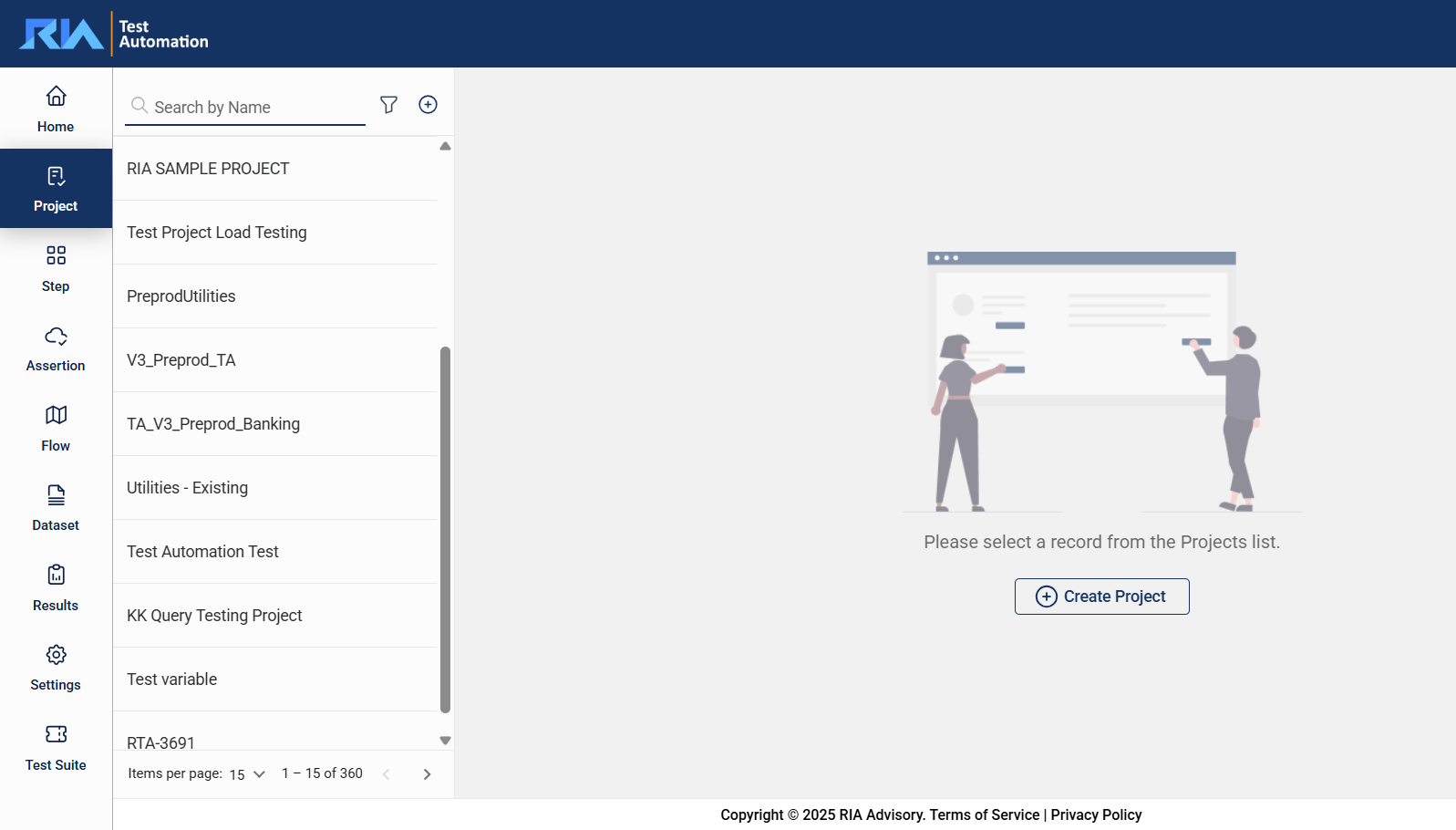
To create a project, click on the .png) button on the top left pane.
button on the top left pane.
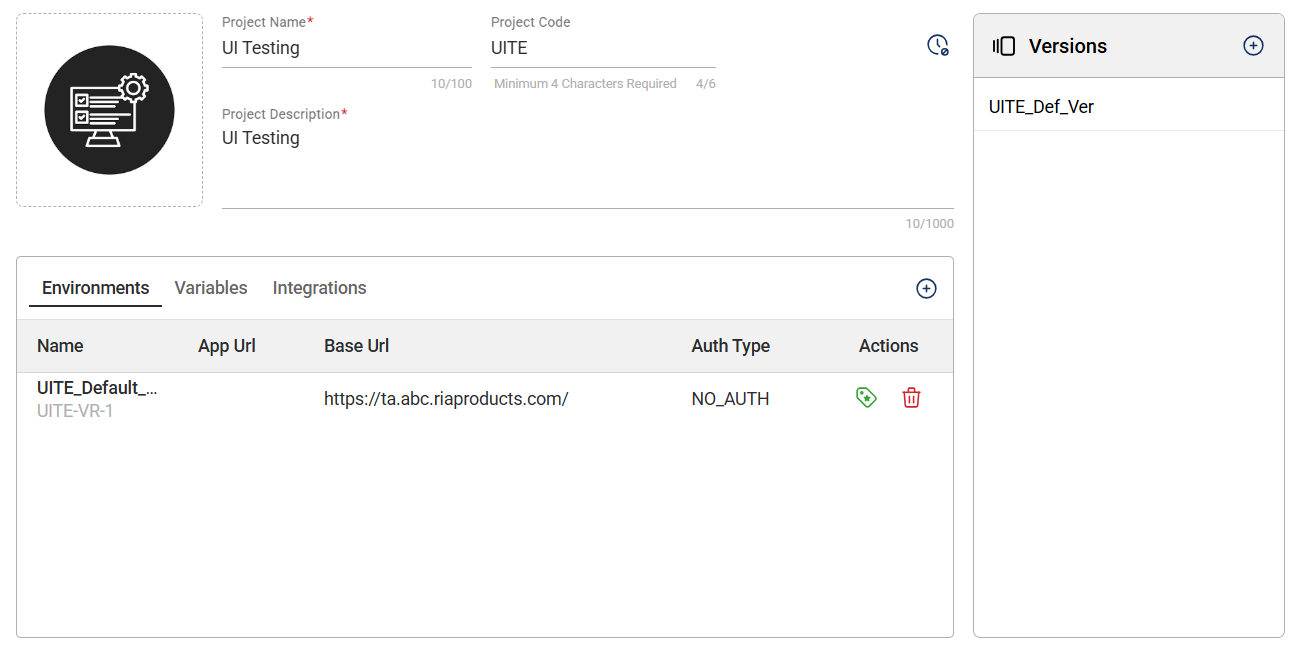
| Field | Description |
|---|---|
| Logo |
Logo of the project. The supported file types are
|
| Project Name | Name of the project. Mandatory: Yes |
| Project Code | Unique identifier assigned to a project. Mandatory: Yes |
| Project Description | Description of the project. Mandatory: Yes |
| Releases | Shows configured releases. Only 1 release can be active at a time. |
| Environments | Configured environments for the project. For more information, see Environments. |
| Variables | Configured global variables for the project. For more information, see Variables. |
| Integrations | Configured integrations for the project. For more information, see Integrations. |
Select a project to view and edit its details. You can update all details except the Project Code. After you make the modifications, click the Update button.
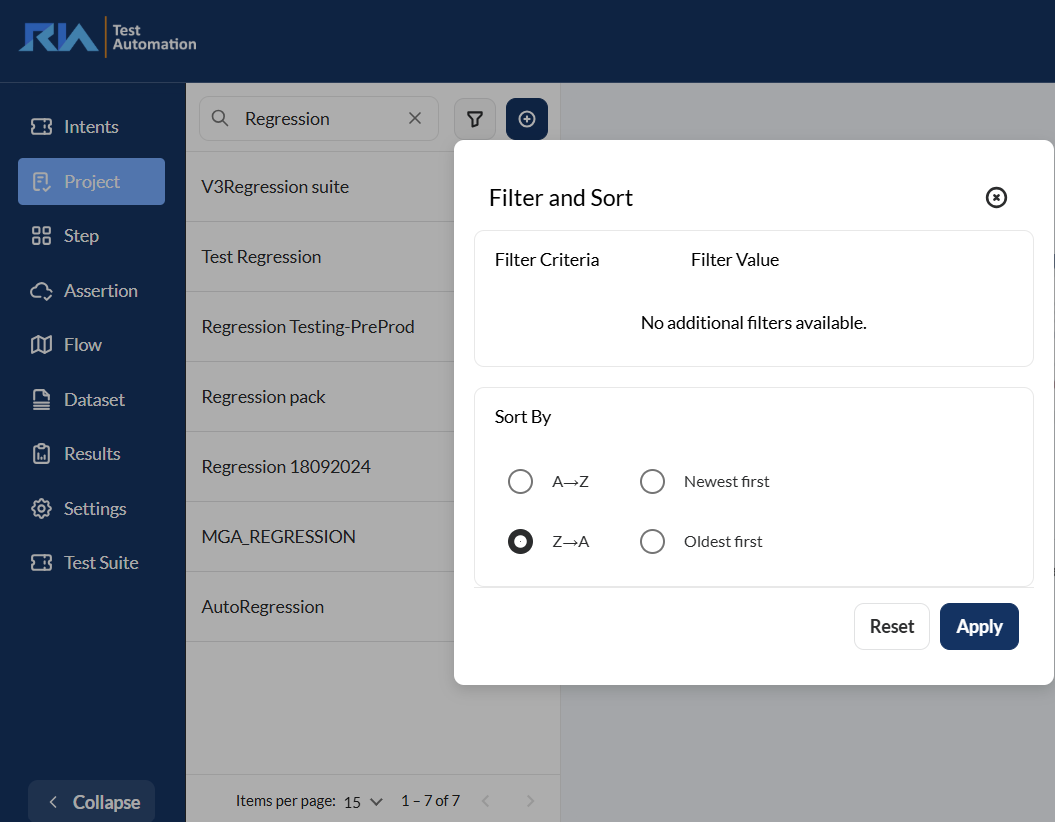
The search feature allows you to filter the list of steps by providing a keyword or the full name of the step. Only the steps that match the provided keyword or name will be displayed in the view.
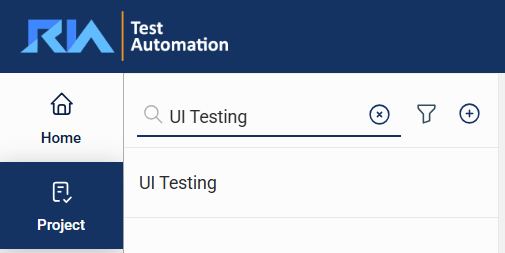
Click the  icon to display additional sorting options.
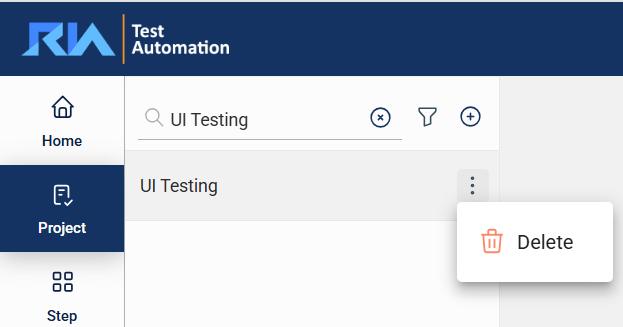
To delete a project, hover over the project you want to remove. An icon will appear. Click on this icon and select Delete.
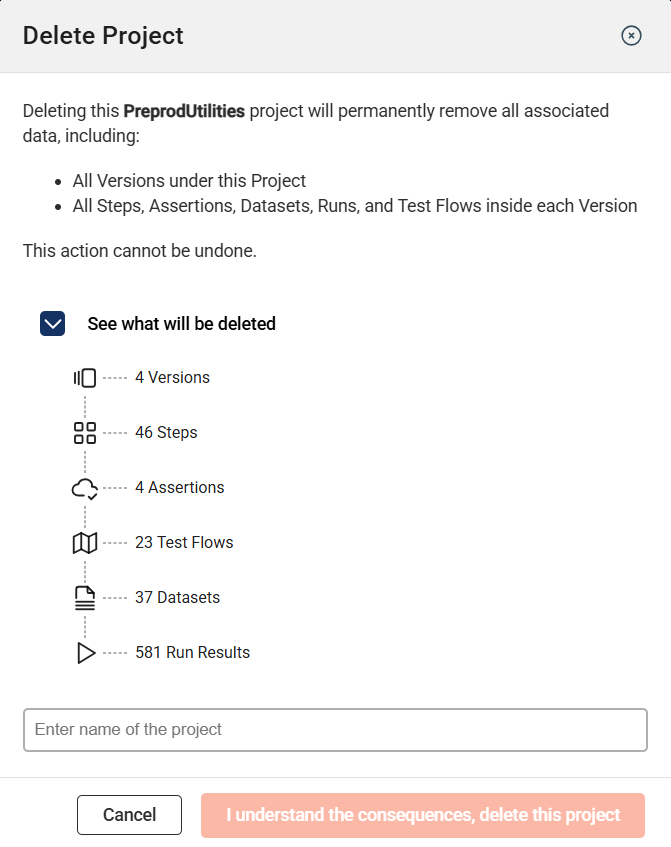
Deleting a project will also remove all associated versions and the data contained within each version. Before you confirm the deletion, a list indicating the number of data items that will be deleted is displayed.
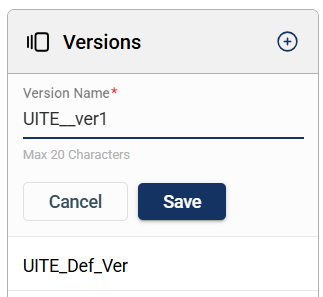
Versions allow you to create new versions of an existing project, where all parameters and their values are automatically copied. This enables you to change parameters while keeping the original version.
To create a new version, click the plus icon in the Version section and enter a valid name that has a maximum of 20 characters.
The Environments section is where your testing environments are defined. A testing environment can be a development, staging, production, or any other project-specific environment. This section allows you to add, modify, or delete environments according to your needs.
To create an environment, click Create Environment and enter valid values in the following fields:
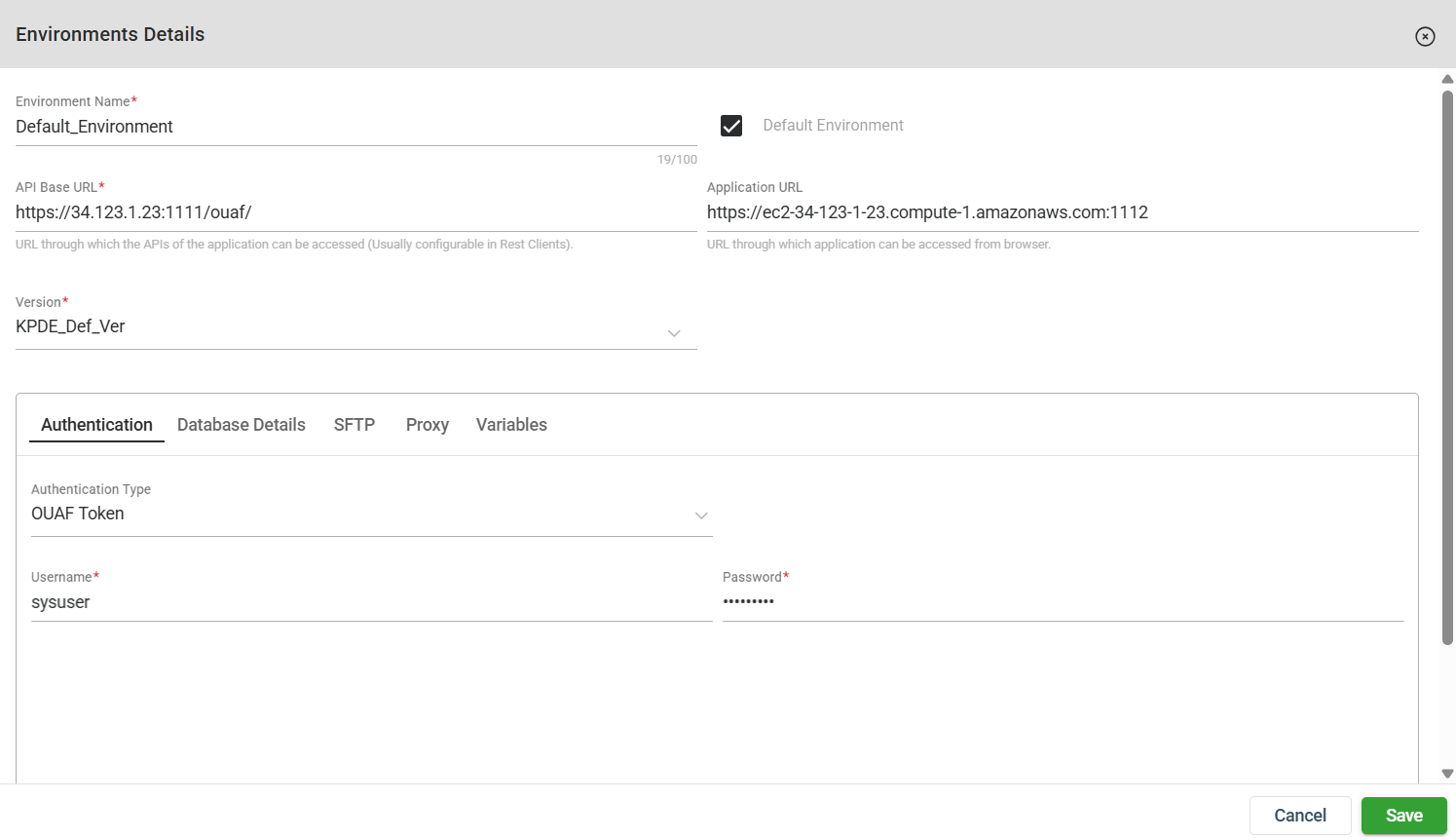
| Field | Description |
|---|---|
| Environment Name | Name of the environment. Should be minimum 4 characters long. Mandatory: Yes |
| API Base URL | URL of the environment for API or Batch testing. Mandatory: Yes |
| Application URL | URL of the environment for UI testing. You can also specify the target URL in the Service > Uploaded File > url field . In case, different target URLs are specified in the Application URL and Uploaded File > url fields, the system will use the URL specified in the Application URL. Mandatory: No |
| Default | Sets the selected environment as default for test runs and templates of an external system. Selecting will override the existing default environment, if any. Mandatory: No |
| Authentication |
Specifies the authentication details for the test environment. The following are the possible values:
For more information, see Authentication Details. Mandatory: Yes |
| Database Details | Parameters used to connect to a database. For more information, see Database Details. Mandatory: Yes |
| Proxy |
Enables the proxy server for the environment. For more information, see Proxy Details. Mandatory: No |
| SFTP |
Enables the Secure File Transfer Protocol(SFTP) to download and upload files from any server. For more information, see SFTP Details. Mandatory: No |
The following are the supported authentications for your environment and the additional mandatory settings that you need to provide.
| Authentication | Description |
|---|---|
| BASIC |
If you select
|
| OUAF Token |
If you select
|
| API_KEY |
If you select
|
| TOKEN |
If you select
|
| NO_AUTH | No authentication type is required. |
| OCULAR |
If you select
|
| OAUTH | If you select
|
To configure a database, click .png) and enter valid values in the following fields. After adding the details, click Test Connection to ensure that the connection details you configured are correct and working properly. The status will change from
and enter valid values in the following fields. After adding the details, click Test Connection to ensure that the connection details you configured are correct and working properly. The status will change from Pending to Success or Failed depending on the result of the test connection.
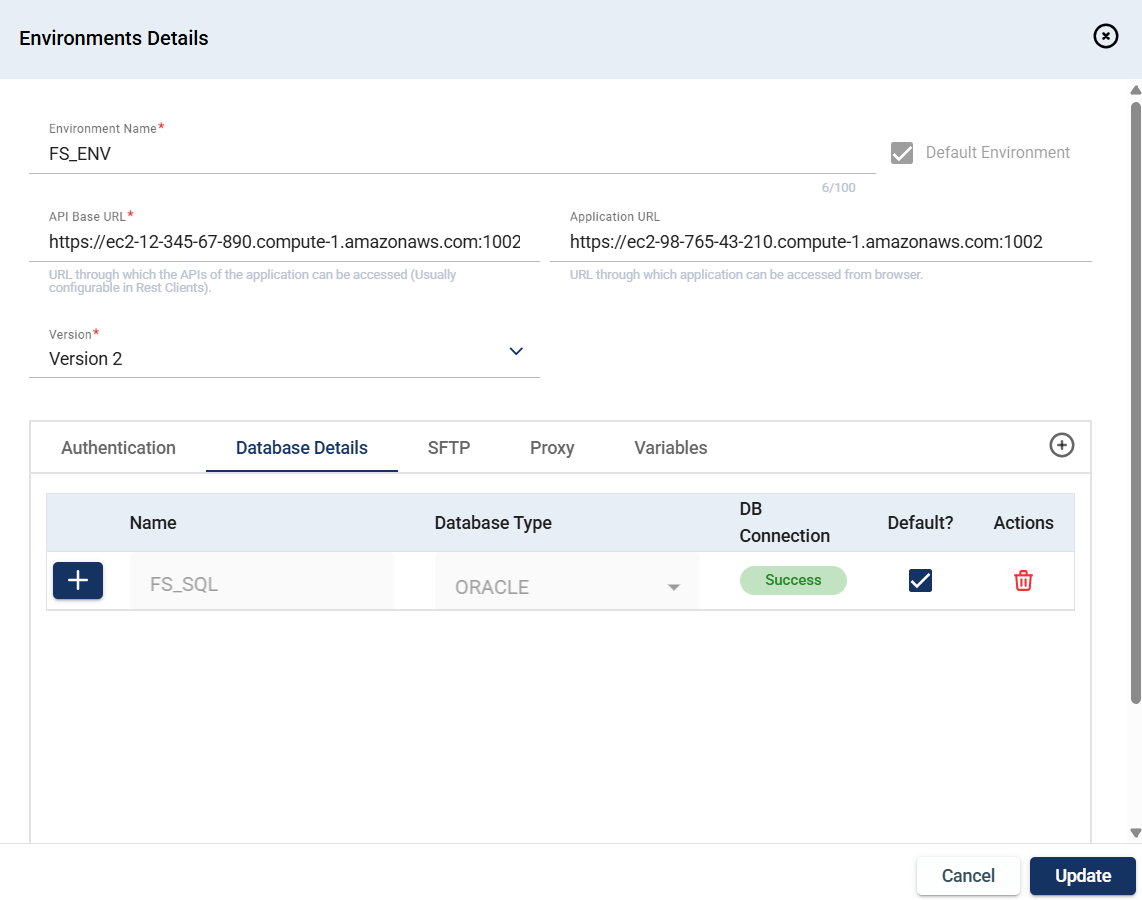
| Field | Description |
|---|---|
| Name | Name of the database to connect to. Mandatory: Yes |
| Database Type |
Type of the database. The possible values are the following:
Mandatory: Yes |
| DB Connection | Specifies the status of the database connection. |
| Default? | Indicated whether the database is set as default. |
| Actions | Displays a delete icon that when clicked deletes the selected database. |
The Secure File Transfer Protocol (SFTP) allows you to download and upload files from the configured server. To configure your SFTP server, enter valid values to the following fields:

| Field | Description |
|---|---|
| Server Address |
Address of the SFTP server. Mandatory: Yes |
| Port |
Port of the SFTP server. Mandatory: Yes |
| Username |
Username used to log in to the SFTP server. Mandatory: Yes |
| Password |
Password used to log in to the SFTP server. Mandatory: Yes, if authentication is being done without the .pem file.
|
| Add .pem File |
A .pem file is a base64-encoded file used to store and share cryptographic keys and certificates securely.
There are two methods of authentication of the SFTP:
.pem file, click the Upload File button.
|
| Passphrase |
Password to decrypt an encrypted .pem file.
|
| Test Connection | Tests the network connection and validates if the SFTP details are correct. |
If you want to enable the proxy server for the environment, enter valid values to the following fields:
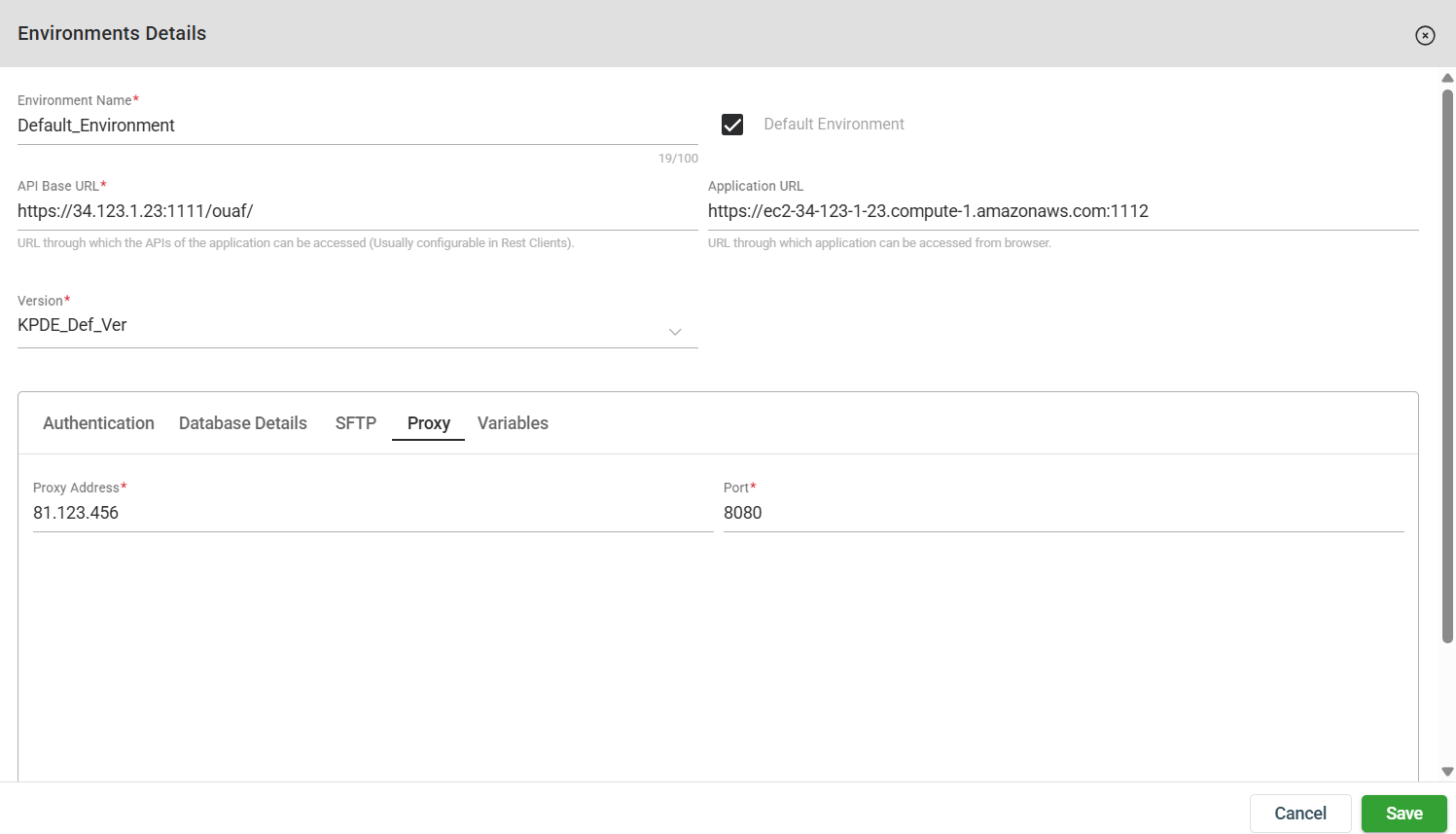
| Field | Description |
|---|---|
| Proxy Address |
Address of the proxy server. Mandatory: Yes |
| Proxy Port |
Port of the proxy server. Mandatory: Yes |
If you want to specify a value that is unique to a specific environment, please enter valid values in the following fields. Make sure that the variable you want to define at the environment level is already defined at the project level.
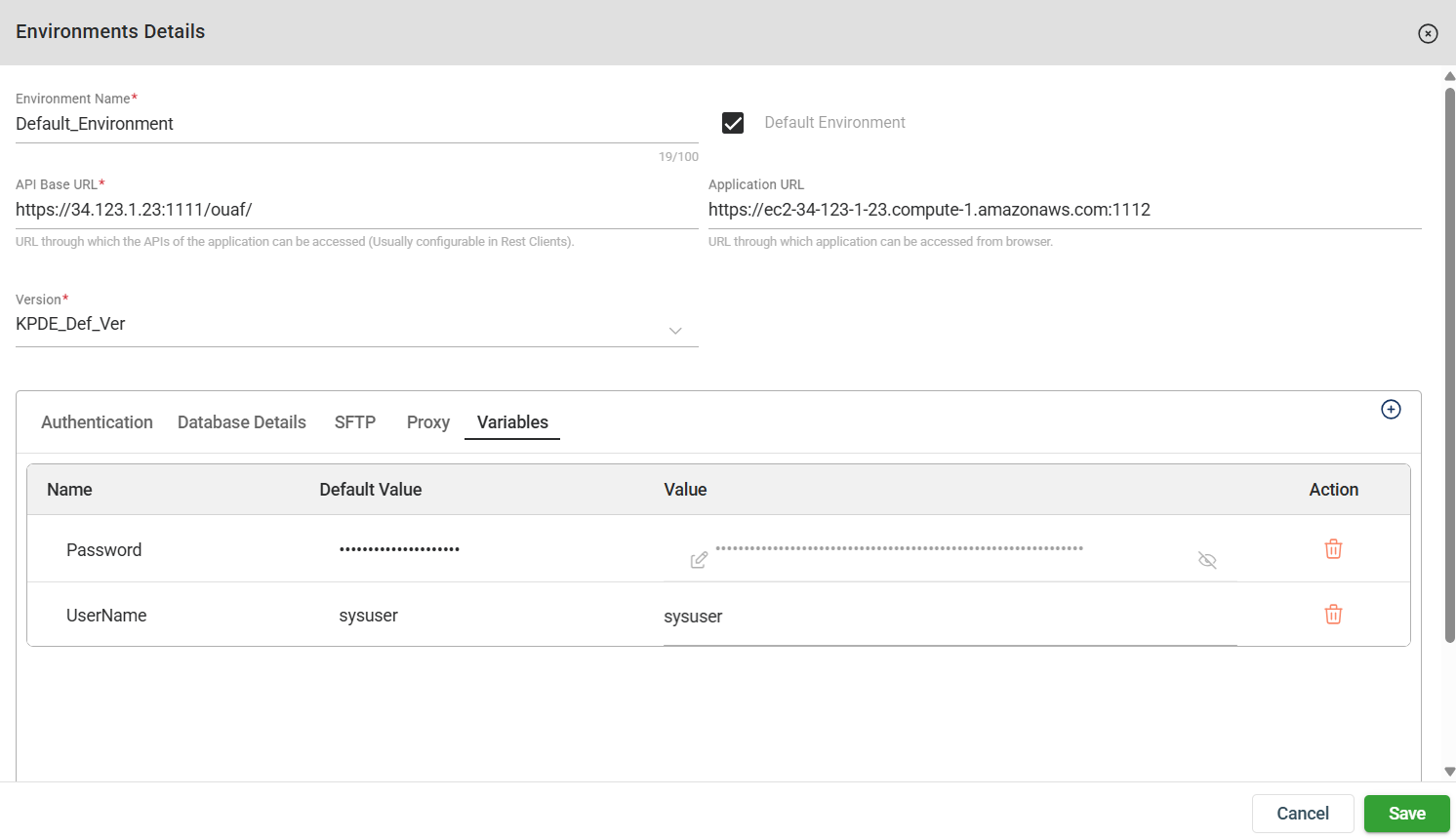
| Field | Description |
|---|---|
| Name | Name of the variable. |
| Default Value | Specifies the default value of the variable. |
| Value | Specifies other possible values for the variable. |
| Action | Displays the delete button that allows you to delete the added variable. |
The variables in the Variables section can be reused across all steps and flows within your project. For example, if you need to automate a login process, you can store sensitive login credentials like username and password as project variables. Instead of manually entering these credentials in every API or UI step, you can reference them using {{username}} and {{password}}, ensuring consistency and simplifying maintenance.
By using project variables, you can easily update values in one place. If you need environment-specific values, for example, different credentials for development or production, you can configure Variables in Environments to manage these settings for each environment, making it easy to switch between them without modifying individual steps.
To create a variable, follow these steps:
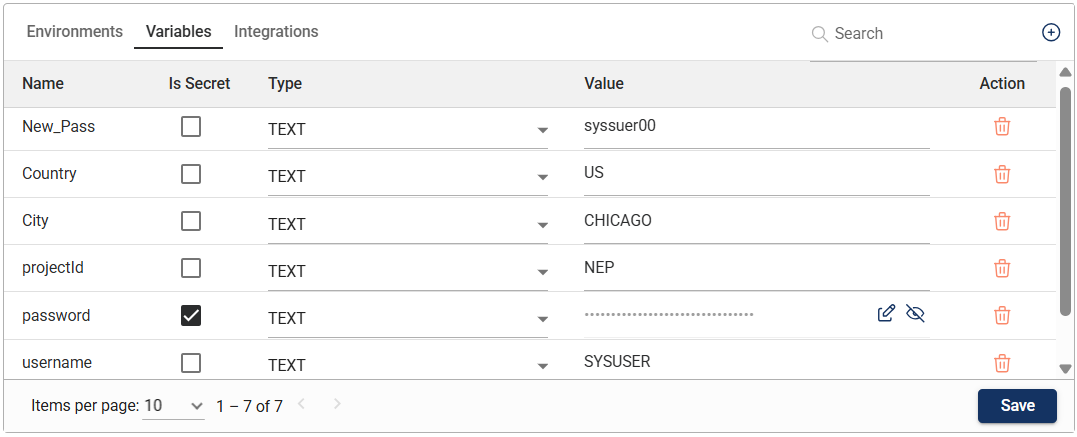 . A new row will be added to the Variables table.
The name of the variable is not editable. You can only modify the type or value of a variable. Once modified, click Save.
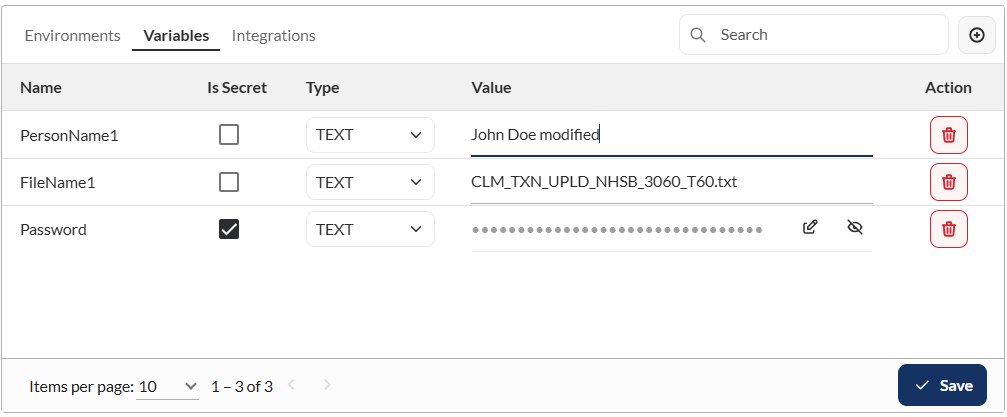
To delete a variable, click the delete icon on the row of the variable you wish to delete. Then, click the Delete button on the confirmation prompt.
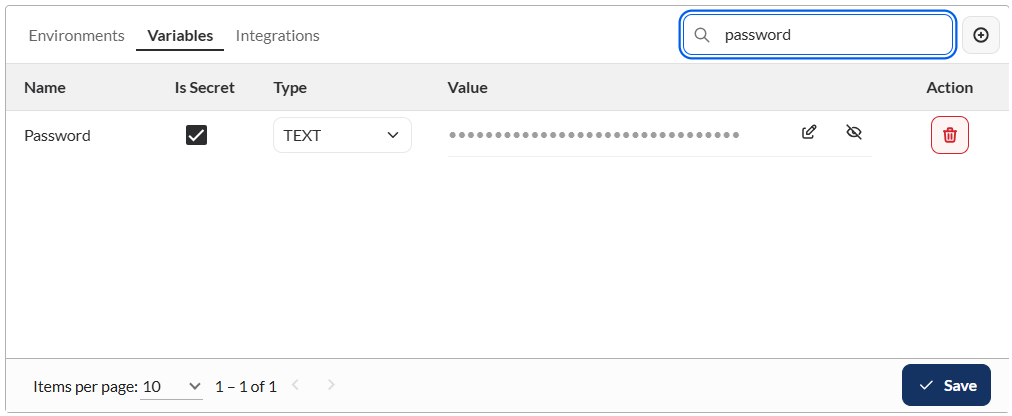
To search for a variable, you can enter a keyword of the full name or value of the parameter on the Search box beside . Only the variable names that match the provided keyword or name will be displayed in the view.
The Integrations section in the Project module enables you to configure integrations at the project level.
Before confguring your integrations, ensure that you have enabled your test case management and issue tracking applications in the Settings module.
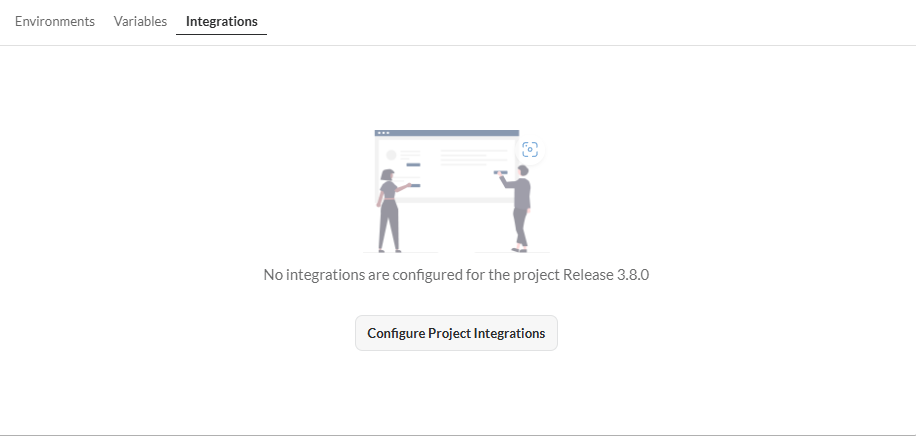
Click Configure Project Integrations.
Click the Test Case Management toggle.
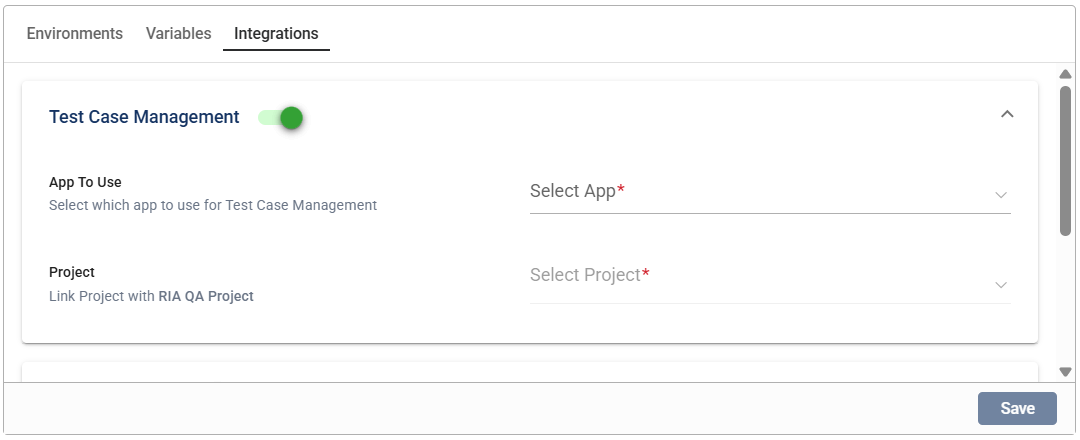
TestRail from the dropdown across App To Use.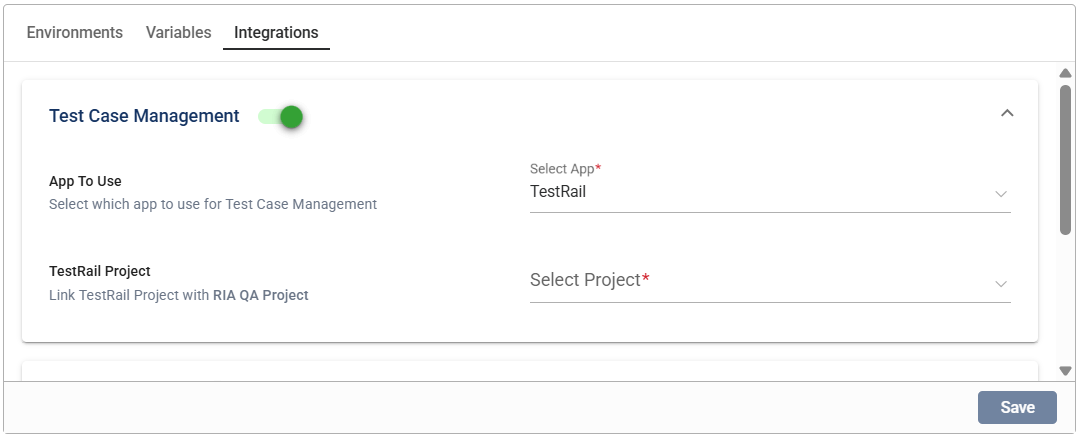
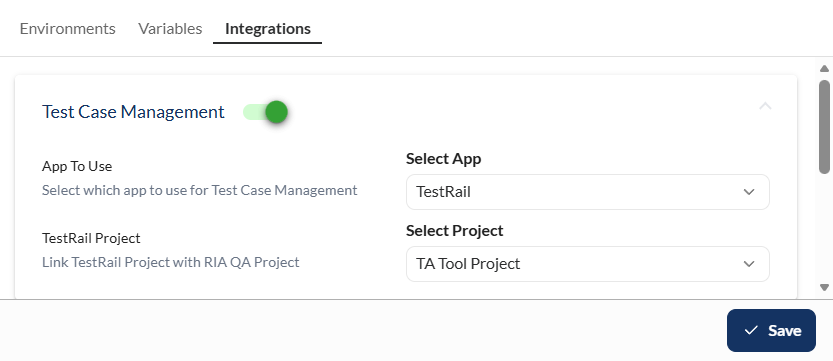
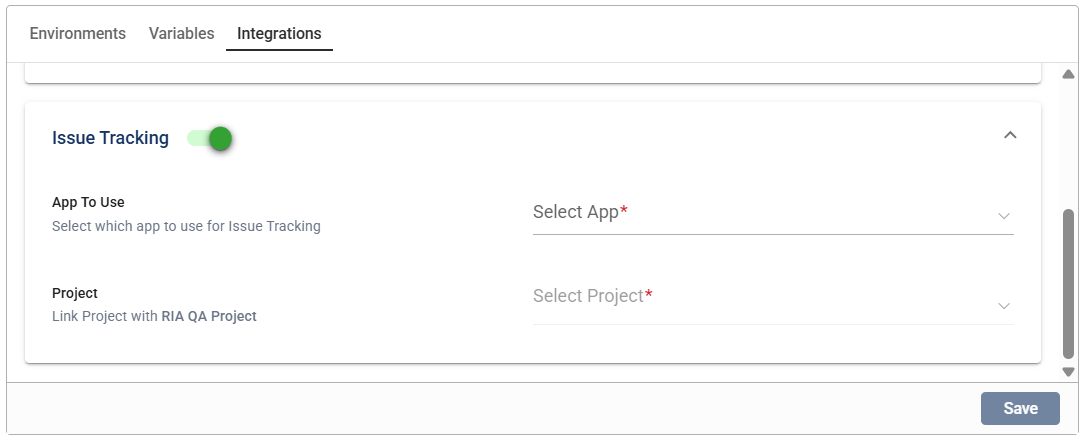
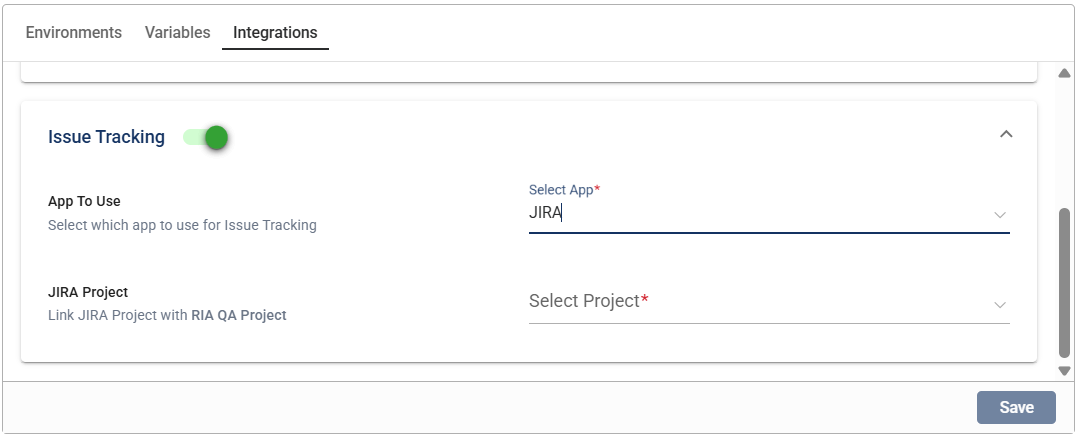
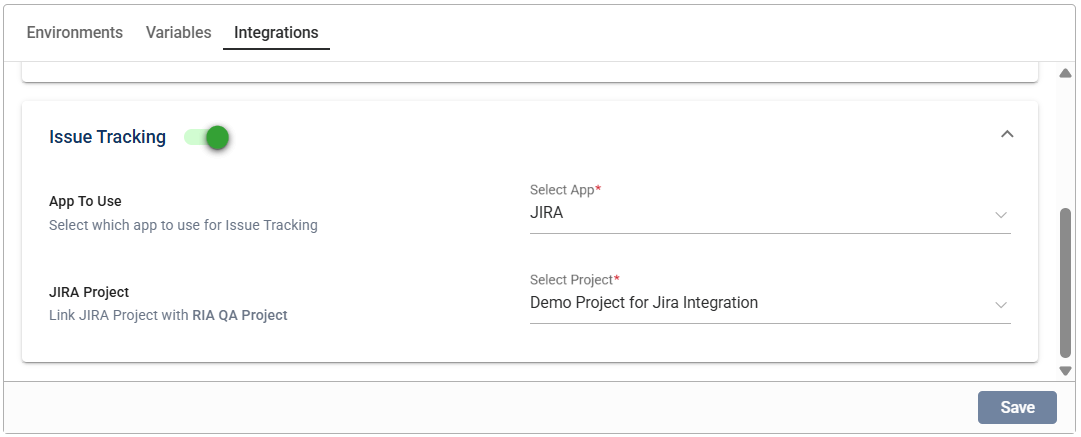
You can modify any configuration for the test case management and issue tracking integrations by selecting a new value from the dropdown list, then clicking the Save button.
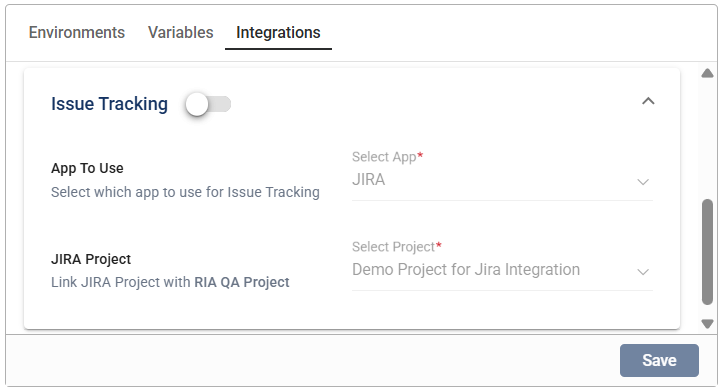
Click the toggle button of the integration you wish to disable. Any configured value for that integration will remain.
Steps are individual actions or instructions that make up a Scenario, and multiple steps can be associated with a single scenario. A step can also be reused across different scenarios within the same Project. There are no limitations on the type of steps you can add in a scenario as long as they are part of the same project. Any changes made to a step in a flow will be reflected across all flows where that step is reused.
If you want to prevent any changes to a step from affecting other Flows, you can use the Clone Step or Clone Scenario option at the test flow level. By assigning a unique name to the cloned steps or scenarios, you ensure that any future changes to the original will not impact the cloned entities.
In the upper left corner, select your project from the Select Project dropdown list and the version from the Version dropdown list. Only the steps associated with the selected project and version are displayed on the left pane.
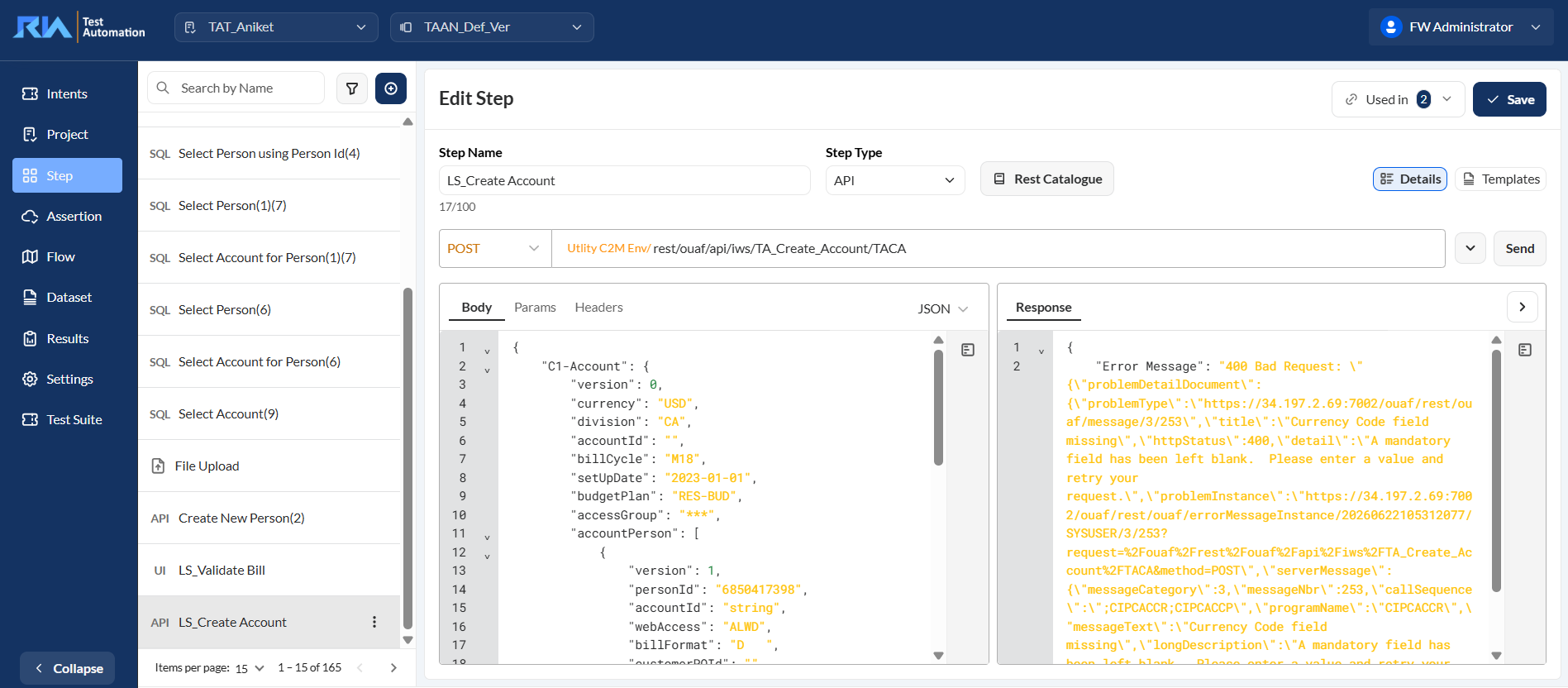
To view or modify the details of a step, select the step from the left pane. You can change any detail by directly editing the corresponding field. Ensure to click Save after making your modifications.
The search feature allows you to find a specific step by entering a keyword or the full name of the step on the textbox. Only the steps that match the provided keyword or name will be displayed in the view.
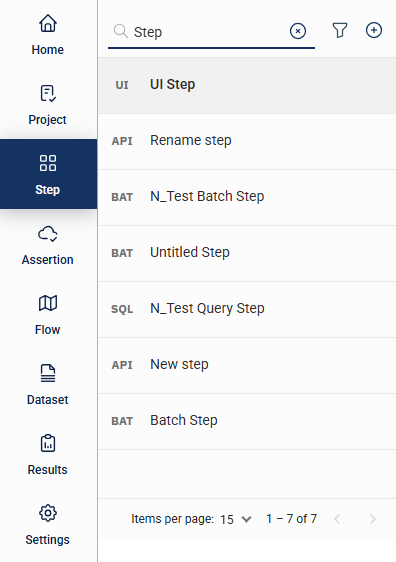
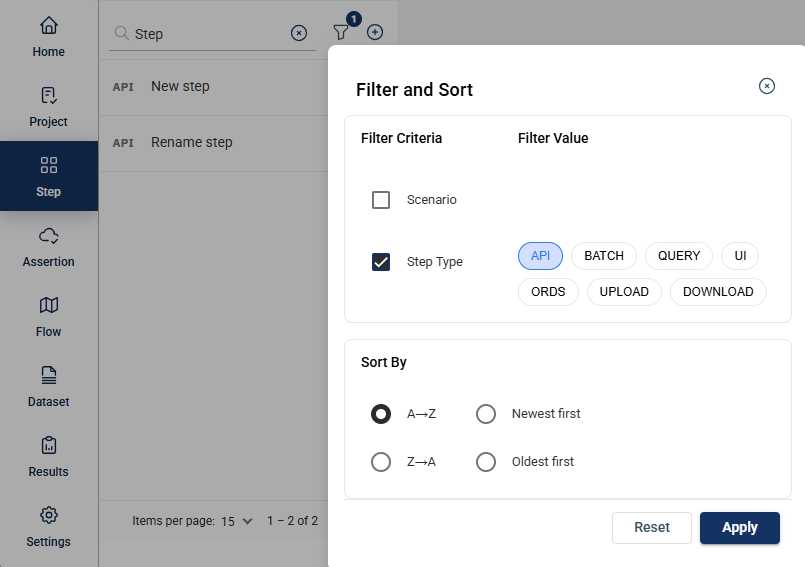
Click the icon to display additional filtering and sorting options. For filtering, a dropdown list of available filter parameters will show all associated values for the selected project and version.
To create a step, click on the Create Step button and enter valid values to the following fields. To create a step, click on the Create Step button and enter valid values to the following fields.
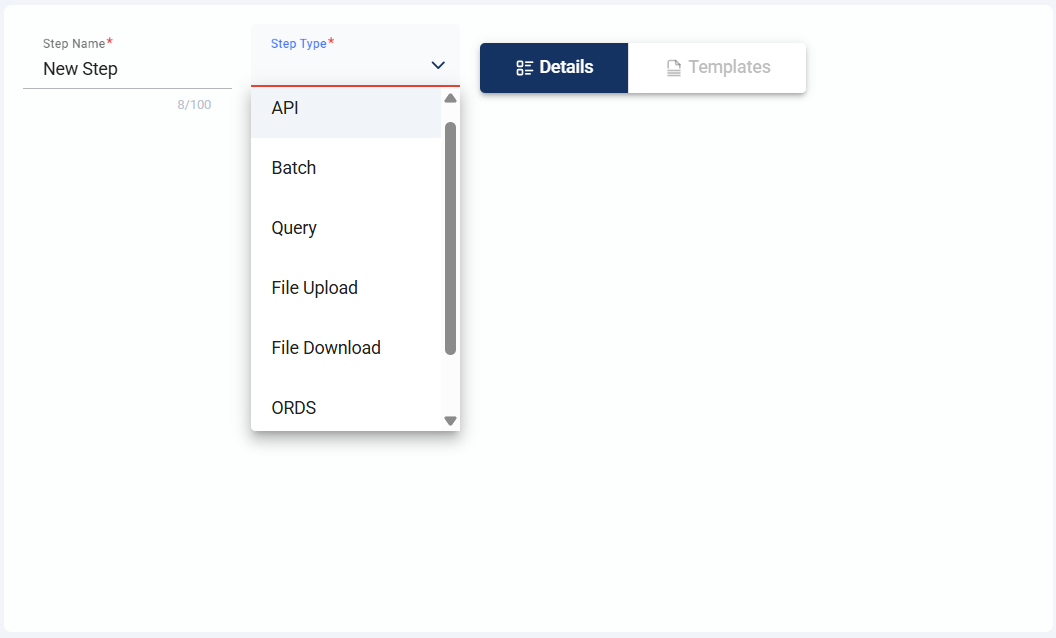
| Field Name | Description |
|---|---|
| Step Name | Name of the step. It should be a minimum of 5 characters long. Mandatory: Yes |
| Step Type |
Specifies the type of step. The following are the possible values: Mandatory: Yes |
To create an API step, enter valid values in the following fields:
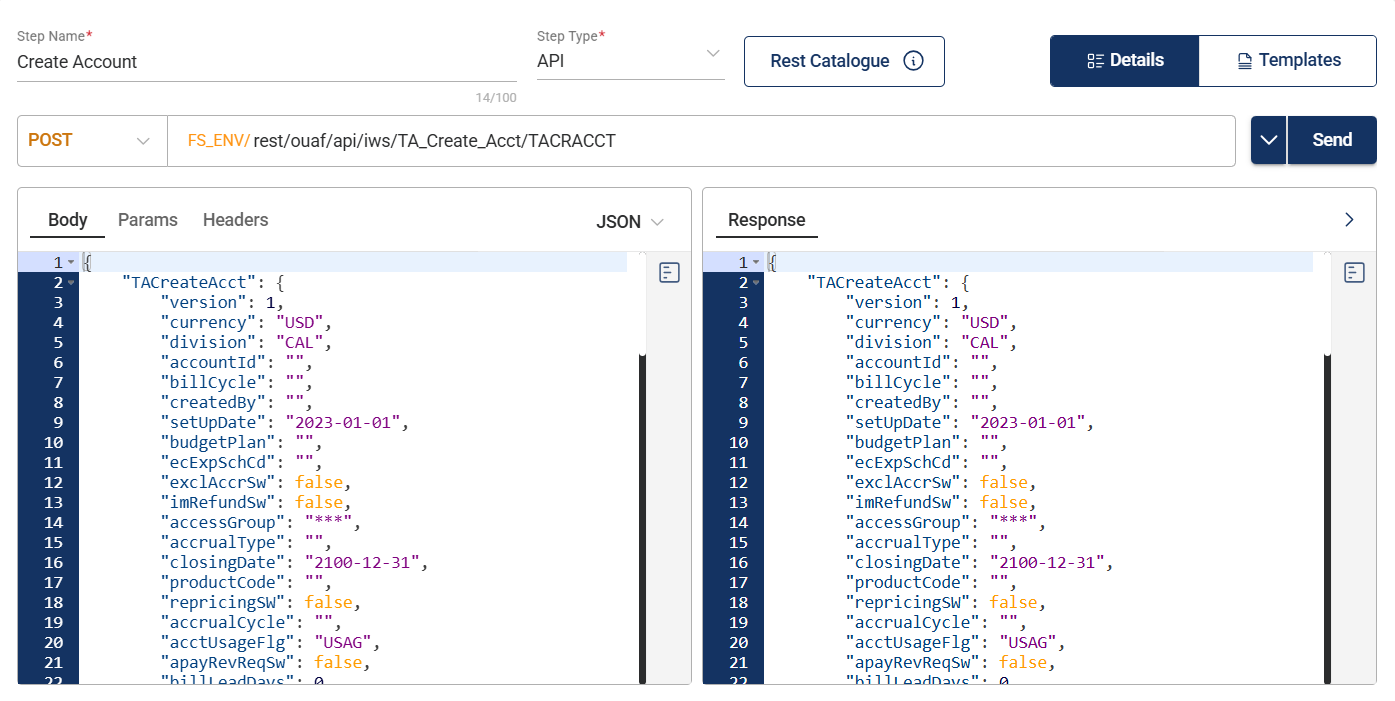
| Field | Description |
|---|---|
| HTTP Method |
Specifies the action to be performed by the external system on your server. The following values are supported:
Mandatory: Yes |
| URL |
Specifies the API URL used for validation. It consists of two parts:
Mandatory: Yes |
| Params |
Specifies the parameters used for query execution and data retrieval. Parameters can be configured in the following ways:
Mandatory: No |
| Body |
Specifies the payload details of the step. The following formats are supported:
Mandatory: No |
| Headers |
Specifies the HTTP headers included in API requests or responses. Headers provide important metadata such as content type, authentication details, and instructions for processing data. |
| Template |
Specifies the template for the request payload. For more information, see Template. |
| Response |
Displays the data returned by the server in response to an API request. Responses contain the information or results of the request, such as user data, search results, or confirmation messages. |
A request payload template simplifies dataset configuration by defining the structure of the request body, including JSON nodes and parameters like path or query parameters.
The purpose of the template is to declare fixed values once and reuse them in datasets. Only the varying fields need to be populated when the template is reused.
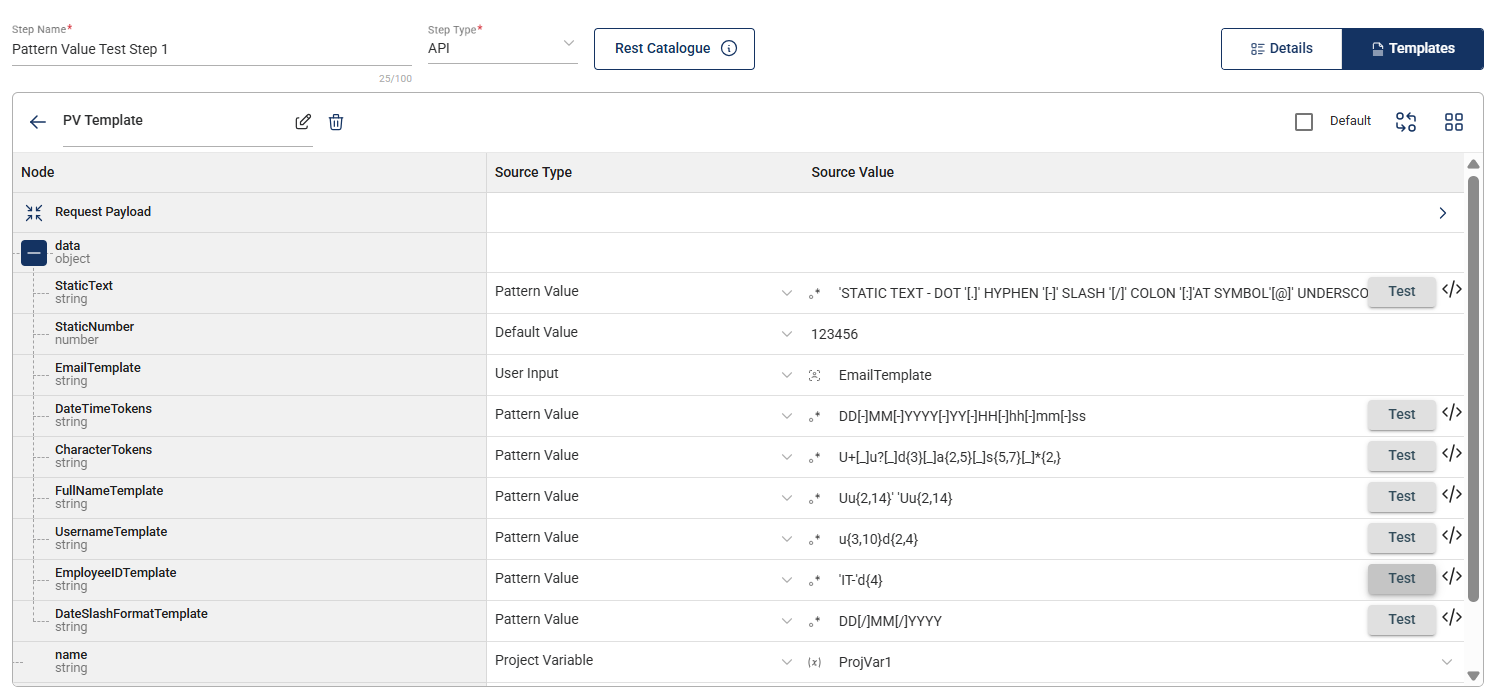
The values in the template can be any of the following:
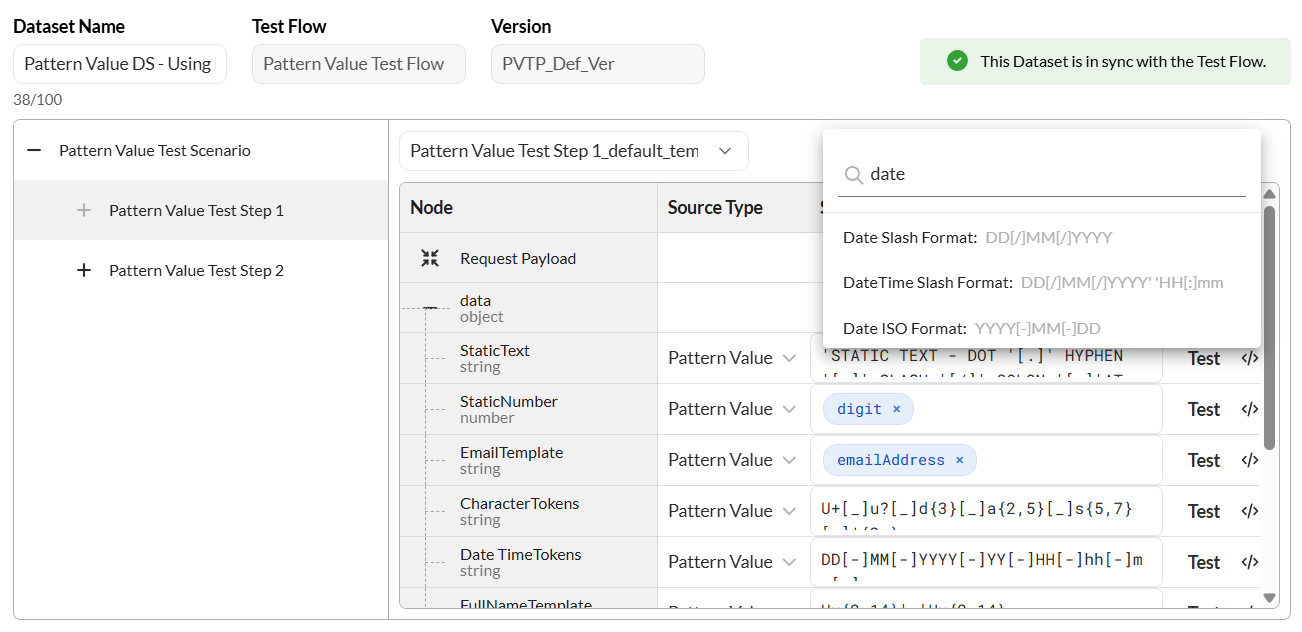
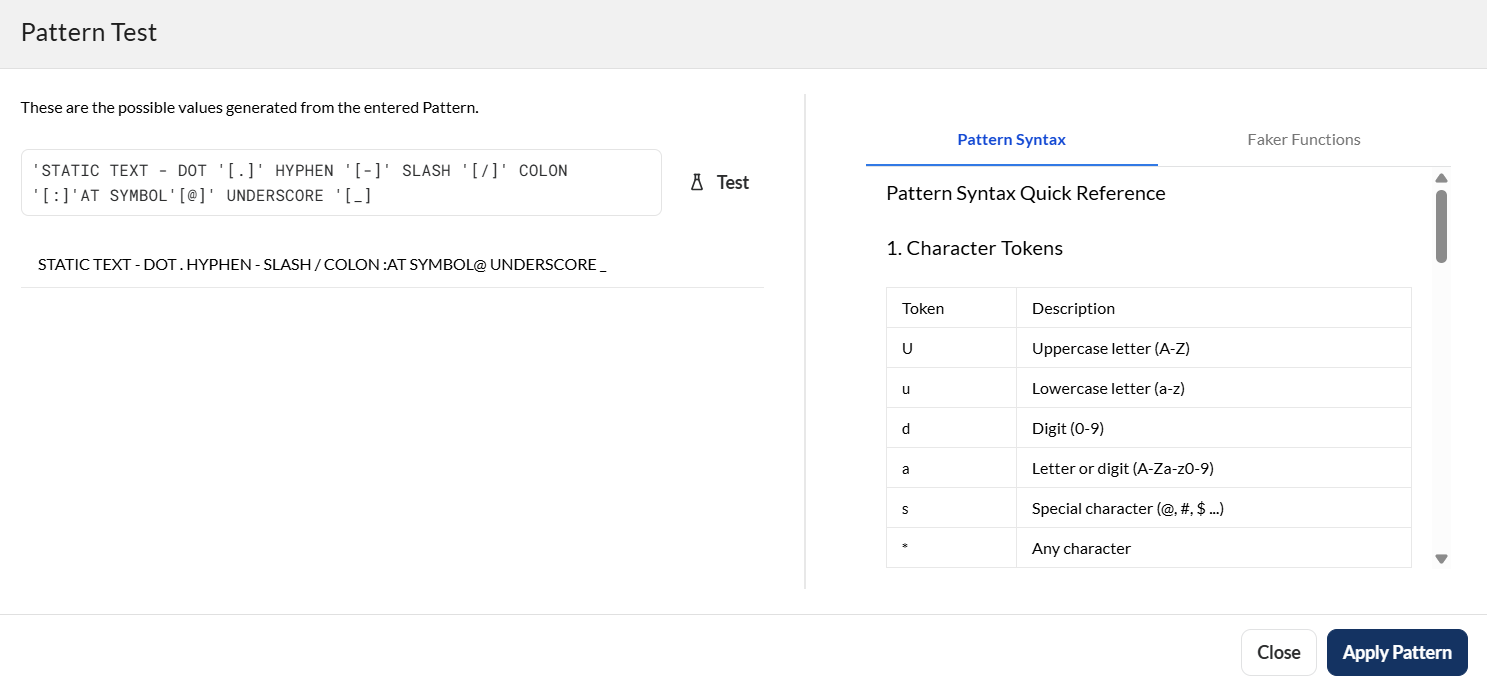
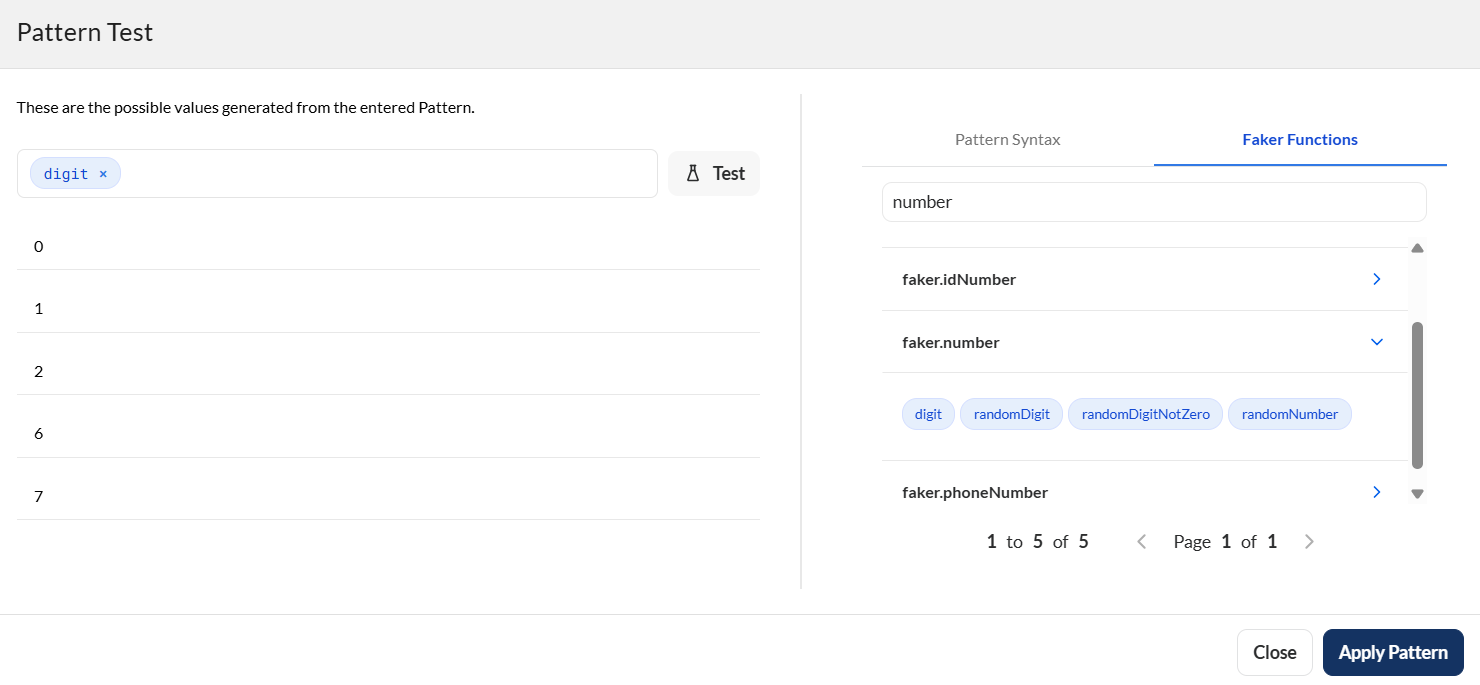
If the required pattern is not available in the template list, click Test to open the Pattern Test dialog. You can define and validate a pattern using either of the following options:
Form Data allows you to define request parameters as key-value pairs. It is used to send a single request with a single or multiple parameters. Each parameter is represented as a separate key with a corresponding value.
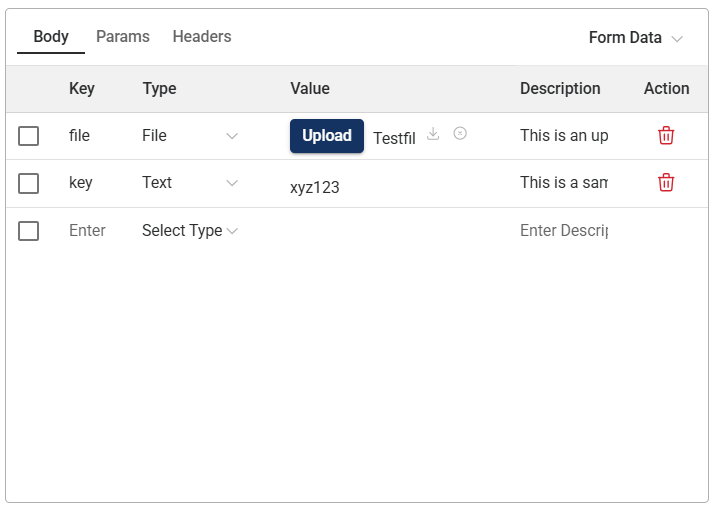
| Column | Description |
|---|---|
| Select | Checkbox used to select the form data row. |
| Key | Name of the form data parameter sent in the request. |
| Type | Data type of the parameter value, such as Text or File. |
| Value | Value assigned to the parameter key. |
| Description | Purpose of the parameter. |
| Action | Delete icon to remove the selected parameter key. |
To create a batch step, select a batch from the Batch Name dropdown field and enter valid values in the following fields:
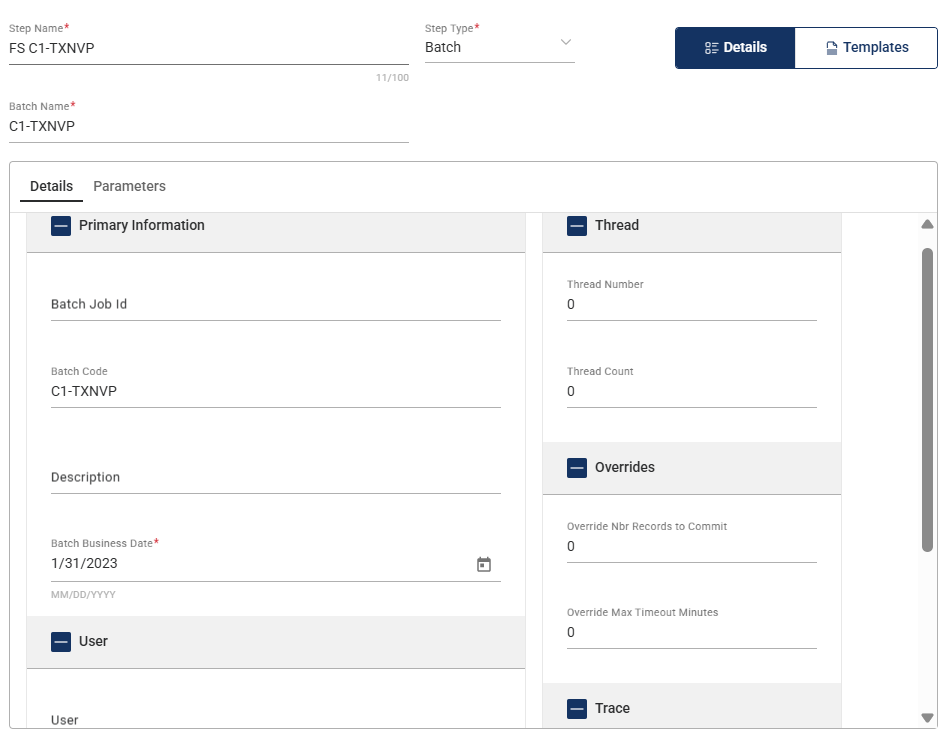
| Field | Description |
|---|---|
| Batch Job ID |
Unique identifier of the batch job. Mandatory: Yes |
| Batch Code |
Unique code associated with the batch job. Mandatory: Yes |
| Description |
Description of the batch. Mandatory: Yes |
| Thread Number |
Thread within the batch process. Mandatory: Yes |
| Thread Count |
Total number of threads used for parallel processing within the job. Mandatory: Yes |
| Batch Rerun Number |
Run number of the re-execution of a batch process in ORMB. Mandatory: Yes |
| Batch Business Date |
Specific date for ORMB transactions to be processed. Mandatory: Yes |
| Override Nbr Records to Commit |
Total number of records that can be manually overridden and committed to the database during a batch process in ORMB. Mandatory: Yes |
| Override Max Timeout Minutes |
Maximum time limit for a process to run before it times out. Mandatory: Yes |
| User |
User account used to log in to ORMB. Mandatory: Yes |
| Language |
Language or locale settings used to process and display data, messages, and invoices in ORMB. Mandatory: Yes |
| Email Address |
Email address of the user. Mandatory: Yes |
| Trace Program Start |
If enabled, detailed logs are captured at the beginning of a trace process. Default: Disabled |
| Trace Program Exit |
If enabled, end logs are captured to mark the completion of a trace process. Default: Disabled |
| Trace SQL |
If enabled, SQL queries executed during a trace process are captured and logged. Default: Disabled |
| Trace Output |
If enabled, all trace output, including logs and reports about the execution flow, SQL queries, and performance metrics, is generated. Default: Disabled |
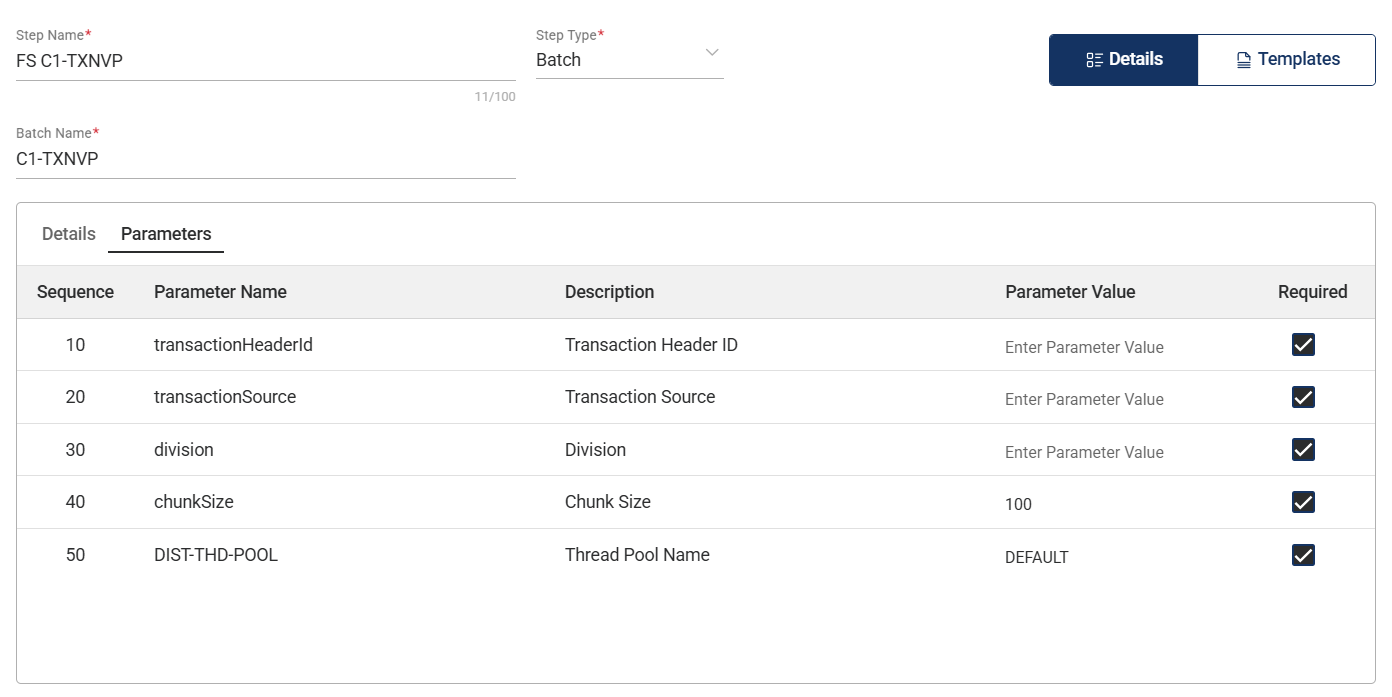
| Field | Description |
|---|---|
| Sequence |
Unique values used to identify the parameter. |
| Parameter Name |
Name of the parameter. |
| Description |
Description of the parameter. |
| Parameter Value |
Specifies the value of the parameter. |
| Required |
Indicates whether the parameter is required for a batch job to run. |
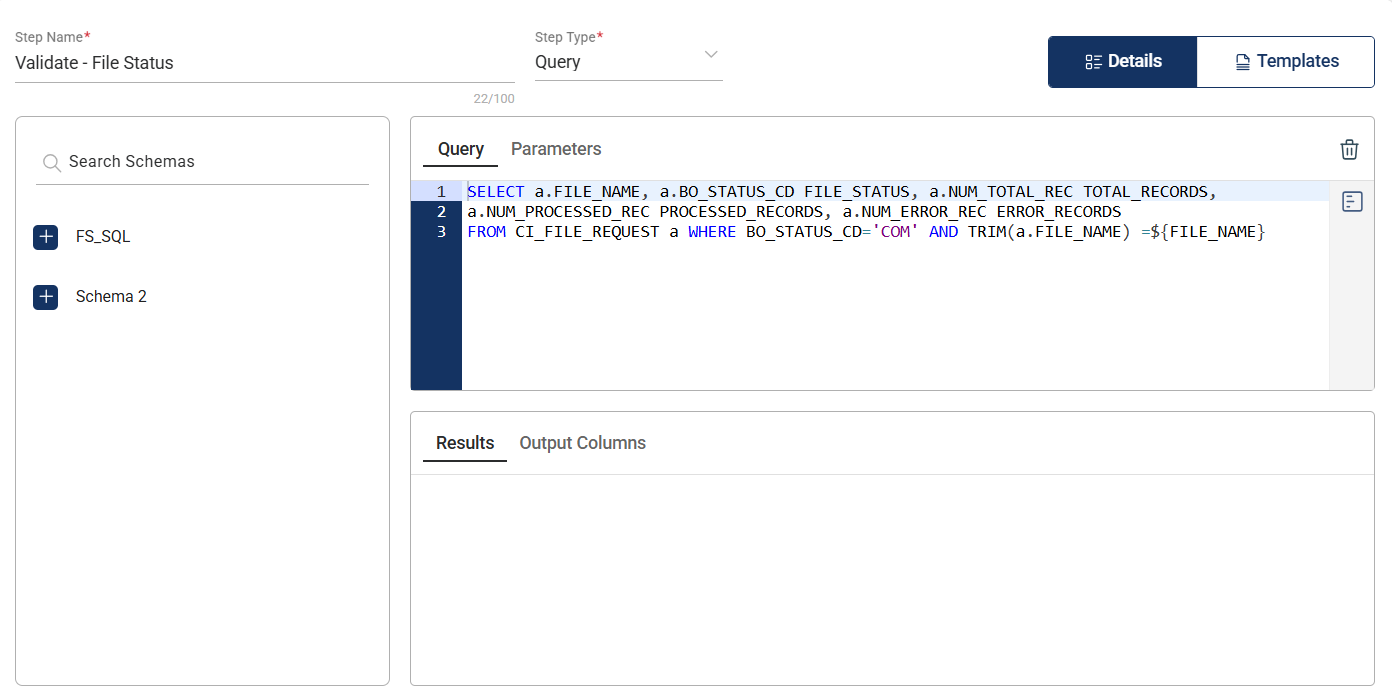
| Section | Description |
|---|---|
| Schema |
Specifies the schema of the database where the query will be executed. This is automatically populated from the configured database at the environment level and only needs to be selected at the assertion level. |
| Query |
Defines the query being executed to get results for validation. |
| Parameters |
Lists the input key-value pairs extracted from the provided query. |
| Result |
Specifies the expected result after running the query. |
| Output Columns |
List of database columns included in the expected result after running the query, along with their data types. |
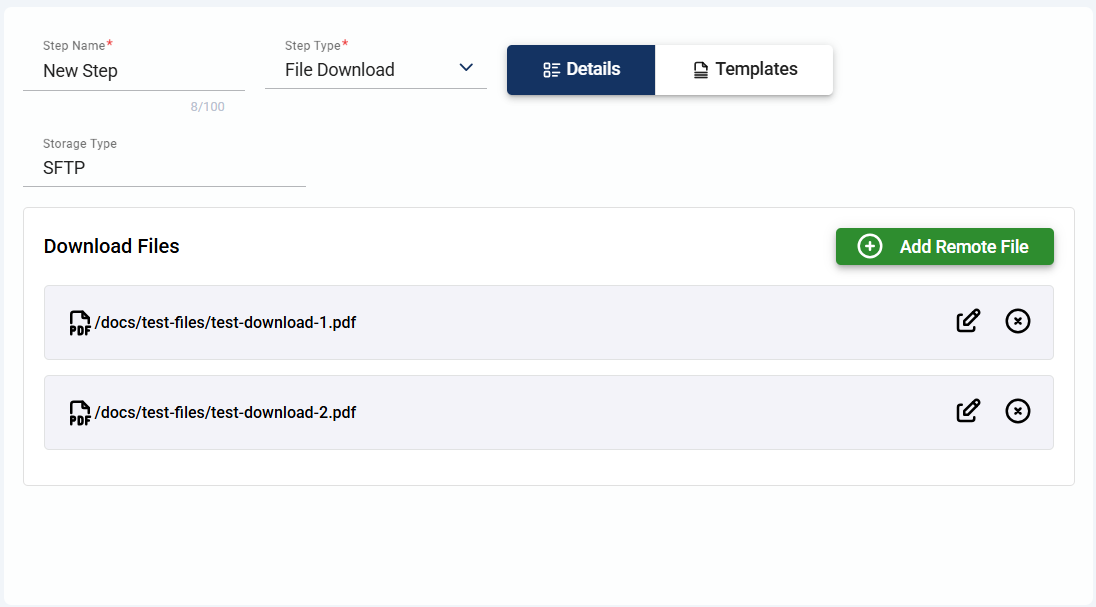
To create a new file upload step, follow these steps:
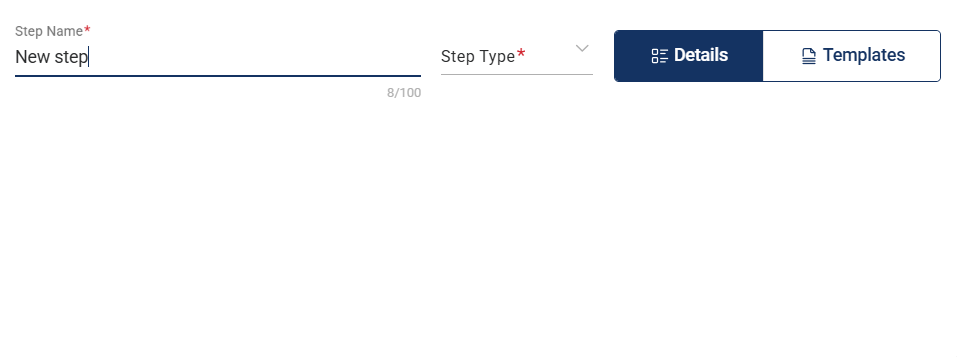
File Upload in the Step Type dropdown field.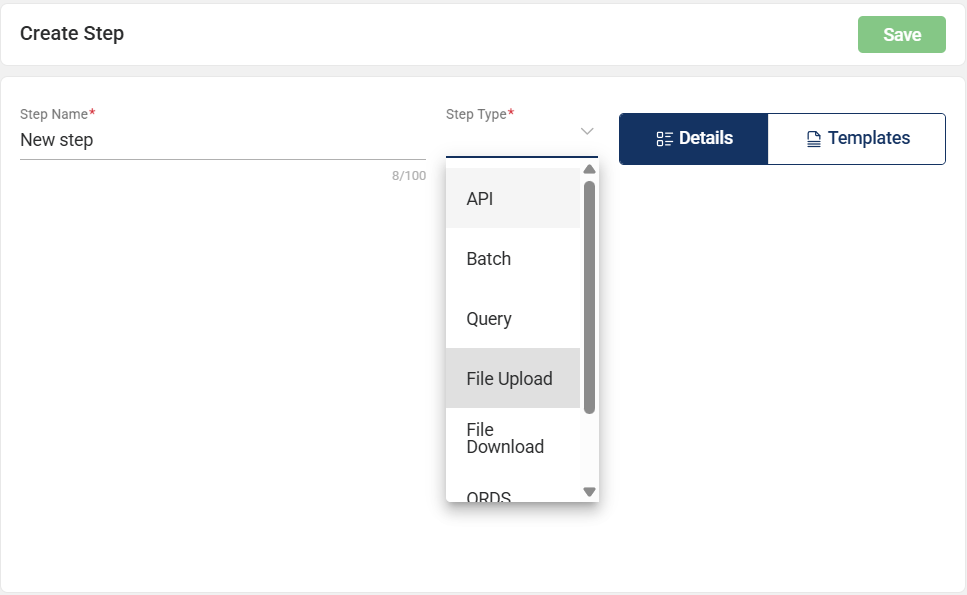
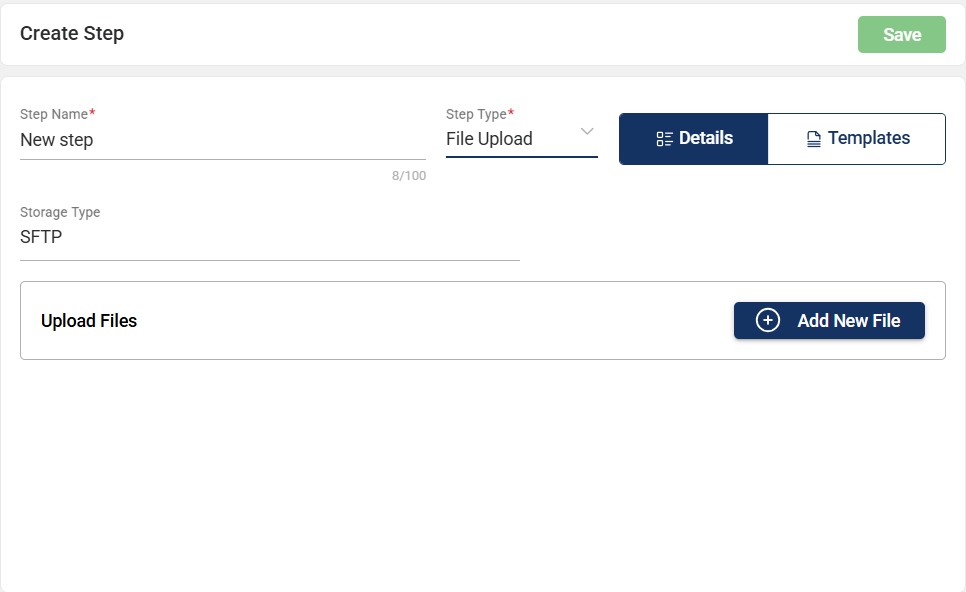
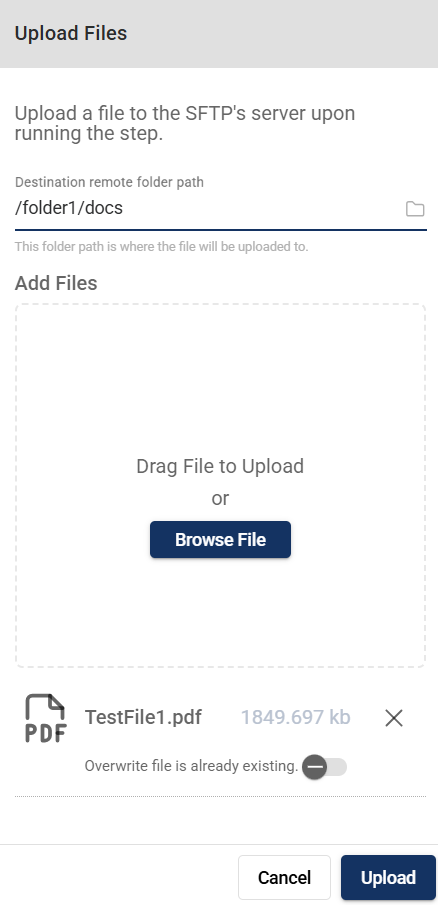
Specify the Destination remote folder path.
Drag or browse the files to upload. You have an option to overwrite an existing file.
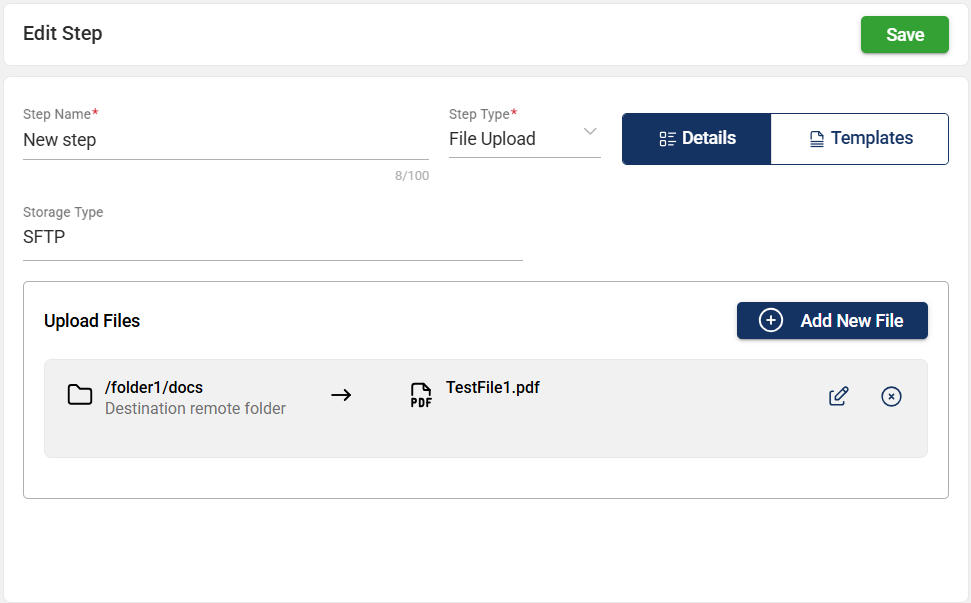
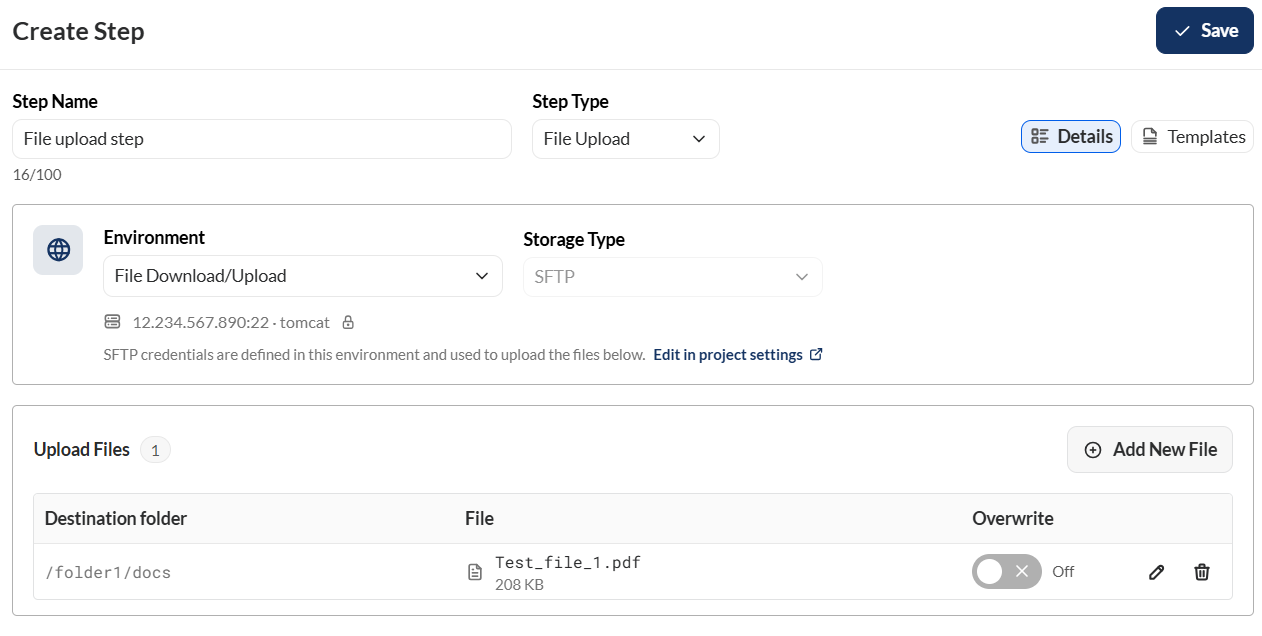
To create a new file upload step, follow these steps:
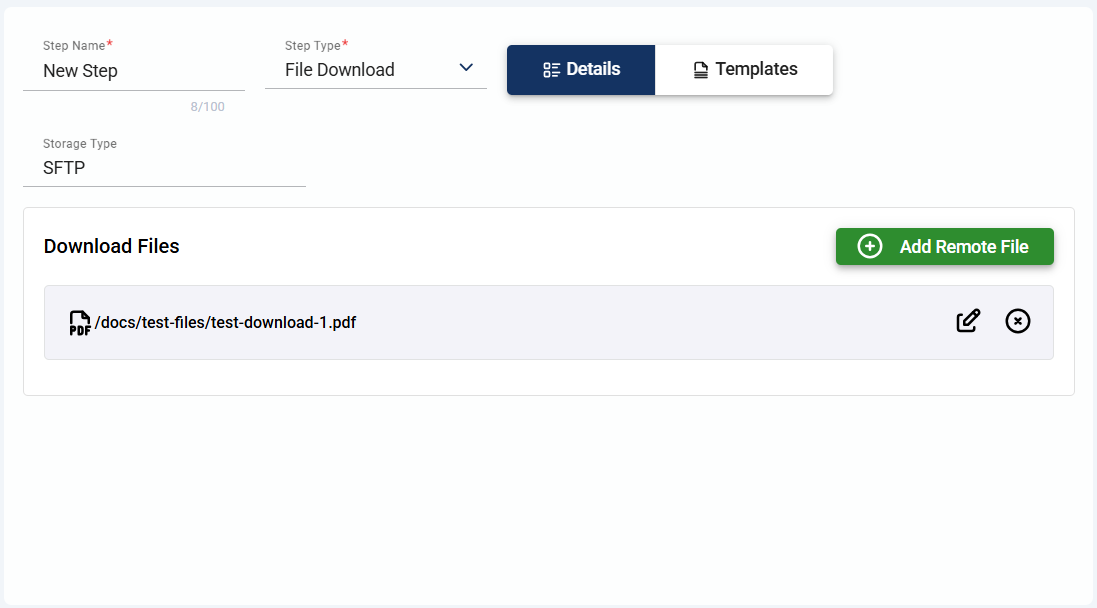
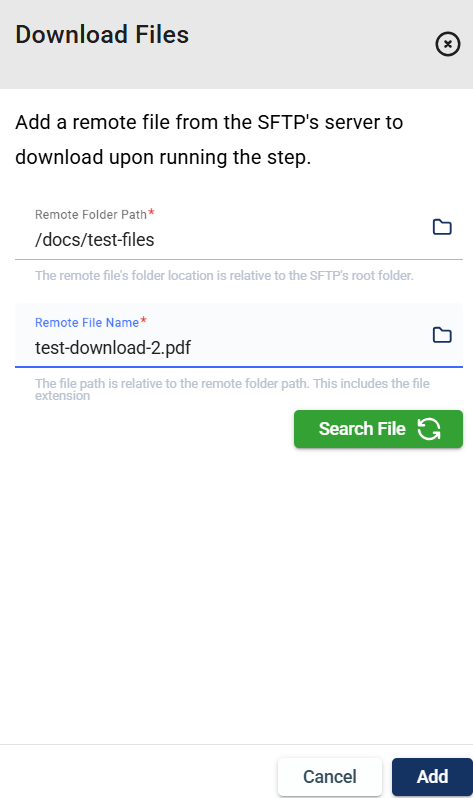
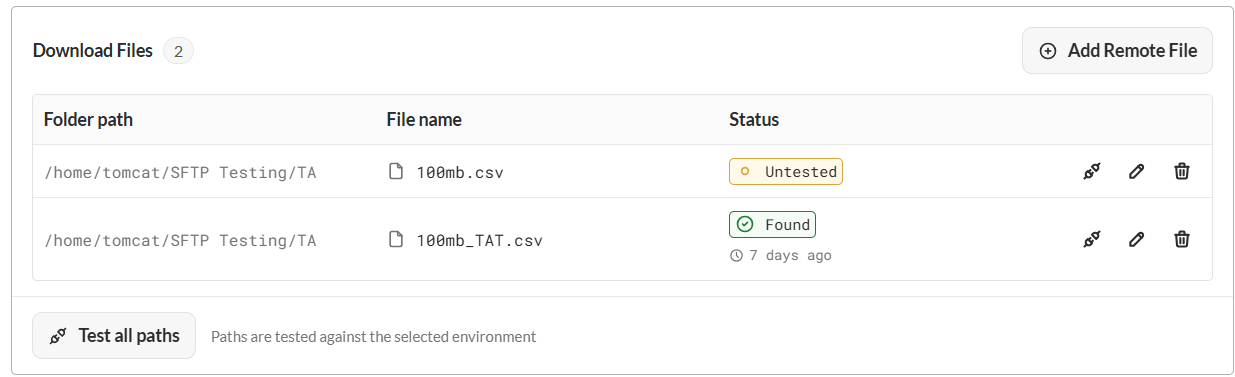
Untested to Found.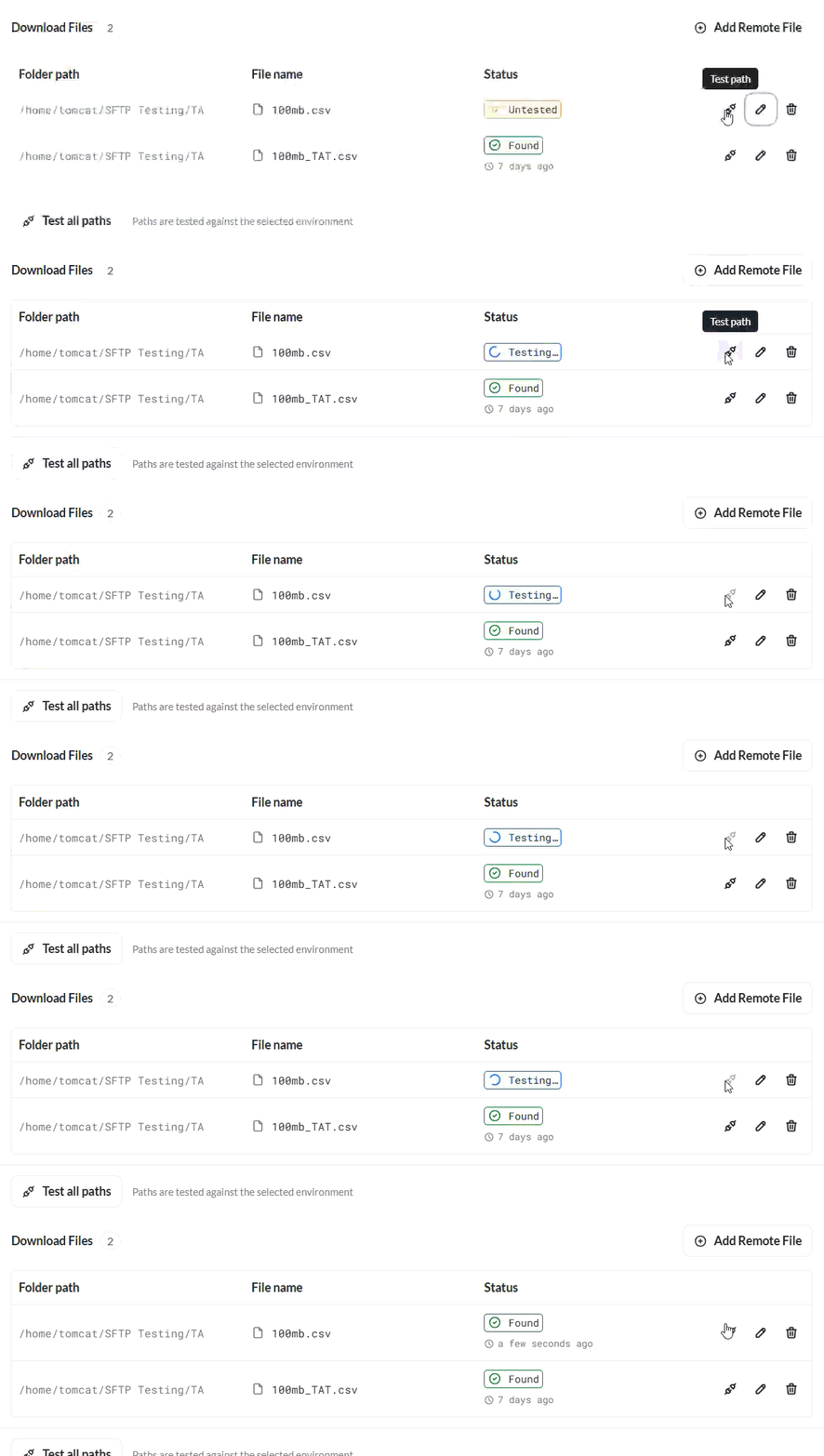
To create a UI step, upload your .side file in the designated upload box.
Once uploaded, a table with the following columns is displayed:
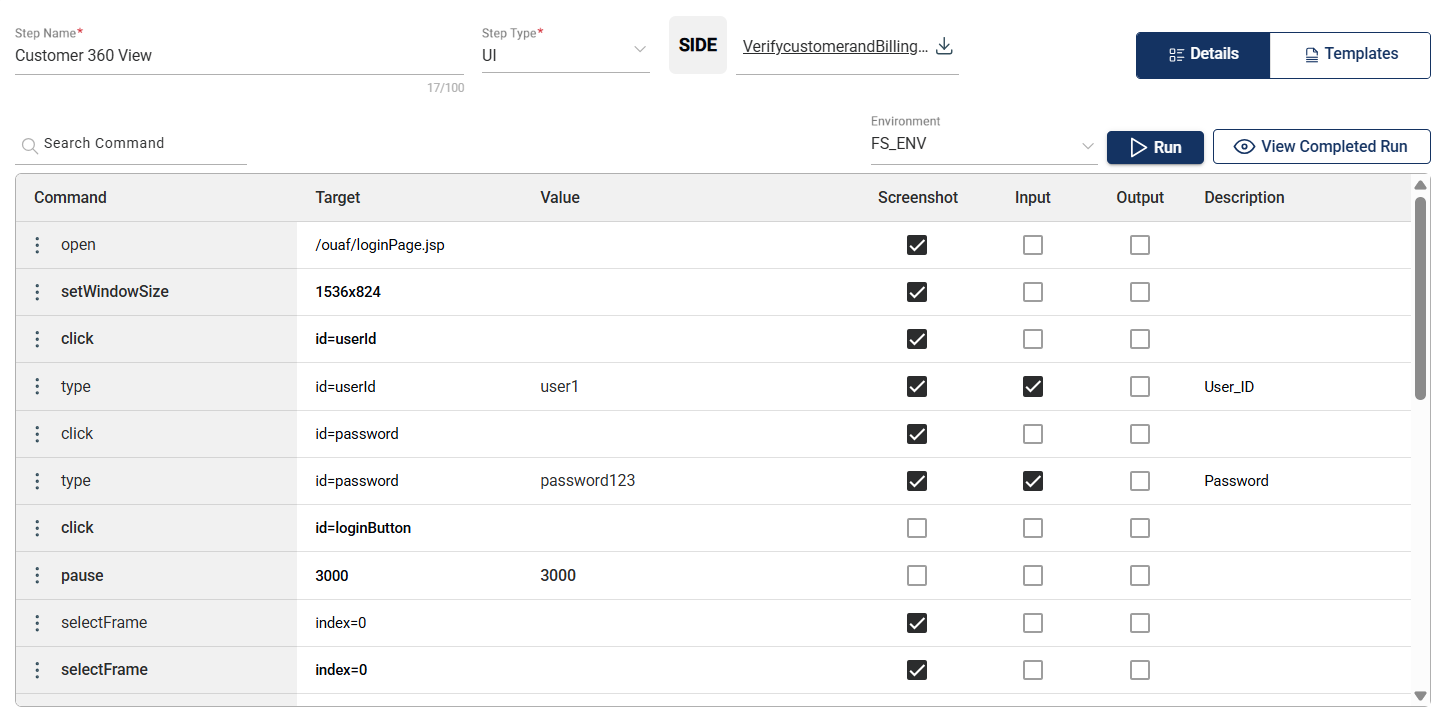
| Column | Description |
|---|---|
| Command |
Describes the command or action to be performed on the target. Mandatory: Yes |
| Input |
Indicates whether a value is necessary to be supplied to the target element for the command to be executed. Mandatory: No |
| Target |
Specifies the xpath of the target. Mandatory: Yes |
| Value |
Specifies the value to be supplied to the target element. Mandatory: Only if the Input box is checked. |
| Description |
Describes the command. Mandatory: Yes |
| Screenshot |
Indicates whether a screenshot will be captured during the execution of the command. Mandatory: No |
After uploading a side file, you can click the Run button to preview the execution details of the commands defined in the uploaded file.
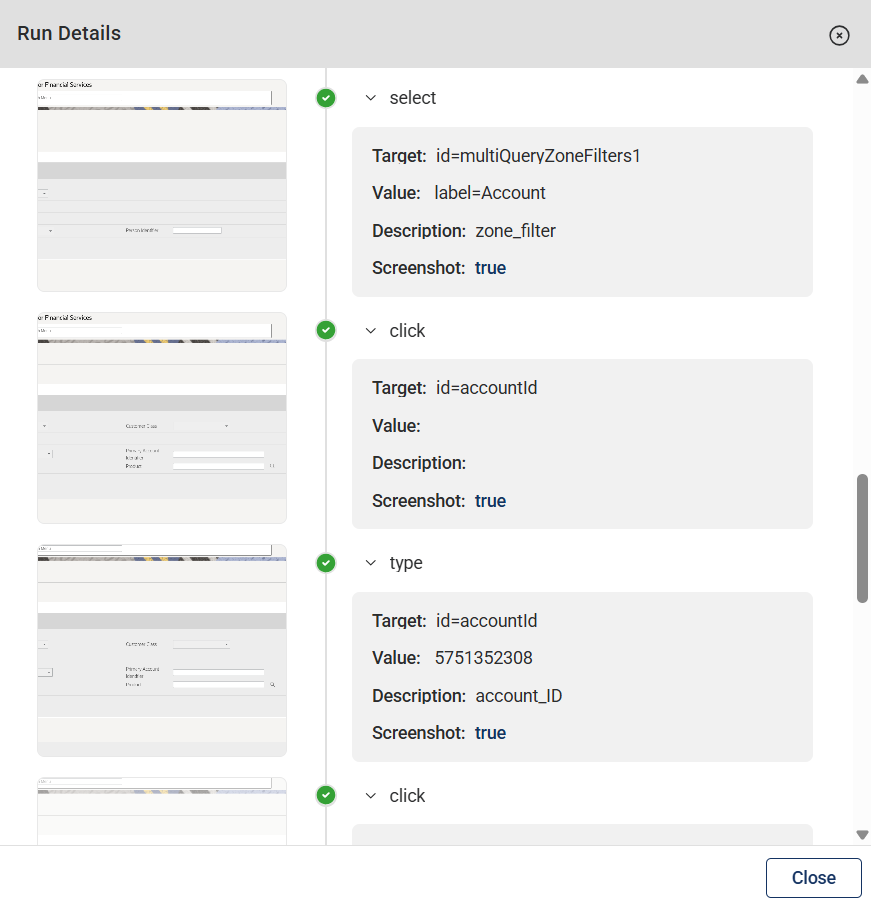
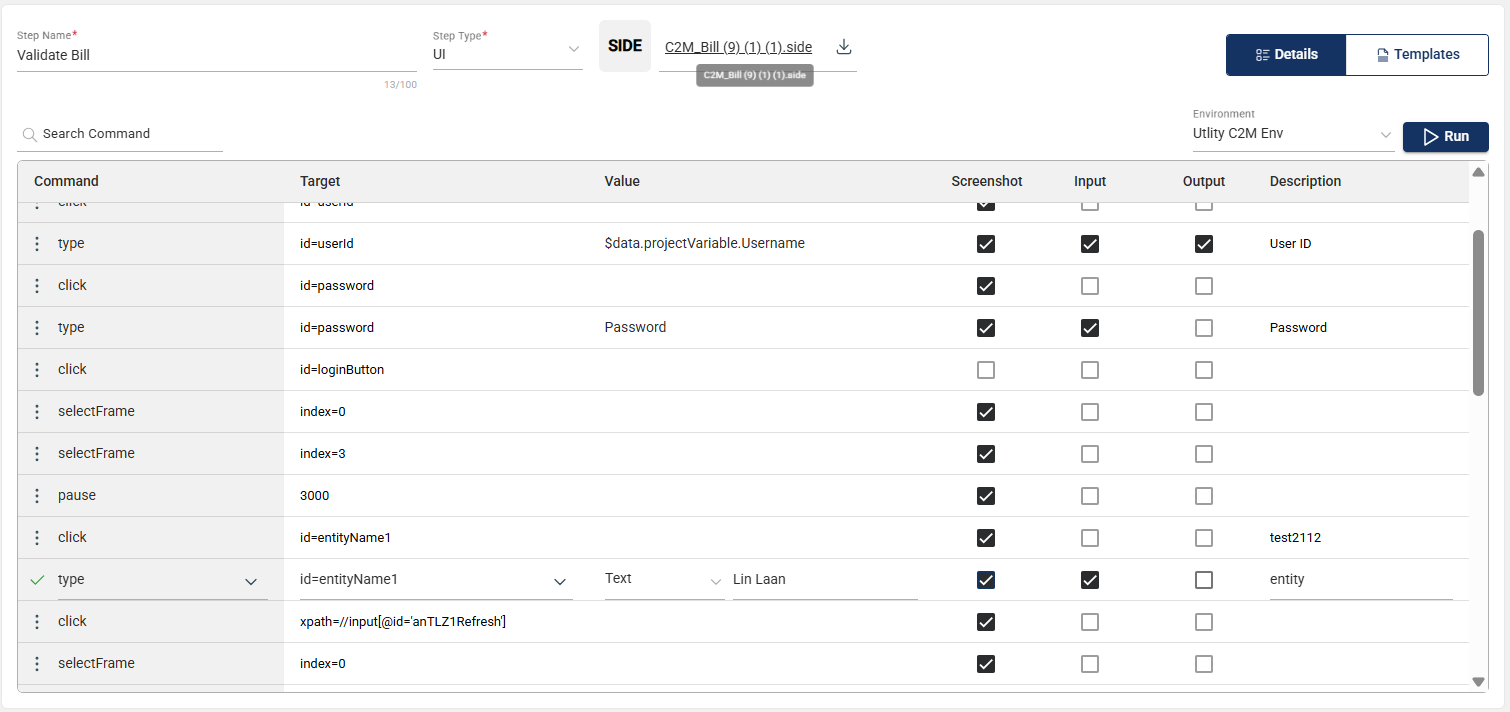
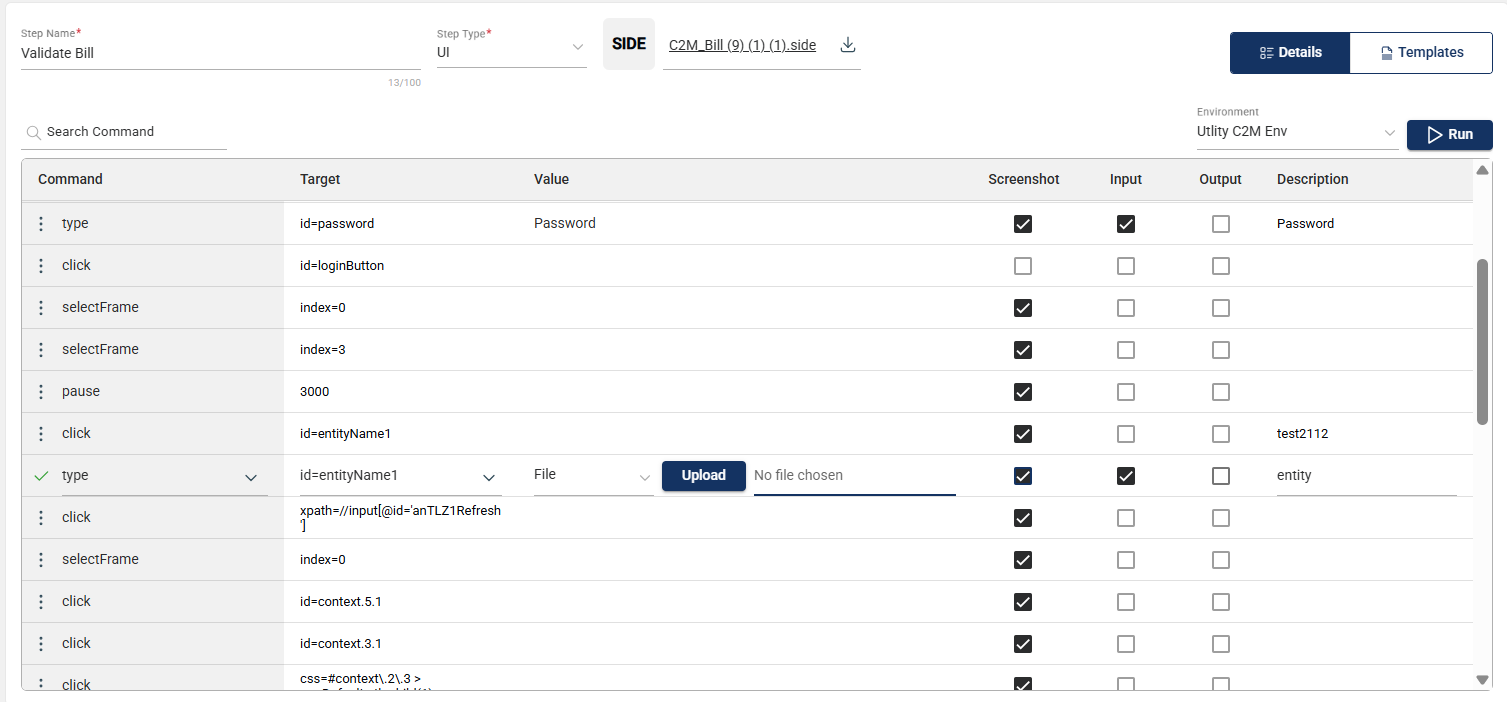
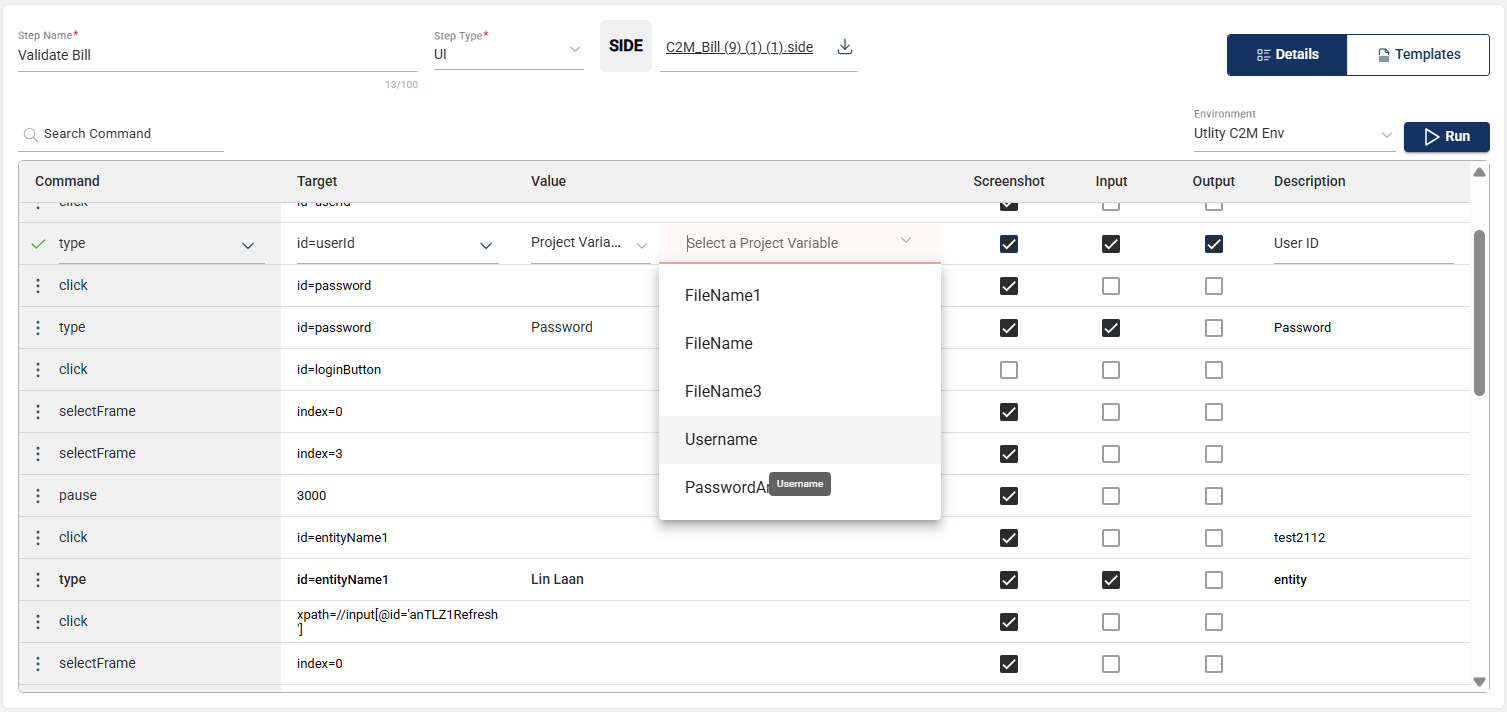
If the Input checkbox is ticked, you must supply a value to the target. A value could be one of the following:
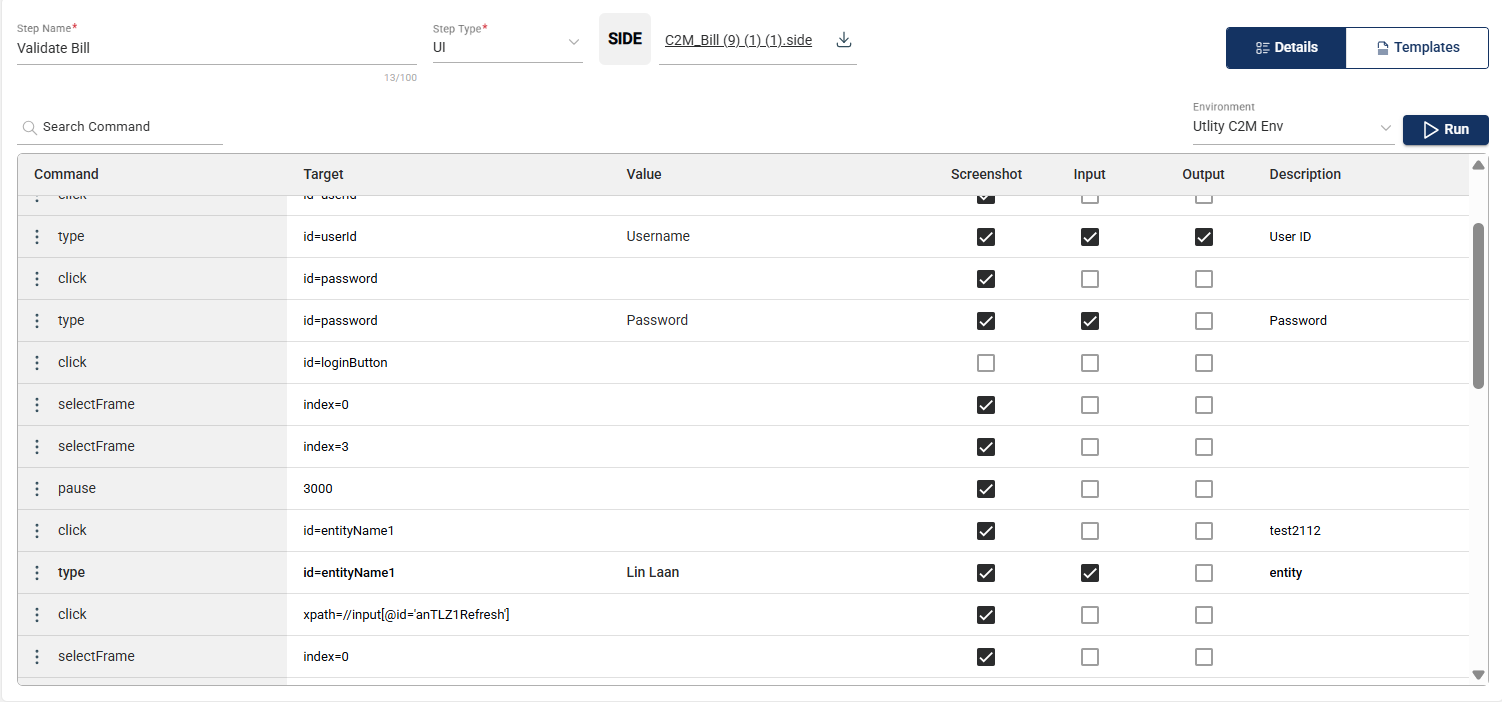
Text — Enter any text manually.
File — Upload a file to use as the input value.
Project Variable - Select from the list of variables configured for the project.
To delete a step, hover over the step you want to remove. An icon will appear. Click on this icon and select Delete.
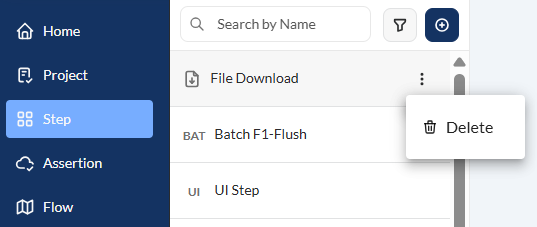
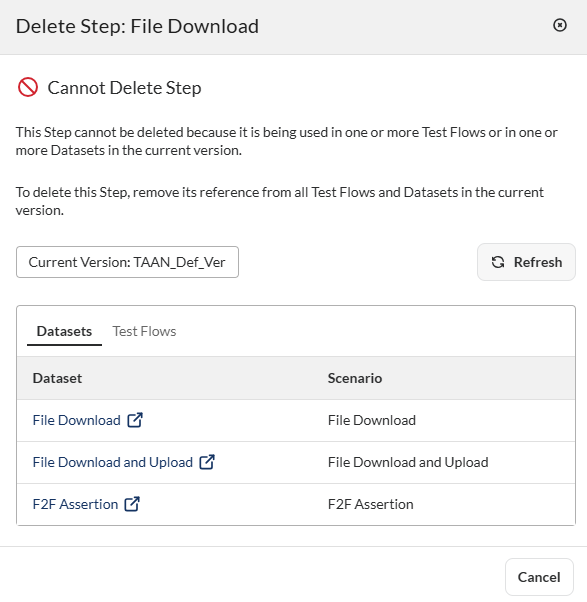
If a step is used in a flow or a dataset, a warning message will be displayed indicating that it cannot be deleted.
To delete the step, you must first remove it from any flows or datasets where it is being used.
Assertions serve as a quality control measure ensuring the completeness and correctness of the expected data as defined in a Step.
In the upper left corner, select your project from the Select Project dropdown list and the version from the Version dropdown list. Only the assertions associated with the selected project and version are displayed on the left pane.
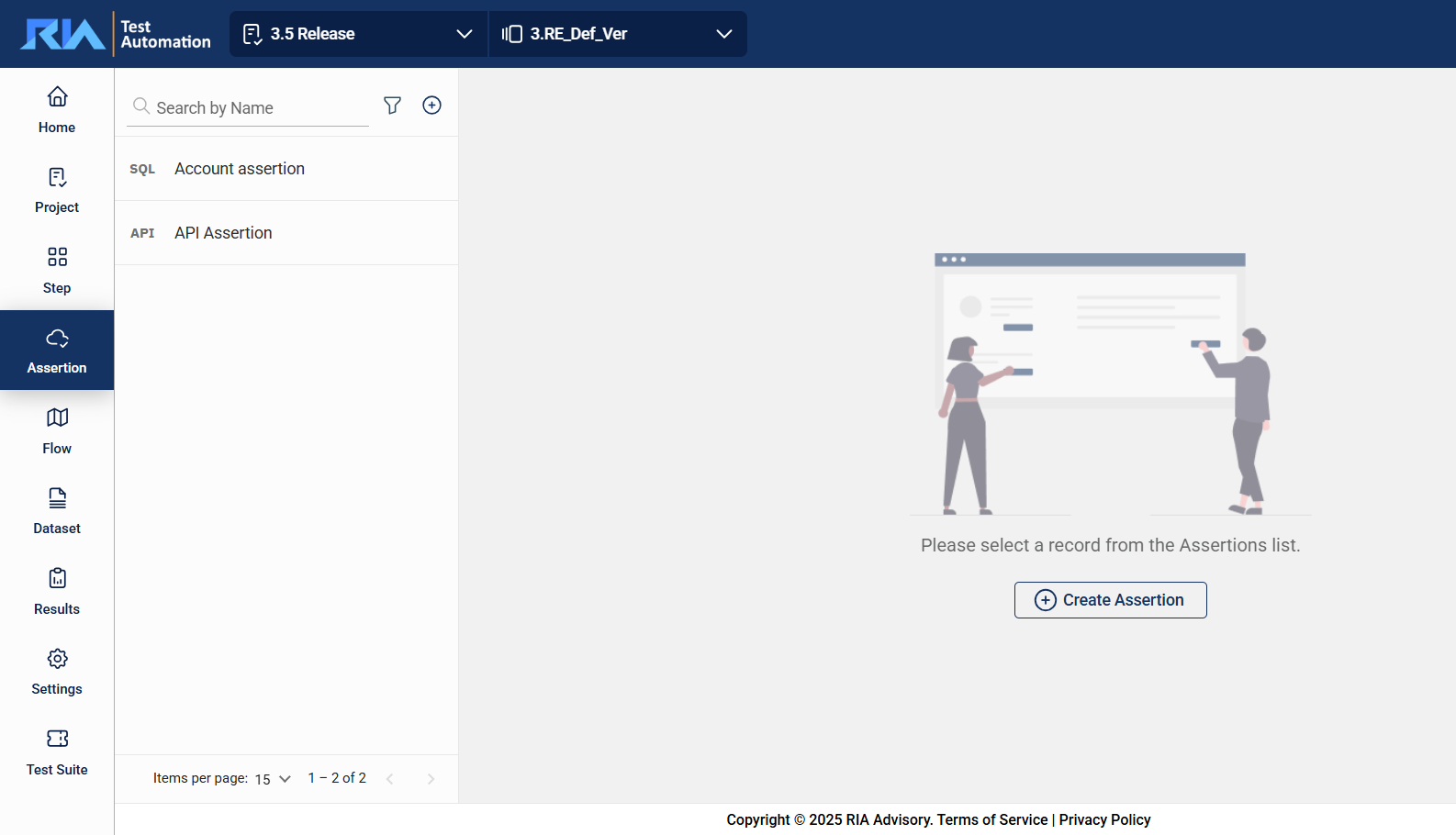
To view or modify the details of an assertion, select the assertion from the left pane that lists all assertions associated with the selected project and version. You can change any detail by directly editing the corresponding field. Ensure to click Update after making your modifications.
The search feature allows you to filter the list of assertions by providing a keyword or the full name of an assertion. Only the assertions that match the provided keyword or name will be displayed in the view.
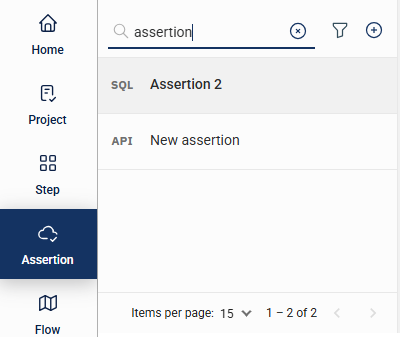
Click the icon to display additional filtering and sorting options. For filtering, a dropdown list of available filter parameters will show all associated values for the selected project and version.
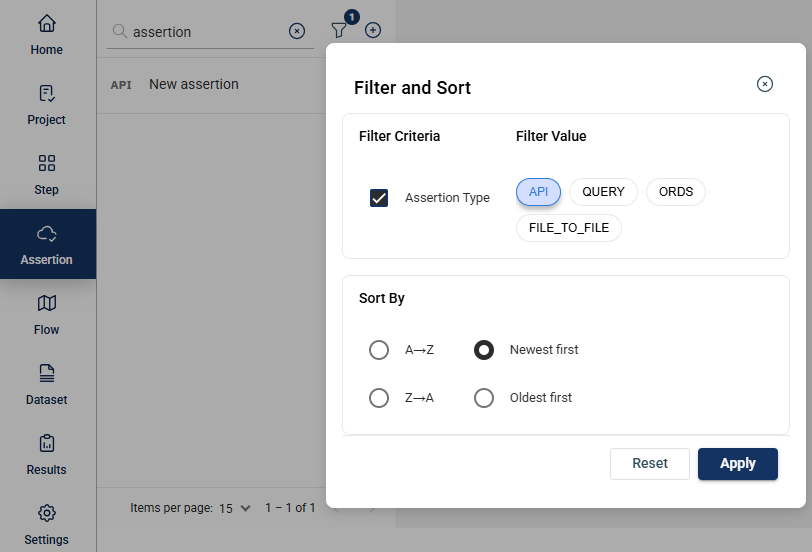
To create an assertion, click on the  icon on the top left pane and enter valid values to the following fields.
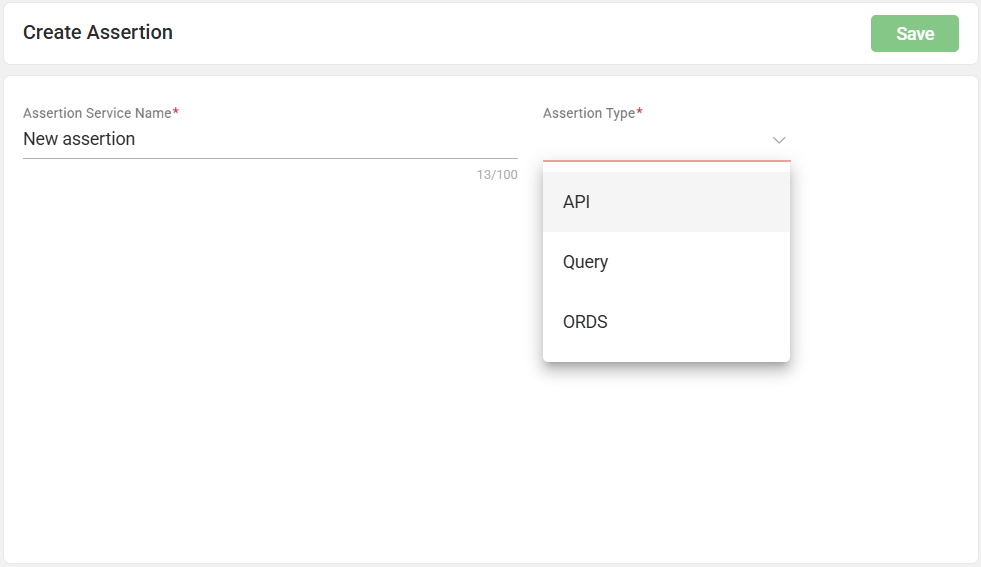
| Field Name | Description |
|---|---|
| Assertion Service Name |
Name of the assertion. It must be at least 5 characters long.
Mandatory: Yes |
| Assertion Type |
Specifies the type of step. The following are the possible values: Mandatory: Yes |
To create an API assertion, enter valid values in the following fields:
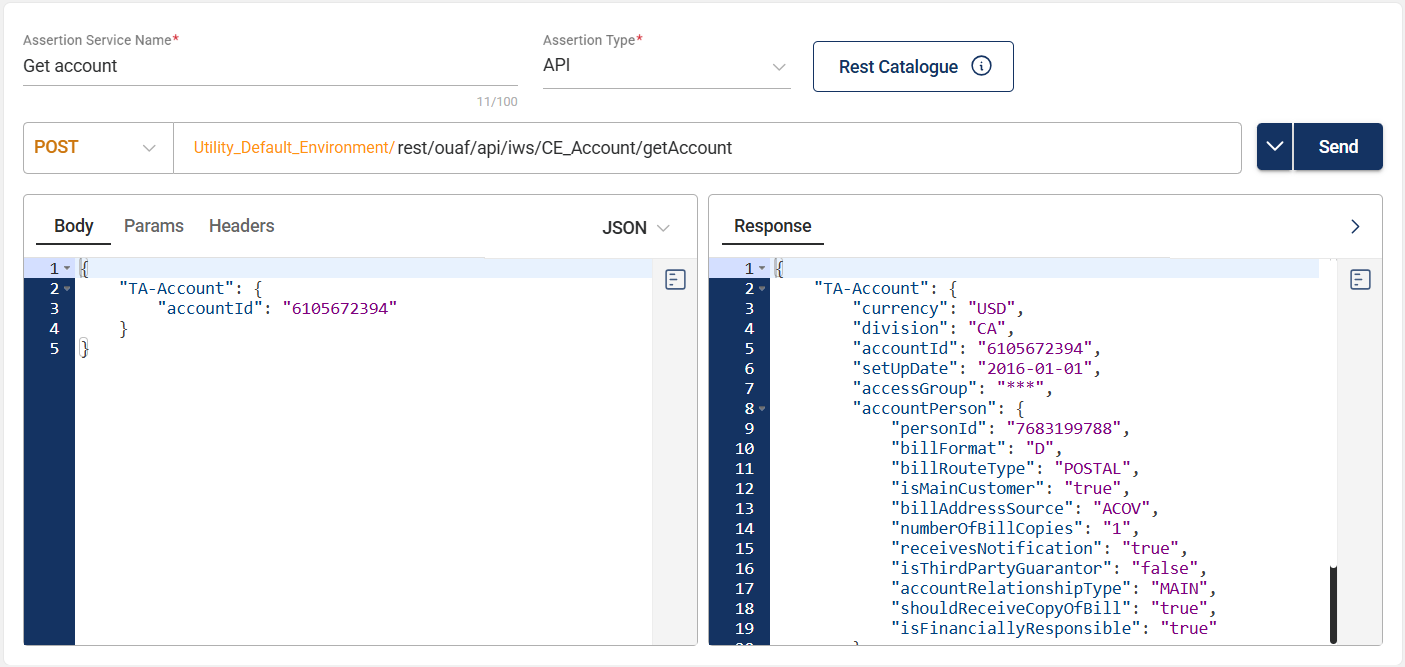
| Field | Description |
|---|---|
| HTTP Method |
Specifies the action to be performed by the external system to your server. The following are the possible values:
Mandatory: Yes |
| URL |
Specifies the API URL used for validation. It consists of two parts:
Mandatory: Yes |
| Params |
Specifies the type of parameters for query execution and data retrieval. You can specify parameters in the following ways:
Mandatory: No |
| Body |
Specifies the payload details of the assertion. You can choose between the following formats:
Mandatory: No |
| Headers | Specifies the API headers in HTTP requests or responses that provide important metadata, such as content type, authentication details, and instructions for processing the data. |
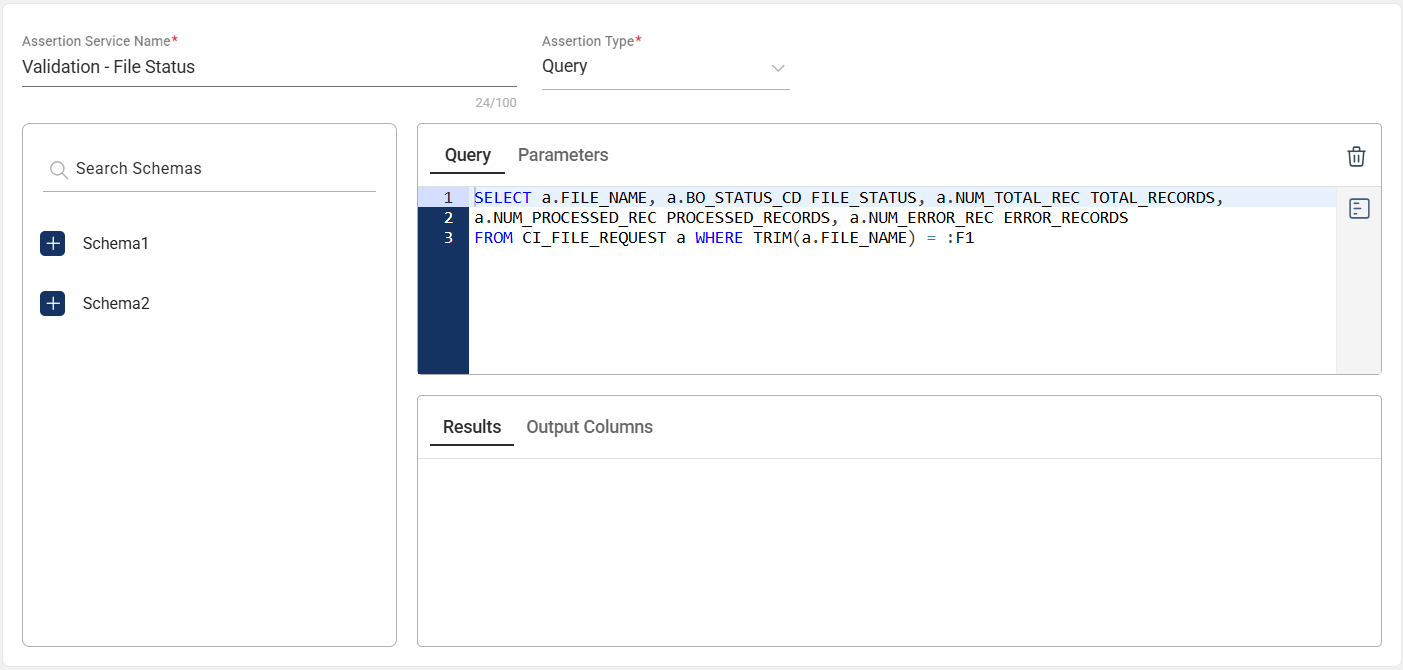
| Section | Description |
|---|---|
| Schema | Specifies the schema of the database where the query will be executed. This is automatically populated from the configured database at the environment level and only needs to be selected at the assertion level. |
| Query | Defines the query being executed to retrieve results for validation. |
| Parameters | Lists the input key-value pairs extracted from the provided query. |
| Results | Specifies the expected result after running the query. |
| Output Columns | Lists the database columns included in the expected result after running the query, along with their data types. |
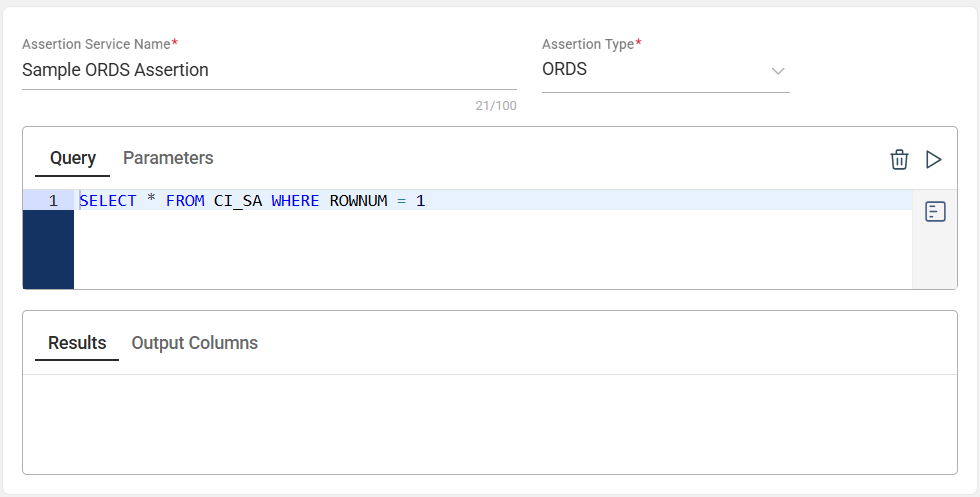
| Section | Description |
|---|---|
| Query | Defines the query being executed to retrieve results for validation. |
| Parameters | Lists the input key-value pairs extracted from the provided query. |
| Results | Specifies the expected result after running the query. |
| Output Columns | Lists the database columns included in the expected result after running the query, along with their data types. |
This assertion allows you to compare two specified files. To add files, follow these steps:
Create an assertion with File to File Assertion Type.
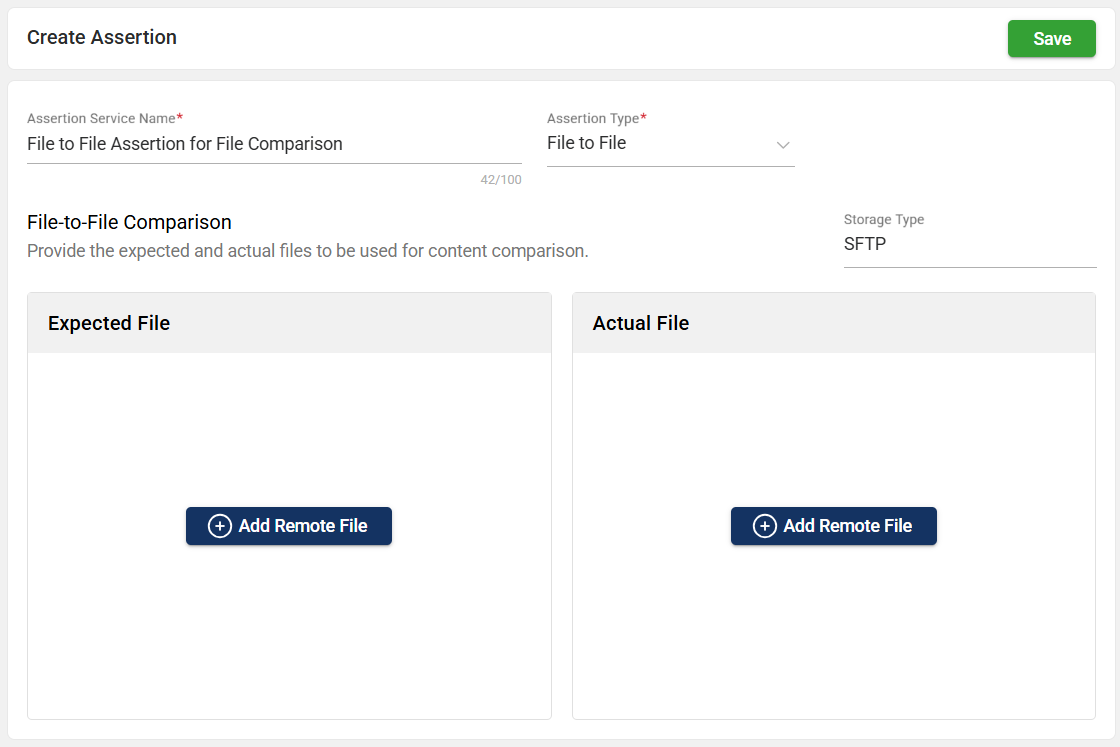
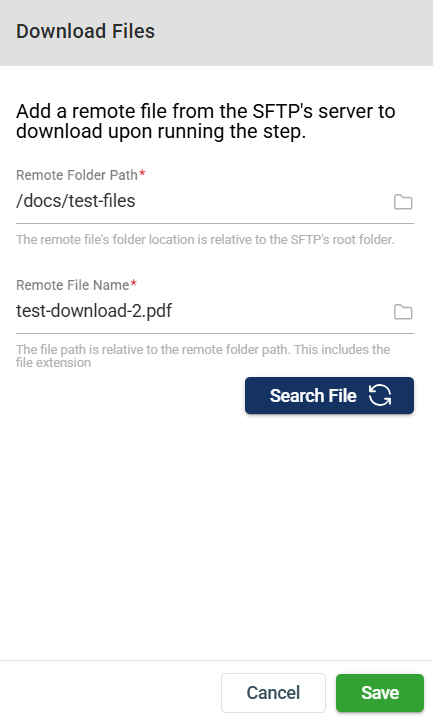
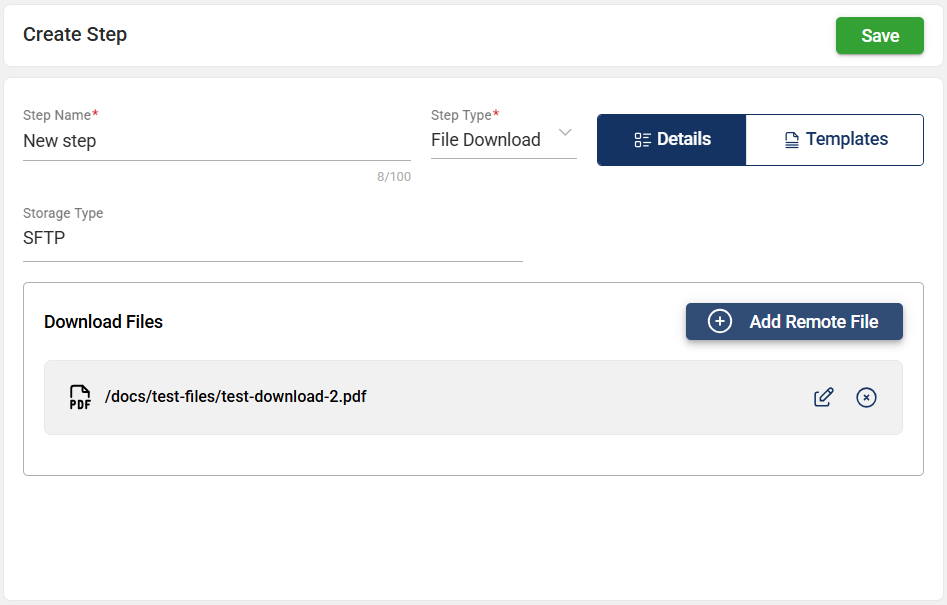
Click the Add Remote File button.
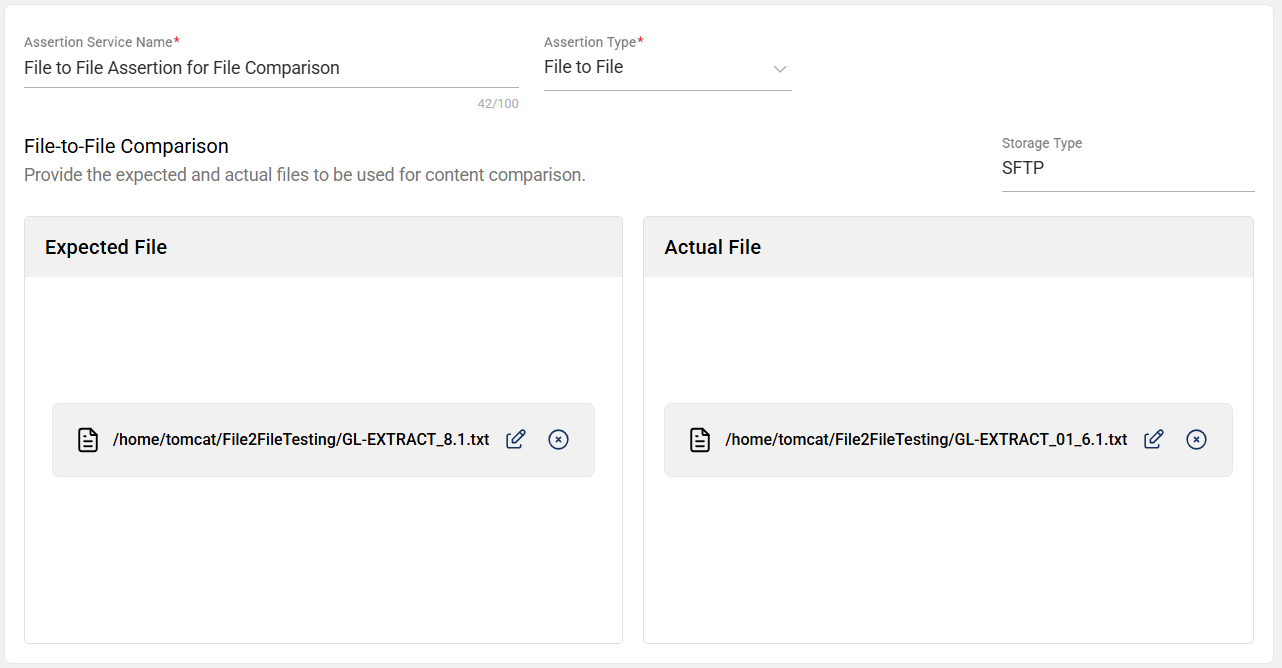
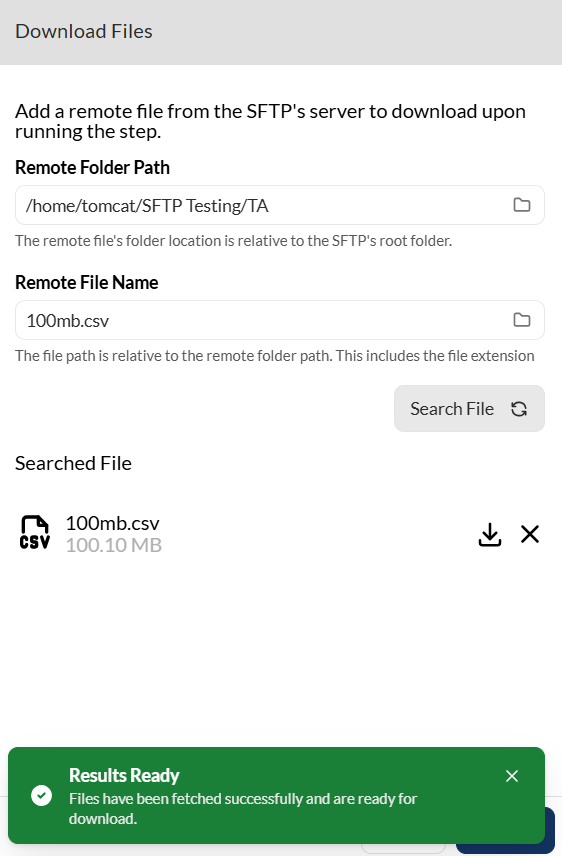
Enter valid values to the Remote Folder Path and Remote File Name fields.
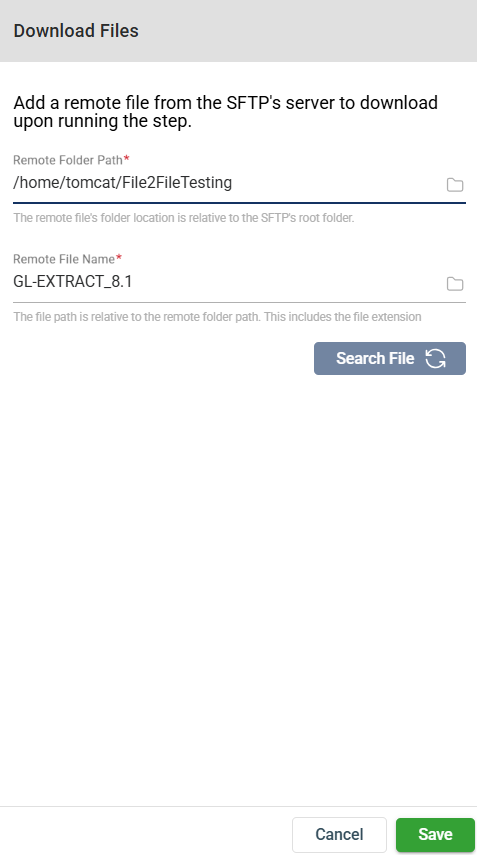
Click the Save button.
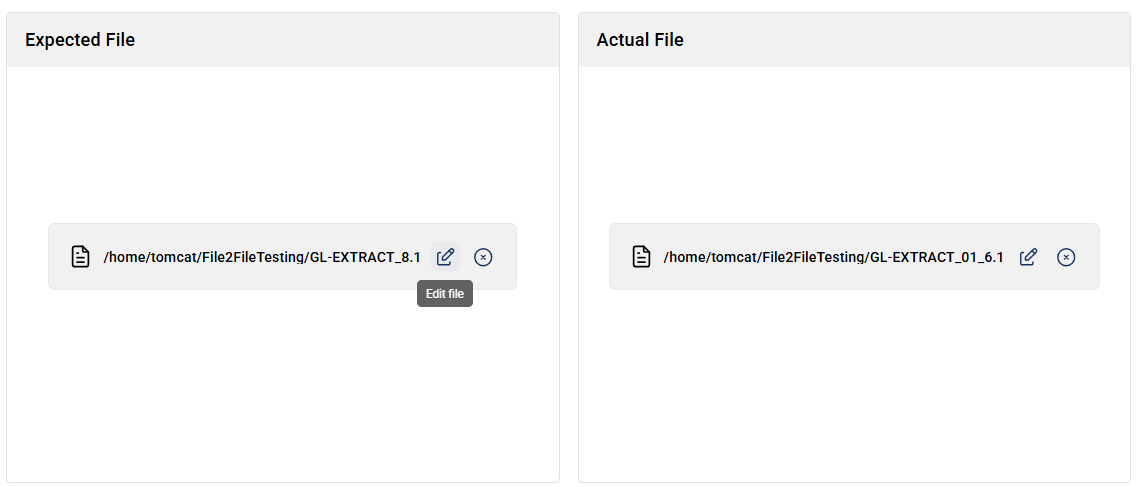
To change the attached file, click the edit icon.
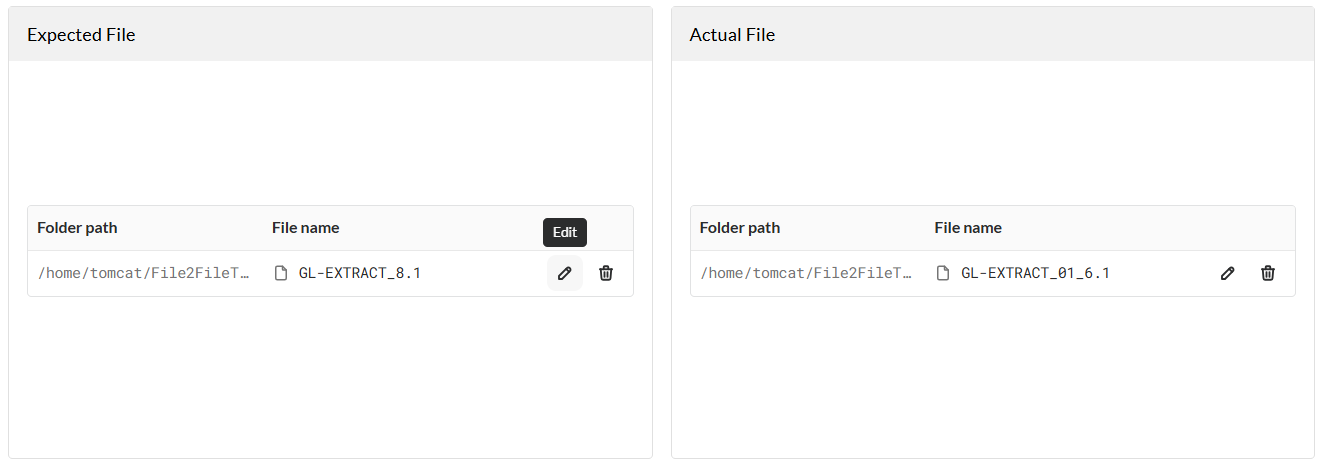
The Download Files form, similar to the one in Step 2 of the previous section, will be displayed. Make the necessary changes, then click Save.
To delete an attached file, follow these steps:
Click the delete icon.
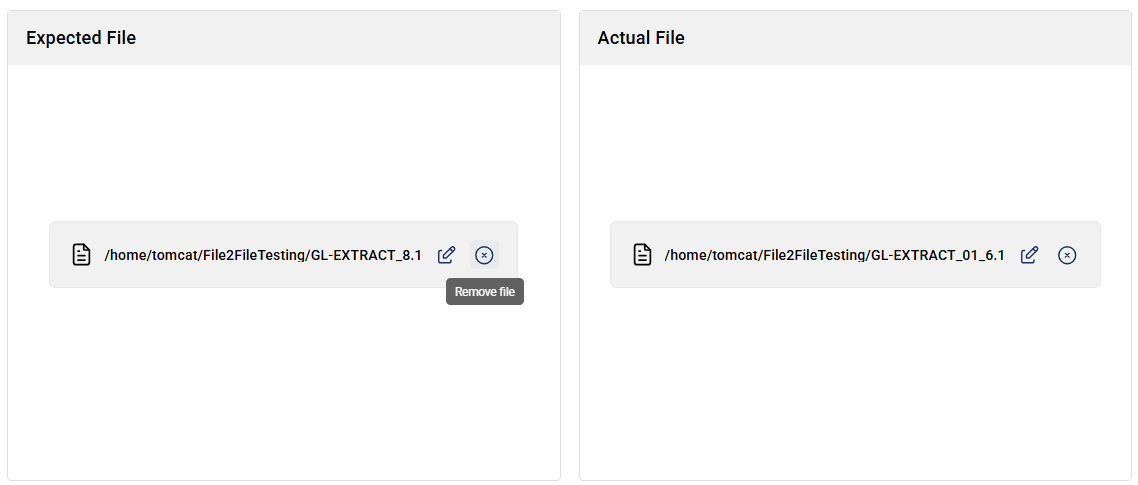
Click Delete button on the confirmation prompt.
Once added to a flow and executed, the Assertions tab in the Run Result page displays the line differences between the files.
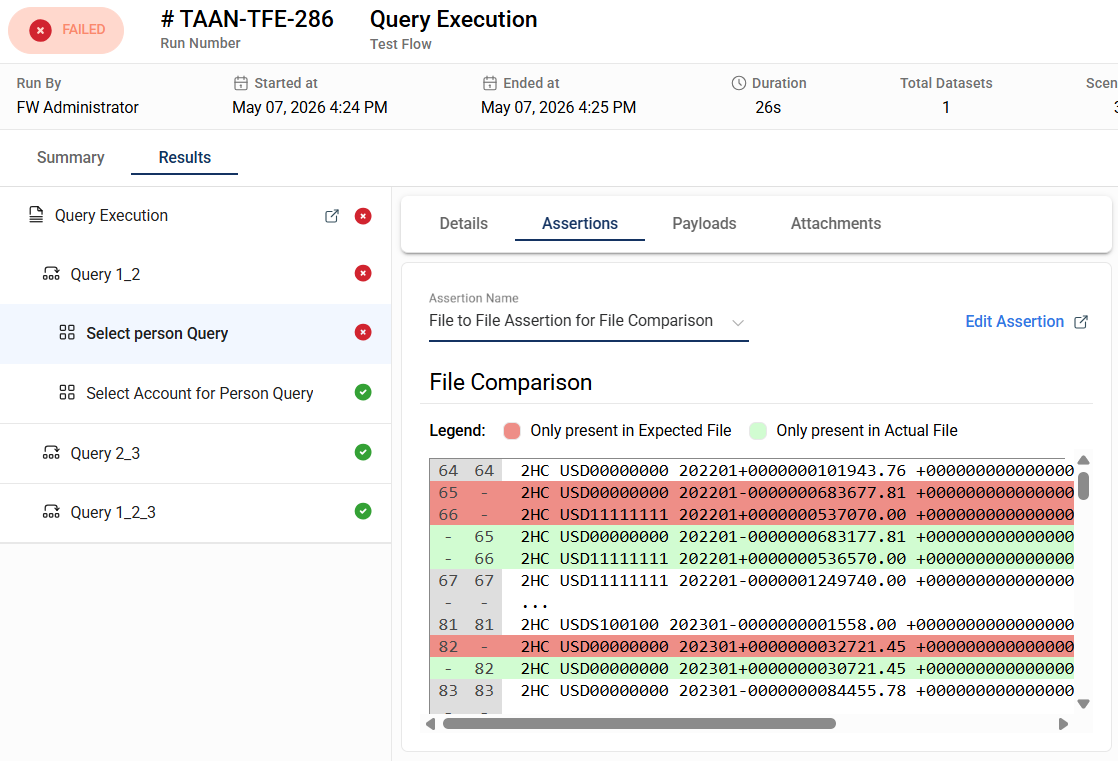
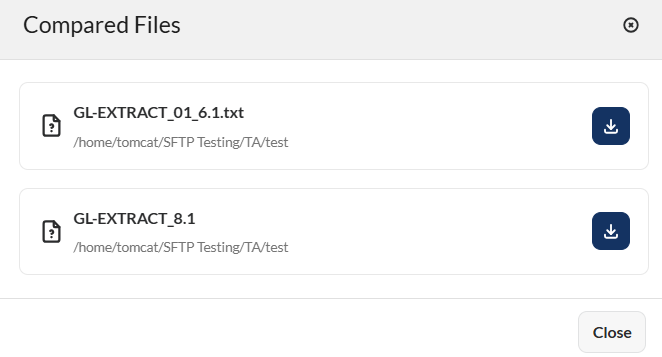
The assertion results and the list of files that were compared can also be viewed in the Details tab in the Run Result page.
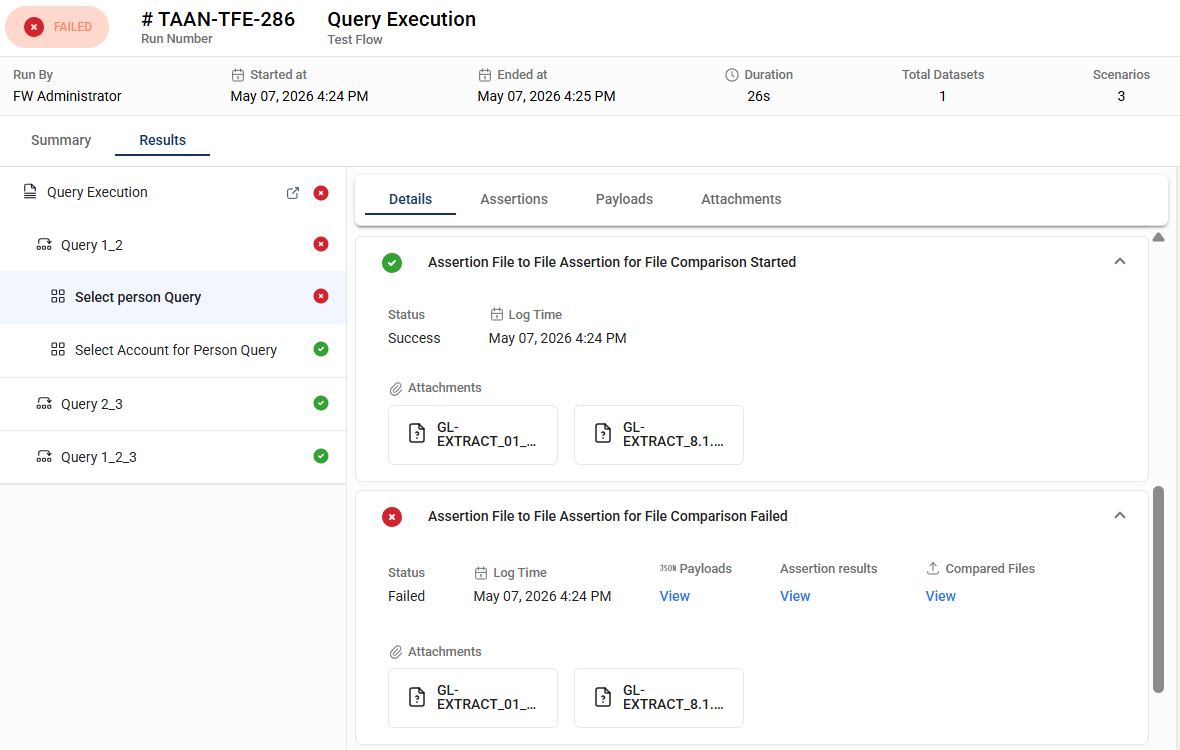
The following are example views for:
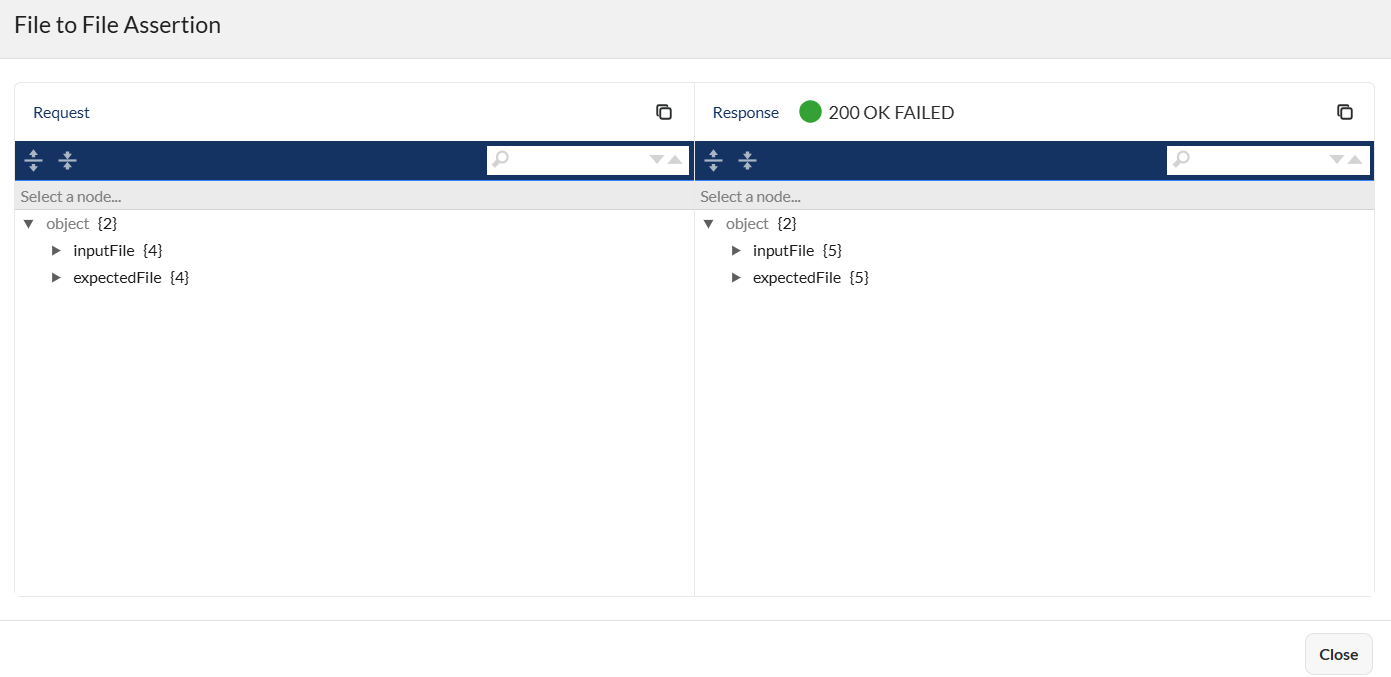
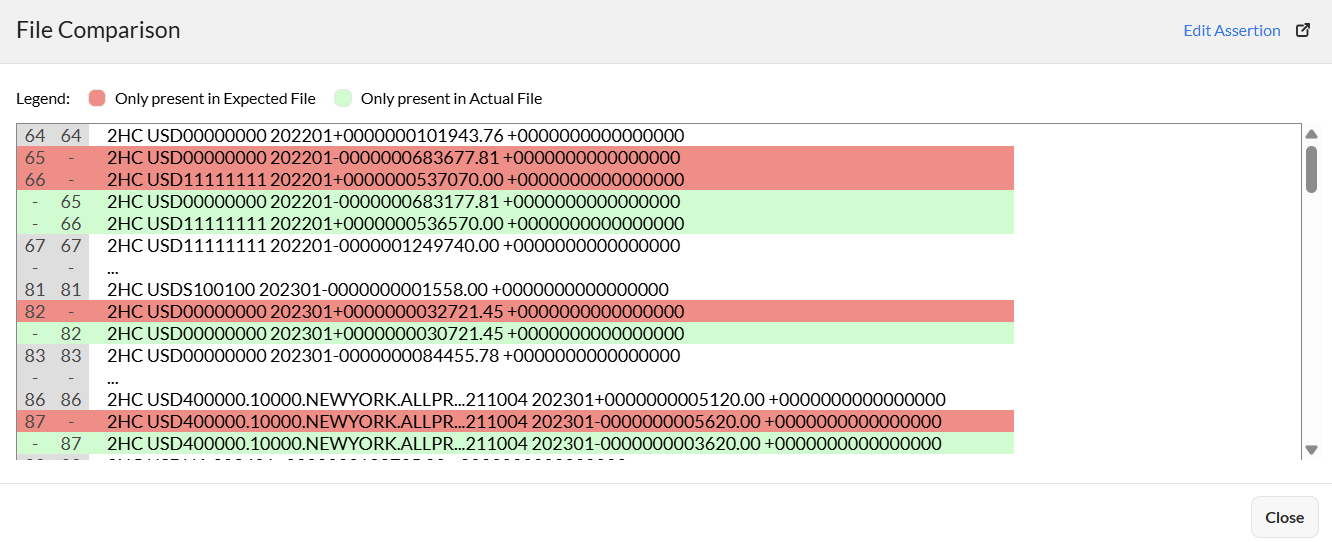
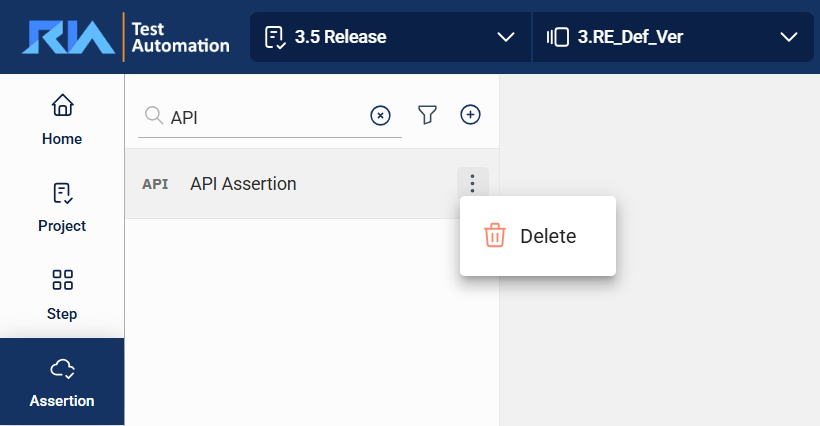
To delete an assertion, hover over the assertion you want to remove. An icon will appear. Click on this icon and select Delete.
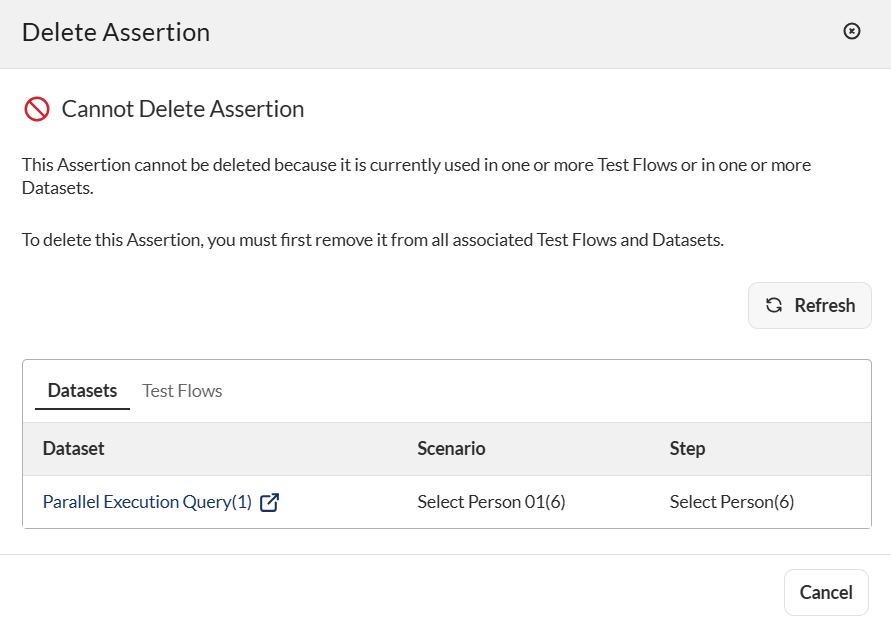
If an assertion is used in a flow or a dataset, a warning message will be displayed indicating that it cannot be deleted.
To delete the assertion, you must first remove it from any flows or datasets where it is being used.
A test flow is a sequence of scenarios that verifies the functionality or correctness of your business system. The Flow module allows you to manage all your test flows in a project. This includes defining Scenarios, choosing or creating the steps and assertions for each scenario, and modifying or running test flows.
In the upper left corner, select your project from the Select Project dropdown list and version from the Version dropdown list. Only the flows associated with the selected project and version are displayed on the left pane.
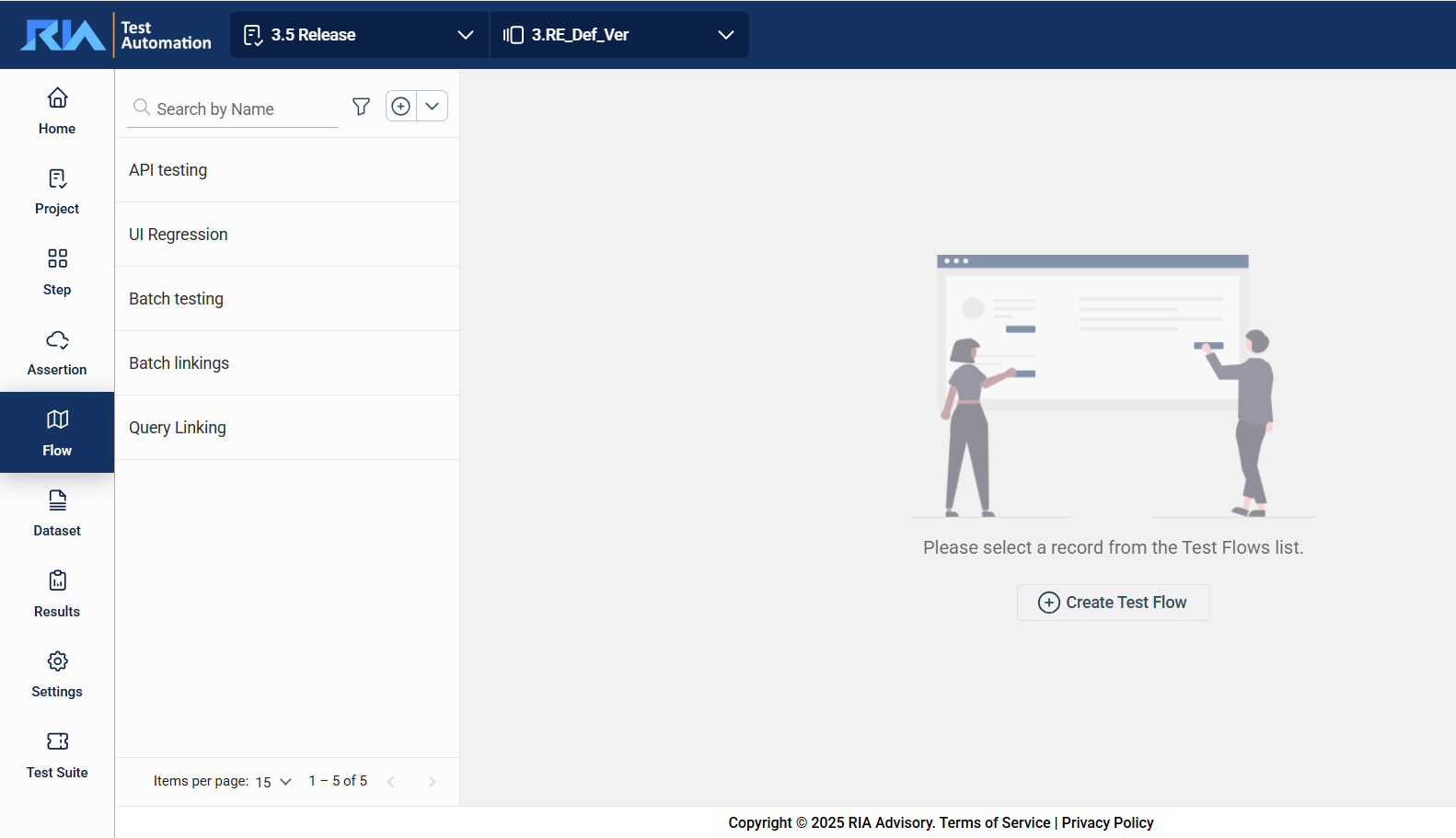
To view or modify the details of a flow, select the flow from the left pane that lists all flows associated with the selected project. You can change any detail by directly editing the corresponding field. Ensure to click Update after making your modifications.
The filter feature allows you to filter the list of test flows by providing a keyword or the full name of the flow. Only the flows that match the provided keyword or name will be displayed in the view.
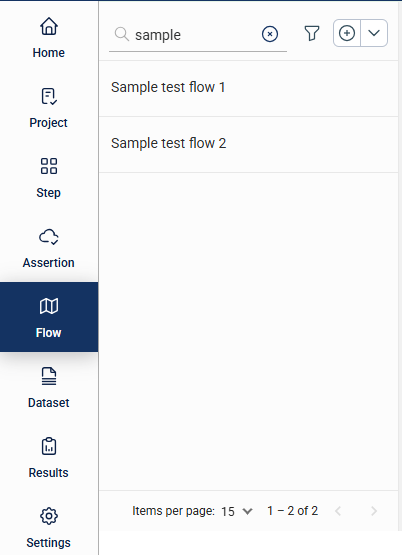
Click the icon to display additional filtering and sorting options. For filtering, a dropdown list of available filter parameters will show all associated values for the selected project and version.
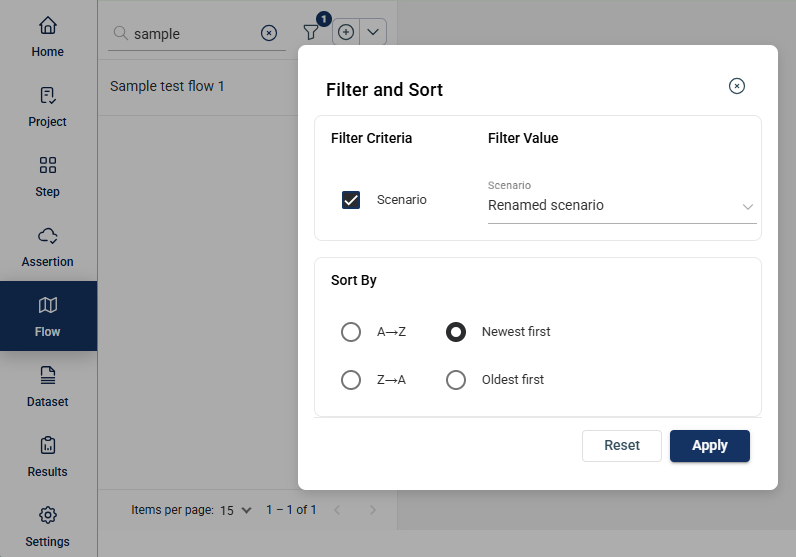
To create a simple sequential test flow, follow these steps. Same steps apply when creating a parallel execution with multiple scenarios connected from the Start node or any scenario. For more information, see Parallel executions.
Select the Project and the Version on the upper left dropdown lists. If there are existing test flows in the selected project and version, they will be displayed on the left pane.
Click the plus icon.
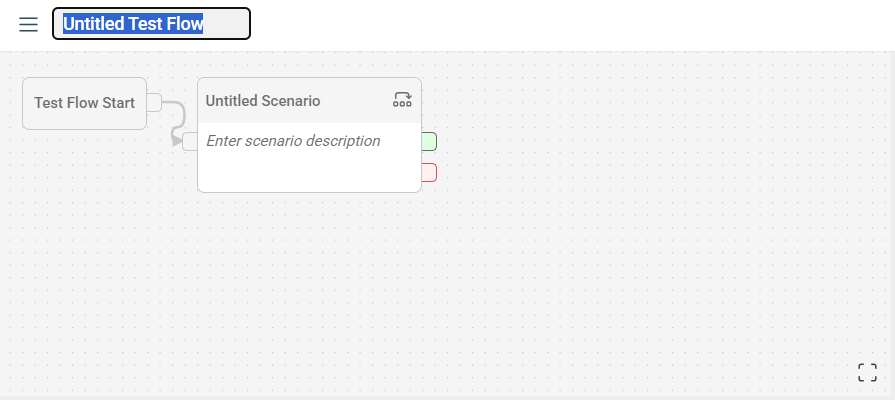
Enter a valid test flow title, replacing Untitled Test Flow.
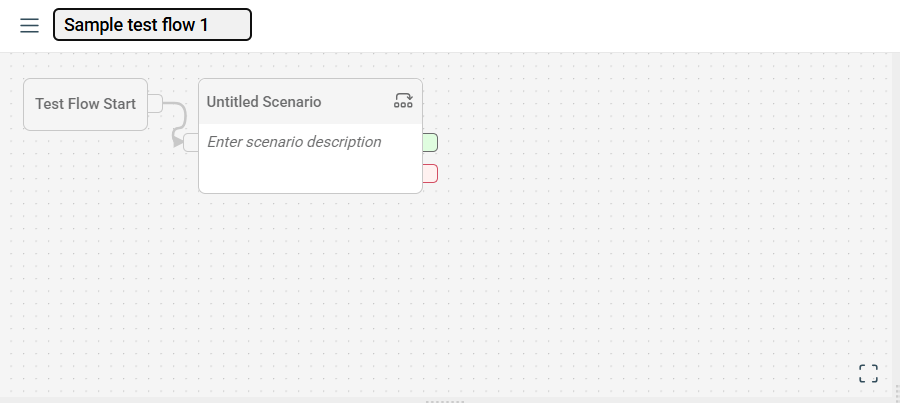
Click on the Untitled Scenario, which is automatically added when creating a new flow.
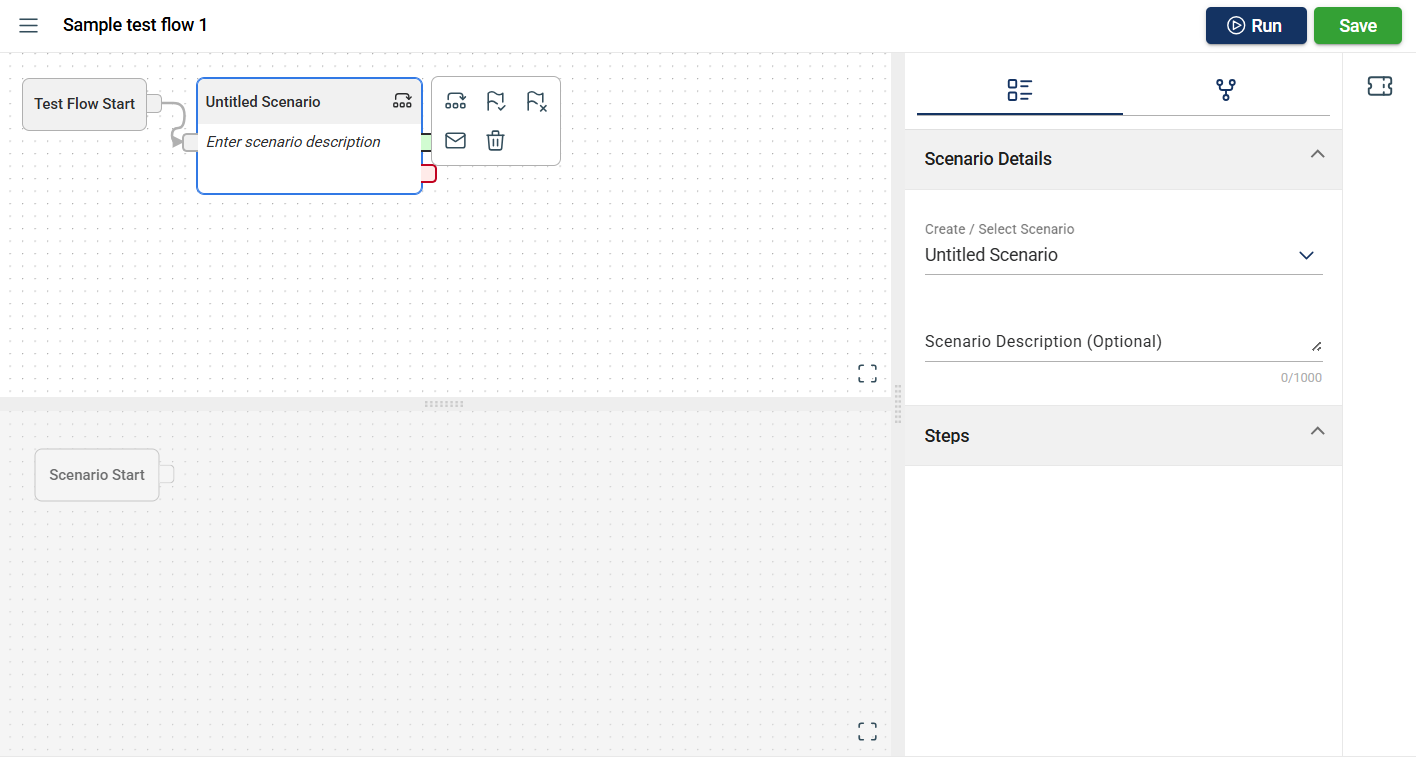
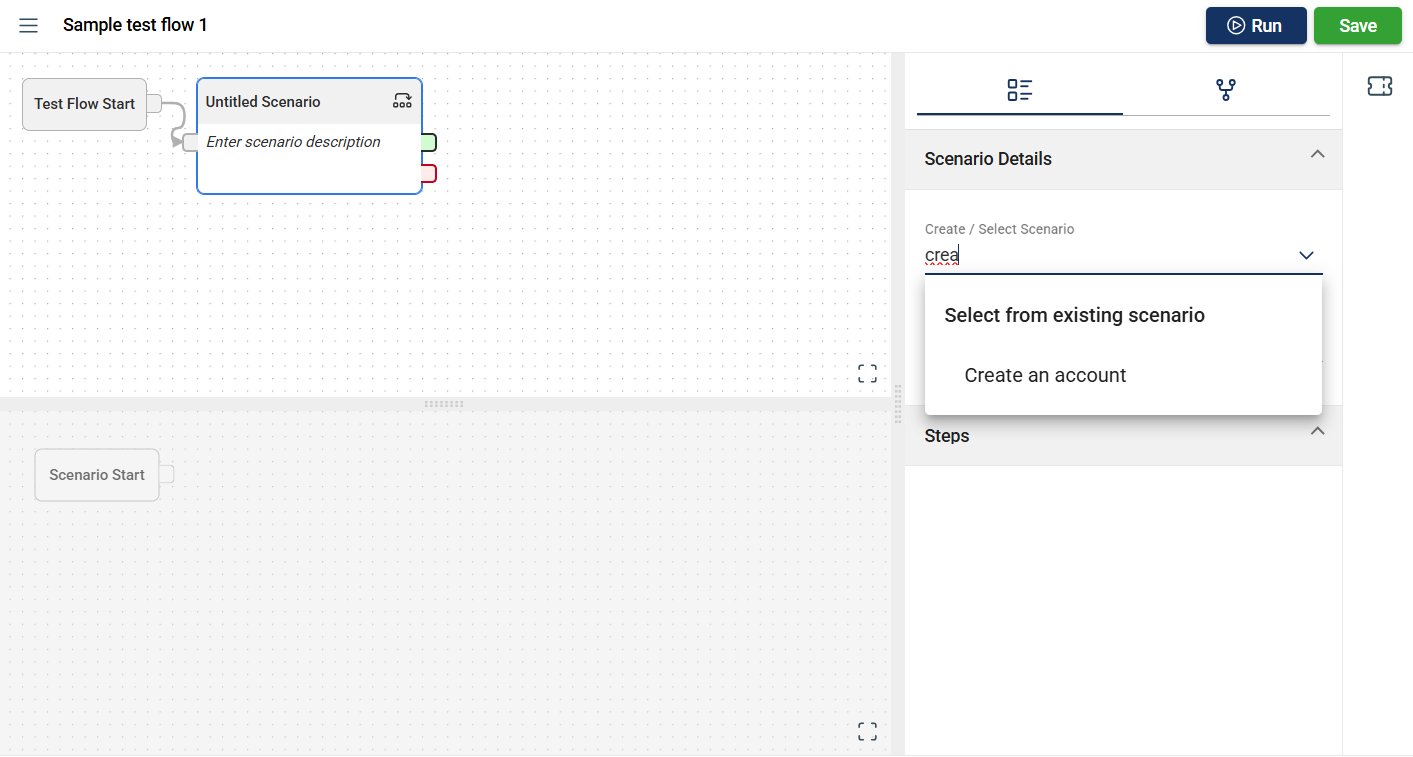
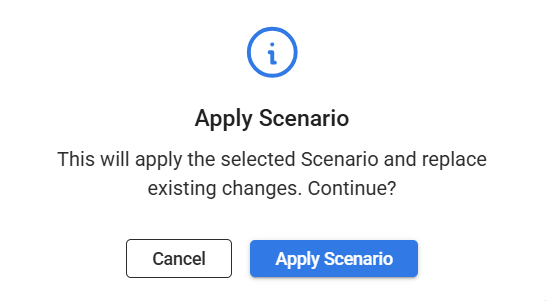
Add your first scenario by selecting an existing scenario within your project in the Create/Select Scenario field in the Scenario Details section. You can also Create a new scenario.
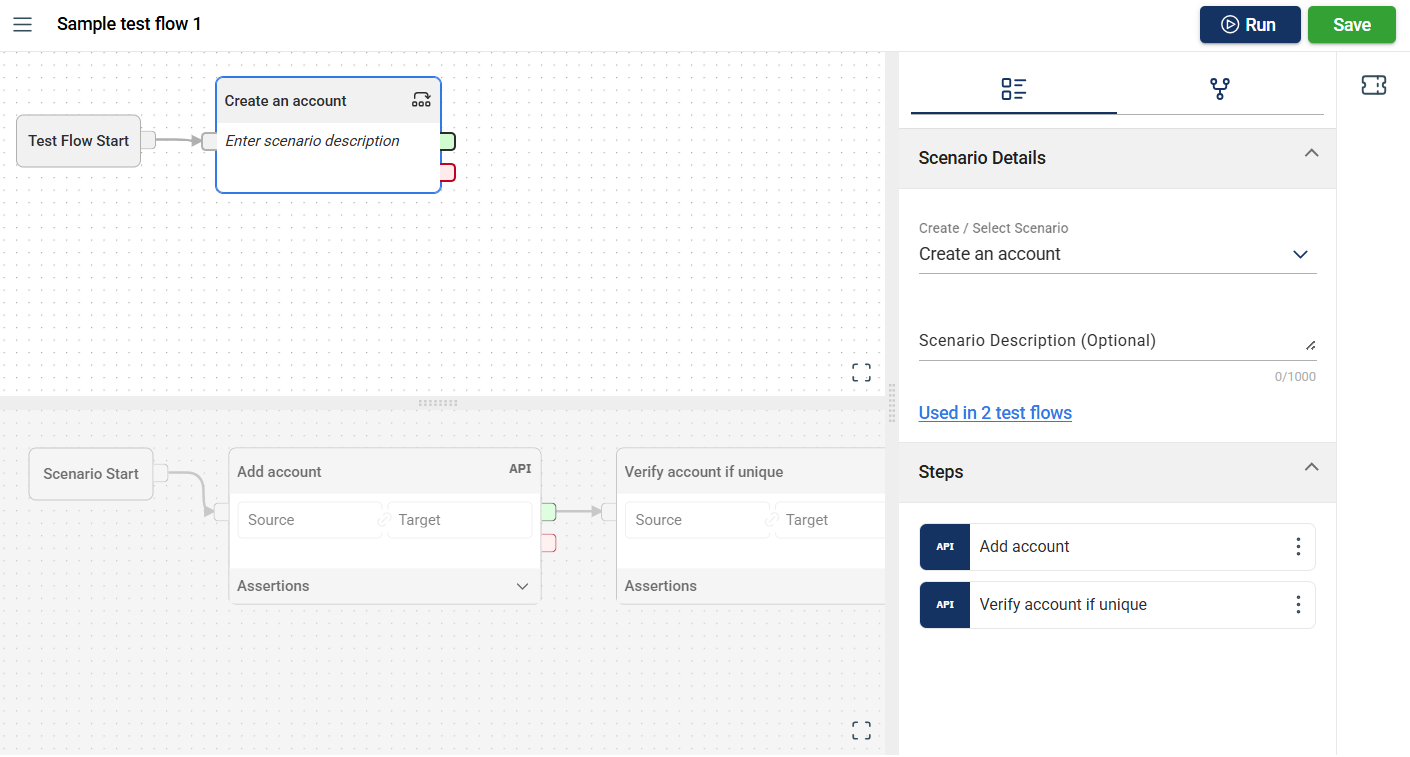
Note that if you are using an existing scenario, the steps, sources, targets, and assertions configured in that scenario for other flows will be included.
Verify that all the associated steps for the selected and applied scenario are displayed. You can also Create a step in the flow module.
Optional. Add a source and target parameters to the steps.
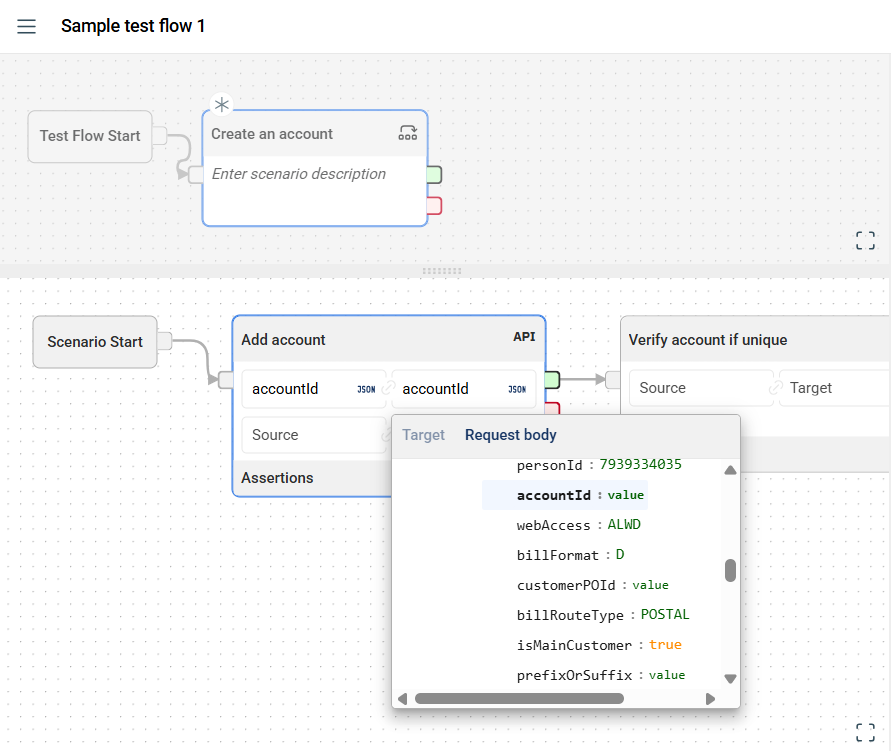
Scenarios connected from a fail node are only executed only after the parent scenario fails. If the parent scenario passed, the fail-node scenario will be skipped.
Steps connected from a fail node are only executed only after the parent step fails. If the parent step passed, the fail-node step will be skipped.
You can also modify the configuration of test flows that have already been added to a test suite.
You can change the execution order of test flows by using the drag-and-drop functionality.
You can also modify the the dataset associated with a test flow or configure multiple datasets for it even after it has been added to the test suite. For more information, see Edit a dataset.
Similarly, if you need to run the test flow in a different environment you can also modify the environment. For more information, see Modify a step in the Flow module
To run the test flow, click the Run button to view the Run Setup Form. Configure the necessary parameters in the following sections, then click the Run button.
Once the flow is executed, a new browser tab displaying the Run Details page will open. For more information, see Results.
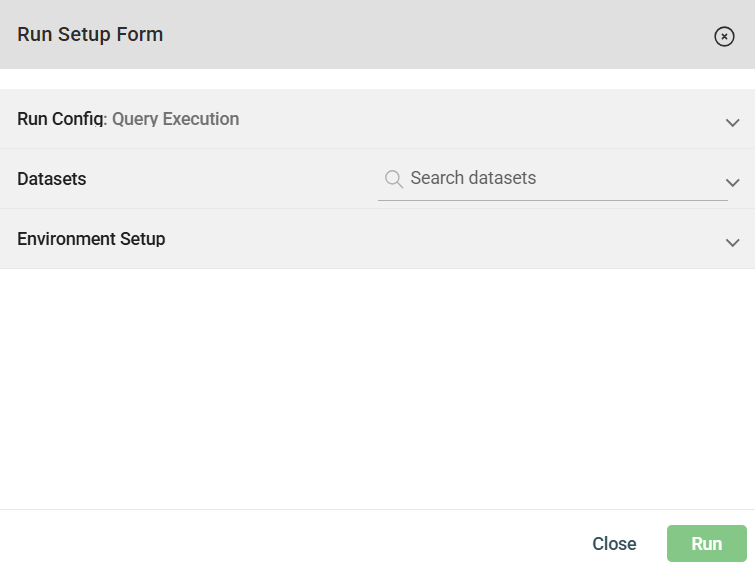
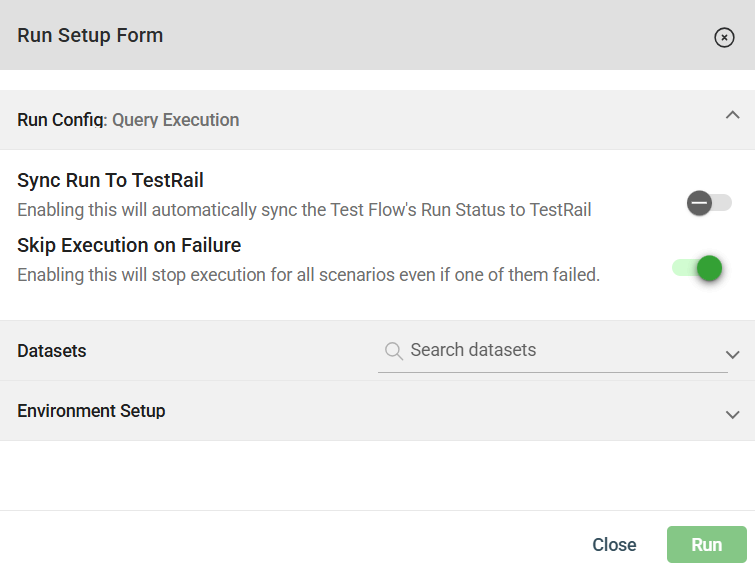
The Run configuration allows you to enable the following options for flow execution:
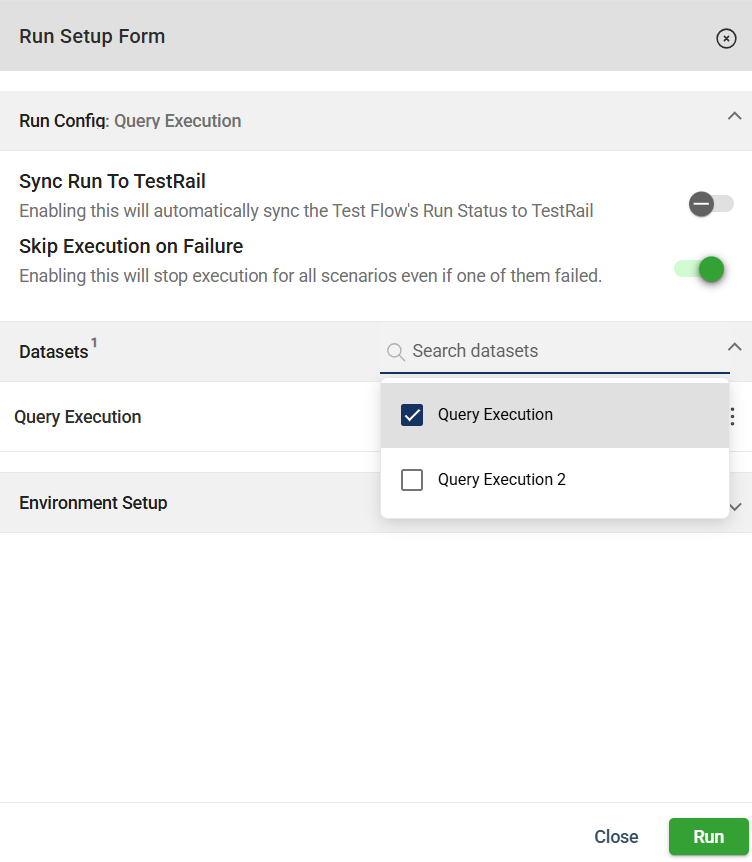
Add the datasets to be used for execution by searching in the Search datasets field. All datasets associated with the flow are displayed. A counter in the header shows the number of selected datasets. Once selected, the datasets appear in the list.
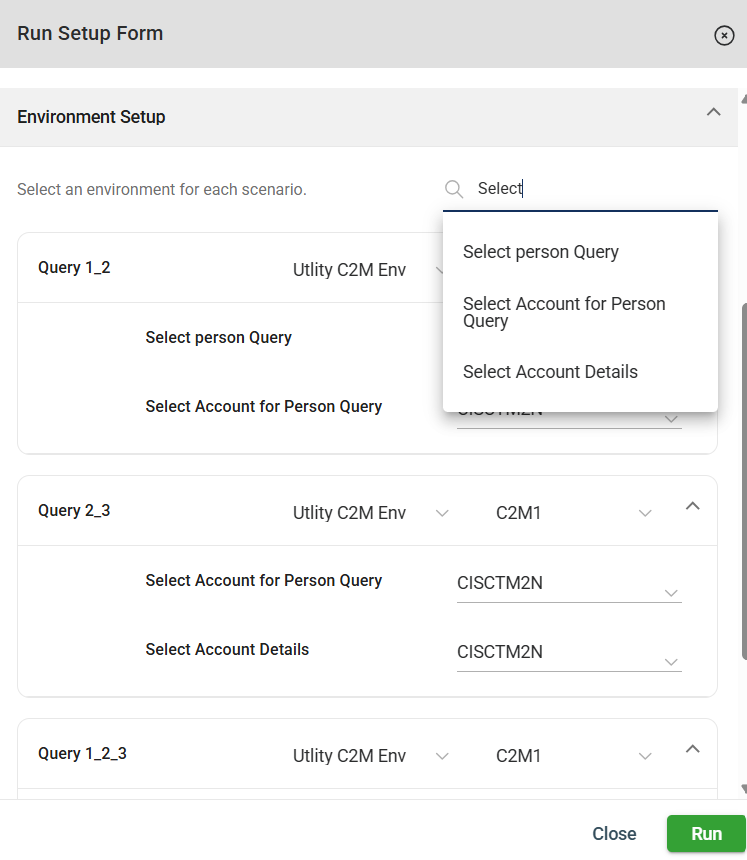
Before running a flow, you can also configure the environment for each scenario. All scenarios are listed in this section. The following settings can be configured for each scenario:
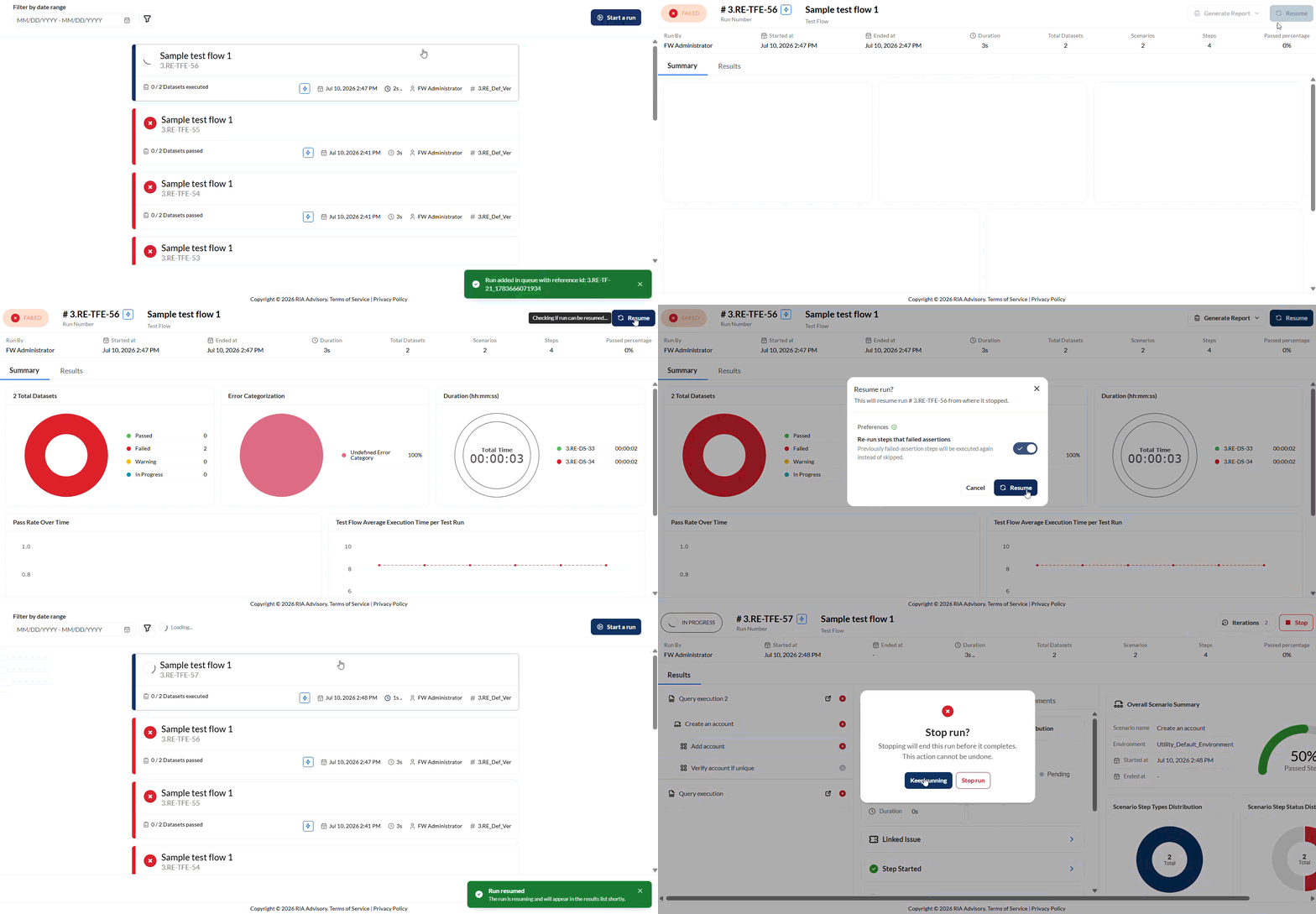
To resume an execution, click the Resume button.
You will have an option to rerun steps that failed assertion by enabling or disabling the toggle. If this is enabled, steps with failed assertions will be reexecuted. If not, steps with failed assertions will be skipped.
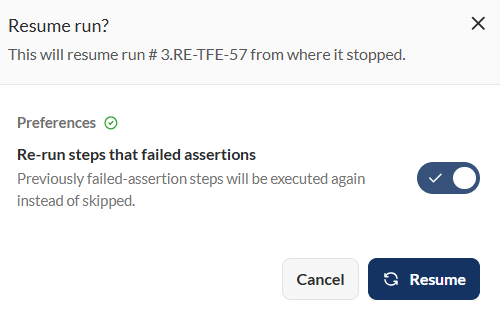
Then, click Resume on the confirmation prompt.
The execution will then be resumed from where it was stopped.
Note: Only executions with an enabled Use New Execution Engine can be stopped.
If you want to stop an execution, click the Stop button on the upper-right corner of the Results screen.
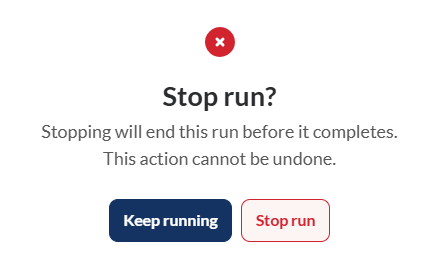
Then, click the Stop run button on the confirmation prompt.
Once an execution has been stopped, the Resume button will be displayed.
To view all iterations generated during a resumed execution, click Iterations on the upper-right of the Results page.
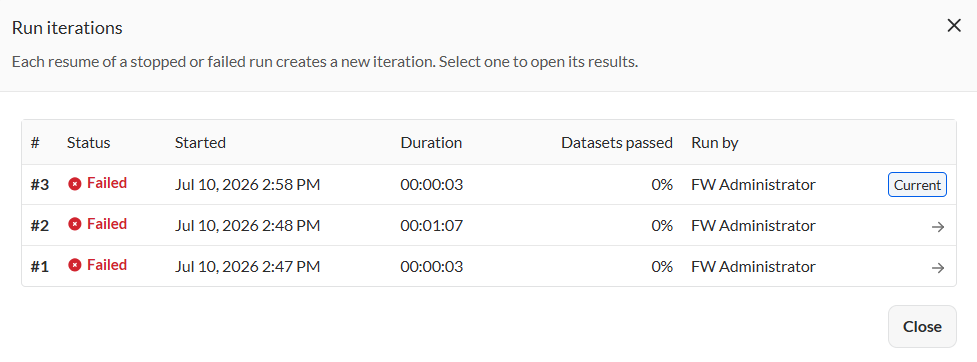
The currently viewed iteration will be mark as Current. If you wish to view the results of a different iteration, click the -> icon for that iteration.
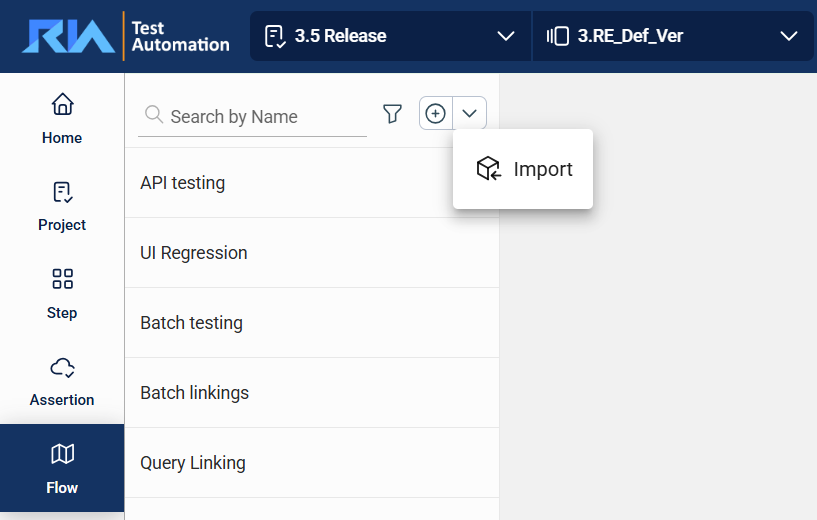
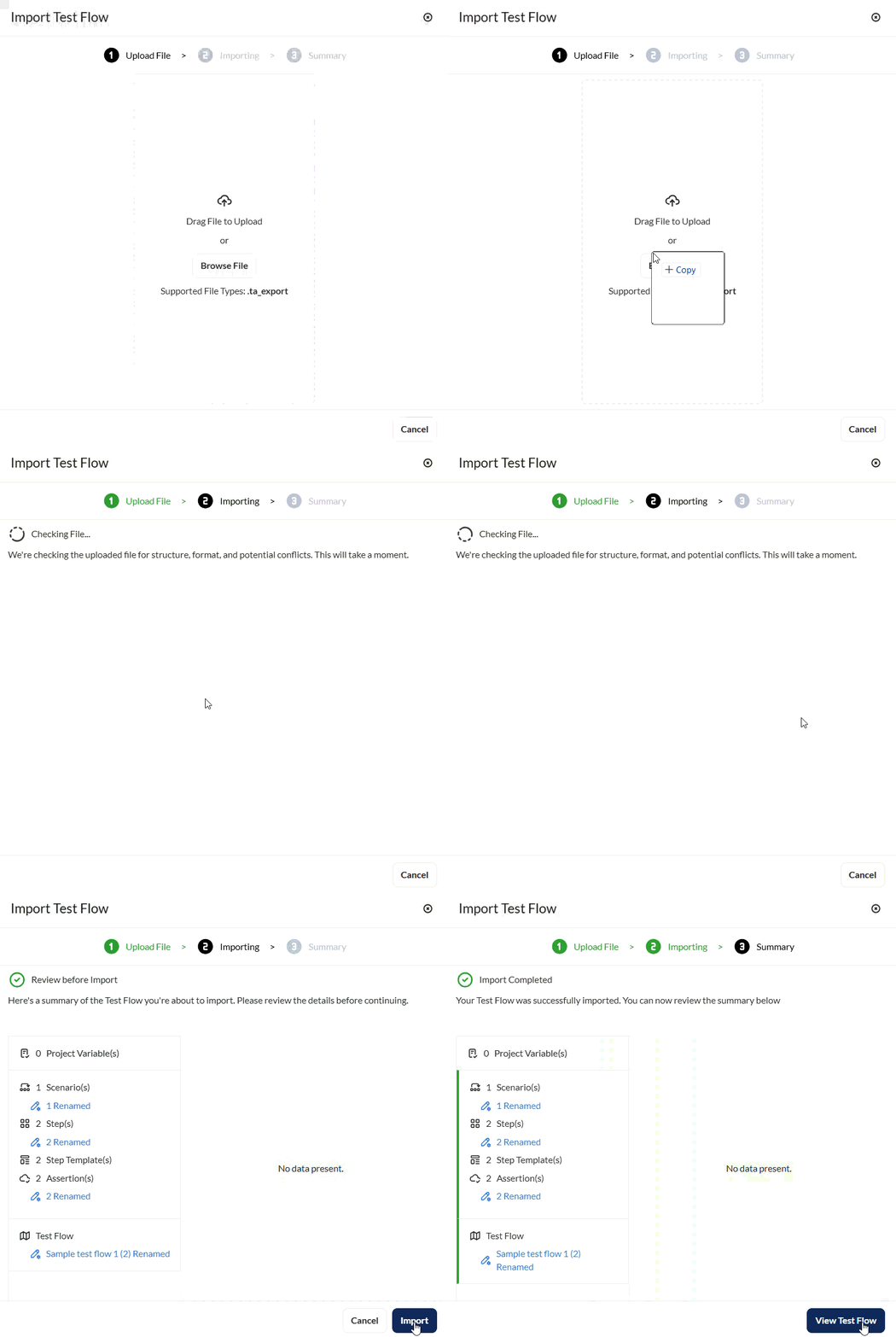
The Flow module enables you to import existing flows by clicking the down arrow in the left menu and select Import.
Drag or browse the file to be imported. The only supported file type is .ta_export.
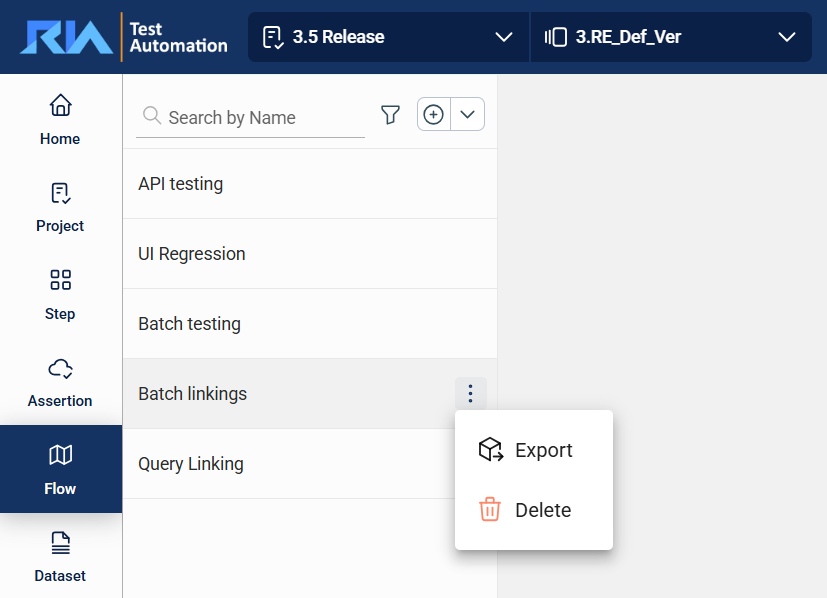
To export a flow, hover over the flow you want to export. An icon will appear. Click on this icon and select Export.
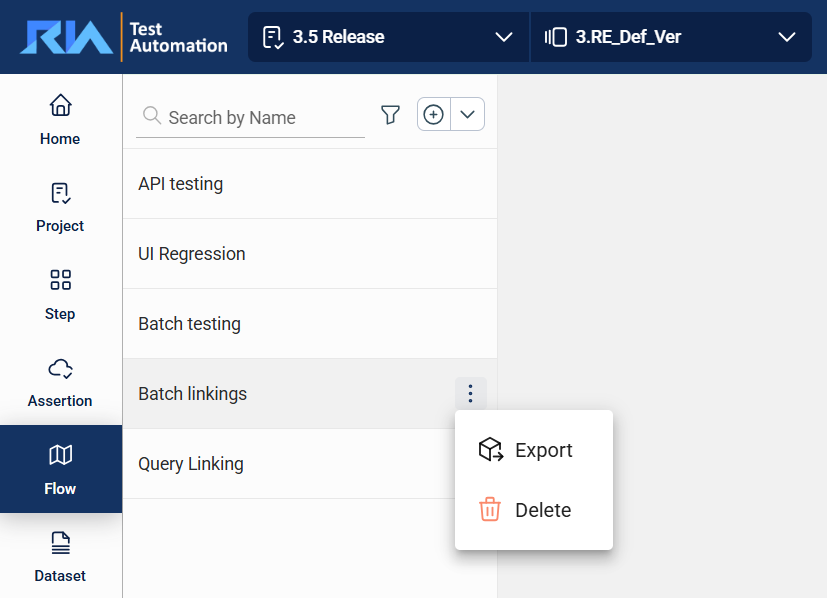
A list of all items to be exported is displayed.
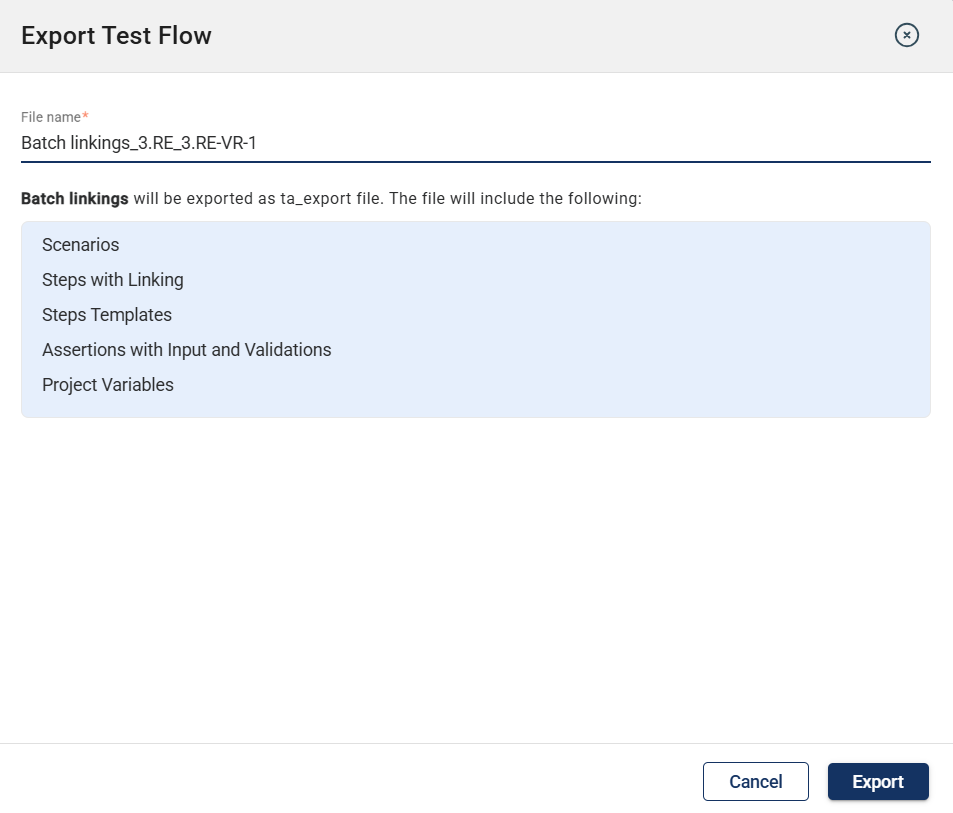
After confirming the list, TA begins the export process.
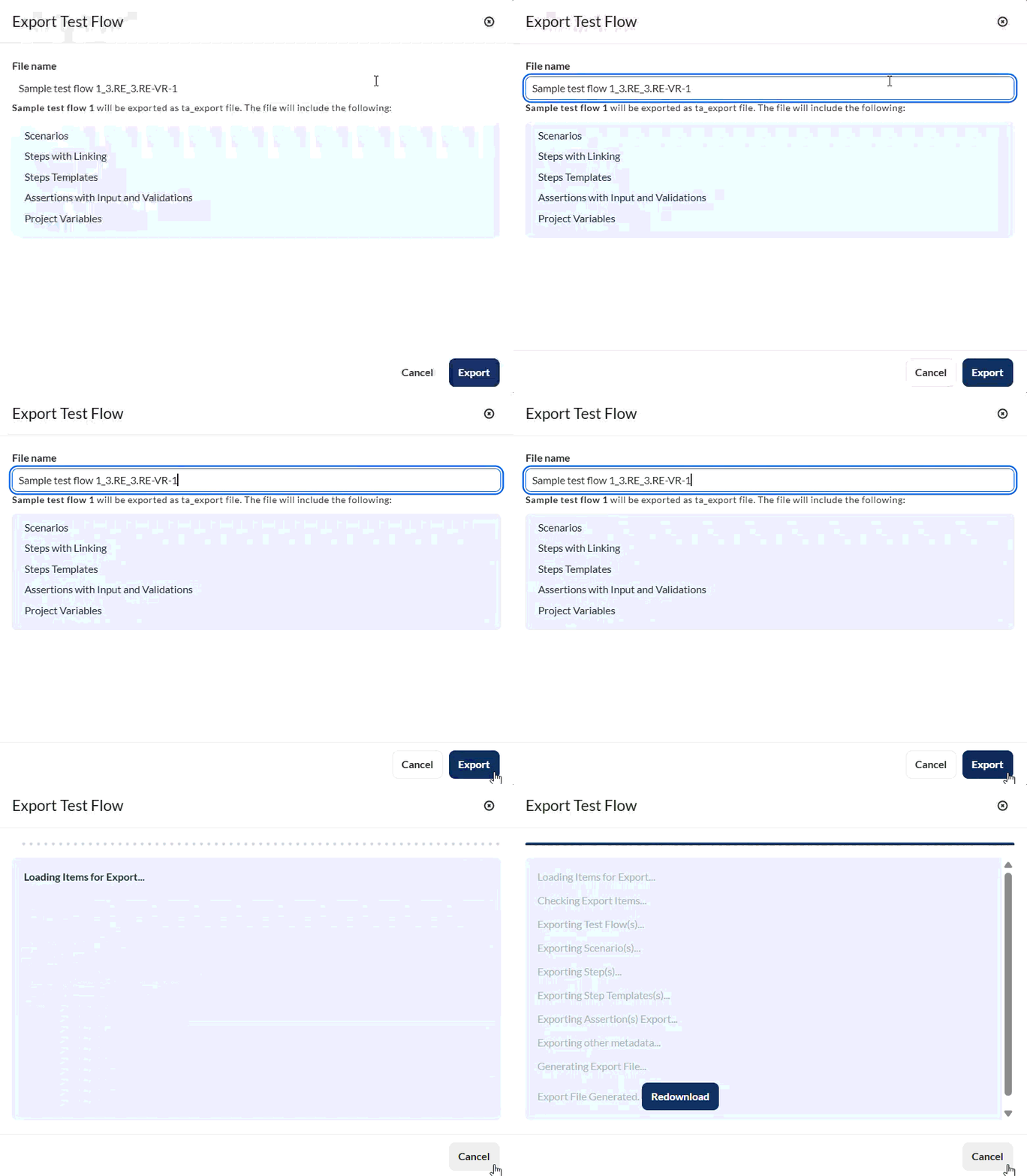
Once complete, the file is automatically downloaded to your machine.
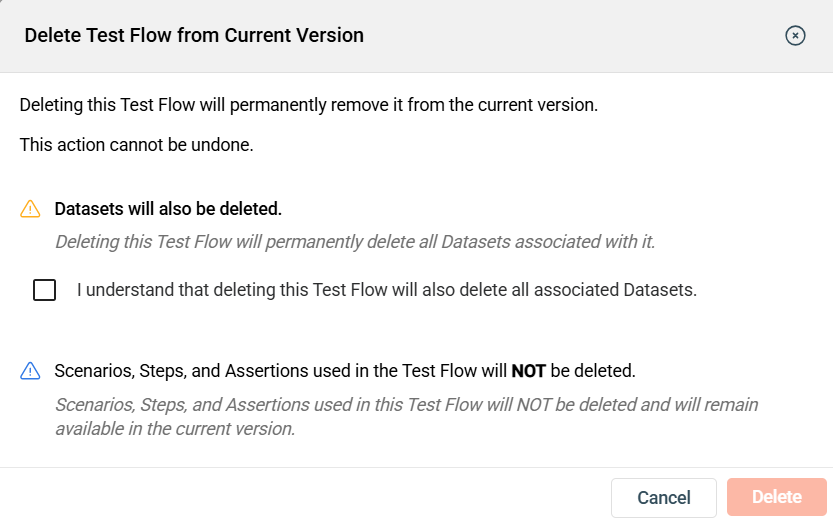
To delete a flow, hover over the flow you want to remove. An icon will appear. Click on this icon and select Delete.
The flow will be deleted from the version, but the scenarios, steps, and assertions used in it will not be deleted.
A scenario is a high-level description of what you are testing. It consists of Steps that break down the scenario further, and Assertions that serve as validation criteria. A scenario can only be considered a success if it meets the validation criteria. Otherwise, it will be tagged as failed.
To create a new scenario, follow these steps:
Add a new scenario node.
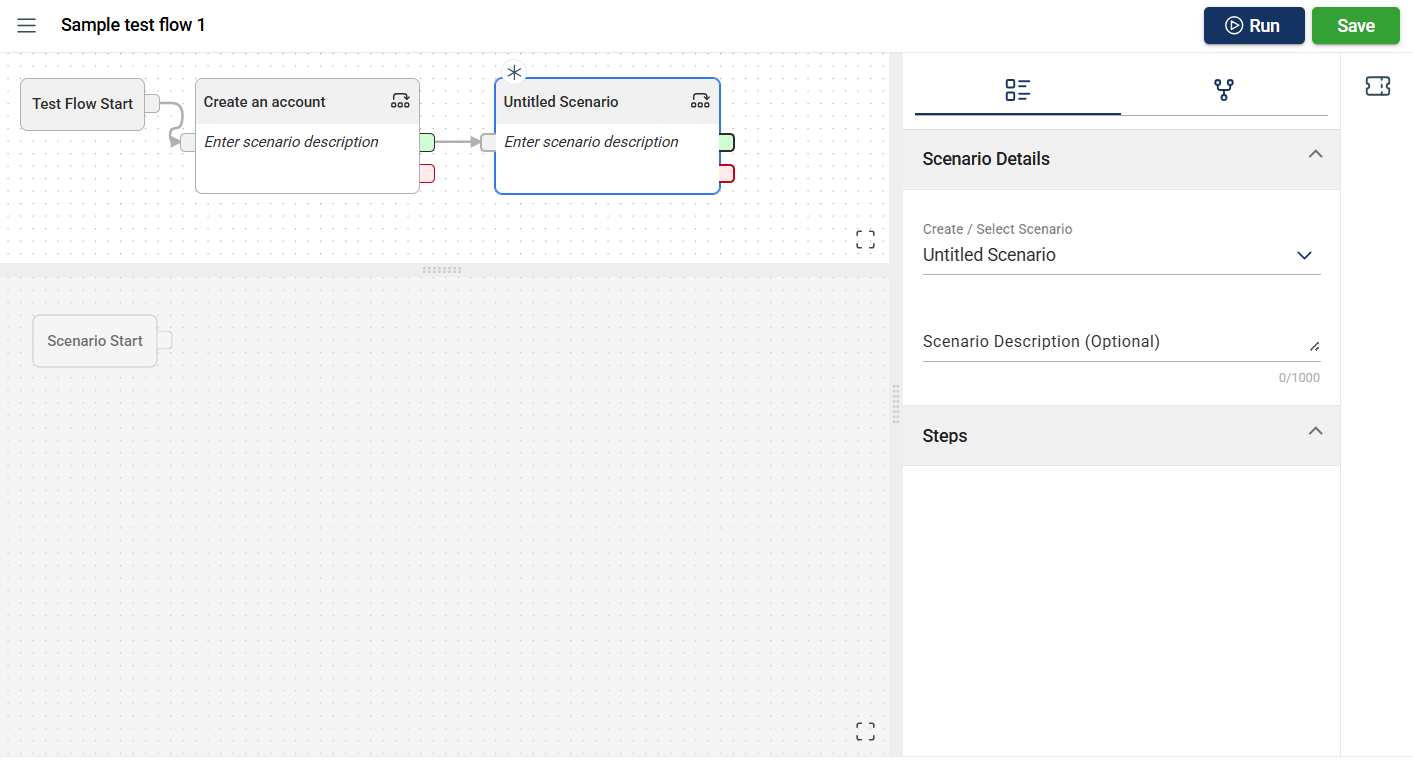
Rename the scenario.
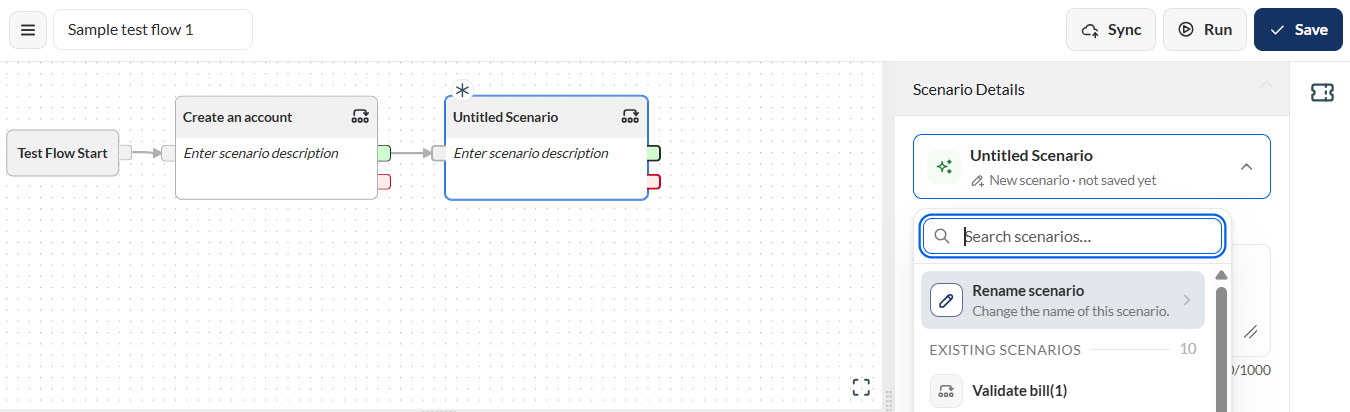
Enter a valid scenario name in the Scenario name field.
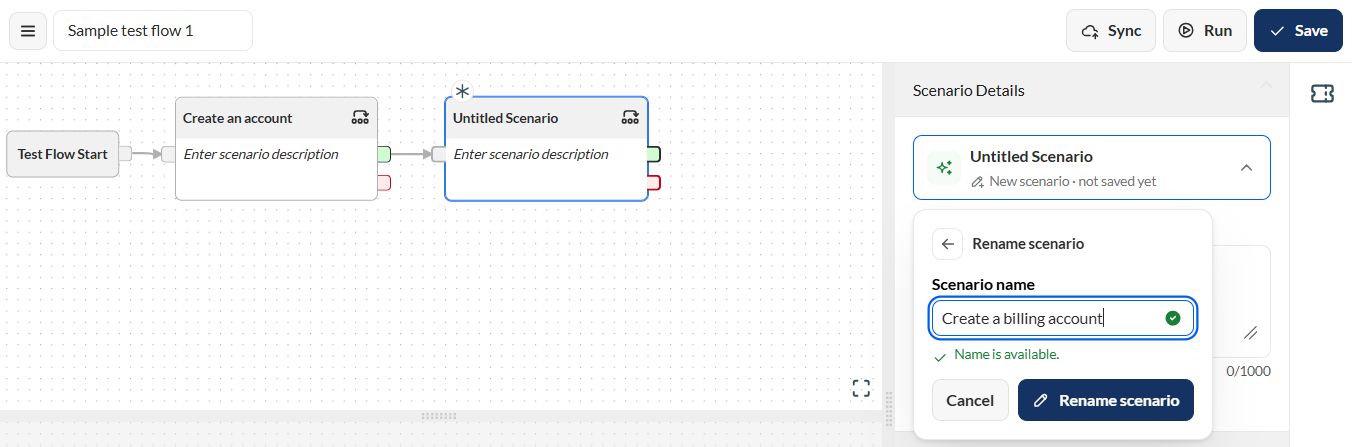
Click the Rename scenario button.
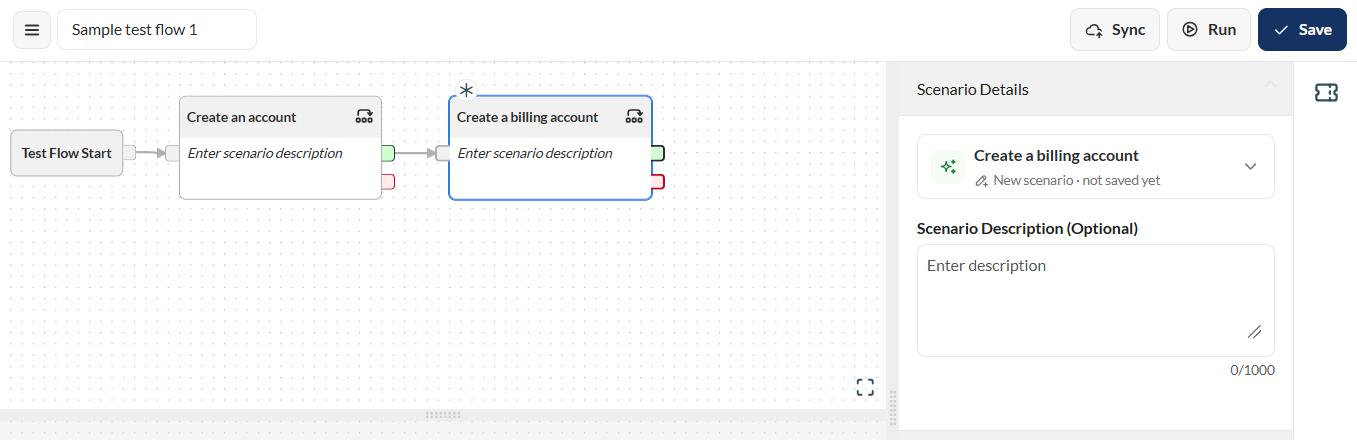
Optional. Add a description for your scenario.
To add steps and assertions to your scenario, see Create a Test Flow.
To clone a scenario, follow these steps:
Select a scenario you wish to clone.
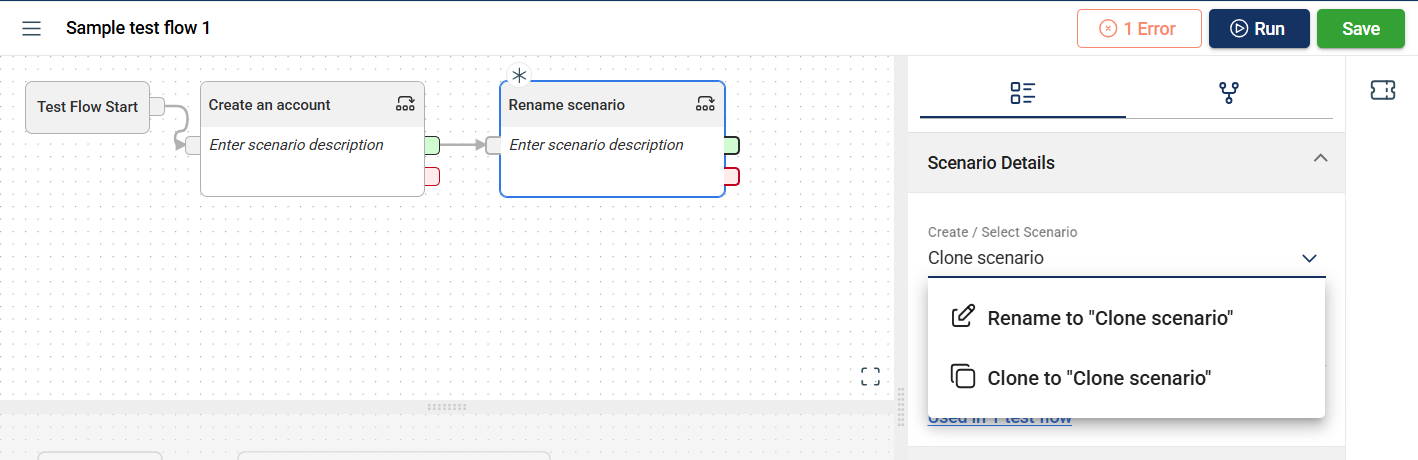
Click the scenario dropdown in the Scenario Details pane.
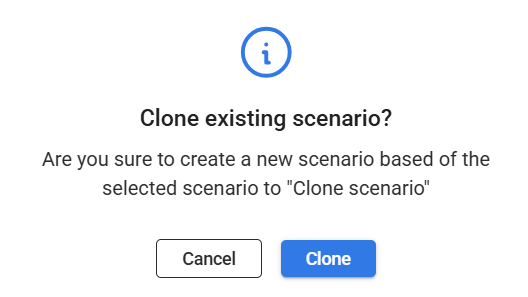
Select Create new from <name of the selected scenario>.
Enter a valid name in the Scenario name field.
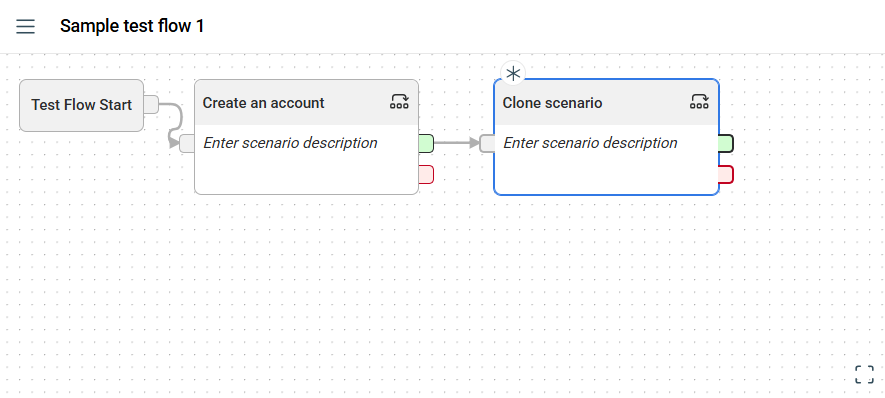
Click the Create copy button.
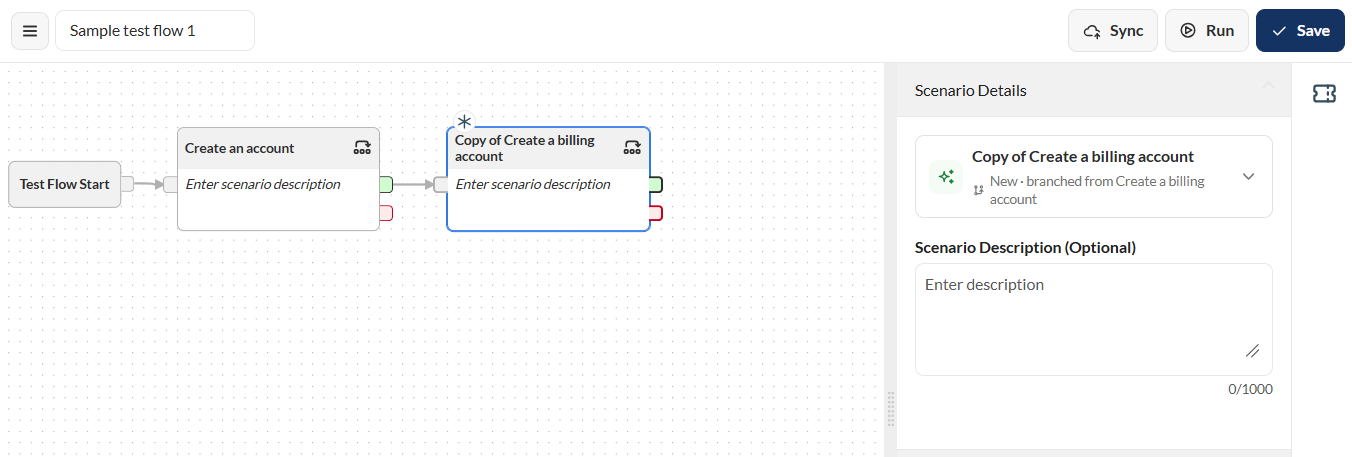
The cloned scenario replaces the older scenario.
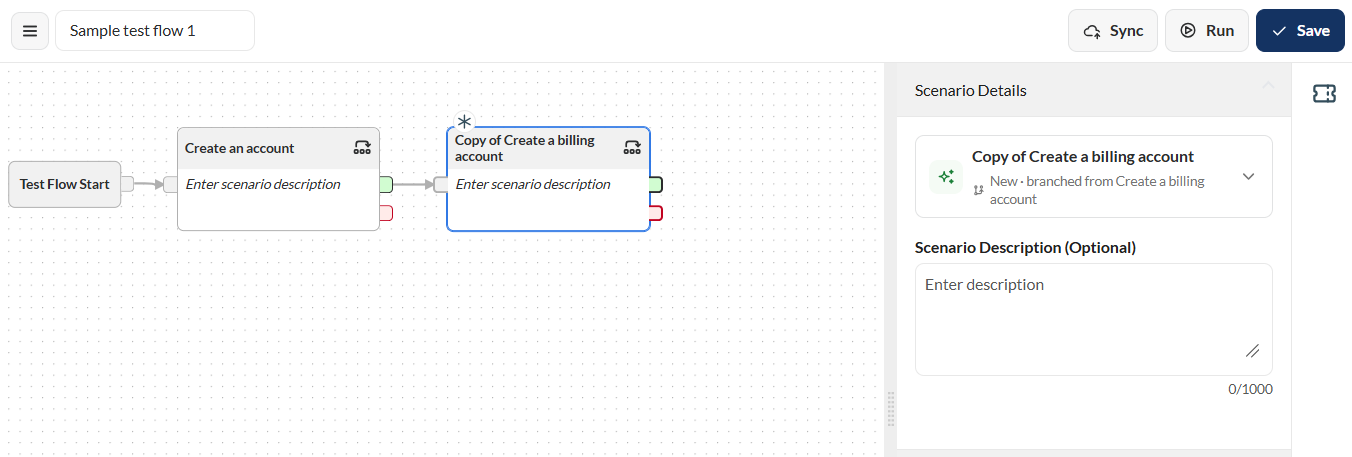
To delete a scenario, click the more options icon in the upper-right corner of the scenario box, then select the Remove icon from the menu.
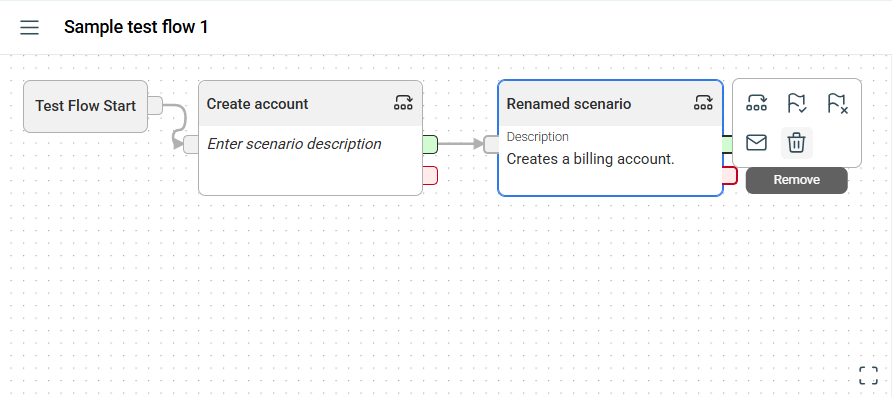
A prompt will ask whether to delete the scenario from this flow or from the entire version. Select your preferred option to continue.
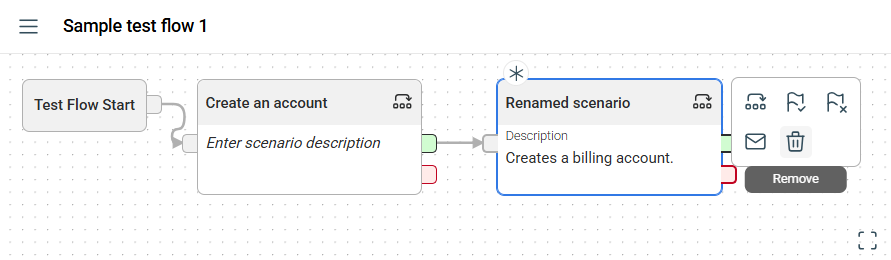
If you select Remove from test flow, the scenario is deleted only from the current flow. Other flows using the scenario remain unaffected. There is no confirmation prompt, so verify you have selected the correct scenario before proceeding.
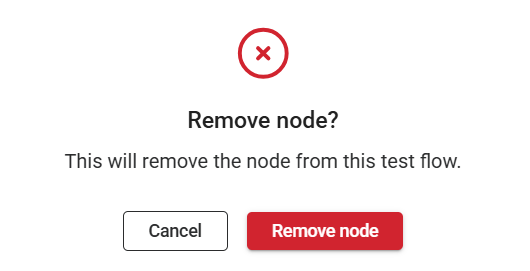
If you select Delete scenario entirely, the scenario is permanently removed from the version.
If the scenario is used in other flows, a pop-up will display all affected flows. You must delete the scenario from these flows before proceeding.
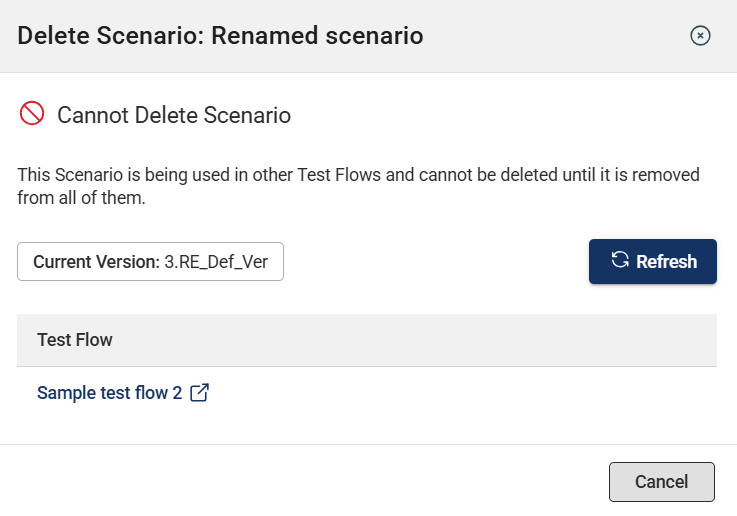
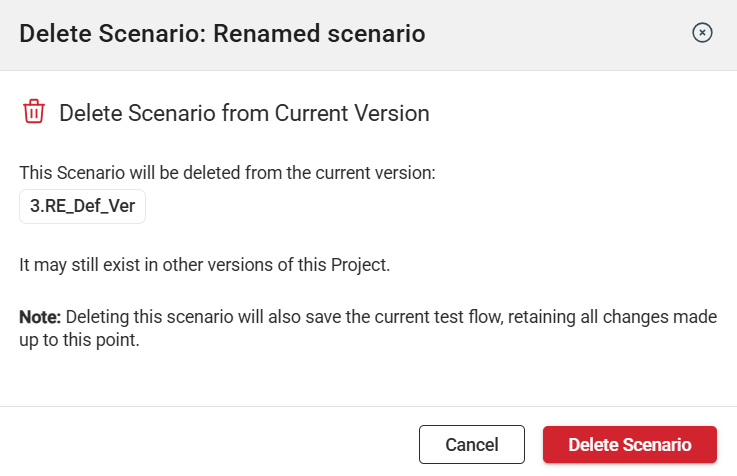
After deleting the scenario from all flows, you can now delete it entirely. A prompt specifying the version where it will be deleted is displayed.
In the scenario usage tab, all the flows using the selected scenario node are displayed.
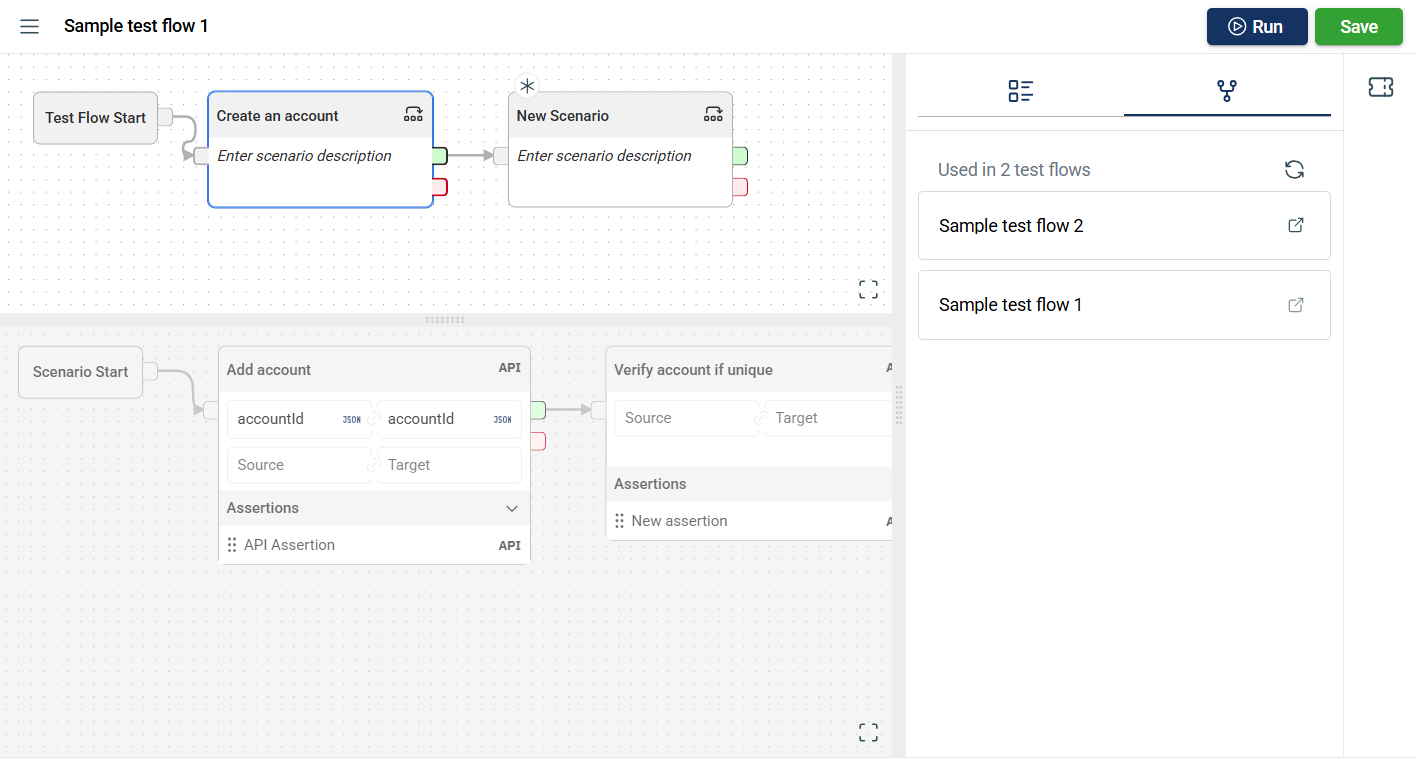
When the hyperlink is clicked, a new tab will open displaying the selected flow.
The Flow modules allow you to use the steps defined in the Step module or add a new step to the project within the module.
To create a new step in the Flow module, follow these steps:
Click the scenario where you wish to create a step.
Select the step type.
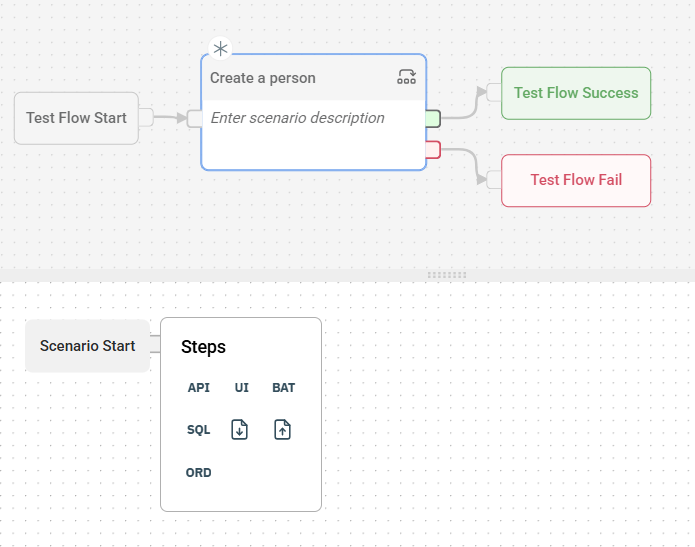
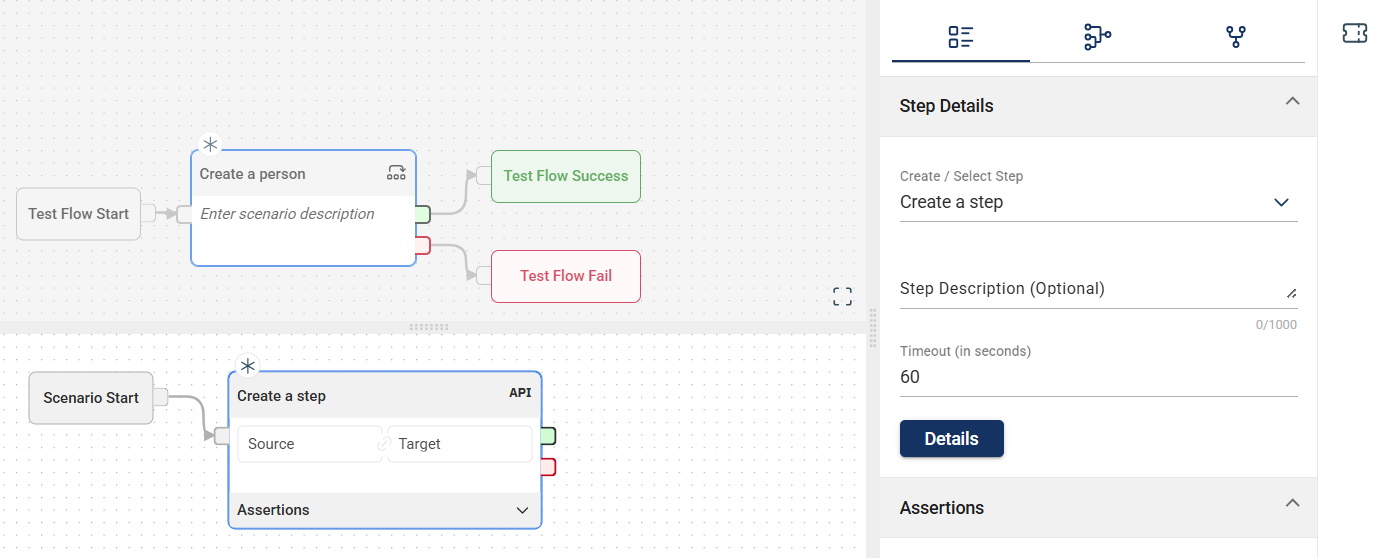

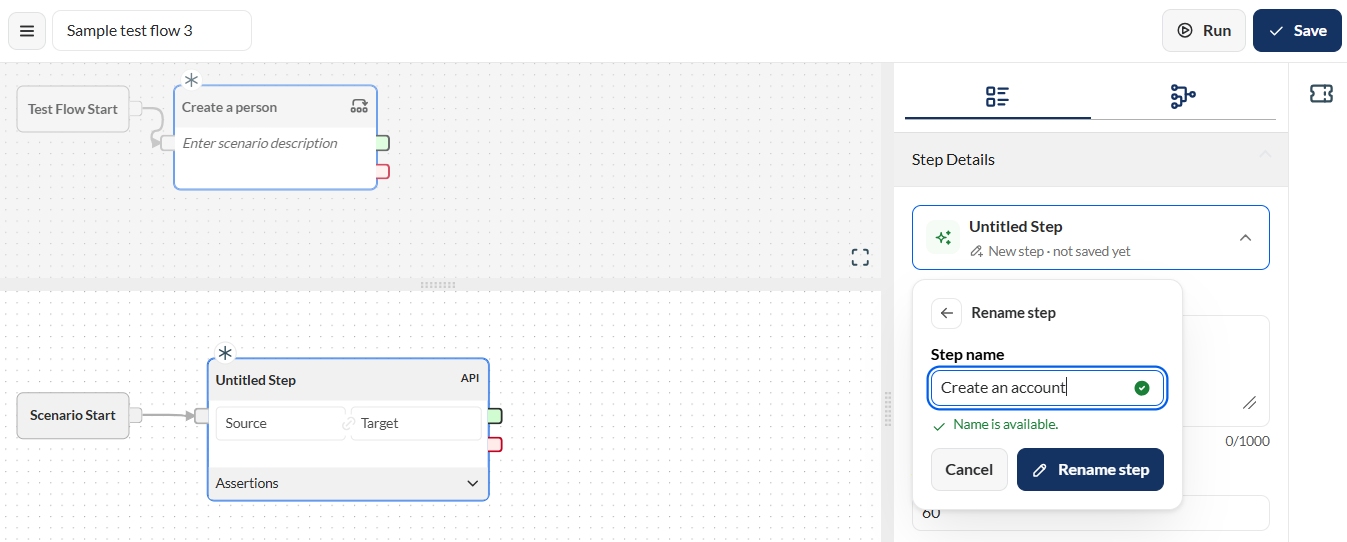
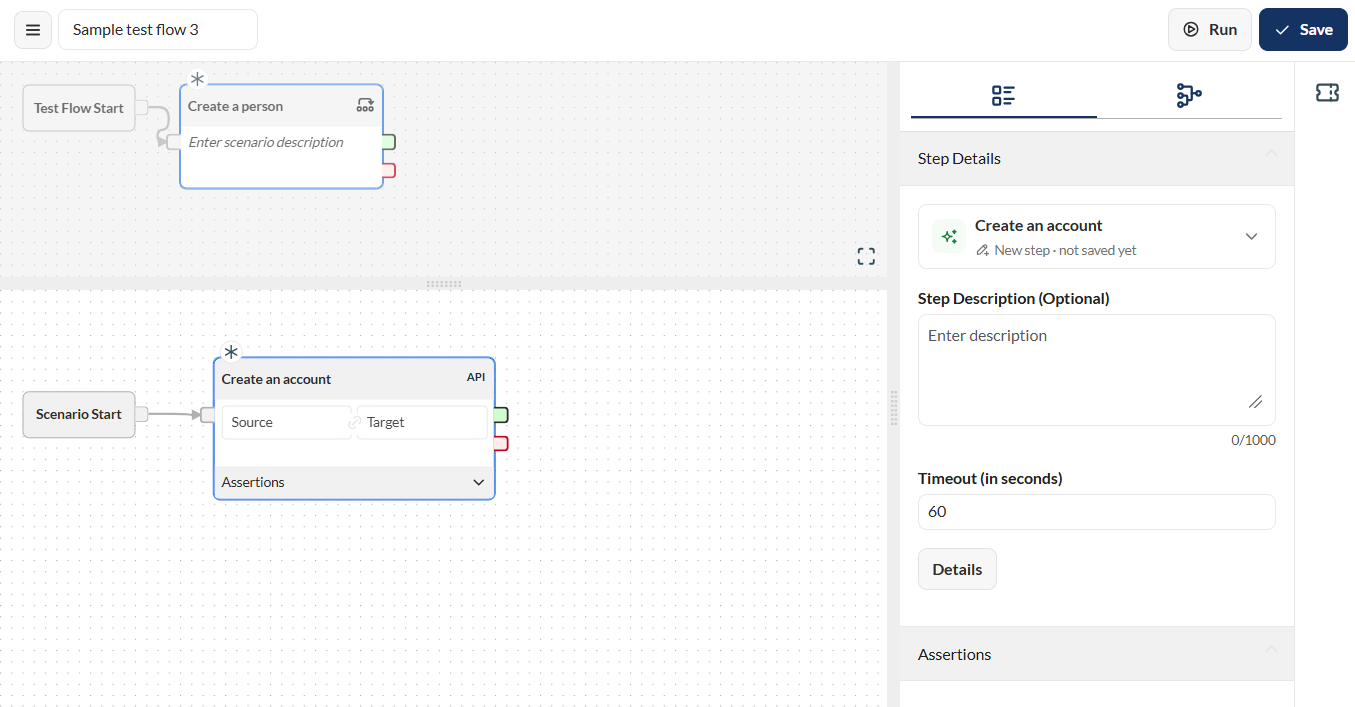
Optional. Enter valid values in the Source and Target fields. For more information, see Step sources and Step targets. You can also add new steps following the newly-created one.
Click Save.
You can link steps to pass parameters to each other. However, you can only link steps that are part of the same scenario.
The following are the possible sources for a step:
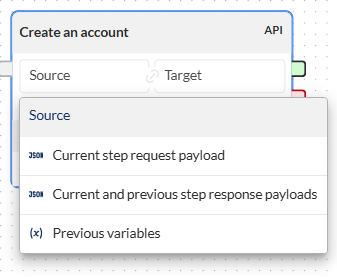
| Source | Description |
|---|---|
| Current step request payload | Uses the value of a JSON node from the current request payload as a source for the selected step. |
| Current and previous step response payloads | Uses the value of a JSON node from the previous and current response payload as a source for the selected step. |
| Previous variables | Uses the value of a test flow variable defined in the step prior to the selected step. |
The following are the possible targets for a step:
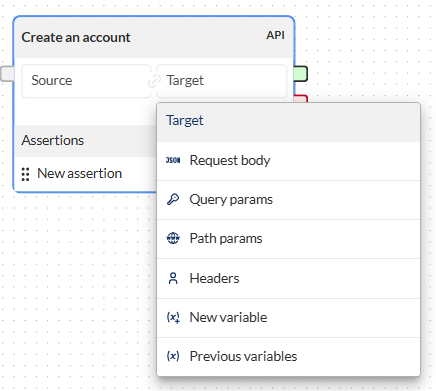
| Target | Description |
|---|---|
| Request body | Uses the value of a JSON node from the current request payload as a target for the selected step. |
| Query params | Assigns the value of the source to a query parameter defined within the selected step. |
| Path params | Assigns the value of the source to a path parameter defined within the selected step. |
| Header | Assigns the value of the source to a header. |
| New variable | Creates a new test flow variable as the target for the selected step. |
| Previous variables | Uses a test flow variable defined prior to the selected step or scenario as a target. |
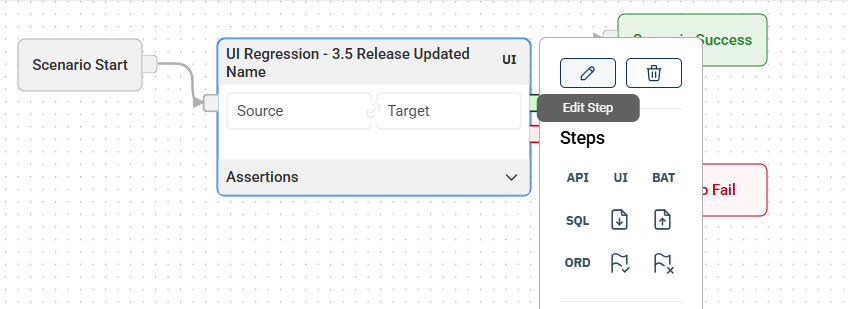
To modify a step in the Flow module, follow these steps:
Click the step type link on the upper-right corner of the step node.
Click the edit icon.
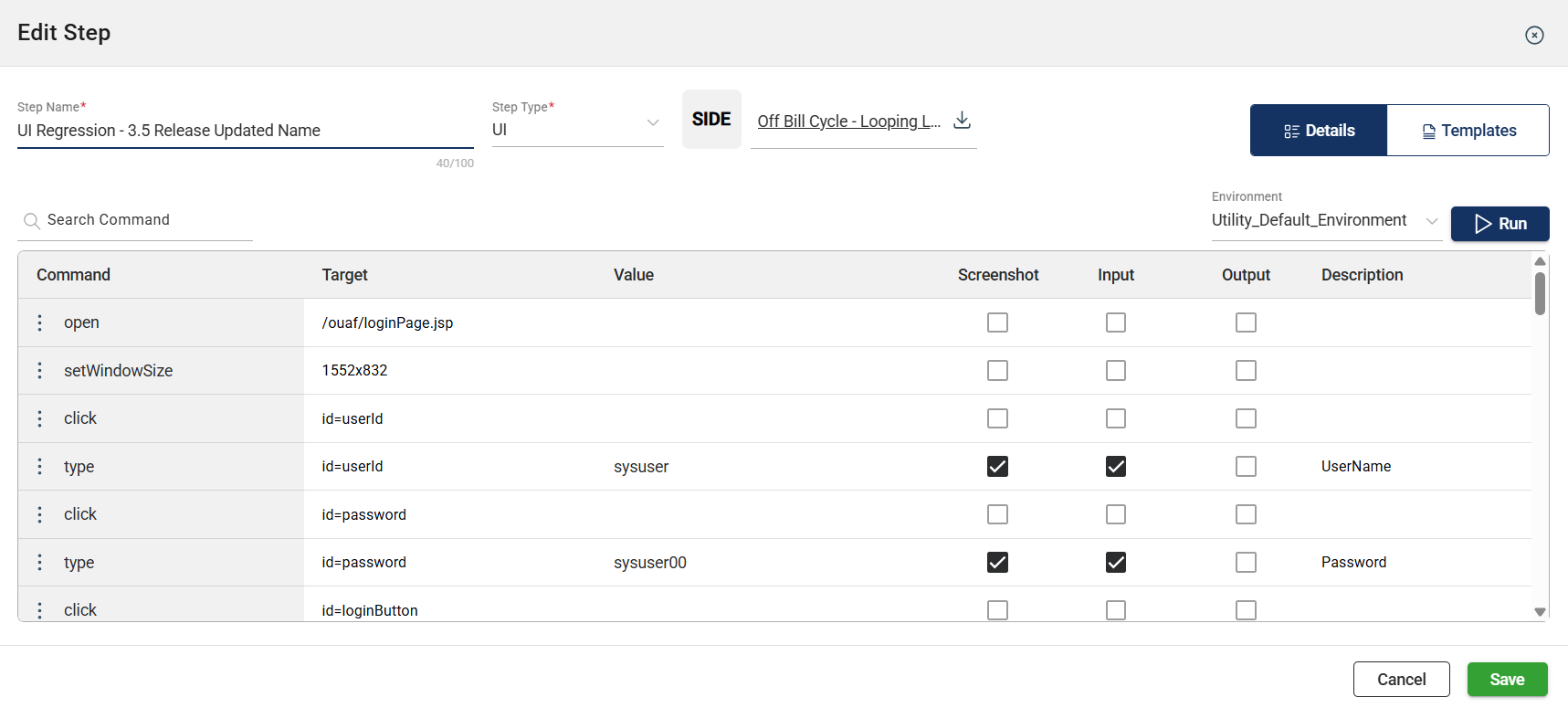
To clone a step, follow these steps:
Select a step you wish to clone.
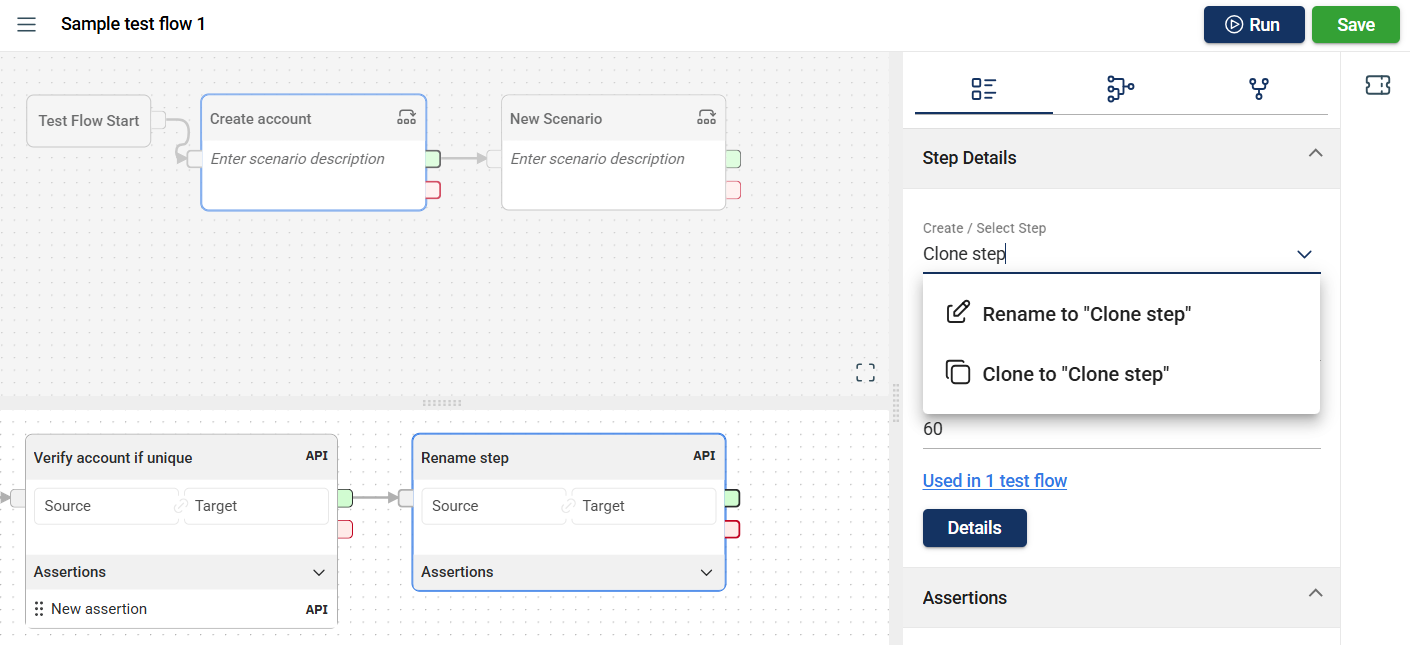
Click the step dropdown in the Step Details pane.
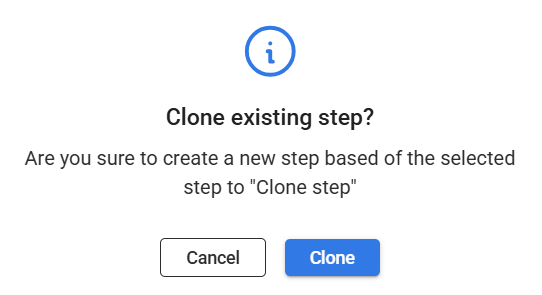
Select Create new from <name of the selected step>.
Enter a valid name in the Step name field.
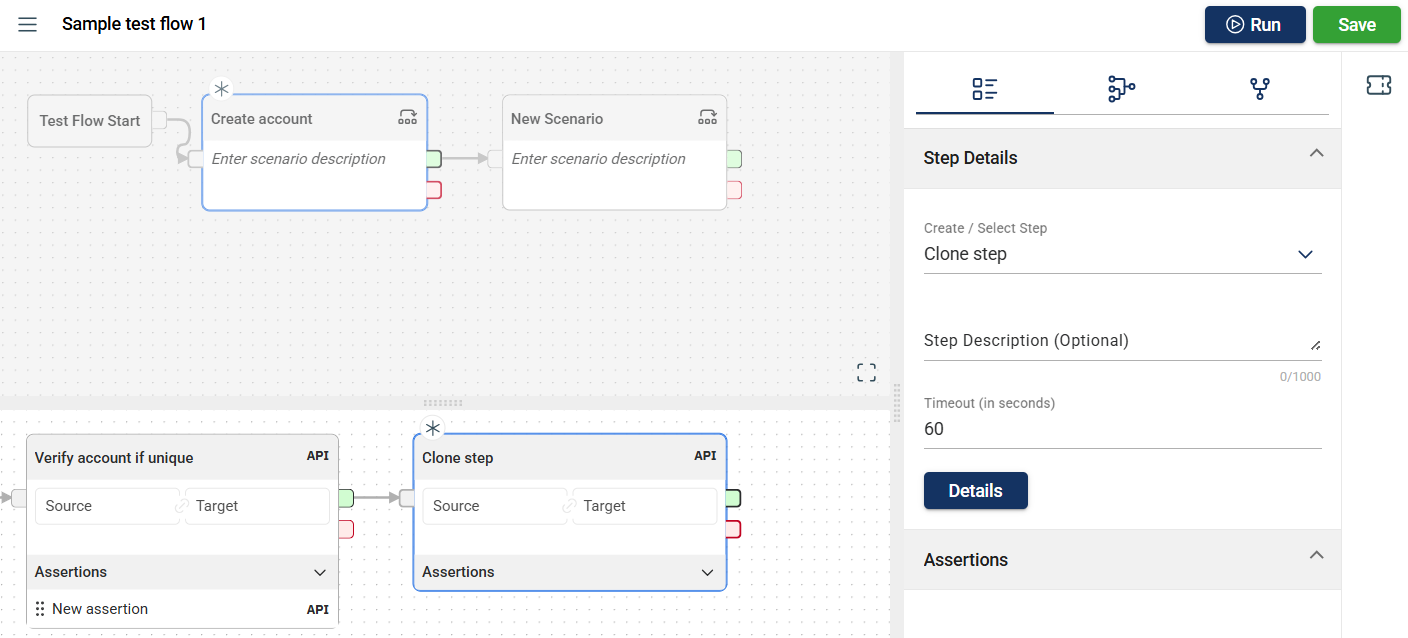
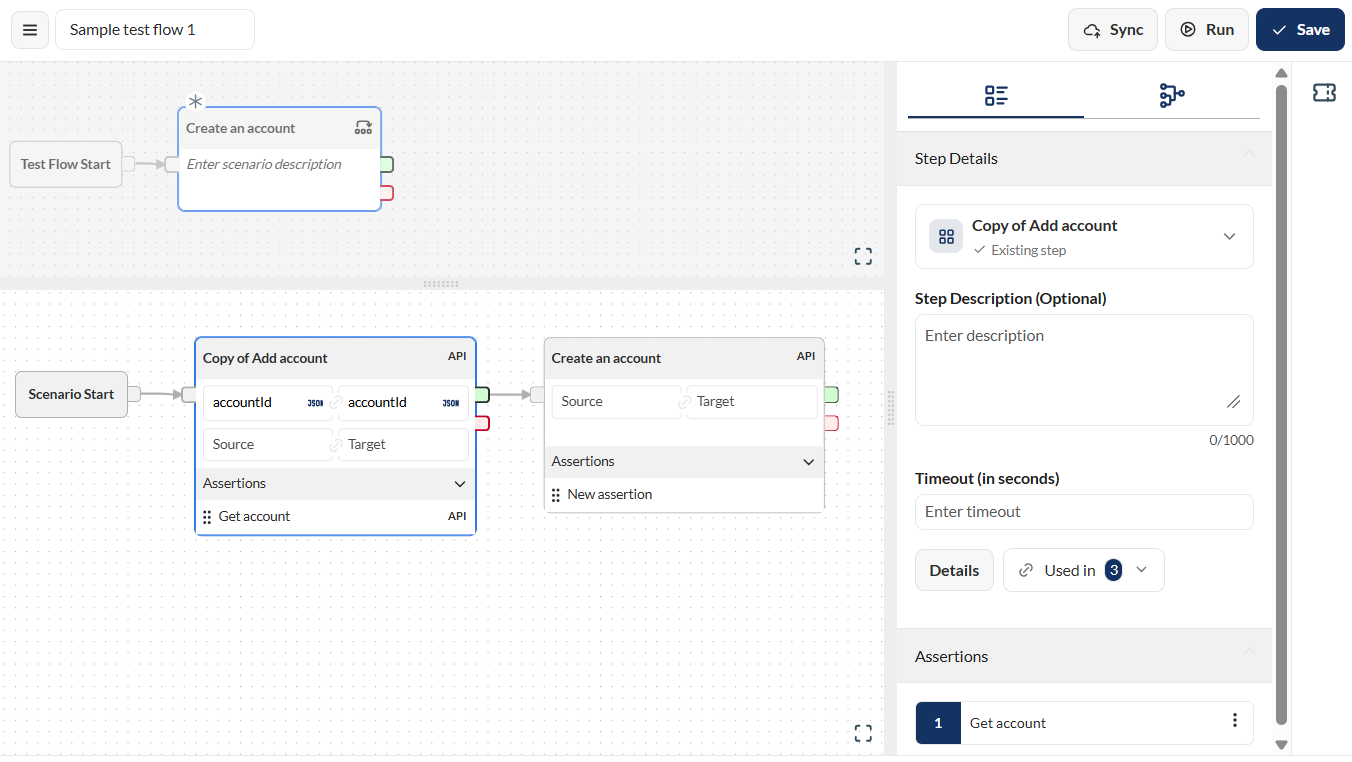
Click the Create copy button.
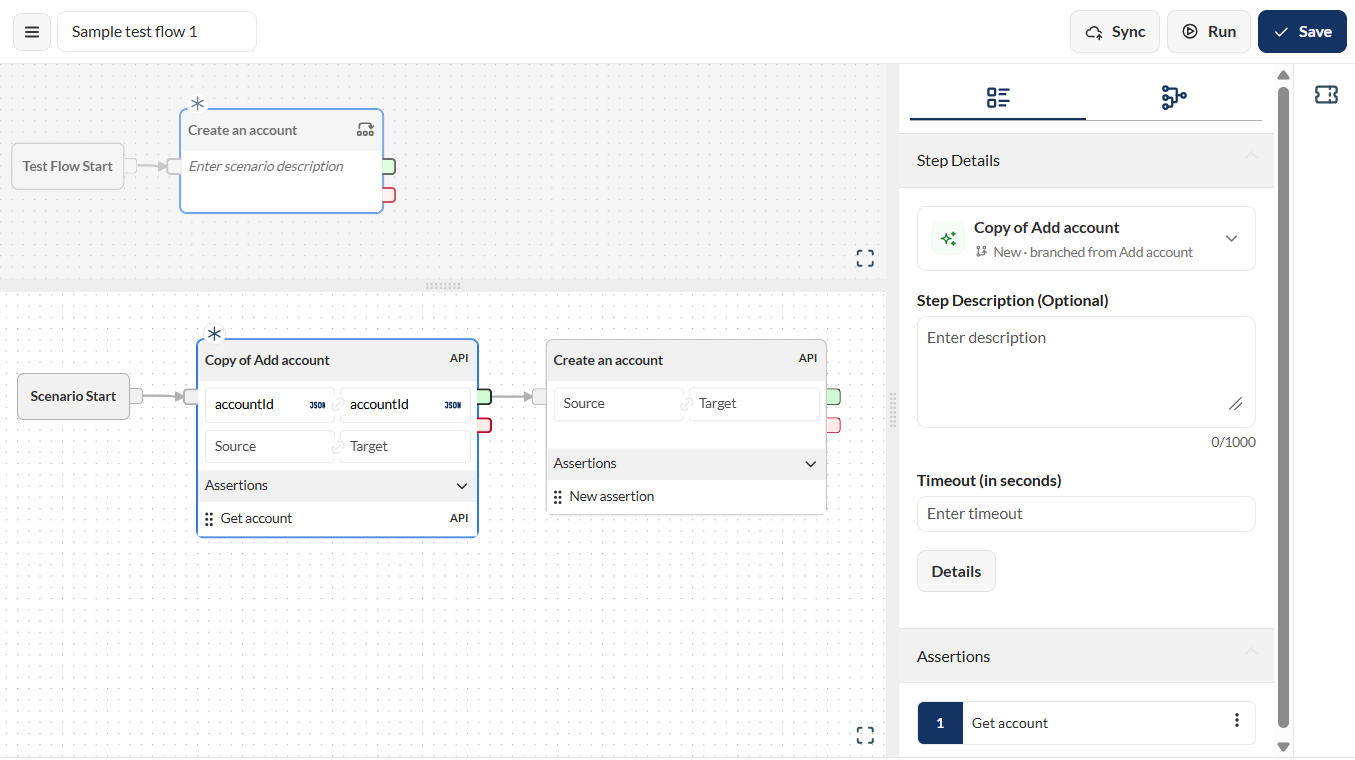
The cloned scenario replaces the older scenario.
To delete a step, click the step type link on the upper right corner of the step box. More otions are displayed, click the Remove Step icon.
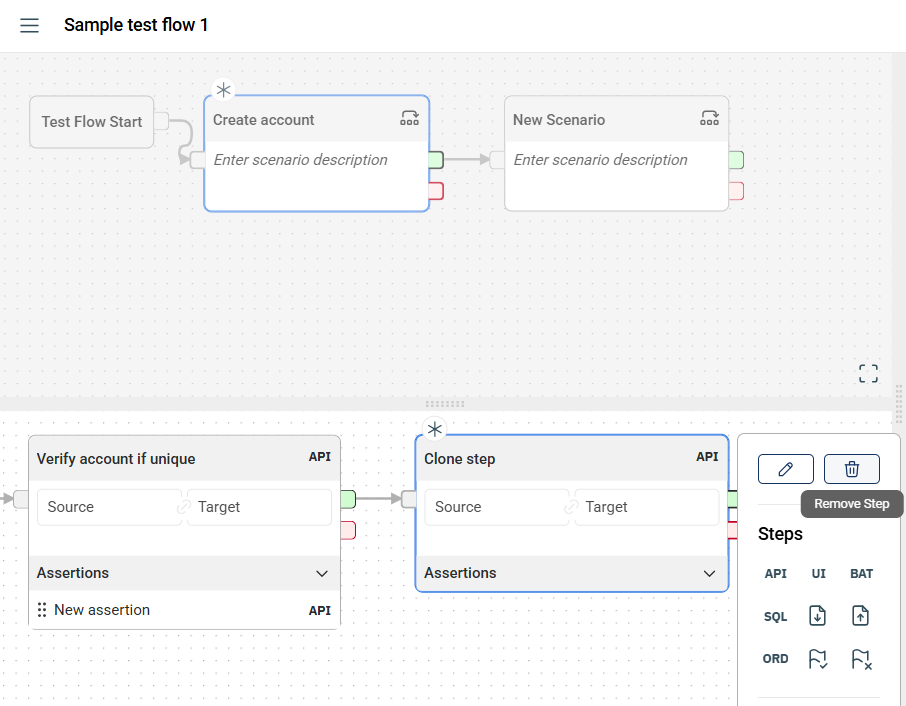
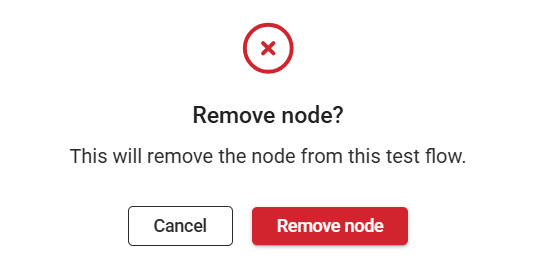
A confirmation popup window will be displayed. Click the Remove node button.
In the step usage tab, all the flows using the selected step node are displayed.
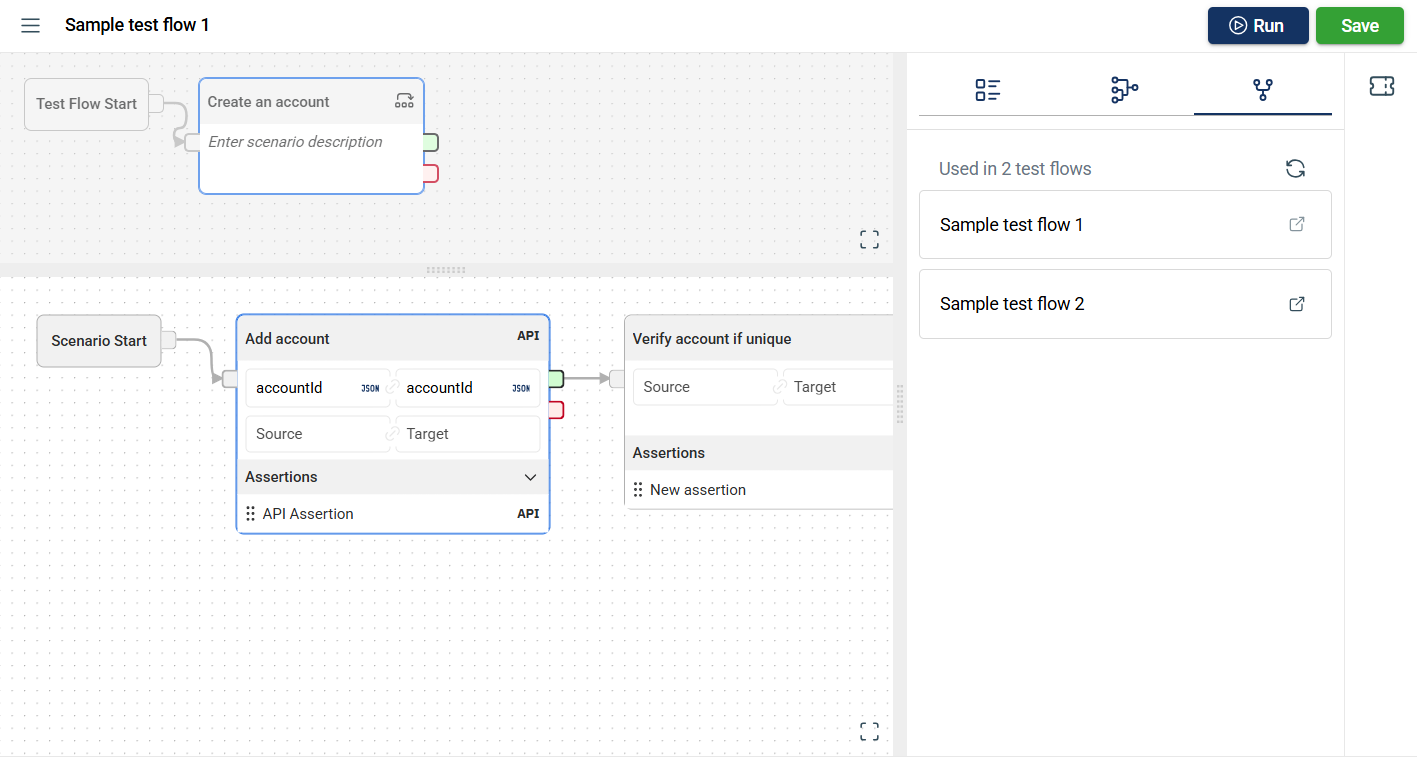
When the hyperlink is clicked, a new tab will open displaying the selected flow.
The Flow modules allow you to use the assertions defined in the Assertion module or add a new step to the project within the module.
To create a new assertion in the Flow module, follow these steps:
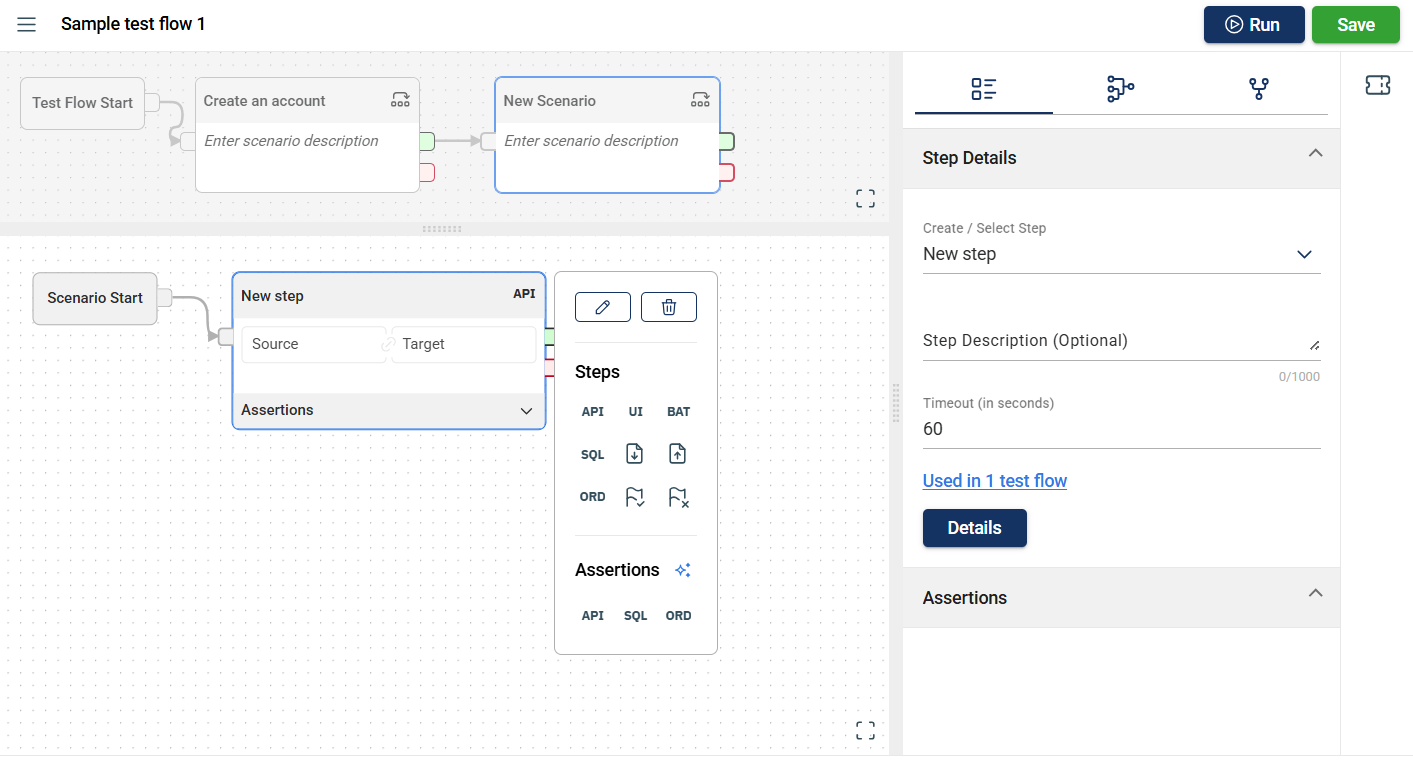
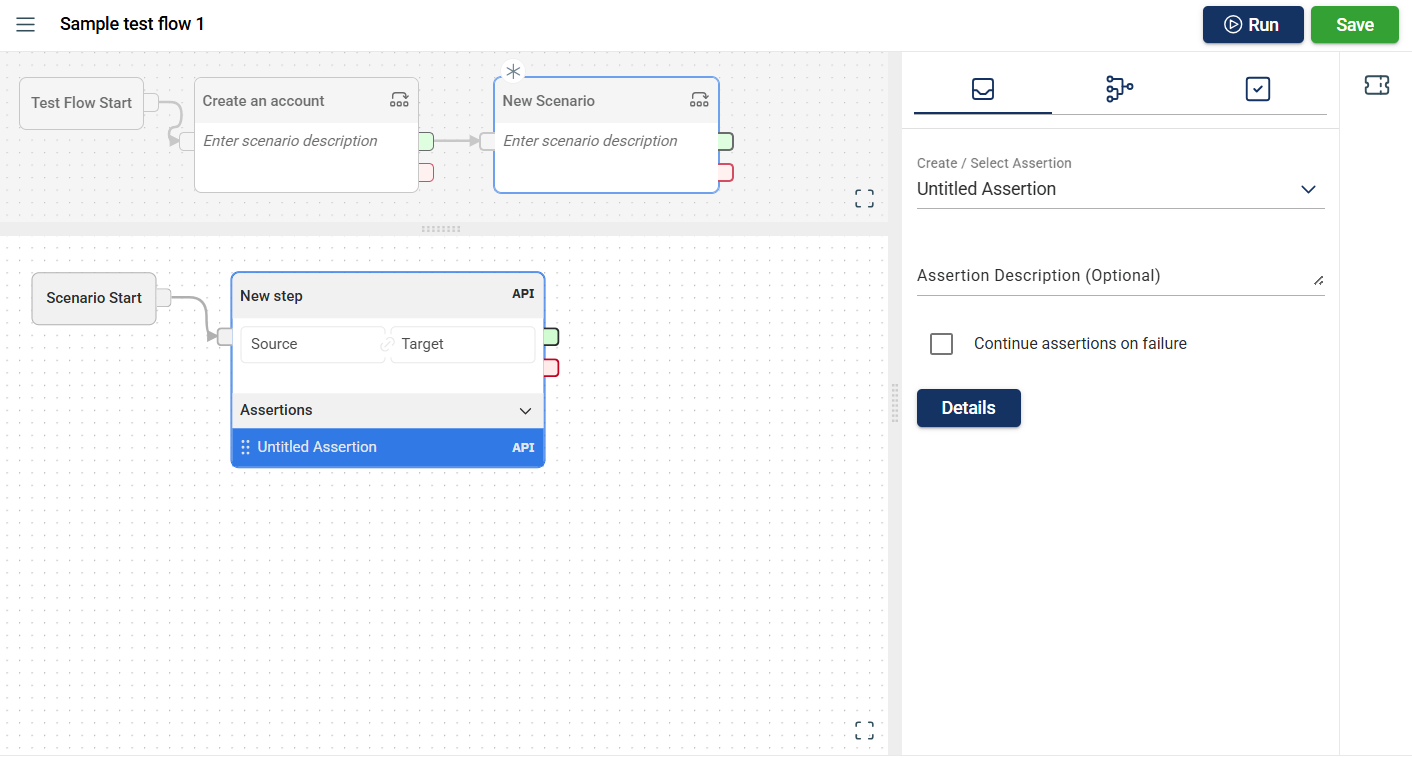
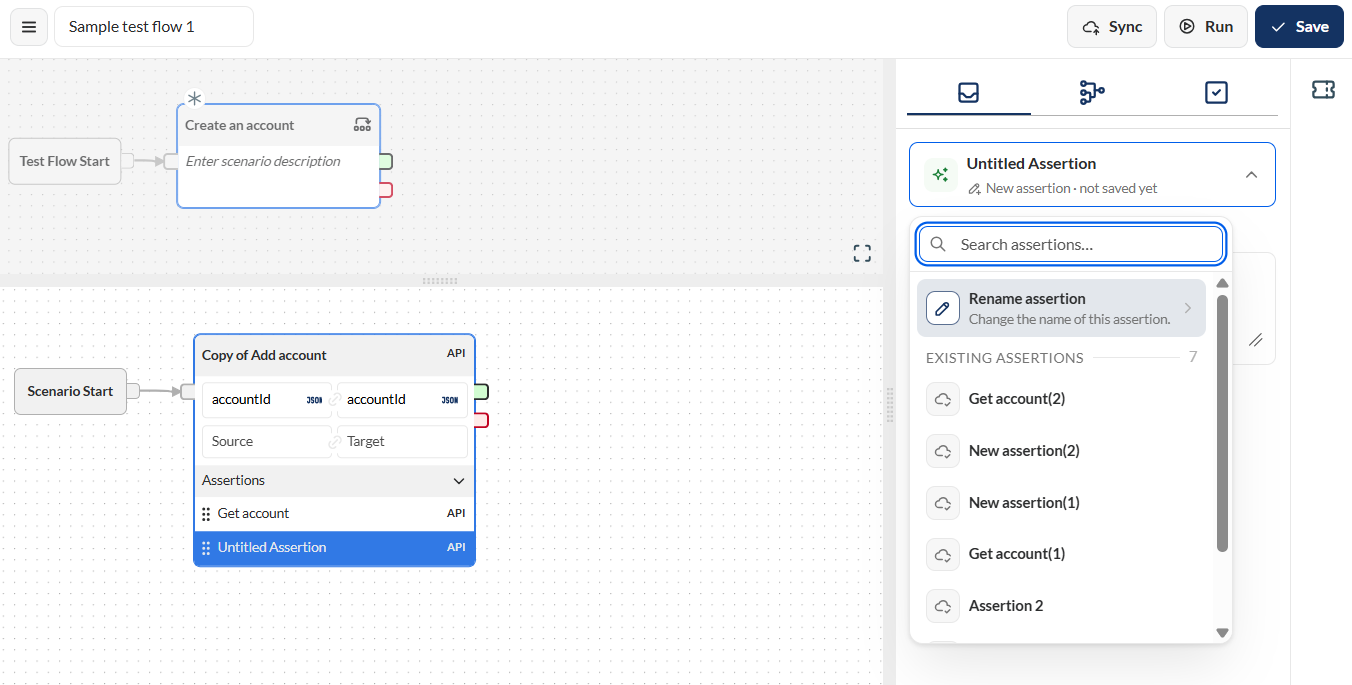
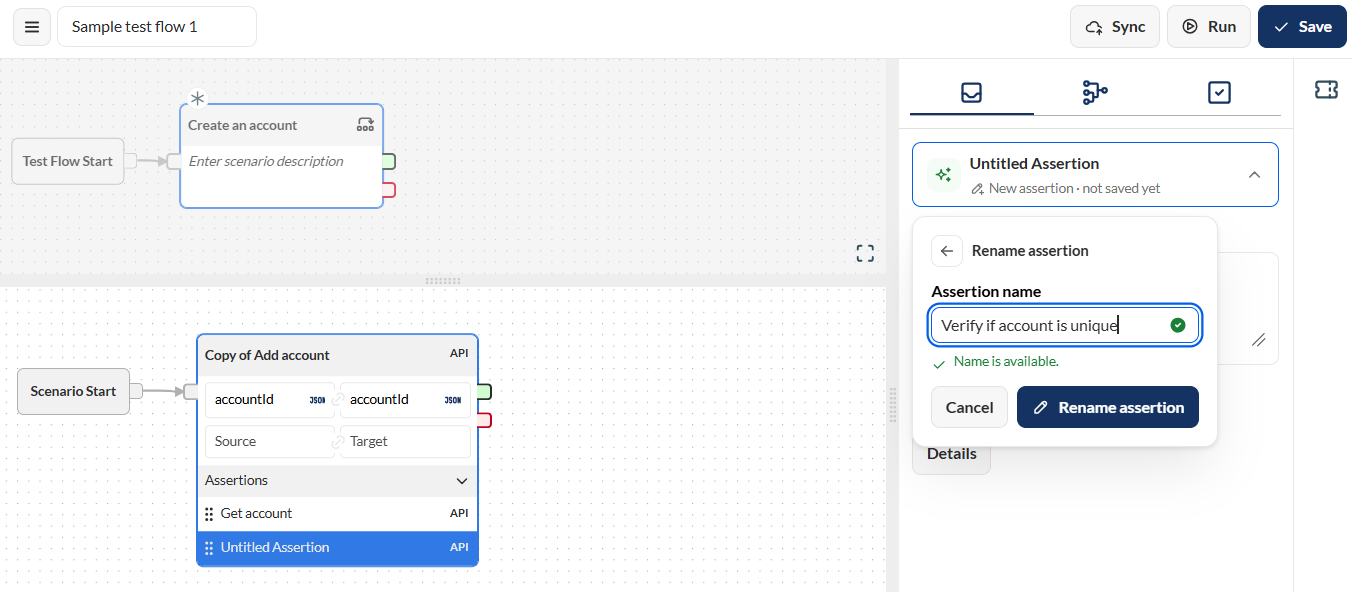
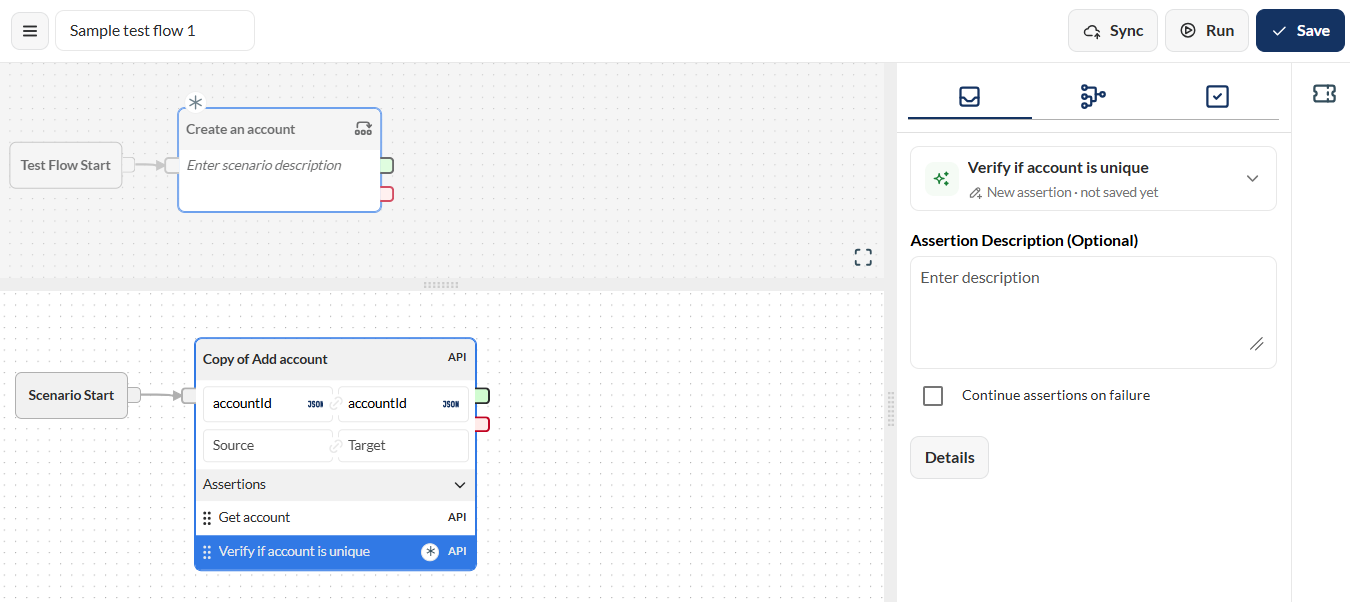
Click the Details button.
Add valid values to the necessary assertion parameters. For more information, see

Click the Save button.
In the Flow module, you can disable an assertion for a specific scenario, preventing it from executing during flow execution.
To disable an assertion, follow these steps:
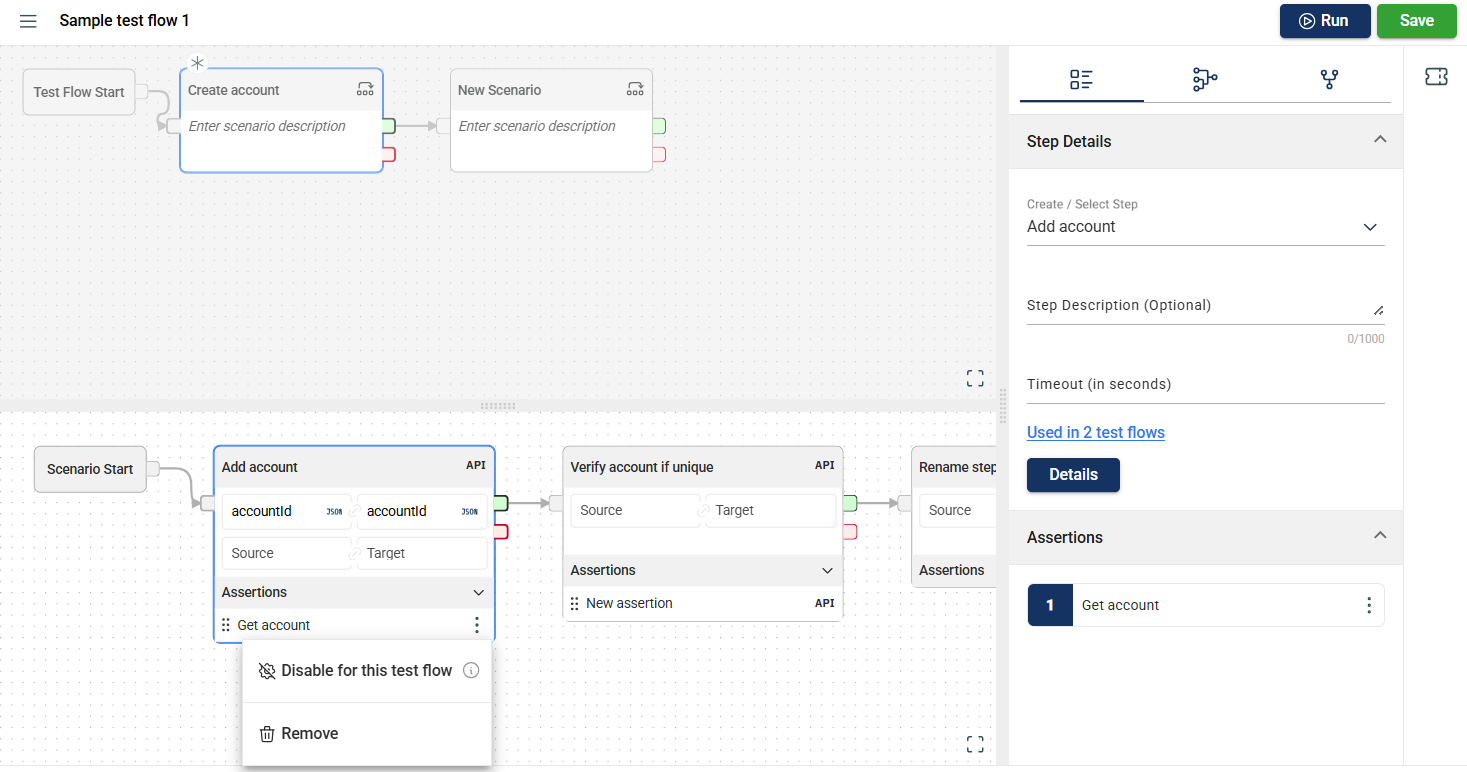
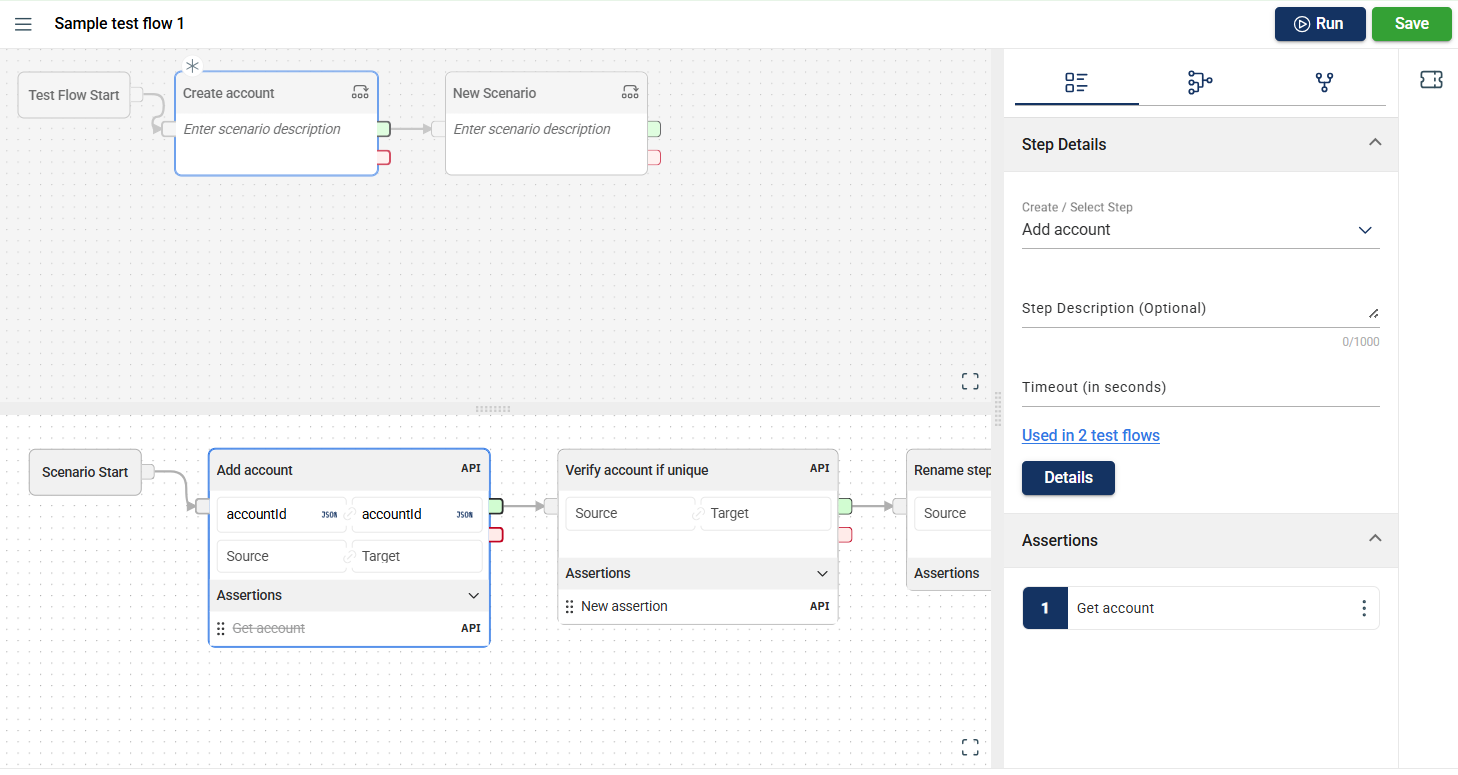
The disabled assertion will also be automatically be disabled in the associated dataset.
To enable it back, follow these steps:
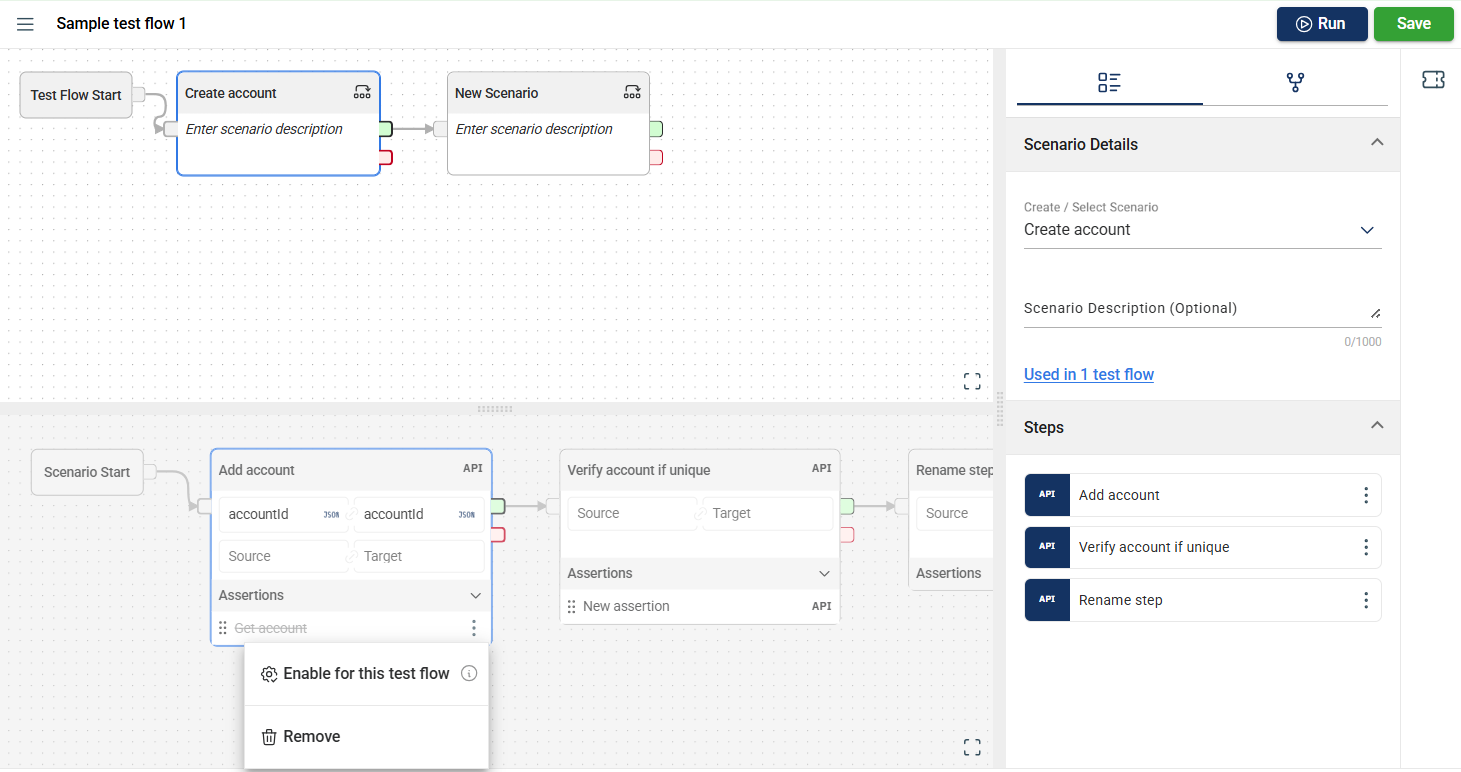
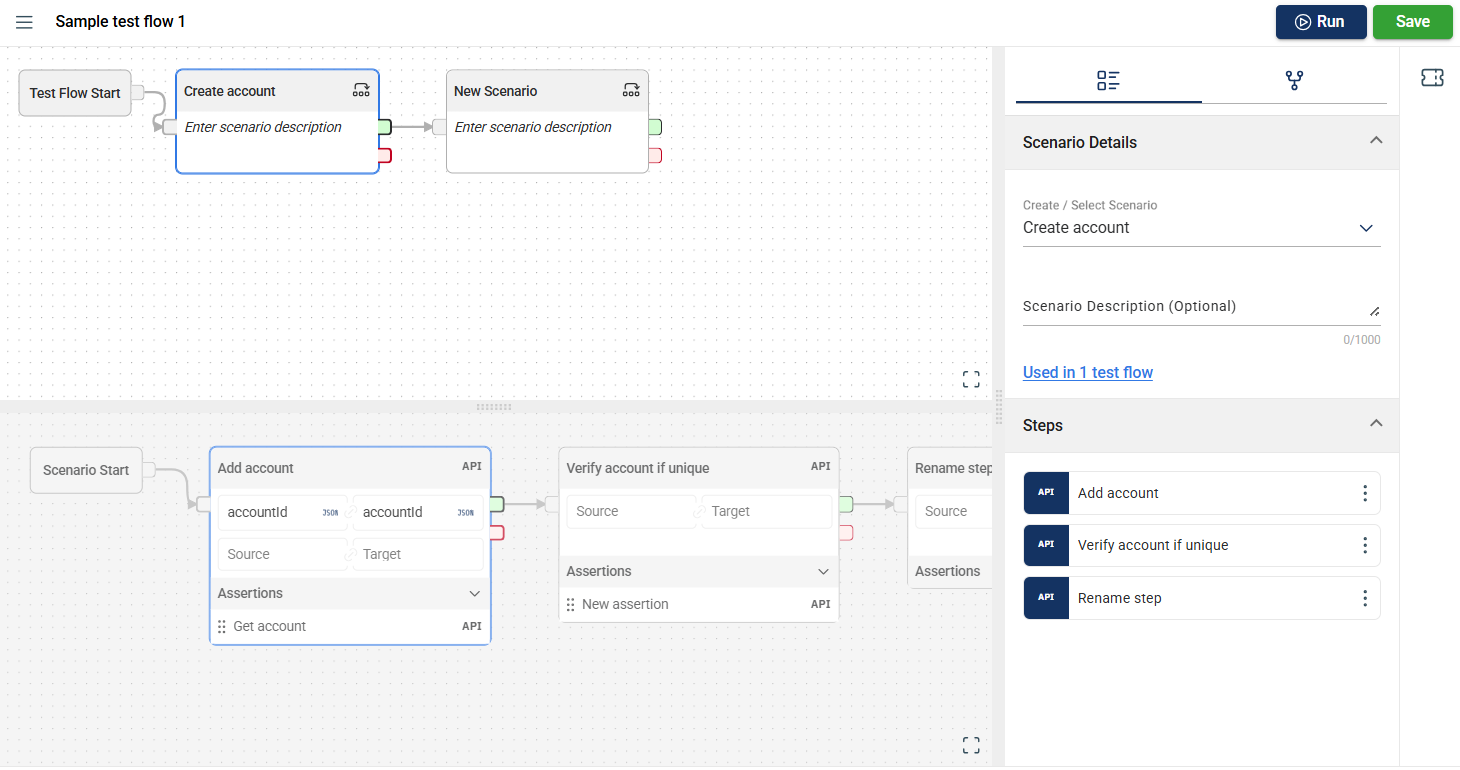
The enabled assertion will also be automatically enabled in the associated dataset.
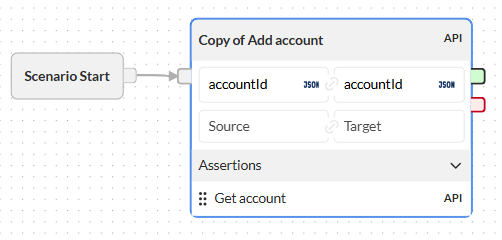
To remove an assertion from a step, follow these steps:
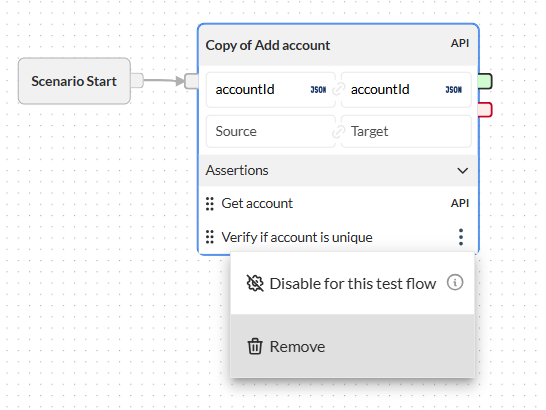
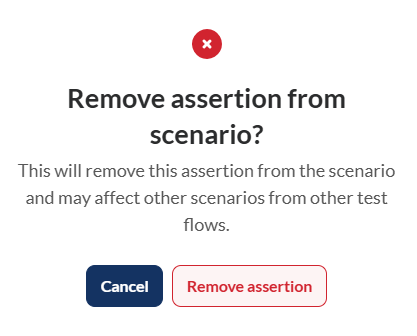
The assertion will be removed from the step, but it will remain in the Assertion module.
Dynamic row validation allows you to validate queries that return multiple rows of output data.
Traditionally, query assertions only validate the first row of actual data against the expected conditions defined in assertion validations. With dynamic row validation, you can configure conditions to validate multiple rows using one of three evaluation modes: Fixed row, Any row, or All rows.
To configure a row validation, follow these steps:
Select the assertion your wish to configure.
Click on the Assertion Details tab.
Add your required inputs.
Click the Validations button in the Validations section.
Select the validation type.
Depending on the validation type, follow the specified steps in
A fixed row validation validates the query response at a specific, pre-configured row index. The system extracts the row at the defined index and compares its attribute values against your conditions.
For example, if a query returns 10 person records and the assertion is configured for Fixed Row mode at index 4, the system isolates the 4th record. If your conditions dictate that ENTITY_NAME must be Quinn,Tom and NAME_TYPE_FLAG must be PRIM, the assertion will succeed only if the 4th record meets both criteria.
To configure a fixed row validation, follow the steps in Configure a row validation first.
Set the target index number for the row you want to validate in the Row Index field.
Define your validation criteria by mapping the actual value, selecting an operator, and providing an expected data.
Run the flow.
The tool will validate the configured criteria exclusively against the row at the defined index.
The assertion succeeds if at least one row in the query response satisfies all defined validation conditions.
For example, if a query returns 10 person records under Any Row mode, the system scans the dataset. If even a single person record contains ENTITY_NAME = ‘Quinn,Tom’ and NAME_TYPE_FLAG = ‘PRIM’, the entire assertion succeeds.
To configure a fixed row validation, follow the steps in Configure a row validation first.
Define your validation criteria by mapping the actual value, selecting an operator, and providing an expected data.
Run the flow.
The tool will validate the configured criteria against all rows. The assertion succeeds if at least one row meets all the configured criteria.
The assertion succeeds only if every single row in the query response satisfies all defined validation conditions. If even one row fails a single condition, the entire assertion fails.
For example, if a query returns 10 person records under All Rows mode with a condition checking that NAME_TYPE_FLAG is PRIM, then all 10 records must have a value of PRIM for the assertion to succeed.
To configure a fixed row validation, follow the steps in Configure a row validation first.
Define your validation criteria by mapping the actual value, selecting an operator, and providing an expected data.
Run the flow.
The tool will validate the configured criteria against all rows. The assertion succeeds only if all rows meet all the configured criteria.
This page provides the steps to sync test flows and test runs with TestRail. IF you want to learn how to configure your TestRail account for integration, see Settings. If you want to learn how to integrate your TestRail account with your project, see Integrations.
Synchronize test flows to TestRail to link test cases and results across platforms.
Select a test flow.
Click the Sync to test flow button in the top-right corner of the page.
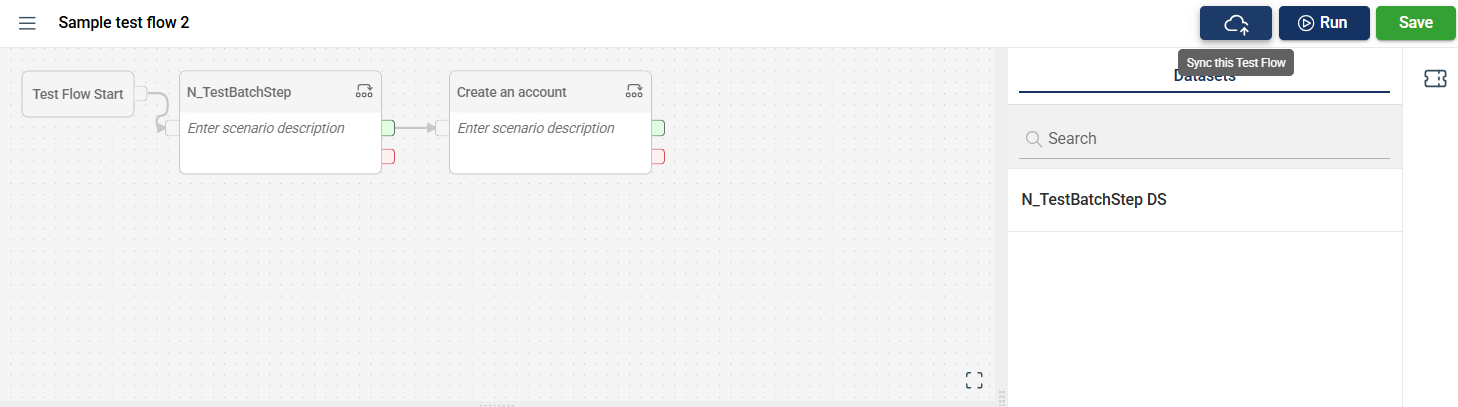
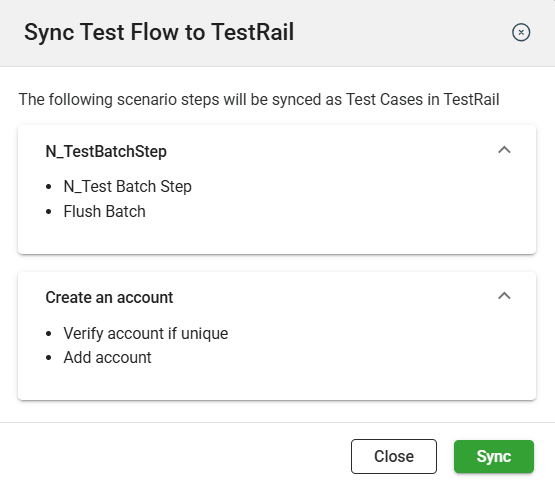
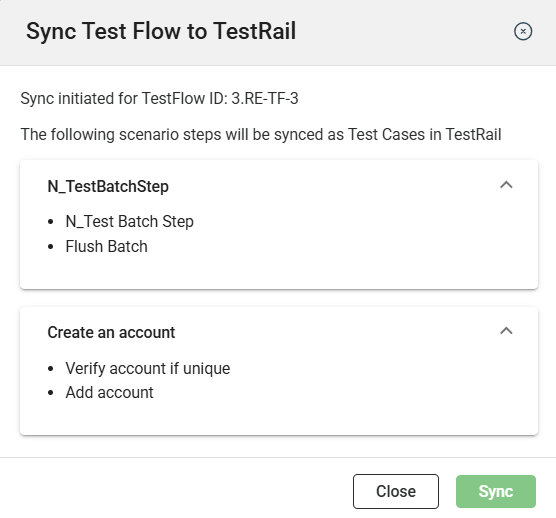
After a successful sync, a confirmation message will be displayed.
Synchronize test runs to TestRail enables real-time tracking of test progress and outcomes.
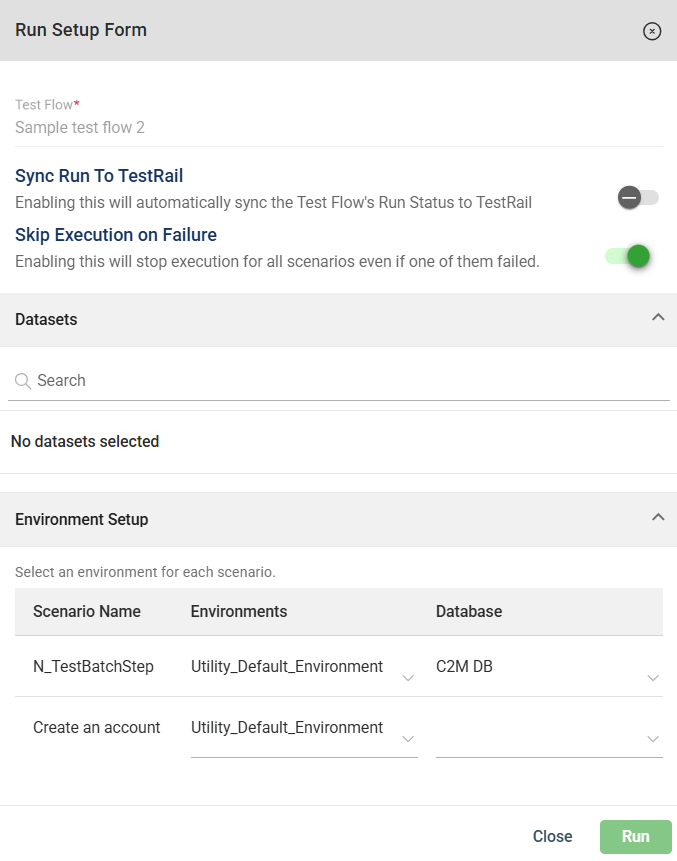
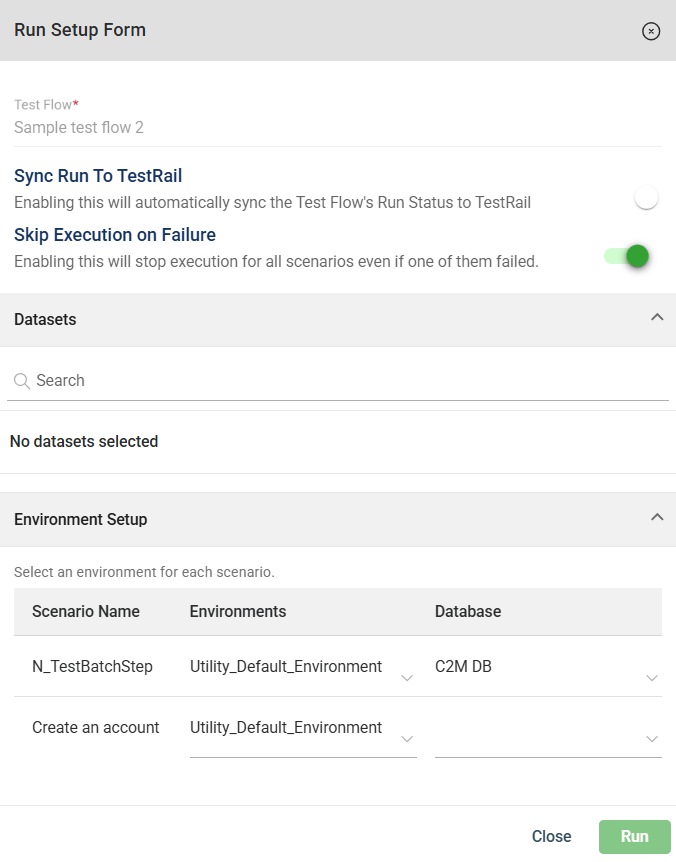
You can also sync the run to TestRail in the following modules by repeating the steps above.
Before linking an issue, ensure that you have enabled the JIRA integration in the Settings module and have configured JIRA in the Project Integrations.
You have the option to create a new issue or link a flow to an existing one.
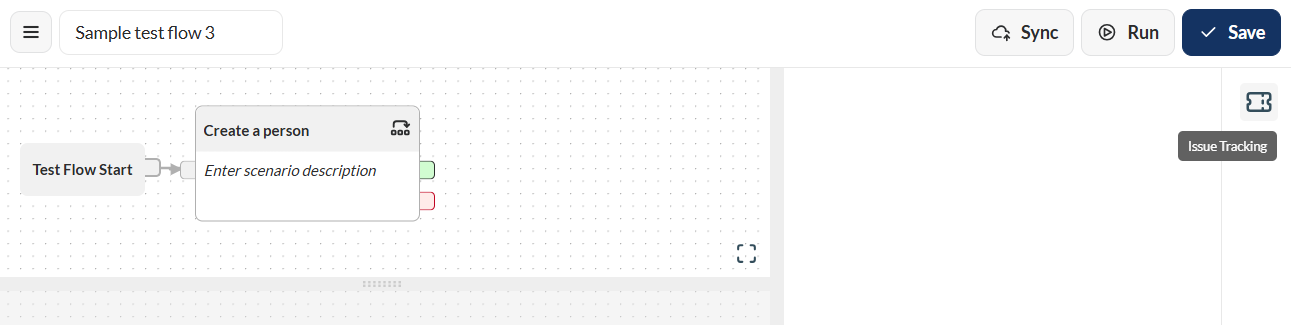
Click the Issue Tracking icon.
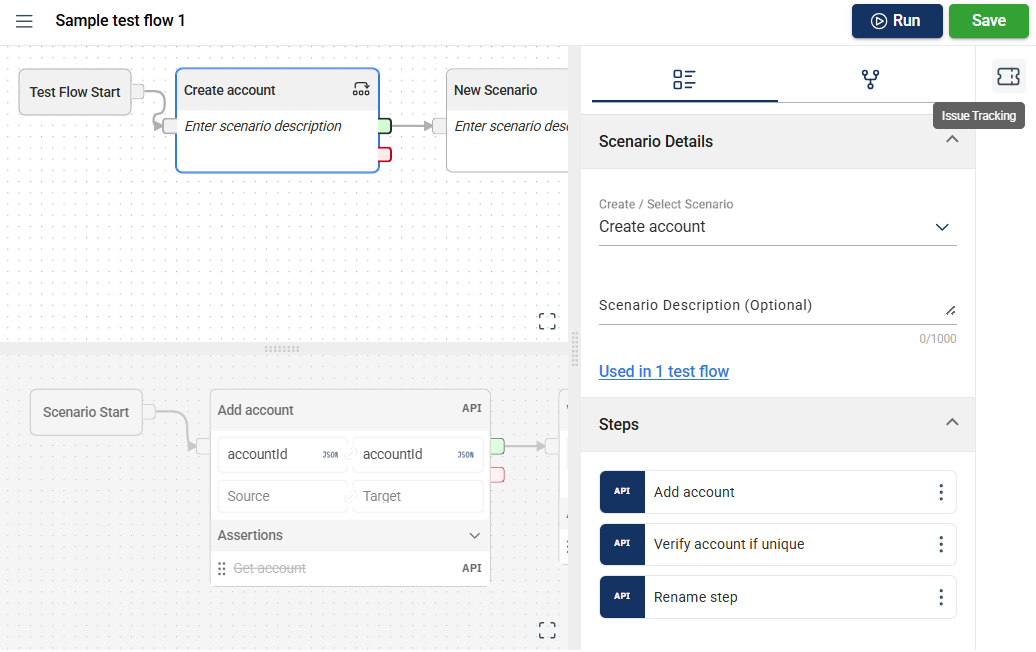
Click the Link Issue button.
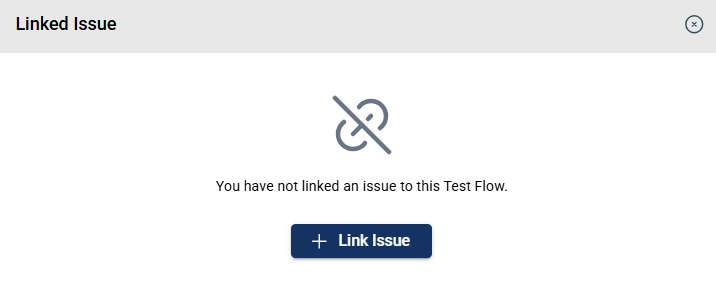
Enter valid values in the JIRA fields displayed.
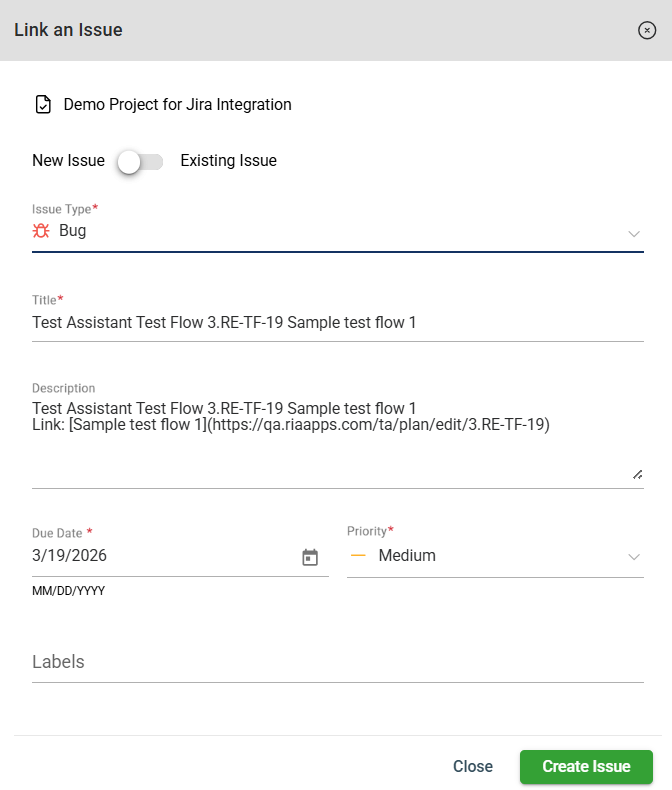
Click Create Issue. A confirmation message will be displayed.
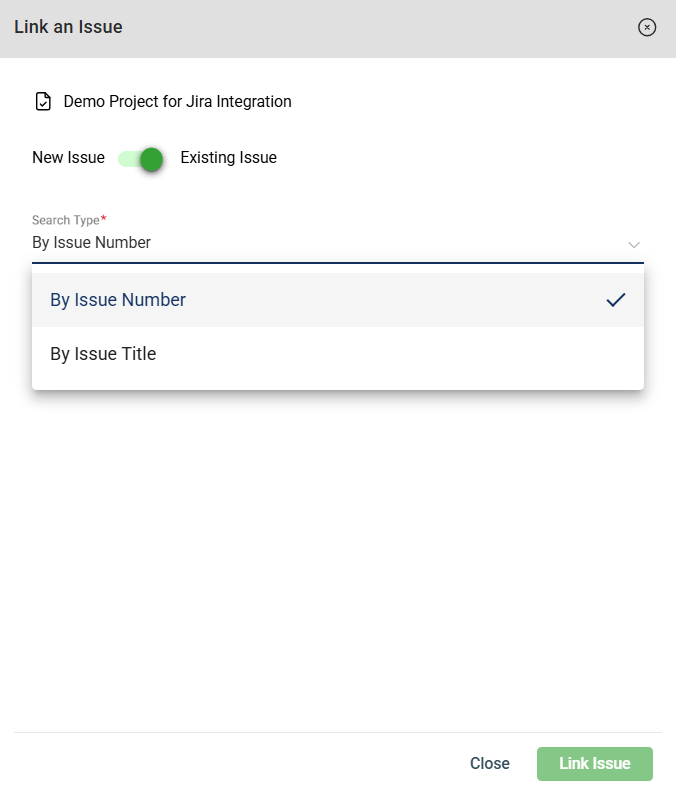
A JIRA ticket is now displayed when the Issue Tracking icon is clicked.
Click the Save button to save the linked issue.
Synchronize test runs to TestRail enables real-time tracking of test progress and outcomes.
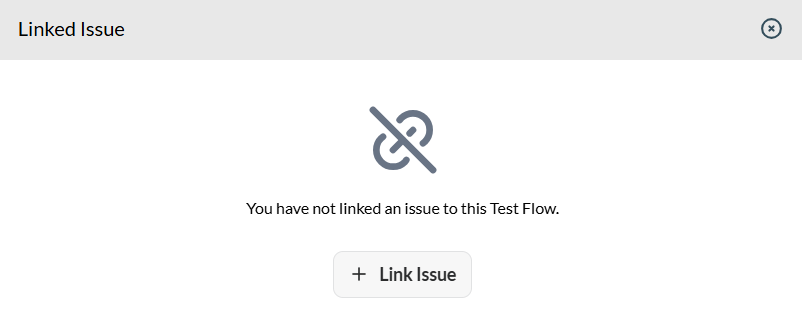
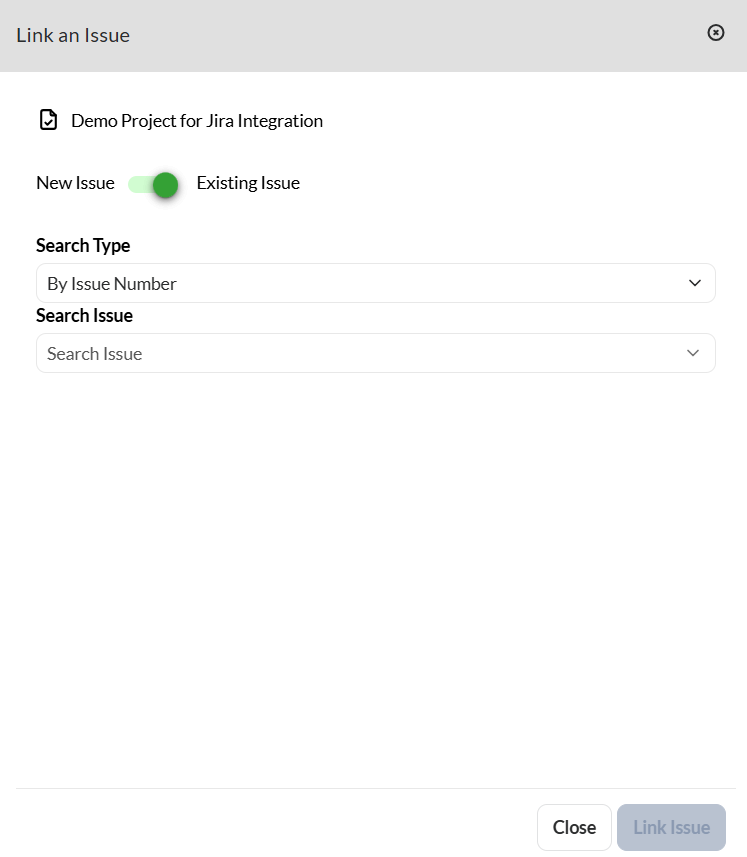
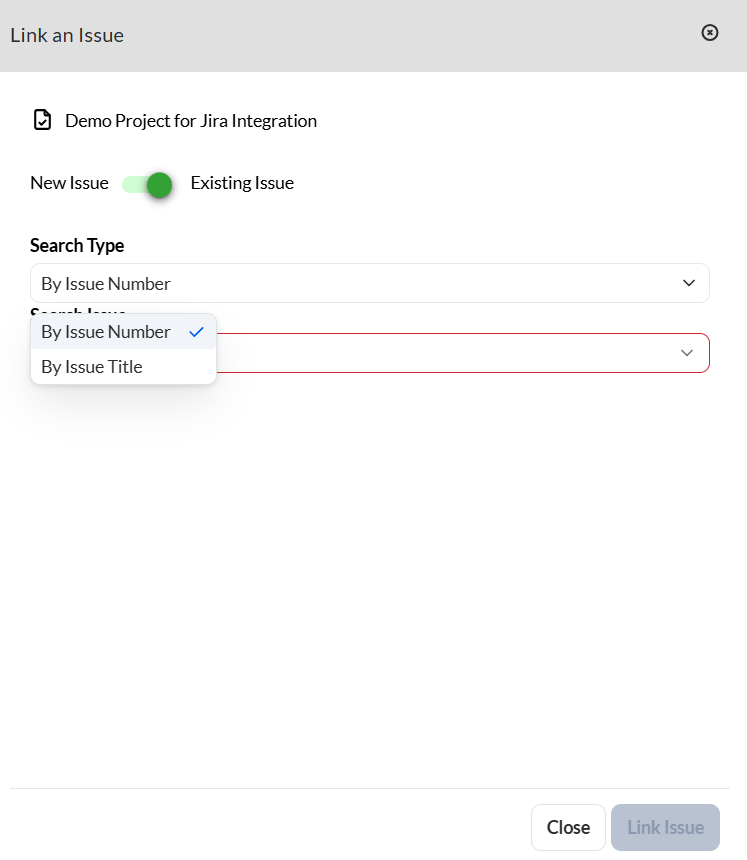
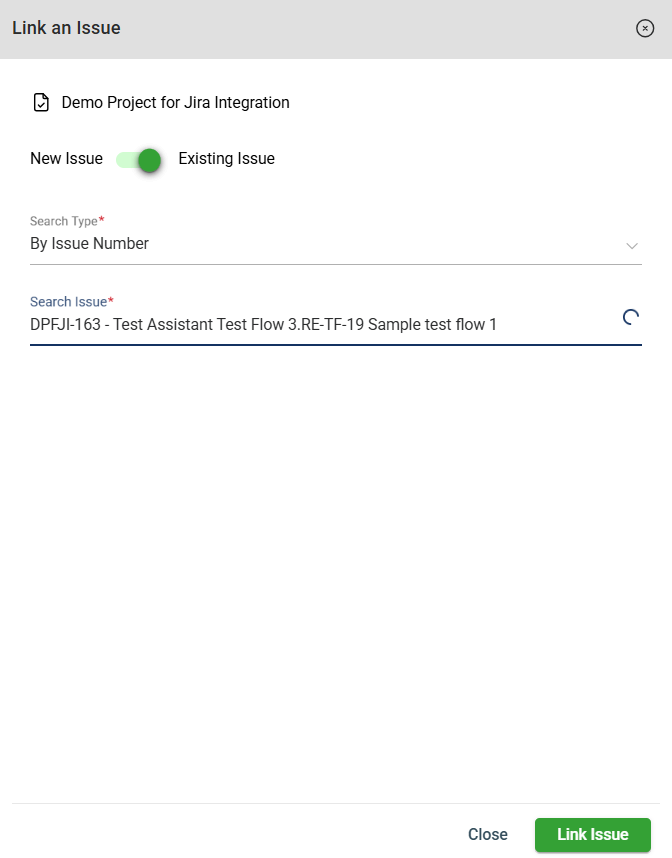
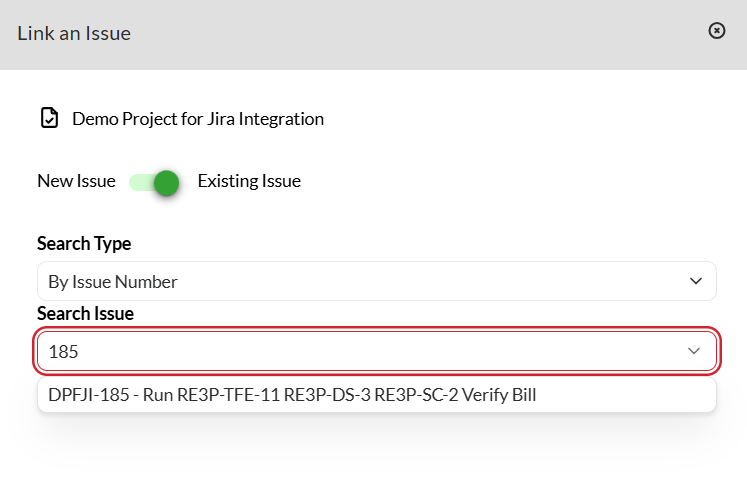
In the Search Issue field, enter a number if you selected By Issue Number.
A dropdown listing all tickets matching your search is displayed.
If you selected By Issue Title, enter a keyword.
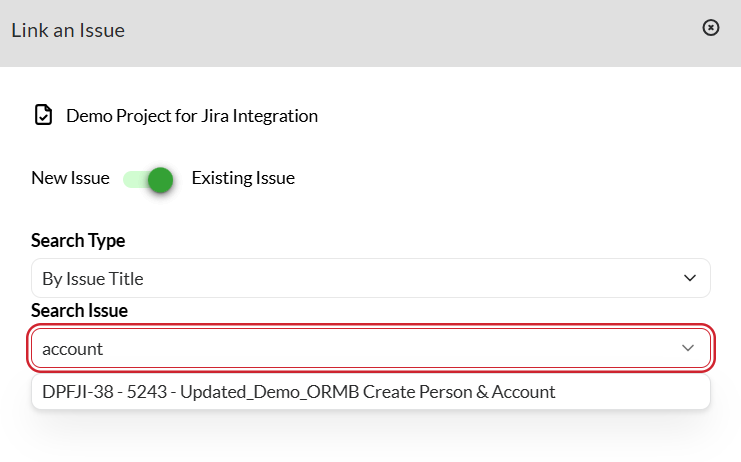
Click the Link Issue button.
A JIRA ticket is now displayed when the Issue Tracking icon is clicked.
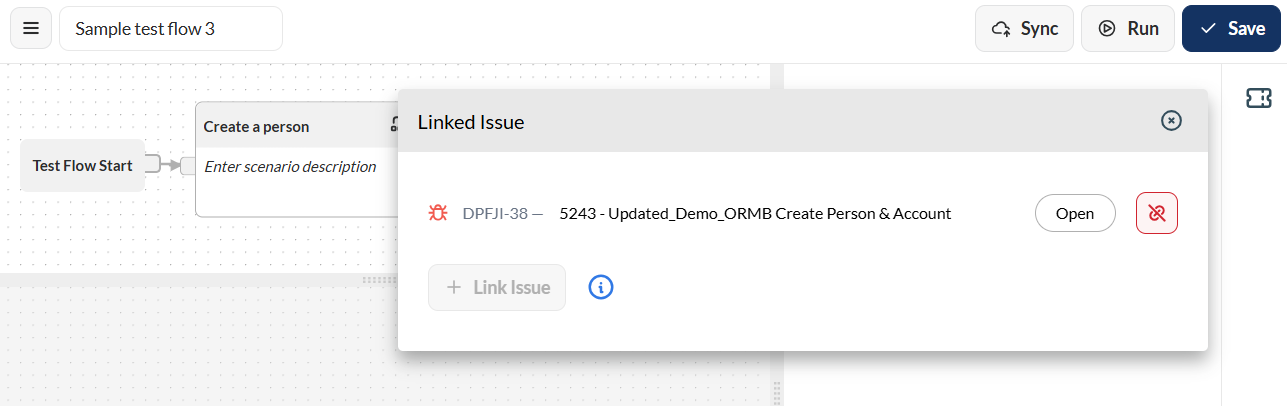
Click the Save button to save the linked issue.
A test flow with parallel executions is a flow with multiple scenarios that has been connected from the Start node or any scenario. You can follow the same steps in Create a test flow.
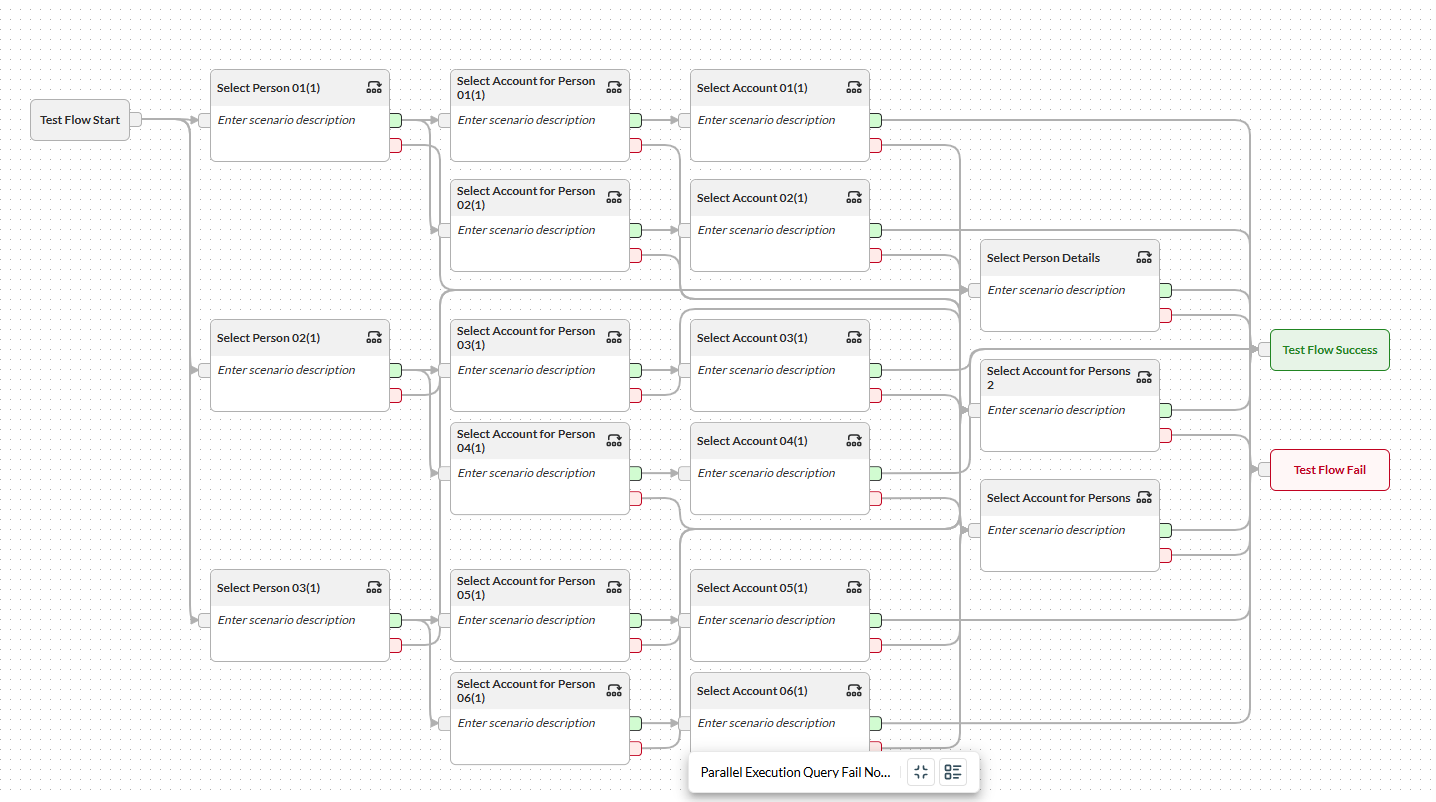
The steps in creating a dataset for a flow with parallel executions are just the same when creating datasets for sequential executions. For more information, see Dataset.
To run a test flow with multiple flows, enable the Use New Execution Engine toggle.
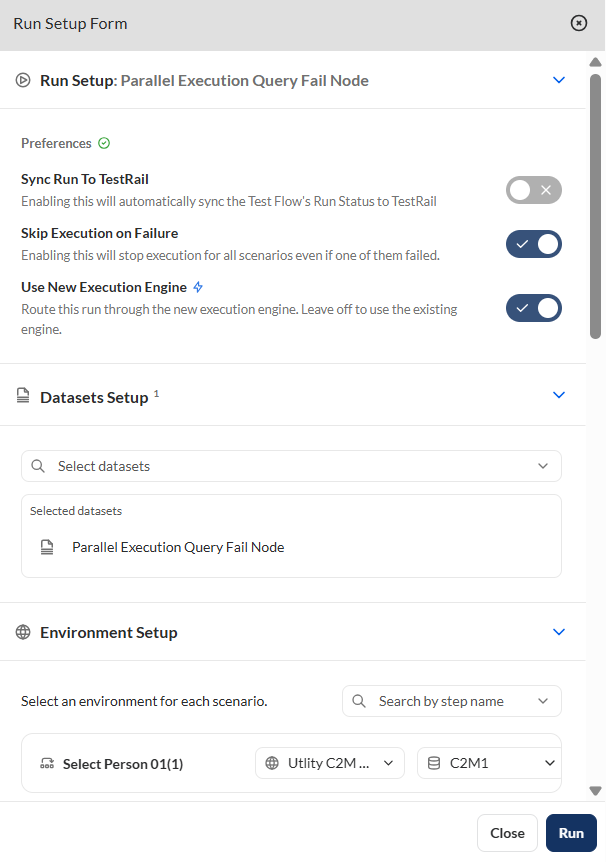
Similar to sequential flows, fail-node scenarios in parallel flows are only executed only after the parent scenario fails. If the parent scenario passed, the fail-node scenario will be skipped.
Similar to sequential flows, fail-node steps in parallel flows are only executed only after the parent step fails. If the parent step passed, the fail-node step will be skipped.
A dataset is a collection of input data used for the parameters included in a test flow. First, you must define your test flow in the Flow module and ensure that the steps added to each scenario have a well-defined template. The templates for all the Steps in the flow will be used to create your dataset.
In the upper left corner, select your project from the Select Project dropdown list. Only the datasets associated with the selected project are displayed on the left pane.
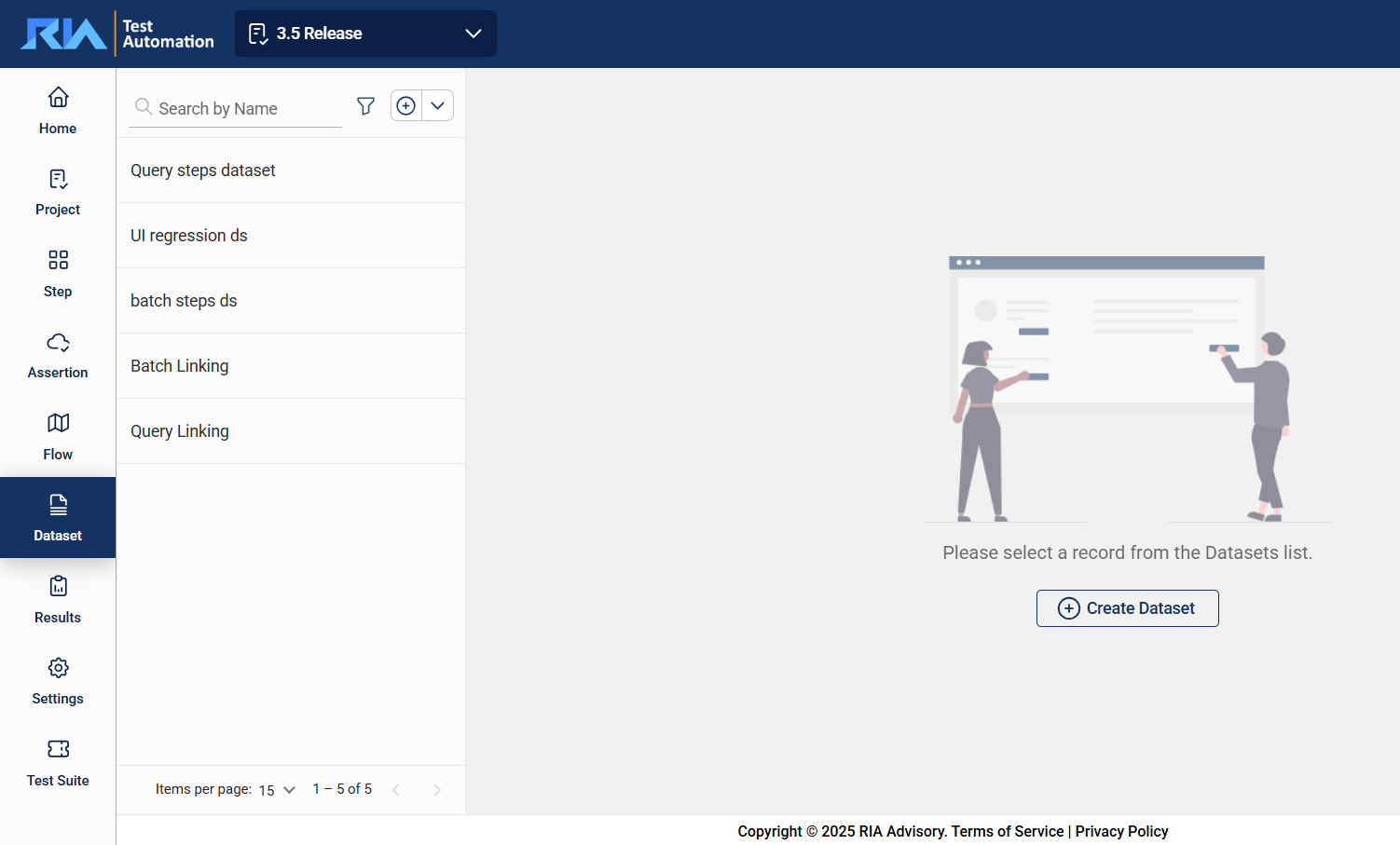
To view or modify the details of a dataset, select the dataset from the left pane that lists all datasets associated with the selected project. You can change any detail by directly editing the corresponding field. Ensure to click Update after making your modifications.
The search feature allows you to filter the list of datasets by providing a keyword or the full name of a dataset. Only the datasets that match the provided keyword or name will be displayed in the view.
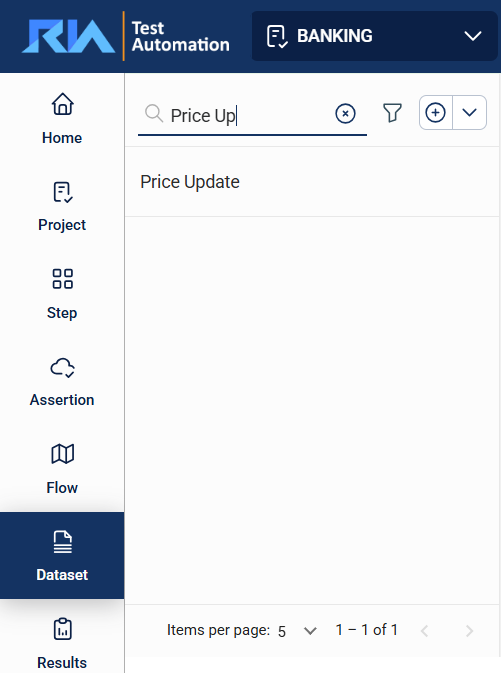
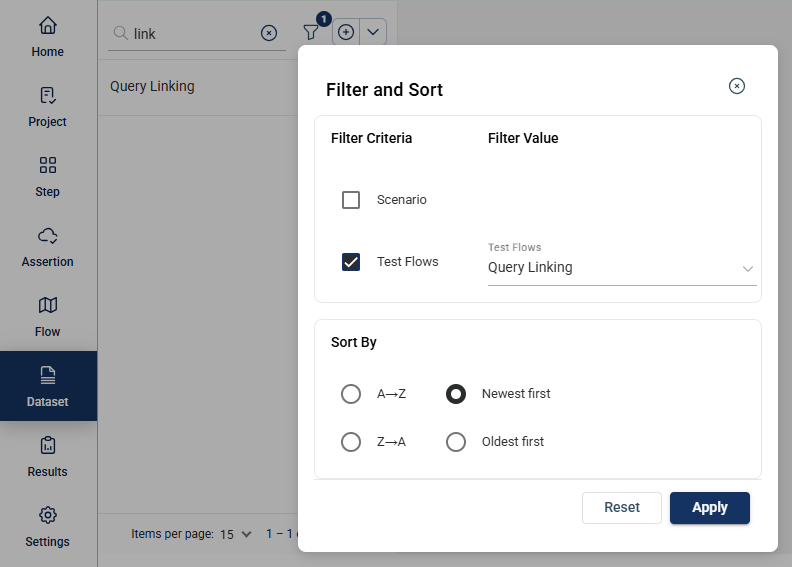
Click the icon to display additional filtering and sorting options. For filtering, a dropdown list of available filter parameters will show all associated values for the selected project and version.
To create a dataset, click on the icon on the top left pane and enter valid values to the following:
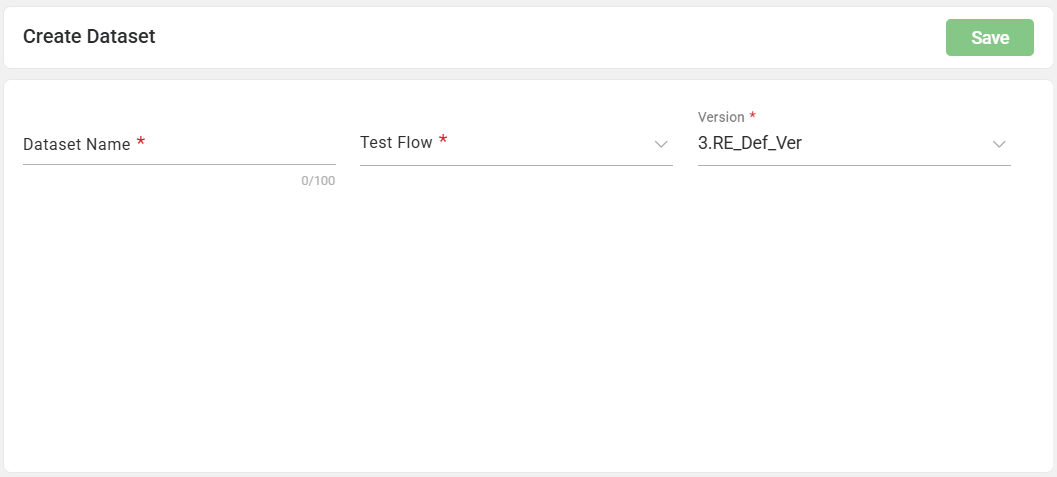
After the filling out the following fields, it should look like this:
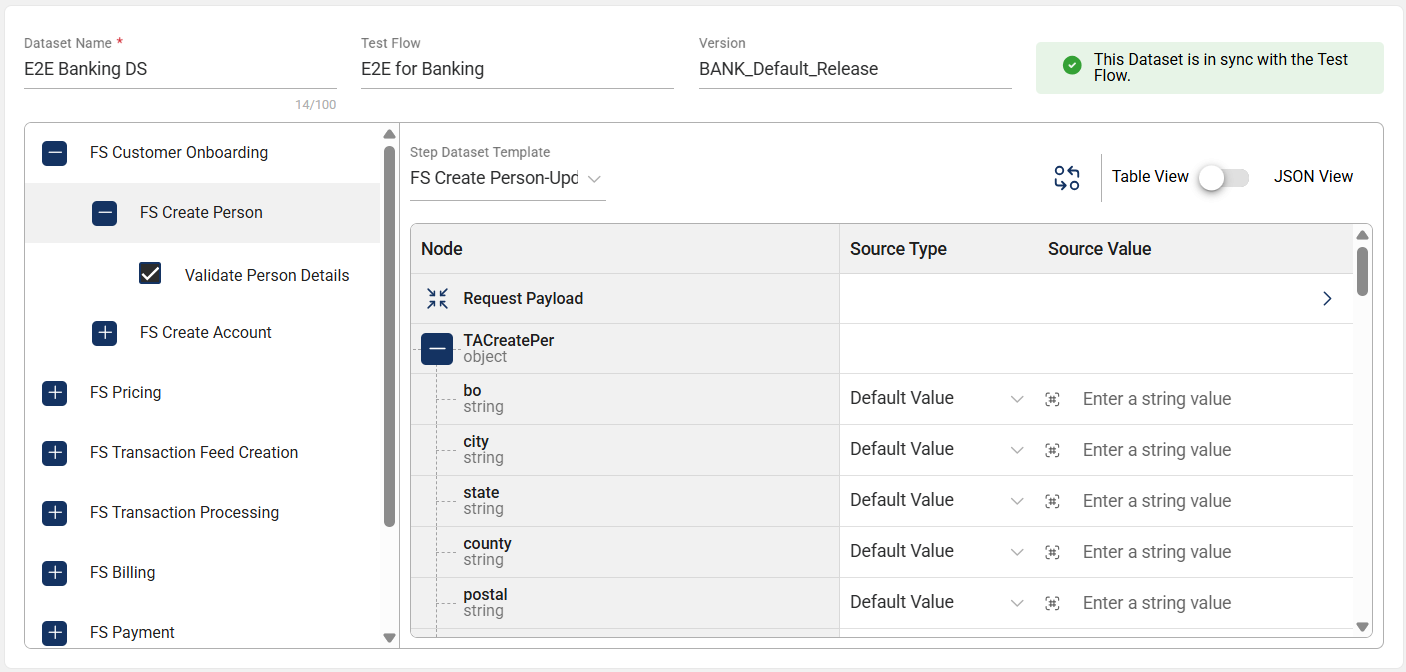
| Field Name | Description |
|---|---|
| Dataset Name |
Name of the dataset. Mandatory: Yes |
| Test Flow |
Dropdown list displays all test flows defined in the
Scenarios and
Steps associated with it. Mandatory: Yes |
| Step Dataset Template |
To view or modify a dataset template, first select a scenario and then choose the corresponding step.
Next, select a template from all the templates defined for the chosen step. After selecting a template, the Request payload will be displayed. Mandatory: Yes |
| Source Type |
Specifies the type where the parameter will get its value. Possible values are the following:
|
| Source Value |
Specifies the value to be used by the parameter. To modify the pre-defined value of a project variable source, select a variable from the dropdown list. To modify the pre-defined value of a static variable source, directly enter the new value in the textbox. Mandatory: Yes |
A validation pattern is defined for the source input to ensure that users provide a value each time the dataset is configured. The entered value must conform to the specified format or regular expression.
To quickly access supported pattern formats, click the </> icon to open the list of available pattern templates. You can browse the list or use the search field to locate a specific format.
If the required pattern is not available in the template list, click Test to open the Pattern Test dialog. You can define and validate a pattern using either of the following options:
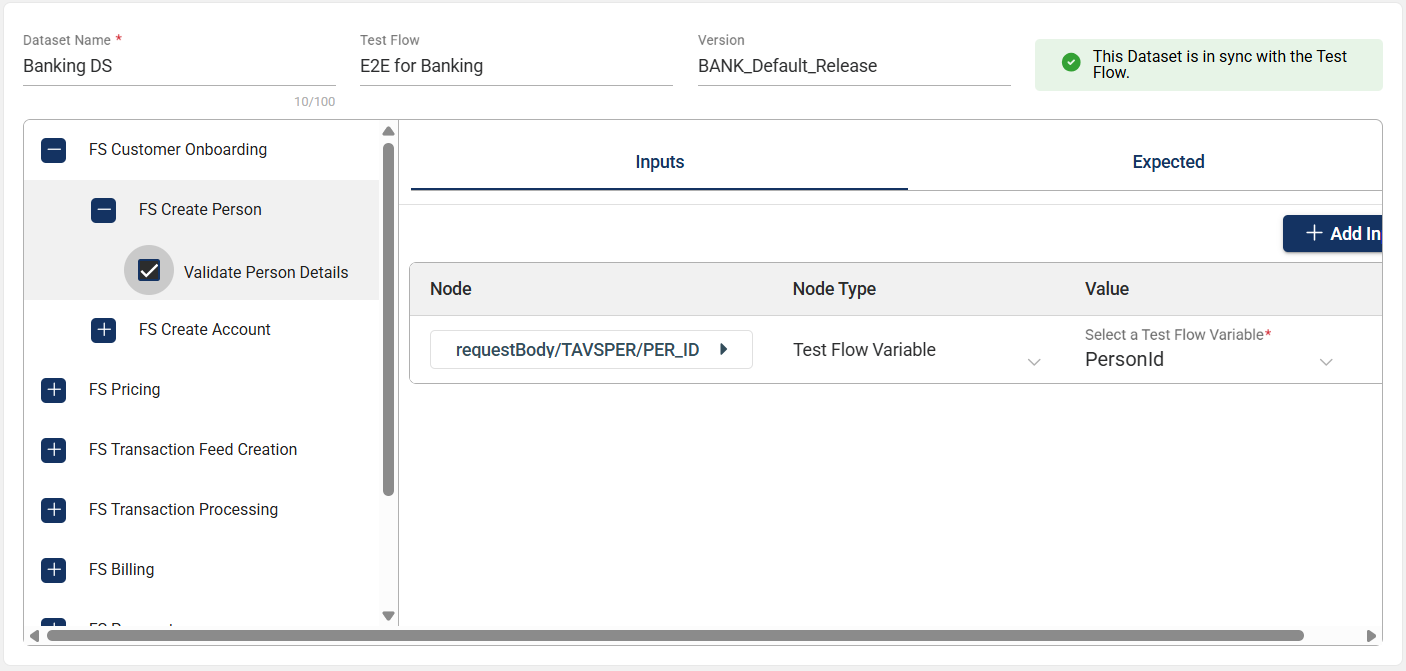
To disable an assertion and exclude it from the flow execution, untick the assertion.
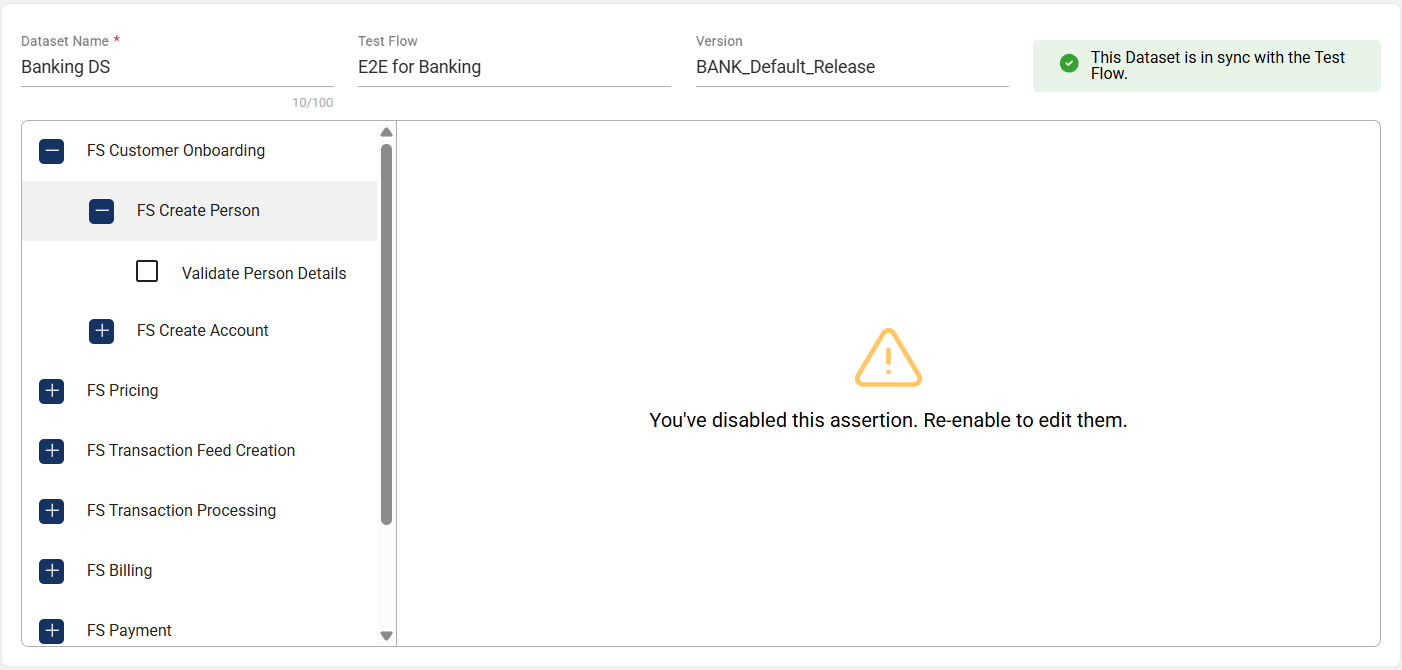
To enable it again, just tick the assertion.
When a step is deleted or added in the Flow module, the dataset will display a message indicating it is not synced. By clicking View Details, a list of the deleted or the added steps is displayed.
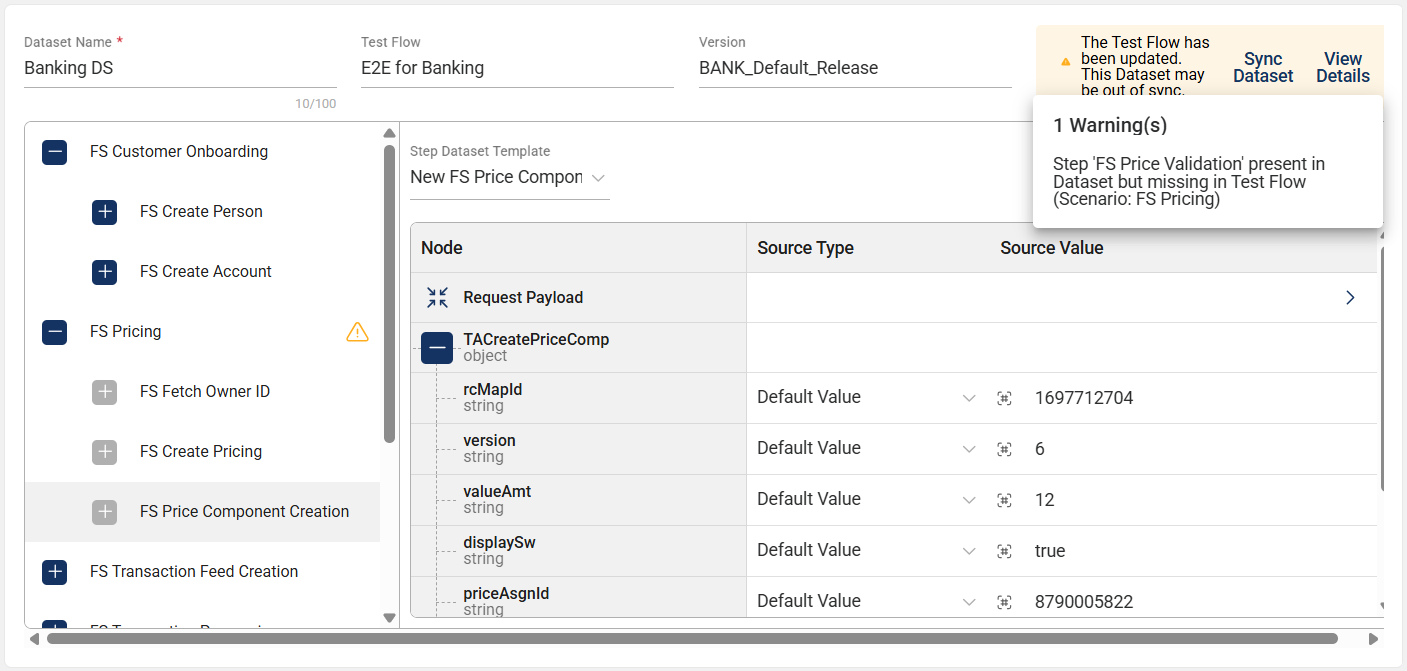
The dataset out-of-sync message is also triggered when assertions are added or deleted from a step in the Flow module. In addition, adding or deleting assertion input nodes will also trigger the dataset out-of-sync message on the Dataset page.
If you click Sync Dataset, the deleted steps, assertions, or assertion input nodes will be removed, and the added steps, assertions, or assertion input nodes will be included in the Dataset module.
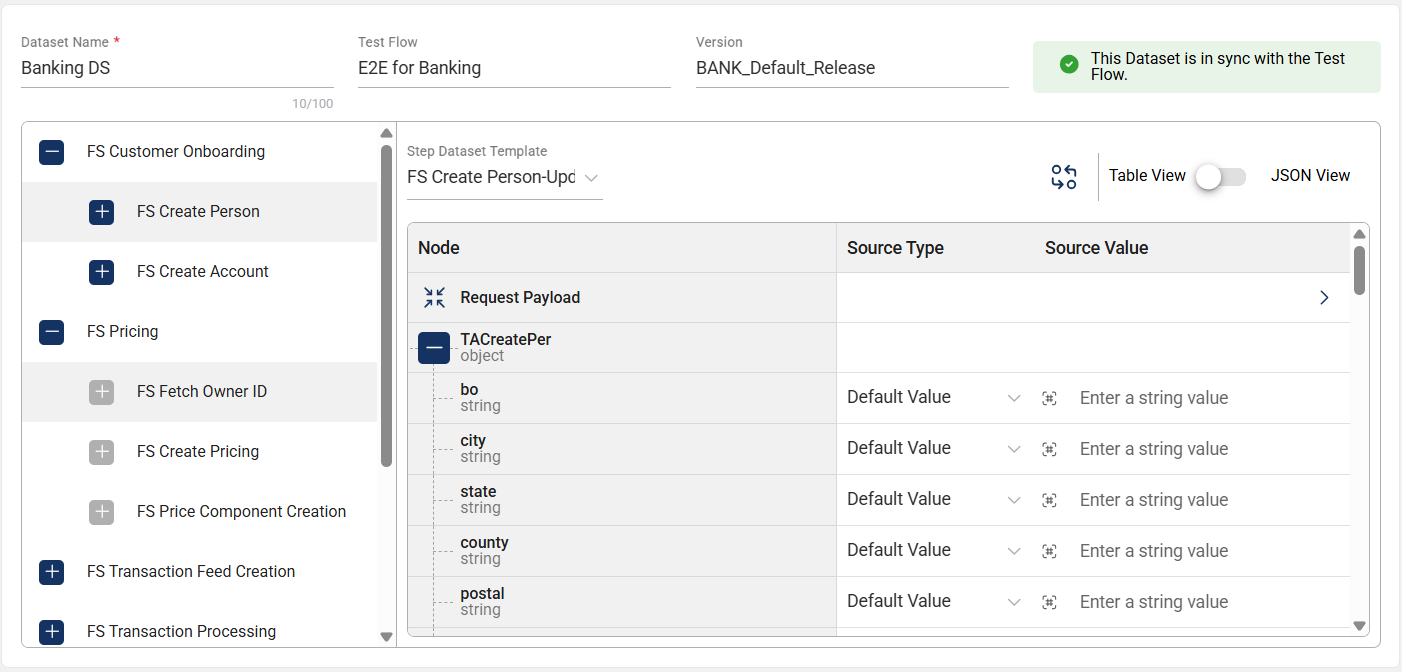
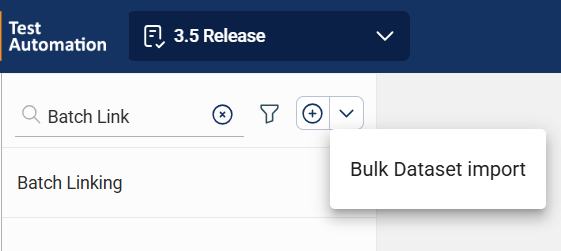
The Dataset module enables you to import datasets by clicking the down arrow in the left menu and select Bulk Dataset import.
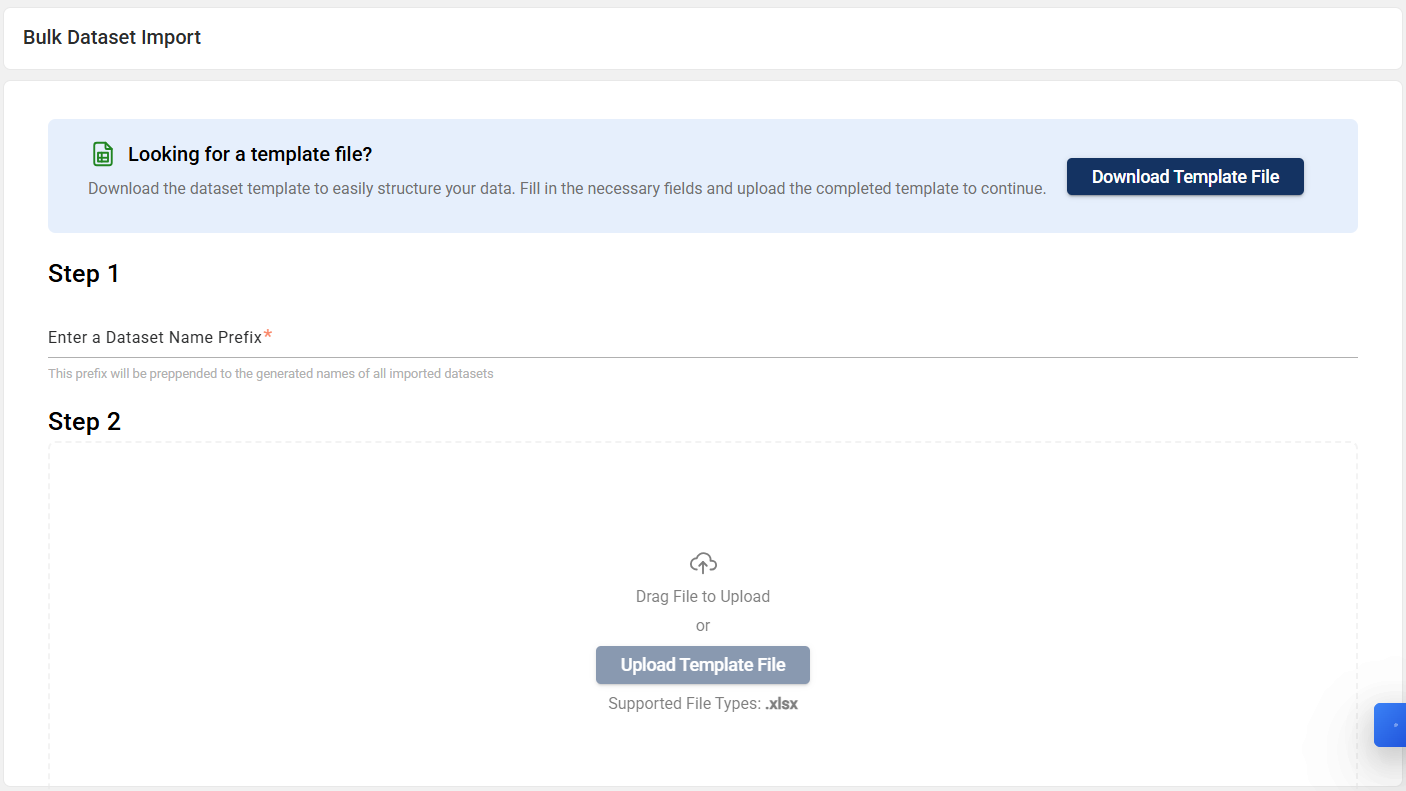
Enter a dataset name prefix, then upload the template file. If you need a template file, you can download one.
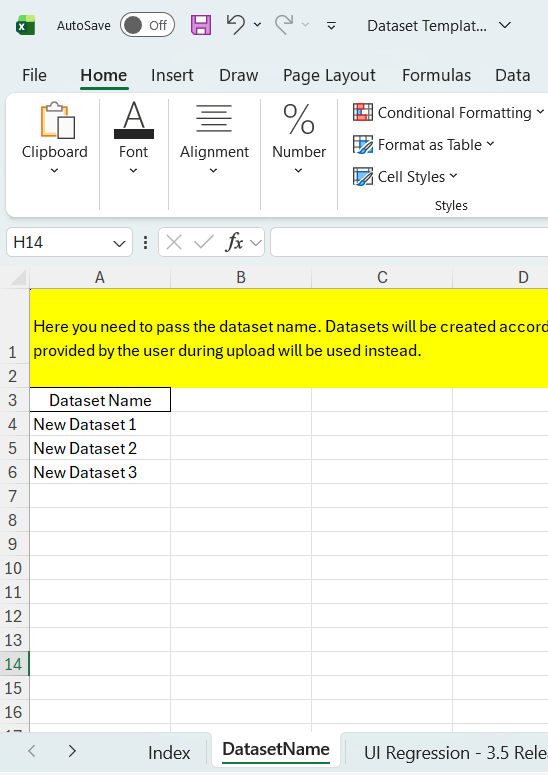
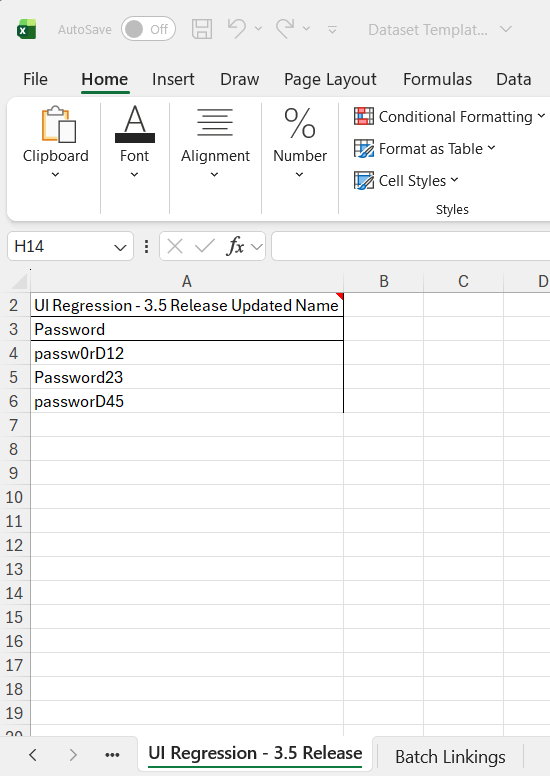
You can download a predefined Excel template to format your data according to the specified guidelines. Once your data is formatted, you can upload it into the system. To download one, follow these steps:
User Input from the dropdown, then specify a variable name.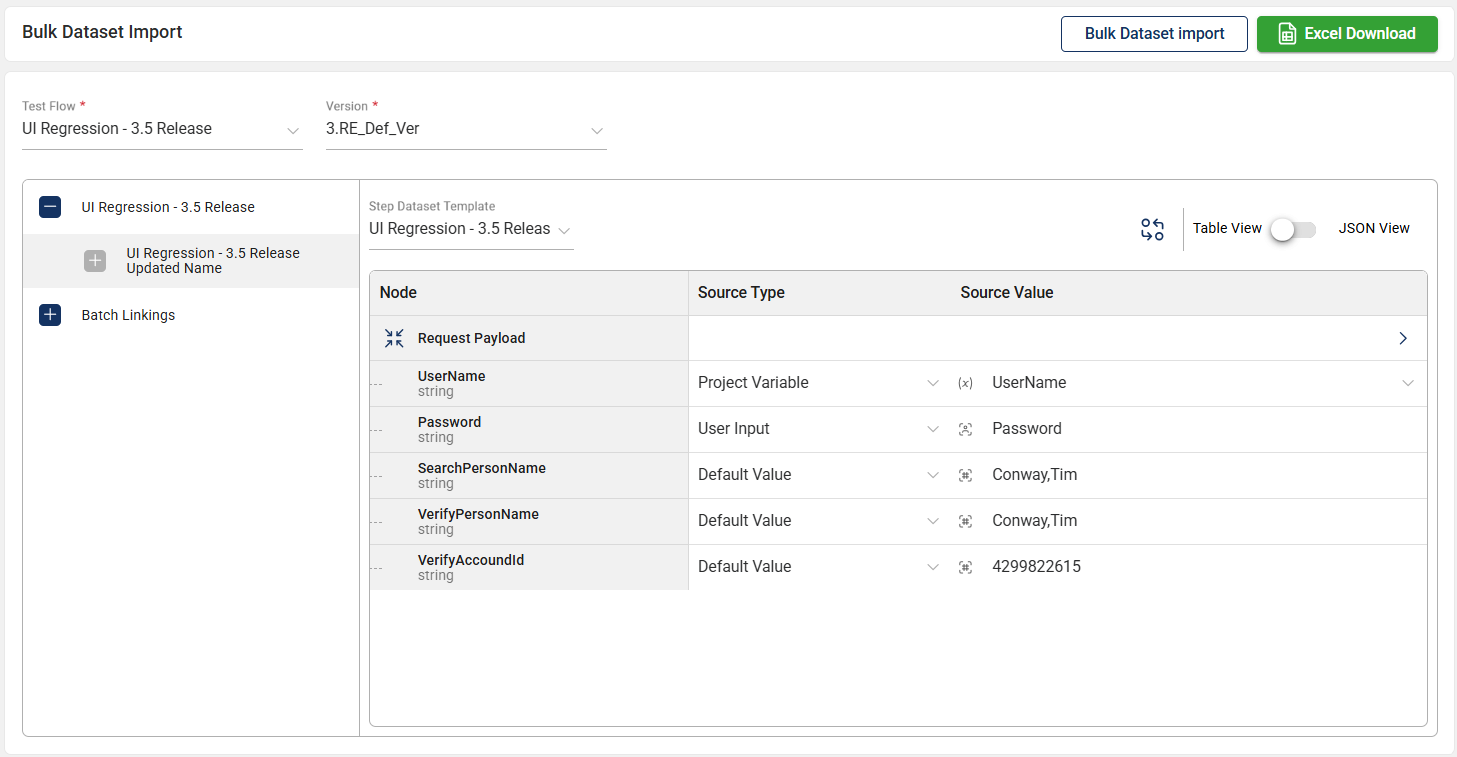
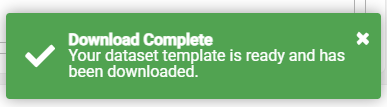
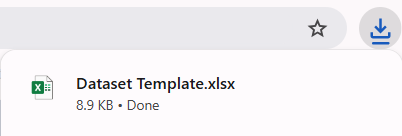
A new Dataset Template.xlsx file will be downloaded.
To delete a dataset, hover over the dataset you want to remove. An icon will appear. Click on this icon and select Delete.
The Results module provides a centralized view of test execution results, allowing you to track real-time progress or review metrics for completed tests. It displays detailed information about the executed scenarios and steps, along with visual summaries like pie charts. There are two tabs in the Results module: Summary and Results.
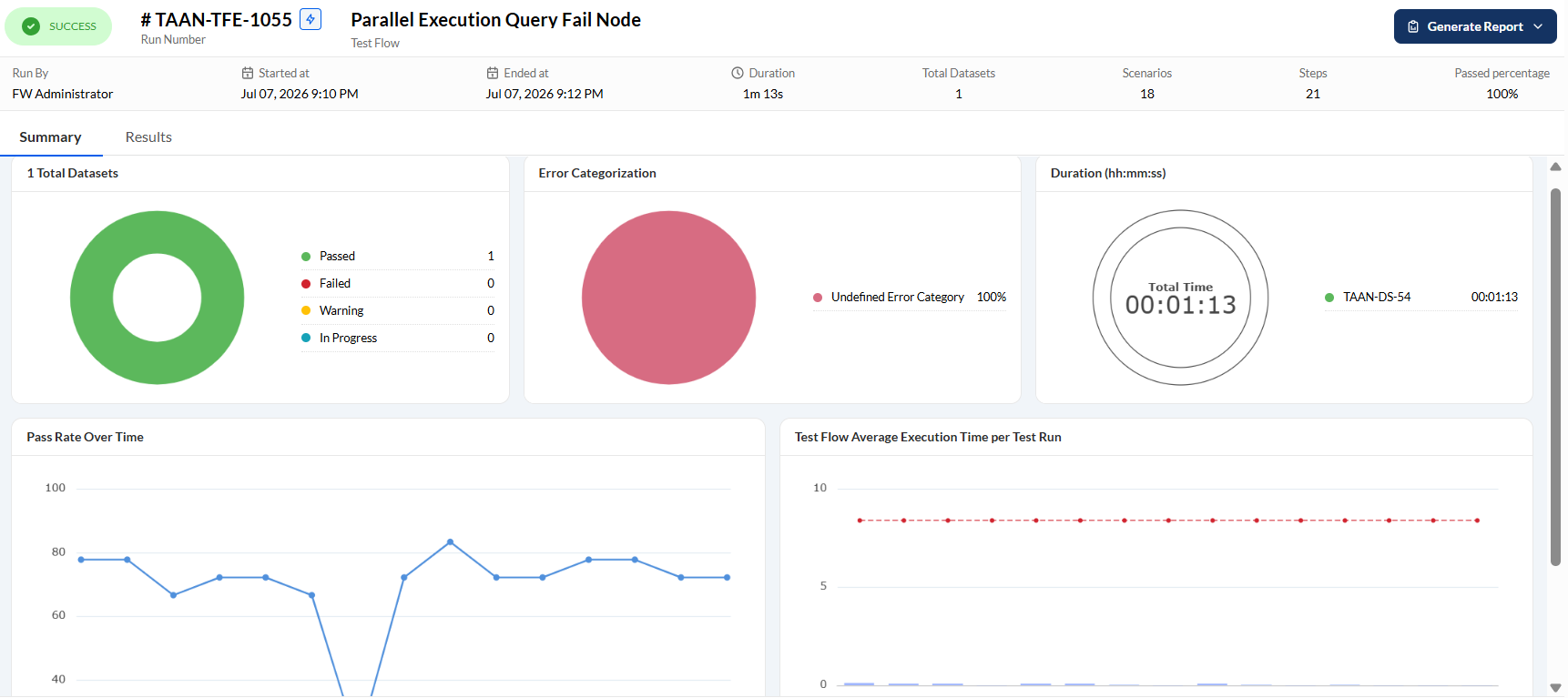
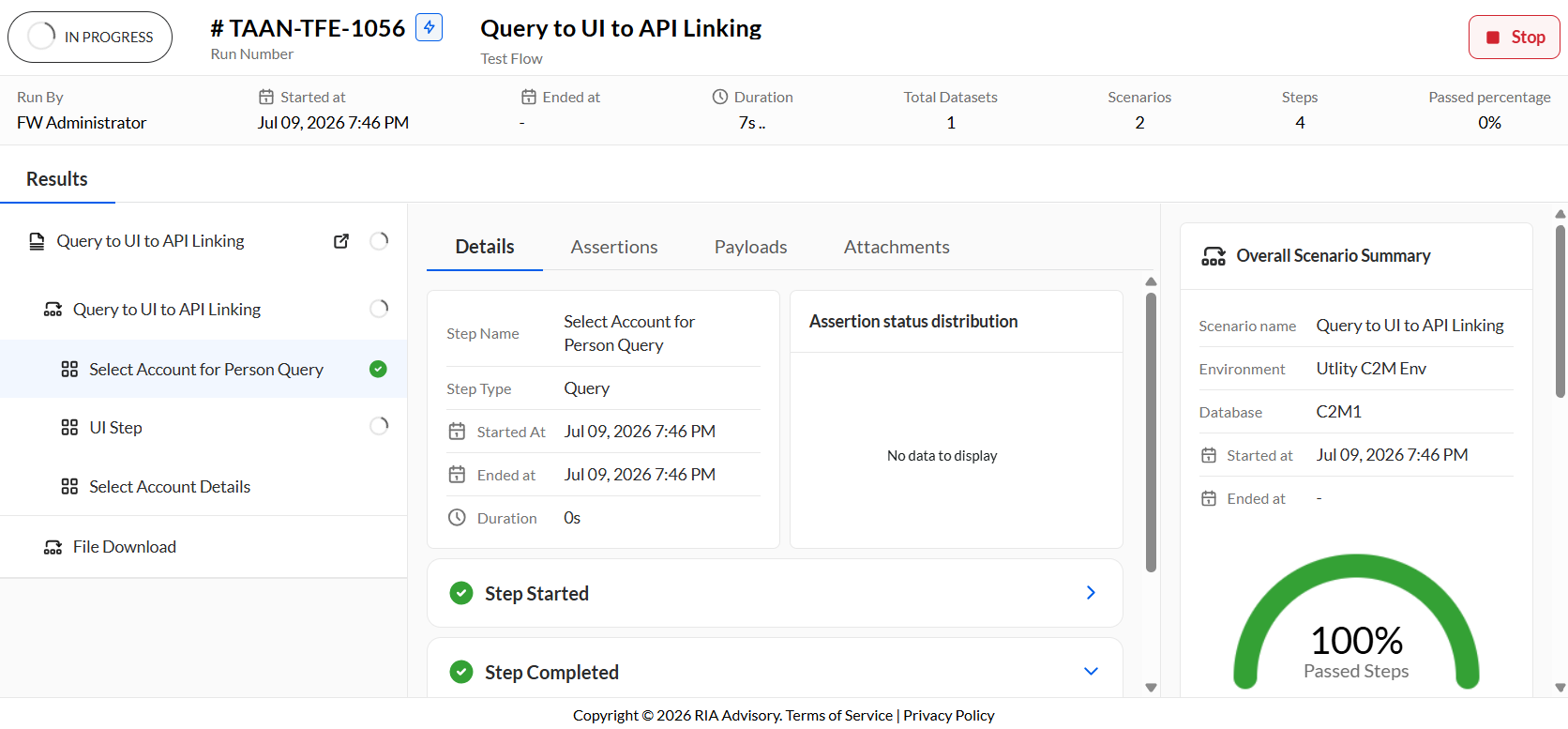
The header section provides a quick and high-level overview of the test execution with the following details:

| Field | Description |
|---|---|
| Execution status | Indicates the current state of the execution. The possible values are Completed, In Progress, Warning, and Failed. |
| Run Number | Unique identifier of the test execution run. |
| Test Flow | Name of the test flow being executed. |
| Run By | User who initiated the test execution. |
| Started At | Date and time when the test flow execution began. |
| Ended At | Date and time when the test flow execution was completed. |
| Duration | Total time elapsed during the test flow execution. |
| Test Datasets | Number of datasets used during the test execution. |
| Scenarios | Total number of scenarios executed within the test flow. |
| Steps | Total number of steps executed within the test flow. |
| Passed Percentage | Percentage of scenarios that successfully passed. |
| Generate Report | Generates the results summary in pdf format. |
The summary tab displays the Total Datasets, Error Categorization, Duration, Pass Rate Over Time, and Test Flow Average Execution per Test Run.
The Total Datasets pie chart provides a quick visual representation of how many datasets passed, failed, are in warning status, or are still running.
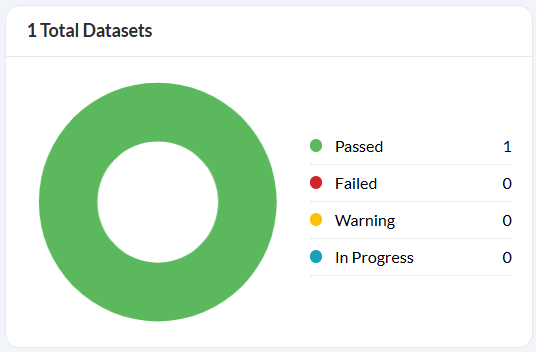
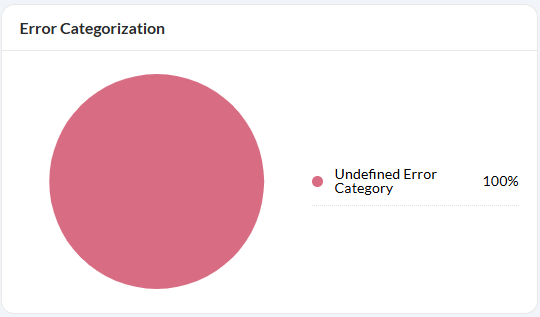
The Error Categorization pie chart provides a quick visual representation of how the errors are categorized.
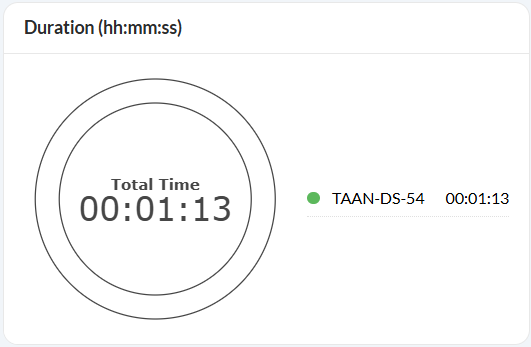
The Duration chart provides a quick visual representation of how long the test was executed.
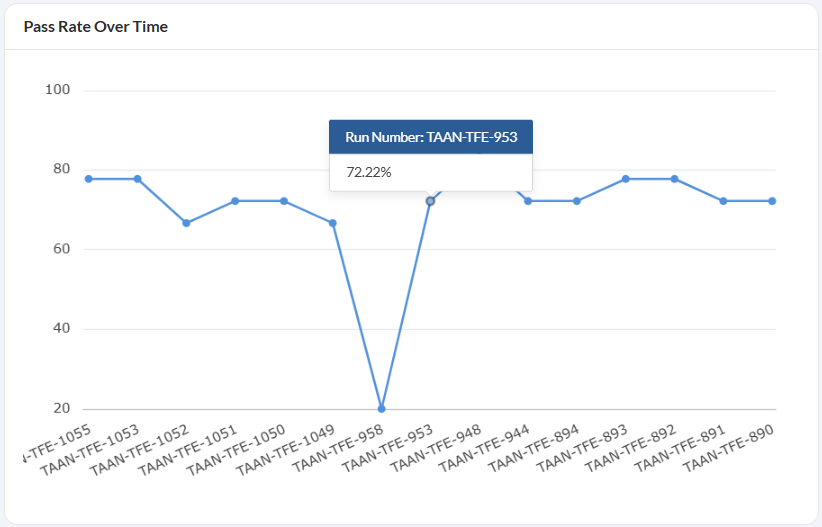
The Pass Rate Over Time chart provides a quick visual representation of how the success rate of tests changes throughout the test runs.
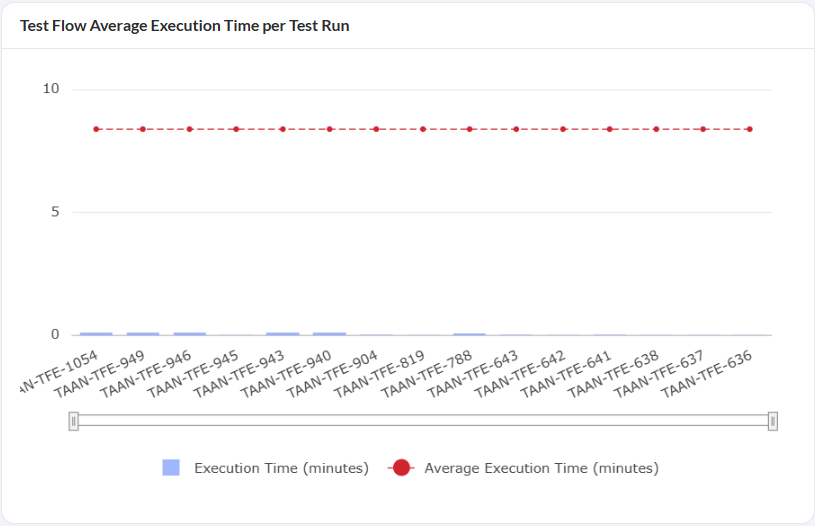
The Test Flow Average Execution Time per Test Run chart provides a quick visual representation of how long the test runs and the average each test run takes to complete.
The results tab displays information about the scenarios and steps. Its details, assertions, payloads, and attachments. It also highlights the Overall Scenario Summary, Scenario Step Types Distribution, and Scenario Step Status Distribution.
The dashboard highlights the details of the executed test scenarios and their individual steps. The left pane provides a hierarchical view of the test flow, broken down into its constituent scenarios. Each scenario is further expanded to display the steps within it, allowing users to examine the execution status, duration, and other relevant metrics for each step.
The Details tab displays the following information:
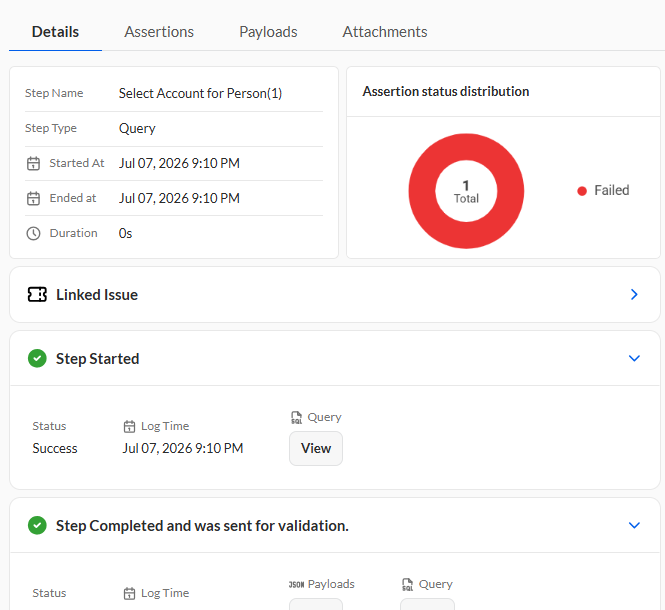
| Field | Description |
|---|---|
| Step Name | Name of the selected step. |
| Step Type | Type of the selected step. |
| Start time | Date and time when the test step execution began. |
| End time | Date and time when the test step execution was completed. |
| Duration | Total time elapsed during the test step execution. |
| Assertion status distribution | Pie chart that provides the status distribution of the assertions. |
| Step Started | Displays the step status, date and time the step execution began, and the query if available. |
| Step Failed | Displays the step status, date and time the step execution began, payloads, and the query if available. |
| Step Completed | Displays the step status, date and time the step execution began, and the payloads. |
The Assertions tab displays a detailed list of all the field names specified for validation within the selected test step. For each field, the expected value, the actual value, and the operator are displayed in a tabular form.
When the expected and actual values are the same, meaning the validation passed, the row is highlighted in green. Otherwise, the row will be red.
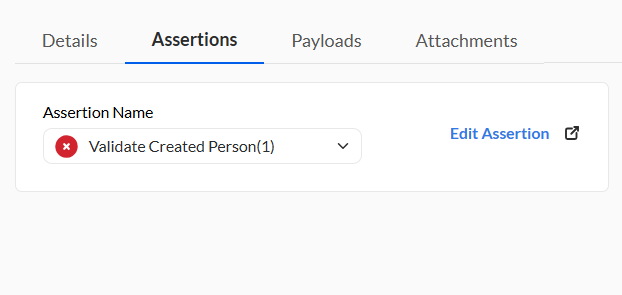
If the step type is API, the Payloads tab provides access to the request and response payloads associated with the selected step. This tab allows you to review the details of the data exchanged during the execution. Additionally, you can search for specific nodes by entering a keyword or the full parameter in the search text box.

The Attachments tab displays all files utilized during the test step execution. This includes any relevant documents, logs, or additional files uploaded for reference during the test.
The Overall Scenario Summary offers a high-level overview of the scenario to which the selected step belongs.
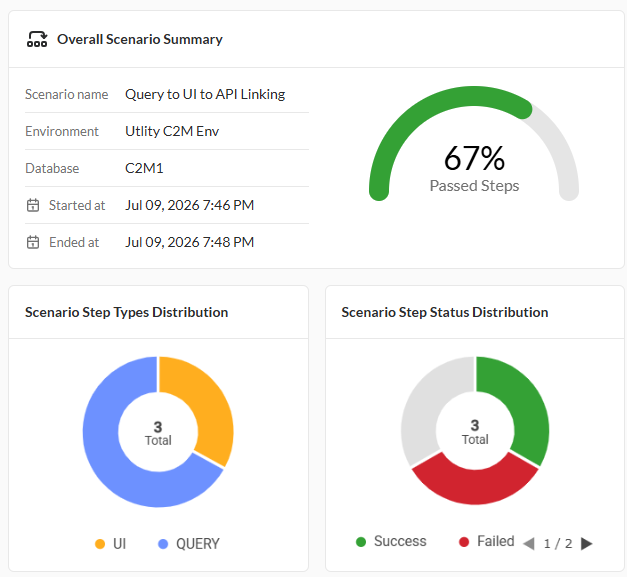
| Field | Description |
|---|---|
| Scenario name | Name of the scenario to which the selected step belongs. |
| Environment | Environment where the test scenario was executed. |
| Started at | Date and time when the test scenario execution began. |
| Ended at | Date and time when the test scenario execution was completed. |
| Passed steps | Percentage of the passed steps within the scenario. |
The Scenario Step Types Distribution pie chart shows the proportion of different step types within the selected scenario, such as API, UI, or database steps.
The Scenario Step Status Distribution pie chart provides a quick visual representation of how many steps passed, failed, or are still running.
The Settings module enables you to configure integrations available in the tool. To configure an integration, click on any integration card and follow the displayed steps.
TestRail is a web-based test management tool used to organize and manage test cases, plans, and test runs. Our TA Tool now supports seamless integration with TestRail, allowing users to synchronize and manage test artifacts efficiently. If you already have a TestRail account, proceed to Pre-configure TestRail. Otherwise, create a TestRail account in TestRail.
To configure integrations in projects, see Configure project integrations.
To synchronize integrations in test flows and test runs, see Sync to TestRail.
You need to do the following to configure and integrate TestRail:
To configure TestRail, follow these steps:
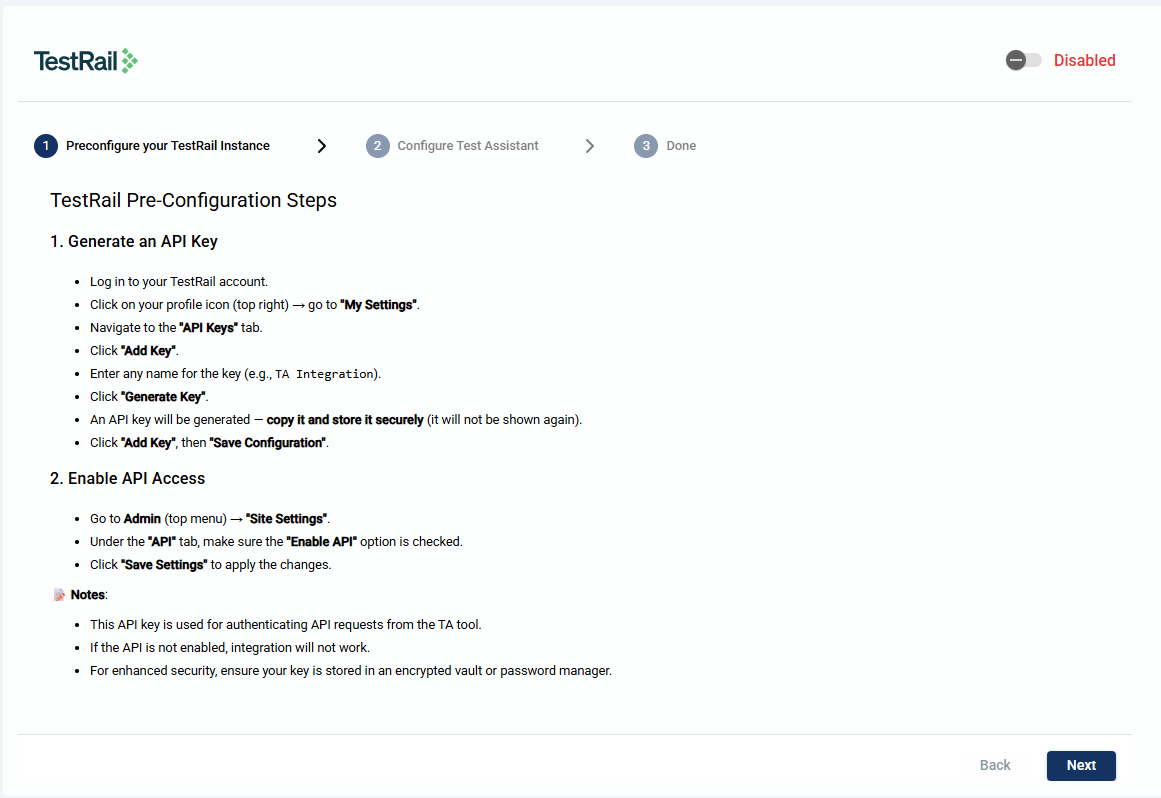
Login to your TestRail account.
Click on your profile icon.
Click My Settings link.
Navigate to the API tab.
Click Add key.
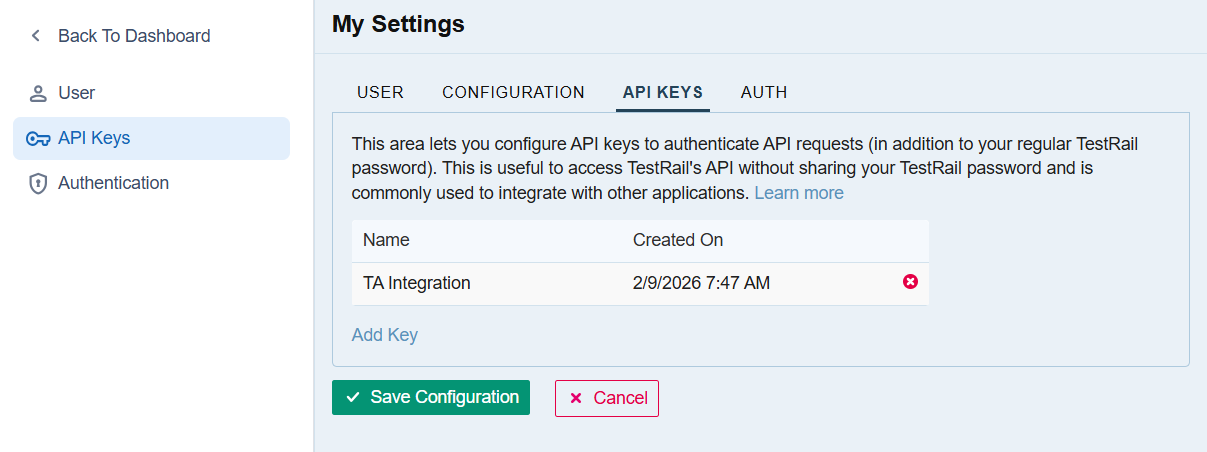
Enter a valid name for the key.
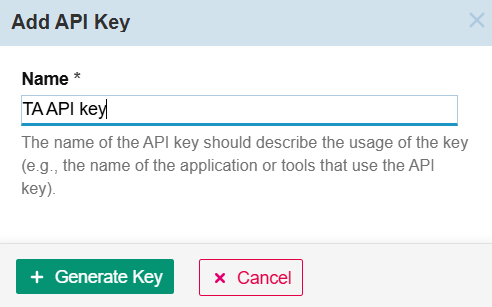
Click Generate Key.
Copy and paste the generated key to a secure file.
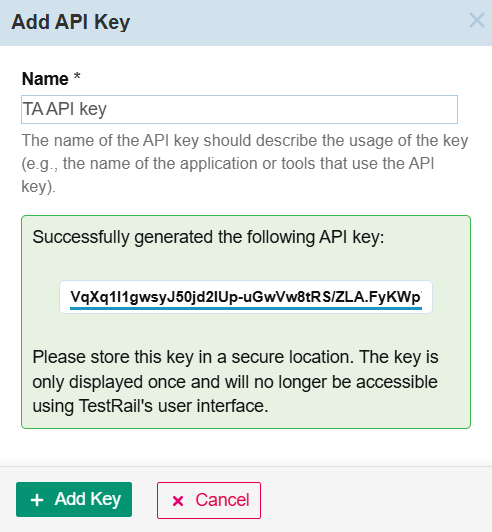
Click Add Key.
Click Save Configuration.
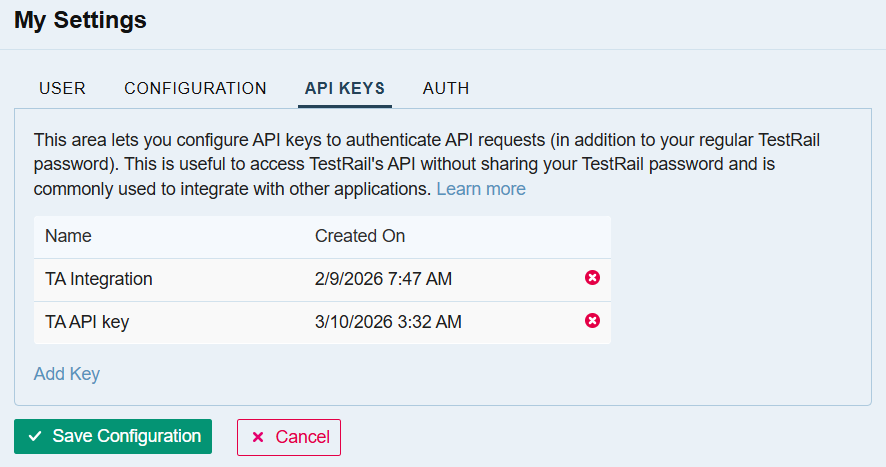
To get the base URL, follow these steps:
To integrate TestRail, follow these steps:
Paste the base URL in the Base URL field.
Paste the API key from the TestRail pre-configurations in the API Key field.
Enter the email you use when logging into your TestRail account.
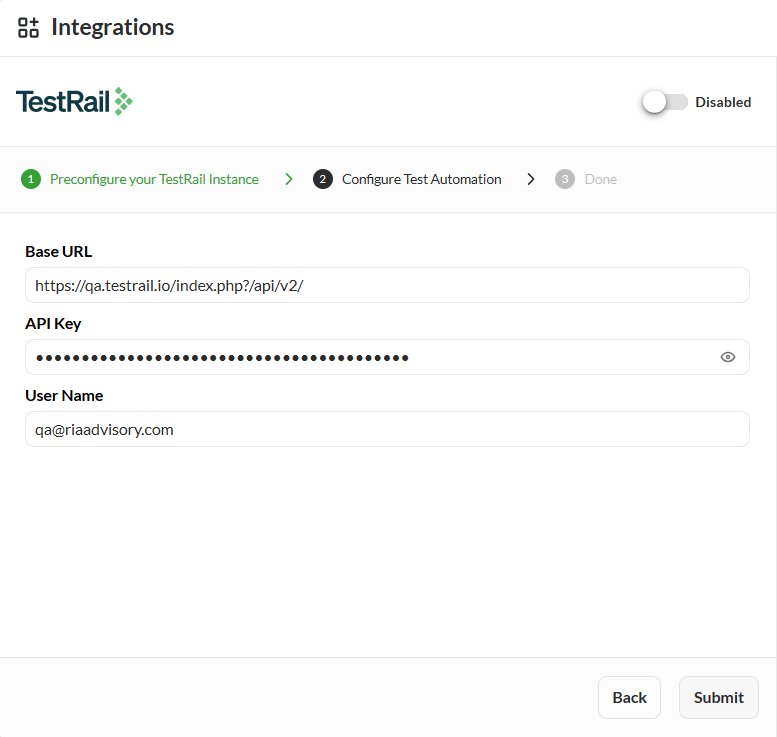
Click Submit.
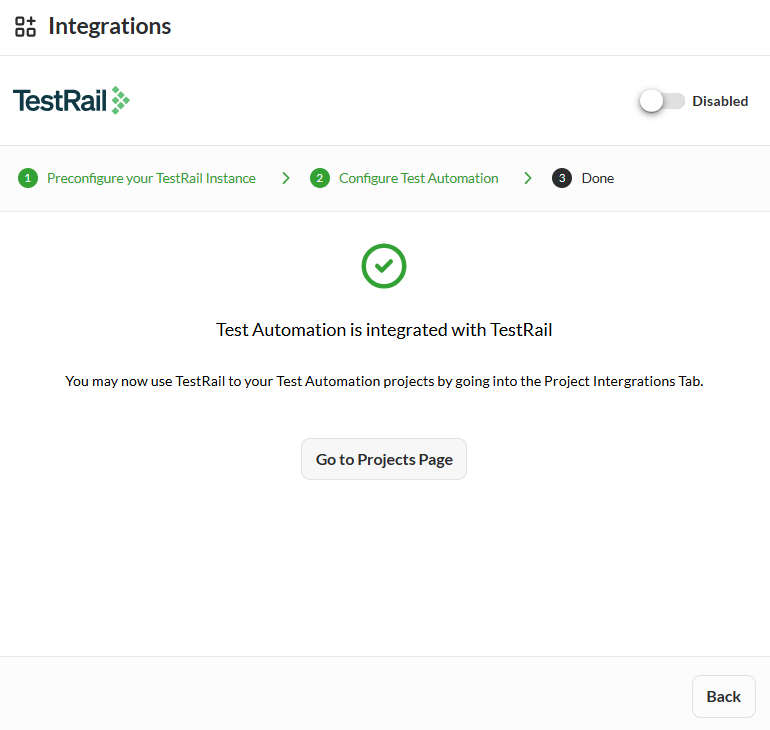
Click the toggle to activate the integration.
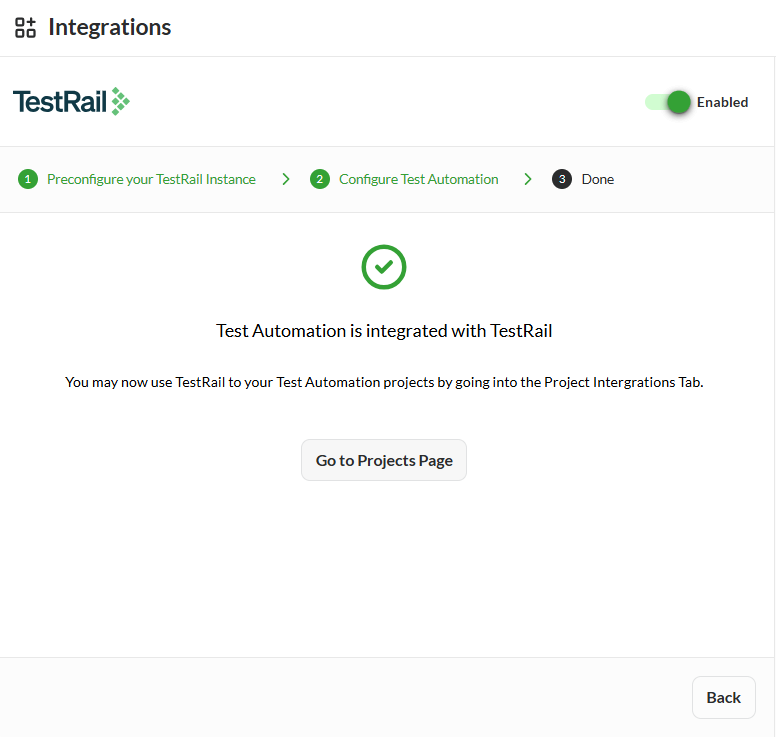
The Jira Integration allows your portal to connect securely with Atlassian Jira Cloud using OAuth 2.0 (3LO) authorization. It enables your application to access Jira data such as projects, issues, and users, perform updates, and manage workflows directly from within your portal without manual Jira interaction.
To configure integrations in projects, see Configure project integrations.
To link issues in test flows, see Issue Tracking.
To integrate JIRA, follow these steps:
Click the JIRA card.
Follow the instructions in the Preconfigure your JIRA Instance.
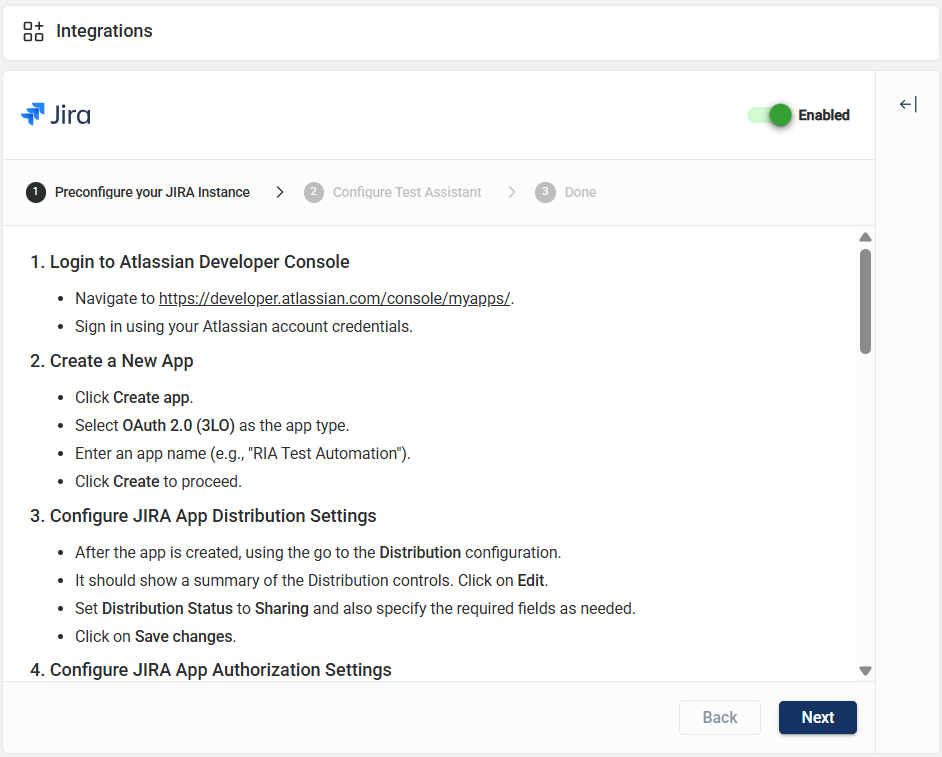
Click Next.
Enter valid values in the madatory fields in the Configure Test Assistant.
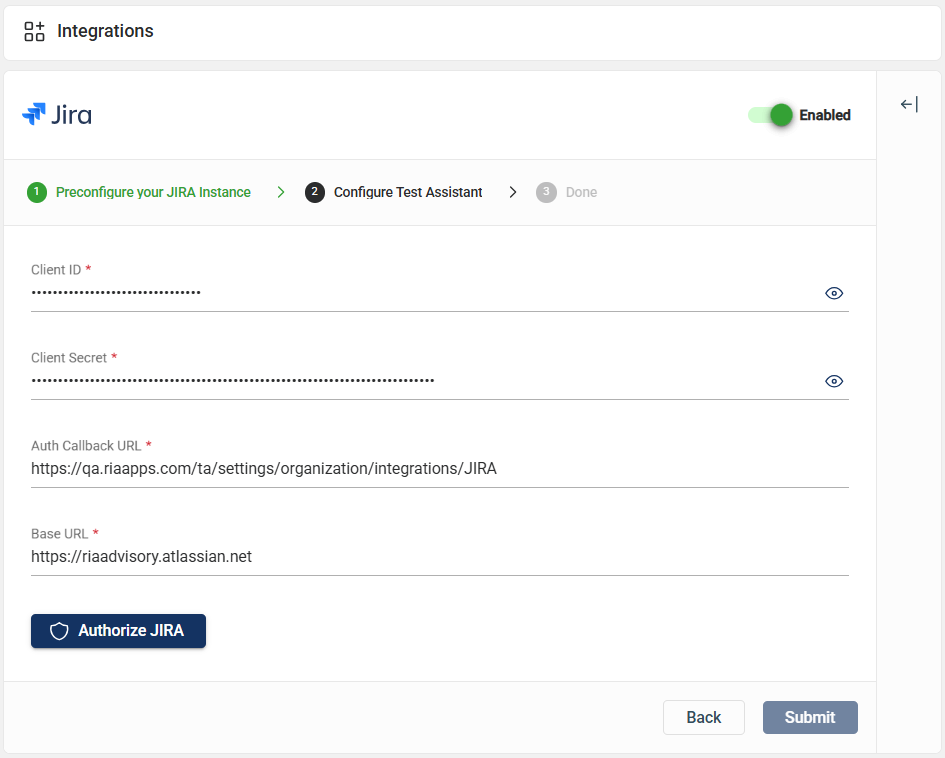
Click Authorize JIRA.
Click Accept in the popup window requesting access to your acocunt.
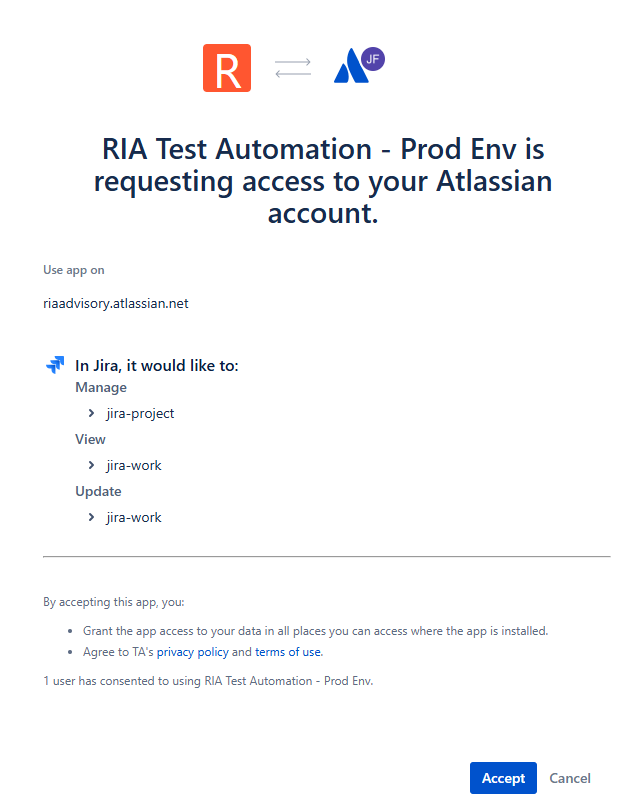
An Authorization Successful message is displayed.
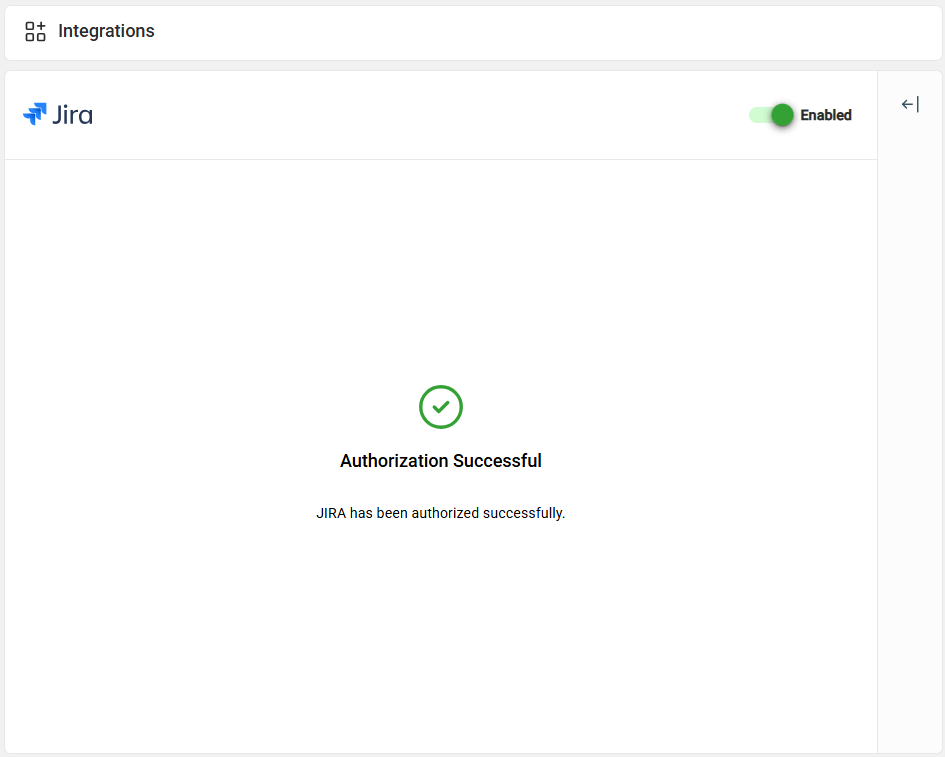
Click the toggle to activate the integration.
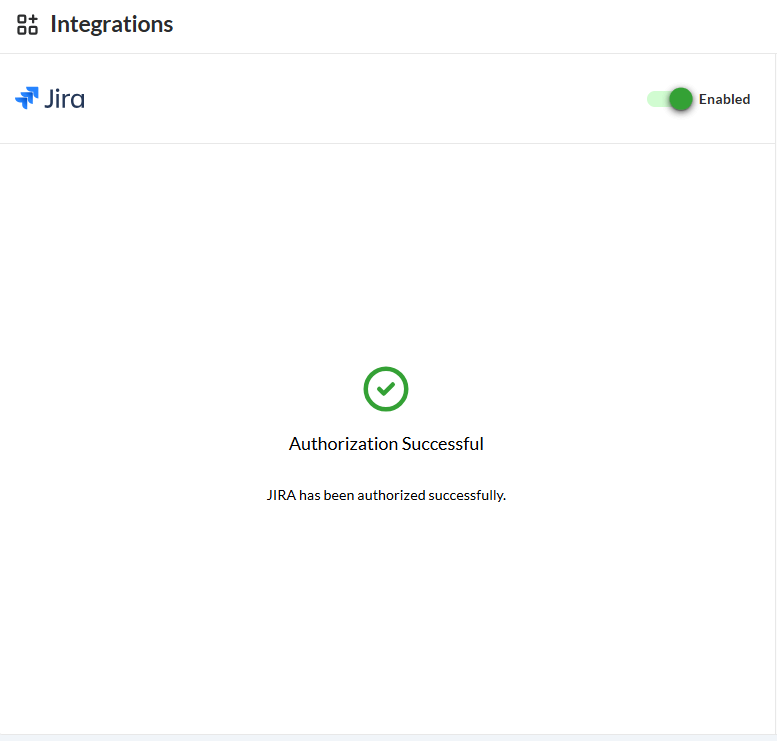
The Test Suite module enables you to organize, manage, and execute multiple test flows within a specific version. It also allows you to associate datasets, configure test environments and databases, and control how and when tests are run.
By grouping related flows into a single suite, you can streamline regression testing, ensure consistent execution settings, and automate scheduled runs.
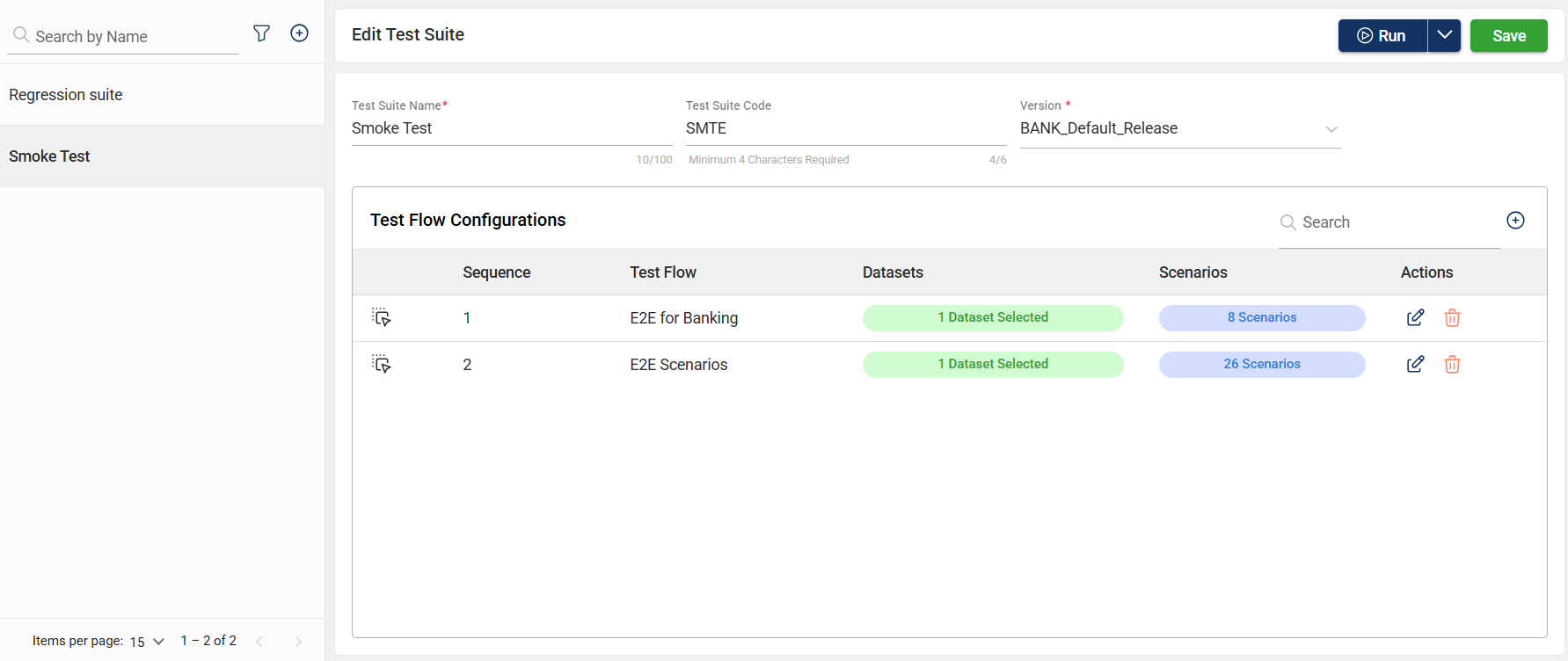
To create a test suite, follow these steps:
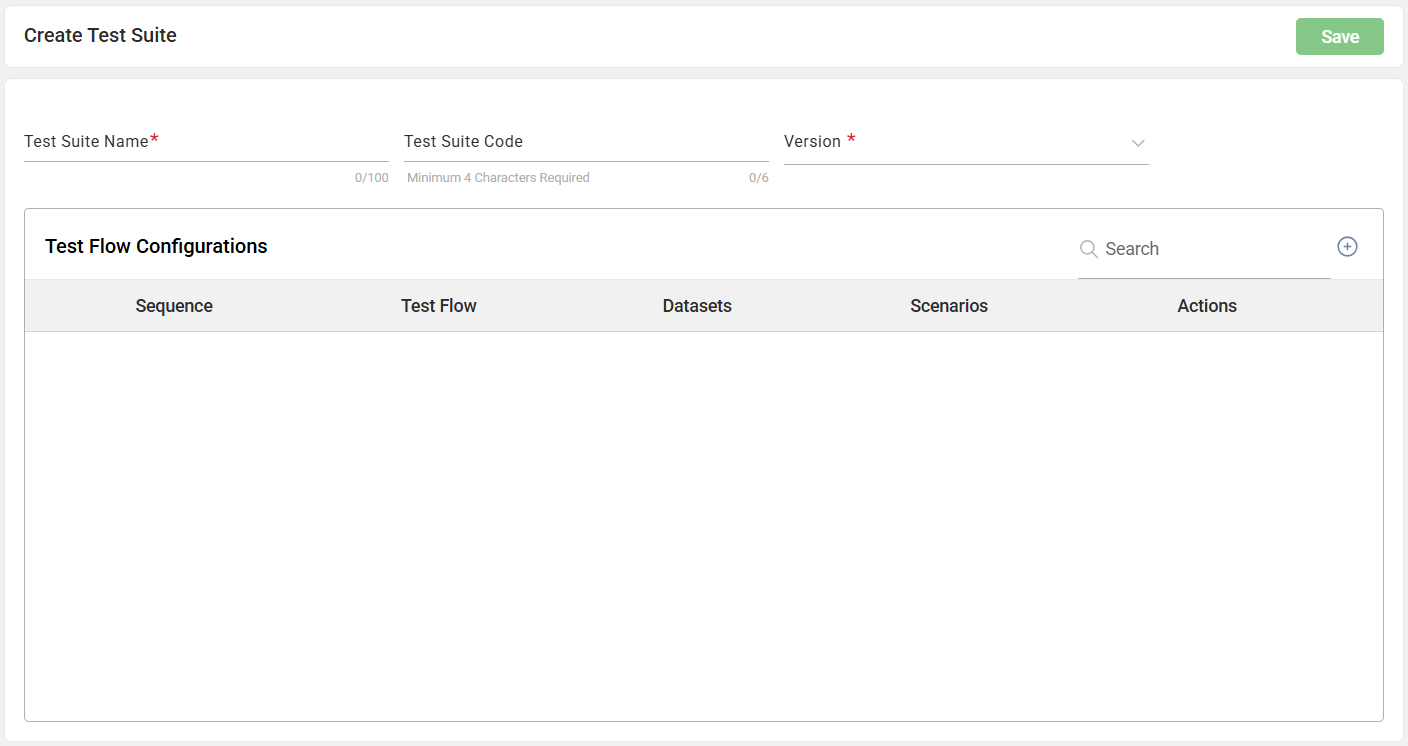
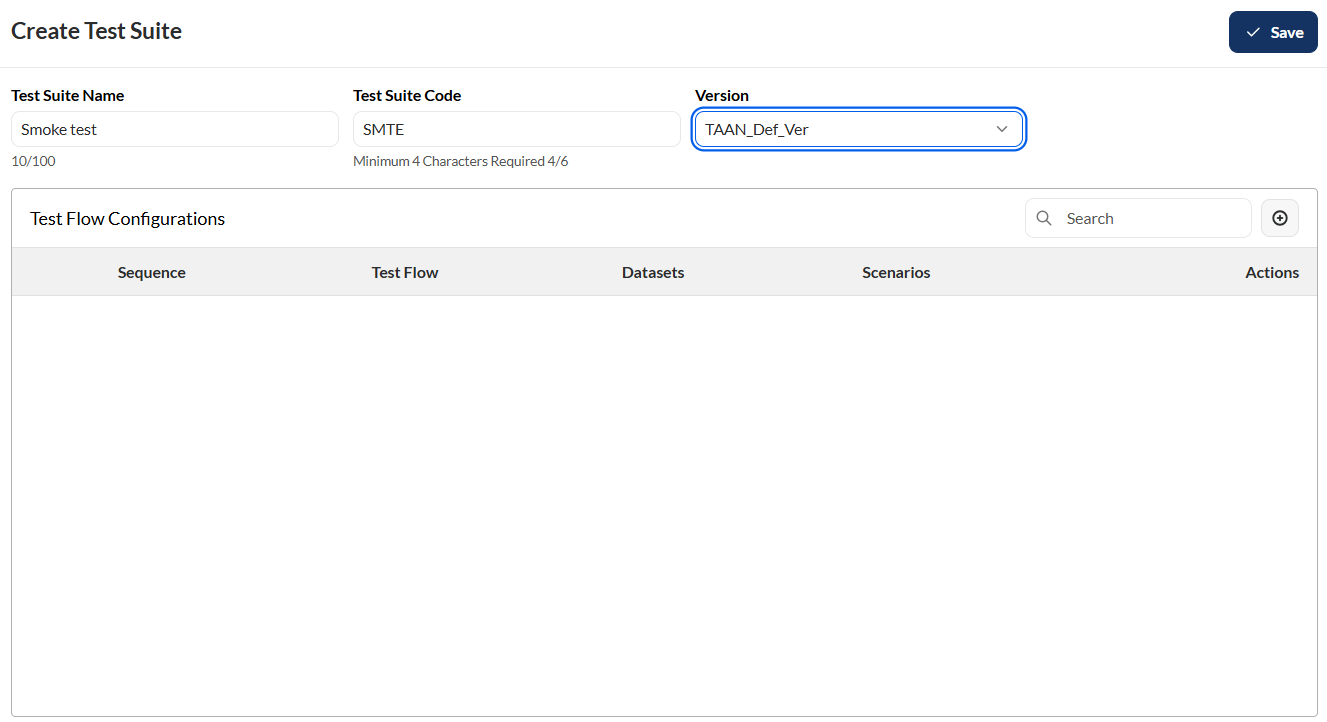
To add a flow to the test suite, follow these steps:
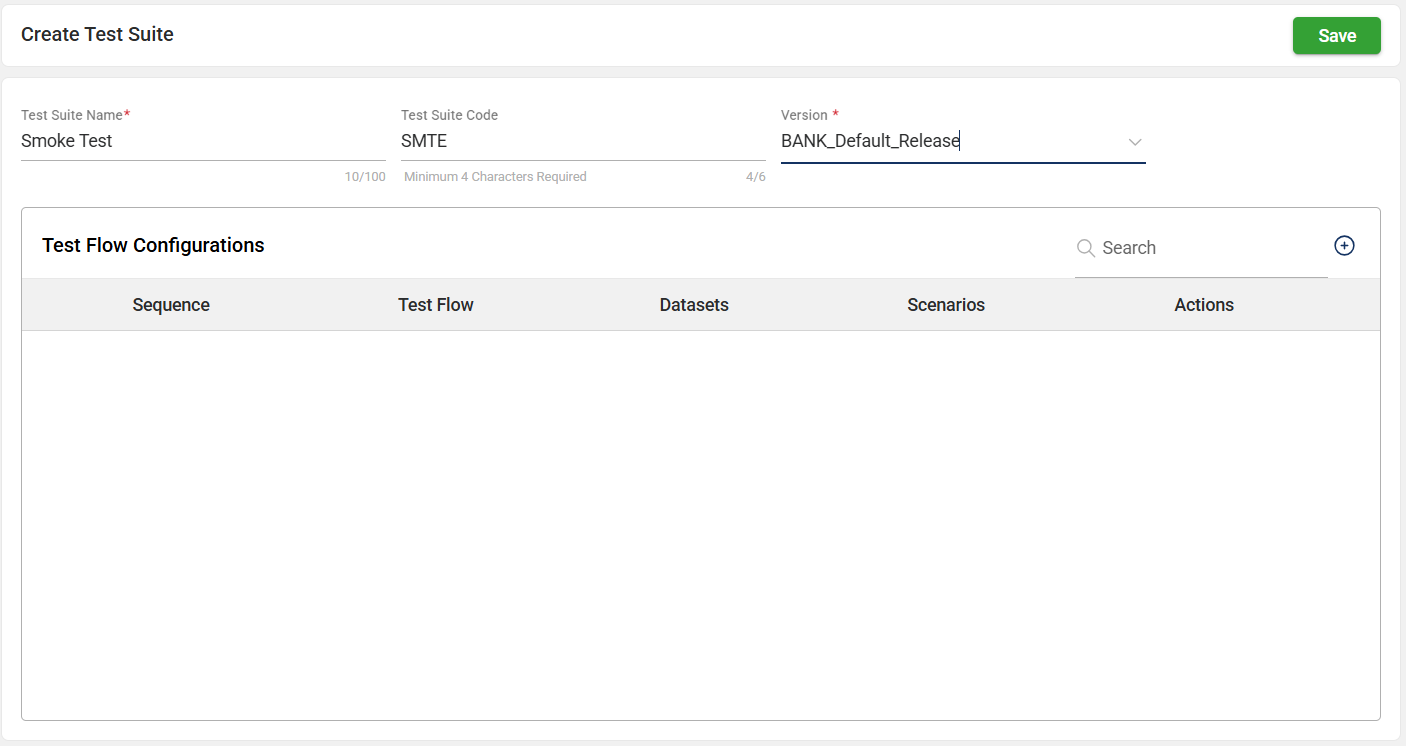
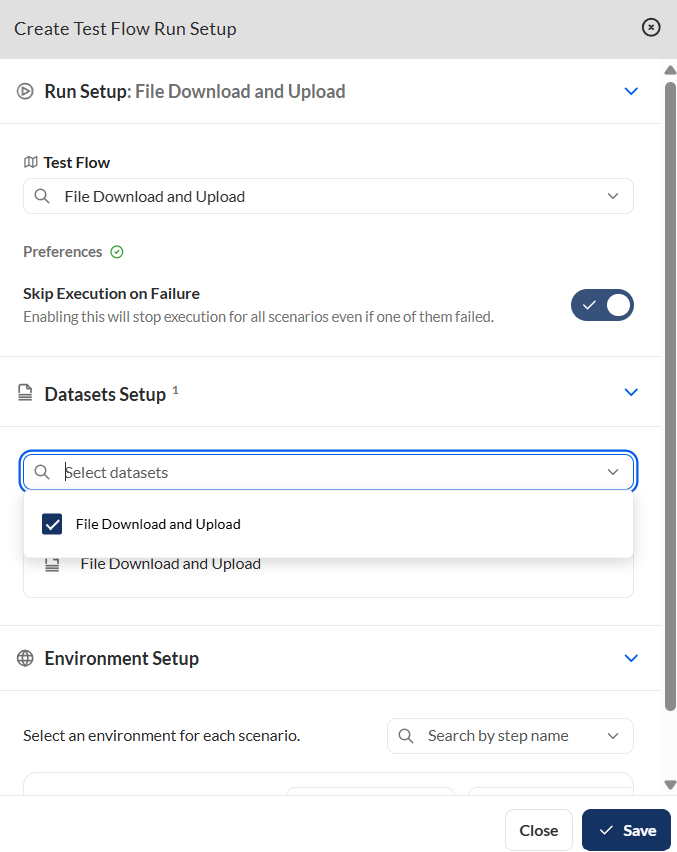
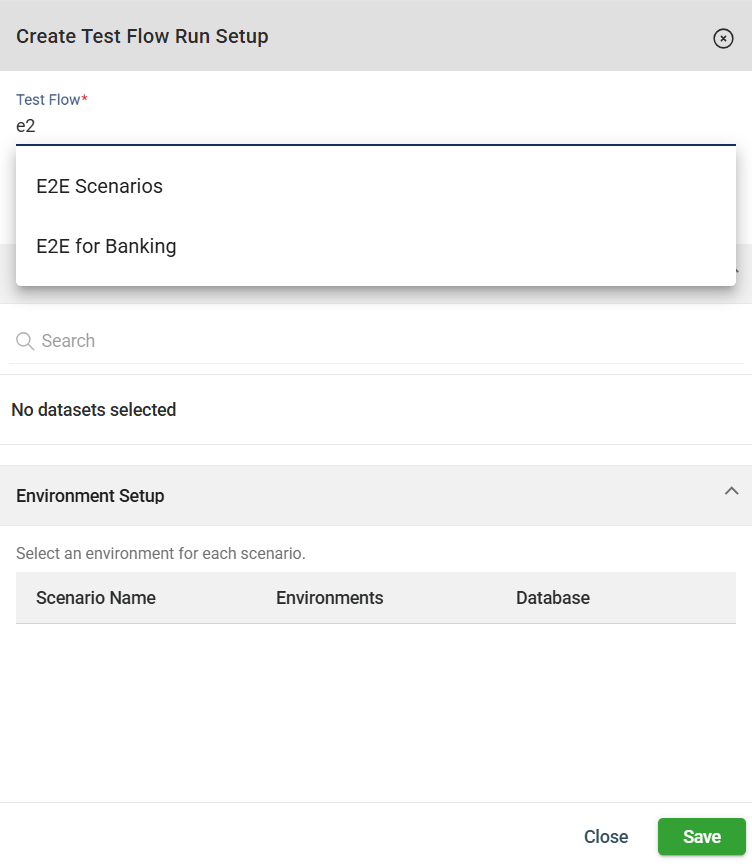
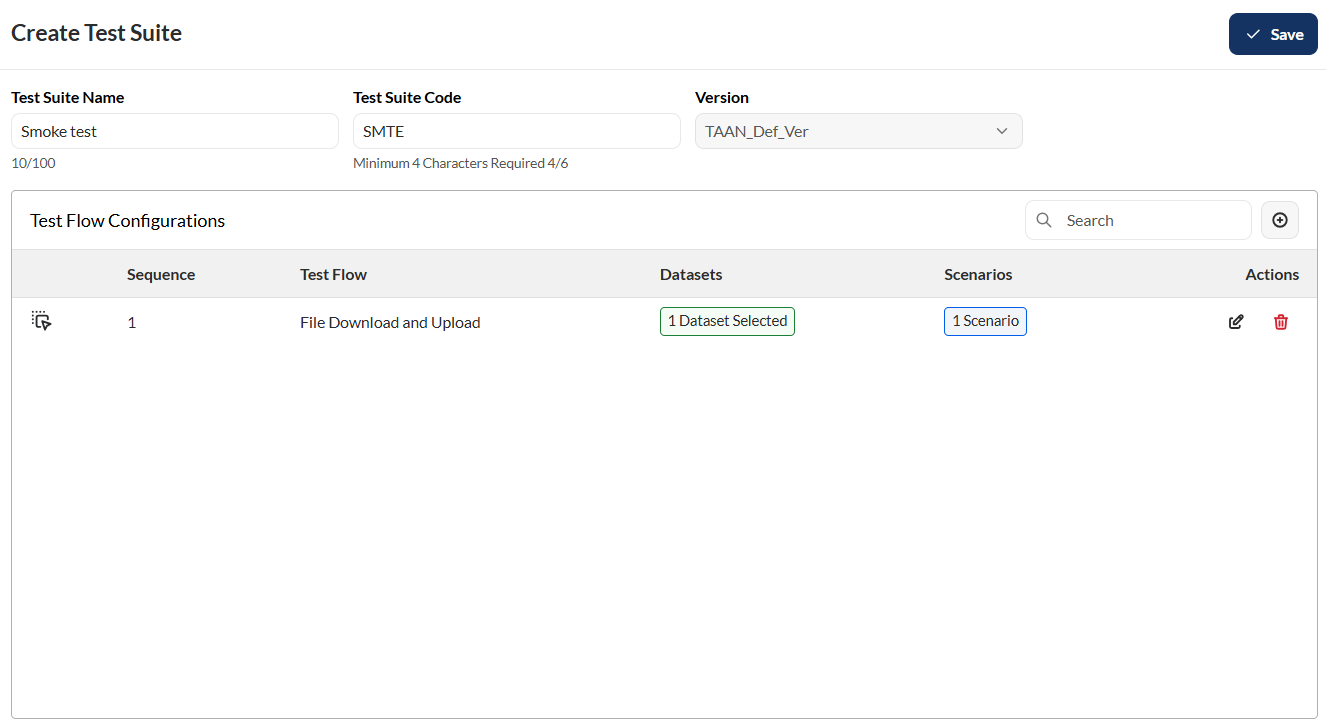
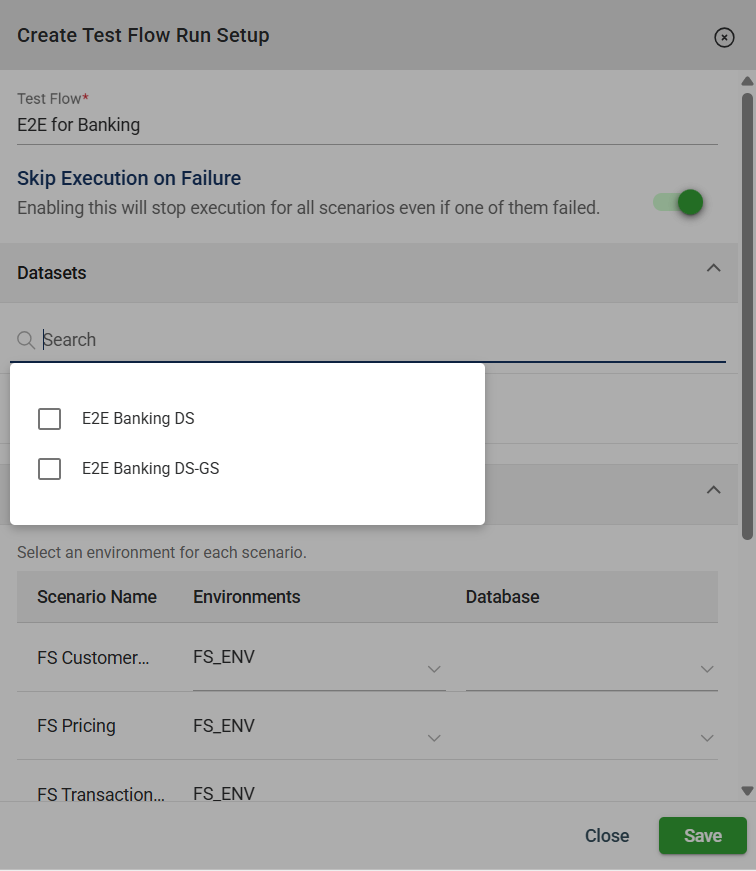
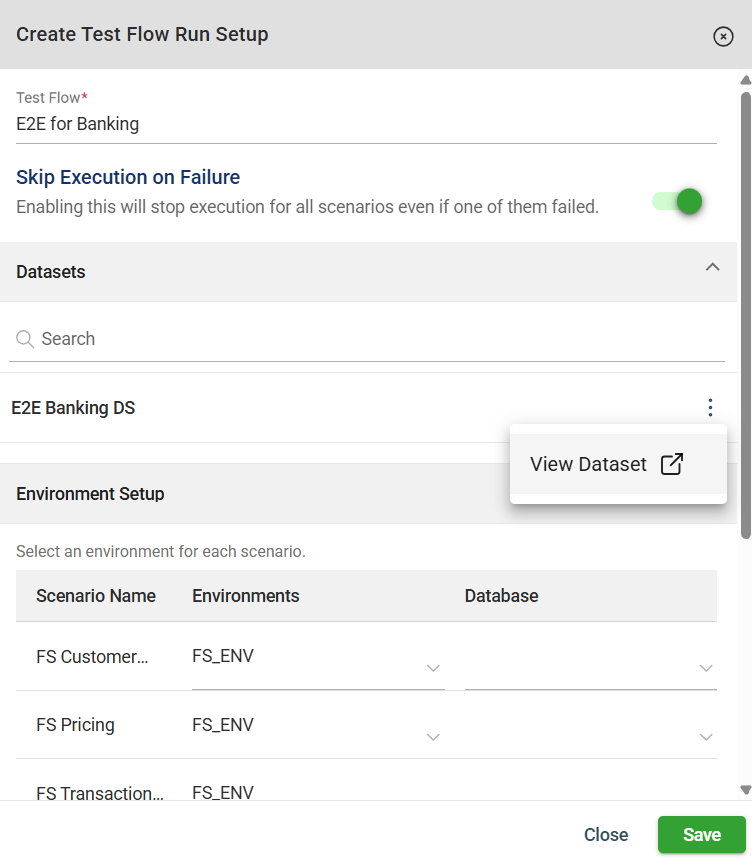
To configure the schedule of the test suite run, follow these steps:
Click the Schedule button.
Enter valid values in the following fields.
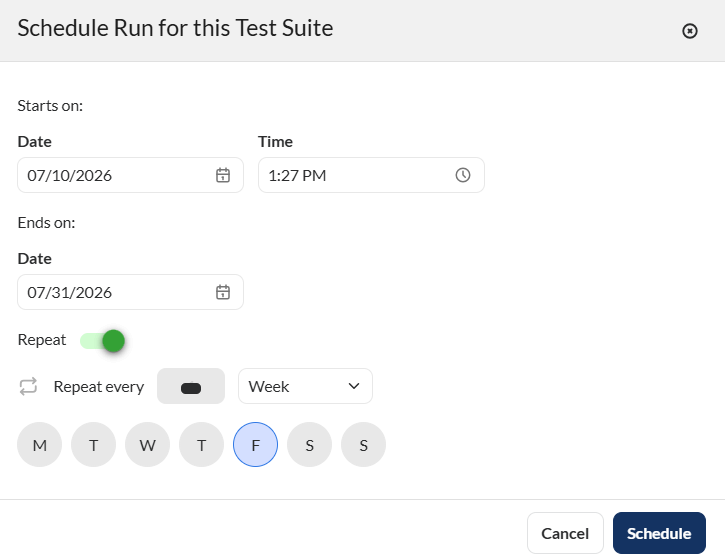
| Field | Description |
|---|---|
| Starts on > Date | Date when the scheduled run will begin. |
| Starts on > Time | Time when the run will start on the selected date. |
| Ends on > Date | Date when the scheduled run will stop recurring. No runs will be triggered after this date. |
| Repeat | Specifies the recurrence pattern for the schedule. |
| Repeat every | Specifies the interval for the selected recurrence pattern. |
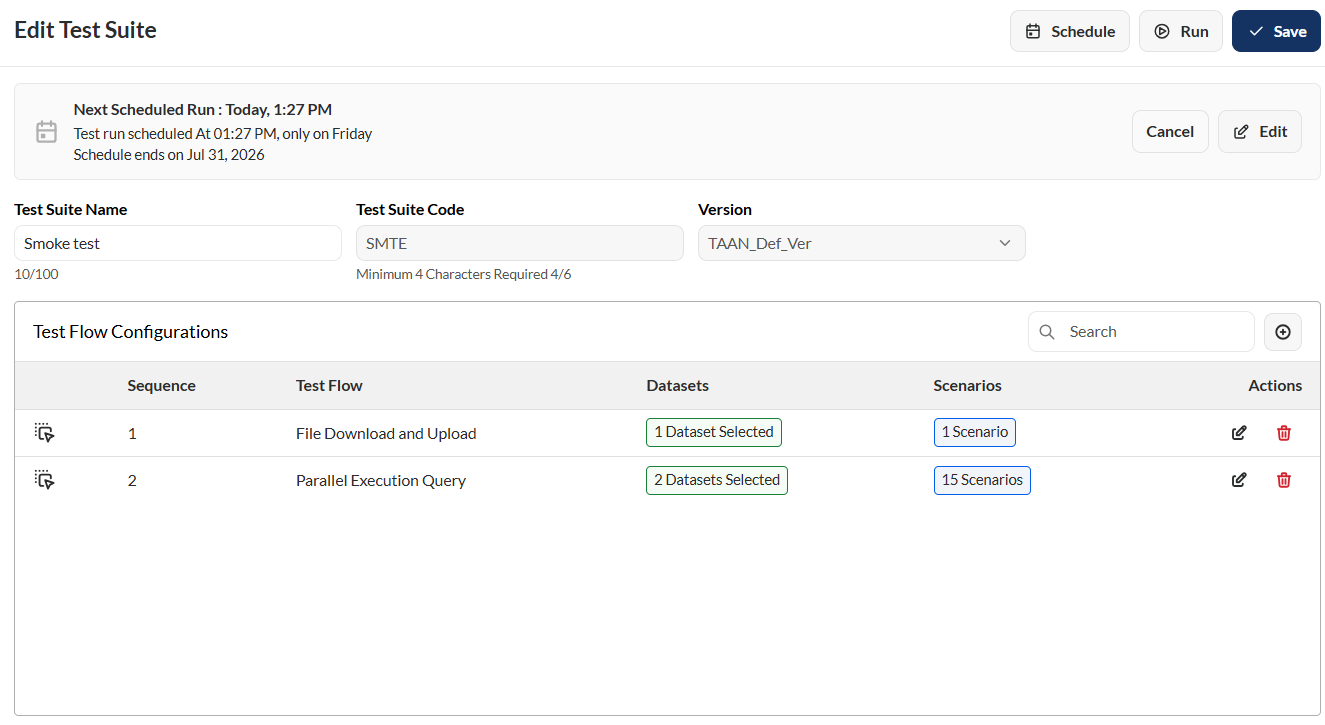
To edit a test suite, select a test suite and make the necessary changes. Click the Save button once done.
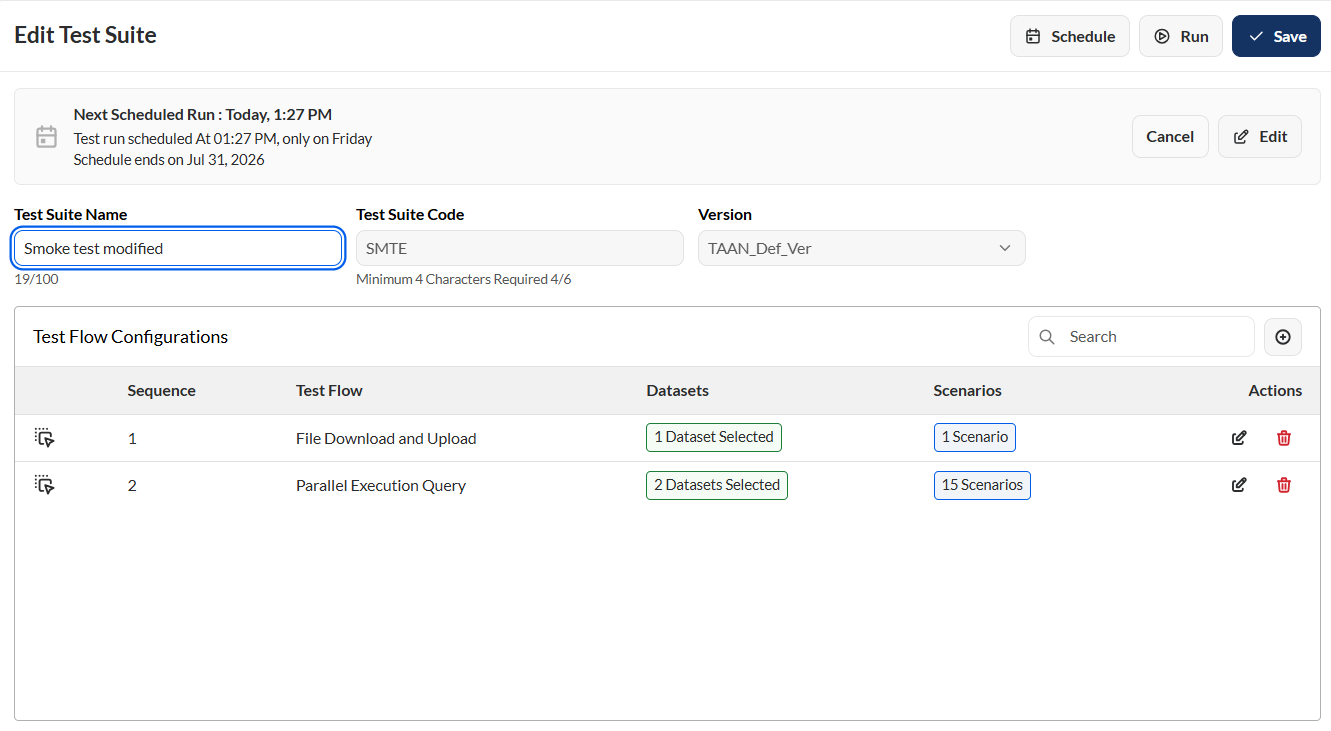
To edit a schedule, follow these steps:
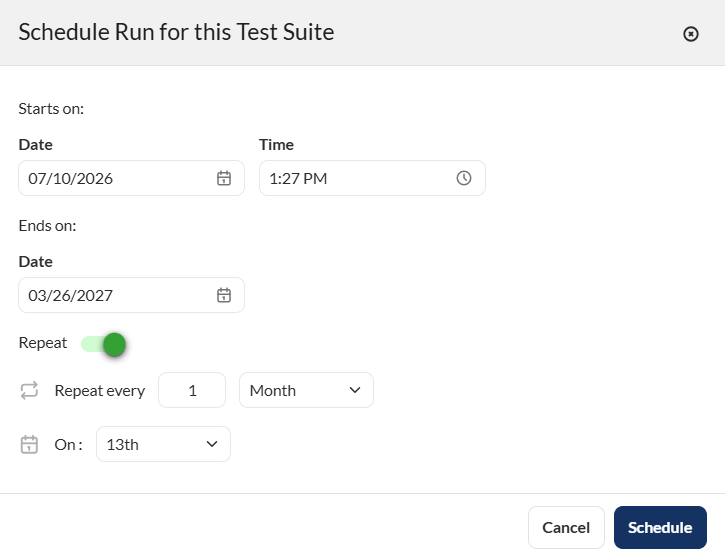
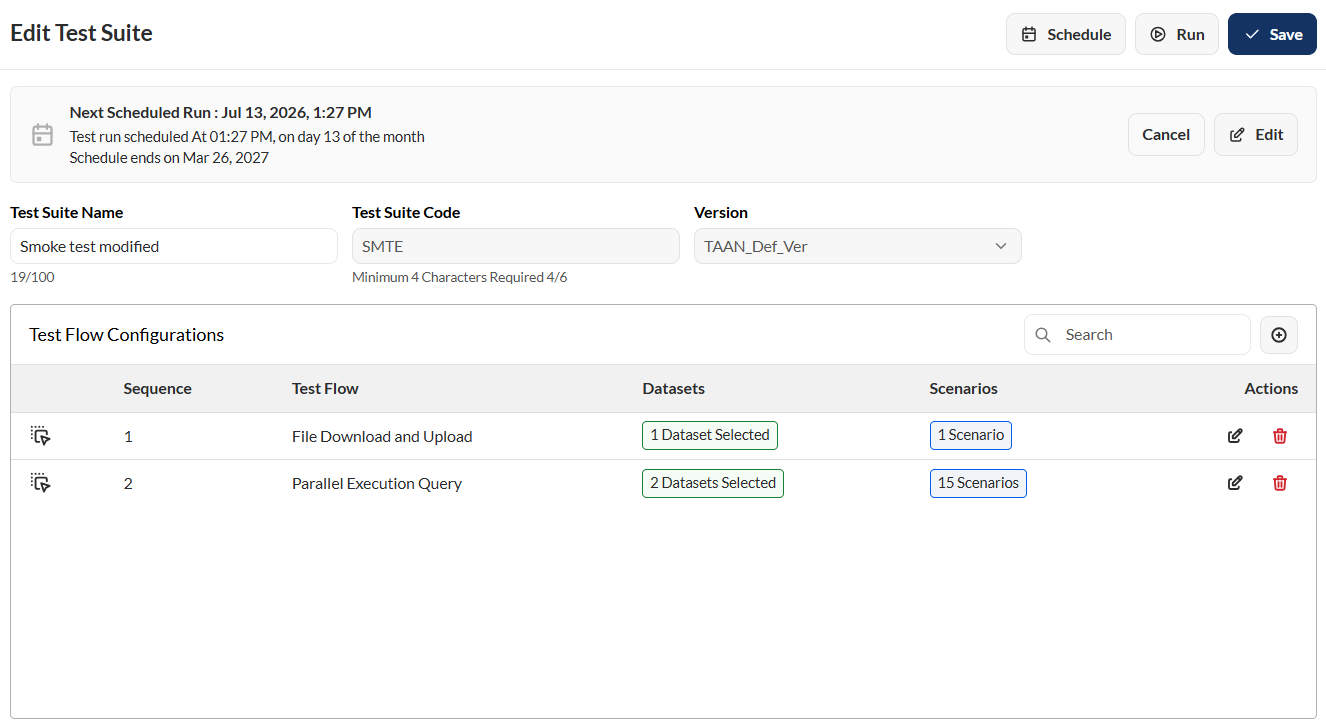
The execution order of flows can be modified by dragging and dropping a flow to the desired position within the sequence.
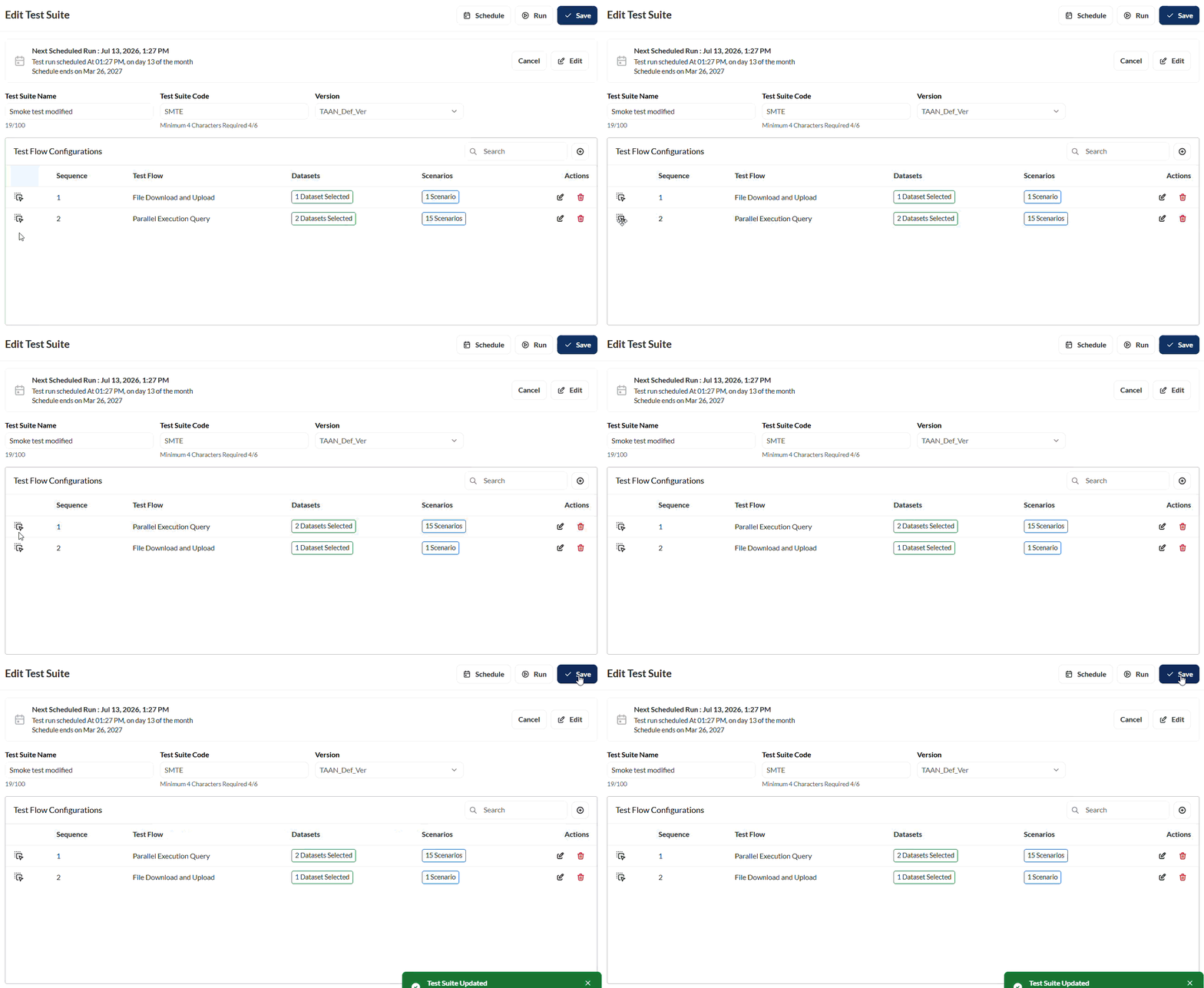
To edit the dataset, you can untick the currently selected dataset in a flow and choose from other associated datasets by clicking the search field in the Dataset section. You can also select multiple dataset for a flow.

You can also modify the environment and dataset by selecting your preferred options from the corresponding dropdown lists.

The search feature allows you to filter the list of datasets by providing a keyword or the full name of a dataset. Only the datasets that match the provided keyword or name will be displayed in the view.
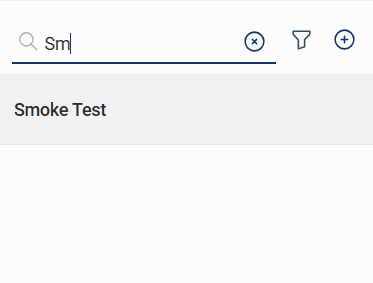
Click the icon to display additional filtering and sorting options. For filtering, a dropdown list of available filter parameters will show all associated values for the selected project and version.
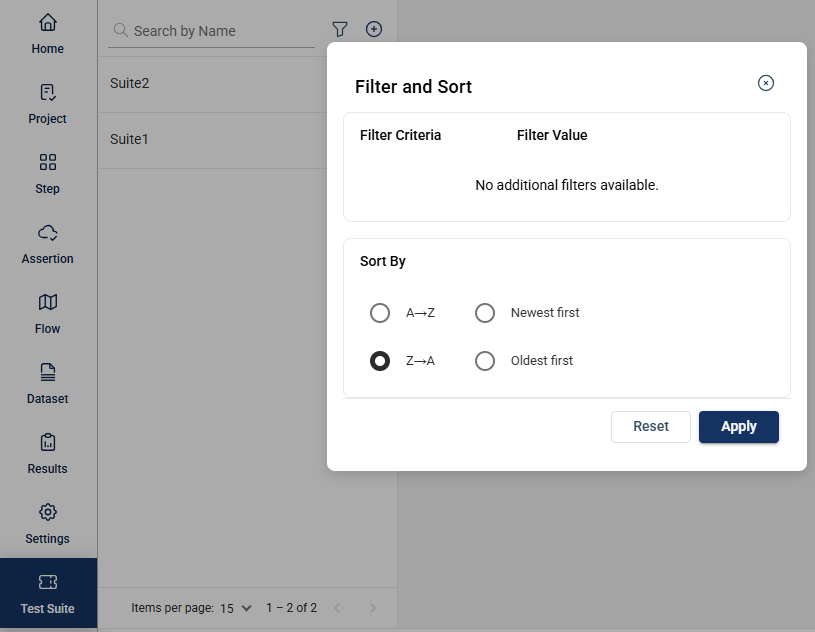
To delete a test suite, click the menu option and select Delete.
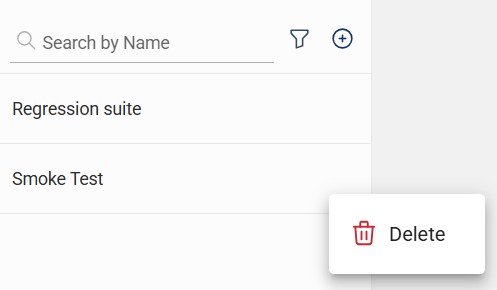
Then, in the confirmation popup window, click the Delete button.
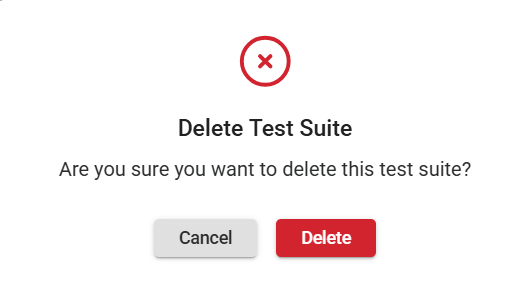
RIA Test Automation is a versatile software testing solution developed by RIA Advisory to streamline and enhance the testing process for enterprise applications. Initially created to address the challenges of efficient regression testing in internal projects, it has now grown into a robust tool that can adapt to any enterprise system, providing complete end-to-end testing capabilities.
This tool especially supports various Oracle products, including Oracle Revenue Management and Billing (ORMB), Customer-to-Meter (C2M), Utilities Customer Cloud Service (CCS), and Meter Data Management (MDM). However, its flexible architecture allows for seamless integration across diverse business applications. Test Automation facilitates thorough testing across APIs, batch processes, and user interface interactions, enabling you to deliver quality software while minimizing the effort and costs involved in the testing process.
| Architecture | Provides an overview of the TA structure. | architecture.md | |
| Dashboard | Monitor your testing configuration and processes. | dashboard.md | |
| Project | Create your own testing workspace. | project | |
| Step | Define the steps within a project. | step.md | |
| Assertion | Define assertions within a project. | assertion.md | |
| Flow | Manage test flows within projects. | flow | |
| Dataset | Manage your test data. | dataset.md | |
| Results | View the results of executed scenarios. | results.md |