Lookup Extension
Overview
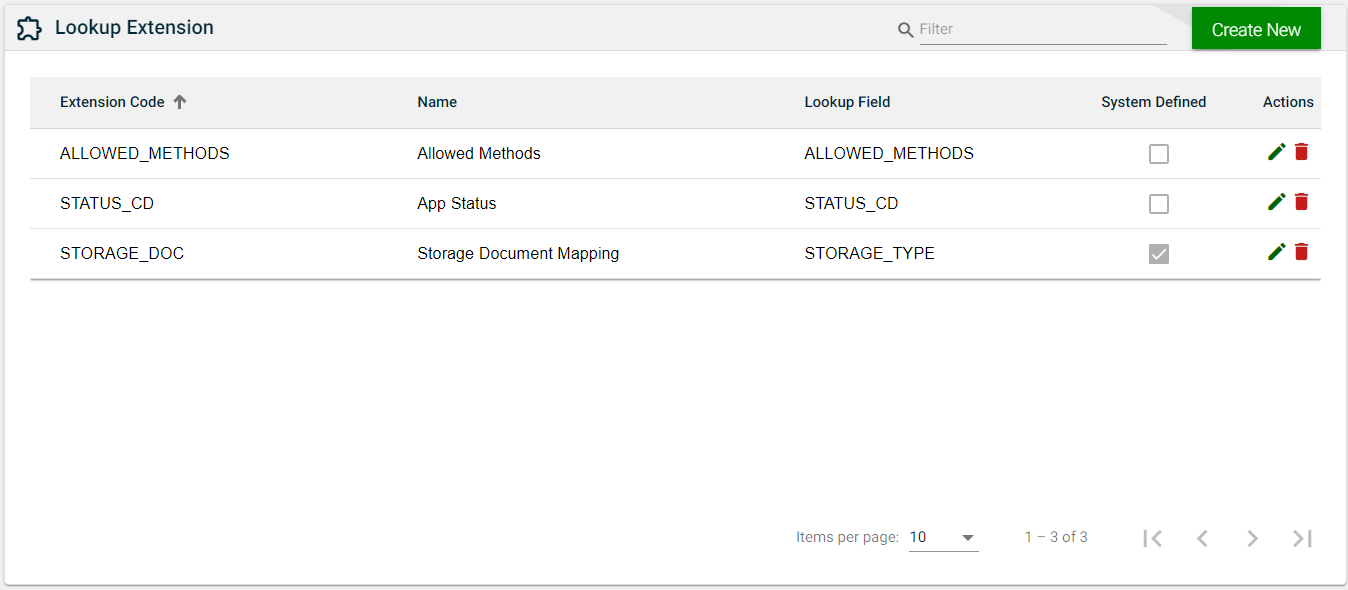
The Lookup Extension module lists all the lookup fields with configurable UI properties. The configured UI properties are not stored in any database and are not used in any API processing.
This module allows you to create, edit, or delete a lookup extension.
Create a lookup extension
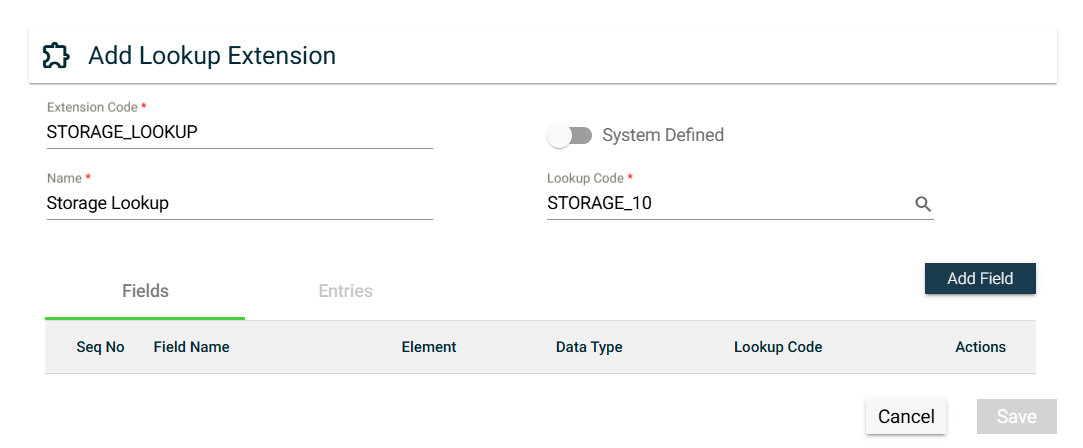
To create a lookup extension, click Create New and enter valid values in the following fields:
| Field | Description |
|---|---|
| Extension Code | Name of the lookup extension used in the backend. |
| System Defined |
Sets the lookup extension to be system defined.
A lookup extension that is system defined cannot be updated or deleted by the users. |
| User Mapping |
Only visible when System Defined is enabled.
Allows the user to provide site-specific mappings between the lookup extension being created and the selected value in the Lookup Code. |
| Name | Name of the lookup extension. |
| Lookup Code |
Dropdown list for all items configured in the
Lookup module.
Click the open icon to see the lookup details in a new browser window. |
| Fields | To add a field, see Fields. |
| Entries |
To access the Entries tab, a Lookup Code
should be selected, and at least one field should be added to the
Fields tab.
To add an entry, see Entries. |
Fields
To add a field for the lookup extension, follow these steps:
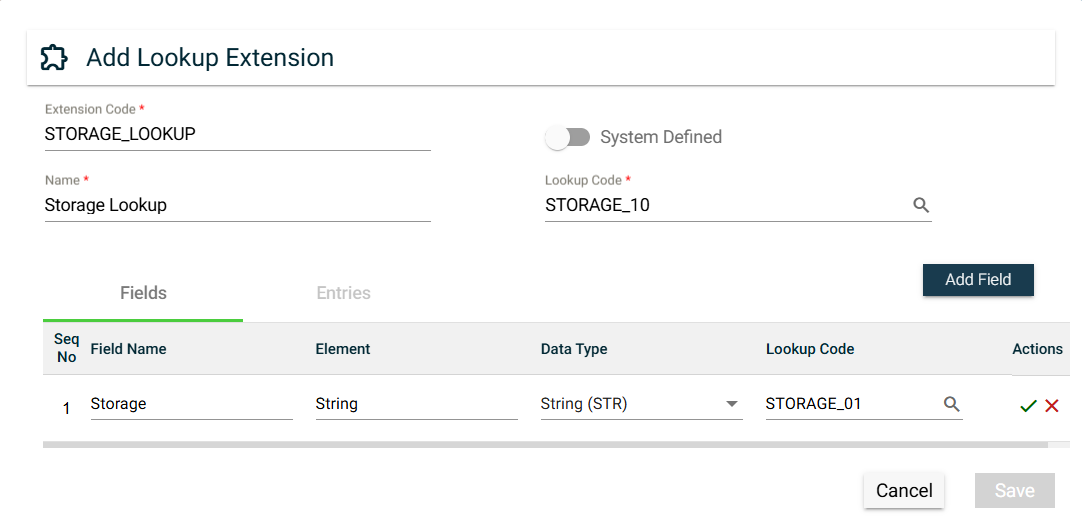
- Click Add Field.
- Enter a valid Field Name value.
Ensure to enter the correct value. Once the field is added, its name can no longer be edited. - Enter a valid Element value.
- Select a Data Type. The following are the possible values:
Date (DTE)Number (NBR)String (STR)Quantity (QTY)Amount (AMT)
- Select a Lookup Code. The possible values are all items configured in the Lookup module.
- Click
 to save. To cancel adding a new entry, click
  .
.
To edit a field, click  . The Field Name values of existing fields can no longer be changed.
To delete a field, click  .
.
Entries
{% hint style=“danger” %} To access the Entries tab, a Lookup Code should be selected, and at least one field should be added to the Fields tab. {% endhint %}
To add an entry for the lookup extension, follow these steps:
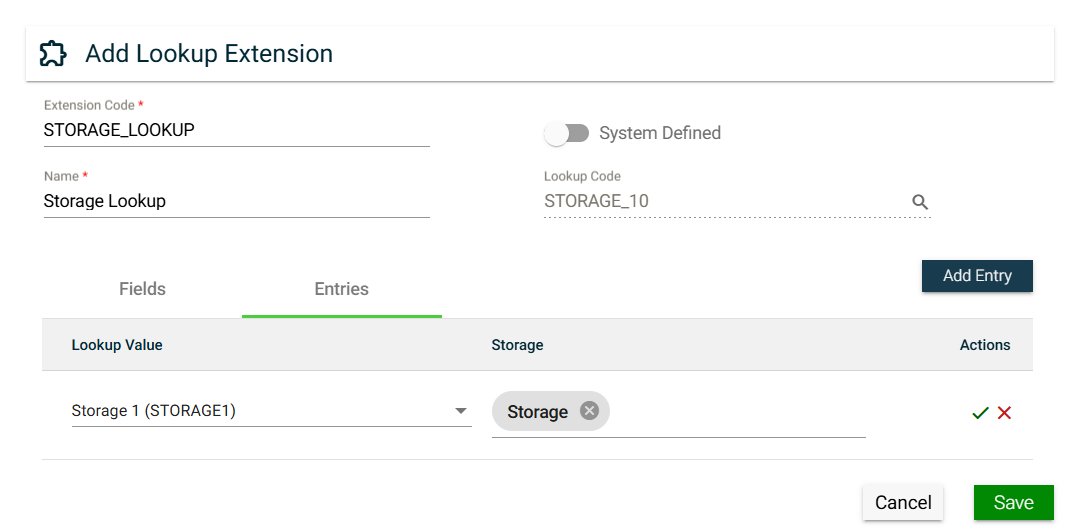
- Click Add Entry.
- Select a valid value for the Fields you have added in the Fields tab.
- Select an Element.
- Click to save. To cancel adding a new entry, click .
To edit an entry, click . The Lookup Value of existing entries can no longer be changed.
To delete a field, click .
Views
List View
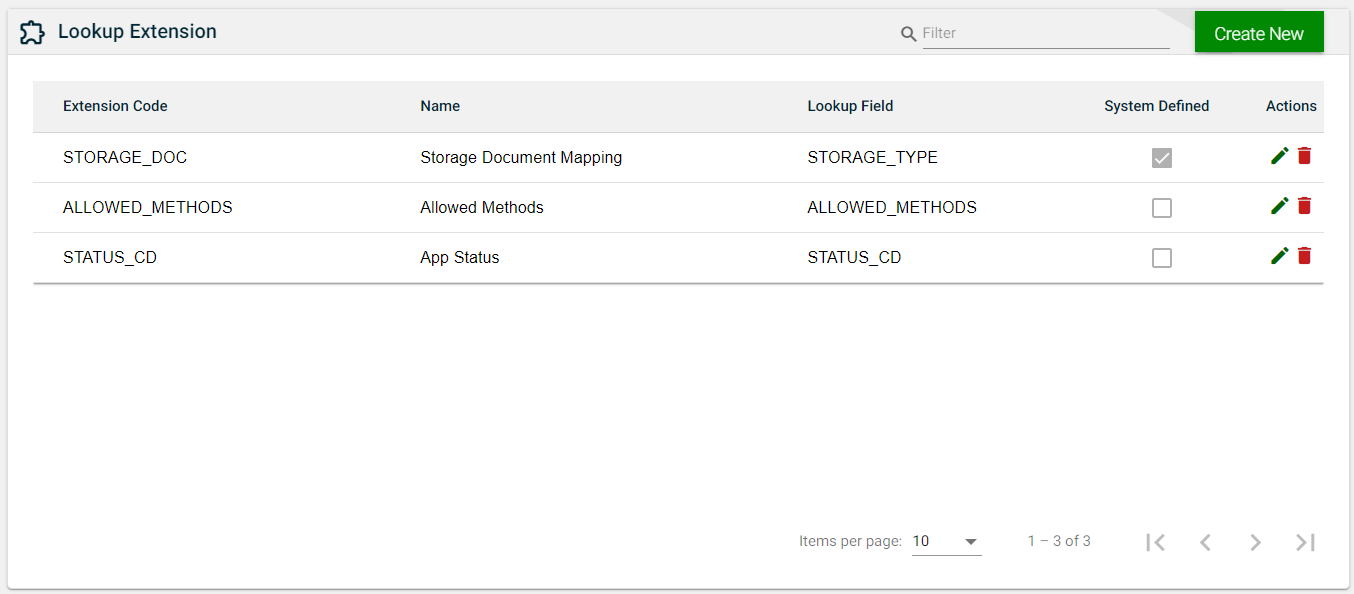
| Field | Description |
|---|---|
| Extension Code | Name of the lookup extension used in the backend. |
| Name | Label name of the field as displayed in the application. |
| Lookup Field | Name of the field used in the backend. |
| System Defined | Indicates if the field is system-defined. |
| Actions |
Displays the following icons:
|
Search
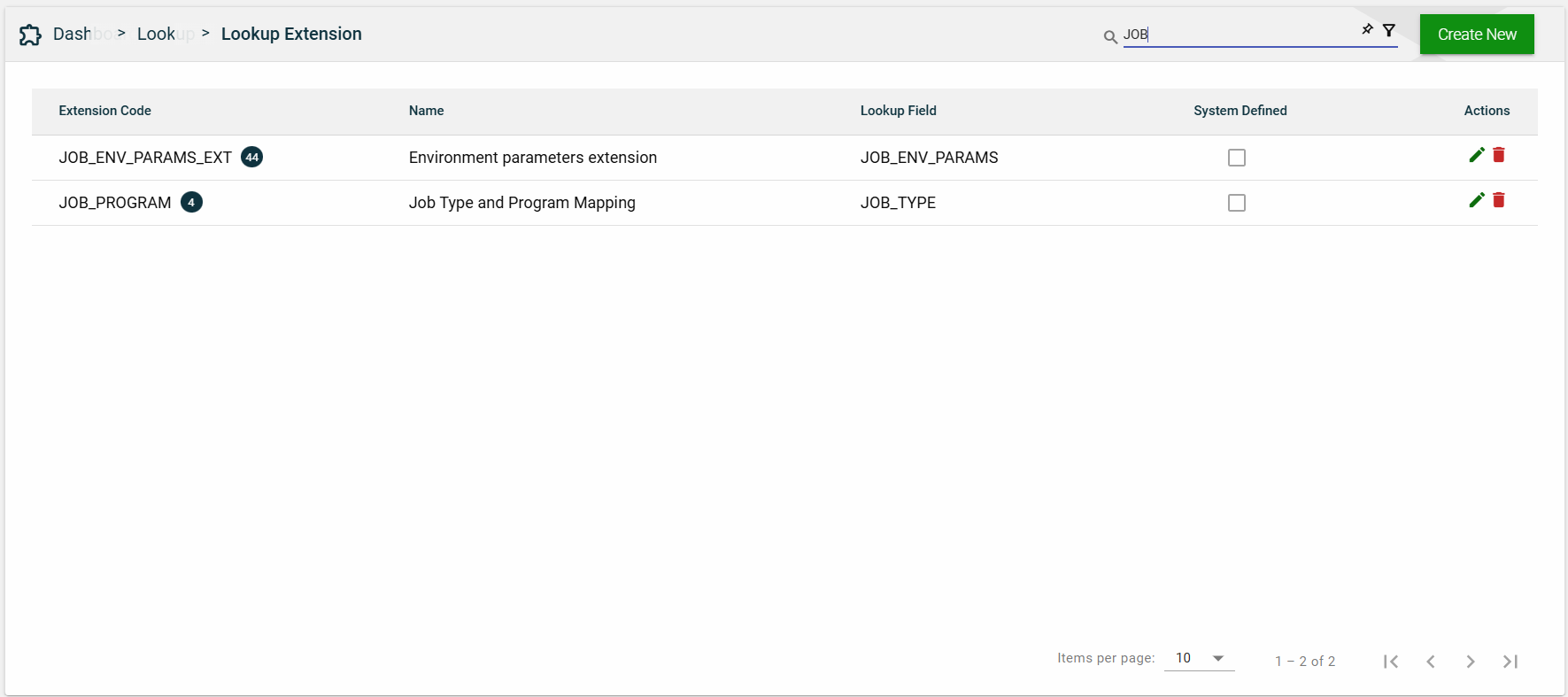
To search for an item on the Lookup Extension page, enter a keyword for an Extension Code or Name.
You can input a valid extension code to search for an item or you can input a partial lookup extension name to search for an item.
Filter
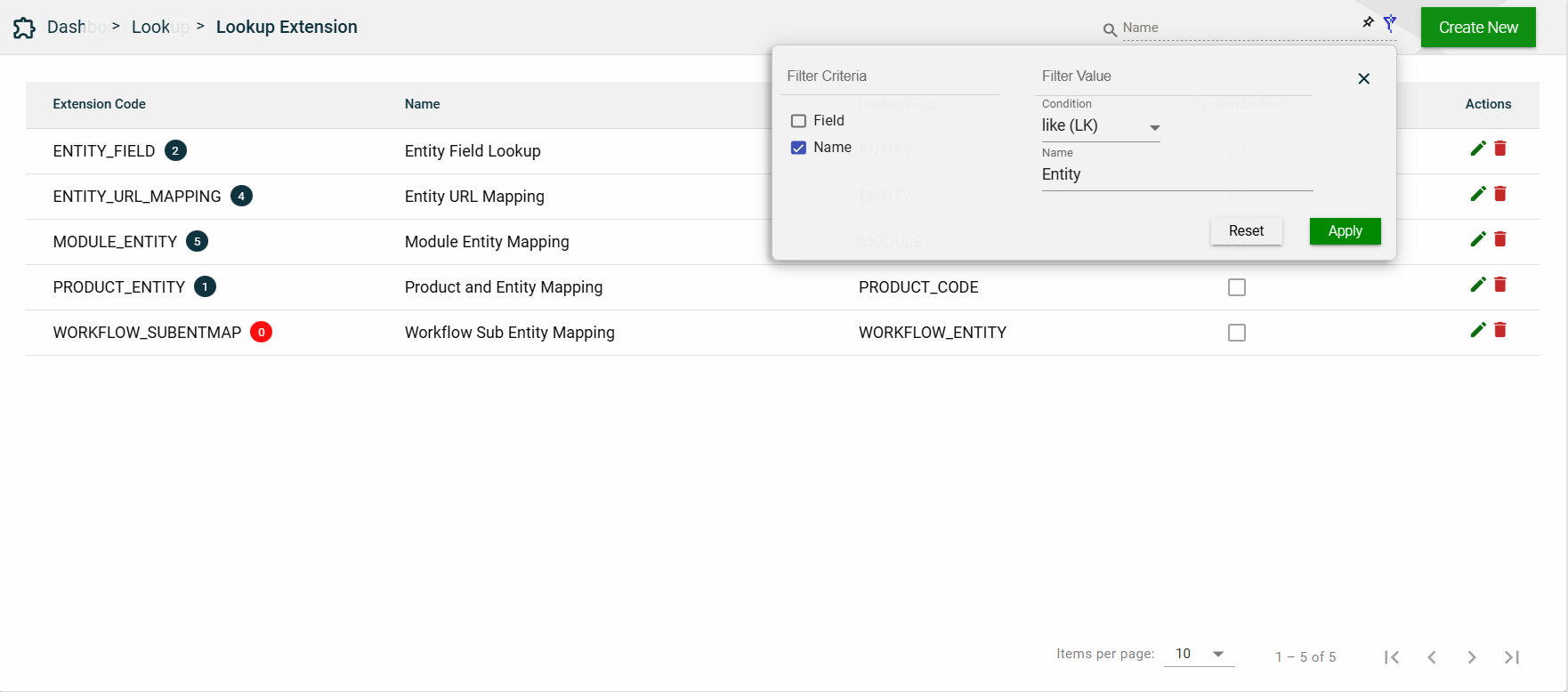
The following filters are available:
- Field
- Name
Sort
The following columns on the list view can be sorted:
- Extension Name
- Name
- Lookup Field
- System Defined