Notification Templates
Overview
The Notification Templates module allows you to create and manage standardized templates for sending notifications. This module offers a range of features, such as the following:
- Logos and branding images
- Various fonts and sizes
- Word stylings
- Variables
- Recipient behavior configuration
- Option to store sent notifications
If you need to configure an alert template, kindly refer to the Resource Bundle module.
Create a template
To create a template, click the Create New button and enter valid values in the following fields:
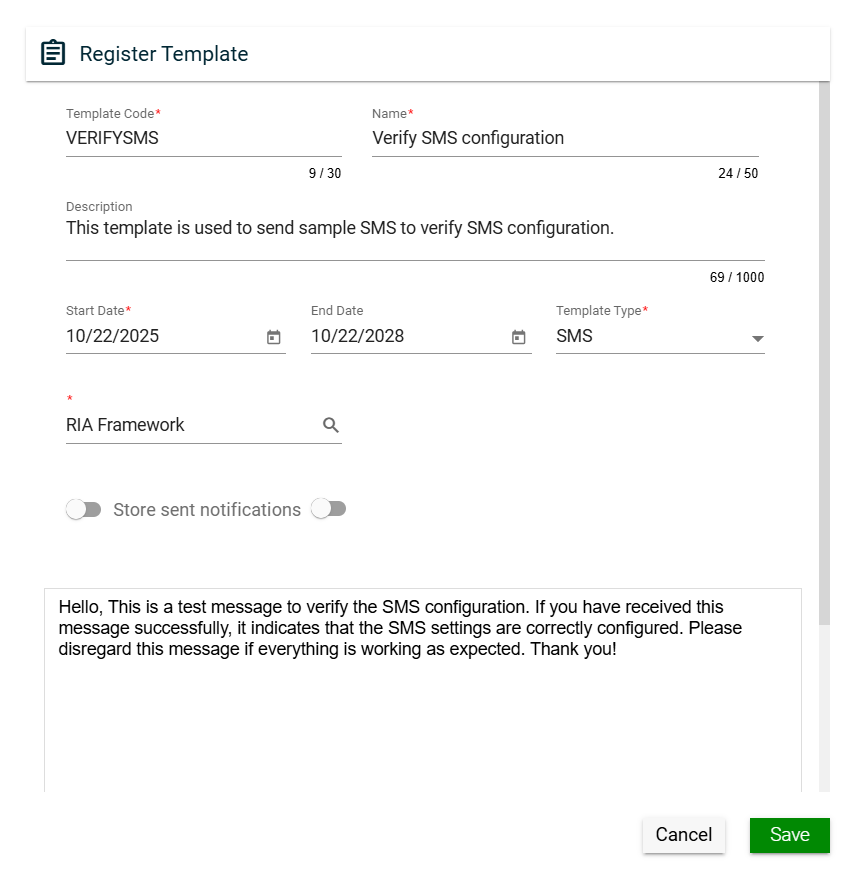
| Field | Description |
|---|---|
| Template Code |
Code of the template. Mandatory: Yes |
| Name |
Name of the template. Mandatory: Yes |
| Subject |
Subject of the notification message. For example, when sending an email using a template, the configured subject is the text that appears as the title of the email in the recipient's inbox. Mandatory: Yes |
| Description |
Description of the template. Mandatory: No |
| Effective Date |
Date when the template will be available for use. Mandatory: Yes |
| Expiration Date |
Date when the workflow model will no longer be available. Mandatory: No |
| Template Type |
Type of the template. Mandatory: Yes |
| Recipient Behavior |
Way the notification will be sent. The following are the possible values:
Mandatory: No |
| Store sent notifications |
Allows you to store notifications that have been sent using the template. The list of sent notifications can be found in the Notifications page. Default: Enabled Mandatory: No |
| Set wait period |
Allows you to set the wait period for the notification email to be sent. Only one email will be sent per recipient over the specified time. You have to specify the wait period by entering values in one or more of the following fields:
Default: Disabled Mandatory: No |
| Body |
Allows you to enter and customize your notification message. Mandatory: No |
Views
Card View
The card view presents all applications in the form of cards, with the Template Code on the card header. The card displays the Template Name and Effective Date. The card footer displays a number of versions, an email icon, a duplicate icon, and a delete icon.
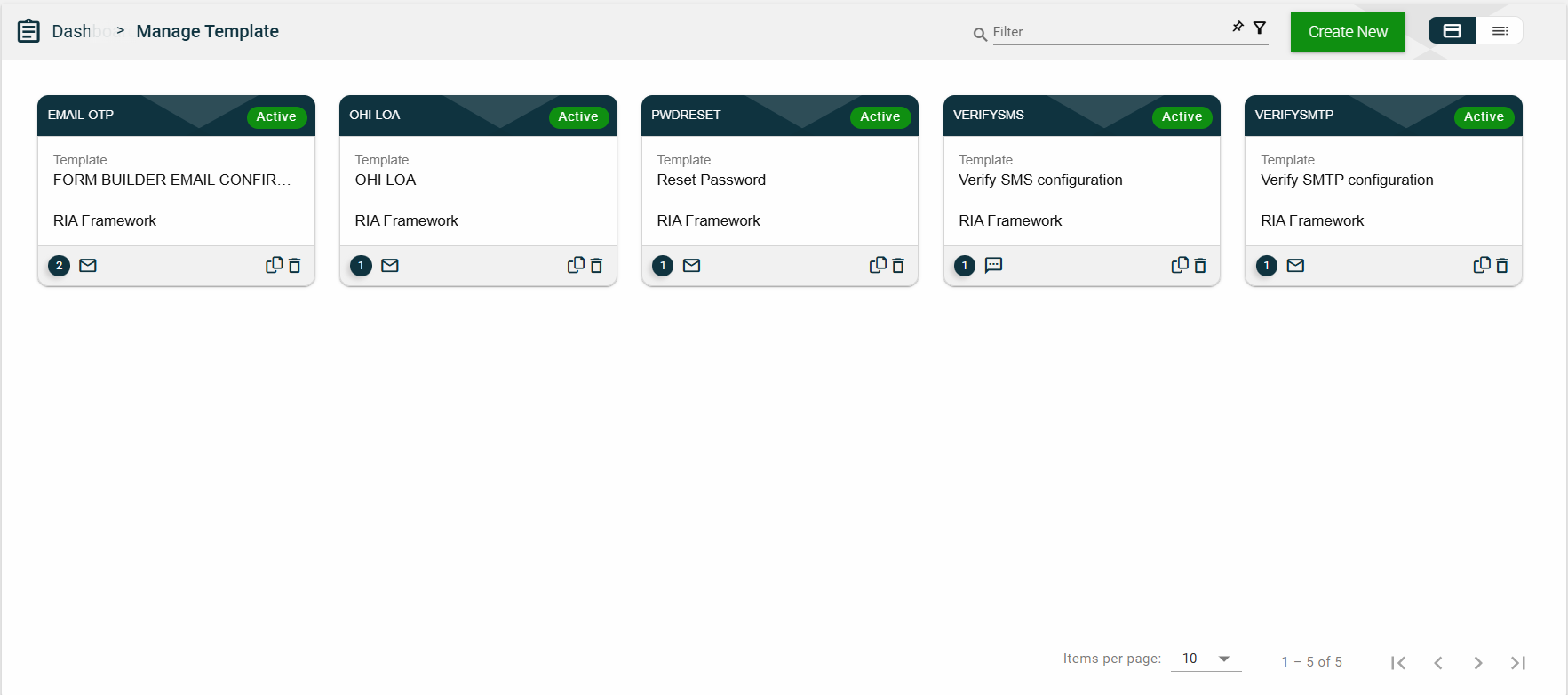
Clicking anywhere on the card, except the duplicate and trash icons, will redirect you to view the organization details.
List View
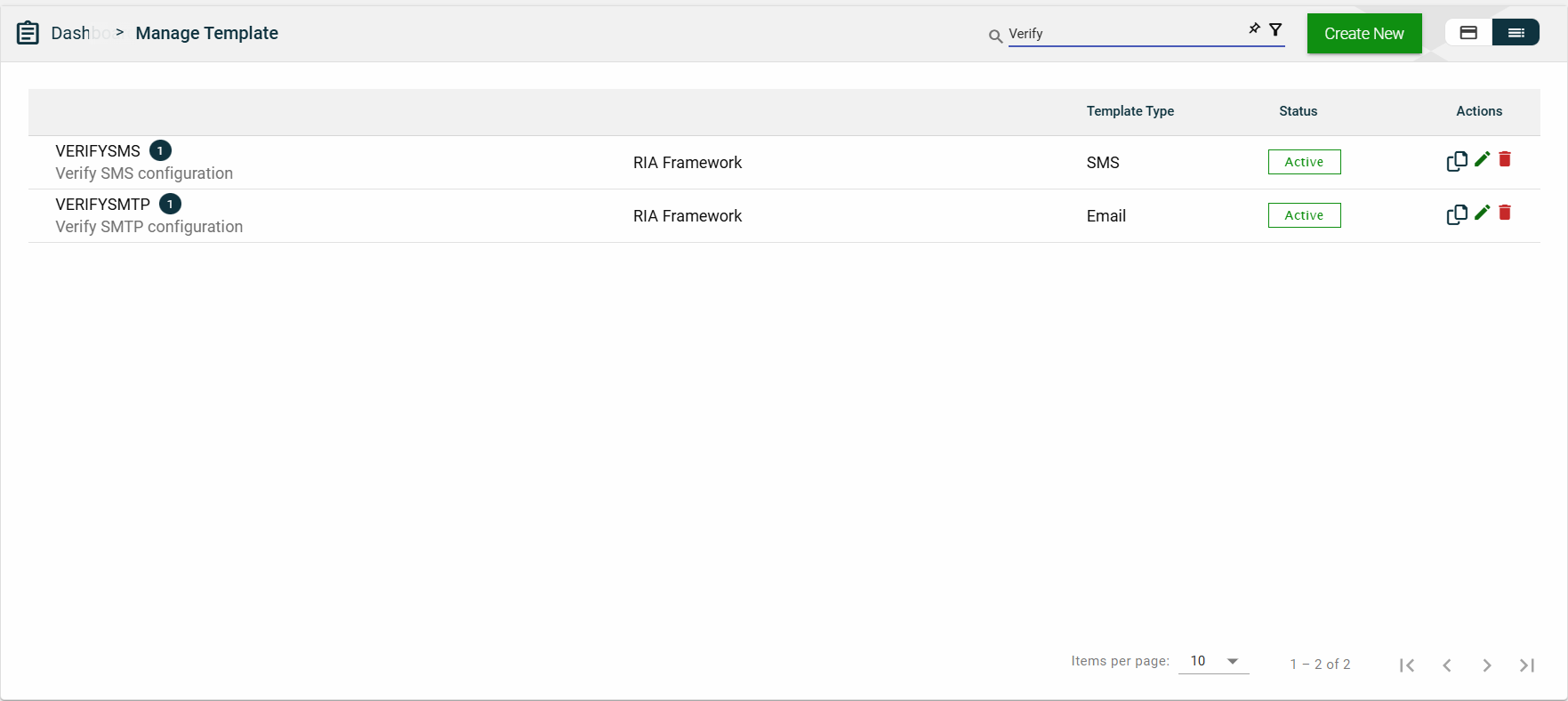
The list view displays all Environments in a table format.
| Column Name | Description |
|---|---|
| Template Code |
Code of the template. The number beside it represents the number of template versions. |
| Name | Name of the template. |
| Template Type | Type of the template. |
| Status |
Status of the template. The following are the possible values:
|
| Actions |
Displays the following icons:
|
 — Clone icon that allows you to clone the selected dataset. When clicked, a popup window is displayed asking you to provide a new Template Code, Name, and Subject. All other configurations of the selected dataset are copied.
 — Edit icon that allows you to edit the product details.
 — Delete icon that allows you to delete the selected dataset.
Search
To search for a template, enter a partial or a ful template name.
Filter
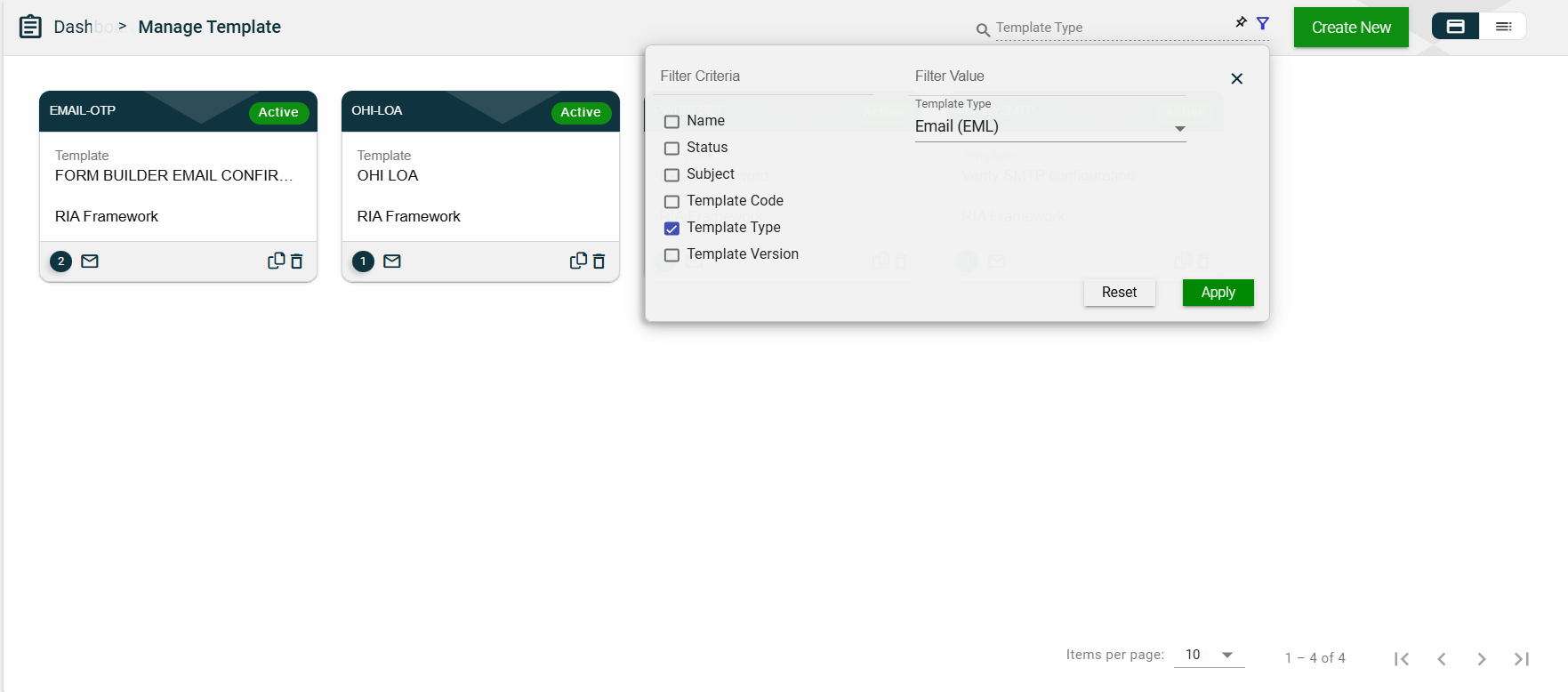
The following filters are available on both card and list views:
- Name
- Status
- Subject
- Template Code
- Template Type
- Template Version
Sort
The following columns on the list view can be sorted:
- Template Code
- Name
- Template Type
- Status