Business Calendar
Overview
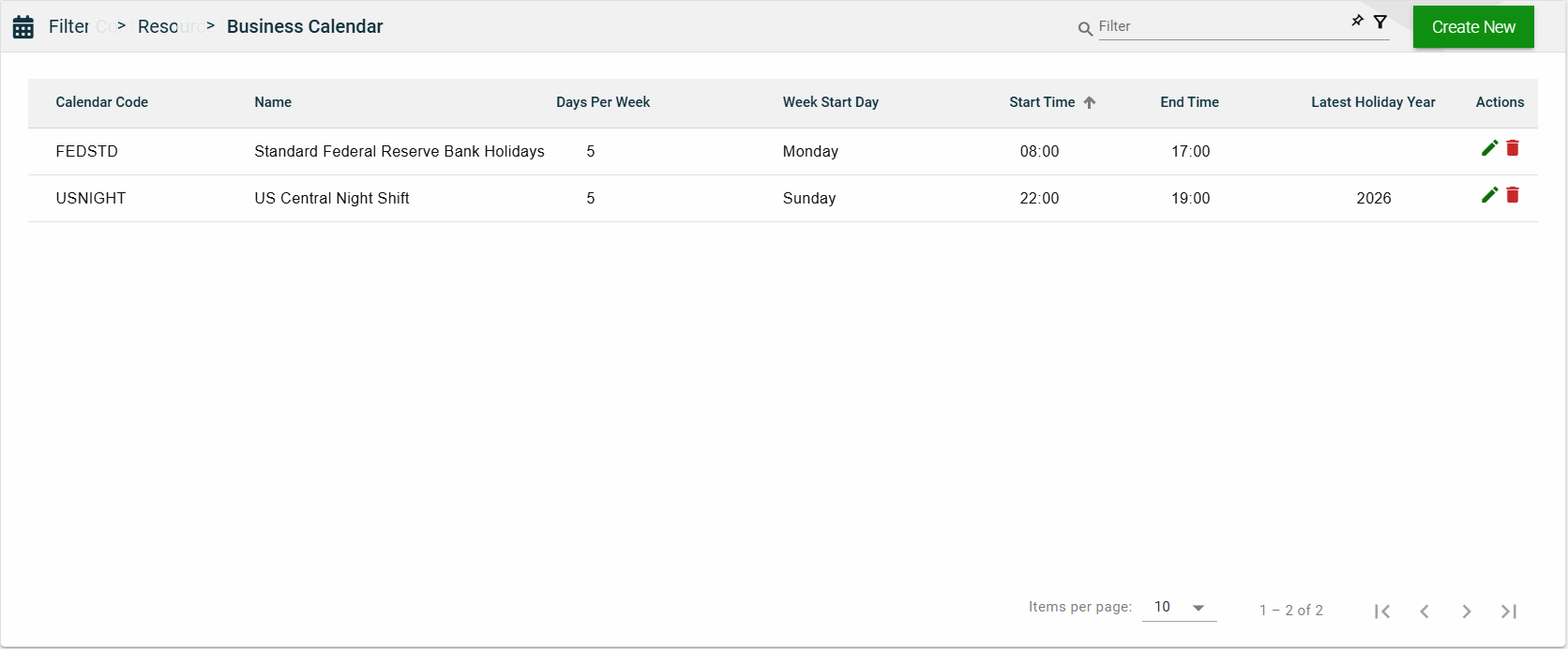
The Business Calendar module enables you to create a calendar that is customized to your business needs. You can personalize the number of workdays or choose a specific day as the work start day. Additionally, you can create a holiday schedule that aligns with your organization’s schedule.
Create a business calendar
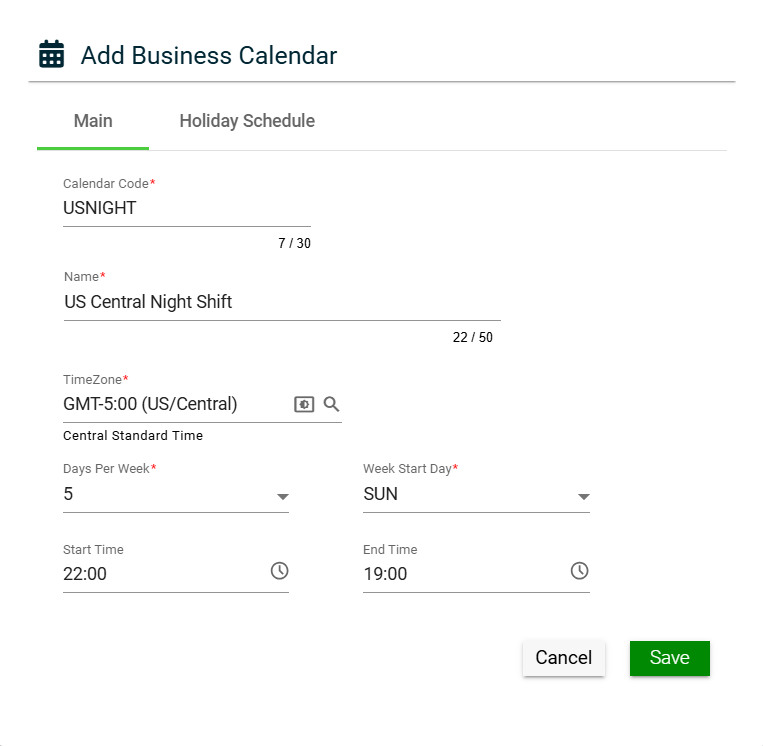
To create a business calendar, click Create New and enter valid values in the following fields:
Main
| Field | Description |
|---|---|
| Calendar Code | Unique identifier of the business calendar. |
| Name | Name of the calendar. |
| Days Per Week | Number of workdays per week. |
| Week Start Day | Start day of the work week. |
| Start Time | Start time of the work day. |
| End Time | End time of the work day. |
| Latest Holiday Year | Indicates the year of the most recent holiday date in the list. |
| Actions |
Displays the following icons:
|
Holiday Schedule
There are two ways to add holidays to your business calendar:
Add a holiday via Holiday Calendar API
The Holiday Calendar link utilizes a public API that retrieves all the holidays of a particular year for a specific country. To add holidays using this API, follow these steps:
- Select a year from the Year dropdown.
- Click the Holiday Calendar link.
- Select a Country from the Country dropdown list on the Holiday Calendar popup window.
- Click Add.
The Holiday Schedule lists all the holidays retrieved by the API. Ensure that you review the list and make the necessary changes before saving.
Manually add a holiday
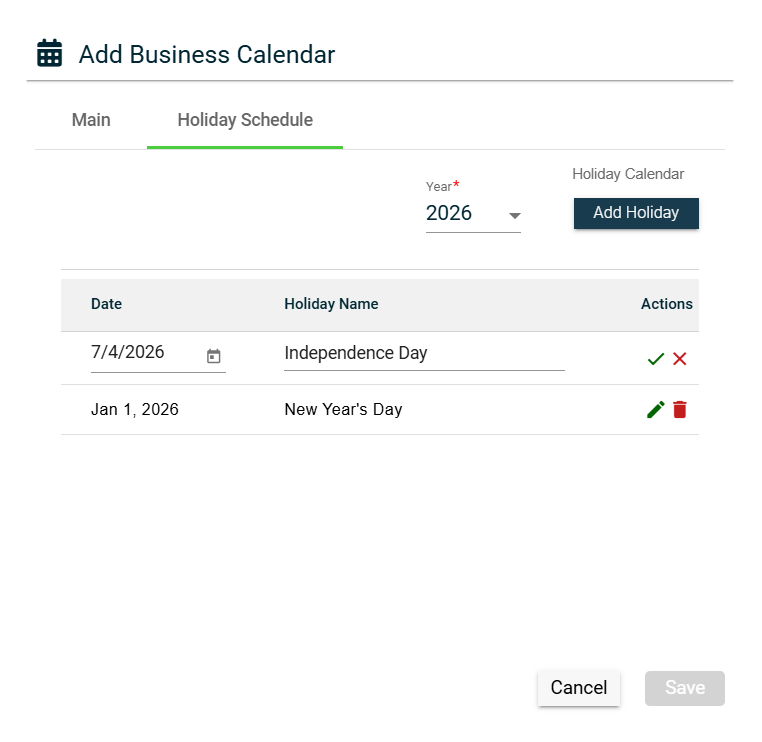
- Select a year from the Year dropdown.
- Click the Add Holiday button.
- Enter the holiday date in the Date field. You can also click the calendar icon to choose the date.
- Enter the holiday name in the Holiday Name field.
- Click
 to save. To cancel, click
  .
.
Edit a holiday
To edit a holiday in the Holiday Schedule tab, follow these steps:
- Click
 .
. - Make the necessary changes.
- Click to save. To cancel, click .
Delete a holiday
To delete a holiday, follow these steps:
- Click
 .
. - Click Yes on the confirmation popup window.
To cancel the deletion, click Cancel.
View
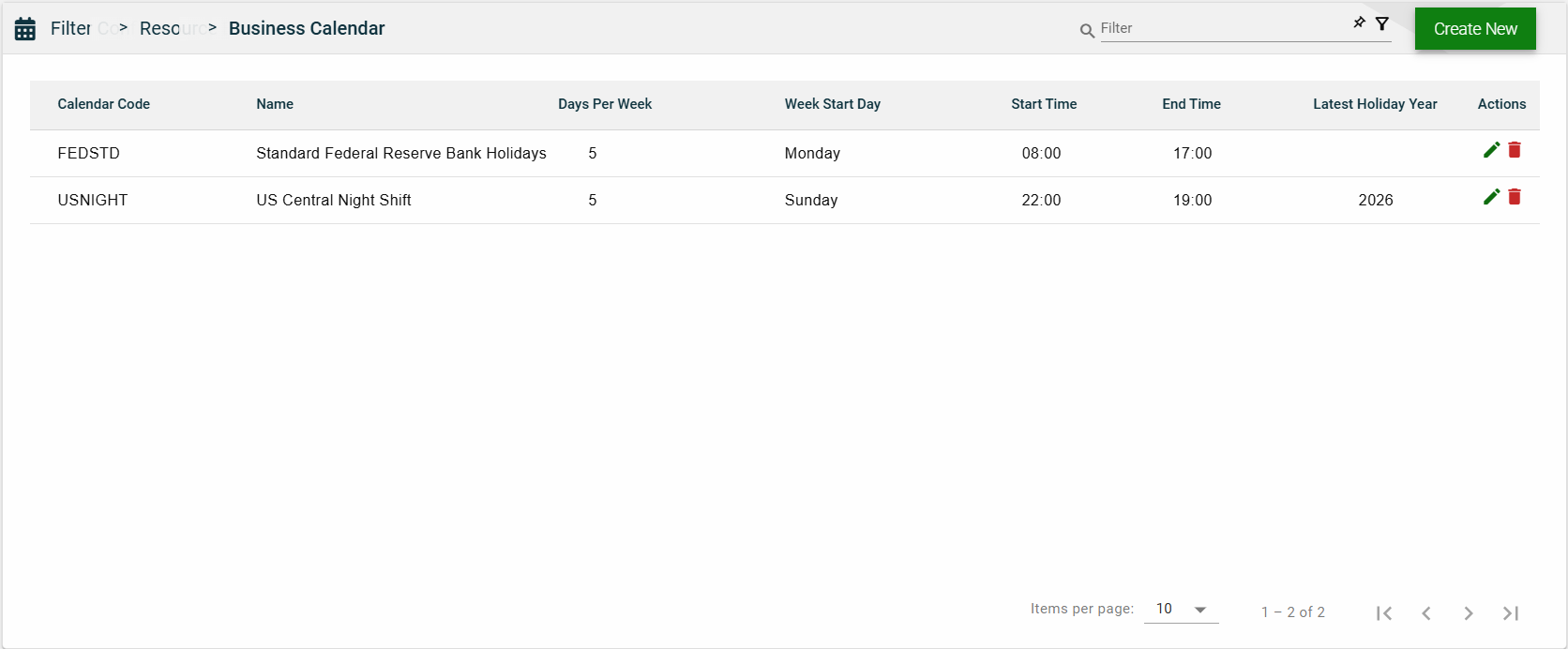
List View
| Field | Description |
|---|---|
| Calendar Code | Unique identifier of the business calendar. |
| Name | Name of the calendar. |
| Days Per Week | Number of workdays per week. |
| Week Start Day | Start day of the work week. |
| Start Time | Start time of the work day. |
| End Time | End time of the work day. |
| Latest Holiday Year | Indicates the year of the most recent holiday date in the list. |
| Actions |
Displays the following icons:
|
Search
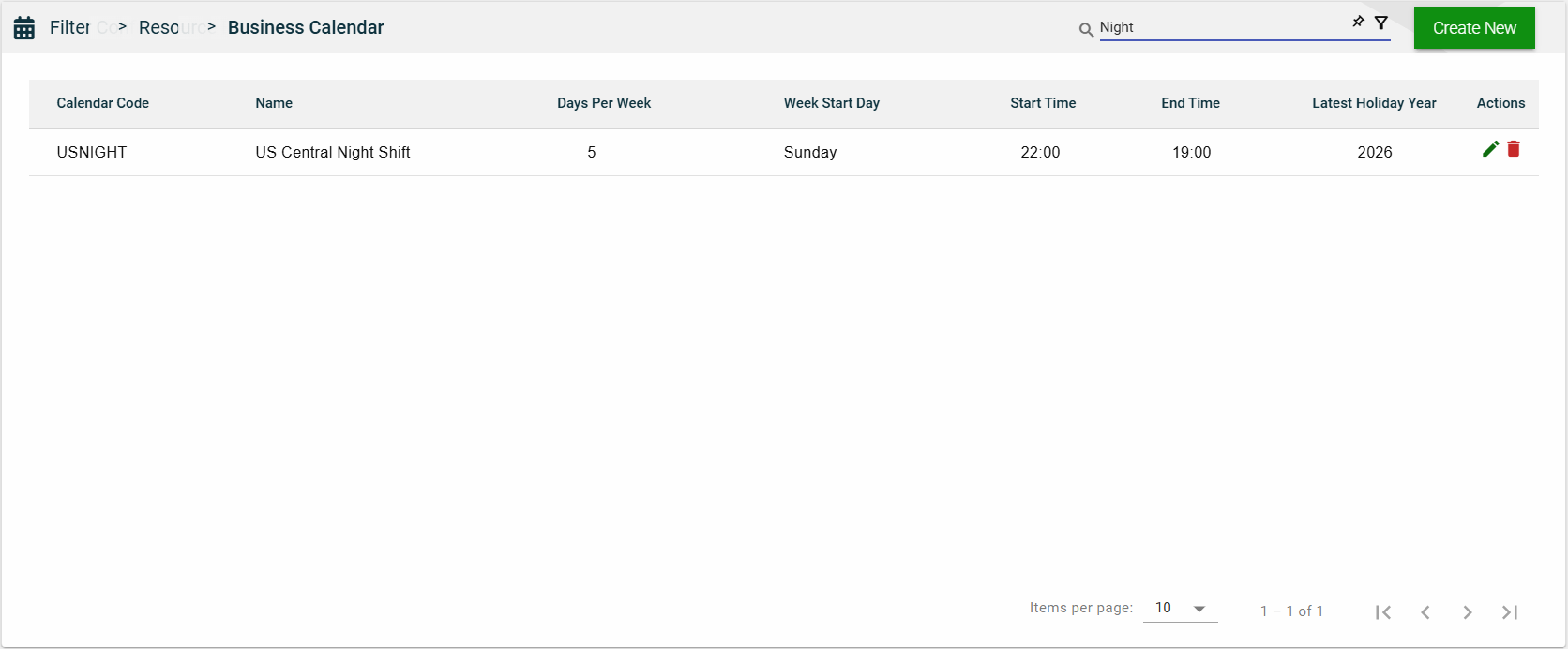
To search for an item on the Business Calendar page, enter a keyword for a Calendar Code or Name.
Filter
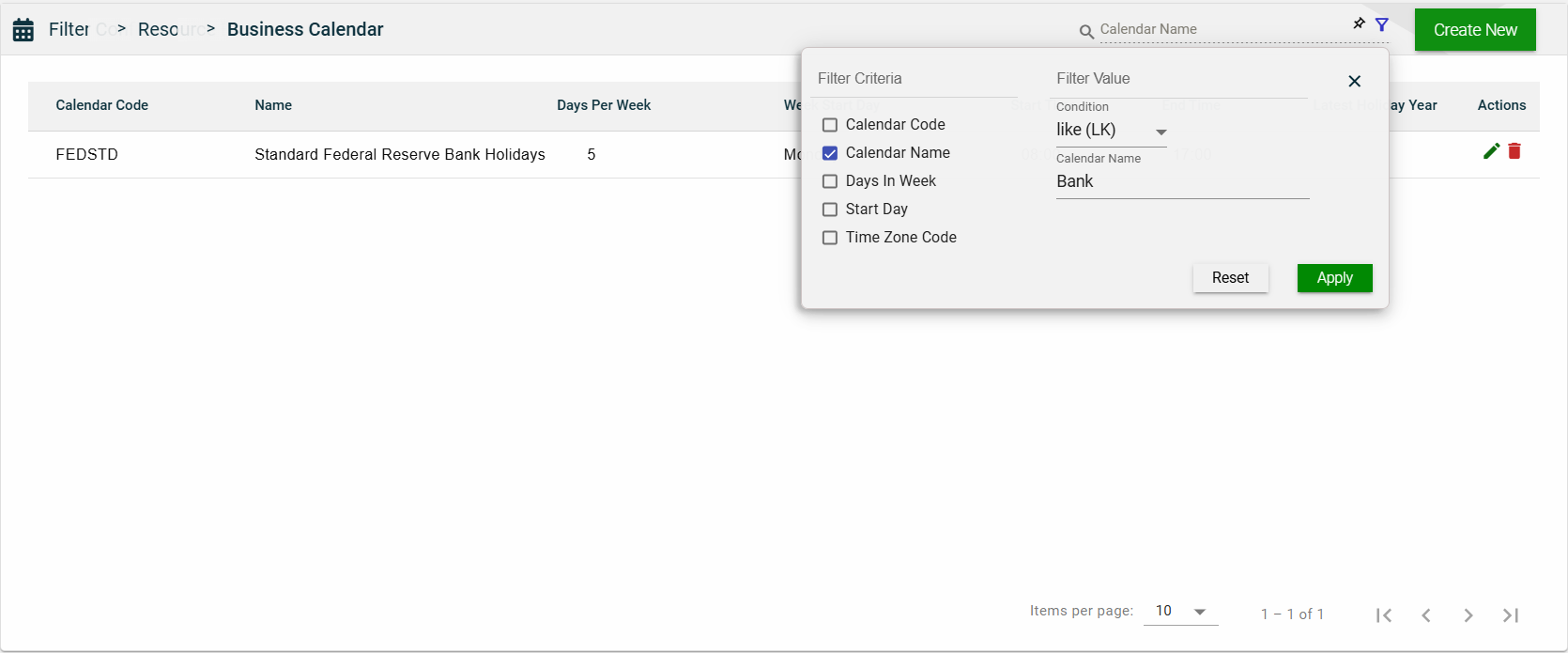
The following filters are available:
- Calendar Code
- Calendar Name
- Days In Week
- Start Day
- Time Zone Code
Sort
The following columns on the list view can be sorted:
- Calendar Code
- Name
- Days Per Week
- Week Start Day
- Start Time
- End Time