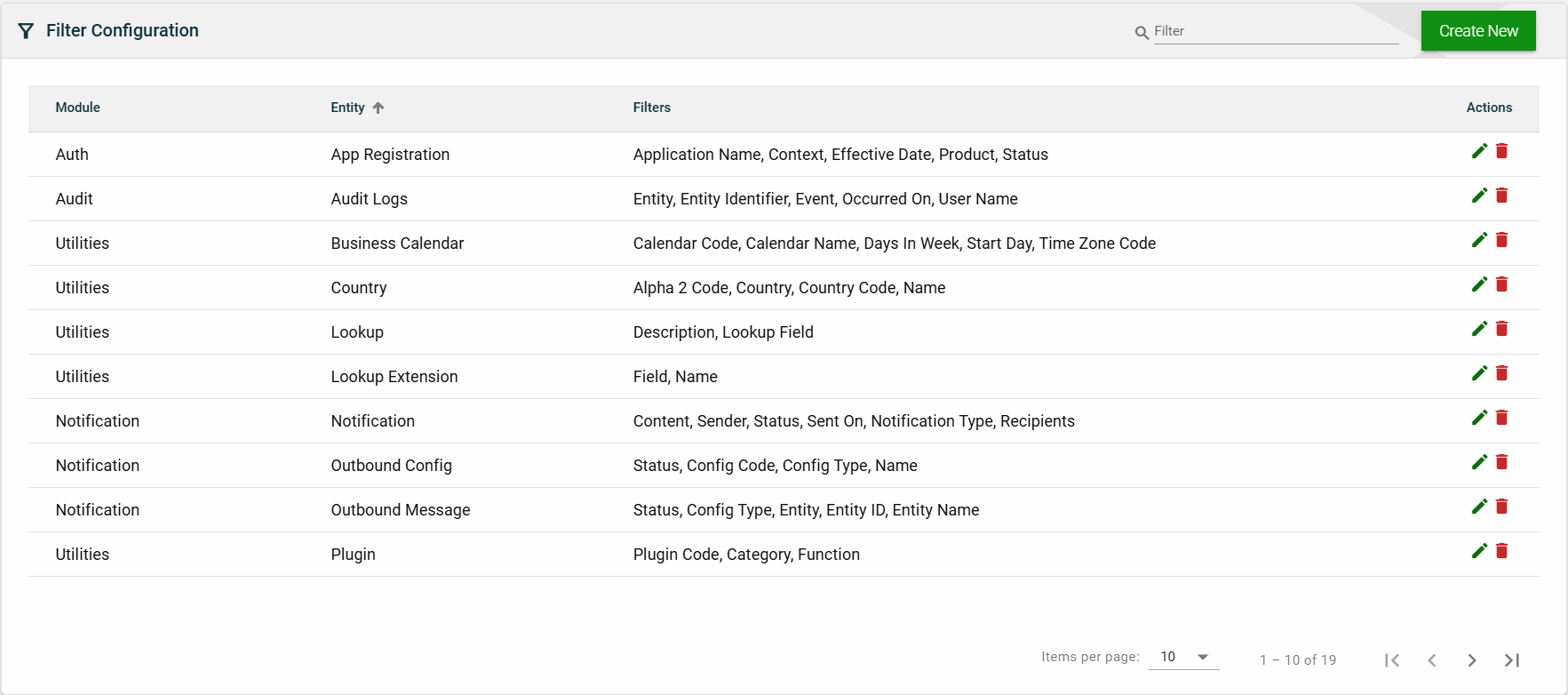
Filter Configuration
Overview
The Filter Configuration module is where filter parameters for various modules are managed. This module enables you to customize the filters by adding, modifying, or deleting parameters according to your business needs.
You can use the configured filters to refine the search results in a module by applying filters that meet your search criteria.
Create a filter configuration
To create a filter configuration, follow these steps:
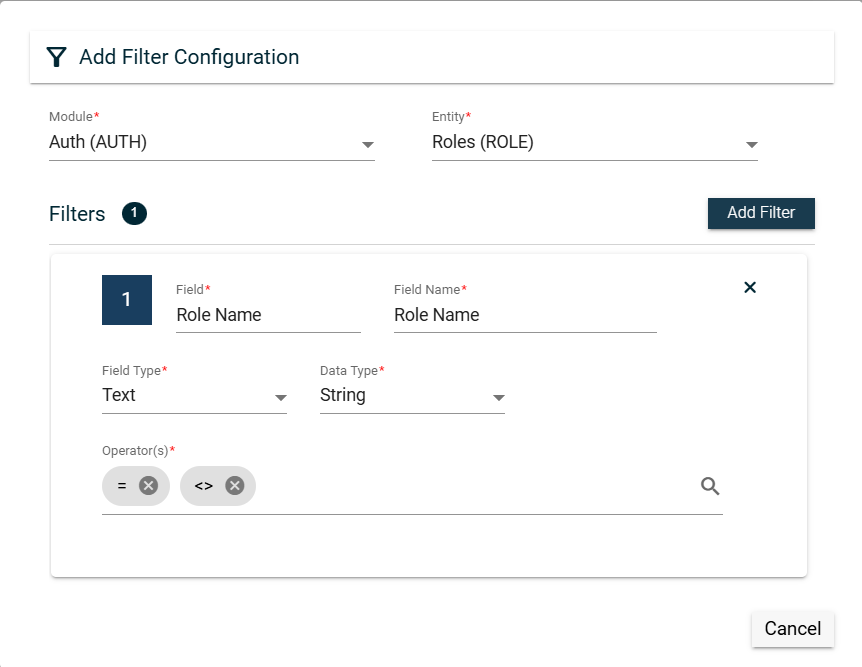
- Click Create New.
- Select a module from the Module dropdown list.
- Select an entity from the Entity dropdown list. Only entities associated with the selected module are displayed.
- Click Add Filter.
- Enter a valid Field value.
- Enter a valid Field Name value.
- Select a type from the Field Type dropdown list.
- Date (DATE) — sets the Data Type to
Date. - Lookup (LOOKUP) — sets the Data Type to
String. - Autocomplete (AUTOCOMP) — sets the Data Type to
String. - Boolean (BOOLEAN) — sets the Data Type to
String.
- Date (DATE) — sets the Data Type to
- Select a single or multiple operators in the Operator(s) dropdown list.
Lookup field type
When creating a filter for a Lookup field type, you can configure the following fields:
| Field | Description |
|---|---|
| View as Autocomplete |
Enables the lookup field type to be viewed as an autocomplete field.
|
| Lookup Code |
Lists configured lookups in the
Lookup module.
|
| Default Value |
Default value of the selected lookup code.
|
| Applicable Values |
Other applicable values besides the default value.
|
Autocomplete field type
When creating a filter for an Autocomplete field type, you can configure the following fields:
| Field | Description |
|---|---|
| HTTP Method |
HTTP request method. The possible values are POST or
GET.
|
| Search Url | URL that is accessible to RIA Framework to process the HTTP request. |
| Autocomplete Code | Code of the autocomplete field. |
| Autocomplete Description | Description of the autocomplete field. |
| Autocomplete Code Override | Override value for the autocomplete field. |
| Default Value |
Default value of the selected autocomplete code.
|
| Applicable Values |
Other applicable values besides the default value.
|
View
List View
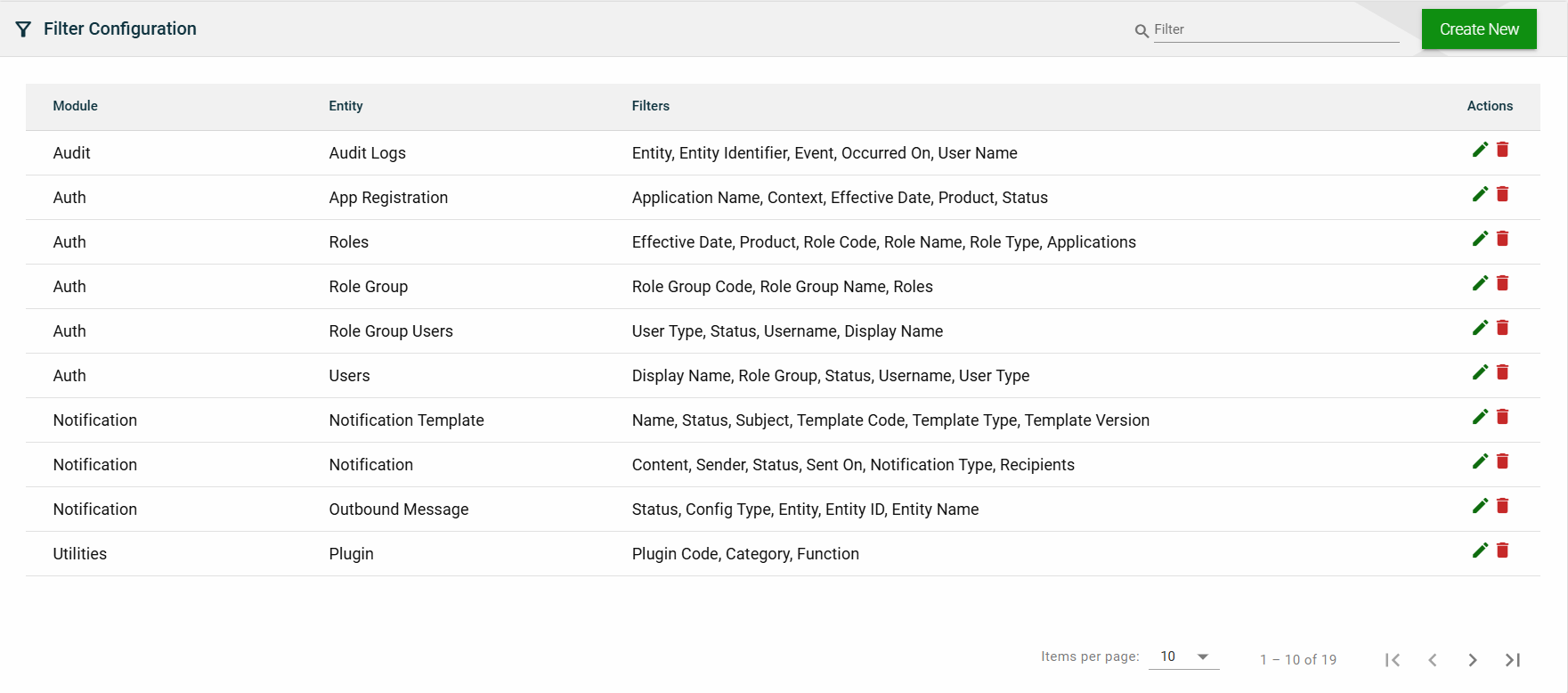
| Field | Description |
|---|---|
| Module | Module when the Entity belongs to. |
| Entity | Entity in the RIA Framework where the filters can be applied. |
| Filters | Lists all the fields in the Entity that can be used as filters. |
| Actions |
Displays the following icons:
|
 — Edit icon that allows you to edit the filter configuration details.
 — Delete icon that allows you to delete the selected filter configuration.
Search
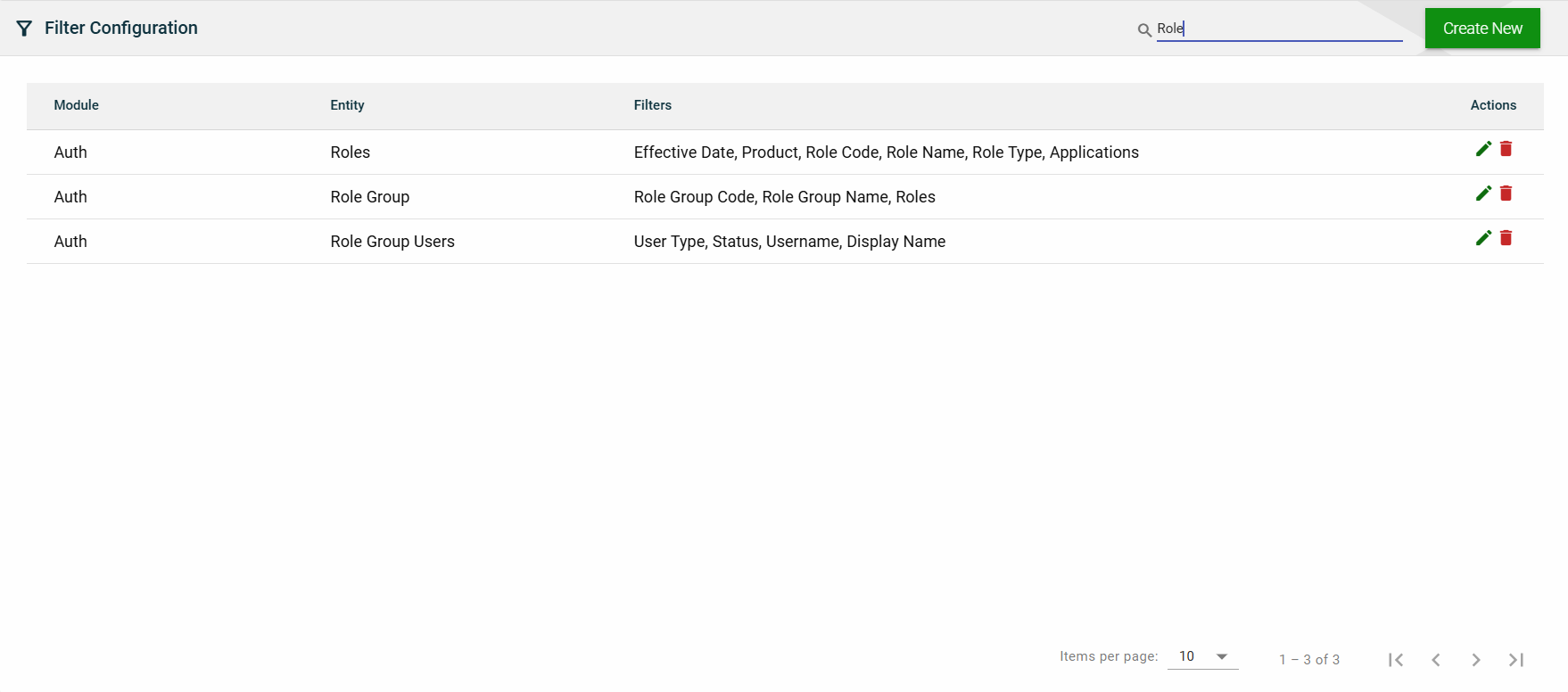
To search for an item on the Filter Configuration page, enter a keyword for a module or entity.
You can input a valid module name or a valid entity name to filter the list.
Sort
The following columns on the list view can be sorted:
- Module
- Entity