Task Flow
Overview
A task flow is a configurable sequence of steps that defines how tasks are executed within the system. Each step in the flow represents either an individual conversion task or another task flow, allowing you to build a simple or multi-level workflows. This module also allows you to link steps together and define rules.
When a task flow is selected, the page is divided into the following sections:
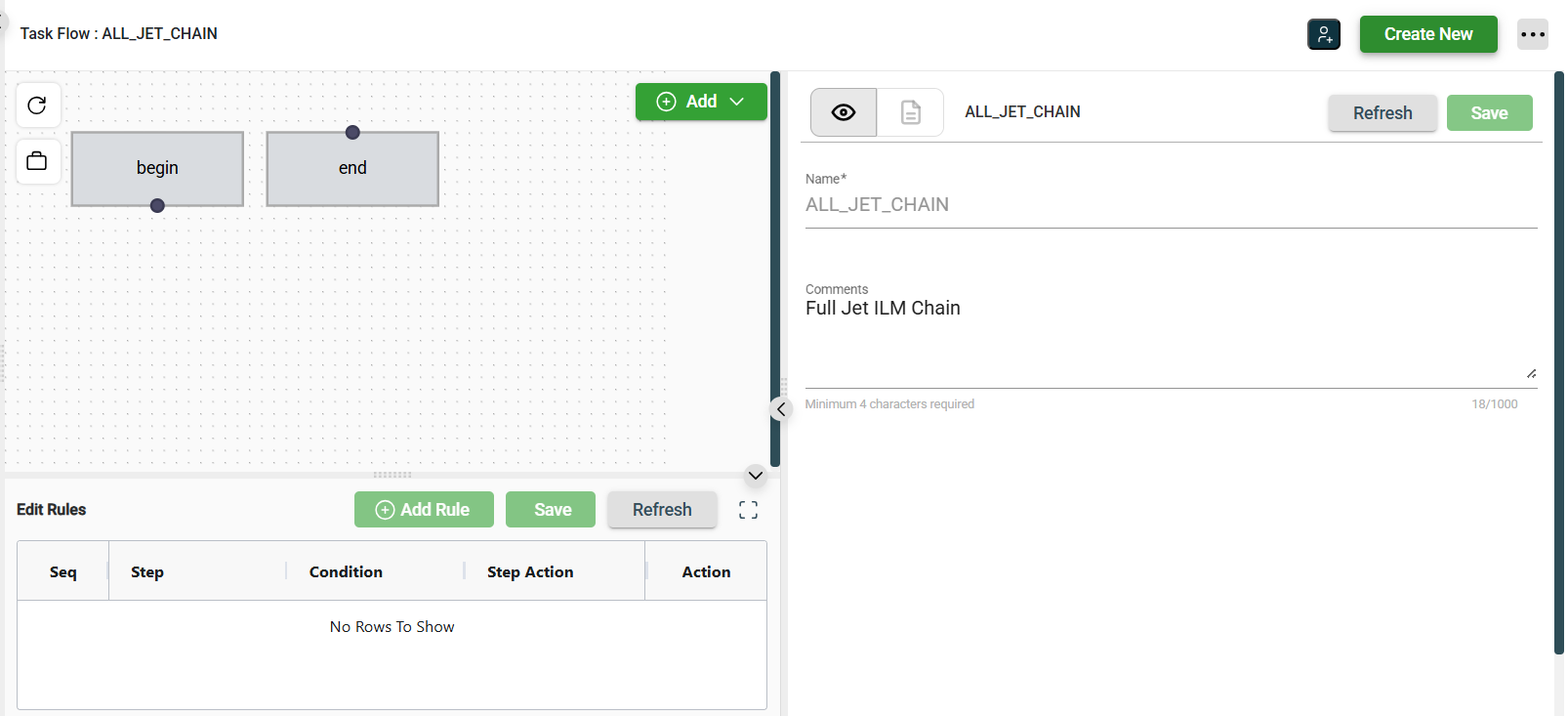
- Task Flow Editor — A visual flowchart where you can design and modify the sequence of steps. It includes begin and end nodes to define the start and termination of the flow. In this editor, you can:
- Add an existing task as a step
- Create a new task step
- Add a task sub-flow step
- Edit Rules — A text-based representation of the flow logic. Each connection between steps is translated into a rule that defines the condition under which a step executes and the next step to run based on that condition.
- Details — Displays information about the task flow or a selected step. When no step is selected, it shows general flow details. When a step is selected, it displays configuration details specific to that step.
Create a Task Flow
To create a task flow, follow these steps:
- Click the Create New button.
- Enter a valid name in the Name field.
- Enter a description in the Comments field.
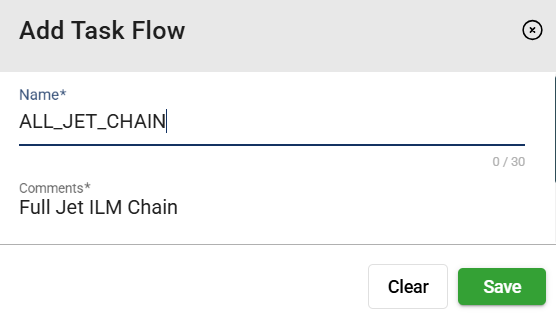
- Click Save to save the task flow.
Task Flow Editor
Once a task flow has been created, the task flow editor automatically displays the begin and end nodes.
Add a task
Add a Task Step
To add a task step, follow these steps:
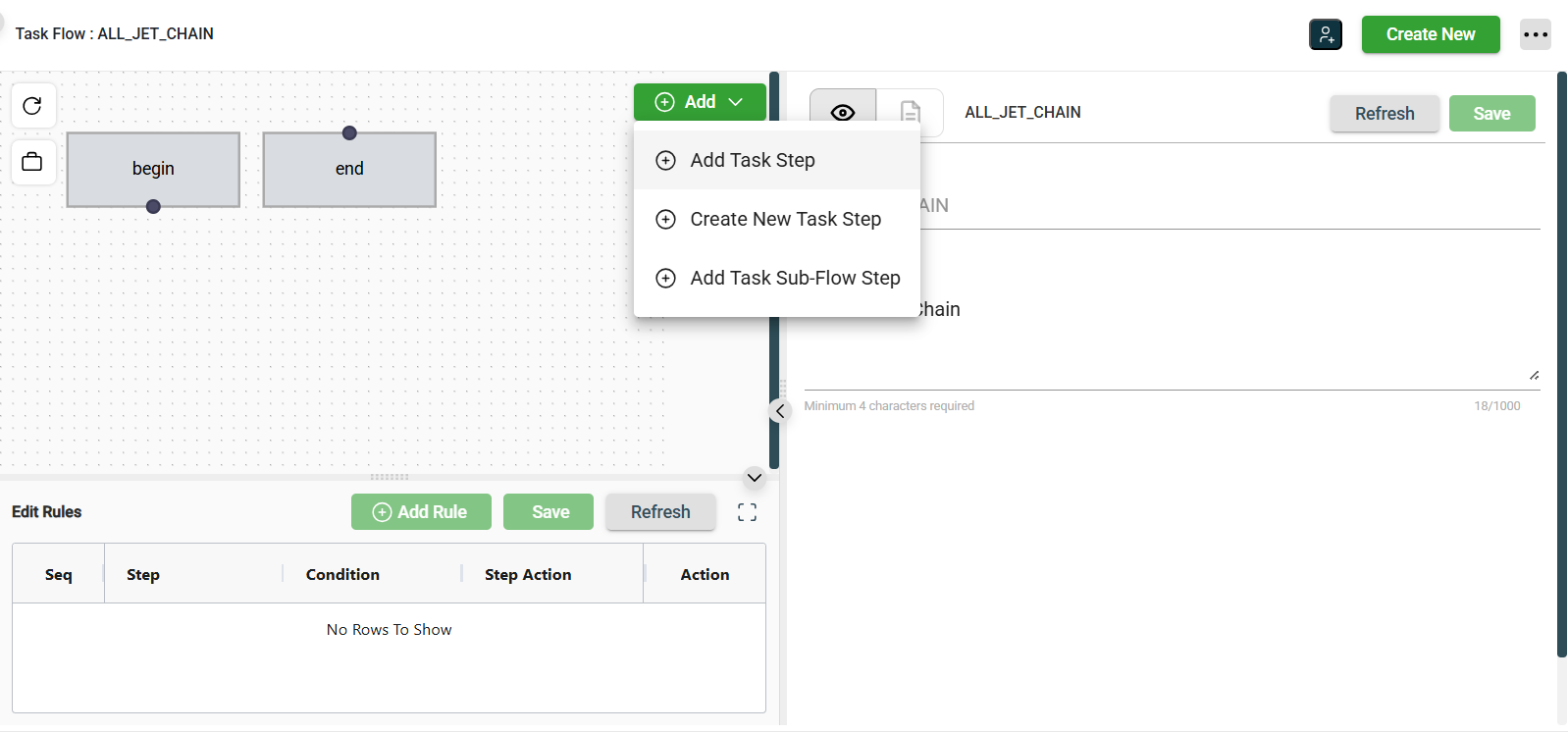
- Click the Add button in the Task Flow Editor.
- Select Add Task Step.
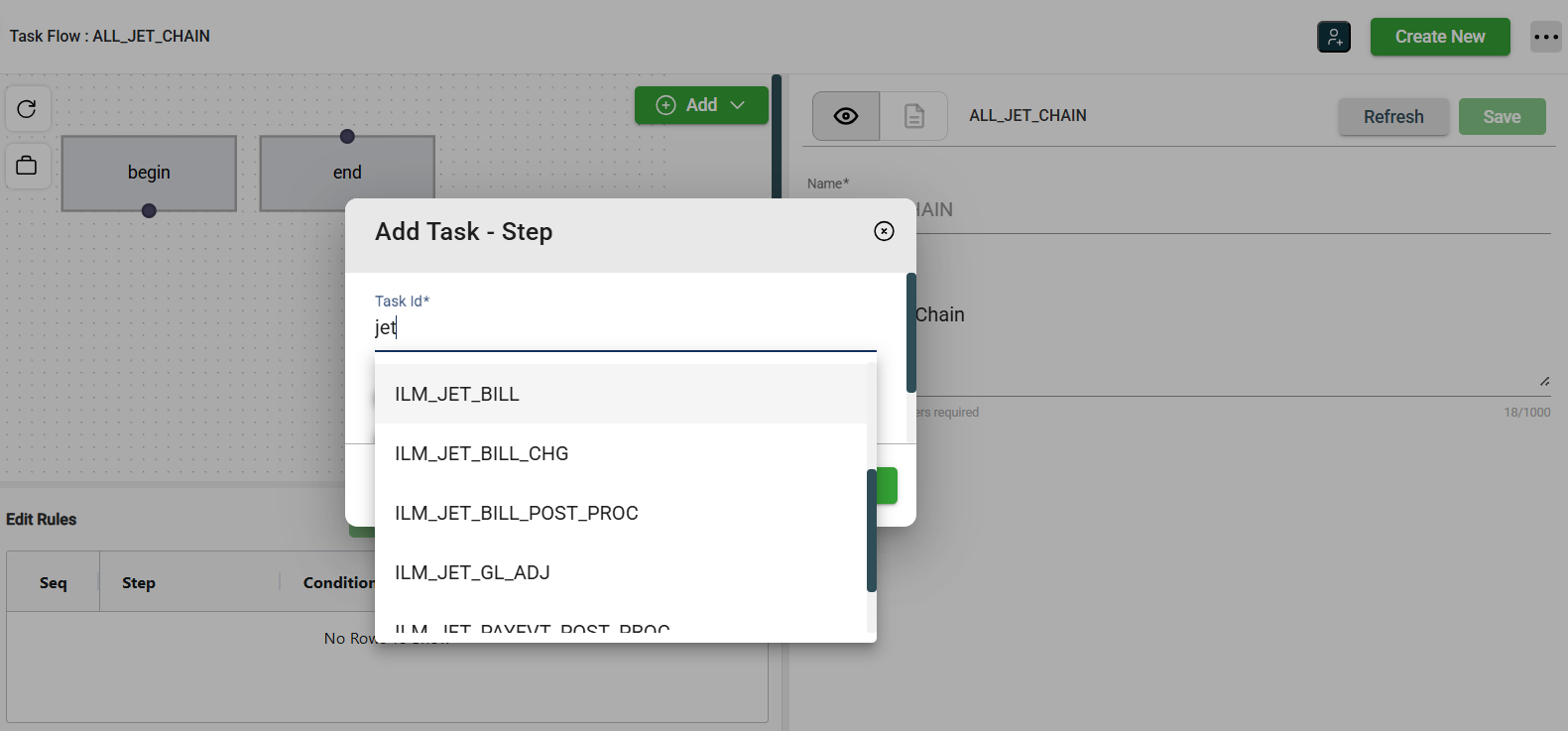
- Search for and select a task in the Task ID field.
- Optional: Enable any of the following step behaviors:
- Pause Before — Pauses execution before the step runs.
- Pause After — Pauses execution after the step runs.
- Skip — Skips this step and proceeds to the next one.
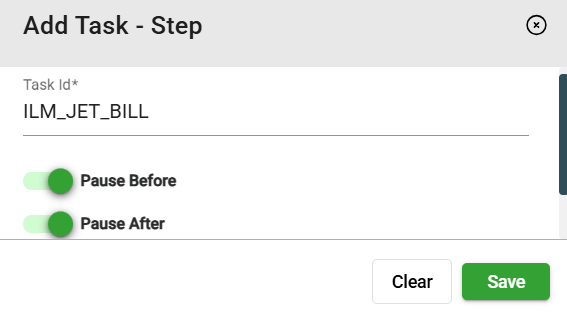
- Click Save to apply the changes.
The added step needs to be manually linked. For more information, see Add a step link.
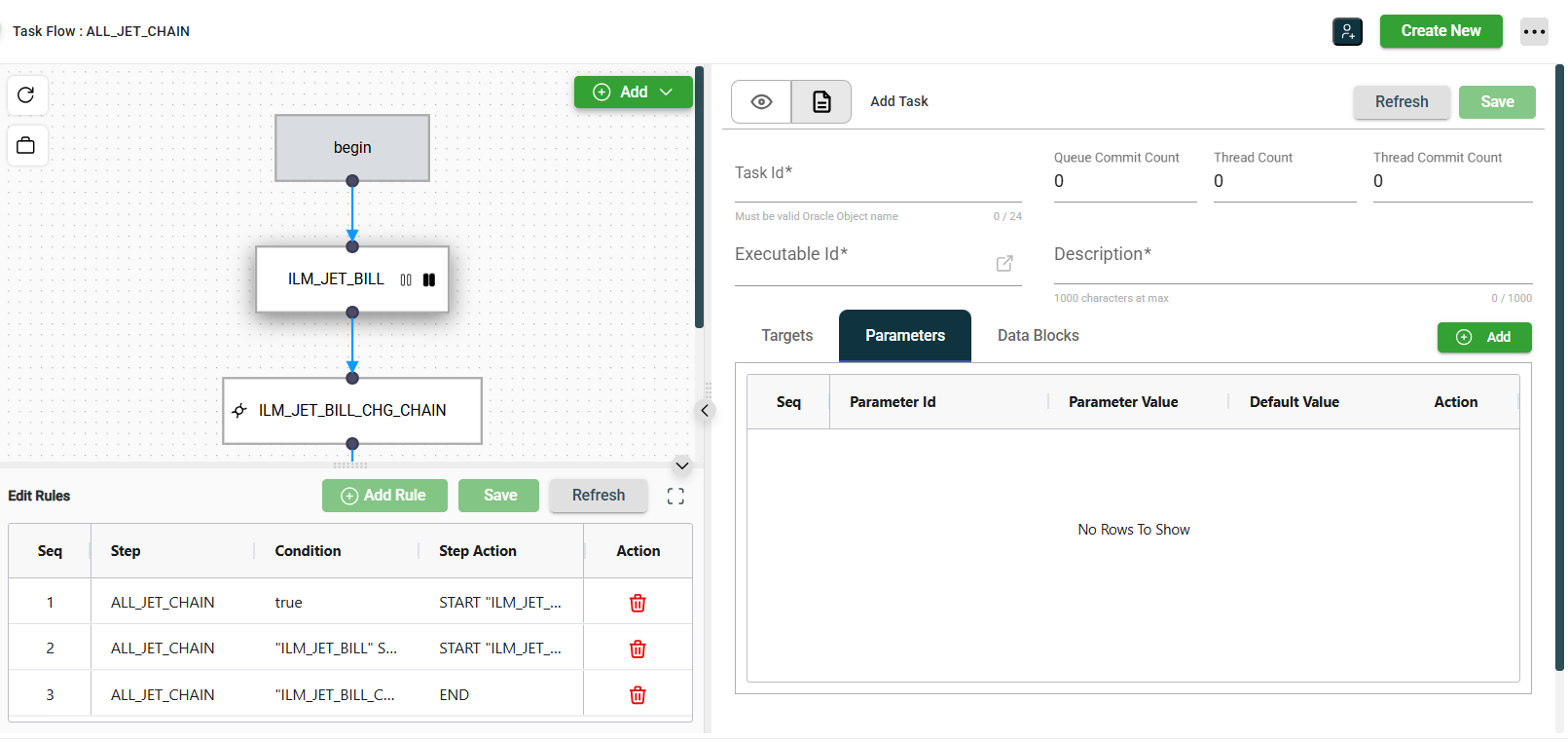
Create a New Task Step
You can create a new task directly within the Task Flow module. Follow the same steps and complete the same fields as when creating a task in the Task module.
Add a Task Sub-Flow Step
To add a sub-flow within a task flow, follow these steps:
- Click the Add button in the Task Flow Editor.
- Select Add Task Sub-Flow Step.
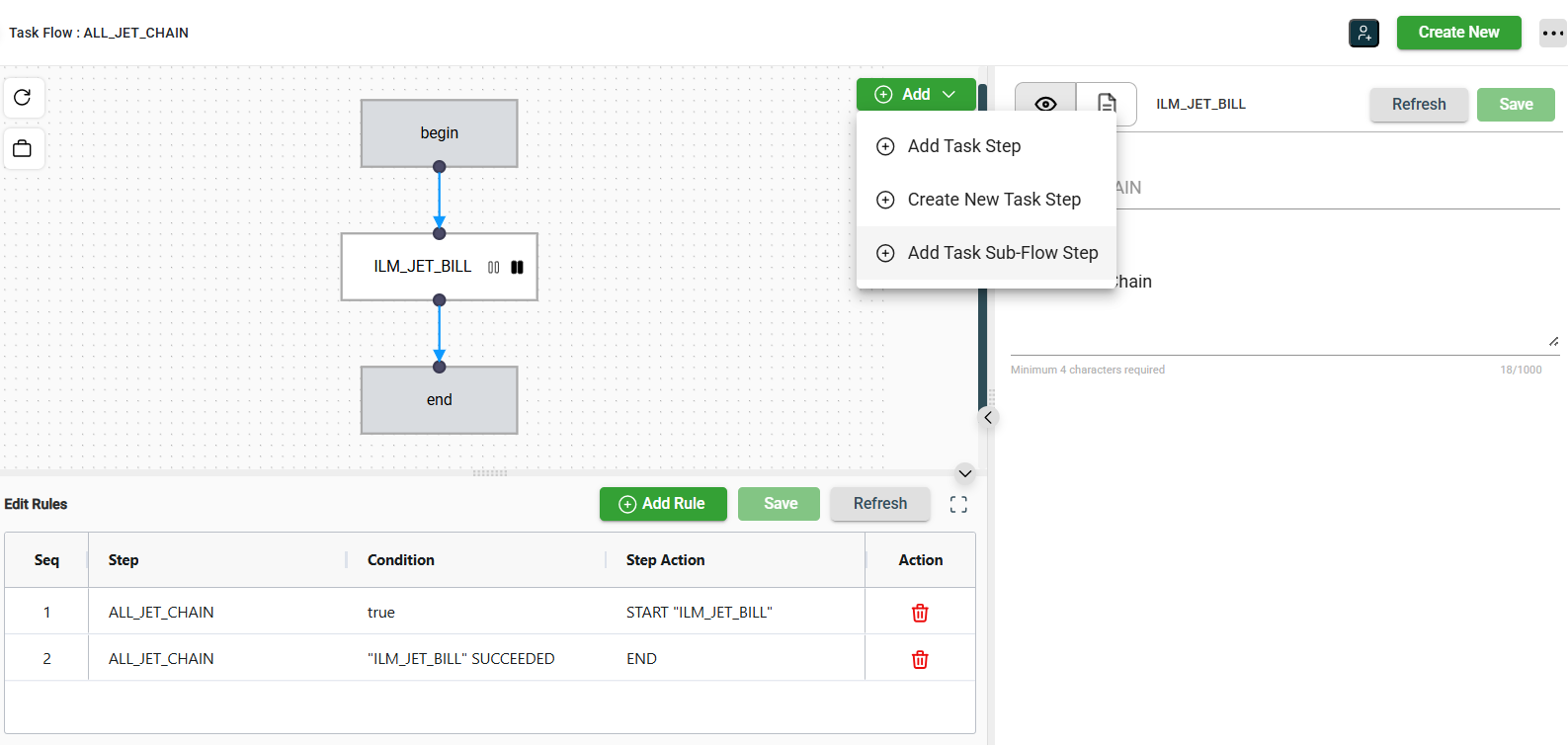
- Search for and select a flow in the Name field.
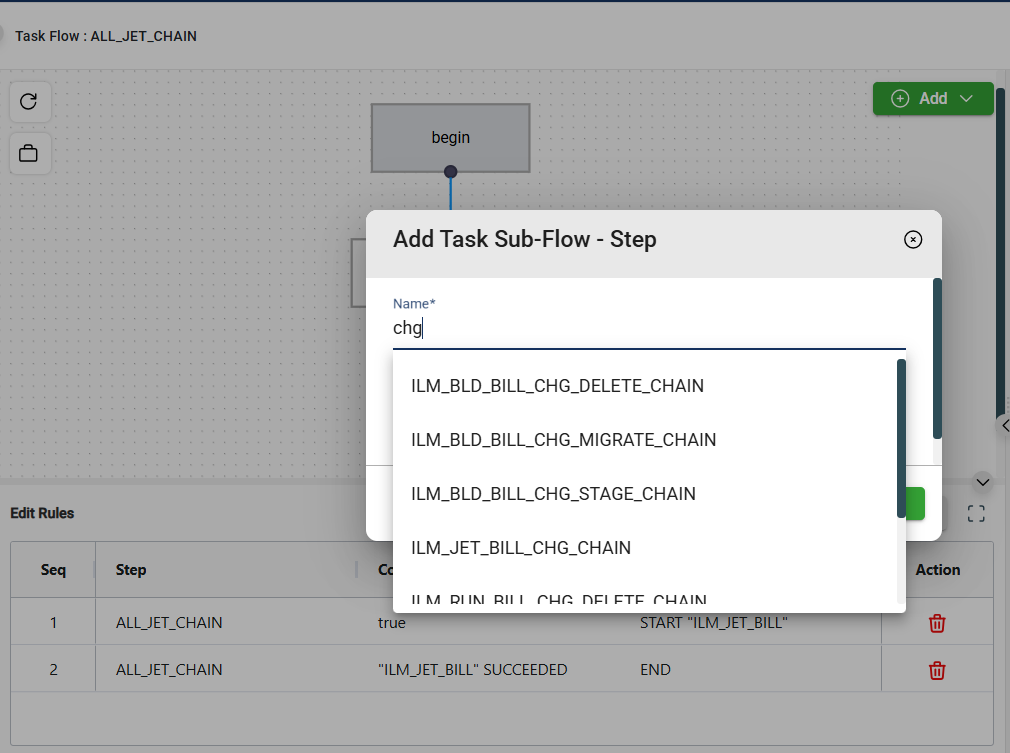
- Enter an alias in the Step Name field. You may reuse the flow name or define a custom alias.
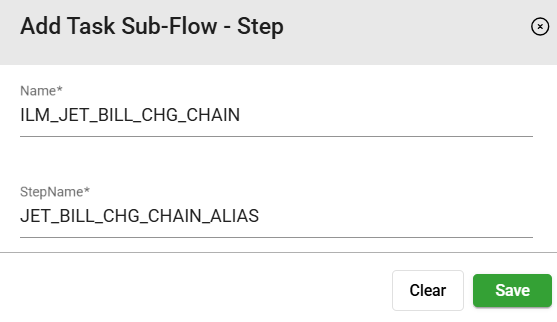
- Click Save.
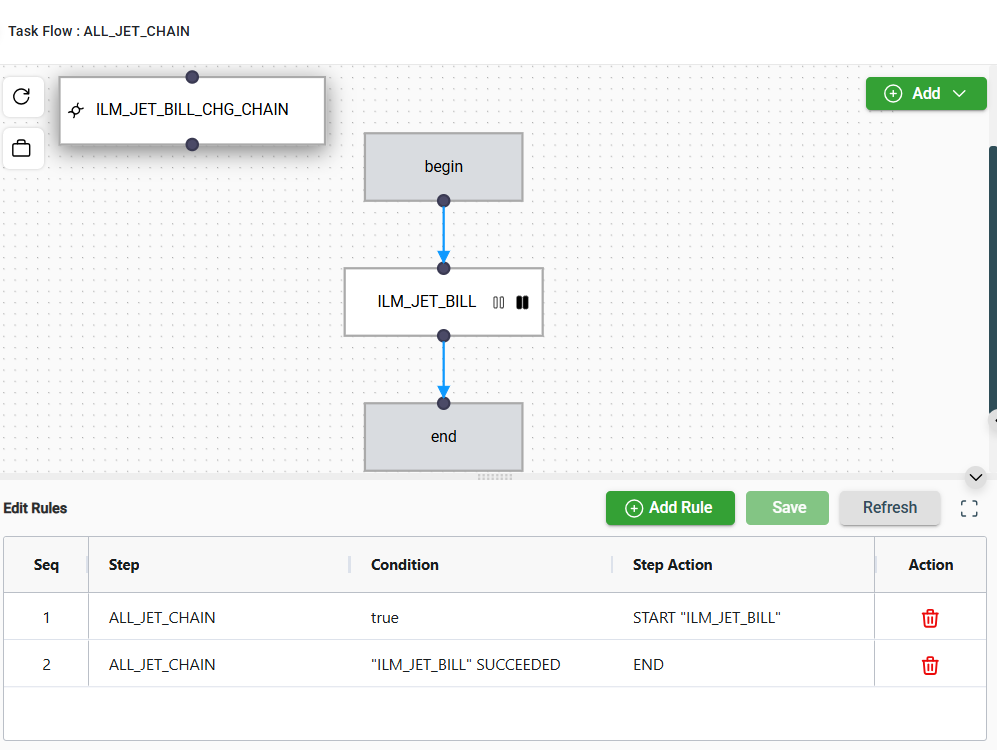
The added step needs to be manually linked. For more information, see Add a step link.
Remove a Step
To remove a step, follow these steps:
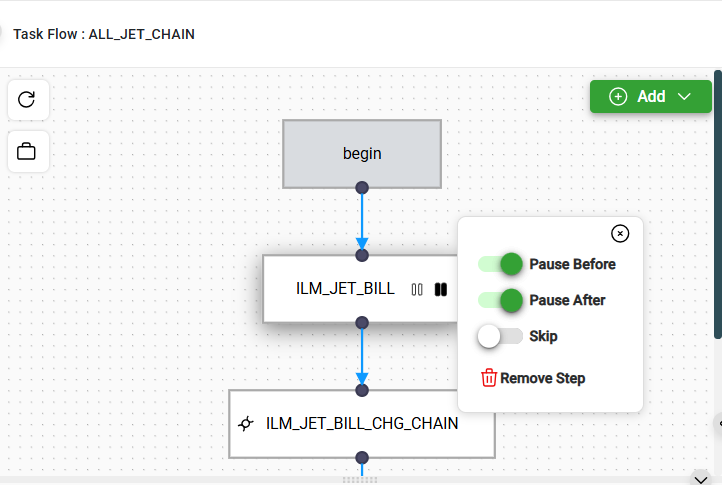
- Hover over the step you want to remove.
- Click Remove Step from the pop-up menu.
Step links
Step links define the path a task flow follows by connecting one step to another. By creating links between nodes, you control the sequence and flow of actions within the Task Flow.
Add a step link
To connect steps, follow these steps:
- Select the beginning node.
- Click and hold the linking arrow that appears on the beginning node.
- Drag the linking arrow to the target node.
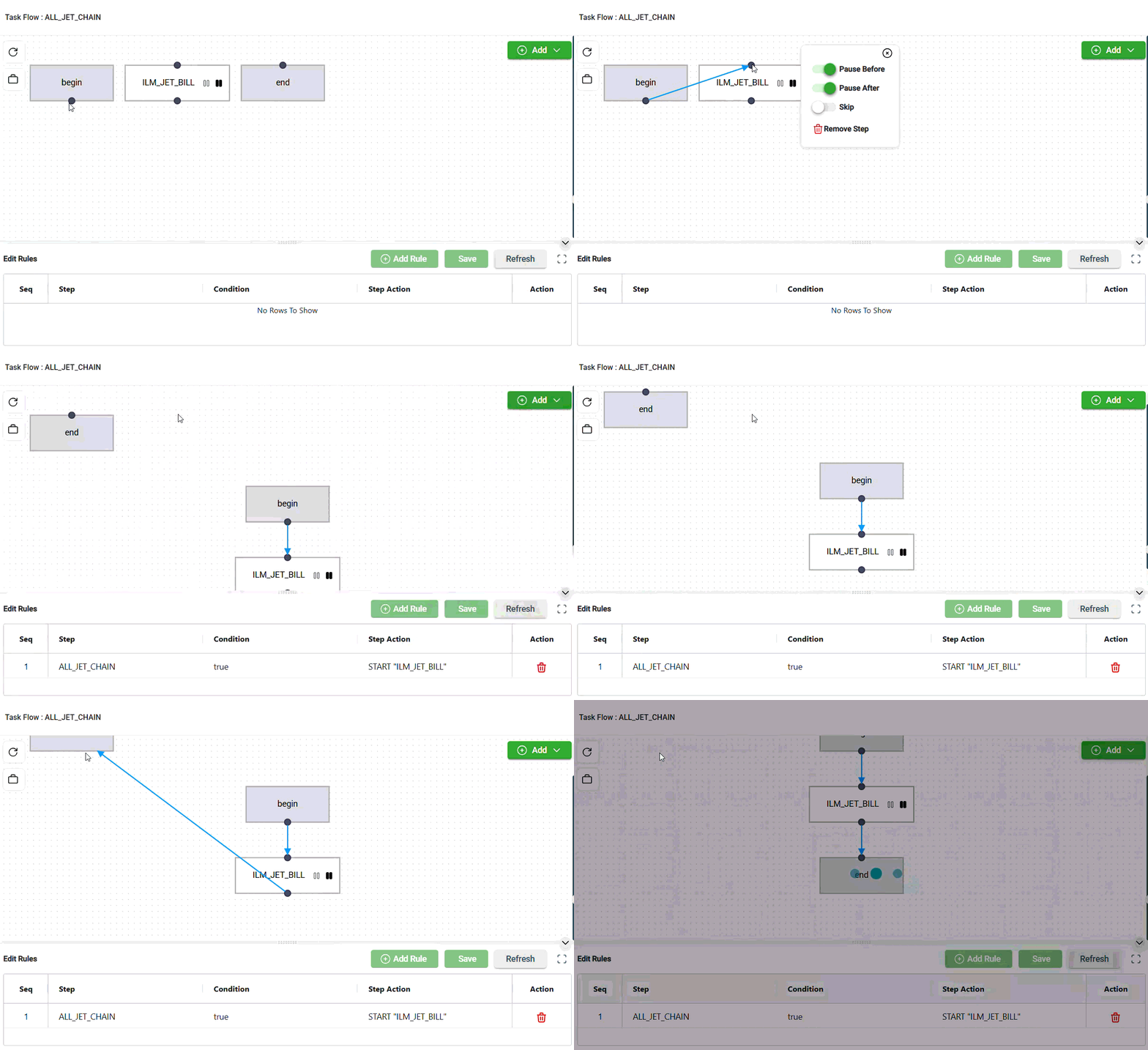
All new step links are automatically translated and added to the Edit Rules section.
Delete and modify a step link
To modify step connections, follow these steps:
- Click the arrow linking two steps.
- Click the X button to remove the link.
- Click Delete in the confirmation prompt.
- Drag the arrow to connect it to a new step.
- Verify that the changes are reflected in the Edit Rules section.
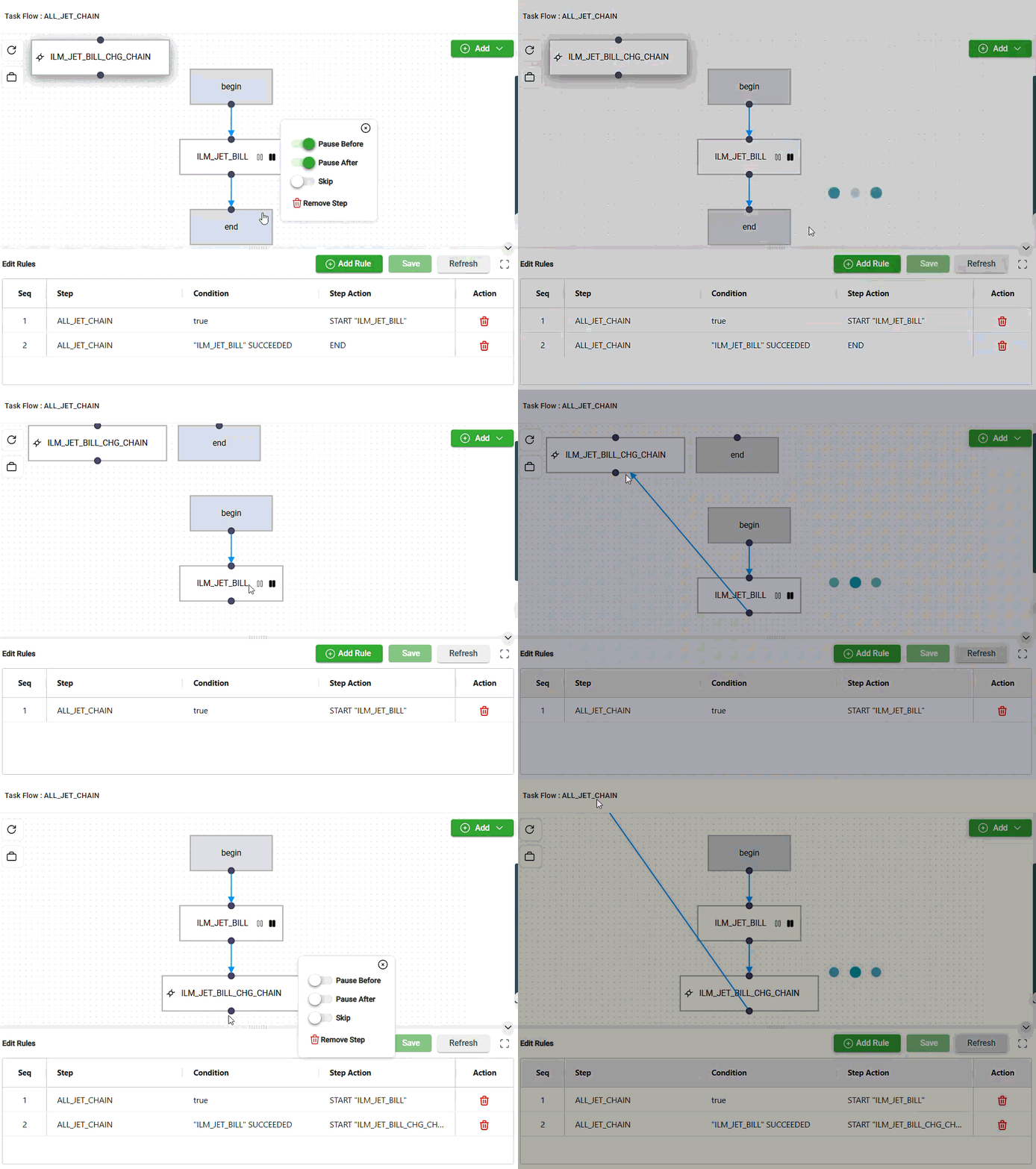
Note: All modified or removed step links are automatically translated and modified in the Edit Rules section.
Rules
The rules are the text translation of step linkings that have been in the Task Flow editor section. You can also manually define the conditions for each step execution by entering valid values in the table.
Add a Rule manually
To add a new rule, follow these steps:
- Click the Add Rule button.
- Select the source step and define the condition (e.g., success, failure, or a custom condition).
- Specify the target step that should execute when the condition is met.
- Verify that the flow reflects the new rule.
- Click Save.
Modify a Rule manually
To edit an existing rule, follow these steps:
- Select the step in the Task Flow Editor.
- Make the necessary changes.
- Verify that the flow automatically reflects the updates.
- Click Save.
Delete a Rule manually
To delete a rule, click the delete icon in the Action column for the corresponding step rule.
Details
The Details section displays information about the task flow and its individual steps. When you select a step in the Task Flow Editor section, its information appears in the right-side panel.
Task Flow Details
The Task Flow details section displays general information about the task flow, such as its name and description.
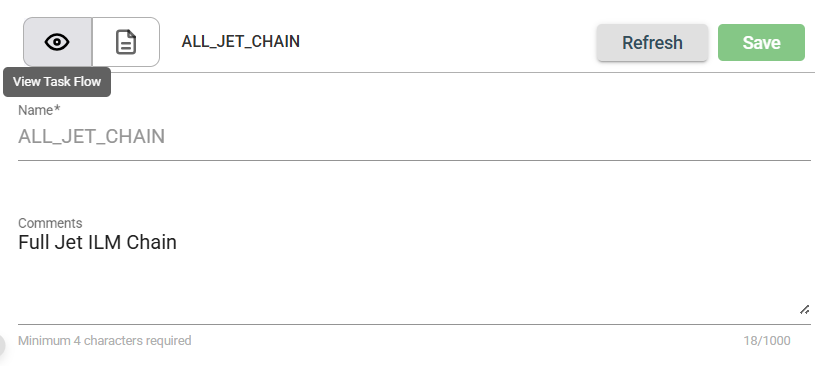
Task Details
The Task details section displays detailed information about the selected step.
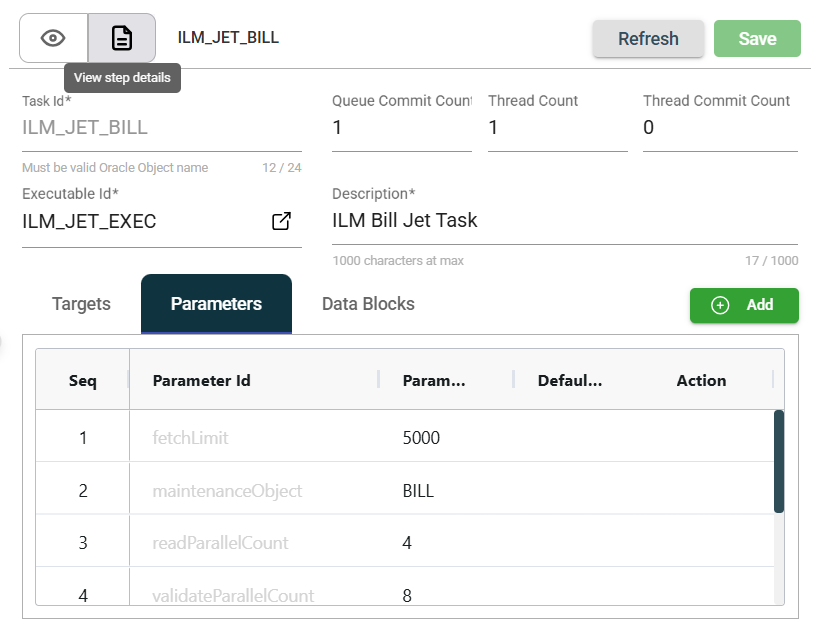
Modify a Task Flow
The Task Flow module allows you to update the details of an existing flow. To make modifications, select the flow from the list, then make the desired changes in the fields as needed. All existing details and configurations can be modified. Click the Save button once your changes are complete.
Delete a Task Flow
To delete a task flow, follow these steps:
- Click the More Options icon in the upper-right corner of the page.
- Select Delete.
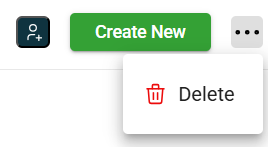
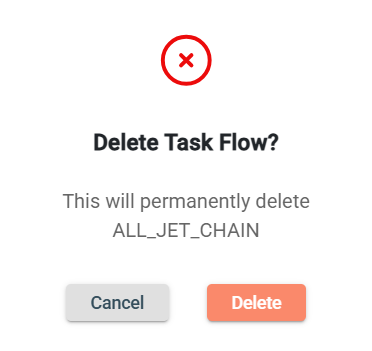
- Click Delete in the confirmation prompt.
Filter
To search for a task flow, enter a partial or full name in the Filter textbox.