Job
Overview
A job is a task that runs within the system. It is linked to chain for execution. The conversion tool tracks the execution of a job and creates the status tree from the job and chain information.
Create or view a job
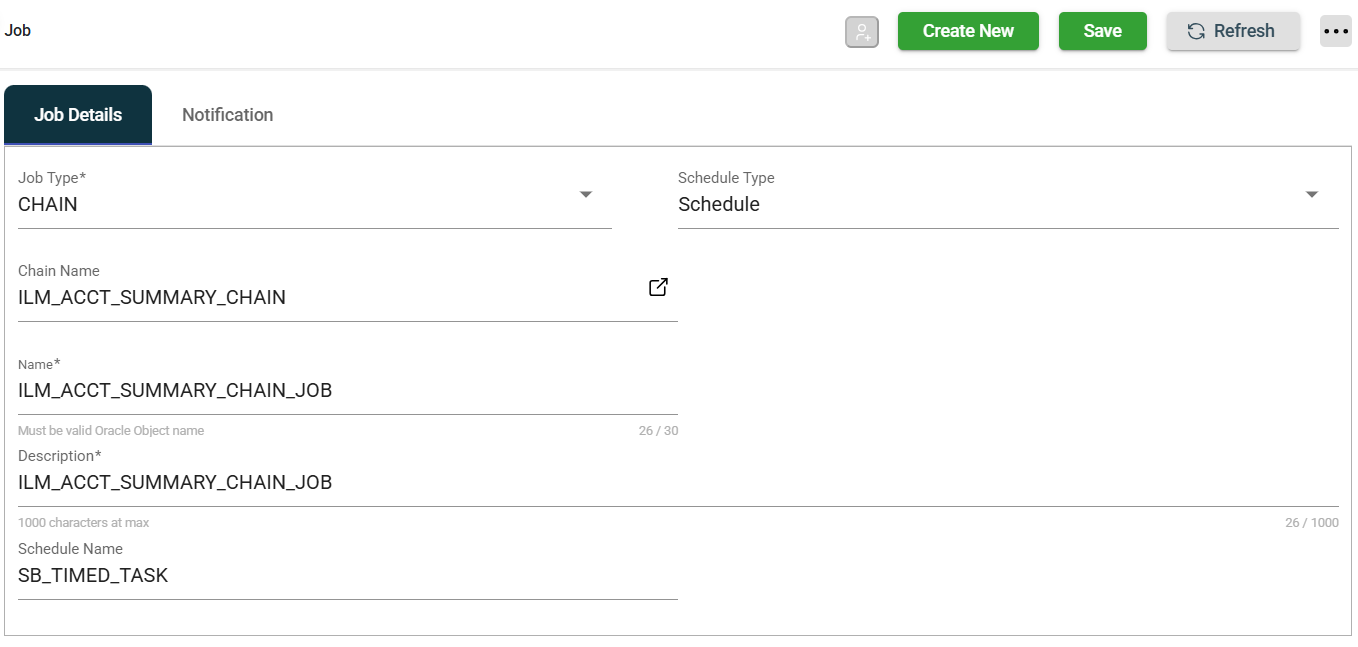
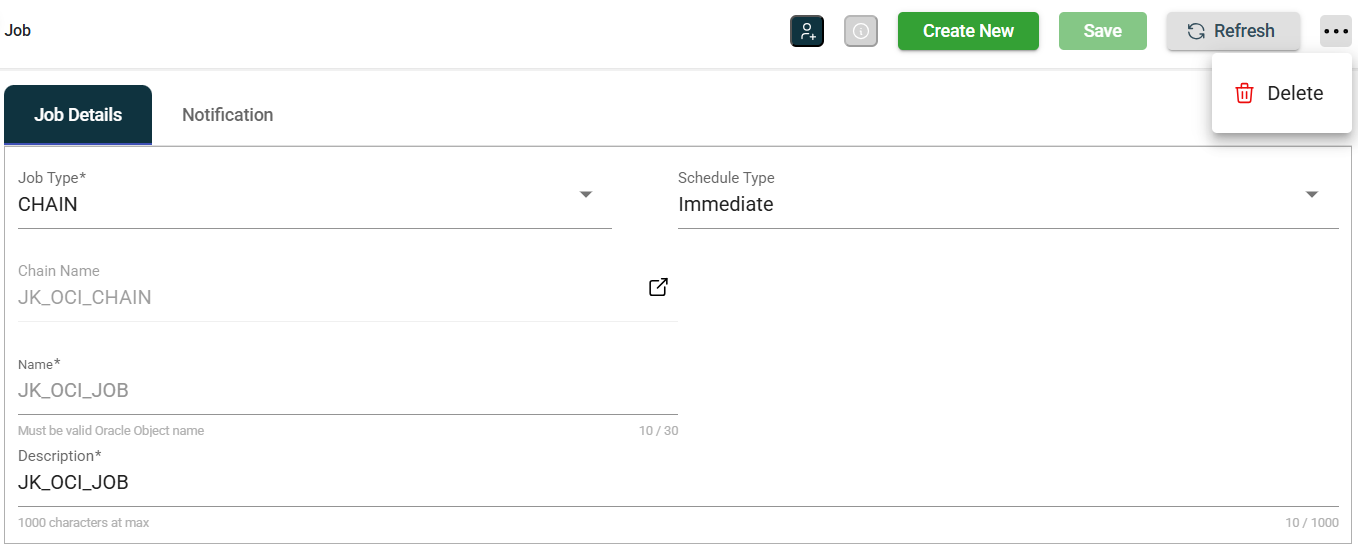
When creating or viewing a job, the Job Details and Notifications are displayed.
Job Details
Job Details provide information about a specific job, including its name, sender, recipients, and relevant parameters.
| Fields | Description |
|---|---|
| Job Type | Specifies the type of the job. Currently, the only supported type is CHAIN. |
| Schedule Type | Specifies how often the job is executed. Possible values are:
|
| Chain Name | Lists all available chain. |
| Name | Name of the job. |
| Description | Describe the job. |
| Start Date | Specifies the date and time of the job execution that is scheduled once. |
| Schedule Name | Lists all available schedule associated with the selected chain. This field only appears when the Schedule type is selected. |
Notifications
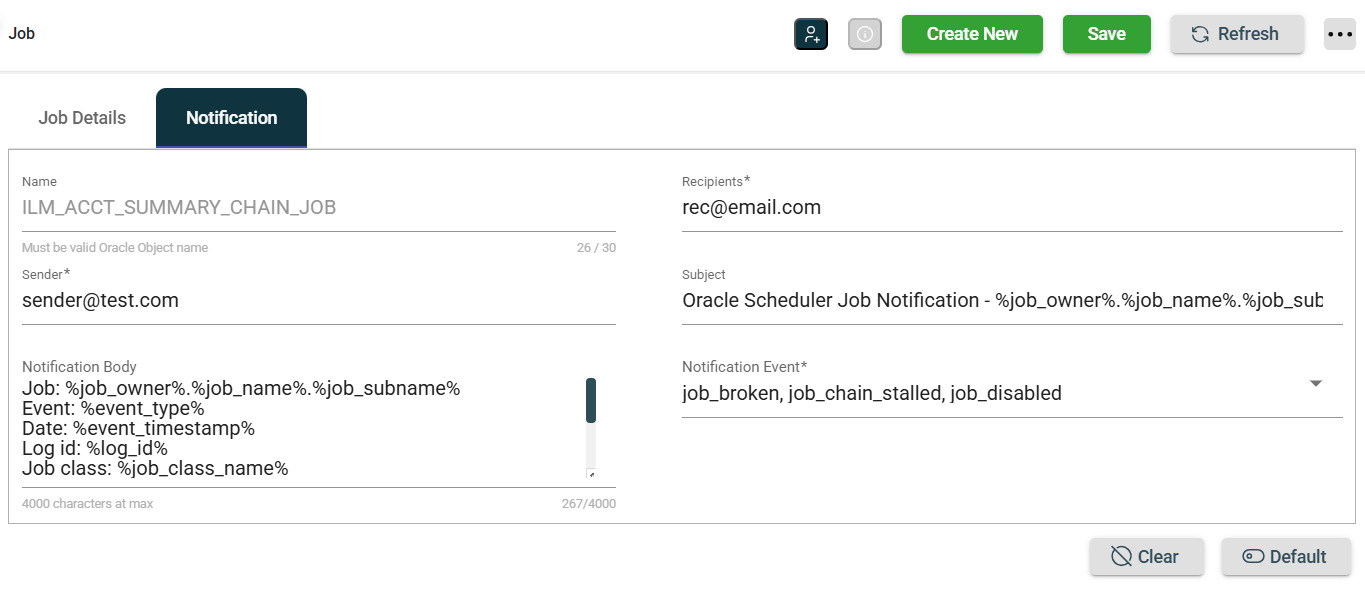
This tab defines the notifications associated with that job, specifying the content, recipients, and triggers for each event.
| Fields | Description |
|---|---|
| Name | Name of the job. |
| Recipients | User or groups who will revceive the job alert notification. |
| Sender | Sender of the job alert notification. |
| Subject | Subject line of the job alert notification. |
| Notification Body | Content or message included in the job alert notification. |
| Notification Events |
The events that trigger the job alert notification:
|
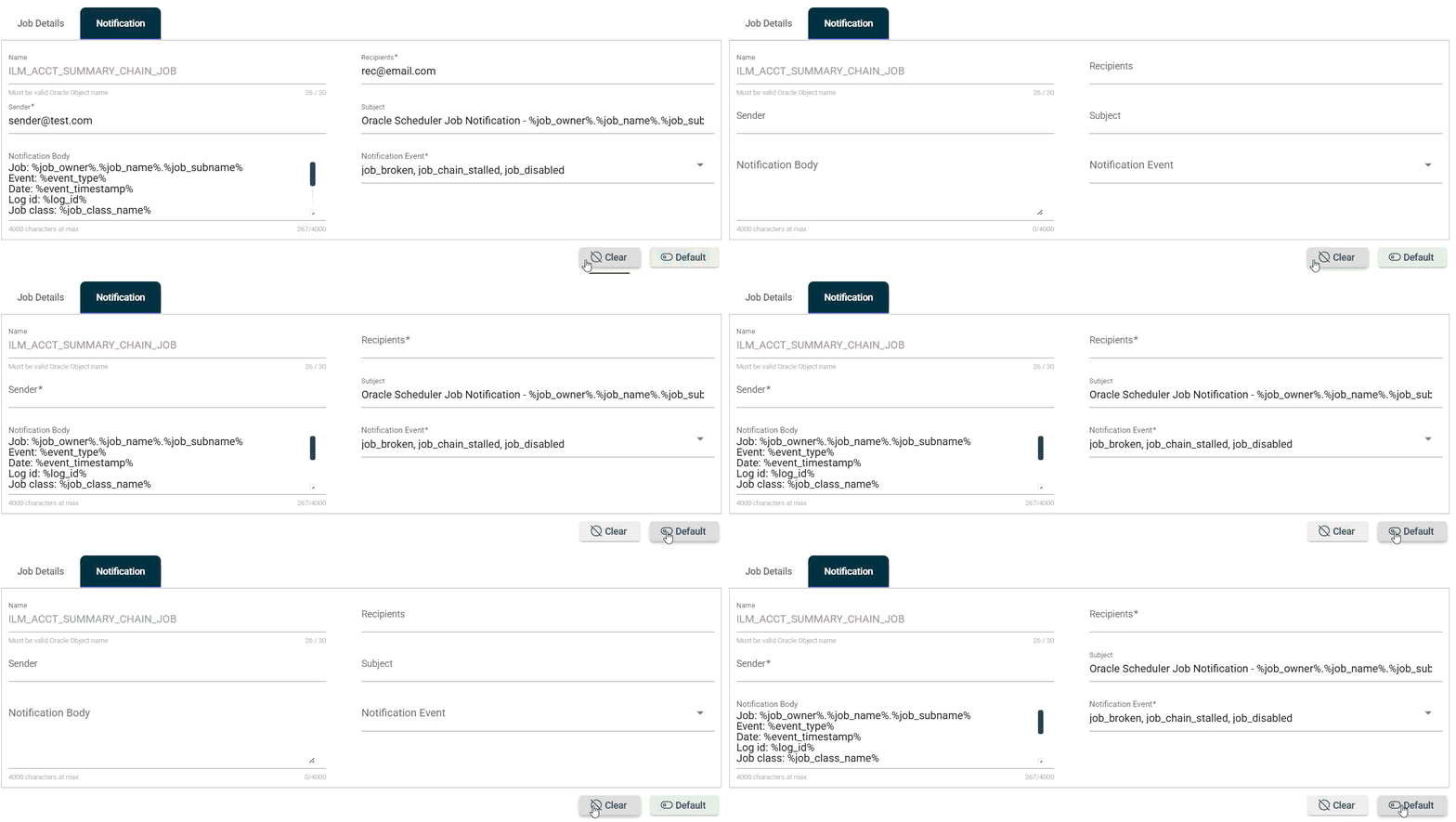
The Clear button clears all the values from the field. On the other hand, the Default button restores the previous value of all the fields except the Sender and Recipients.
Job scheduling
Jobs can be submitted in one of two ways:
Immediate submissions
To submit an inactive or disabled DBMS job to run immediately, follow these steps:
- Navigate to Jobs Activity.
- Click the corresponding run button for the job you wish to submit.
- Click the Yes button in the confirmation prompt.
Scheduled submissions
A scheduled job will be in a Scheduled state until its scheduled time arrives. A job in this state is not actually running.
To activate a scheduled job so that it can start running according to its schedule, click the corresponding run button for the job. This will place the job in the Scheduled group on the Jobs Activity page.
To run the job out of schedule or immediately, click the run button. Once successfully completed, the job will resume its schedule.
The executions of a job that were manually started are labeled as Manual run on various pages to distinguish them from the scheduled runs.
To deactivate the job and to stop it from being scheduled, click the stop button.
Modify a job
The Jobs module allows you to update the details of an existing job. To make modifications, select the job from the list, then make the desired changes in the fields as needed. All fields can be modified except the Chain Name and Name fields. Click the Save button once your changes are complete.
Delete a job
The Job module allows you to delete a job. To delete a job, click a more options icon, then select Delete.
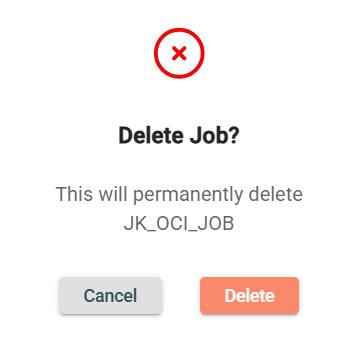
Click Delete in the confirmation prompt.
Filter
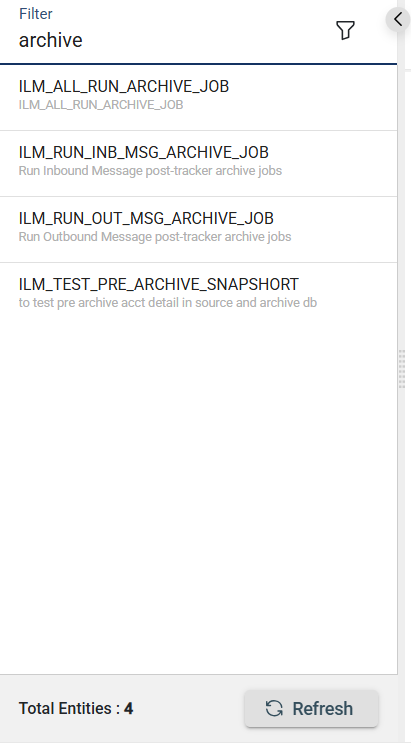
The Jobs module allows you to search for a job by entering a partial or full job name in the Filter textbox.