Jobs Activity
The Job Activity module displays the status and history of executed jobs, including completed, failed and running jobs.
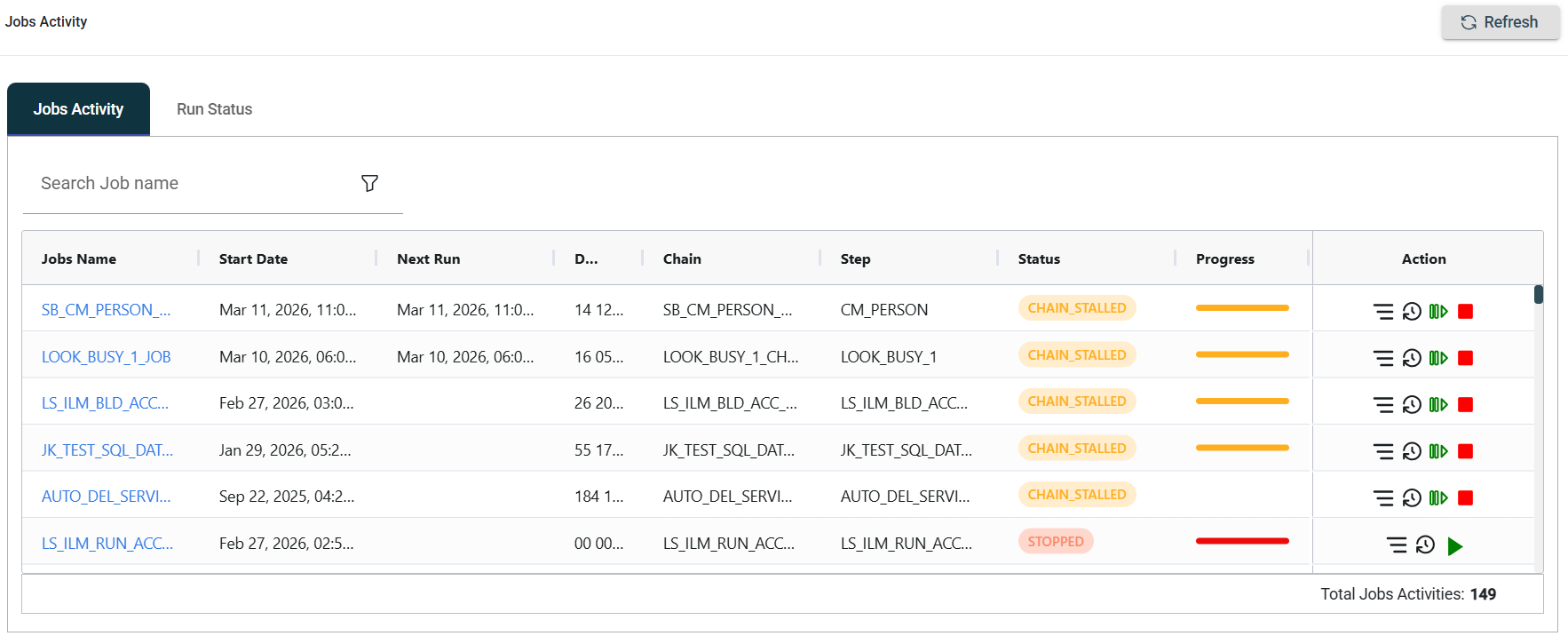
| Field | Description |
|---|---|
| Job Name |
Name of the job. The Job Name link allows you to view the job details. |
| Start Date | Date and time when the job was executed. |
| Next Run | Date and time when the job will be executed again. |
| Duration | Total time taken for job execution. |
| Chain | Specifies the chain associated with the job. |
| Step | Specifies the step associated with the job. |
| Status |
Status of the job activity. The following are the possible values:
|
| Action |
Displays the following icons:
|
 Run Log History — Opens execution logs for the job.
 Activate Job — Allows you to rerun the job.
Job Summary
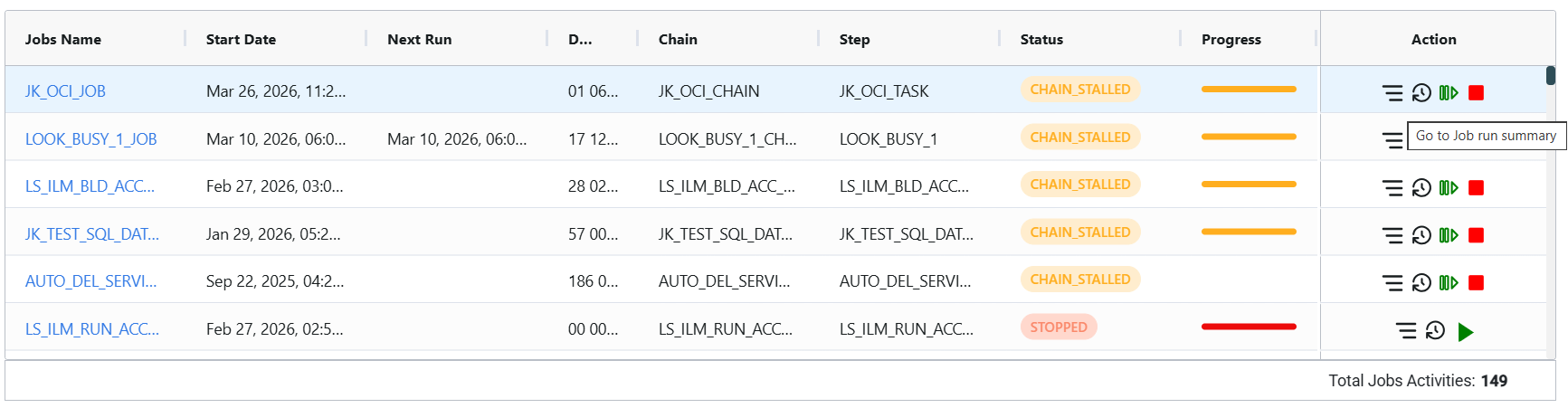
The Run Status Job Summary provides a summary of the current status of all job executions. To view it, click the Go to Job run summaryicon.
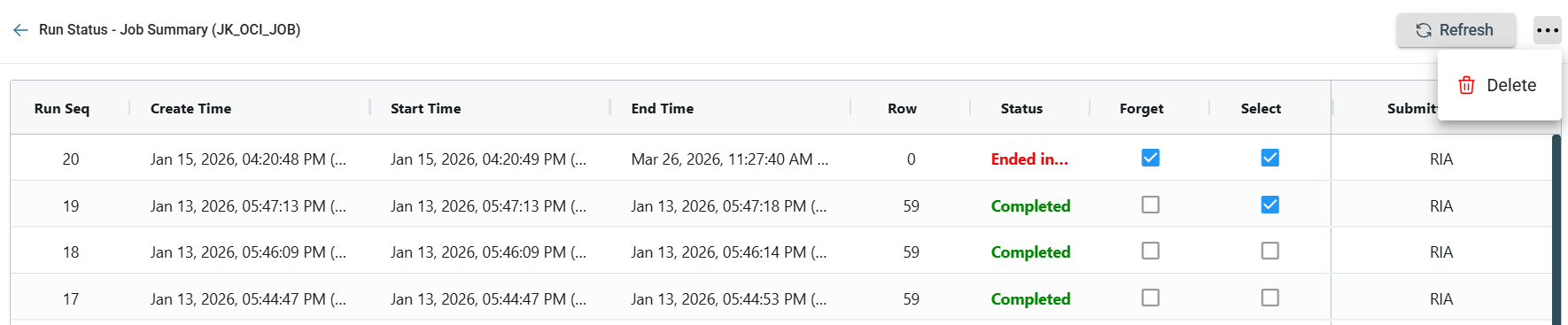
The Job Summary page appears as shown below:
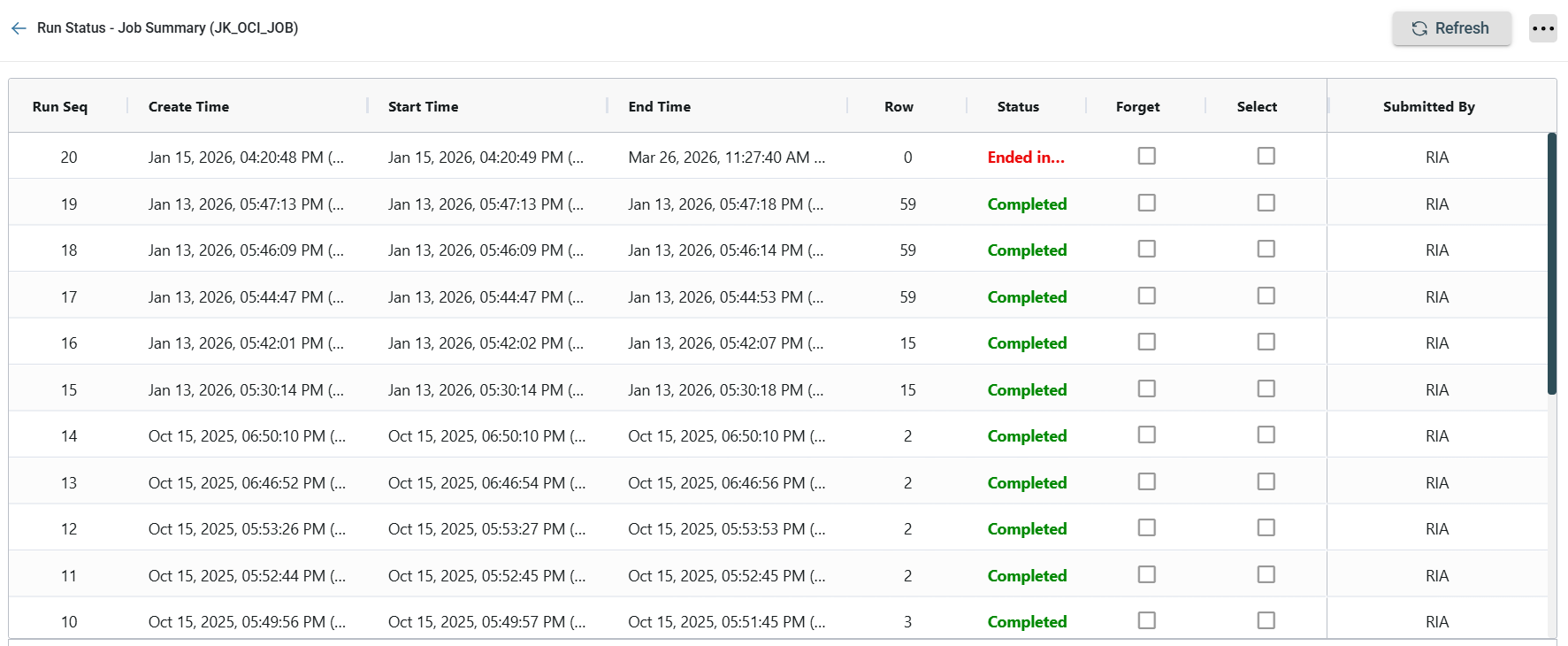
| Field | Description |
|---|---|
| Run Seq | Unique sequence number assigned to each job run. |
| Create Time | Date and time when the job was created to the system. |
| Start Time | Date and time when the job execution actually started. |
| End Time | Date and time when the job execution finished, regardless of success or failure. |
| Row | Total number of rows that were successfully processed and committed during the job execution. |
| Status |
Indicates the current state of the job.
|
| Forget | Tick the checkbox if you want to remove the job from the active list without deleting its history permanently. |
| Select | Tick the checbox to select the job for further actions, such as delete. |
| Submitted By | User who initiated or submitted the job. |
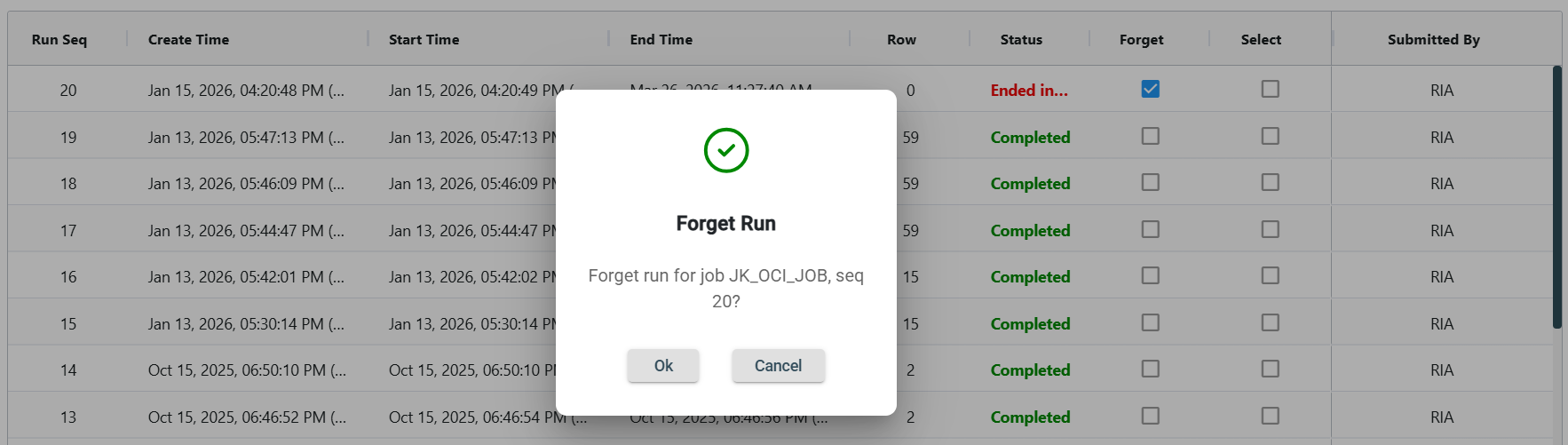
Forget a job
To forget a job, select the Forget checkbox, then click Ok in the confirmation prompt.
Delete a job
To delete a job, follow these steps:
-
Select the jobs you wish to delete by ticking the Select checkbox.
-
Click the more options icon and select Delete.
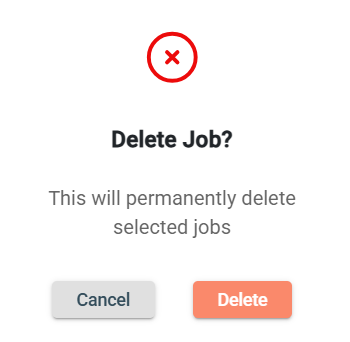
- Click Delete in the confirmation prompt.
Status Tree
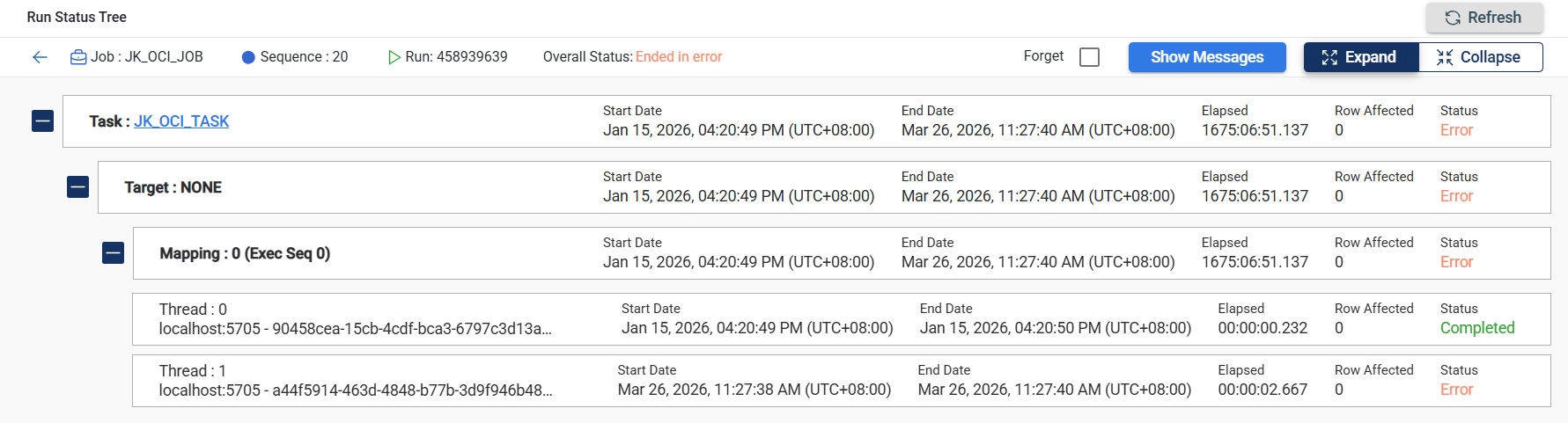
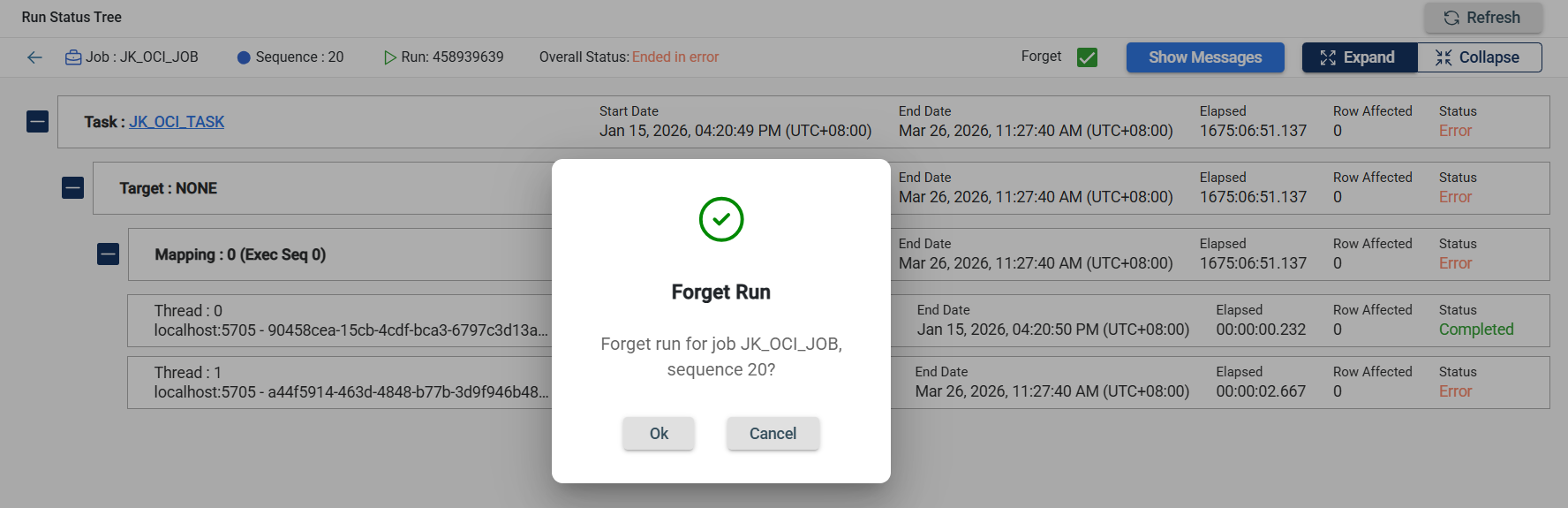
The Run Status Tree section can be obtained by clicking on any Run Sequence from the Job Summary view.
| Field | Description |
|---|---|
| Sequence | Displays the selected sequence number of the job execution. |
| Run ID | Unique identifier assigned to each run. |
| Task Name | The name of the task executed within the job run. Clicking on a task redirects you to the Task page, where detailed configurations, parameters, and data blocks are displayed. |
| Start Date | Date and time when the job starts executing. |
| End Date | Date and time when the job stops execution. |
| Elapsed Time | Total duration the task was executed, in hh:mm:ss.ms format. |
| Row Affected | Number of rows processed by the task. |
| Status |
Specifies the execution result of the task. Possible values:
|
Expand or collapse
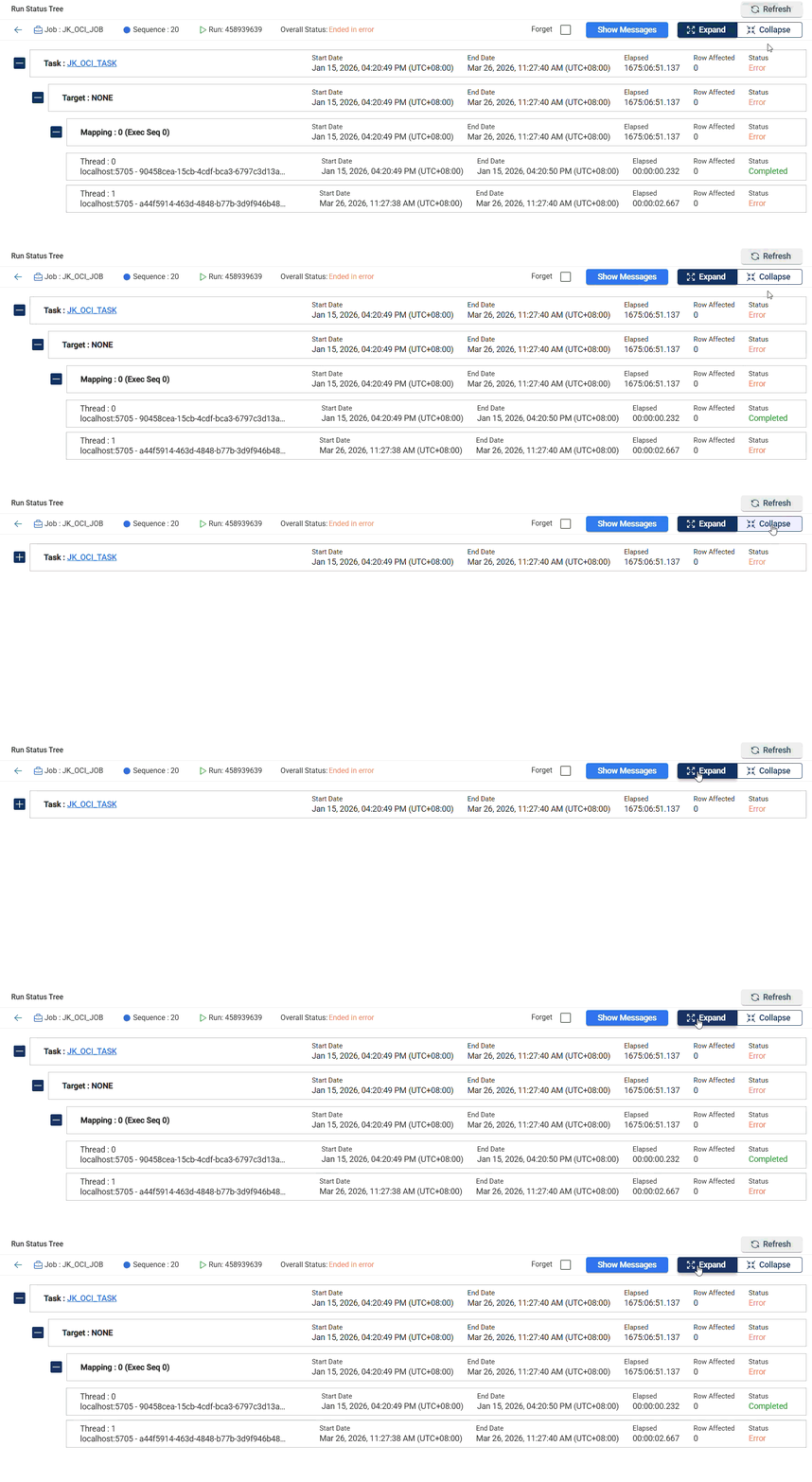
Click the Expand button to display the full status tree and show detailed information about each task in the Run Status Tree, including the Target and Mapping.. Click the Collapse button to hide the other levels.
Forget
You can also forget a job in the Status Tree view by ticking the Forget checkbox and clicking the Ok button.
Show messages
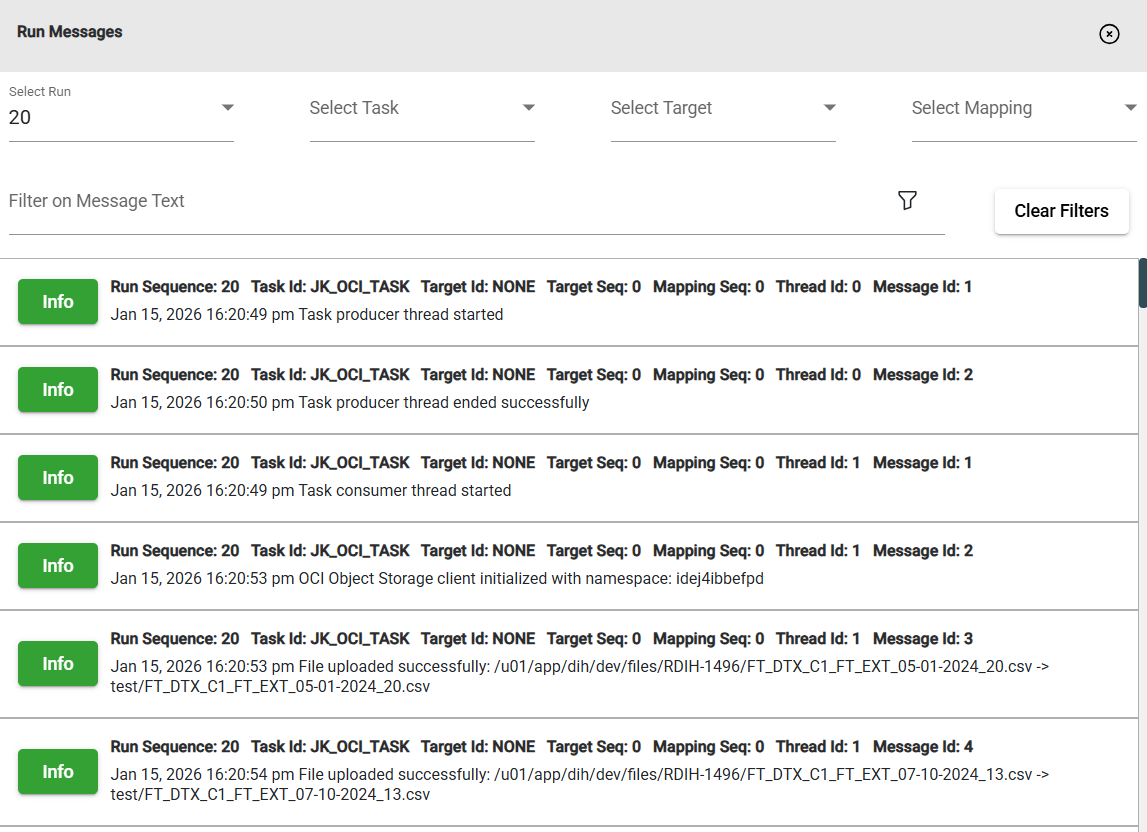
On the upper right-hand side of the screen, a Show Messages button is available that allows you to check logs and error messages.
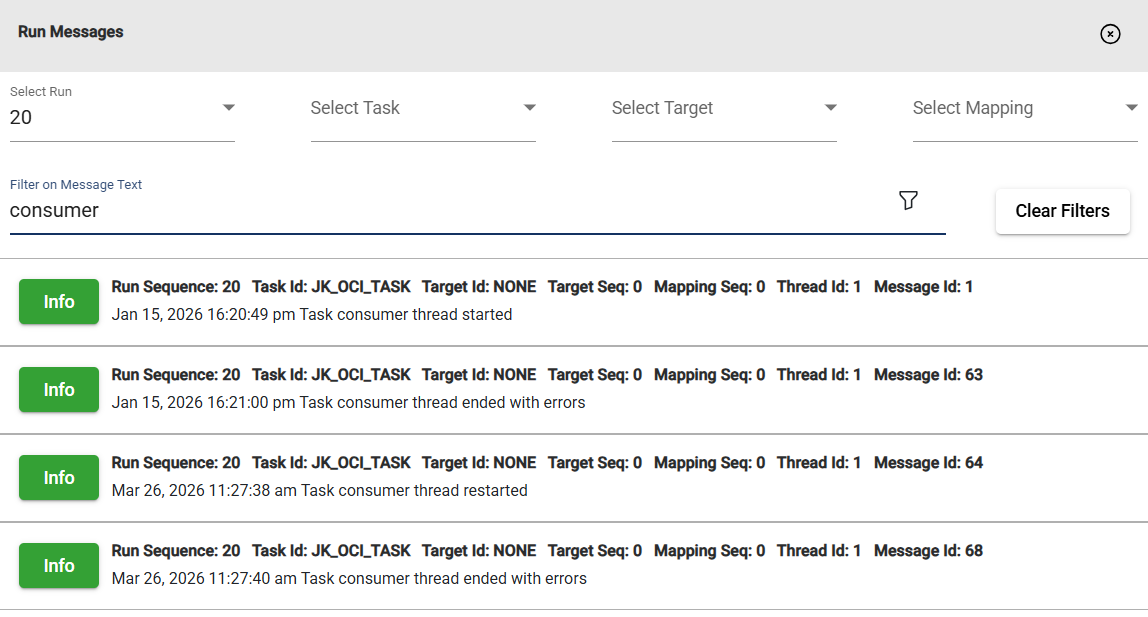
The Run Messages includes a filter feature that allows you to filter the list of messages by selecting the preferred run, task, target, and mapping in the dropdown list or by providing a keyword in the filter textbox.
Log History
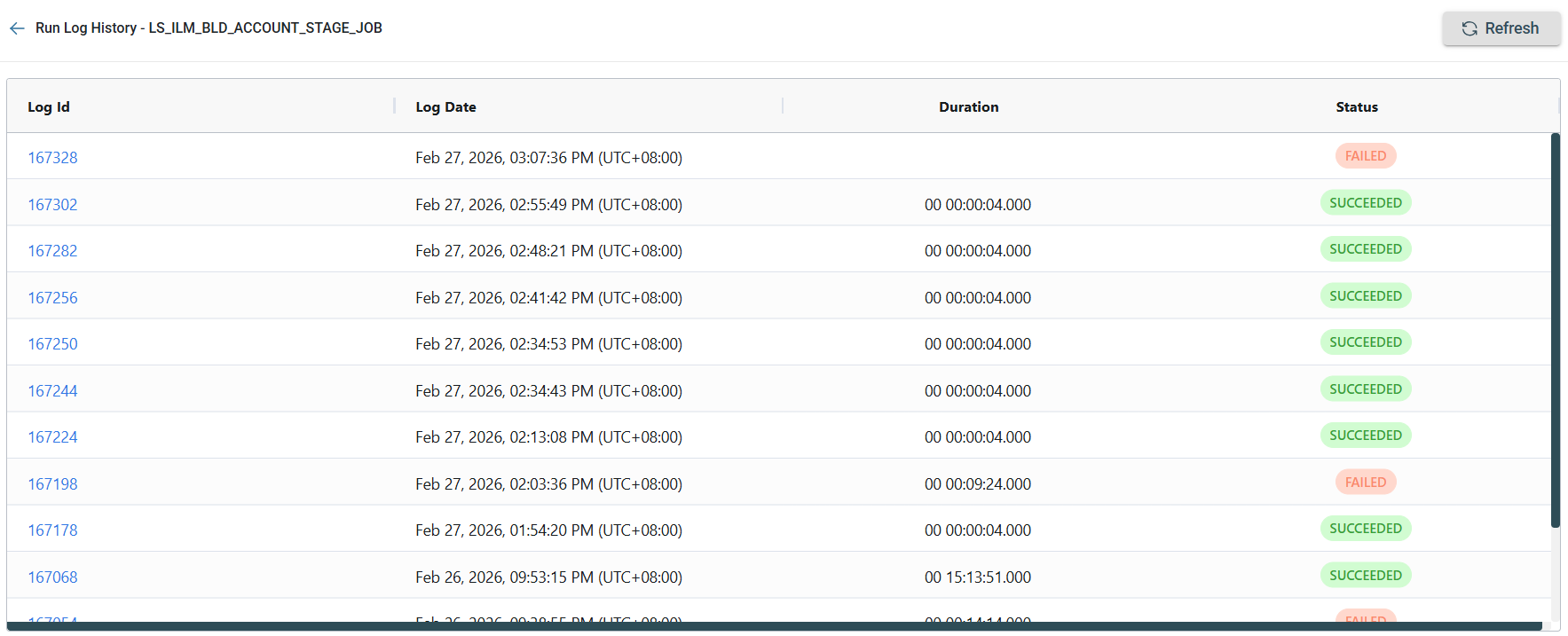
The Log History page lists all logs from executing the job. To view it, click the Go to run log history icon.

The Log History page appears as shown below:
| Field | Description |
|---|---|
| Log Id |
Unique identifier for each job execution. The Log Id value link, when clicked, displays the [Log history detail](#log-history-detail). |
| Log Date | Time and date when the job execution starts. |
| Duration | Total time taken for job execution. |
| Status |
The status of the job execution. Possible values:
|
Log History Detail
The Log History Detail page displays a comprehensive view of the selected log in the Log history page.
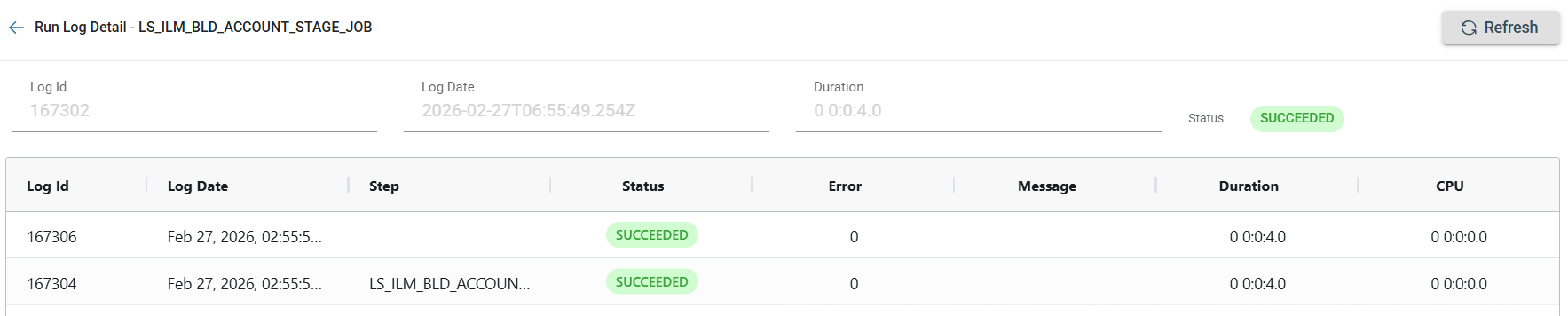
| Field | Description |
|---|---|
| Log Id | Unique identifier for each step execution. |
| Log Date | Time and date when the step execution starts. |
| Step | Name of the step within the job. |
| Status |
The status of the step execution. Possible values:
|
| Error | Error code associated with the executed step. |
| Message | Error message or reason for step failure. |
| Duration | Total time taken for the step execution. |
| CPU | Total CPU time consumed during the step execution. |
Actions
Restart job
To restart a job in CHAIN STALLED status, follow these steps:
- Click the Restart Job icon.

- Click OK in the confirmation prompt.
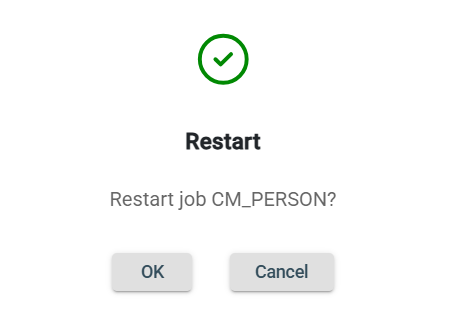
The job will now have a RUNNING status.

Activate job
To activate a job in STOPPED status, follow these steps:
- Click the Activate Job icon.

- Click OK in the confirmation prompt.
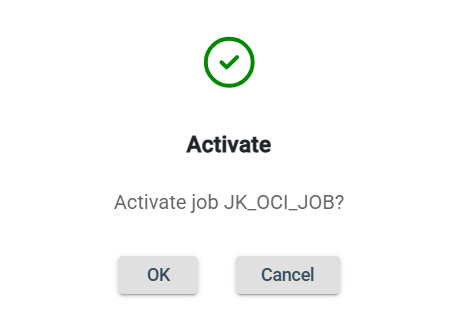
The job will now have a RUNNING status.

Stop job
To stop a job in a RUNNING or CHAIN STALLED status, follow these steps:
- Click the STOP icon.

- Click OK in the confirmation prompt.
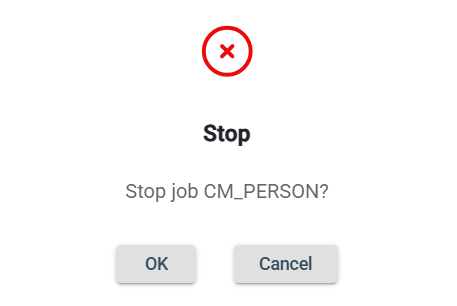
The job will now have a STOPPED status.

Filter
The Jobs Activity module allows you to search for a job by entering a partial or full job name in the Filter textbox.
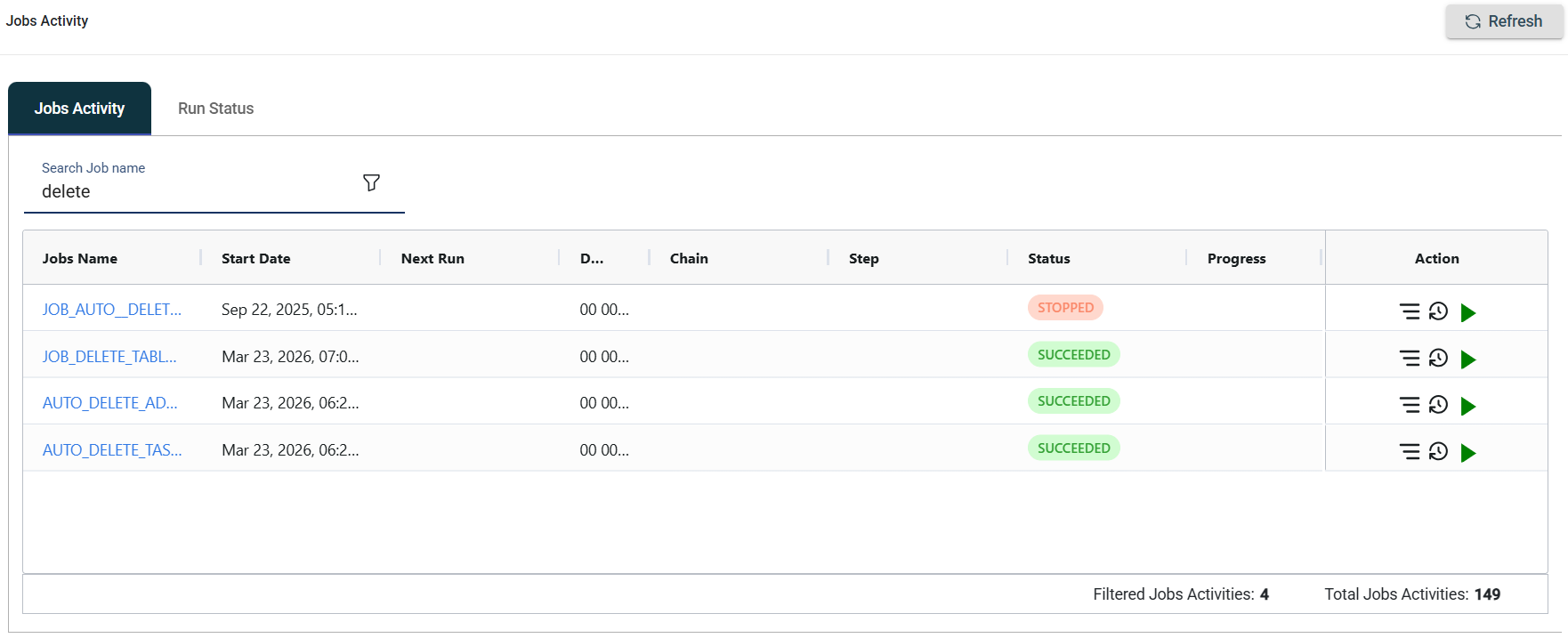
Additional filters can also be applied directly from the column headers to narrow down the displayed results.