Schedule
Overview
A schedule defines when a job should run, either as a one-time execution or as a recurring execution. By associating a schedule with a job, the system can automatically trigger execution based on the defined timing and frequency. This helps ensure consistency, reduces manual intervention, and supports time-based automation of processes.
Creat a schedule
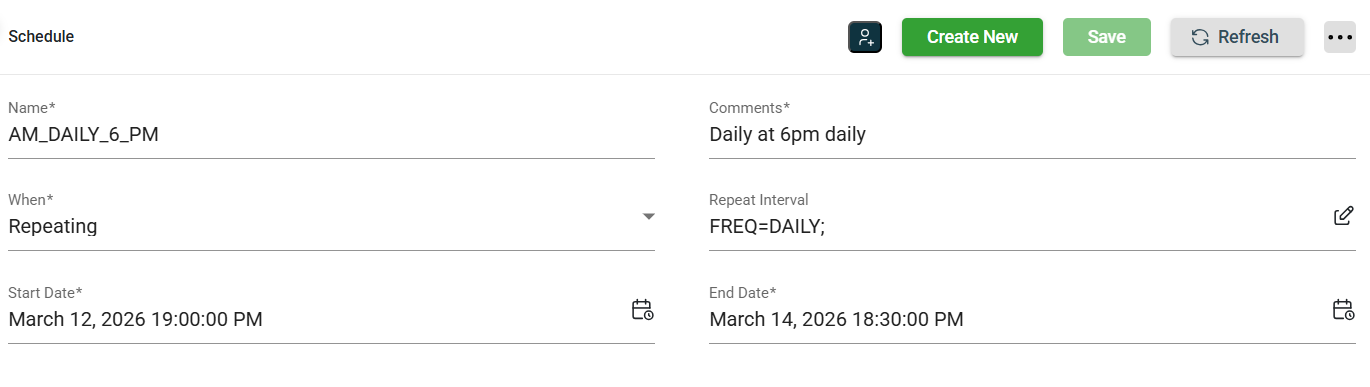
When creating or viewing a schedule, the following fields need to be filled out or displayed, respectively. To create a new schedule, click the Create New button.
| Field | Description |
|---|---|
| Name | Name of the schedule. |
| Comments | Optional notes or additional details describing the schedule. |
| When |
Specifies the recurrence. Possible values are the following:
|
| Repeat Interval | Specifies how frequently the job should run when When is set to Repeating. This field uses a scheduling expression to define intervals. For detailed syntax and options, refer to the
DBMS_SCHEDULER documentation. |
| Start Date | Date and time when the schedule becomes active. For one-time schedules, this is when the job will execute. For recurring schedules, this marks the beginning of the schedule. |
| End Date | Date and time when the schedule will stop running. After this point, no further executions will occur. |
Modify a schedule
The Schedule module allows you to update the details of an existing job. To make modifications, select the job from the list, then make the desired changes in the fields as needed. All fields can be modified. Click the Save button once your changes are complete.
Delete a schedule
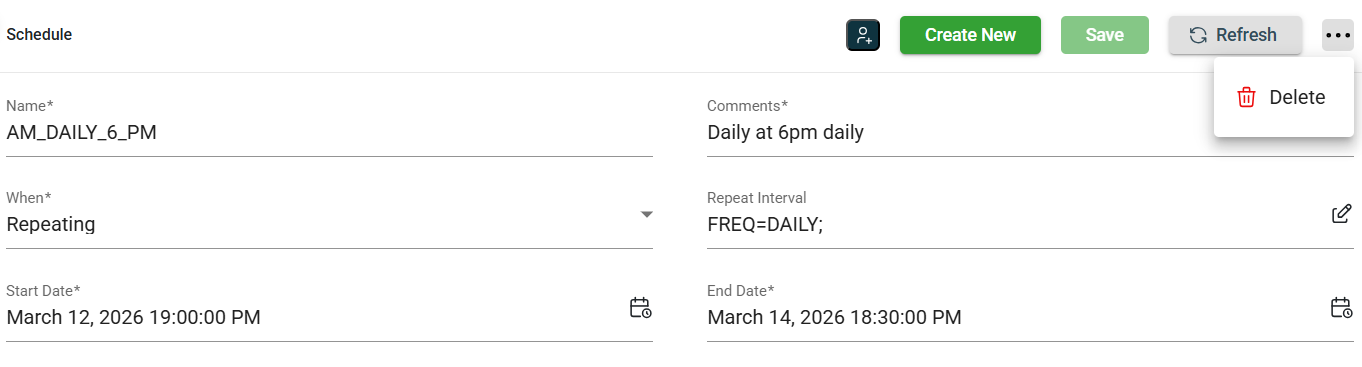
The Schedule module allows you to delete a schedule. To delete a schedule, click a more options icon, then select Delete.
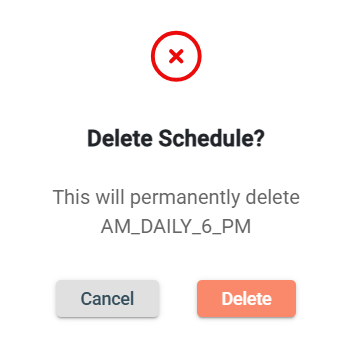
Click Delete in the confirmation prompt.
Filter
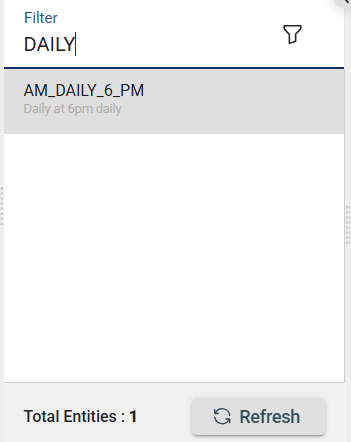
The Schedules module allows you to search for a schedule by entering a partial or full schedule name in the Filter textbox.