Run Status
The Run Status displays the run status of a job. A job is a collection of tasks created by the user to carry out various operations in DIH.
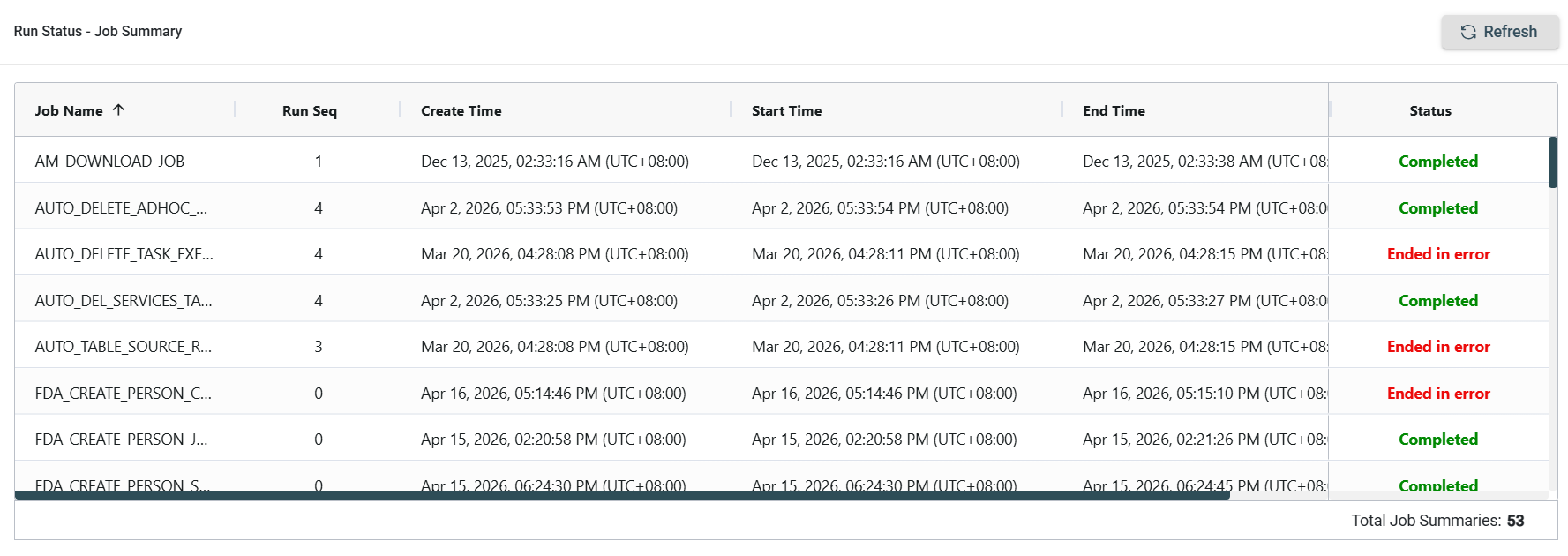
Once a job is called out for execution, it starts executing the tasks within that job. The execution summary of the tasks within the job is stored in the Run Status - Job Summary page. This page consists of a list of all the jobs displayed in the following format:
| Field | Description |
|---|---|
| Job Name | Name of the job. |
| Run Seq | Total number of times the job runs in a day. |
| Create Time | Time noted during the creation of the job. |
| Start Time | Date and time noted when the job starts executing. |
| End Time | Date and time noted when the job stops with its execution. |
| Row | Number of rows processed by the job. |
| Status | Run status of the job. |
| Total Job Summaries | Total number of jobs executed. |
Job Run
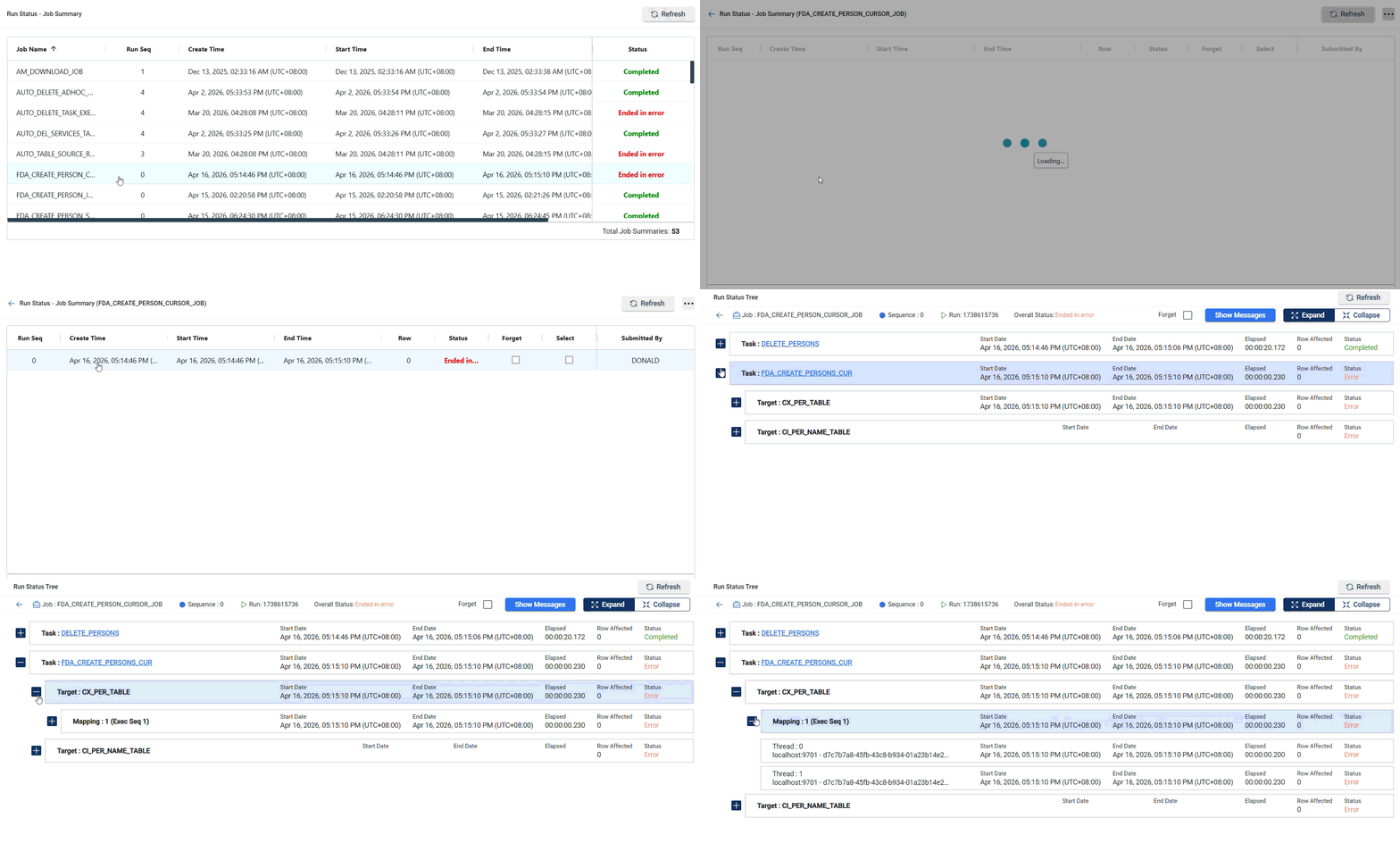
Upon clicking on a particular job, the user will be able to view the Job Run section, which displays all the run sequences of that job along with its start and end time, the number of rows processed by the job, and the job run status.

| Field | Description |
|---|---|
| Run Seq | Displays the sequence number of the run. |
| Create Time | Time noted during the creation of the job. |
| Start Time | Date and time noted when the job starts executing. |
| End Time | Date and time noted when the job stops with its execution. |
| Row | Number of rows processed by the run sequence. |
| Status | Run status of the run sequence. |
| Forget | Checkbox to remove the run sequence of the selected job. |
| Select | Checkbox to select the run sequence for bulk actions like delete. |
| Submitted by | The user who started the job execution. |
| Total Jobs | Total count of job executions in the run. |
Run Status Tree
The Run Status Tree section can be viewed by clicking on any Run Sequence from the Job Run section. This section displays the task, start date, end date, elapsed time, rows affected, and the status.
| Field | Description |
|---|---|
| Job | Name of the executed or submitted job. |
| Sequence | Indicates the sequence number of the job execution. |
| Run | A unique identifier assigned to each job run. |
| Overall Status |
Indicates the execution result of the job:
|
| Task Name | The name of the task executed within the job run. Clicking the task redirects you to the Task page, where you can view detailed configurations, parameters, and data blocks. |
| Start Date | The date and time when the job execution begins. |
| End Date | The date and time when the job execution ends. |
| Elapsed Time | The total duration the task was executed, displayed in hh:mm:ss format. |
| Row Affected | The number of rows processed by the task. |
| Status |
Indicates the execution result of the task:
|
| Target | Displays the target sequence information along with the target name. |
| Mapping | Displays the mapping sequence information associated to the task. |
| Thread | Lists all the thread counts used during task execution. |
Show Messages
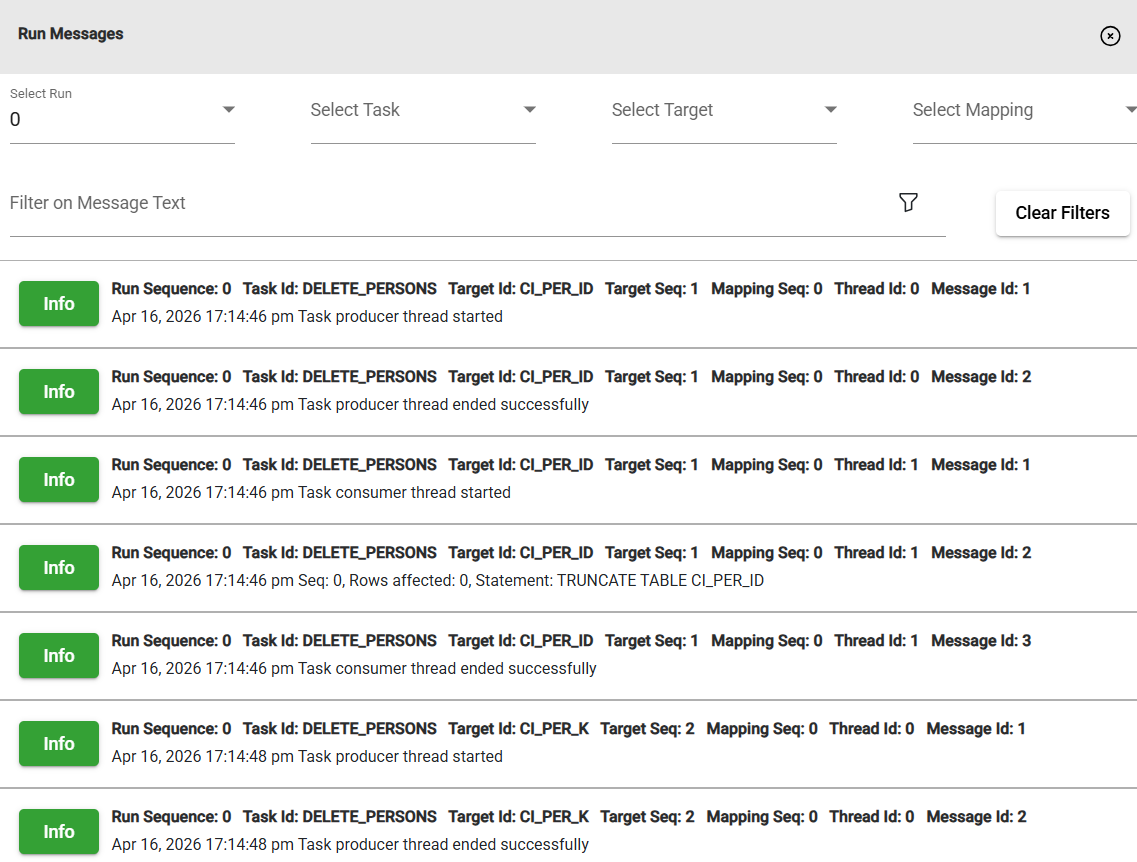
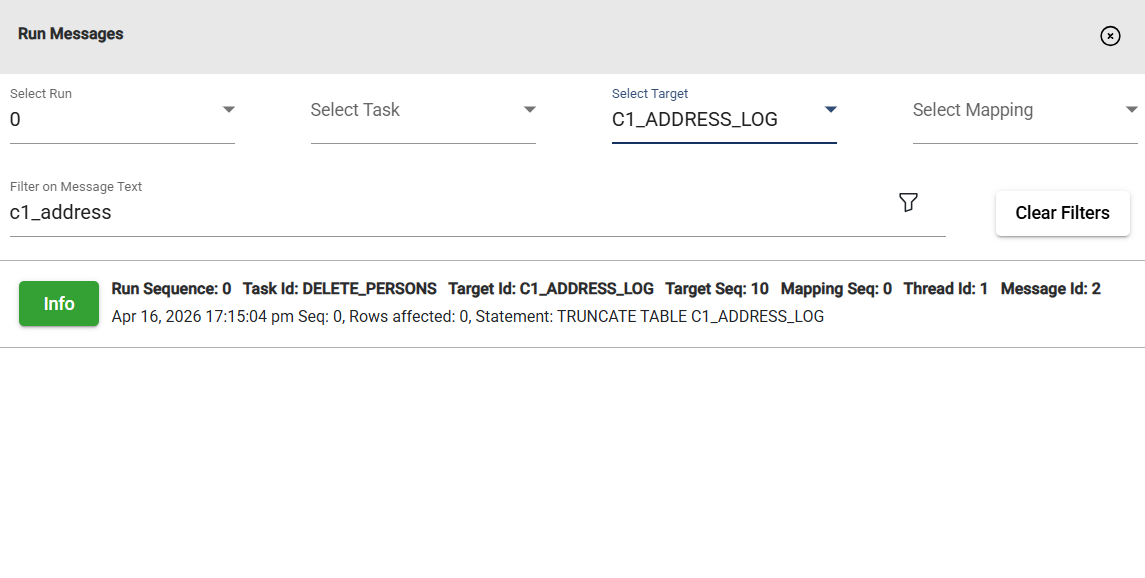
On the upper right-hand side of the screen, a Show Messages button is available that allows you to check logs and error messages if a task fails.
Show Messages - Filter
The Show Messages section includes a filter feature that allows you to filter the list of messages by selecting the preferred run, task, target, and mapping in the dropdown list or by providing a keyword in the filter textbox.
For example, you can search for a specific table used in any of the statements.
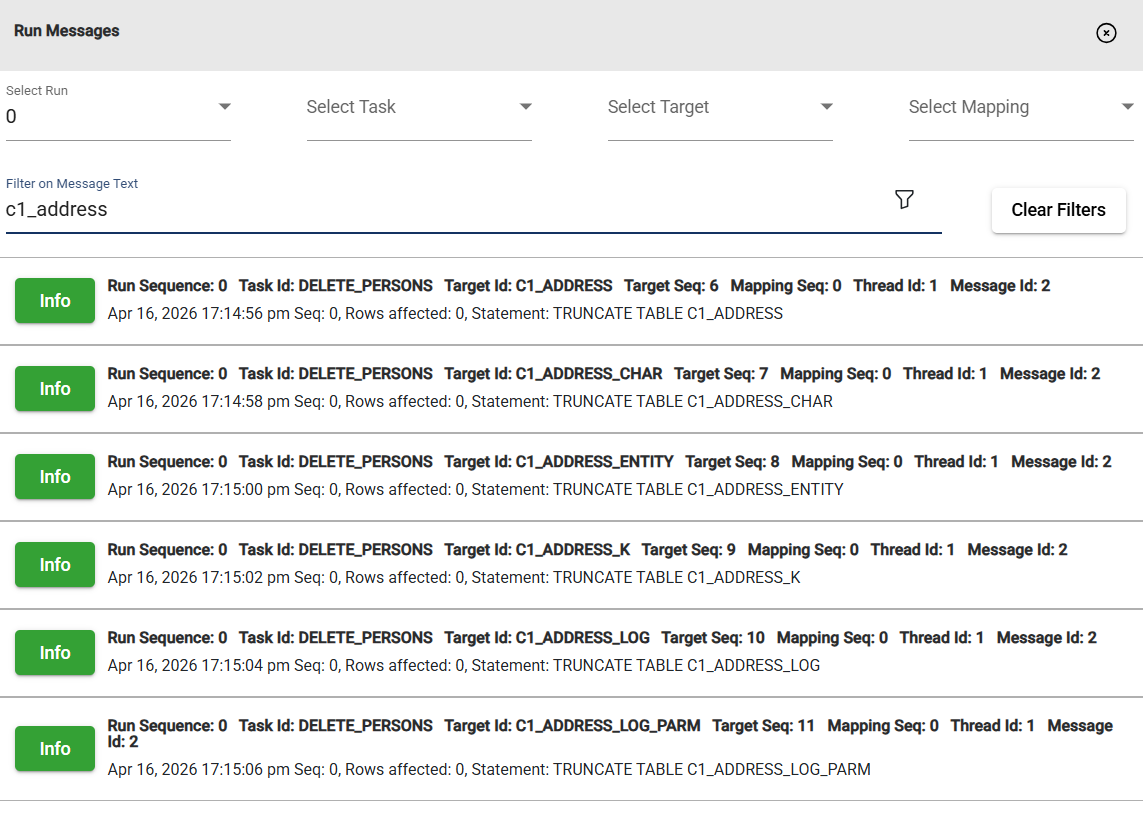
Also, you can use multiple filters at once.
Forget
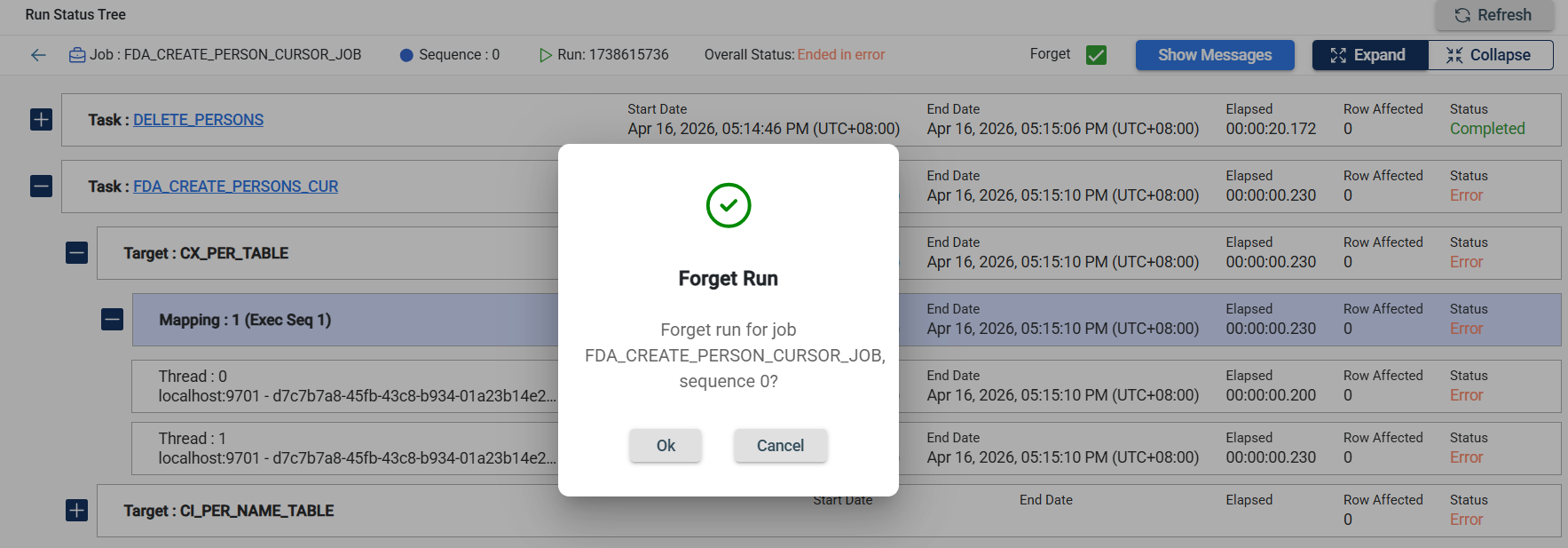
On the upper right-hand side of the screen, a Forget checkbox is available that allows you to disregard the failed run and create a new run sequence.
Expand and Collapse
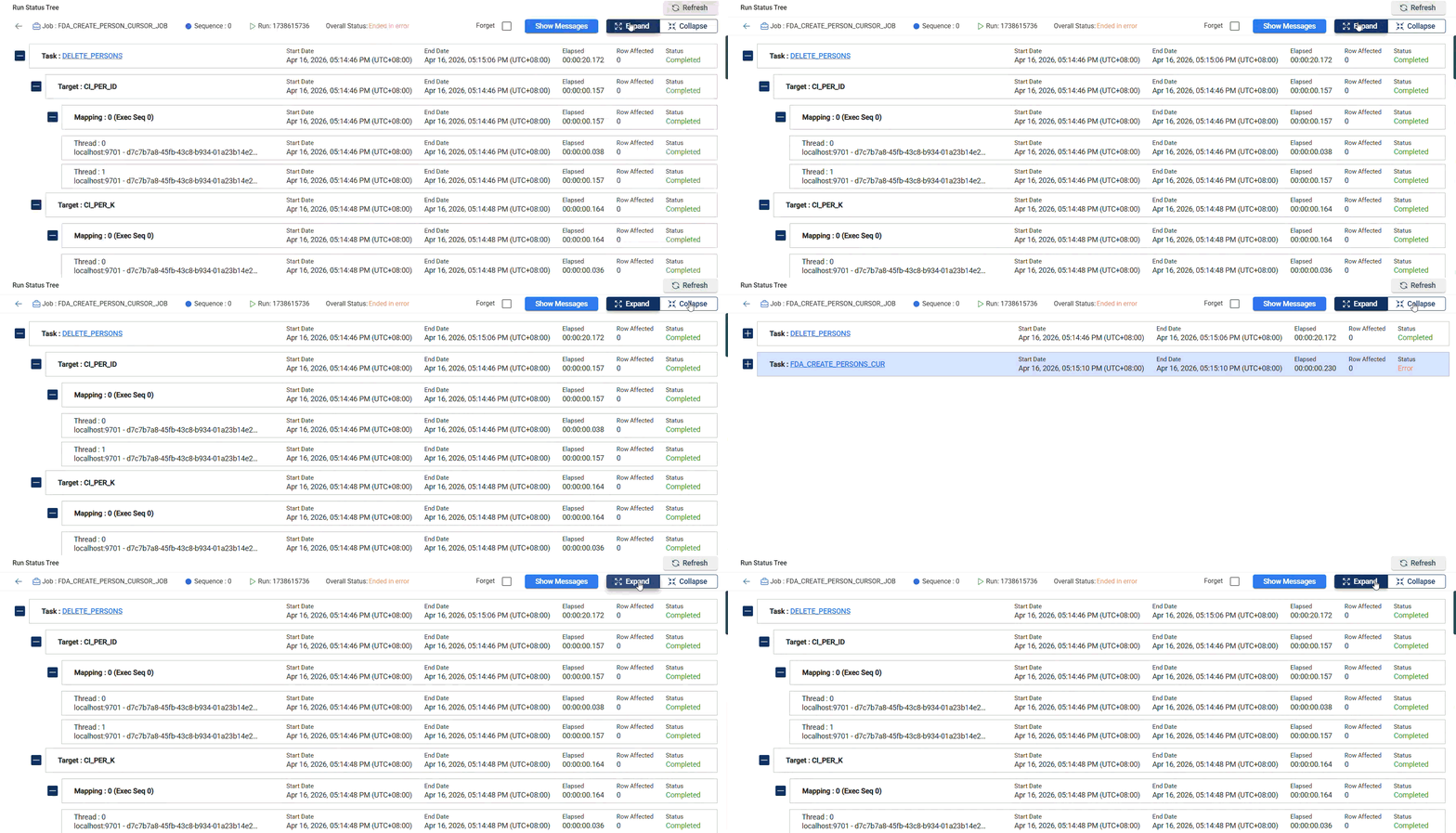
On the upper right-hand side of the screen, an Expand button is available that allows you to display detailed information about each task in the Run Status Tree, including the Target and Mapping. A Collapse button is also available that allows you to hide the expanded details and show the task name in the Run Status Tree.
Filter and Sort
The Run Status includes a Filter feature that allows you to filter the list of jobs by providing a keyword or the full name of the job. The job that matches the provided keyword or name will be displayed on the screen.
To filter the report, click the .png) on the column header.
on the column header.

| Filter Criteria | Description |
|---|---|
| Contains | Returns all jobs that contain the specified keyword. |
| Does not contain | Excludes jobs that contain the specified keyword. |
| Equals | Returns all the jobs that match the specified keyword. |
| Does not equal | Returns all the jobs that do not match the specified keyword. |
| Begins with | Returns all the jobs whose names start with the specified keyword. |
| Ends with | Returns all the jobs whose names end with the specified keyword. |
| Blank | Returns jobs with no name. |
| Not blank | Returns jobs with a valid name. |
You can also sort the data in ascending or descending order by clicking on .png) or
or  .
.
Refresh
A Refresh button is on the upper right-hand side of the screen. This feature allows you to reload the page whenever you want.
