Role Groups
Overview
The Role Groups module allows you to create groups of multiple Roles that can be easily assigned to Organizations. This simplifies the role assignment process, allowing organizations to manage the roles effectively and ensure that the correct privileges are assigned to the appropriate individuals.
Create a role group
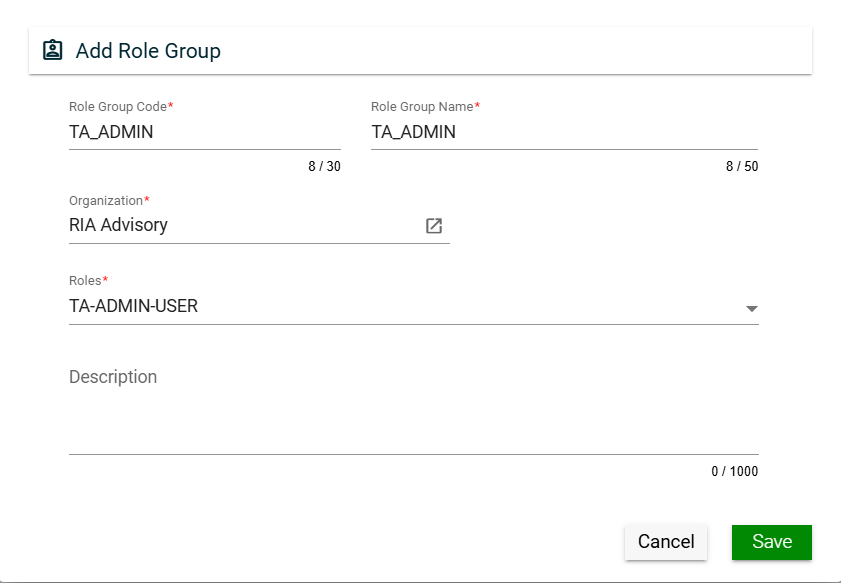
To create a role group, click Create New and enter valid values in the following fields:
| Field | Description |
|---|---|
| Role Group Code | Code of the role group. Mandatory: Yes |
| Role Group Name | Name of the role group. Mandatory: Yes |
| Organization | Organization for which the role group will be applicable. To view the details of the selected products, click the go to icon. (similar behavior with product). For more information about organization, see Organizations. Mandatory: No |
| Roles | Roles to be included in the role group. Only the roles associated with the selected organization will be displayed in the dropdown list. Multiple roles can be selected for a role group. For more information about roles, see Roles. Mandatory: Yes |
| Description | Additional details of the role group. Mandatory: No |
Views
Card View
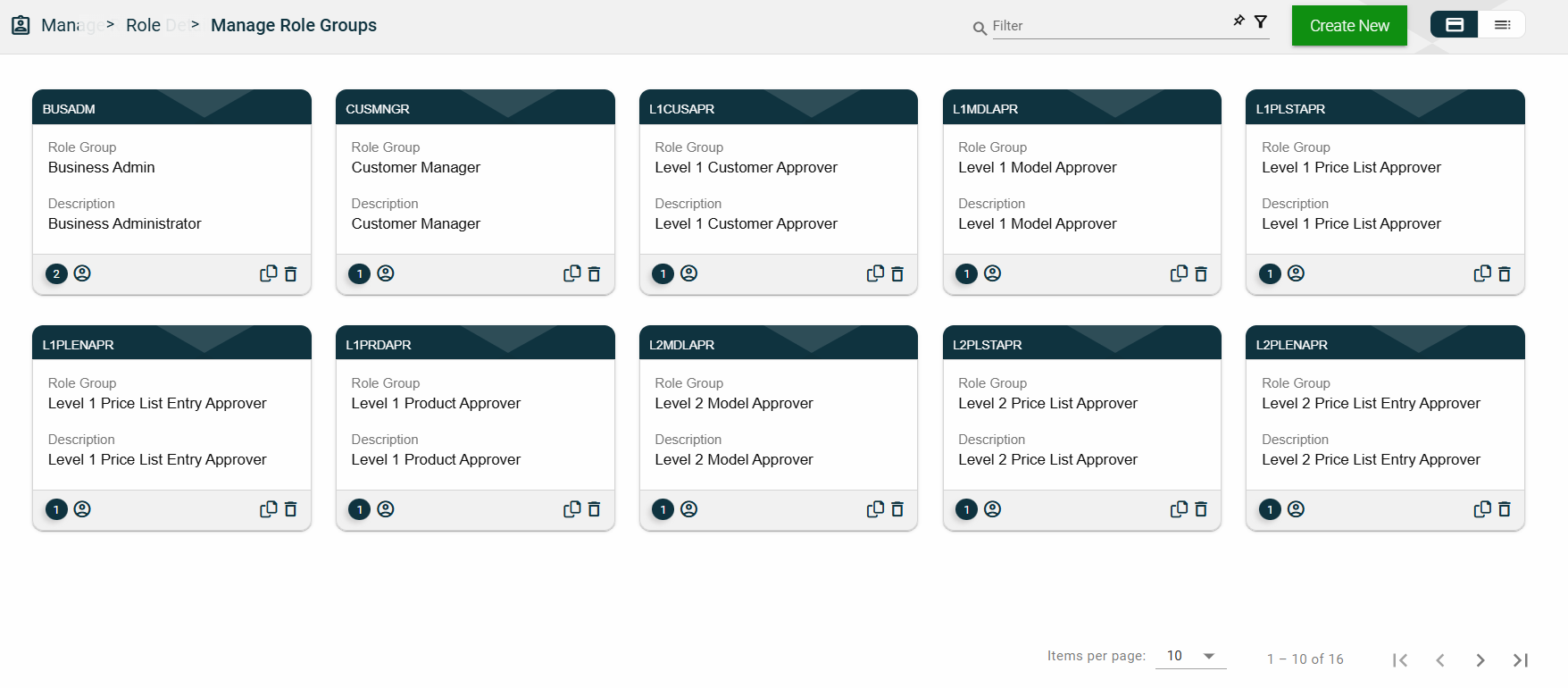
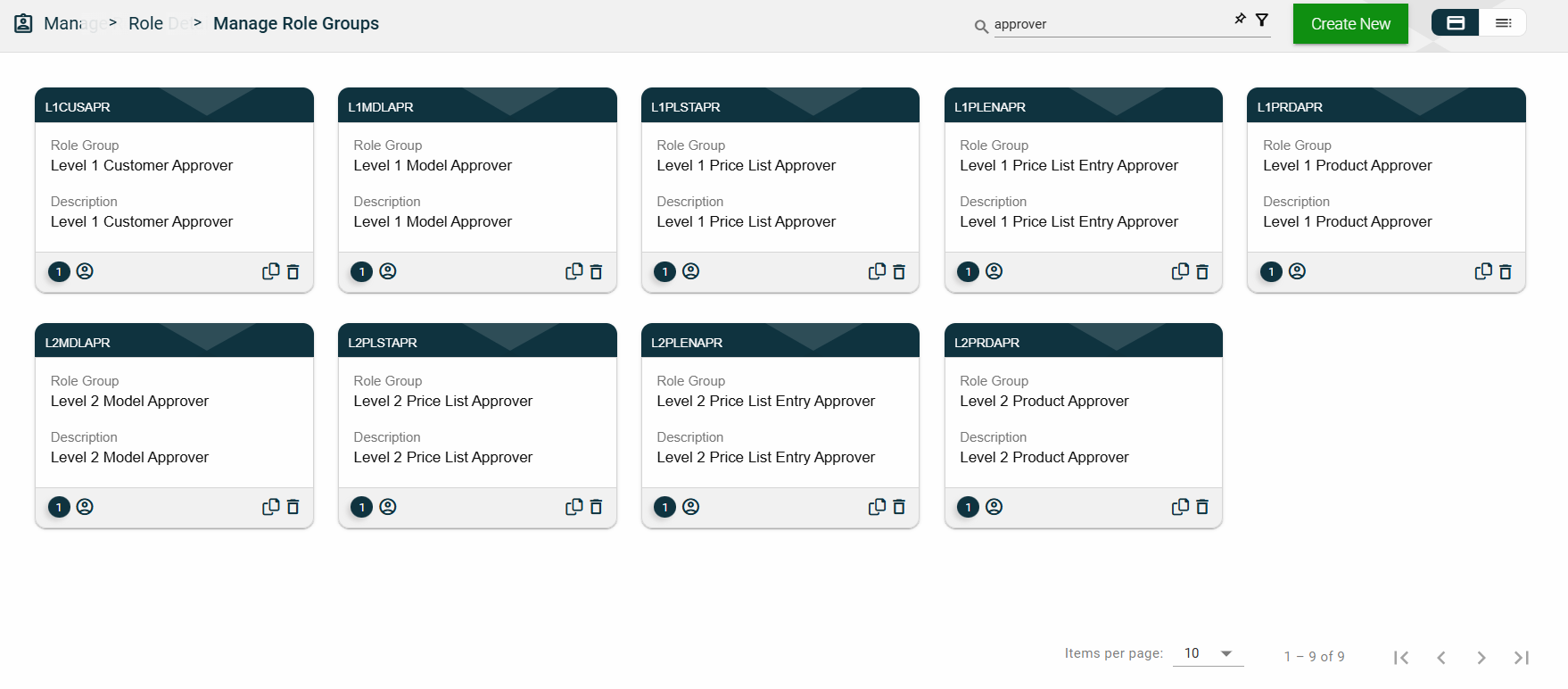
The card view presents all role groups in the form of cards, with the role group code on the card header. The card displays the Role Group name and Description. The card footer displays the number of roles in the role group, a duplicate icon, and a delete icon.
Clicking anywhere on the card, except the duplicate and trash icons, will redirect you to view the role group details.
List View
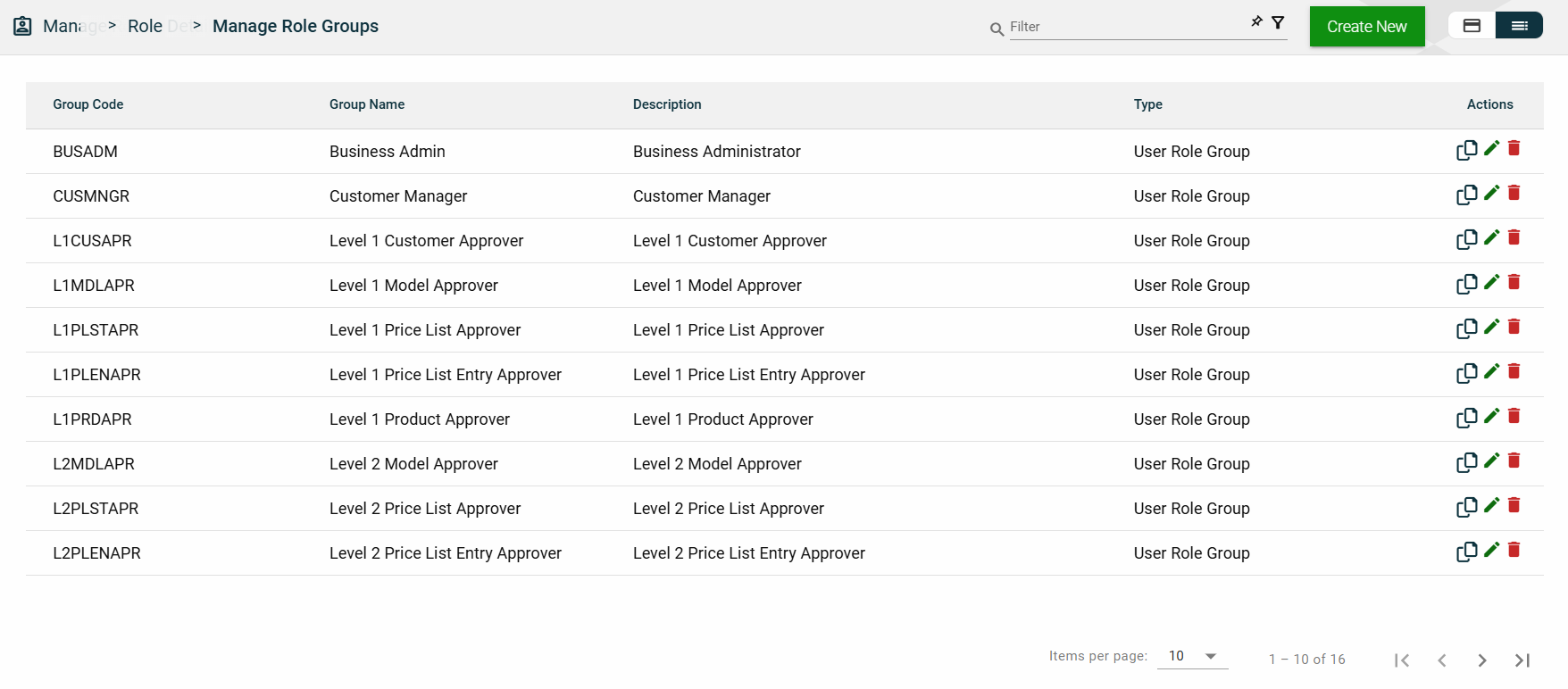
The list view displays all role groups in a table format, listing all available role groups in the framework.
| Column Name | Description |
|---|---|
| Group Code | Code of the role group. |
| Group Name | Name of the role group. |
| Description | Additional details of the role group. |
| Actions |
Displays the following icons:
|
 — Clone icon that allows you to clone the selected dataset. When clicked, a popup window is displayed asking you to provide a new Role Group Code and Role Group Name. All other configurations of the selected dataset are copied.
 — Edit icon that allows you to edit the role group details.
Filter
The following filters are available on both card and list views:
- Role Group Code
- Role Group Name
Sort
The following columns on the list view can be sorted:
- Group Code
- Group Name
- Description
Role Group Details
Role Group Details
The Role Group Details tab shows all the information you added when creating a role group. For more information about the fields, see Create a role group.\
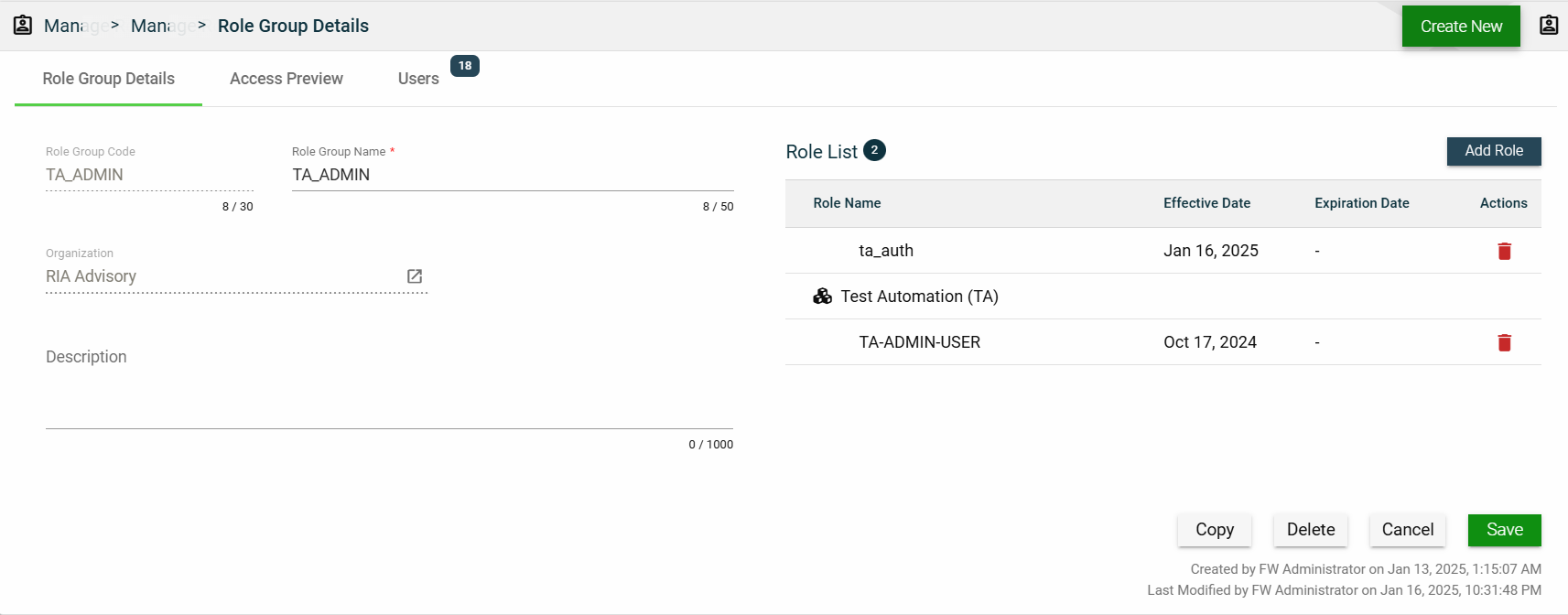
This tab allows you to update all the fields except for the Role Group Code and Organization. Additionally, you can choose to copy or delete the selected role group from this tab.
The roles added to the role group are displayed in the Role List table. You can also add a new role by clicking Add Role.
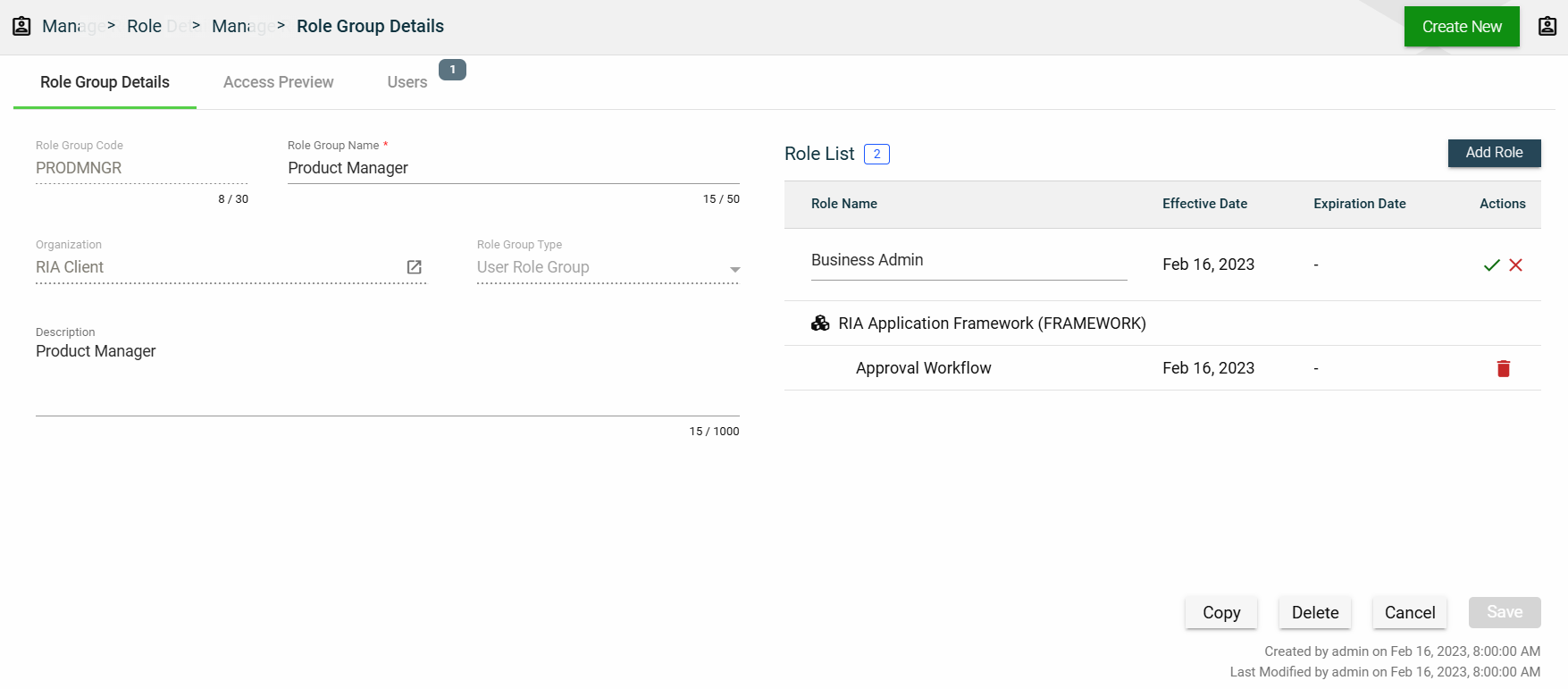
You can also delete a role group from the list by clicking  .
.
To view the role details, click on the Role Name hyperlink. This will direct you to the Role Details
Access Preview
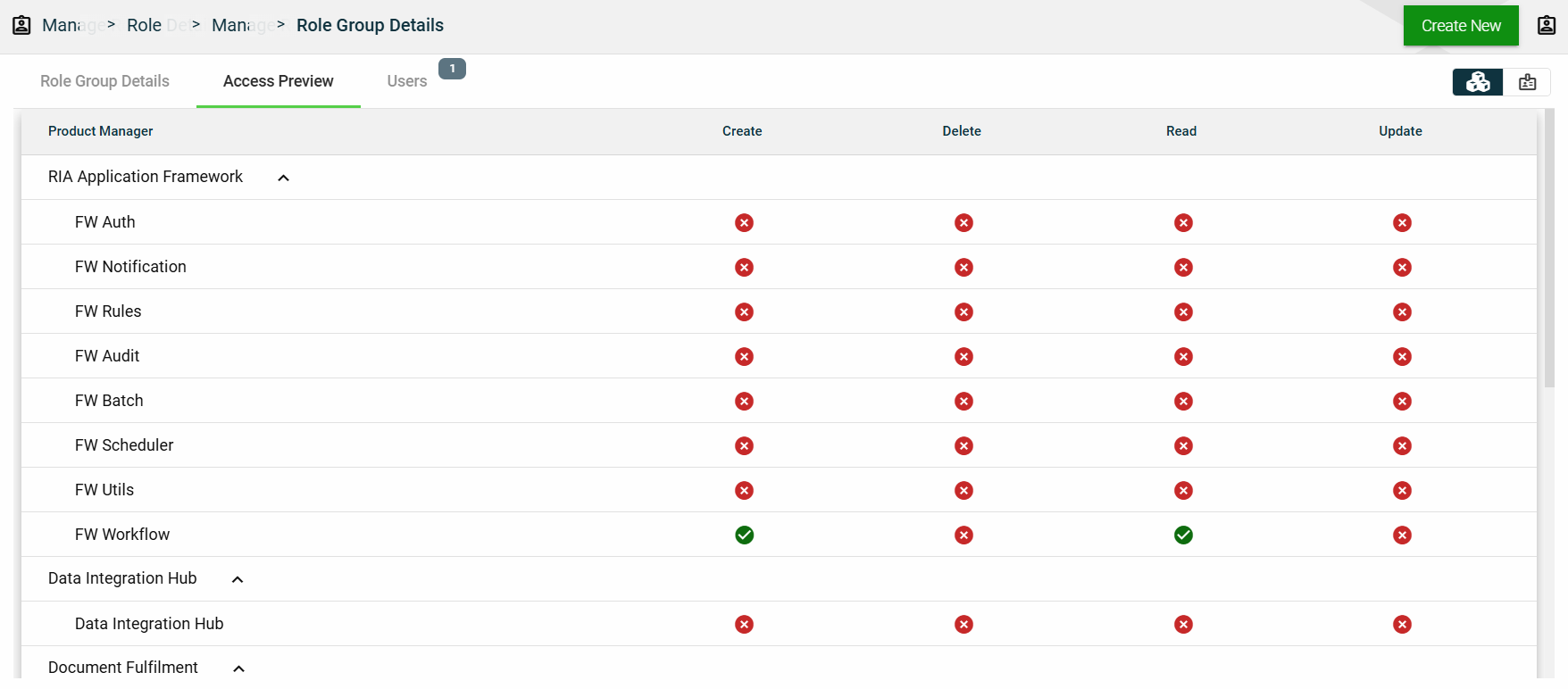
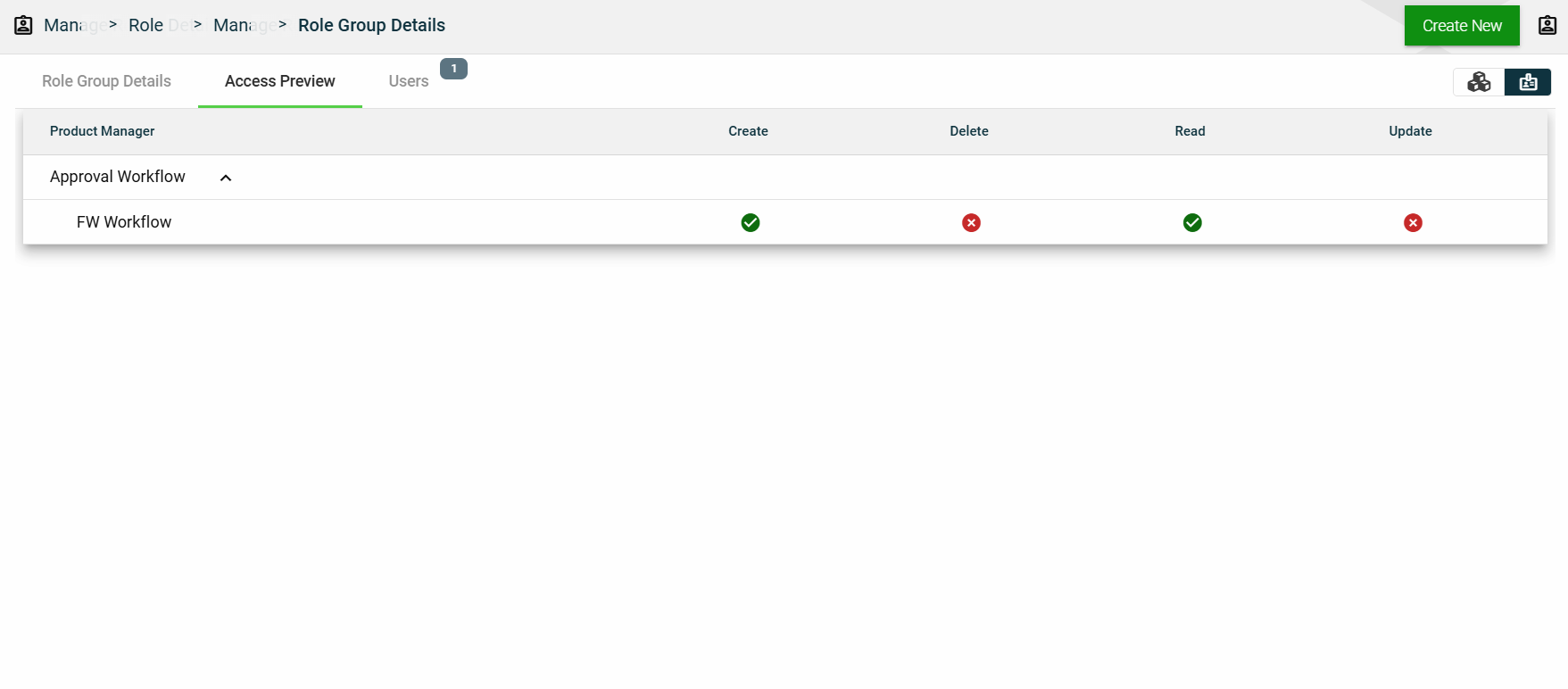
This section summarizes all the privileges given to the applications accessed by the role group. You can view the access preview in the following ways:
-
By Products
-
By Roles
Users
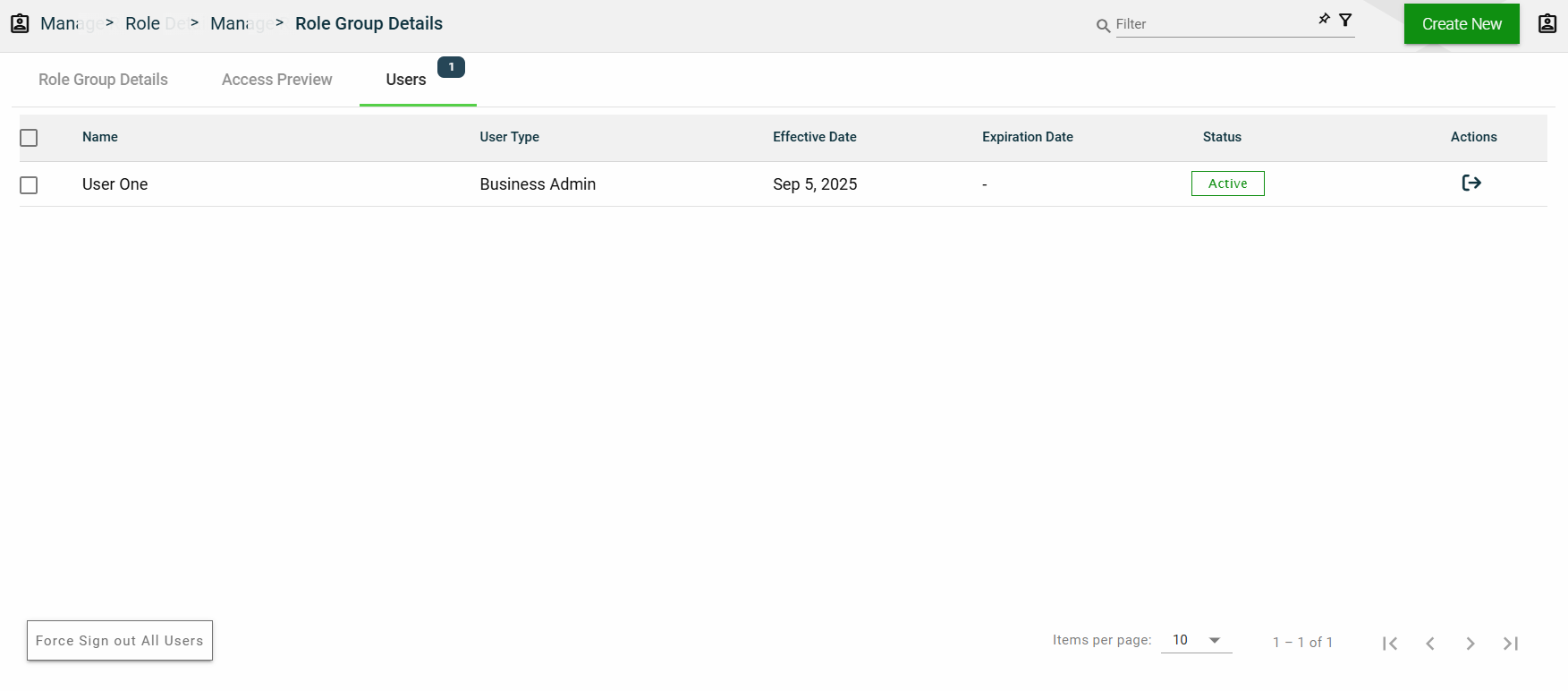
This section lists all users assigned in the role group.