The RIA Document Fulfillment (DF) tool is a framework used for generating PDFs
from XML files. It supports online PDF generation, document store
configuration, user management, template configuration, etc.
With this tool, you can also store the generated PDF files in either a
database or any third-party Document Management System. DF is built using a
set of open-source technologies that are containerized for easy deployment.
Additionally, it can be integrated with external systems like
Oracle Revenue Management and Billing (ORMB) and Oracle Customer Care &
Billing (CC&B).
An application is a microservice that makes a product.
Every application can have a group of supported endpoints and fields. They form the basis for the following privilege-based access controls:
Services — manages API endpoints utilized by the applications.
Fields — manages form controls on the user interface of a product.
Menu items — manages menu options displayed in the left navigation of a product.
It is essential to ensure that each microservice or application is well-designed, maintained, and tested to ensure that it functions flawlessly with the other components of the product.
Create an application
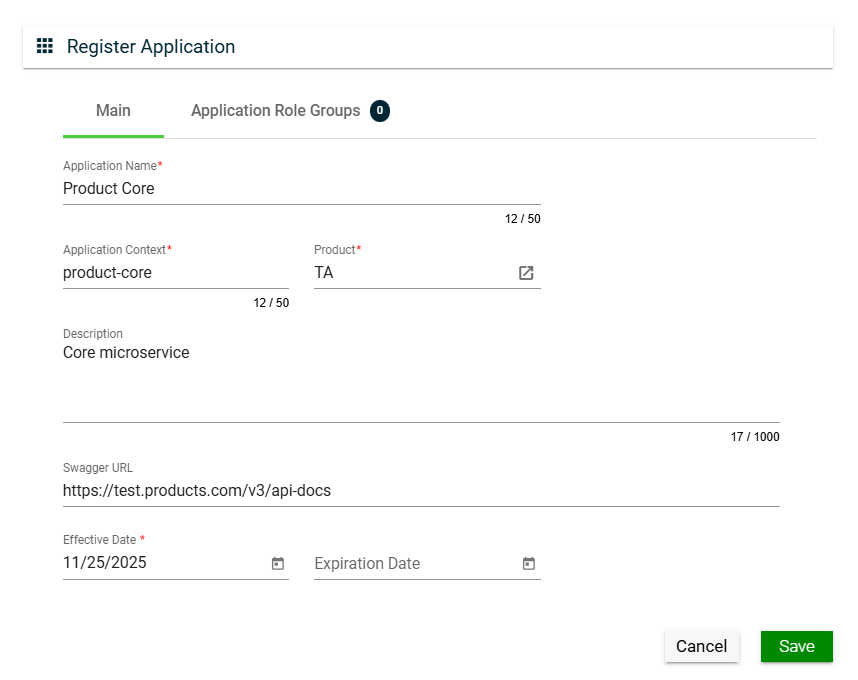
To create an application, click Create New and enter valid values in the following fields:
Field
Description
Application Name
Name of the application.
Mandatory: Yes
Application Context
Pre-defined application context.
Mandatory: Yes
Product
Product under which the application is registered.
Only the active products in the Products page are displayed in the dropdown list.
Mandatory: Yes
Description
Description of the application.
Mandatory: No
Swagger URL
Swagger URL where fields and services are registered.
Mandatory: No
Effective Date
Date when the application will be available.
Mandatory: Yes
Expiration Date
Date when the application will no longer be avaialble.
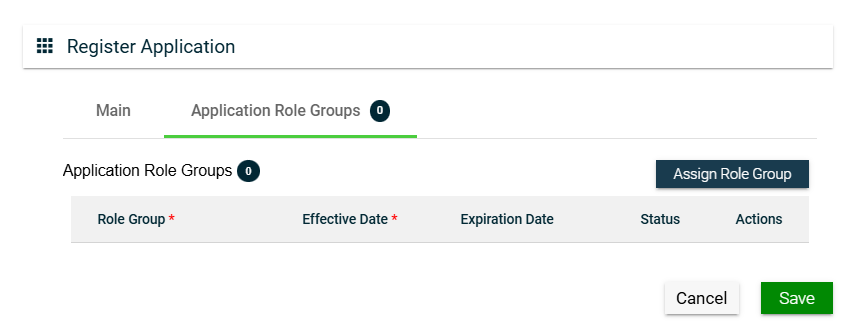
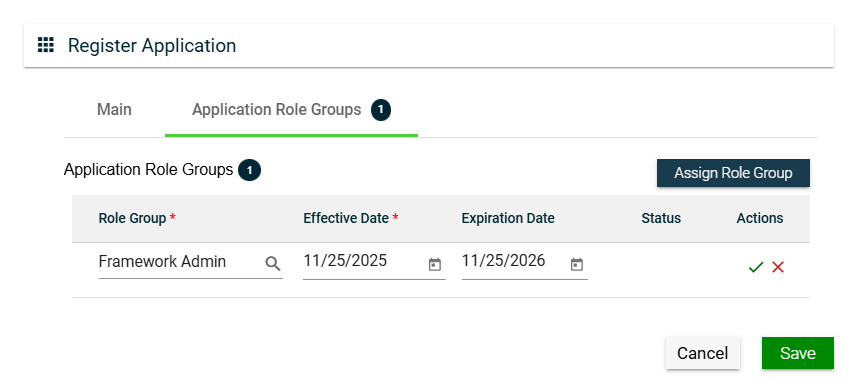
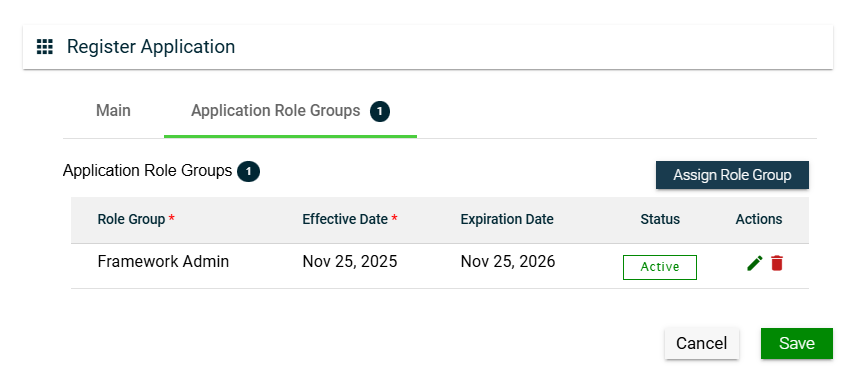
To assign a role group to your application, follow these steps:
Click the Assign Role Group button.
Search for an available Role Group. To configure a role group, see Role Groups.
Set the Effective Date.
Set the Expiration Date.
To save, click .
To cancel the role group assignment, click .
To assign another role group, follow the steps above.
To edit a role group, click and make the necessary changes.
To delete a role group, click .
Views
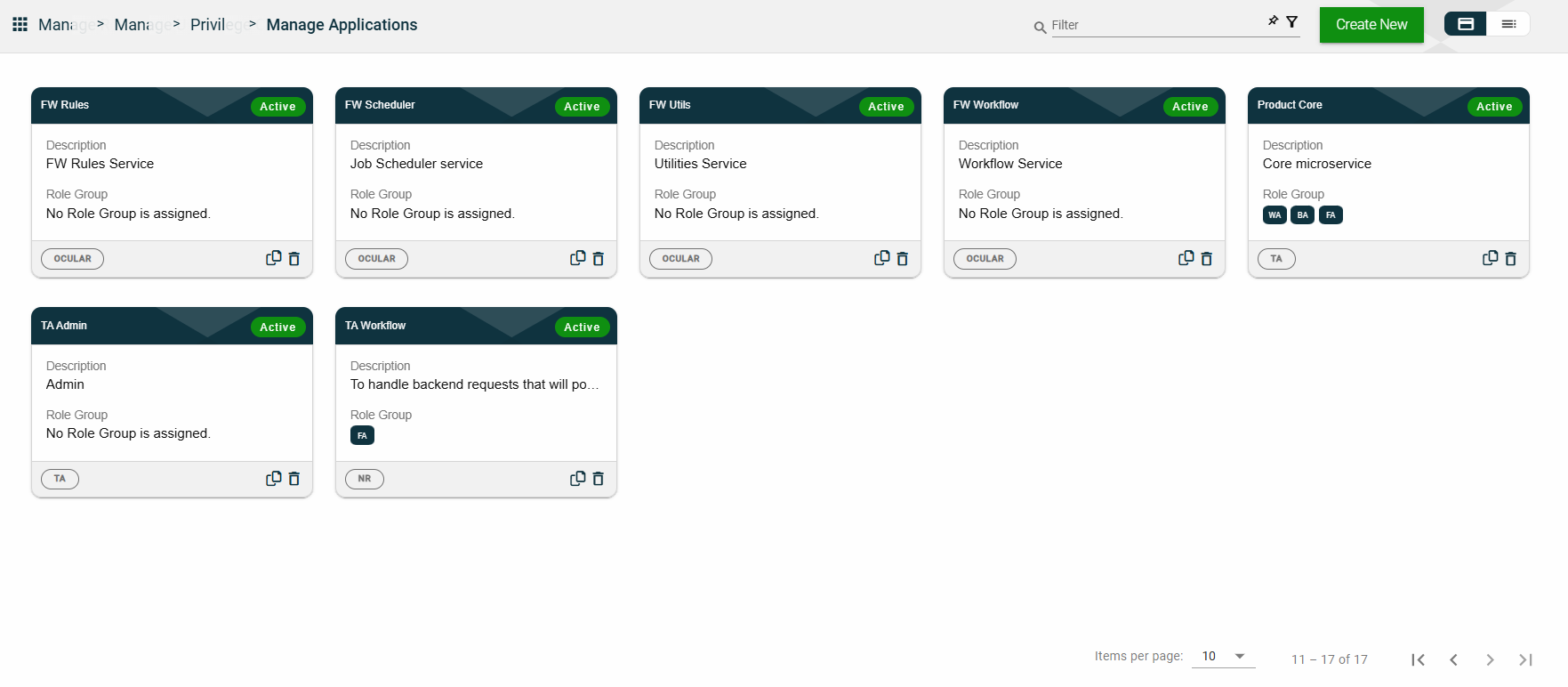
Card View
The card view presents all applications in the form of cards, with the application name and status on the card header. The card displays the Description, Role Group, and the configured authentication type. The card footer displays the product associated with the application, a duplicate icon, and a delete icon.
Clicking anywhere on the card, except the duplicate and trash icons, will redirect you to view the Application Details.
List View
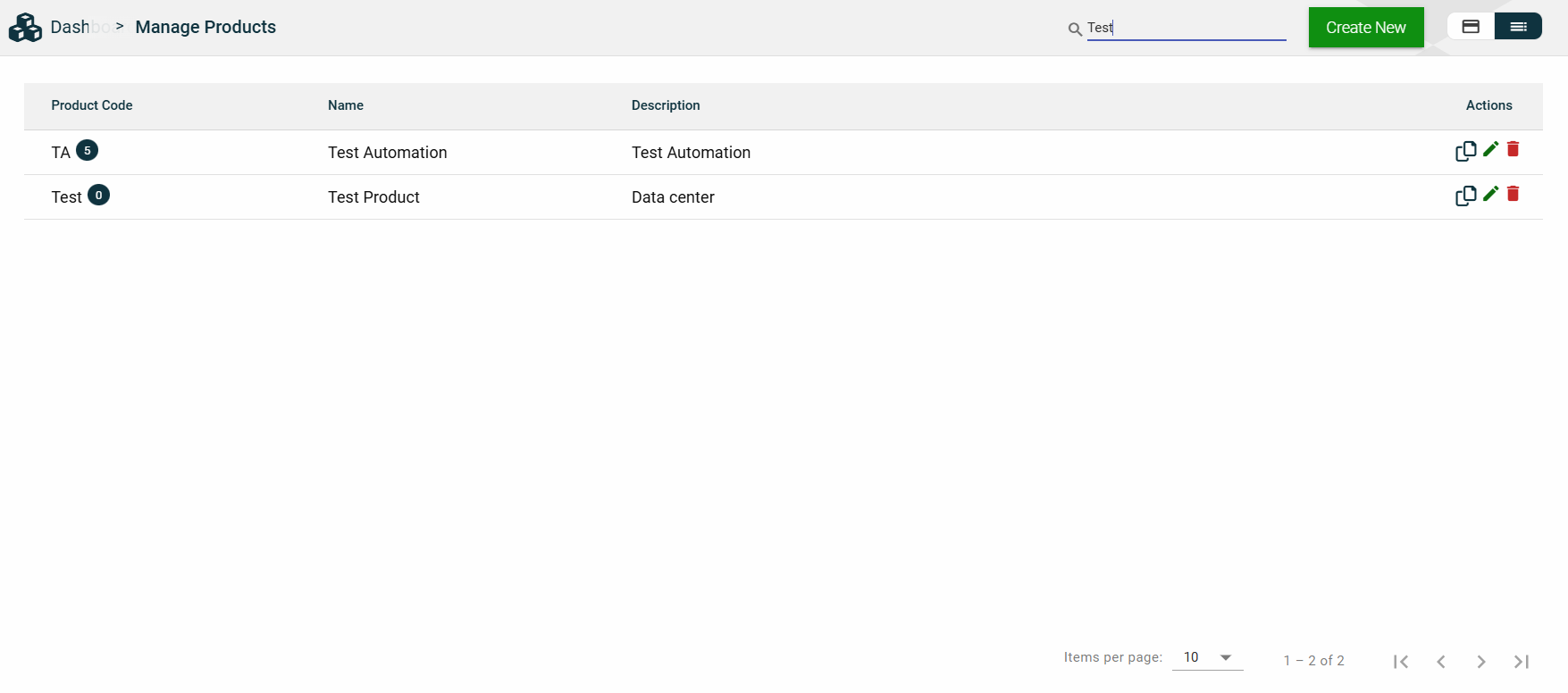
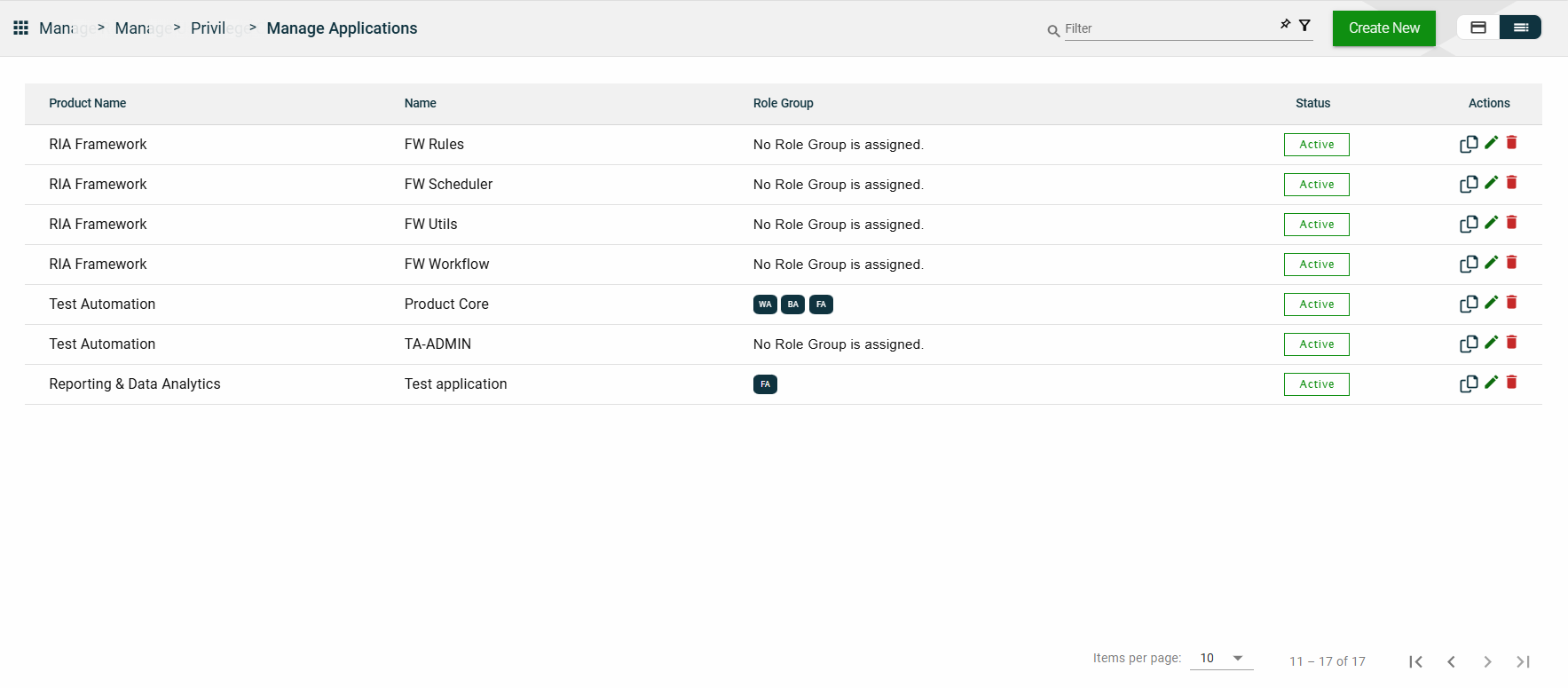
The list view displays all applications in a table format, listing all configured applications in the framework.
Column Name
Description
Product Name
Product under which the application is registered.
Name
Name of the application.
Role Group
Role groups assigned to the application.
Status
Status of the application.
Actions
Displays the following icons:
— Clone icon that allows you to clone the selected dataset. When clicked, a popup window is displayed asking you to provide a new Application Name and Application Context. All other configurations of the selected dataset are copied.
— Edit icon that allows you to edit the application details.
— Delete icon that allows you to delete the selected application.
Filter
The following filters are available on both card and list views:
Application Name
Context
Effective Date
Product
Status
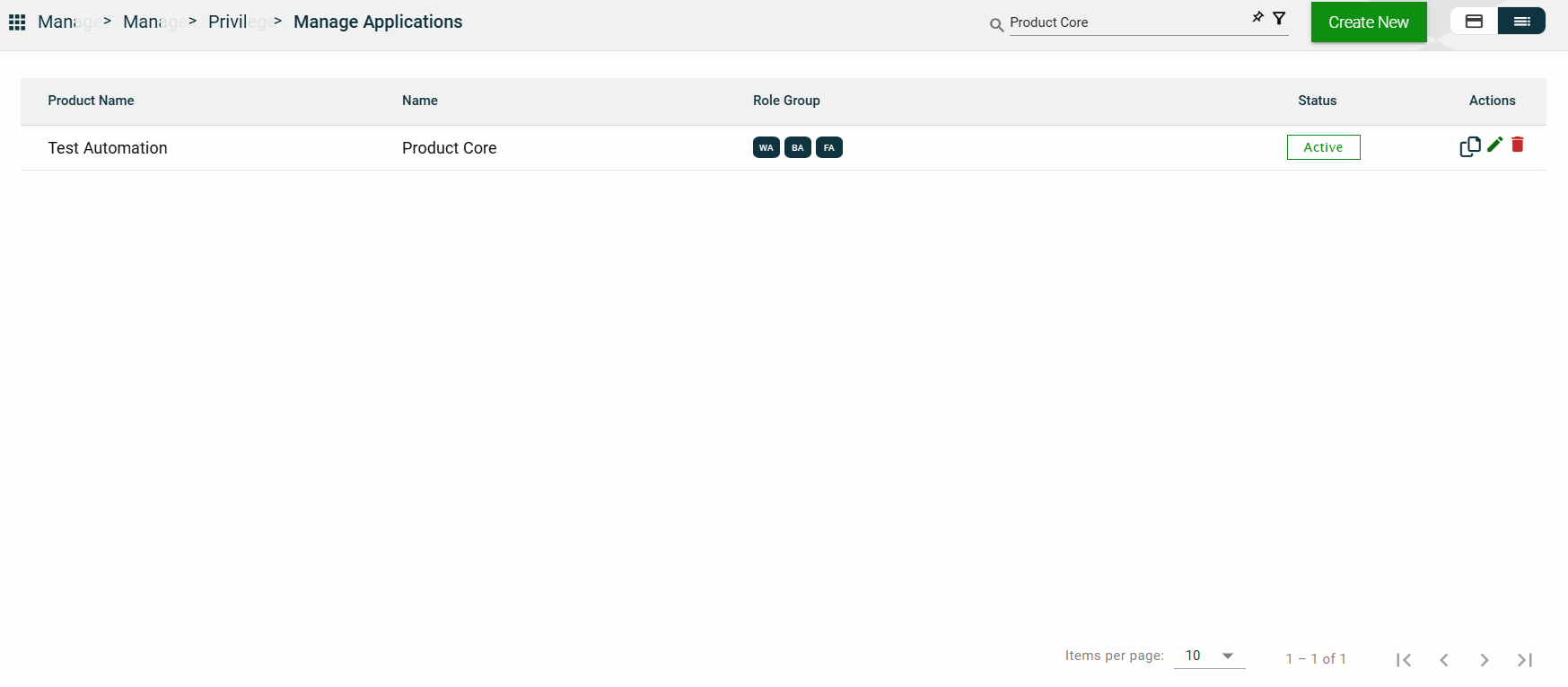
You can enter a keyword or the full value of any of the parameters listed above. For example,
Sort
The following columns on the list view can be sorted:
Product Name
Name
Status
Application Details
Application Details
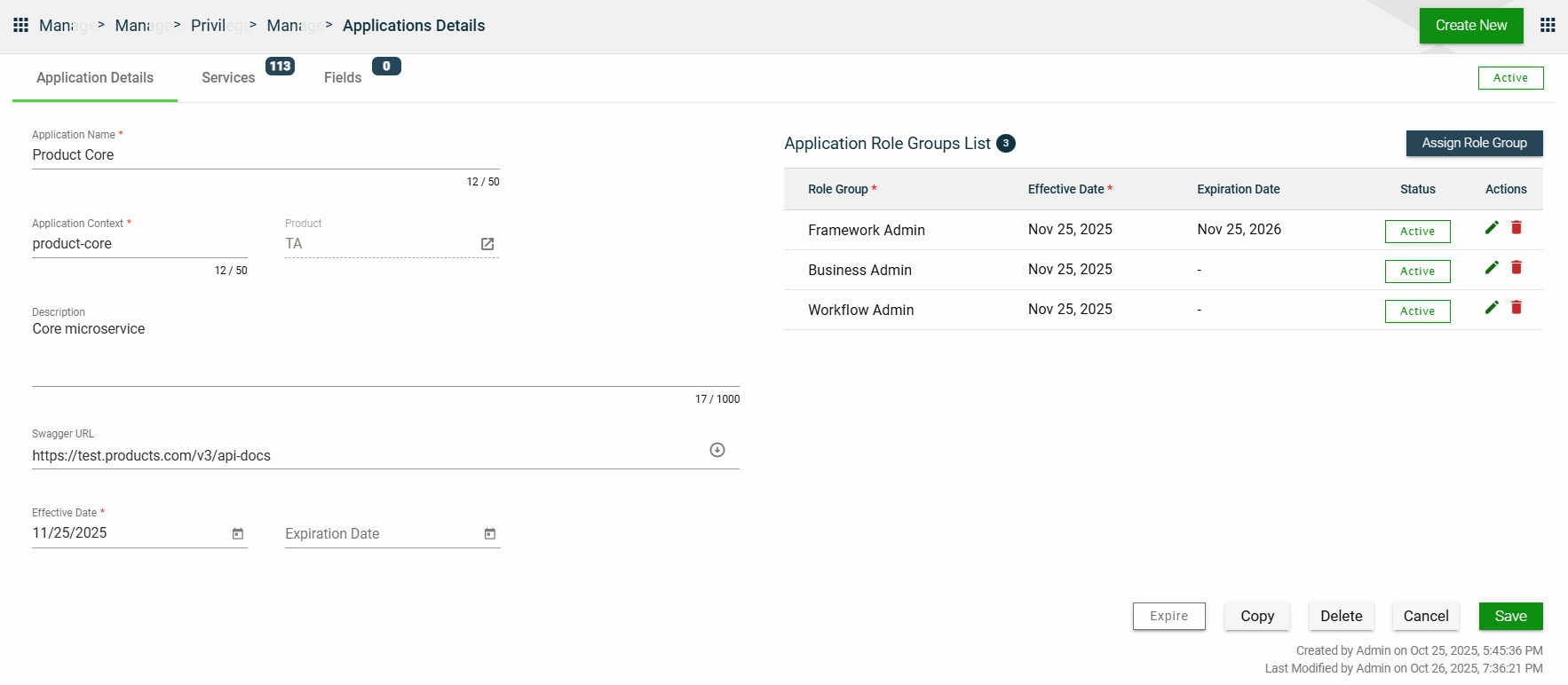
The Application Details tab shows all the information you added when creating your application. For more information about the fields, see Create an Application.
You can also add more role groups or modify the existing ones by following the same steps in the Application Role Group.
This tab allows you to update all the fields except for the Product. Additionally, you can choose to expire, copy, or delete the selected application from this tab.
Services
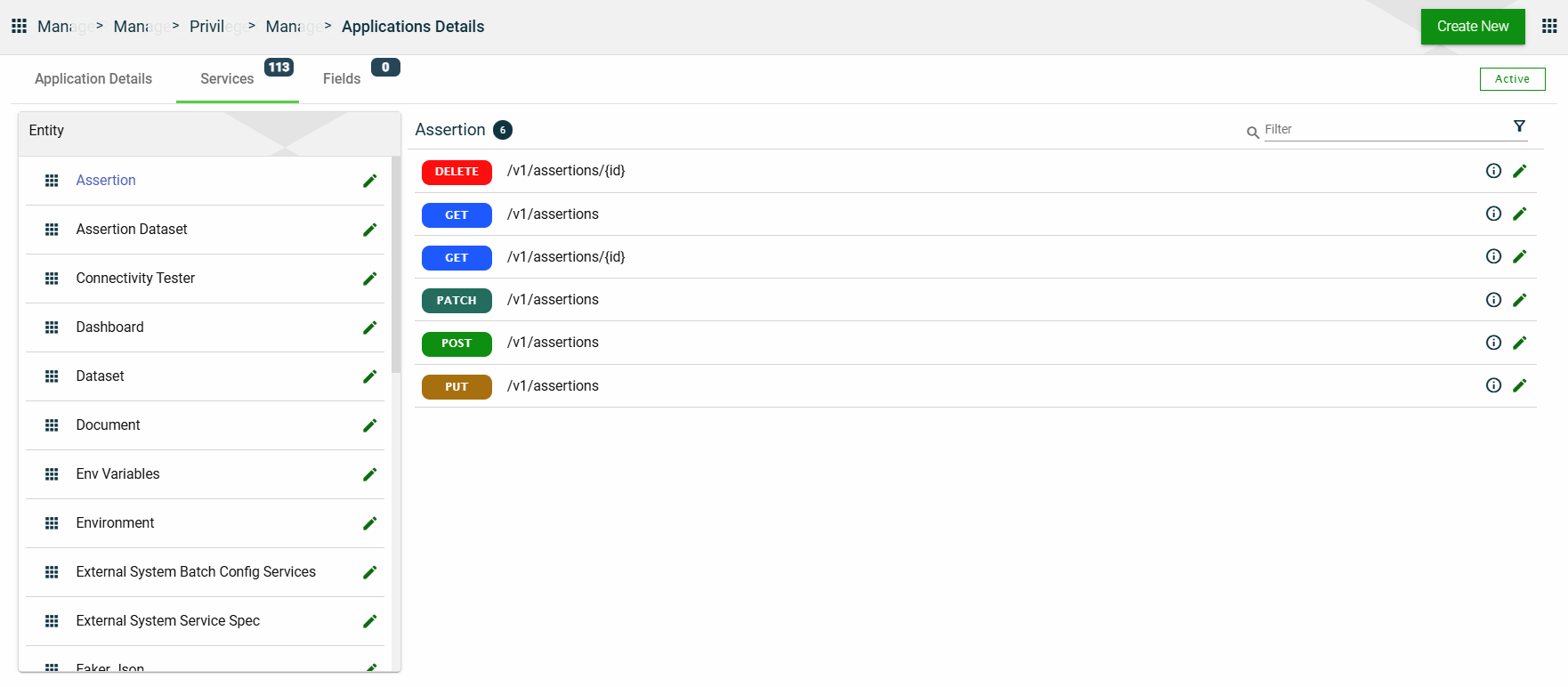
The Services tab lists all configured services for the selected application. The services are grouped according to the entity to which they belong.
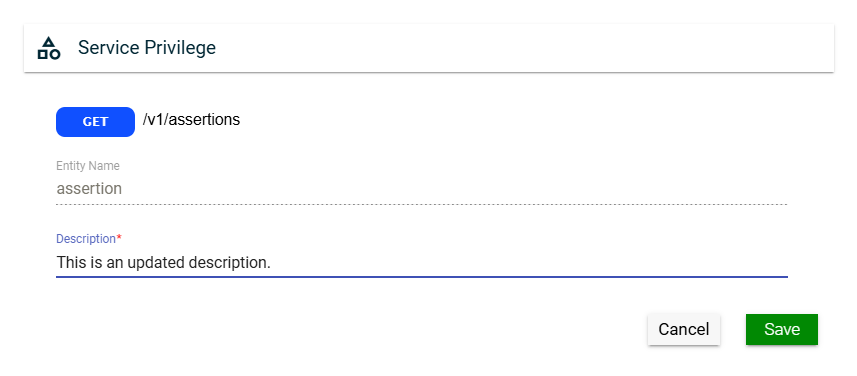
In this section, you can only edit the Entity Name field of an entity and the Description field of a service by clicking the icon next to the item.
Fields
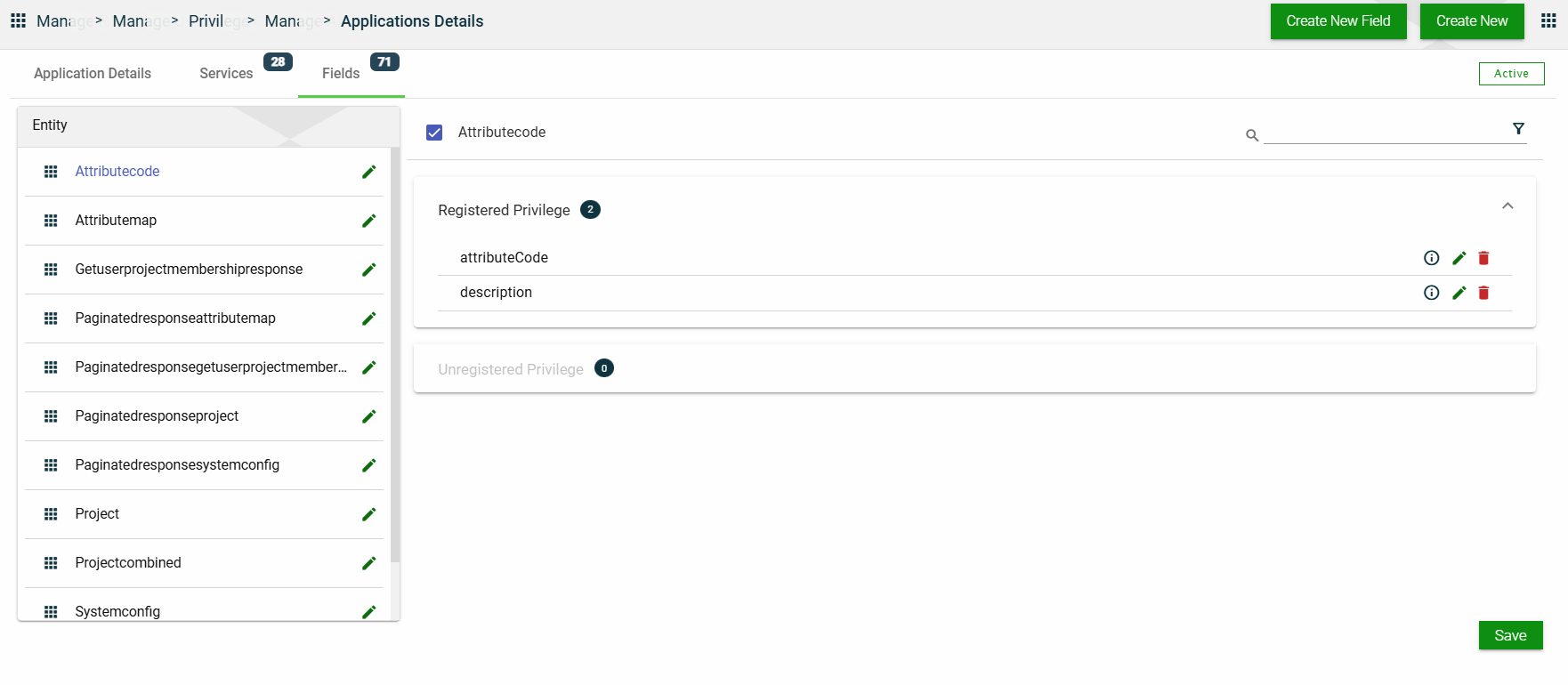
The Fields tab lists all configured fields for the selected application. The fields are grouped according to the entity to which they belong, and further grouped in the following categories within each entity:
Registered Privilege
Unregistered Privilege
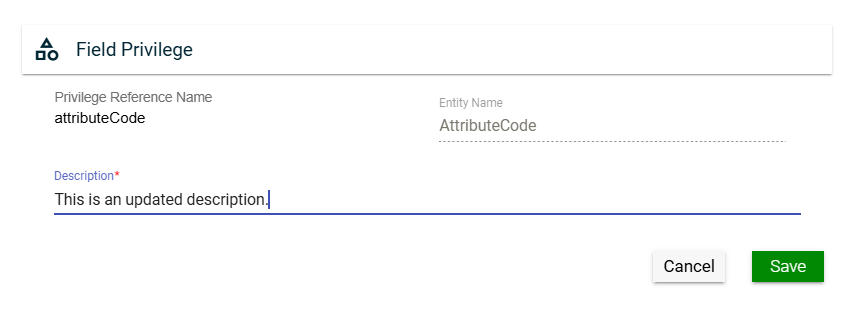
In this section, you can only edit the Entity Name field of an entity and the Description field of a field privilege by clicking the icon next to the item. You can also delete a field privilege by clicking .
1.2 - Organizations
Overview
The Organization represents the legal entity in the Ocular framework.
The Organization module allows you to configure your SMTP to facilitate email notifications. Additionally, you can also configure authentication mechanisms, such as basic authentication and OAuth 2.0.
You can add multiple users to your organization. To learn more about users, see Users.
Create an organization
To create an organization, click Create New and enter valid values in the following fields:
Field
Description
Name
Name of the organization.
Mandatory: Yes
Organization Type
Type of the organization. The following are the possible values:
Product Owner — An organization providing services.
Client Organization — An entity representing the end customers.
Mandatory: Yes
Organization Email
Official email address of the organization.
Mandatory: Yes
Company Code
Code of the company used for auditing purposes.
Mandatory: No
Description
Additional details of the organization.
Mandatory: No
Effective Date
Date when the organization will be available.
Mandatory: Yes
Expiration Date
Date when the organization will no longer be available.
Mandatory: No
Locale
Primary language used in the ogranization.
Mandatory: Yes
Country
Country of origin of the organization.
Mandatory: Yes
Time Zone
Primary time zone used in the organization.
Mandatory: Yes
Views
Card View
The card view presents all applications in the form of cards, with the organization name and its status on the card header. The card displays the Organization Email and Organization Type. The card footer displays a duplicate icon and a delete icon.
Clicking anywhere on the card, except the duplicate and trash icons, will redirect you to view the Organization Details.
List View
The list view displays all organizations in a table format.
Column Name
Description
Name
Name of the organization.
Email
Official email address of the organization.
Organization Type
Type of the organization.
Status
Status of the application.
Actions
Displays the following icons:
— Clone icon that allows you to clone the selected dataset. When clicked, a popup window is displayed asking you to provide a new Name, Organization Type, and Organization Email. All other configurations of the selected dataset are copied.
— Edit icon that allows you to edit the organization details.
— Delete icon that allows you to delete the selected organization.
Filter
You can filter or search the list of organizations by entering a keyword or the full name of an organization.
For example,
Sort
The following columns on the list view can be sorted:
Name
Email
Organization Type
Status
Organization Details
Organization details
The Organization Details tab shows all the information you added when creating your organization. For more information about the fields, see Create an organization.
You can also add more role groups or modify the existing ones by following the same steps in the Application Role Group.
This tab allows you to update all the fields. Additionally, you can choose to copy or delete the selected organization from this tab.
SMTP details
For the SMTP details of your organization, you can choose to use the configured default STMP or configure a different one.
When you select Use default SMTP, the configured default values are displayed, and all the SMTP details fields are disabled.
If you opt to configure a new SMTP, follow these steps:
Uncheck the Use default SMTP.
Enter valid values in the following fields:
Field
Description
Host Name
Host name of the SMTP server used to send the emails.
Mandatory: Yes
Port
Port number used by the SMTP server.
Mandatory: Yes
Username
Username to access the SMTP server.
Mandatory: Yes
Password
Password to access the SMTP server.
Mandatory: Yes
Sender Email
Email address to use for sending emails.
Mandatory: Yes
Sender Name
Name of the sender to appear in the recipient's inbox.
Mandatory: No
Allowed Domains
List of all the domains that are accepted to be used in the Sender Email field.
Mandatory: No
Authentications
The Authentications tab lists all authentication mechanisms supported by the organization.
Add a new authentication
To add a new authentication, follow these steps:
Click Add New Authentication.
Select the type from the Authentication Type dropdown list. The following are the possible values:
If you choose to add a Microsoft Azure authentication, then you need to configure the following fields:
Field
Description
Auth Code
Code or identifier used to register and reference the authentication configuration.
Mandatory: Yes
Name
Display name of the authentication provider shown in the configuration list.
Mandatory: Yes
Logo
Logo to be displayed on the Login page.
Mandatory: Yes
Public Key
Upload the public key to use for the authentication.
Mandatory: Yes
OAuth 2.0 authentication
If you choose to add an OAuth 2.0 authentication, then you need to configure the following fields:
Field
Description
Auth Code
Code or identifier used to register the authentication configuration.
Mandatory: Yes
Name
Display name of the authentication provider shown in configuration list.
Mandatory: Yes
Logo
Logo to be displayed on the Login page.
Mandatory: Yes
Public Key
Uploaded public key used to validate tokens received from the provider.
Mandatory: Yes
Authority
Base URL of the identity provider. Used to discover authorization and token endpoints.
Mandatory: Yes
Client ID
Identifier of the client used to obtain an access token.
Mandatory: Yes
Client Secret
Secret of the client used to obtain an access token.
Mandatory: Yes except for PKCE-only setups
IDM Hosted User Flow
Indicates whether the login flow is hosted by an Identity Management service.
Accepts: true or false
Mandatory: No
Principal Name
Claim or field used as the primary user identifier (e.g., email, preferred_username).
Mandatory: Yes
Redirect URL
URL where the identity provider sends the authorization response after login.
Mandatory: Yes
Referer
Expected origin or domain allowed to initiate authentication requests.
Mandatory: No (depends on provider)
Response Type
Requested OAuth/OIDC response type, such as, code, token, id_token).
Mandatory: Yes
Tenant ID
Unique identifier of the tenant in the identity provider.
Mandatory: No
Token URL
Endpoint where the application exchanges authorization codes for tokens.
Mandatory: Yes
Type
Type of authentication method used.
Mandatory: Yes
You can also edit an authentication by clicking , and delete an authentication by clicking next to it.
Users and Roles
The Users and Roles tab lists all the members and their roles in the organization.
If you are a framework administrator, you can view all registered users within the framework. This means that you can see all framework administrators, business administrators, and business users in the Users list.
However, if you are a business administrator, you can only view the business users. This means that your own profile will not be visible in the Users list.
This tab only displays the list of users and their roles. To perform an action on the Users list, navigate to the Users module.
Products
The Products tab lists all the products associated with your organization.
This tab only displays the list of products. To perform an action on the Products list, navigate to the Products module.
1.3 - Products
Overview
A product is a collection of multiple interconnected microservices or Applications that work together to provide an integrated business solution.
Create a product
To create a product, click Create New and enter valid values in the following fields:
Field
Description
Product Code
Code of the product.
Mandatory: Yes
Product Name
Name of the product.
Mandatory: Yes
Landing Page
URL of the first page the user will see when the application is loaded.
Mandatory: Yes
Description
Additional details of the product.
Mandatory: No
Views
Card View
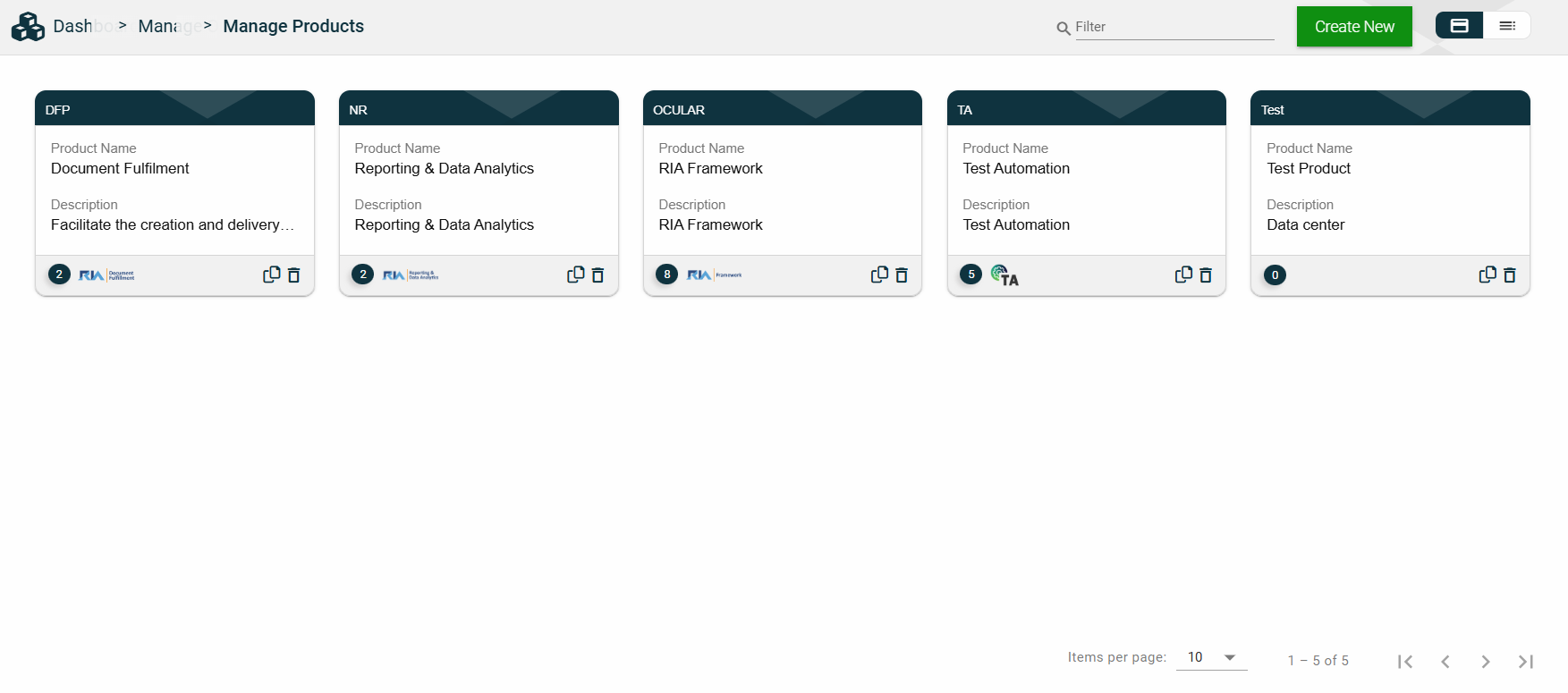
The card view presents all applications in the form of cards, with the product code on the card header. The card displays the Product Name and Description. The card footer displays the number of applications associated with the product, the product logo, a duplicate icon, and a delete icon.
Clicking anywhere on the card, except the duplicate and trash icons, will redirect you to view the Product Details.
List View
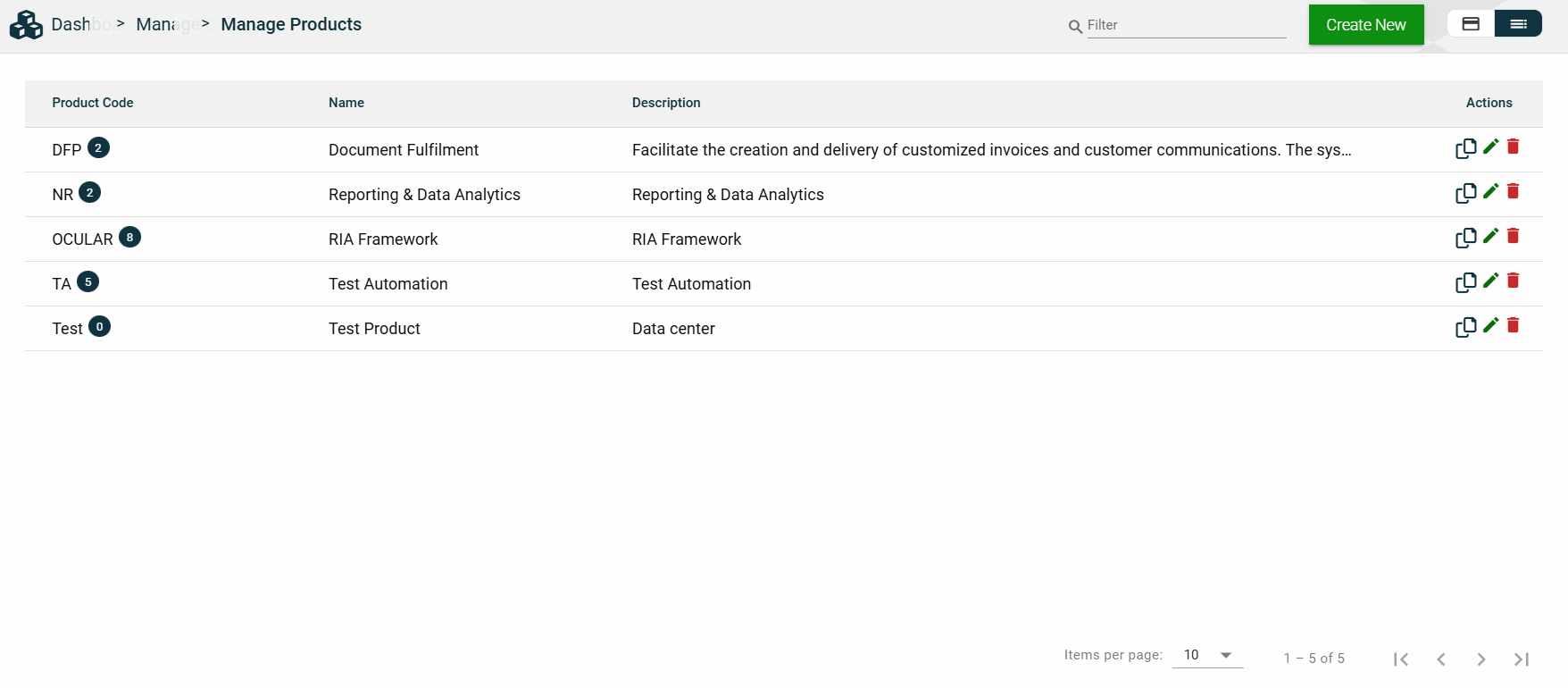
The list view displays all products in a table format, listing all the configured products in the framework.
Column Name
Description
Product Code
Code of the product. It also displays the number of applications associated with the product.
Name
Name of the product.
Description
Additional details of the product.
Actions
Displays the following icons:
— Clone icon that allows you to clone the selected dataset. When clicked, a popup window is displayed asking you to provide a new Product Code, Product Name, and Landing Page.
— Edit icon that allows you to edit the product details.
— Delete icon that allows you to delete the selected product.
Filter
You can filter or search for products by entering a partial or full product code or organization name. For example:
Sort
The following columns on the list view can be sorted:
Product Code
Name
Description
Product Details
Product Details
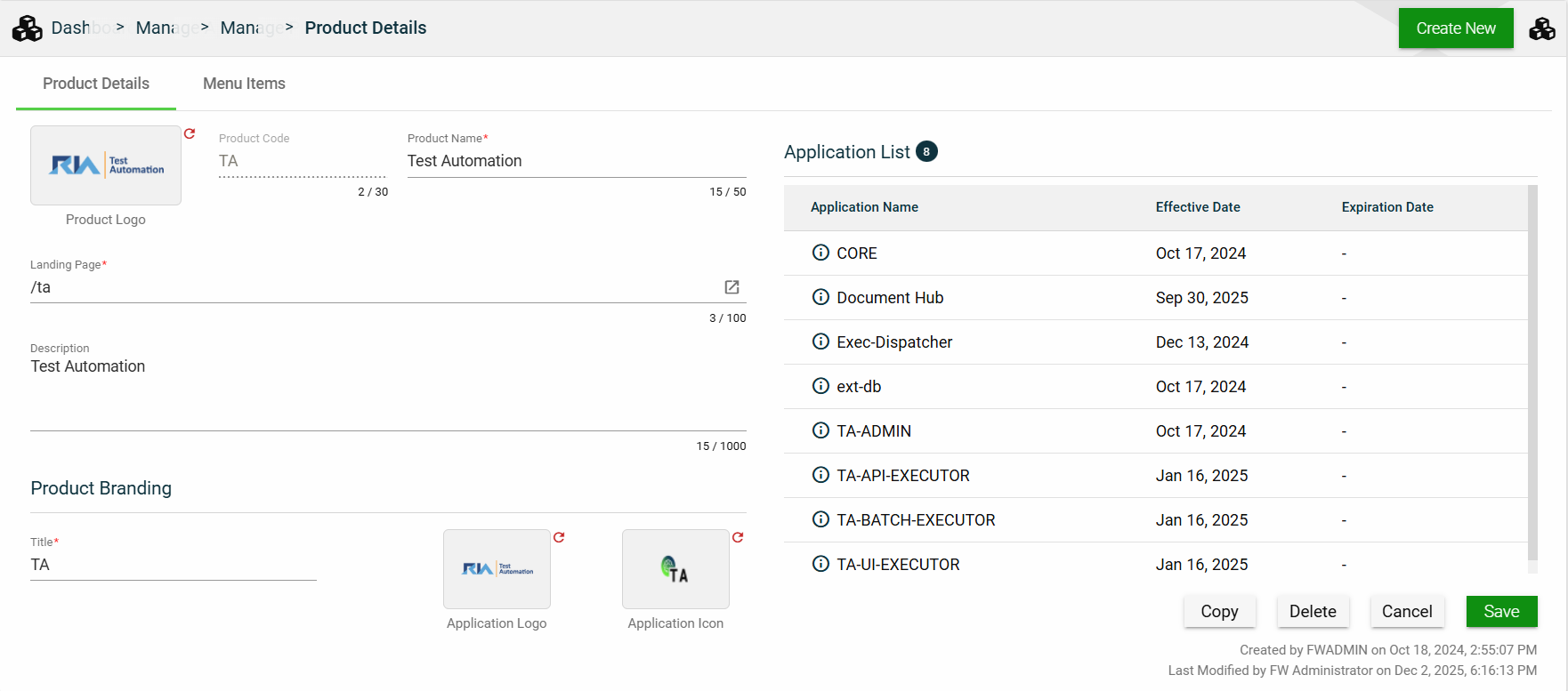
The Product Details tab shows all the information you added when creating a product. For more information about the fields, see Create a product.
This tab also lists all applications making up the selected product. To view the application details, click on the Application Name hyperlink.
This tab allows you to update all the fields except for the Product Code. Additionally, you can choose to copy or delete the selected product.
Menu Items
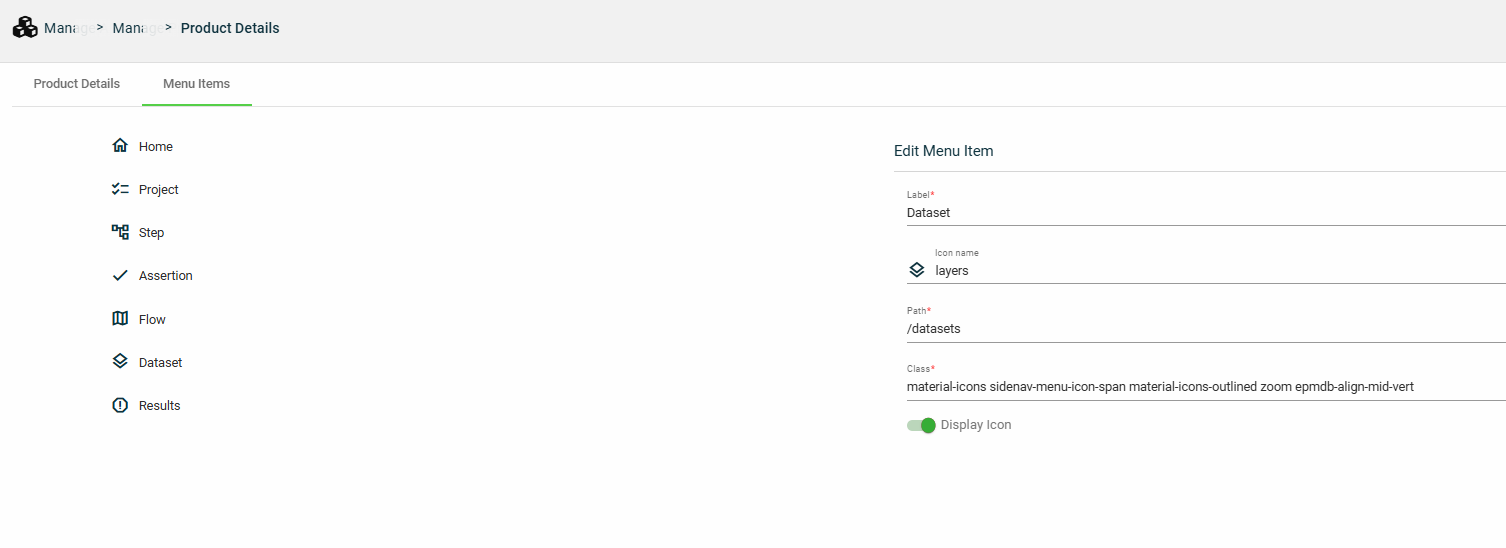
The Menu Items tab displays the left navigation menu items of your product. While you cannot add or delete a menu item, you can configure the following options for a menu item:
Field
Description
Label
Display name of the menu item.
Icon name
Name of the icon displayed beside the Label.
Path
Location path that is loaded when the menu item is clicked.
Class
Class idenitifying the group and style of elements.
Display icon
Enables you to display or hide the icon beside the Label.
1.4 - Roles
Overview
The Roles module allows you to configure privileges or permissions at the following levels:
Application privileges
User privileges
Low-level security and access control
Create a role
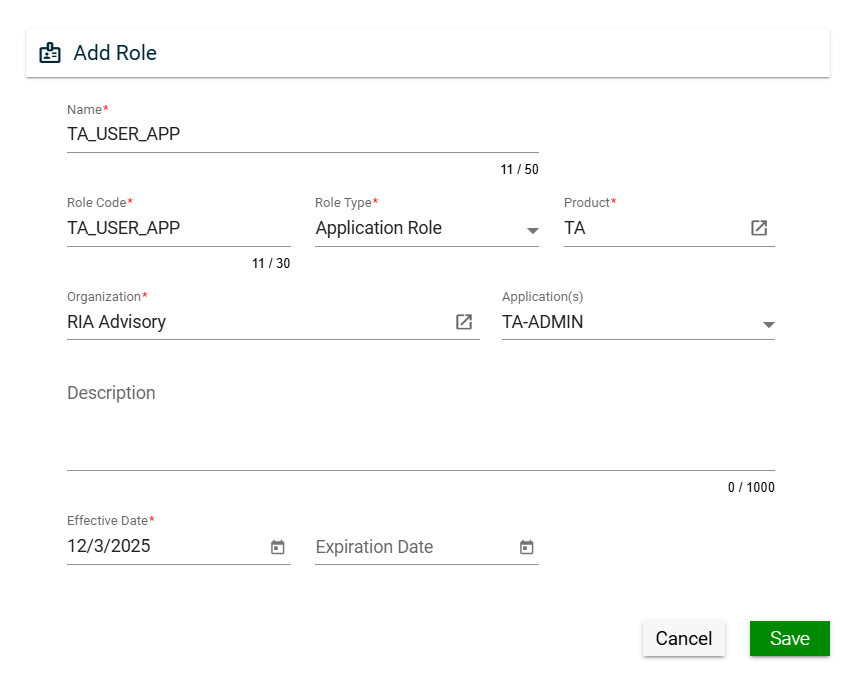
To create a role, click Create New and enter valid values in the following fields:
Field
Description
Name
Name of the role.
Mandatory: Yes
Role Code
Code of the role.
Mandatory: Yes
Role Type
Type of the role. The following are the possible values:
Application Role — used to control application privileges when two applications communicate.
User Role — used to control user privileges.
Data Access Role — used for low-level security and access control.
Mandatory: Yes
Product
Product for which the role will be applicable.
To view the details of the selected product, click the go-to icon.
For more information about products, see Products.
Mandatory: Yes
Organization
Organization for which the role will be applicable.
To view the details of the selected products, click the go-to icon.
For more information about the organization, see Organizations.
Mandatory: No
Application(s)
Specific applications for which the role will be applicable.
Only the applications associated with the selected product will be displayed in the dropdown list.
Multiple applications can be selected for a role.
For more information about applications, see Applications.
Mandatory: No
Description
Additional details of the role.
Mandatory: No
Effective Date
Date when the role will be active.
Mandatory: Yes
Expiration Date
Date when the role will no longer be active.
Mandatory: No
Views
Card View
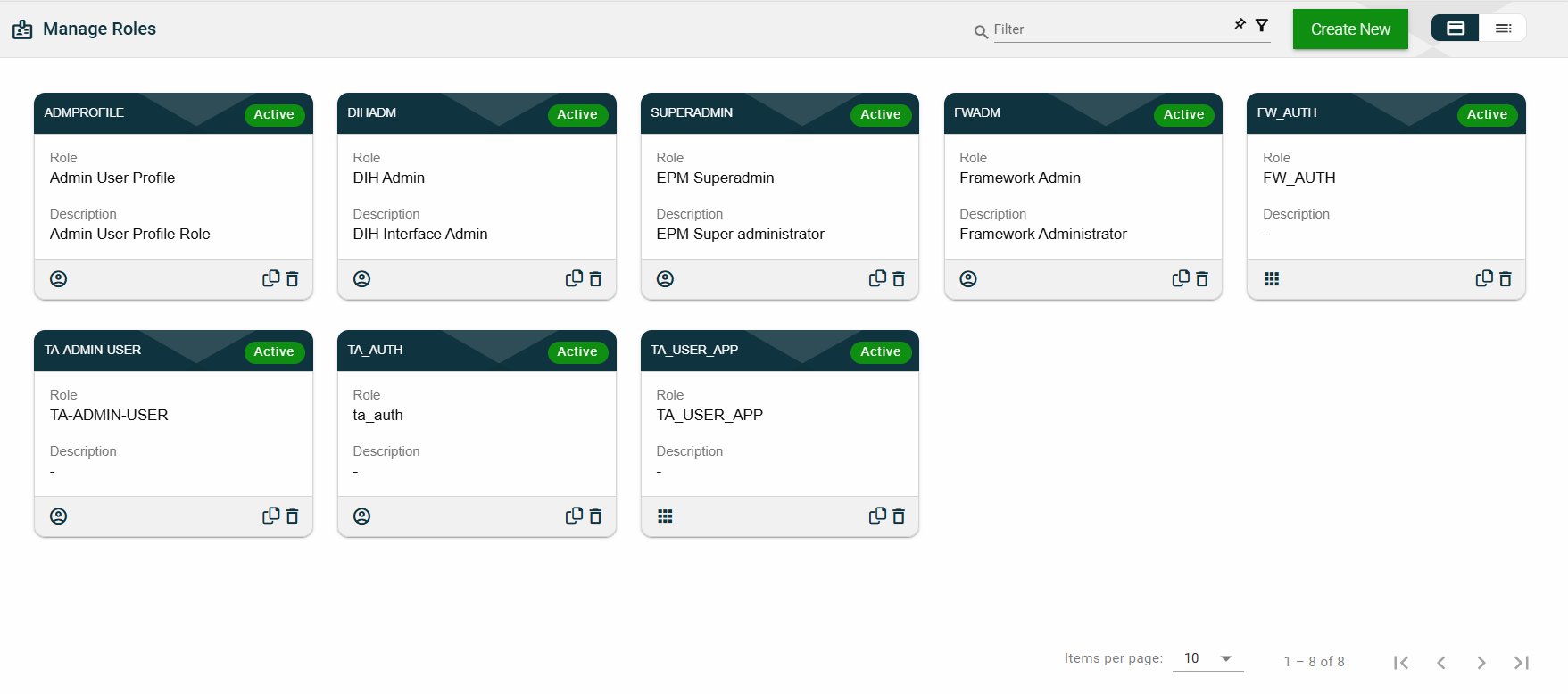
The card view presents all applications in the form of cards, with the role code on the card header. The card displays the Role and Description. The card footer displays an icon indicating the role type, a duplicate icon, and a delete icon.
Clicking anywhere on the card, except the duplicate and trash icons, will redirect you to view the role details.
List View
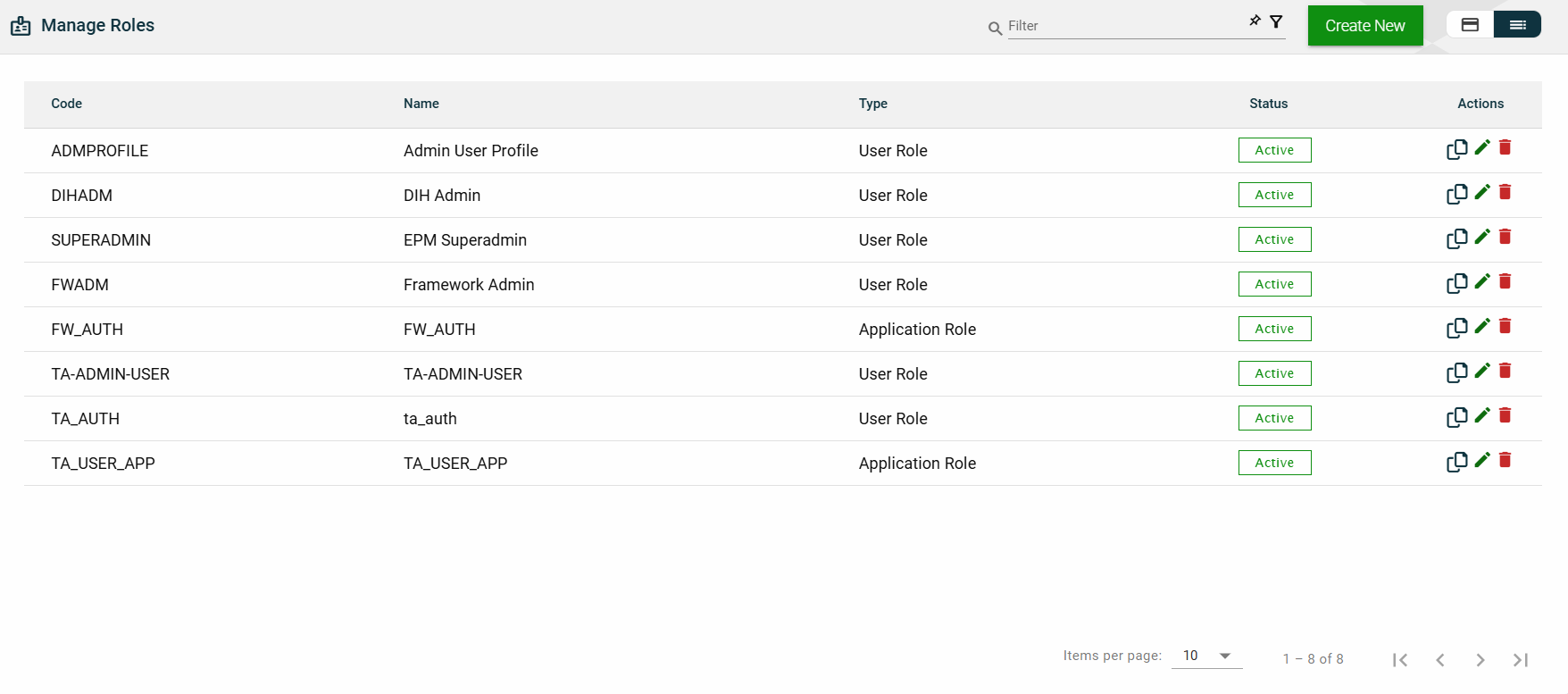
The list view displays all roles in a table format.
Column Name
Description
Code
Code of the role.
Name
Name of the role.
Type
Type of the role.
Status
Status of the role.
Actions
Displays the following icons:
— Clone icon that allows you to clone the selected dataset. When clicked, a popup window is displayed asking you to provide a new Name and Role Code. All other configurations of the selected dataset are copied.
— Edit icon that allows you to edit the role details.
— Delete icon that allows you to delete the selected role.
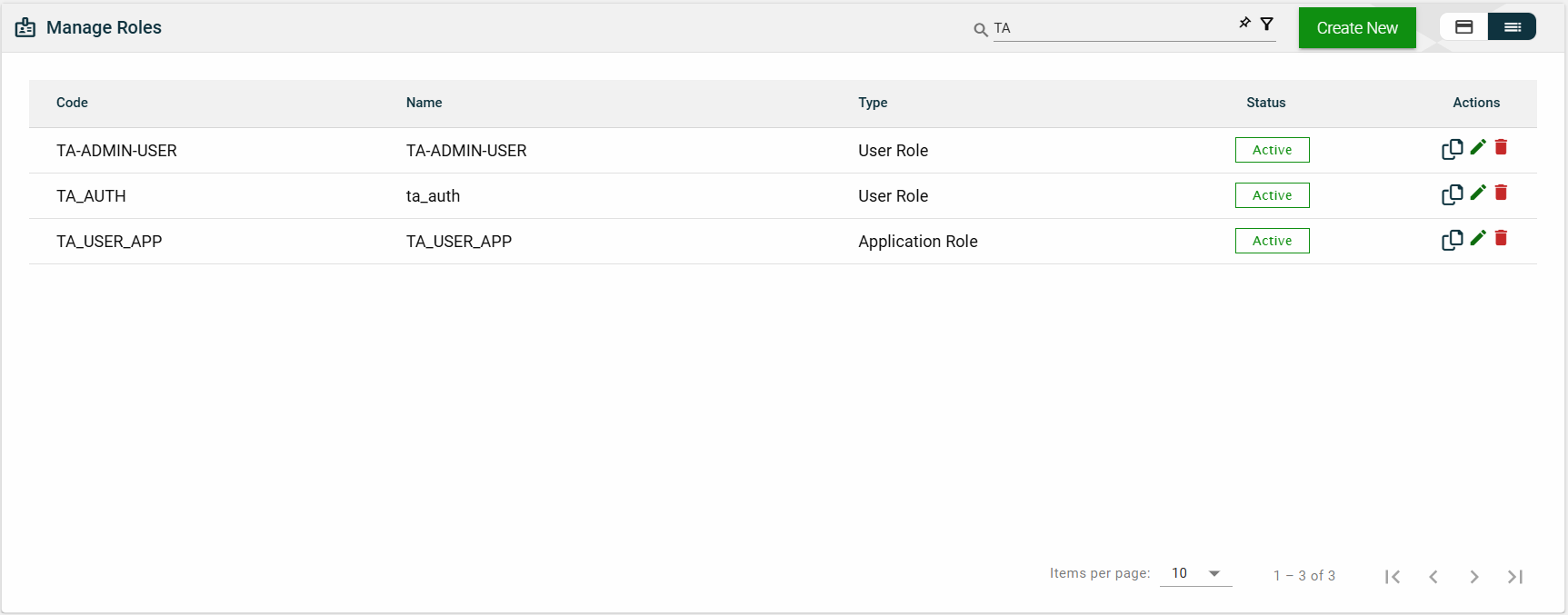
Filter
The following filters are available on both card and list views:
Effective Date
Product
Role Code
Role Name
Role Type
For example, entering a partial role name can filter the list.
Sort
The following columns on the list view can be sorted:
Code
Name
Type
Status
Role Details
Role Details
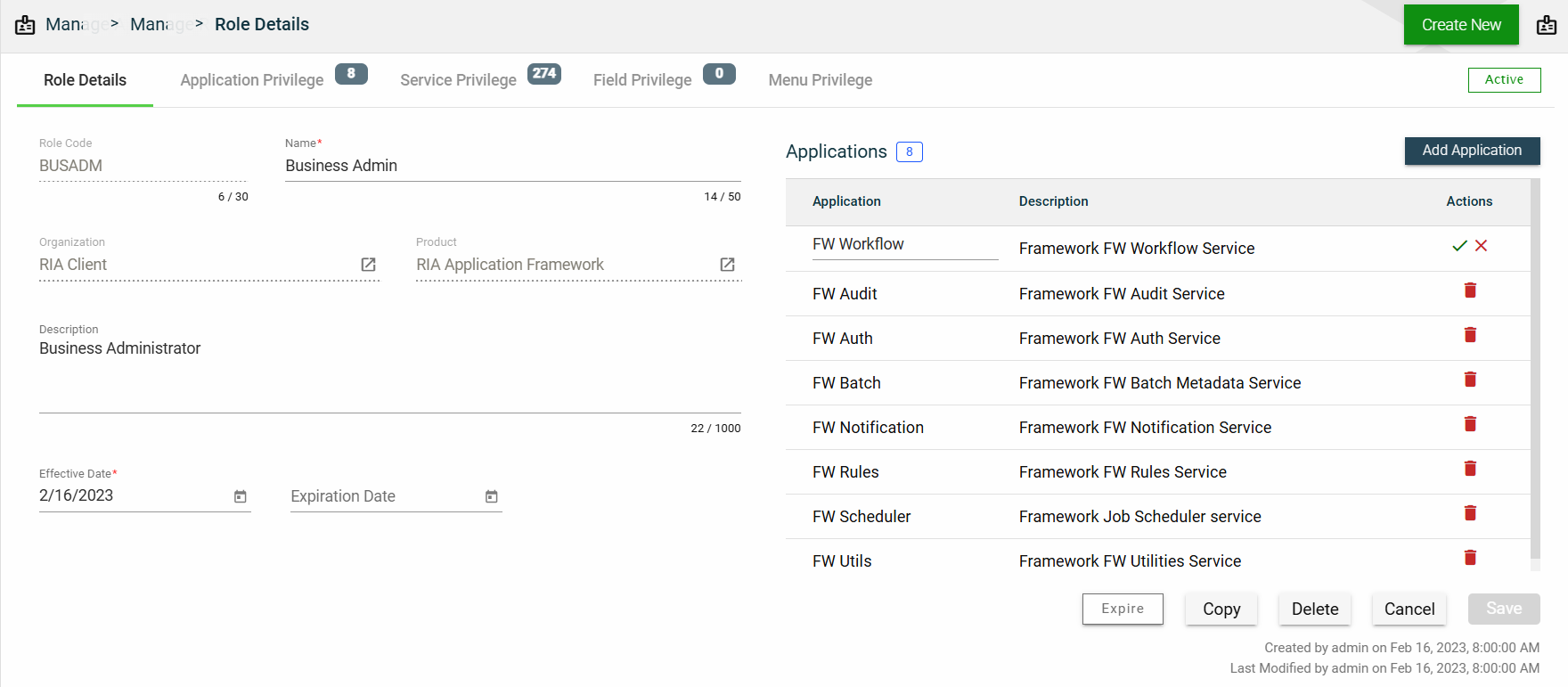
The Role Details tab shows all the information you added when creating a role. For more information about the fields, see Create a role.
This tab allows you to update all the fields except for the Role Code, Role Type, Product, and Organization. Additionally, you can choose to expire, copy, or delete the selected role from this tab.
This tab also lists all applications that can be accessed with the selected role. You can add an application by clicking Add Application.
You can also delete an application from the list by clicking .
To view the application privileges, see Application Privilege. To view the application details, click on the Application Name hyperlink.
Application Privilege
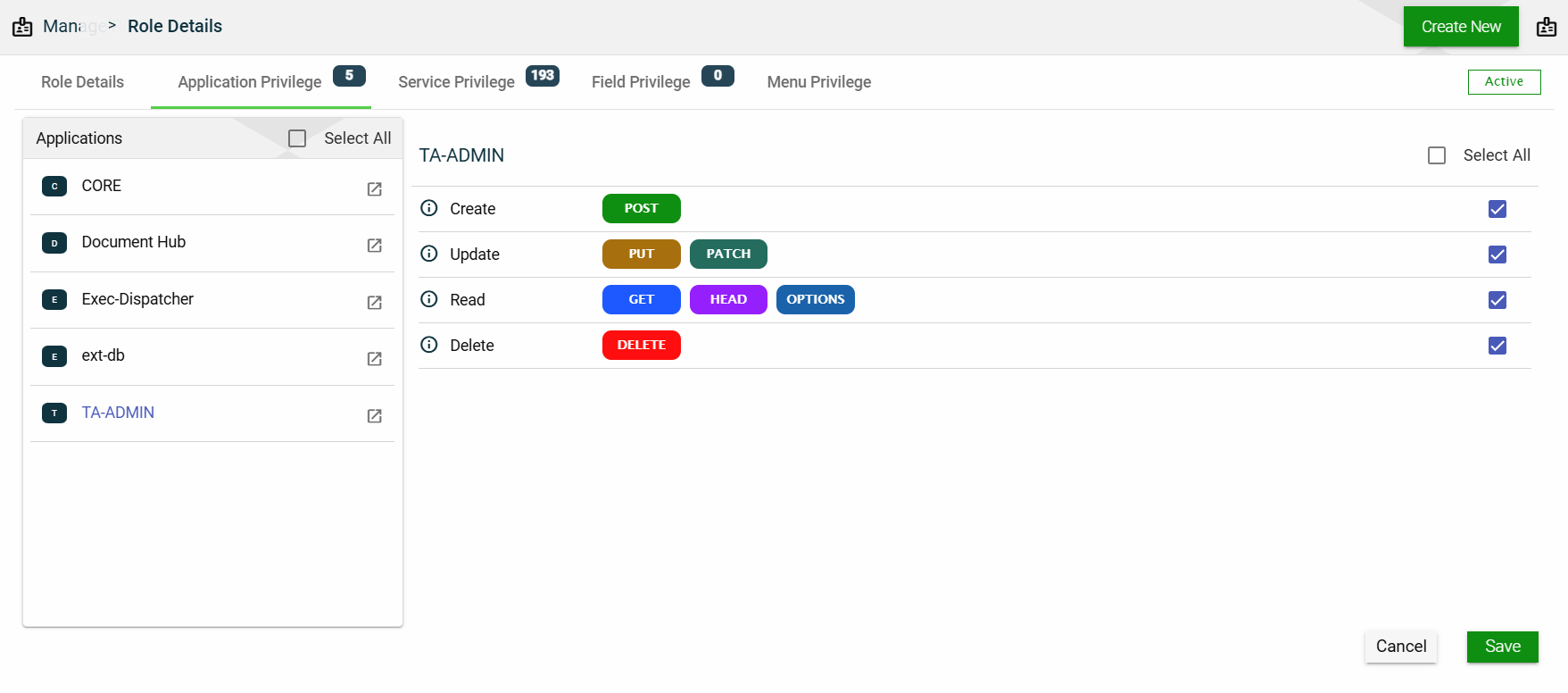
This section controls the operation access for each application associated with the selected role. The same applications listed in the Role Details will be the same applications listed in this section.
To assign an operation access to an application, follow these steps:
Select an application.
Tick all the operation access you want to apply to the selected application.
Click Save.
Service Privilege
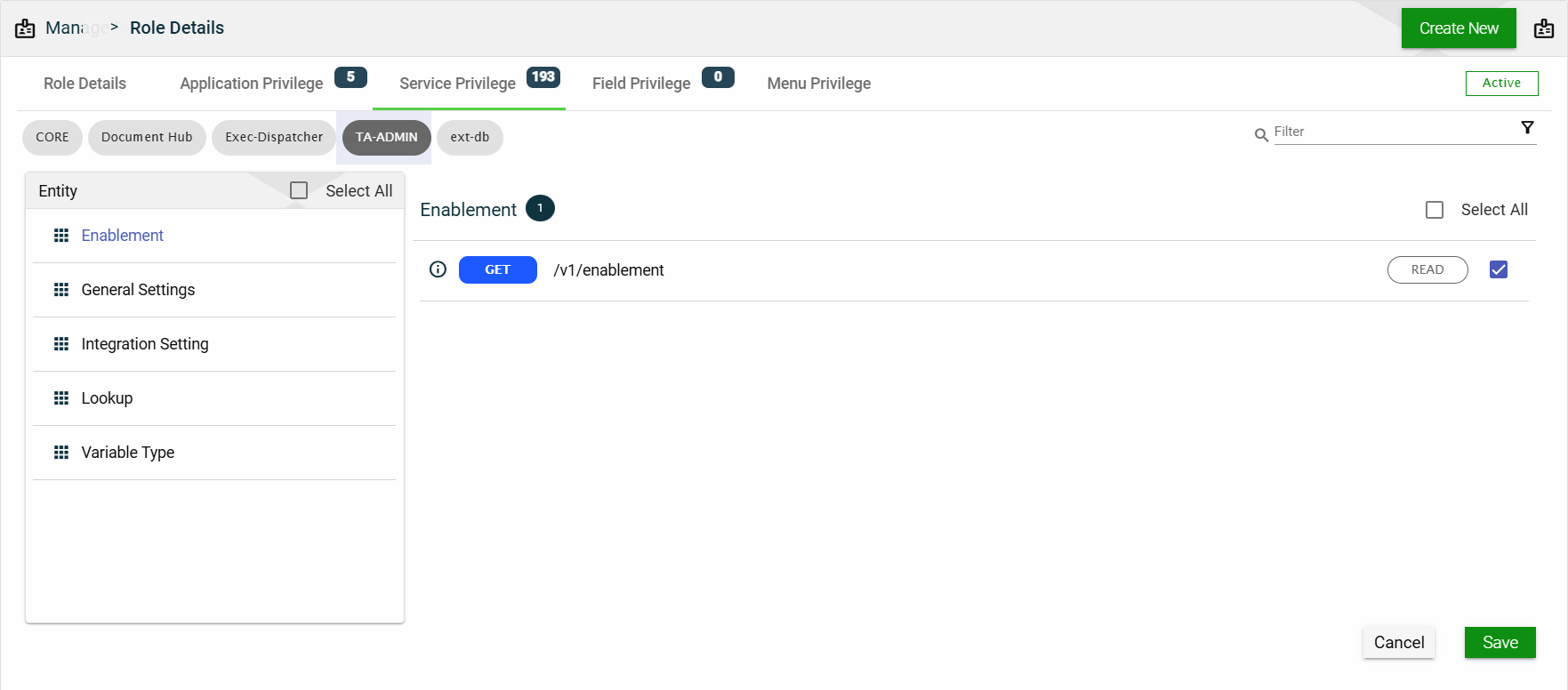
This section controls access to every single REST service associated with the applications listed in the Role Details.
Each application lists all the entities configured to it. When you select an entity, all the services and the access for each service are displayed.
Field Privilege
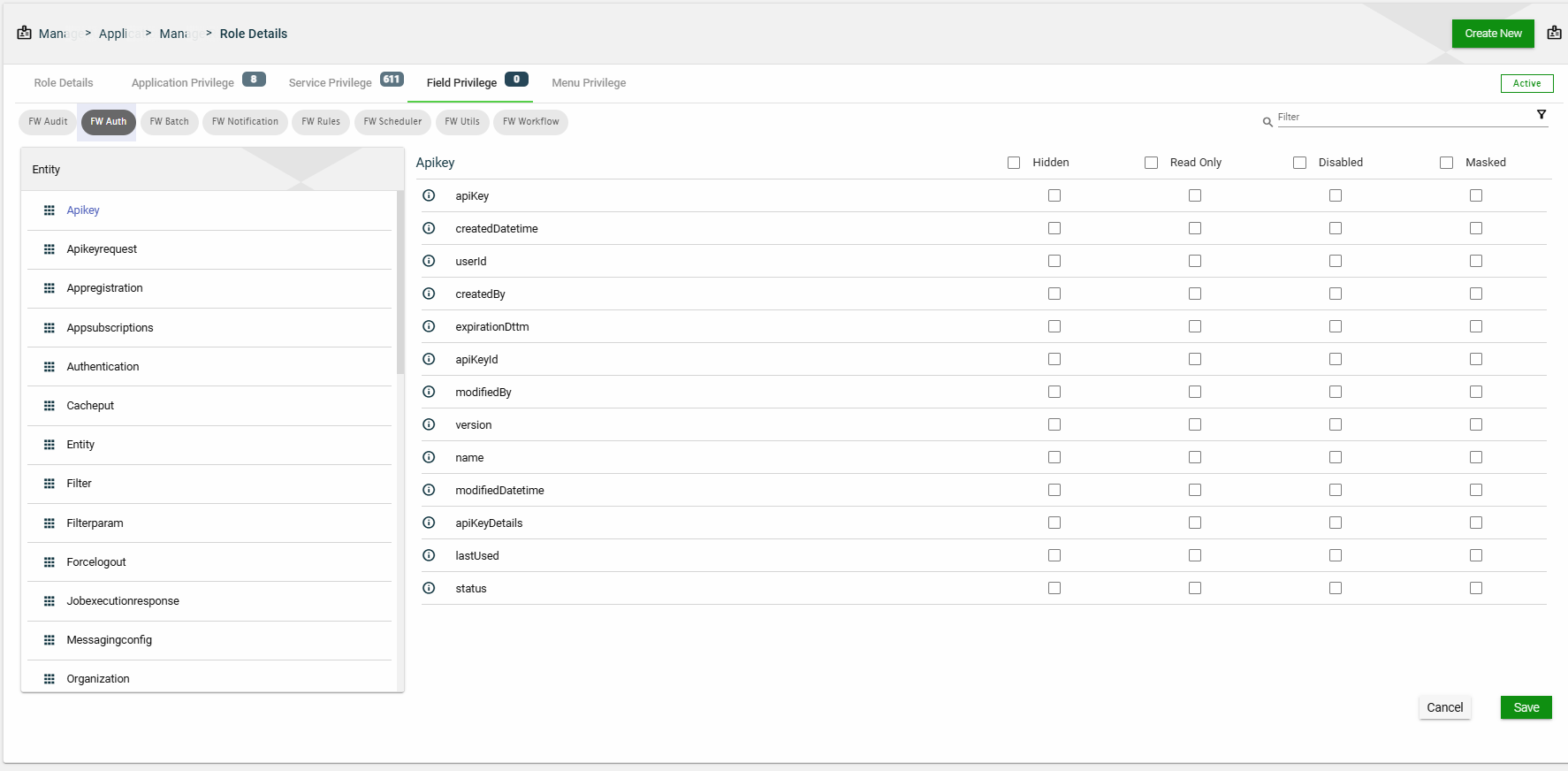
This section controls the field-level access of entities associated with the applications listed in the Role Details.
Entities configured with fields are displayed for each application associated with the selected role. When you select an entity, all the fields configured to it are displayed. You have the option to select the following setting:
Disabled
Hidden
Read Only
Masked
Menu Privilege
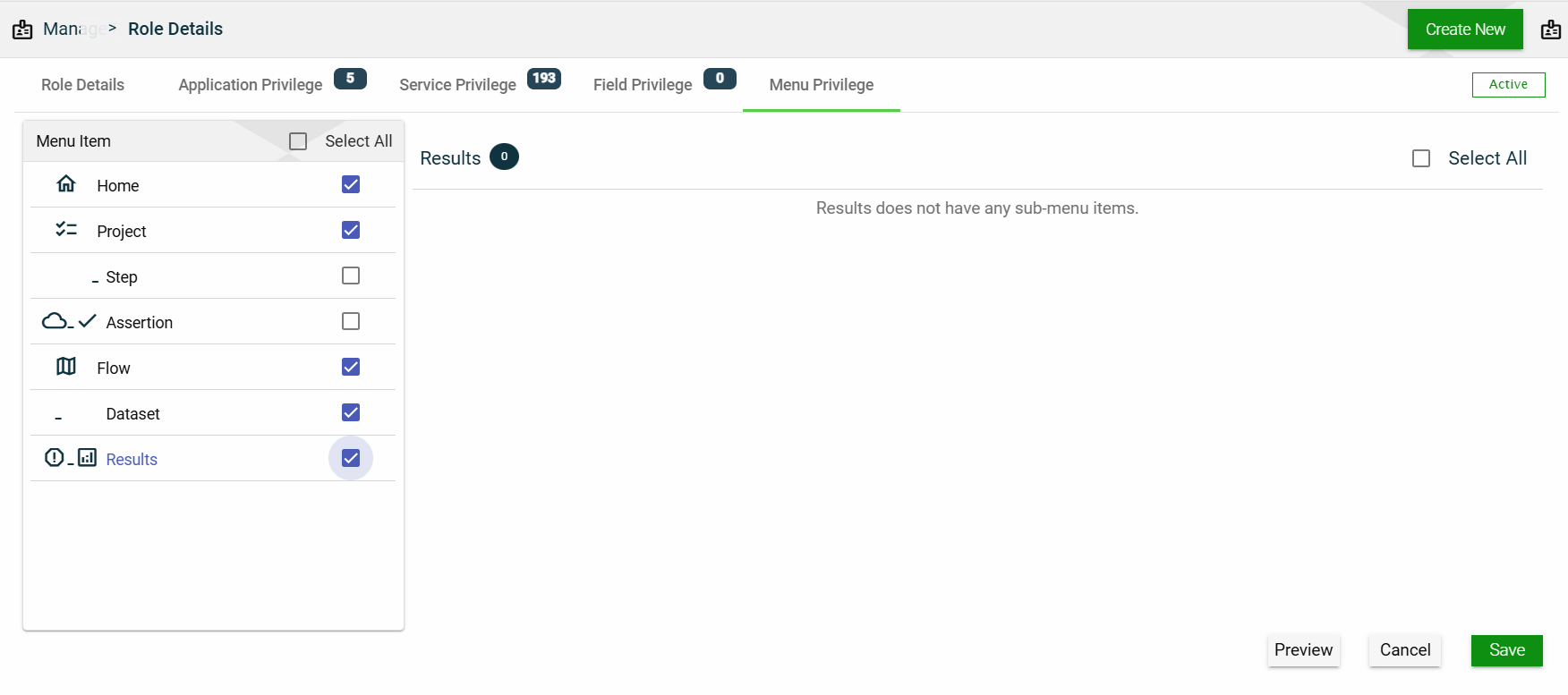
This section allows you to manage access to menu items. All available menu items are listed here, and selecting one will show all of its sub-menu items.
To display a menu item to a user with the selected role, tick the checkbox. If you don’t want to display that menu item to the user, untick the checkbox.
The Role Groups module allows you to create groups of multiple Roles that can be easily assigned to Organizations. This simplifies the role assignment process, allowing organizations to manage the roles effectively and ensure that the correct privileges are assigned to the appropriate individuals.
Create a role group
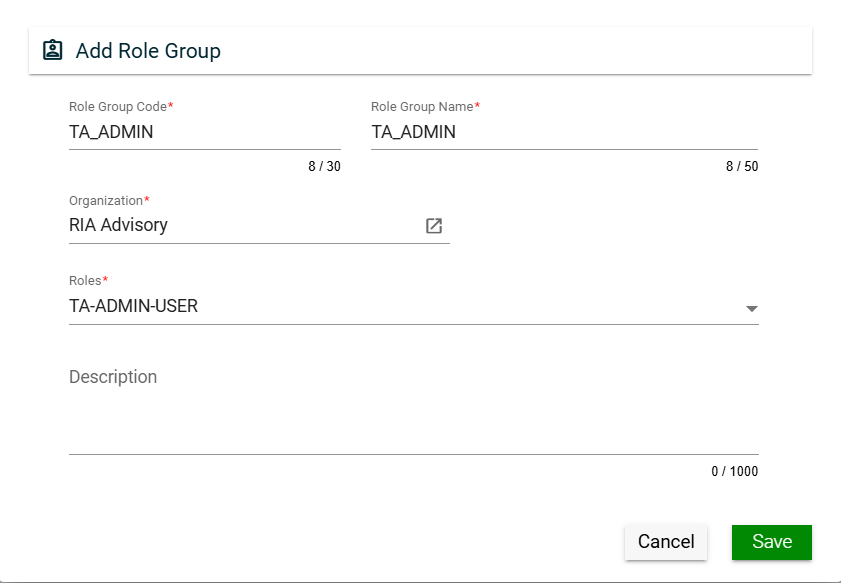
To create a role group, click Create New and enter valid values in the following fields:
Field
Description
Role Group Code
Code of the role group.
Mandatory: Yes
Role Group Name
Name of the role group.
Mandatory: Yes
Organization
Organization for which the role group will be applicable.
To view the details of the selected products, click the go to icon. (similar behavior with product).
For more information about organization, see Organizations.
Mandatory: No
Roles
Roles to be included in the role group.
Only the roles associated with the selected organization will be displayed in the dropdown list.
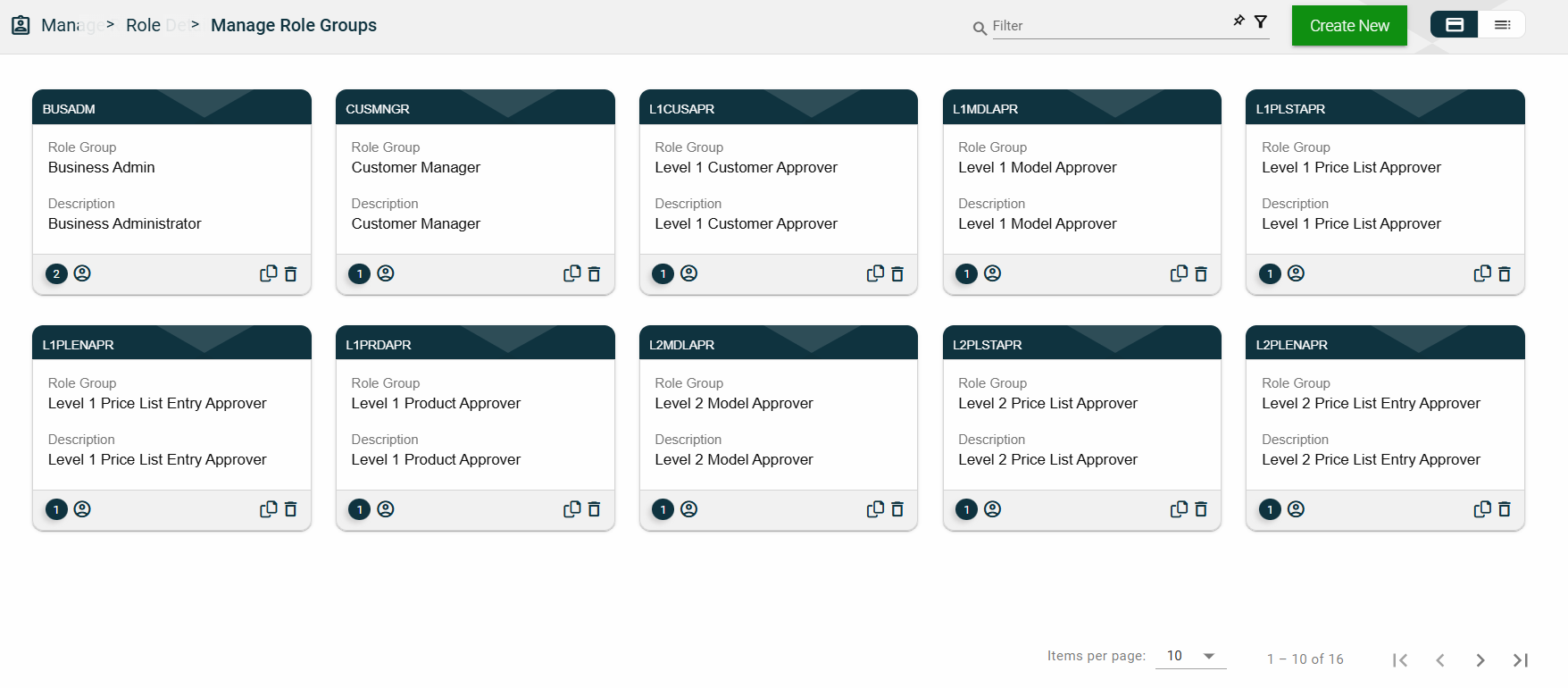
The card view presents all role groups in the form of cards, with the role group code on the card header. The card displays the Role Group name and Description. The card footer displays the number of roles in the role group, a duplicate icon, and a delete icon.
Clicking anywhere on the card, except the duplicate and trash icons, will redirect you to view the role group details.
List View
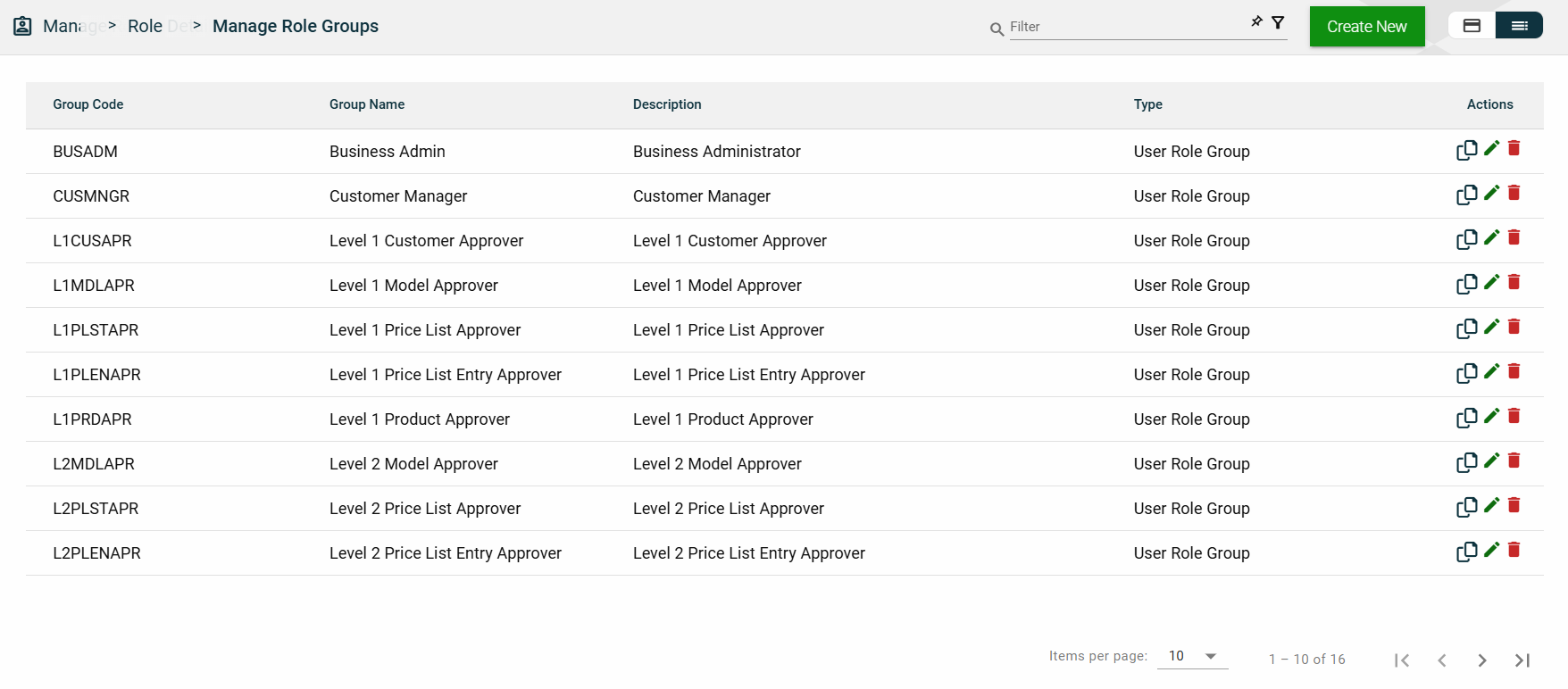
The list view displays all role groups in a table format, listing all available role groups in the framework.
Column Name
Description
Group Code
Code of the role group.
Group Name
Name of the role group.
Description
Additional details of the role group.
Actions
Displays the following icons:
— Clone icon that allows you to clone the selected dataset. When clicked, a popup window is displayed asking you to provide a new Role Group Code and Role Group Name. All other configurations of the selected dataset are copied.
— Edit icon that allows you to edit the role group details.
— Delete icon that allows you to delete the selected role group.
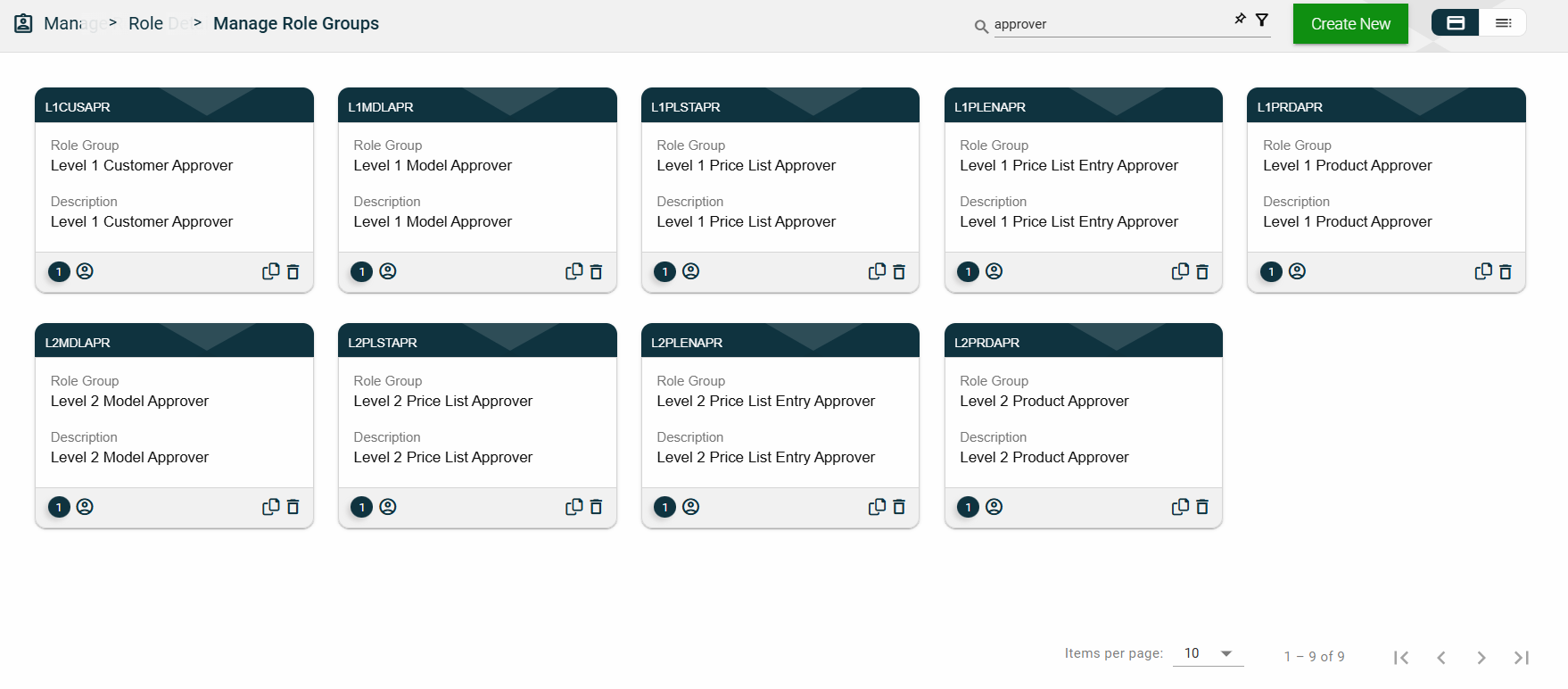
Filter
The following filters are available on both card and list views:
Role Group Code
Role Group Name
Sort
The following columns on the list view can be sorted:
Group Code
Group Name
Description
Role Group Details
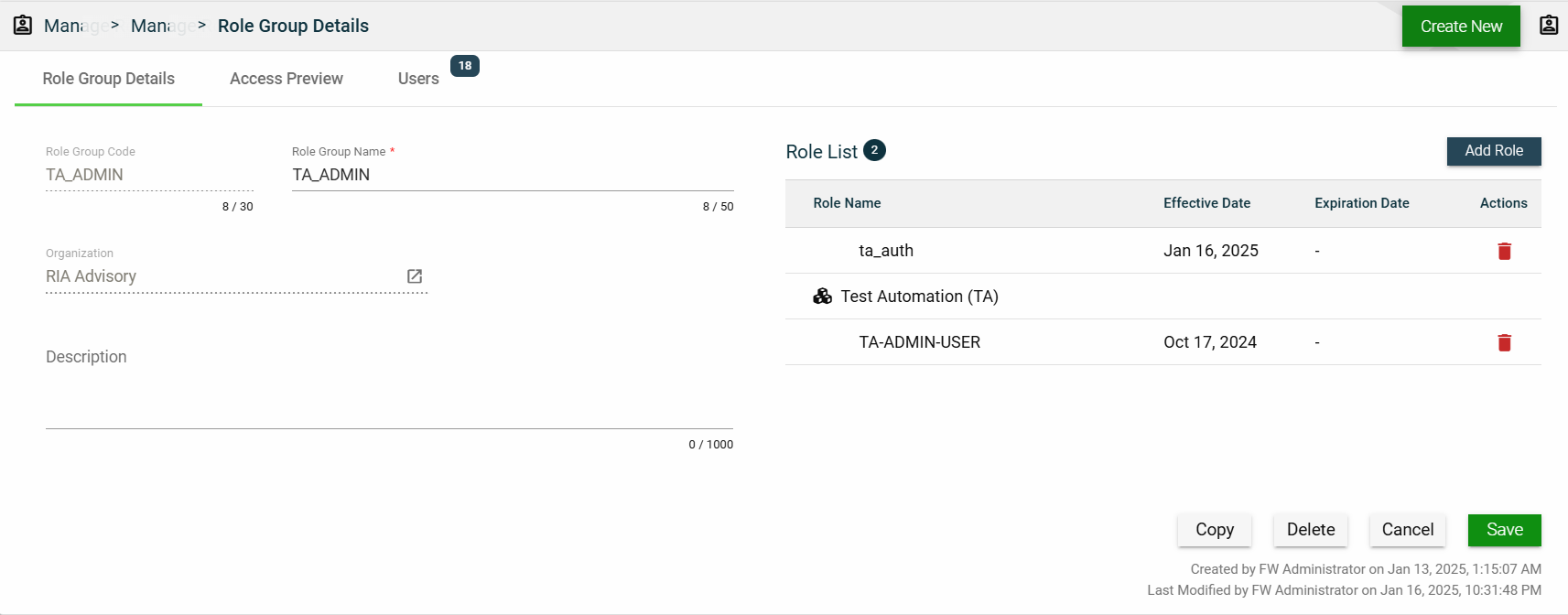
Role Group Details
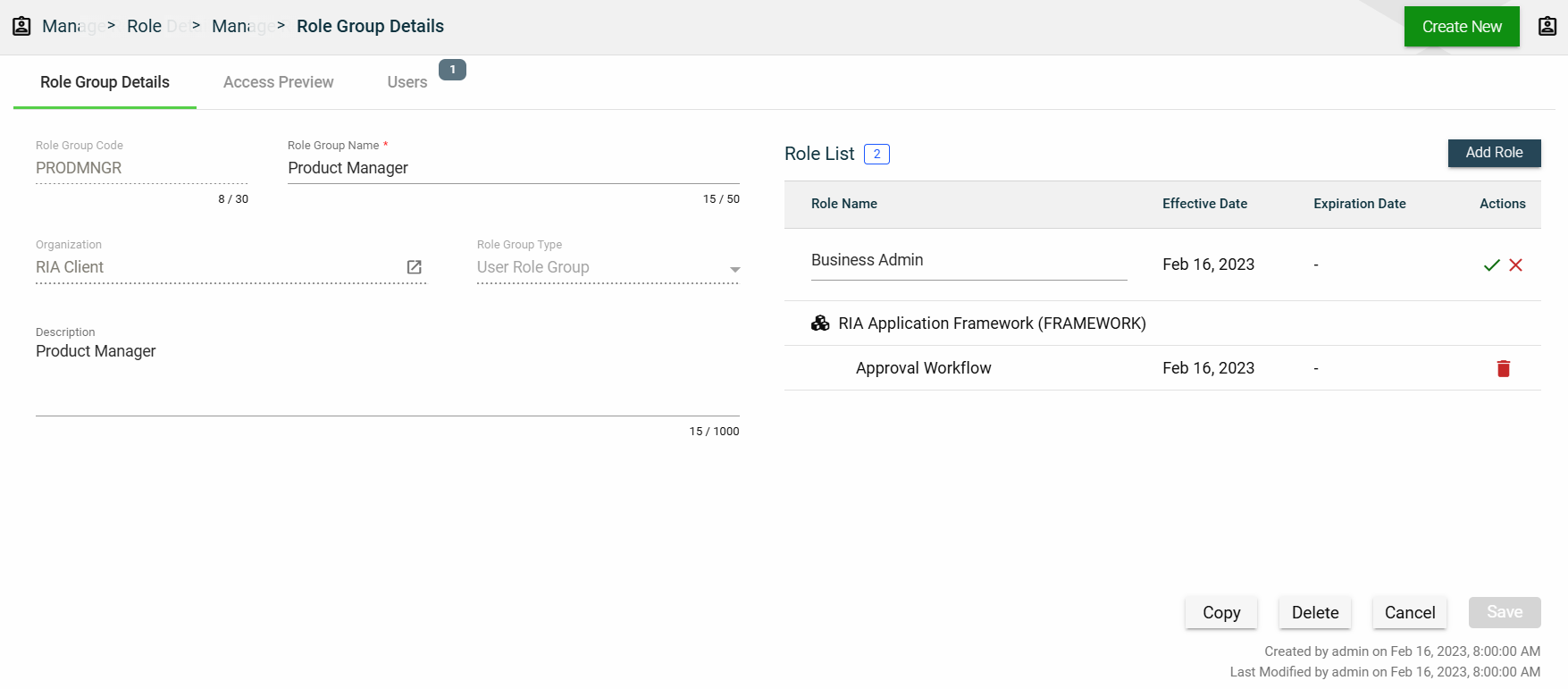
The Role Group Details tab shows all the information you added when creating a role group. For more information about the fields, see Create a role group.\
This tab allows you to update all the fields except for the Role Group Code and Organization. Additionally, you can choose to copy or delete the selected role group from this tab.
The roles added to the role group are displayed in the Role List table. You can also add a new role by clicking Add Role.
You can also delete a role group from the list by clicking .
To view the role details, click on the Role Name hyperlink. This will direct you to the Role Details
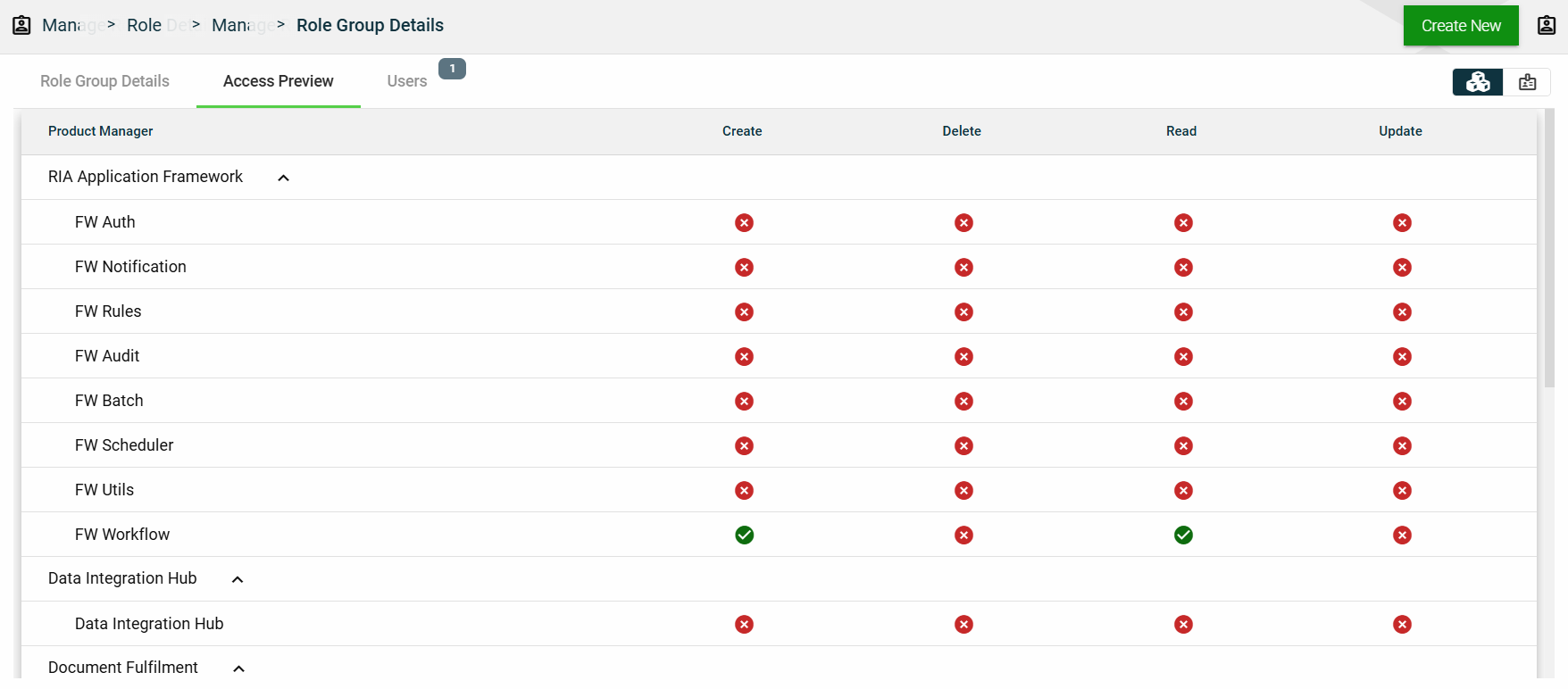
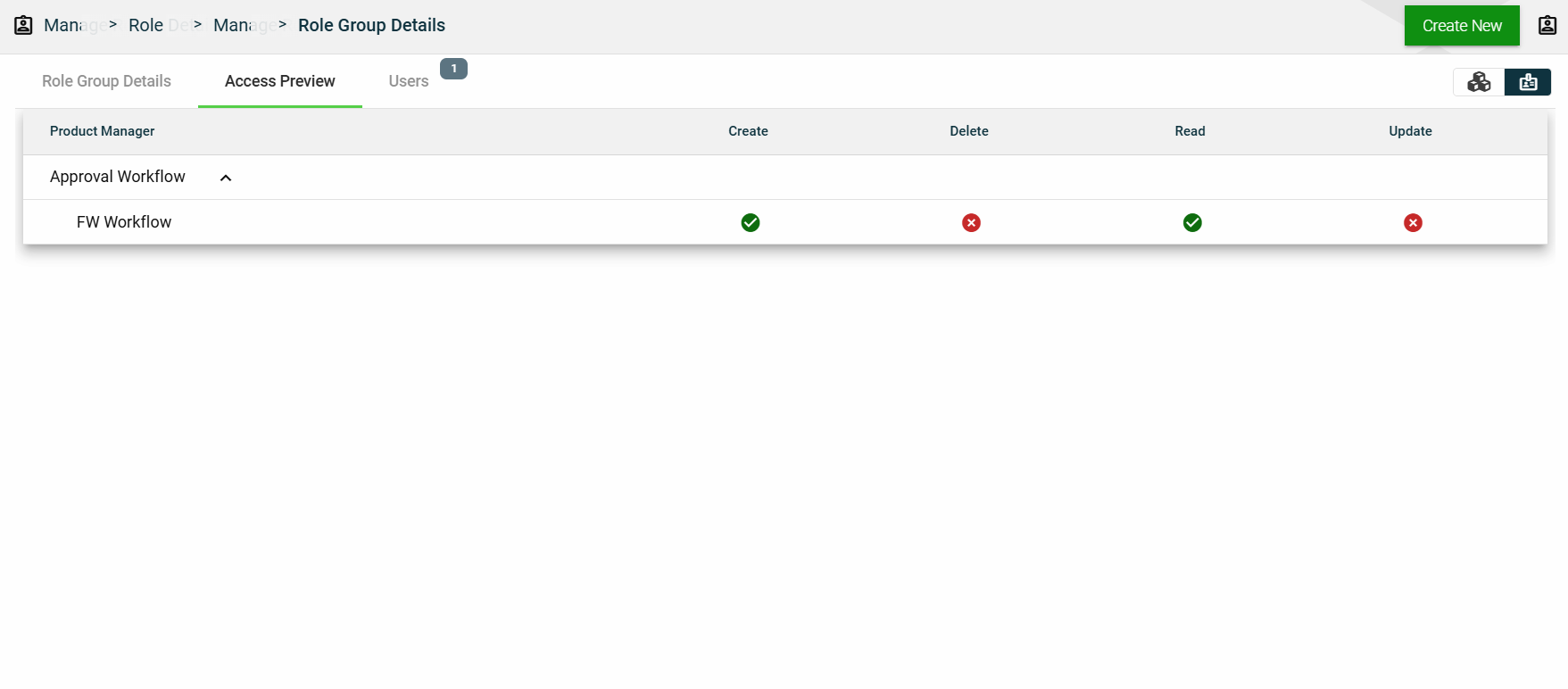
Access Preview
This section summarizes all the privileges given to the applications accessed by the role group. You can view the access preview in the following ways:
By Products
By Roles
Users
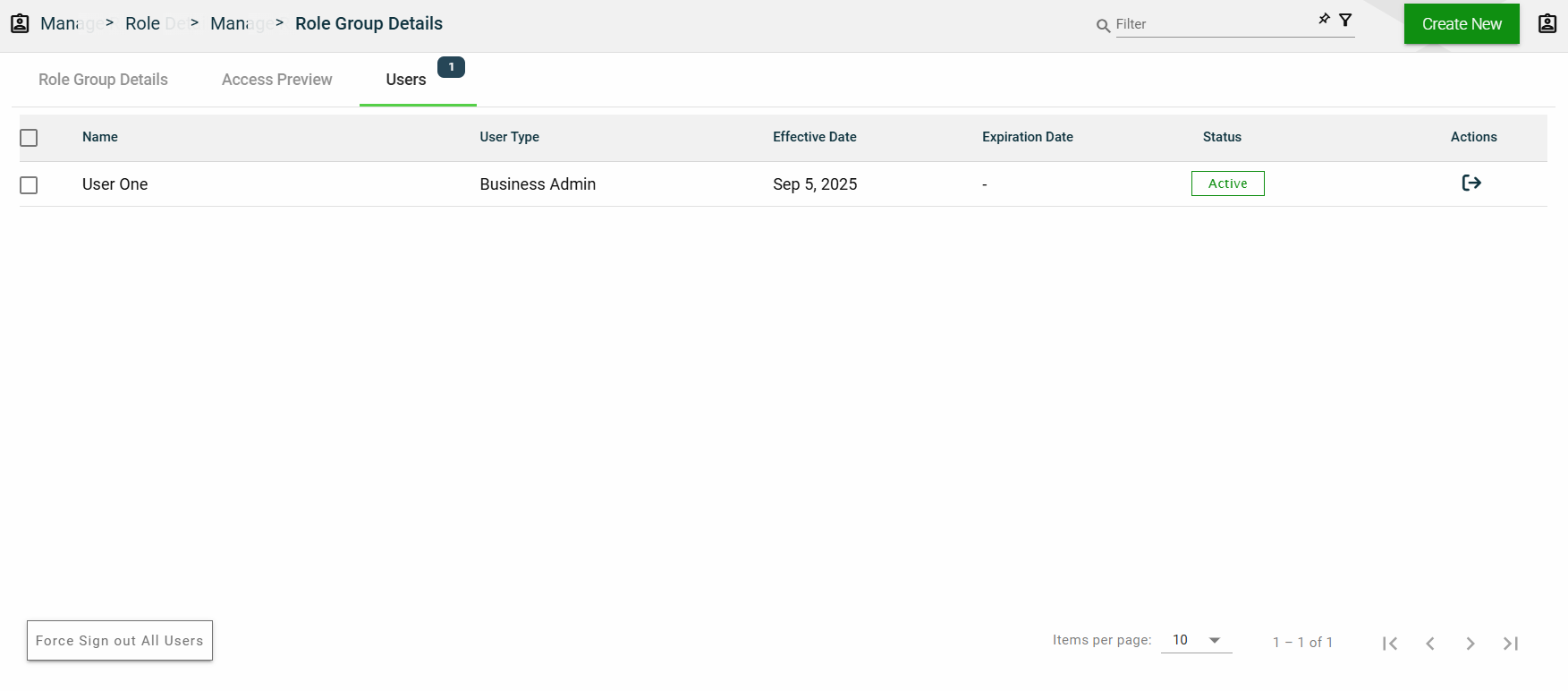
This section lists all users assigned in the role group.
1.6 - Users
Overview
Users represent the users of the Products configured for your Organization. The following are the various types of users that identify the level of access across the product suite:
User Type
Organization
Access
Framework Admin
Products owners
Full access to framework modules and services
No access to products purchased by clients
Business Admin
Client organization
Limited access to framework modules and services
Limited access to purchased products based on assigned roles and privileges
Business User
Client organization
No access to framework modules and services
Limited access to purchased products based on assigned roles and privileges
Create a user
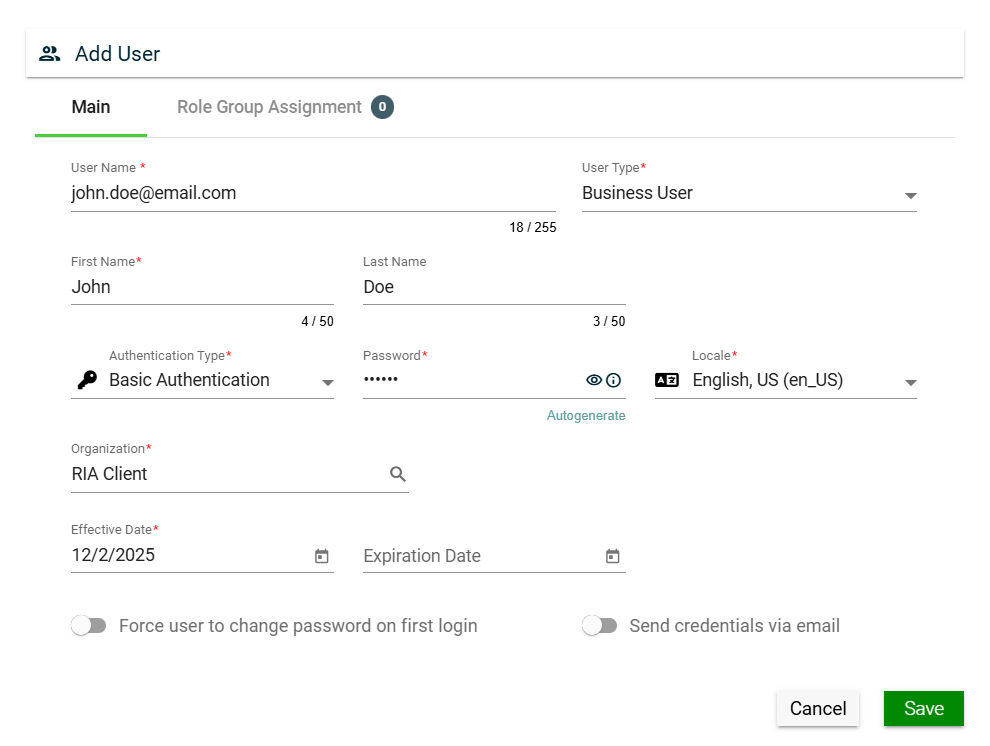
To create a user, click Create New and enter valid values in the following fields:
Field
Description
User Name
Username to be used when loggin in the product.
Mandatory: Yes
User Type
Type of the user. The following are the possible values:
Business User — end user of the product.
Admin User — administrator in the organization who controls the settings in the framework or product.
Framework Admin — super user who has access to all modules and functionalities of the framework and product.
When creating a new user using a business user, the user type is automatically populated with Business User.
Mandatory: No
First Name
First name of the user.
Mandatory: Yes
Last Name
Last name of the user.
Mandatory: No
Company Code
Code of the company where the user belongs to.
Mandatory: Yes
Authentication Type
Type of authentication to be used when logging in the product. The following are the possible values:
Basic Authentication
OAuth 2.0 Authentication
Mandatory: Yes
Password
Password you need to supply when you select Basic Authentication.
You can also opt to let the system generate a password for you by clicking the Autogenerate link.
To view the password, click eye icon.
Mandatory: Yes
Locale
Primary language used in the organization.
Mandatory: No
Organization
Organization where the user belongs to.
Mandatory: Yes
Comments
Additional details of the user.
Mandatory: No
Effective Date
Date when the user will be active.
Mandatory: Yes
Expiration Date
Date when the user will no longer be active.
Mandatory: No
Force user to change password on first login
If this setting is enabled, users are forced to change their password on their first login.
Default: Enabled
Send credentials via email
If this setting is enabled, configured User Name and Password will be sent to the user via email.
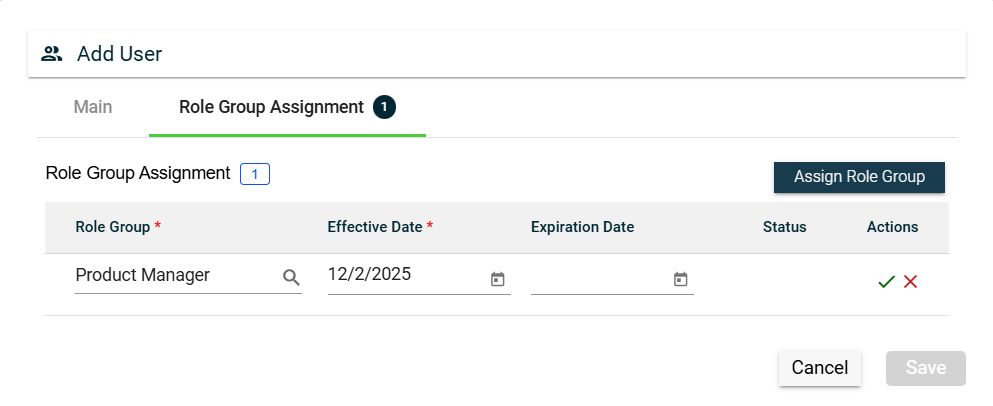
To assign a role group to your user, follow these steps:
Navigate to the Role Group Assignment tab.
Click the Assign Role Group button.
Search for an available Role Group. To configure a role group, see Role Group.
Set the Effective Date.
Set the Expiration Date.
To save, click the check mark.
To cancel the role group assignment, click X.
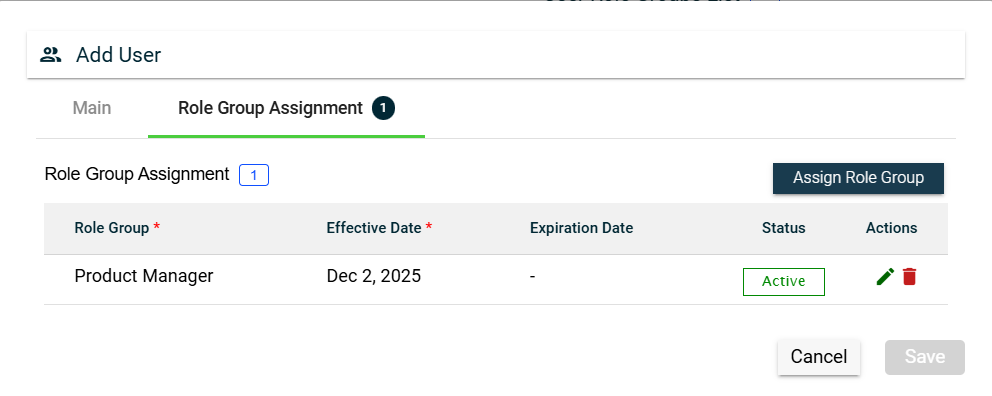
To assign another role group, follow the steps above.
To edit a role group, click and make the necessary changes.
To delete a role group, click .
Views
Card View
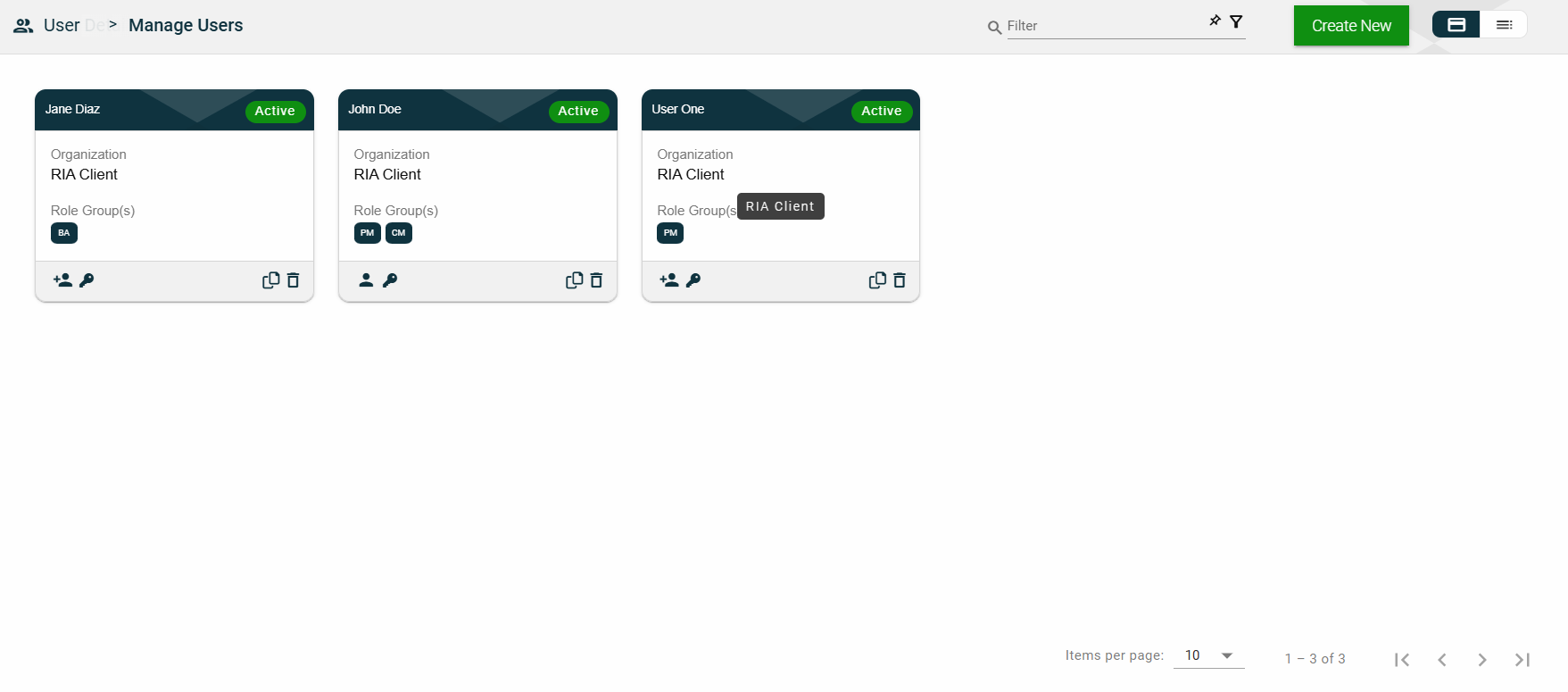
The card view presents all users in the form of cards, with the user’s first and last names and the status on the card header. The card displays the Organization name and Role Group(s). The card footer displays an icon indicating the user type, a duplicate icon, and a delete icon.
Clicking anywhere on the card, except the duplicate and trash icons, will redirect you to view the User Details.
List View
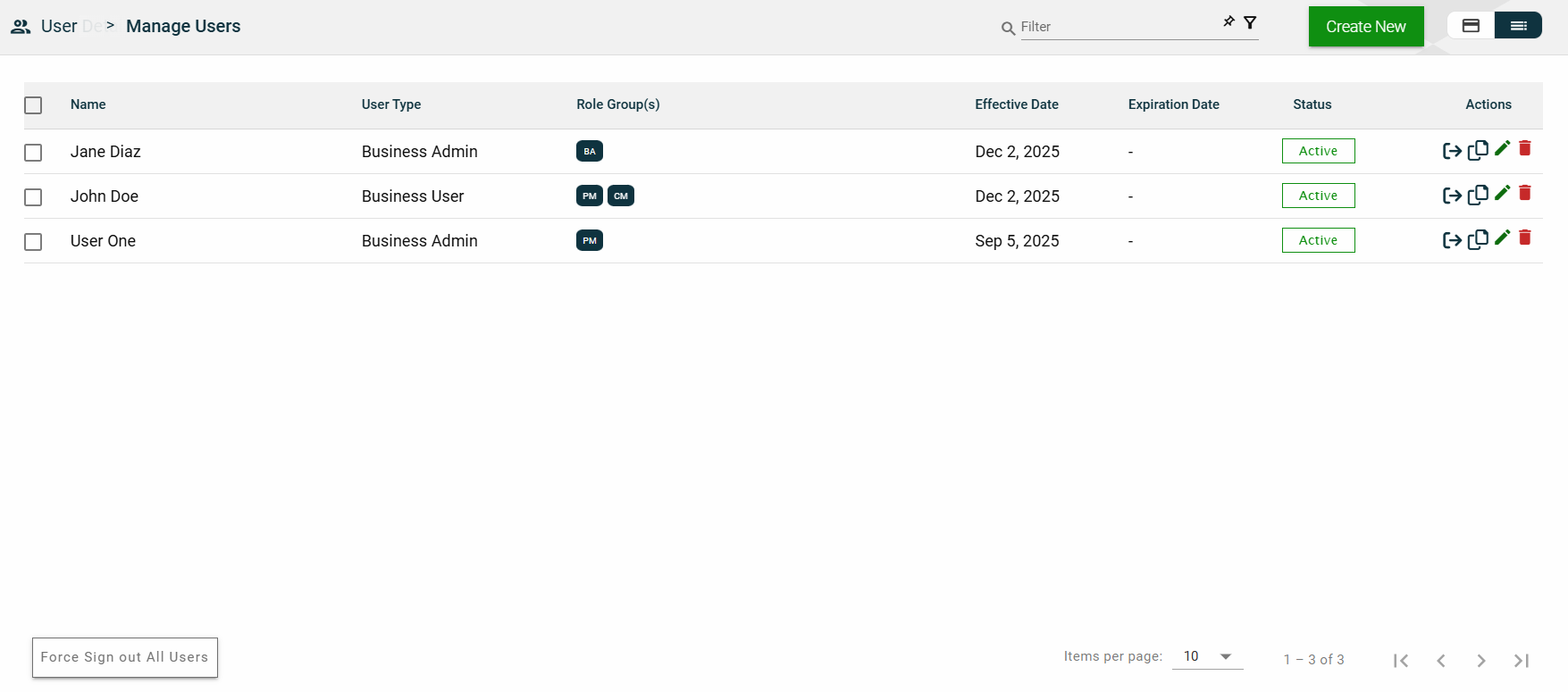
The list view displays all users in a table format.
Column Name
Description
Name
Code of the role group.
User Type
Type of the user.
Role Group(s)
Role groups where the user belongs to.
Effective Date
Date when the user becomes active.
Expiration Date
Date when the user becomes no longer active.
Status
Status of the user.
Actions
Displays the following icons:
— Clone icon that allows you to clone the selected user. When clicked, a popup window is displayed asking you to provide a new User Name, First Name, Company Code, and Password. All other configurations of the selected user are copied.
— Edit icon that allows you to edit the user details.
— Delete icon that allows you to delete the selected user.
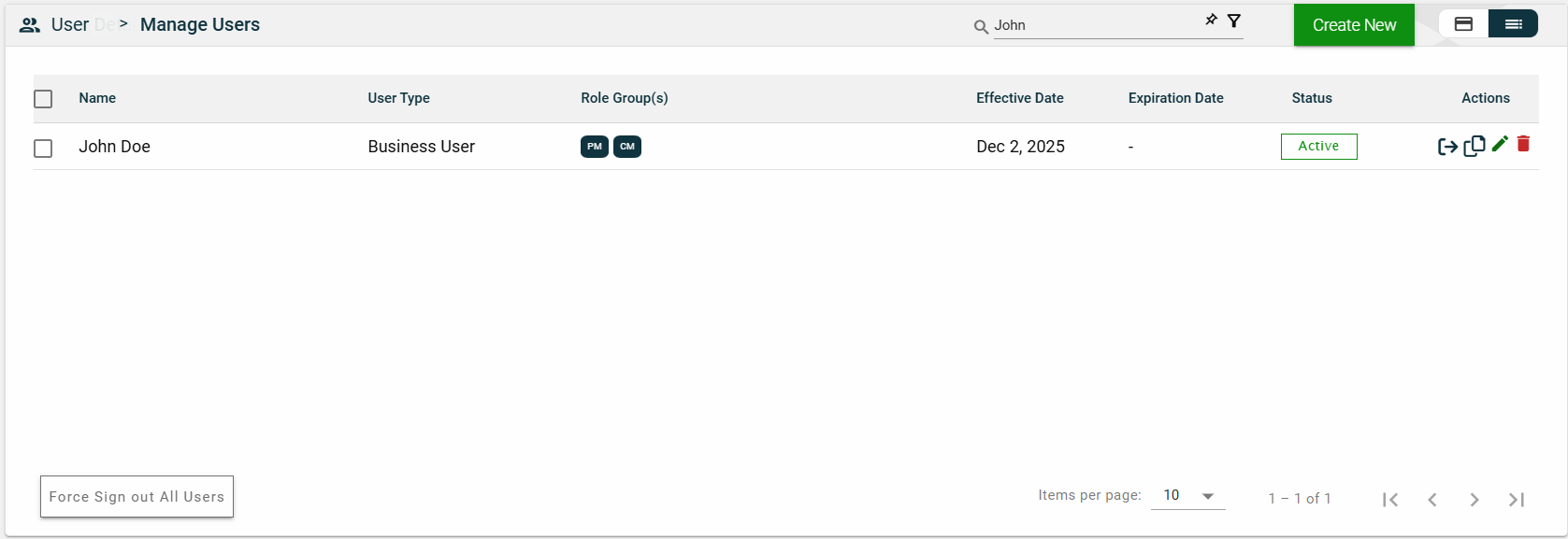
Filter
To filter the list, you can enter a partial or complete name. For example,
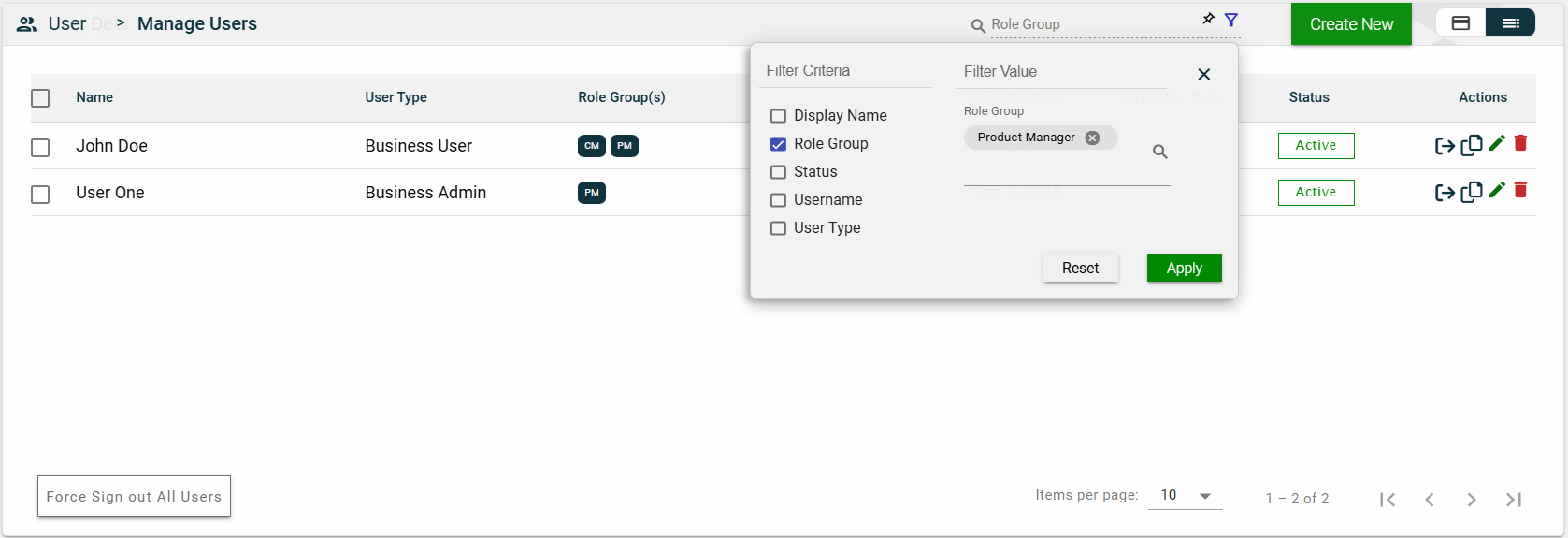
You can also specify a parameter and enter the filter value for it. The following filters are available on both card and list views:
Display Name
Role Group
Status
Username
User Type
For example, you can select the Role Group and select a value from the dropdown list.
Sort
The following columns on the list view can be sorted:
Name
User Type
Effective Date
Expiration Date
Status
User Details
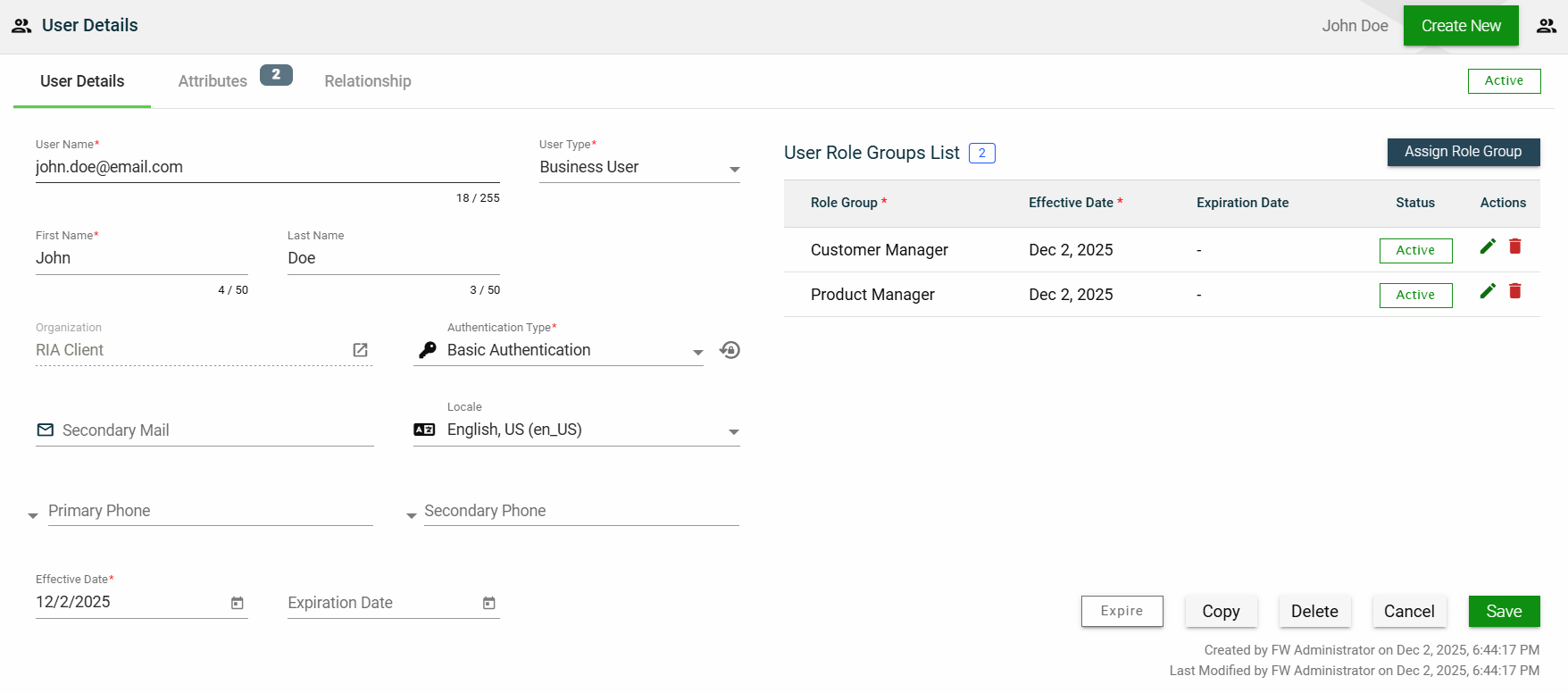
The User Details tab shows all the information you added when creating a role group. For more information about the fields, see Create a role group. Additionally, this tab allows you to add the following user information:
Secondary Mail — alternate email address for backup purposes.
Primary Phone — primary contact number of the user.
Secondary Phone — alternate contact number of the user.
This tab allows you to update all the fields except for the User Type and Organization. Additionally, you can choose to expire, copy, or delete the selected role group from this tab.
The role groups to which the user belongs are displayed in the User Role Groups List table. You can also add a new role by clicking Assign Role Group.
You can edit the effective and expiration dates of a role group. You can also delete a role group from the list by clicking .
To view the role group details, click on the Role Group hyperlink.
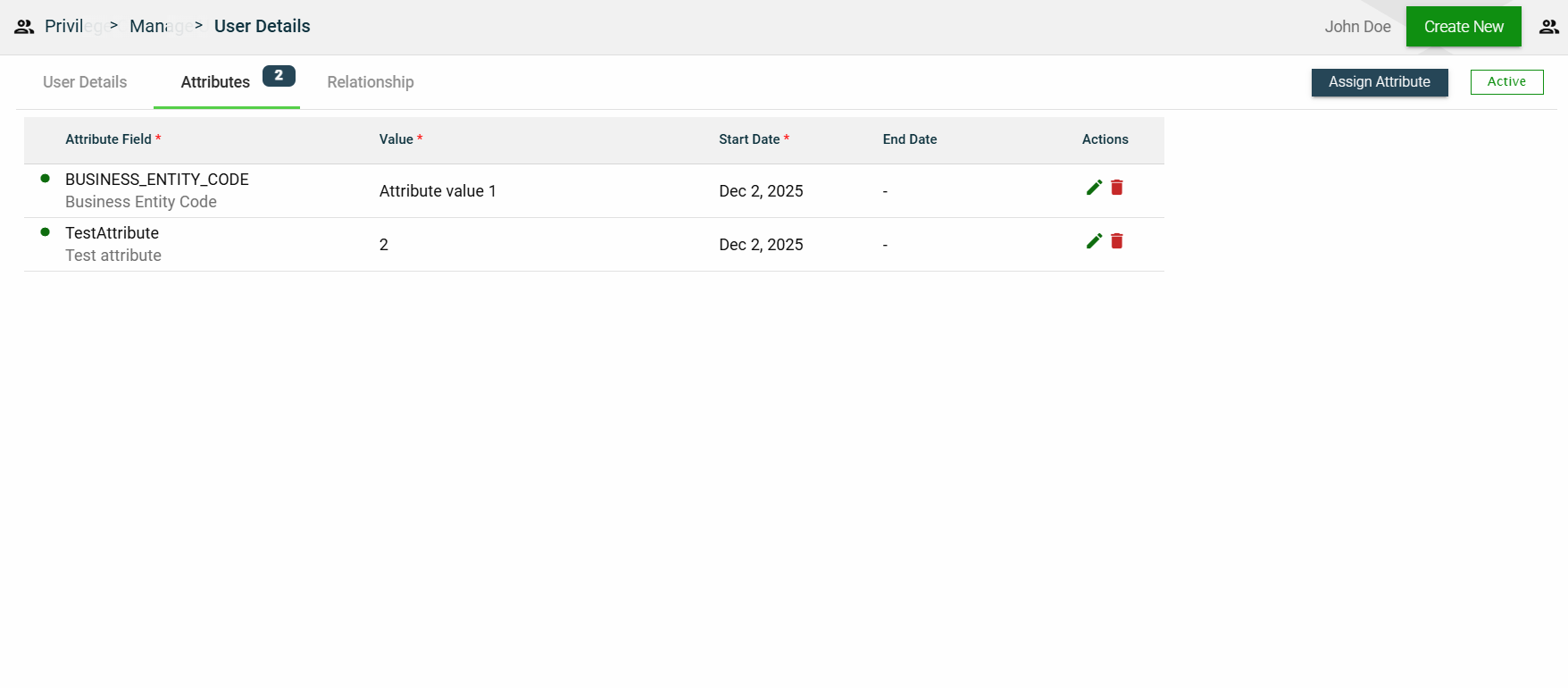
Attributes
The attributes tab displays the properties associated with the user, including their value, effective date, and expiration date. It also allows users to add, edit, or delete an attribute.
1.7 - Privilege Codes
Overview
Privilege Codes provide detailed control over access to application resources, services, and individual fields.
These codes serve as a centralized permission layer and can be applied at various levels:
Application-Level — Control access to REST endpoints and operations such as create, read, update, and delete.
Service-Level — Control access to internal framework services and capabilities.
Field-Level — Control visibility and behavior of fields in API requests/responses or UI forms.
Privilege Codes are both configurable and extensible. The framework comes with a set of commonly used privilege codes out of the box, and developers can create additional custom privilege codes based on the specific needs of their applications.
Application-level privileges
Code
Name
Description
Allowed Methods
CREATE
Create
Grants permission to create resources.
POST
DELETE
Delete
Grants permission to delete existing resources.
DELETE
READ
Read
Grants read-only access to retrieve resources.
GET, HEAD, OPTIONS
UPDATE
Update
Grants permission to modify existing resources.
PUT, PATCH
Service-level privileges
Code
Name
Description
Y
Yes
Indicates that access to the service is permitted. Used for service-level privilege checks.
Field-level privileges
Code
Name
Description
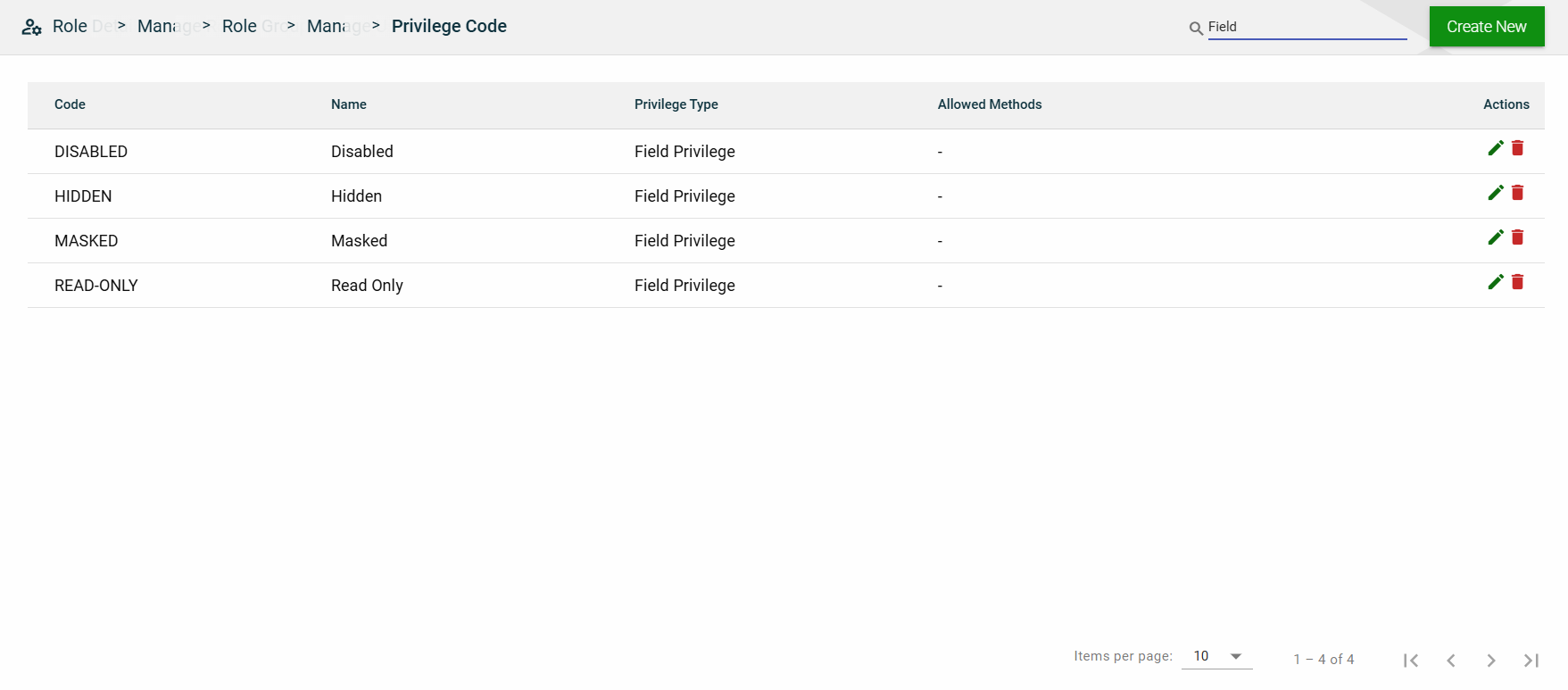
DISABLED
Disabled
Field is visible but not editable.
HIDDEN
Hidden
Field is not visible to the user.
MASKED
Masked
Field is visible but displayed in masked form (e.g., ****).
READ-ONLY
Read Only
Field value can be viewed but not modified.
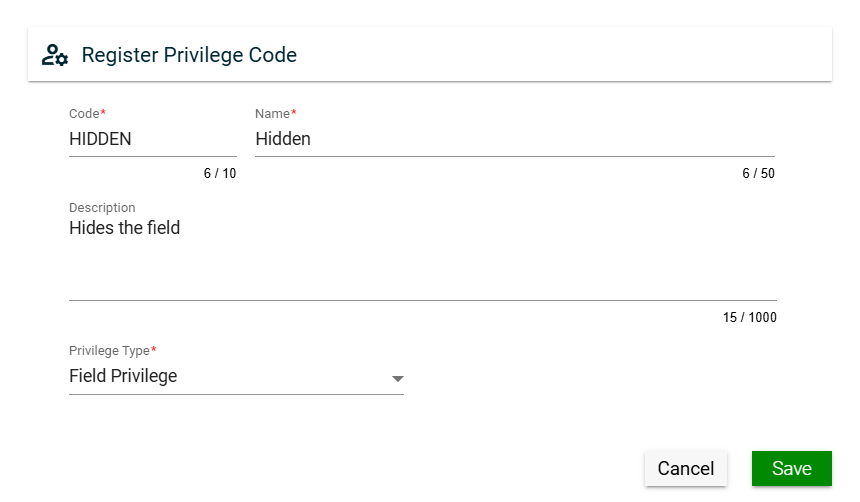
Create a privilege code
To create a privilege code, click Create New and enter valid values in the following fields:
Field
Description
Code
Code of the privilege.
Mandatory: Yes
Name
Name of the privilege.
Mandatory: Yes
Description
Additional details of the privilege.
Mandatory: Yes
Privilege Type
Specifies the level for which you want to define a privilege. The following are the possible values:
Application Privilege — when selected, you also have to specify allowed HTTP methods.
Service Privilege
Field Privilege
Menu Item Privilege
Mandatory: Yes
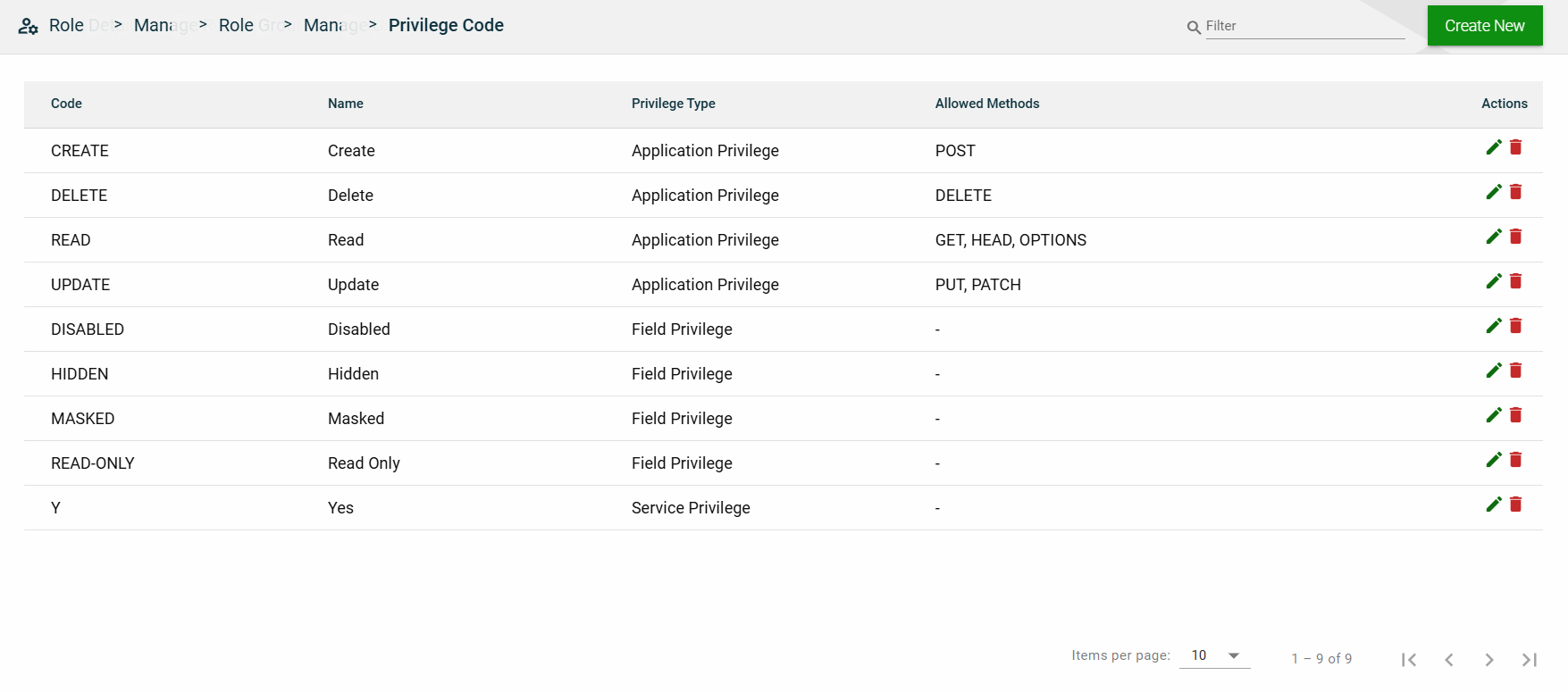
View
Field
Description
Code
Code of the privilege.
Name
Name of the privilege.
Privilege Type
Specifies the level for which you want to define a privilege. The following are the possible values:
Application Privilege
Service Privilege
Field Privilege
Menu Item Privilege
Allowed Methods
Specifies the allowed HTTP methods for an application privilege.
This column is empty for other privielege types.
Actions
Displays the following icons:
— Edit icon that allows you to edit the privilege code details.
— Delete icon that allows you to delete the selected privilege code.
Filter
You can filter the list by entering a partial or full name in the search field.
Sort
The following columns on the list view can be sorted:
 .
.
 .
.
 and make the necessary changes.
 .
.
 — Clone icon that allows you to clone the selected dataset. When clicked, a popup window is displayed asking you to provide a new Application Name and Application Context. All other configurations of the selected dataset are copied.
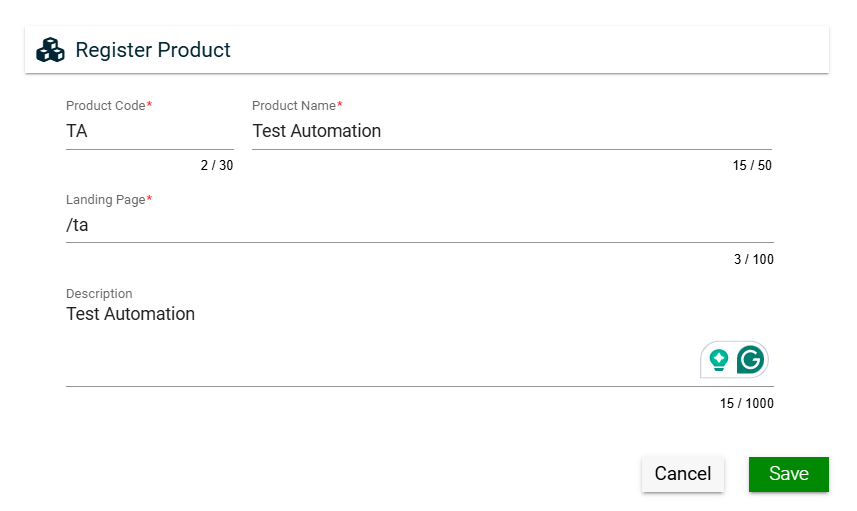
 — Clone icon that allows you to clone the selected dataset. When clicked, a popup window is displayed asking you to provide a new Product Code, Product Name, and Landing Page.