Login page
Log in
To access the portal, log in using your valid credentials.
- Enter your email address in the name@company.com textbox.
- Enter your password in the Password textbox. To view your entered password, click the
 .
. - Click the Sign In button.
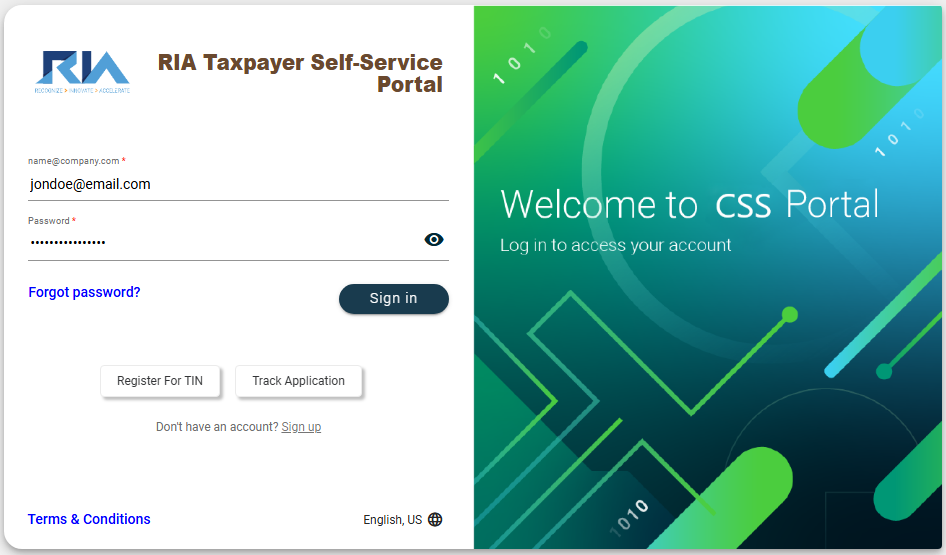
Once the authentication is successful, you will be redirected to one of the following pages:
- TIN selection page if your account has multiple TINs associated with it.
- Dashboard if your account has a single TIN.
Reset password
The login page also has a Forgot password? link to help you regain access if you forget your password.
To reset your password, follow these steps:
Your password should be at least 8 characters and contain at least three of the following:
- Uppercase letters (
A,B, …,Z) - Lowercase (
a,b, …,z) - Number (
0,1, …,9) - Special characters
- Click on the Forgot password? link on the login page.
- Enter the generated Captcha code in the Enter CAPTCHA textbox. If you want a new captcha, click the refresh button.
- Enter your email address in the User ID textbox. The Send OTP button is enabled once an email address is entered.
- Click the Send OTP button. An OTP will be sent to the email you provided in Step 3, and another OTP will be sent to the mobile number associated with your account.
- Enter the received OTPs in the Email OTP and Phone Number OTP fields.
- Enter your preferred new password in the Password field. To view your entered password, click on the .
- Re-enter the new password in the Confirm Password field.
- Click the Change Password button.
To cancel the password reset, click the Return to Login Page link.